change time FORD MONDEO 2014 4.G Owner's Manual
[x] Cancel search | Manufacturer: FORD, Model Year: 2014, Model line: MONDEO, Model: FORD MONDEO 2014 4.GPages: 446, PDF Size: 29.09 MB
Page 328 of 446
Downloaded from www.Manualslib.com manuals search engine App Status
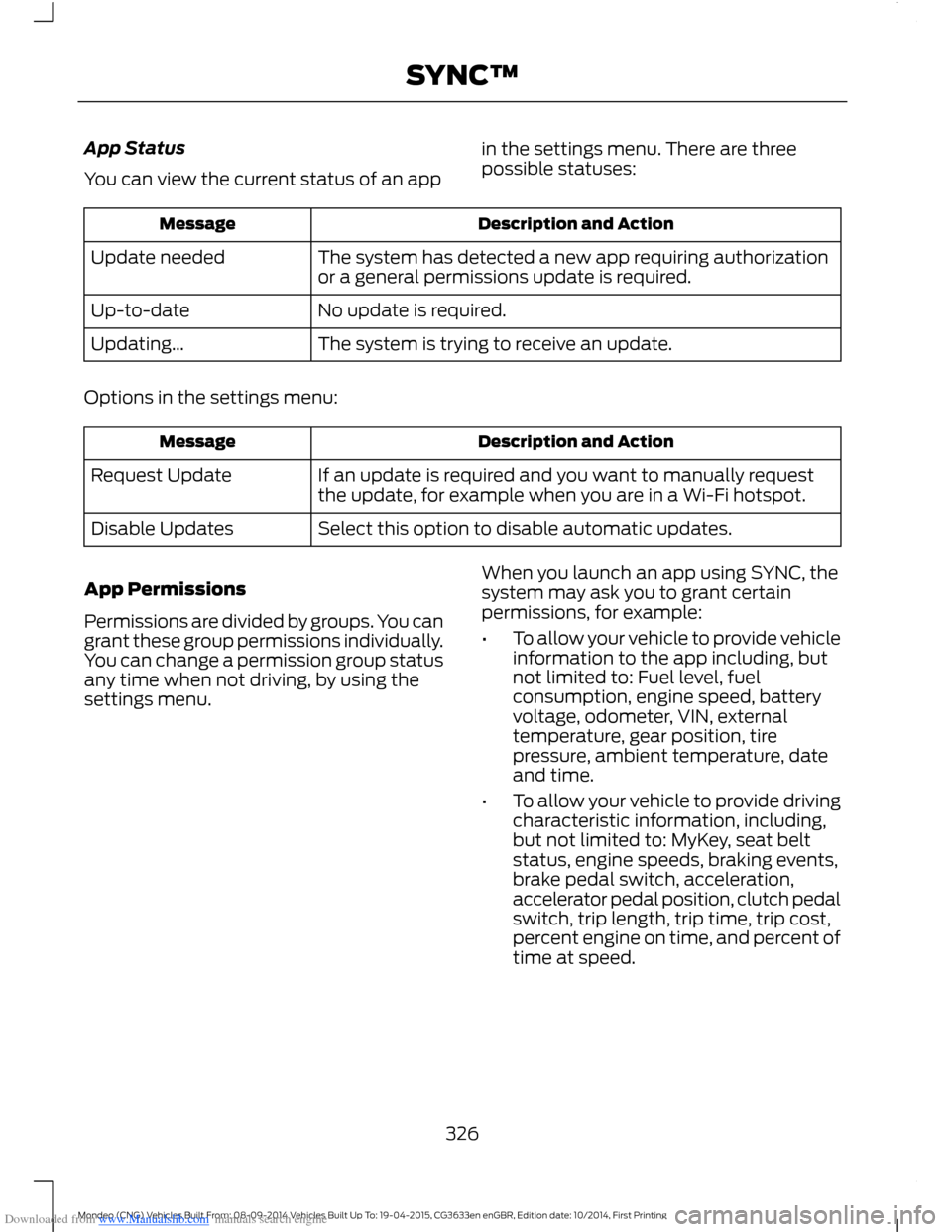
You can view the current status of an app
in the settings menu. There are threepossible statuses:
Description and ActionMessage
The system has detected a new app requiring authorizationor a general permissions update is required.Update needed
No update is required.Up-to-date
The system is trying to receive an update.Updating...
Options in the settings menu:
Description and ActionMessage
If an update is required and you want to manually requestthe update, for example when you are in a Wi-Fi hotspot.Request Update
Select this option to disable automatic updates.Disable Updates
App Permissions
Permissions are divided by groups. You cangrant these group permissions individually.You can change a permission group statusany time when not driving, by using thesettings menu.
When you launch an app using SYNC, thesystem may ask you to grant certainpermissions, for example:
•To allow your vehicle to provide vehicleinformation to the app including, butnot limited to: Fuel level, fuelconsumption, engine speed, batteryvoltage, odometer, VIN, externaltemperature, gear position, tirepressure, ambient temperature, dateand time.
•To allow your vehicle to provide drivingcharacteristic information, including,but not limited to: MyKey, seat beltstatus, engine speeds, braking events,brake pedal switch, acceleration,accelerator pedal position, clutch pedalswitch, trip length, trip time, trip cost,percent engine on time, and percent oftime at speed.
326Mondeo (CNG) Vehicles Built From: 08-09-2014 Vehicles Built Up To: 19-04-2015, CG3633en enGBR, Edition date: 10/2014, First PrintingSYNC™
Page 338 of 446
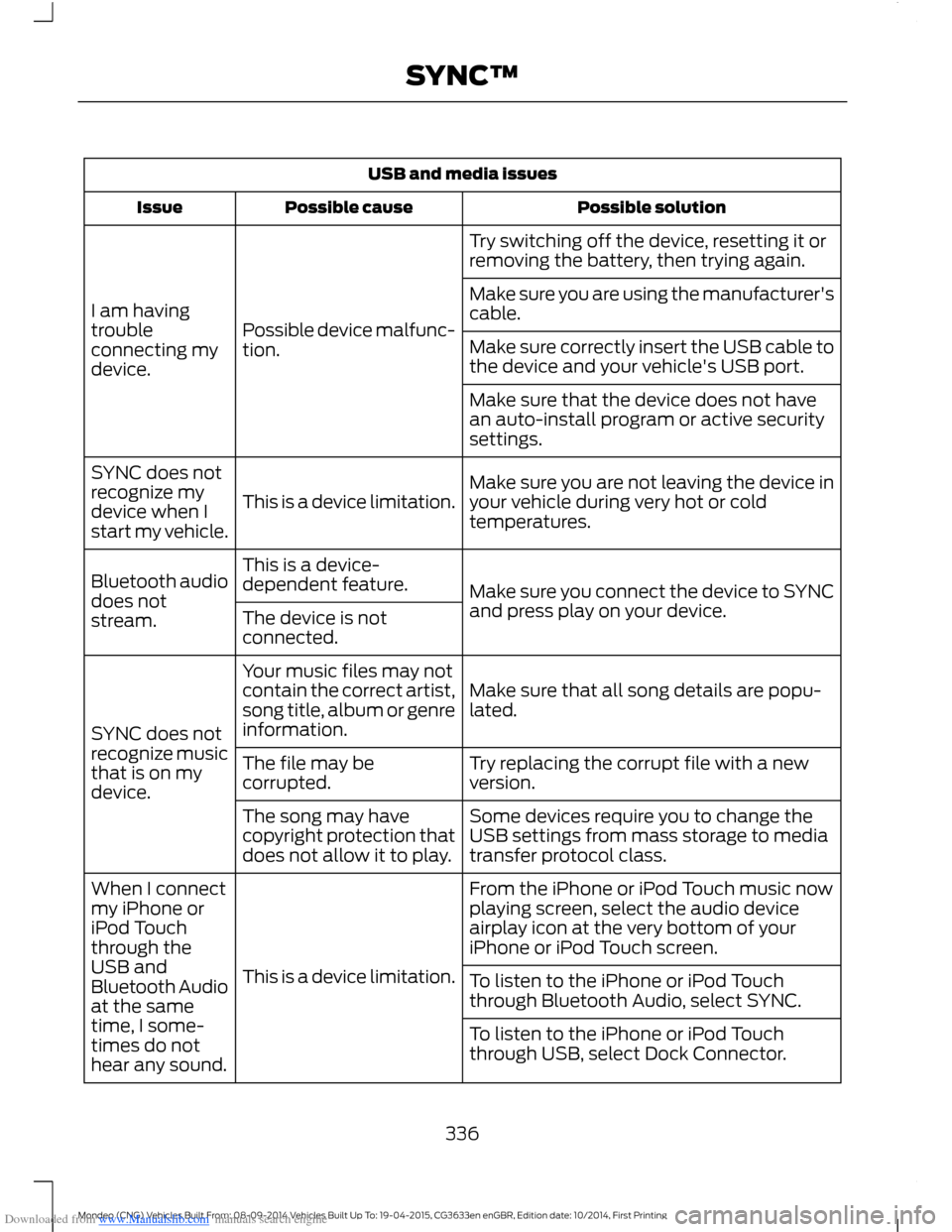
Downloaded from www.Manualslib.com manuals search engine USB and media issues
Possible solutionPossible causeIssue
Try switching off the device, resetting it orremoving the battery, then trying again.
Possible device malfunc-tion.
I am havingtroubleconnecting mydevice.
Make sure you are using the manufacturer'scable.
Make sure correctly insert the USB cable tothe device and your vehicle's USB port.
Make sure that the device does not havean auto-install program or active securitysettings.
Make sure you are not leaving the device inyour vehicle during very hot or coldtemperatures.This is a device limitation.
SYNC does notrecognize mydevice when Istart my vehicle.
Make sure you connect the device to SYNCand press play on your device.
This is a device-dependent feature.Bluetooth audiodoes notstream.The device is notconnected.
Make sure that all song details are popu-lated.
Your music files may notcontain the correct artist,song title, album or genreinformation.SYNC does notrecognize musicthat is on mydevice.
Try replacing the corrupt file with a newversion.The file may becorrupted.
Some devices require you to change theUSB settings from mass storage to mediatransfer protocol class.
The song may havecopyright protection thatdoes not allow it to play.
From the iPhone or iPod Touch music nowplaying screen, select the audio deviceairplay icon at the very bottom of youriPhone or iPod Touch screen.
This is a device limitation.
When I connectmy iPhone oriPod Touchthrough theUSB andBluetooth Audioat the sametime, I some-times do nothear any sound.
To listen to the iPhone or iPod Touchthrough Bluetooth Audio, select SYNC.
To listen to the iPhone or iPod Touchthrough USB, select Dock Connector.
336Mondeo (CNG) Vehicles Built From: 08-09-2014 Vehicles Built Up To: 19-04-2015, CG3633en enGBR, Edition date: 10/2014, First PrintingSYNC™
Page 355 of 446
Downloaded from www.Manualslib.com manuals search engine Clock
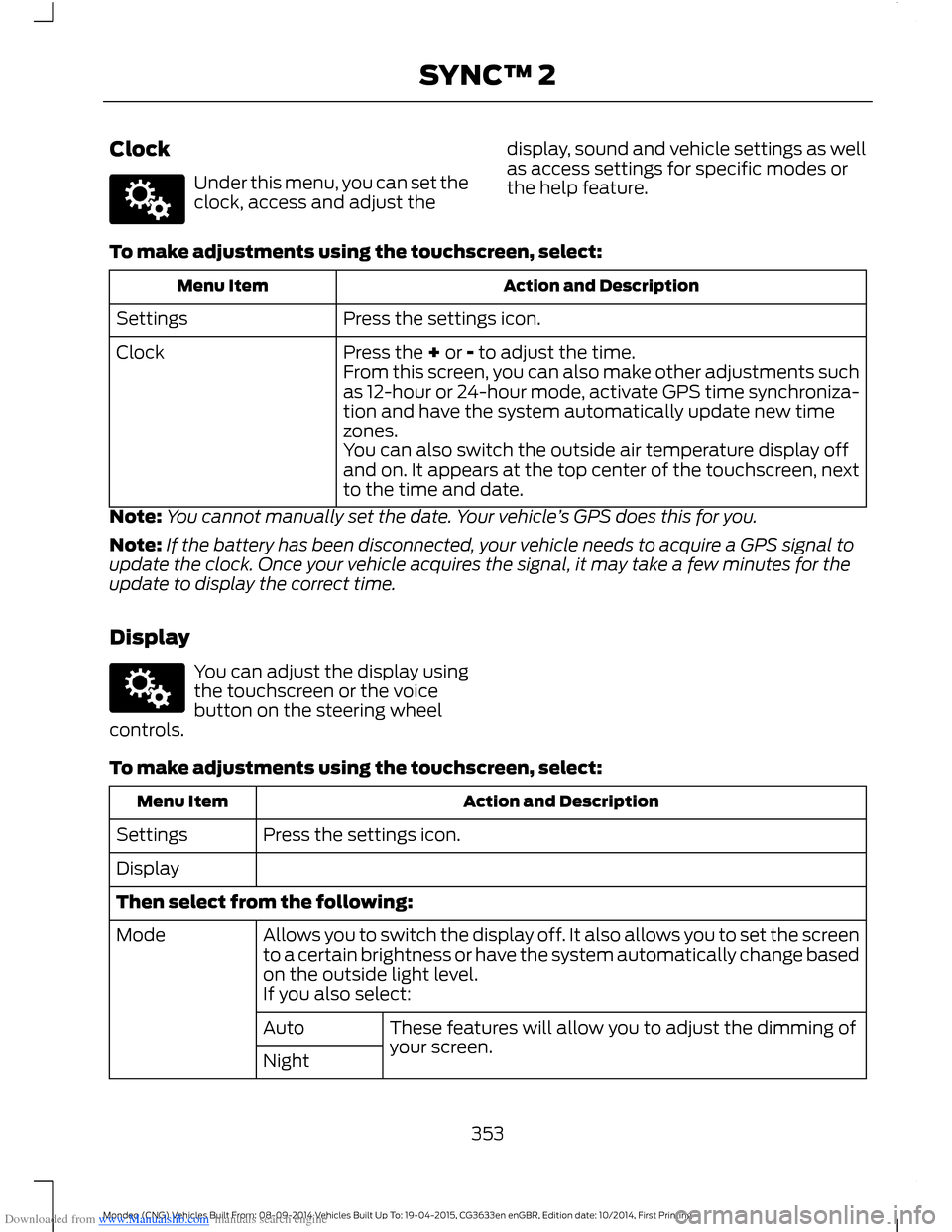
Under this menu, you can set theclock, access and adjust the
display, sound and vehicle settings as wellas access settings for specific modes orthe help feature.
To make adjustments using the touchscreen, select:
Action and DescriptionMenu Item
Press the settings icon.Settings
Press the + or - to adjust the time.ClockFrom this screen, you can also make other adjustments suchas 12-hour or 24-hour mode, activate GPS time synchroniza-tion and have the system automatically update new timezones.You can also switch the outside air temperature display offand on. It appears at the top center of the touchscreen, nextto the time and date.
Note:You cannot manually set the date. Your vehicle’s GPS does this for you.
Note:If the battery has been disconnected, your vehicle needs to acquire a GPS signal toupdate the clock. Once your vehicle acquires the signal, it may take a few minutes for theupdate to display the correct time.
Display
You can adjust the display usingthe touchscreen or the voicebutton on the steering wheelcontrols.
To make adjustments using the touchscreen, select:
Action and DescriptionMenu Item
Press the settings icon.Settings
Display
Then select from the following:
Allows you to switch the display off. It also allows you to set the screento a certain brightness or have the system automatically change basedon the outside light level.
Mode
If you also select:
These features will allow you to adjust the dimming ofyour screen.Auto
Night
353Mondeo (CNG) Vehicles Built From: 08-09-2014 Vehicles Built Up To: 19-04-2015, CG3633en enGBR, Edition date: 10/2014, First PrintingSYNC™ 2
Page 374 of 446
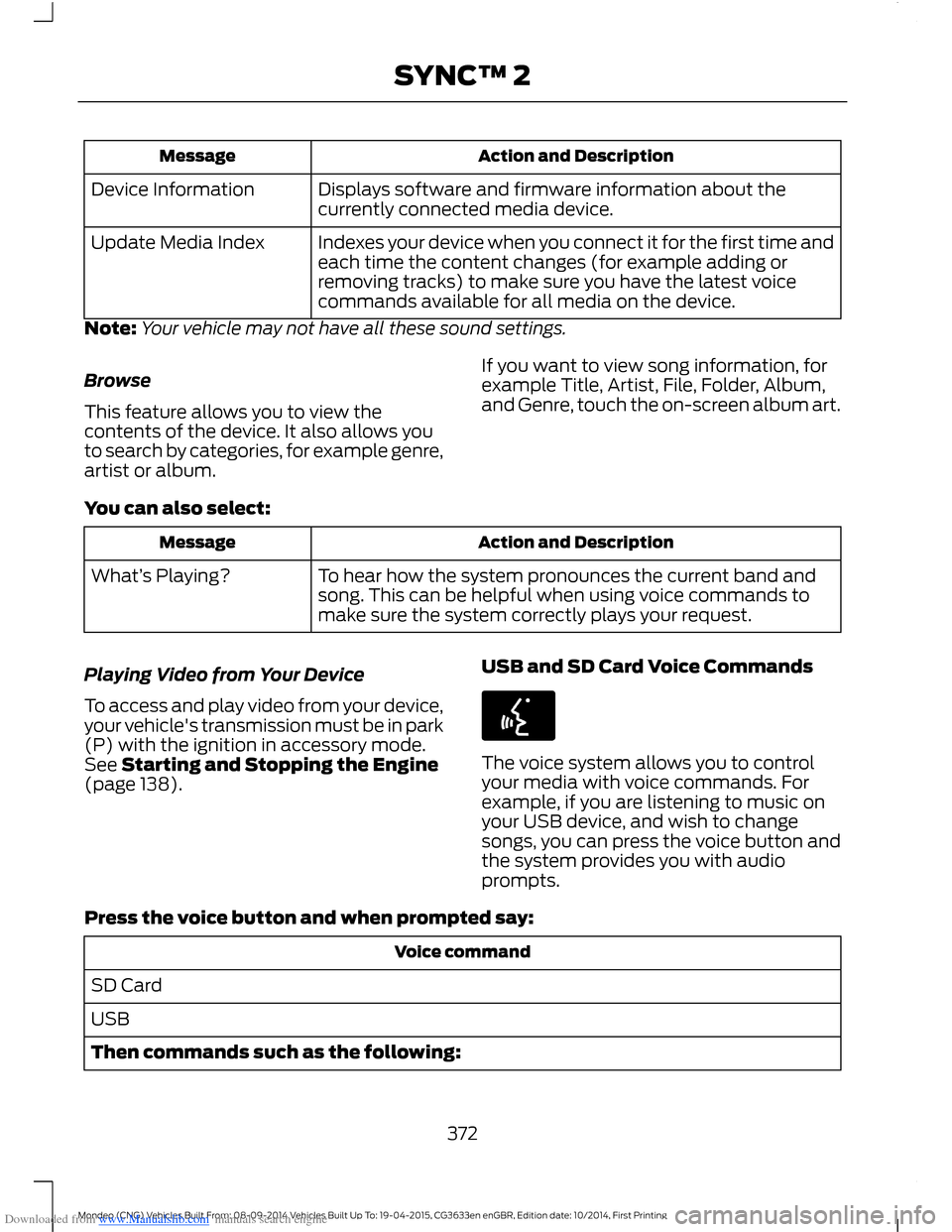
Downloaded from www.Manualslib.com manuals search engine Action and DescriptionMessage
Displays software and firmware information about thecurrently connected media device.Device Information
Indexes your device when you connect it for the first time andeach time the content changes (for example adding orremoving tracks) to make sure you have the latest voicecommands available for all media on the device.
Update Media Index
Note:Your vehicle may not have all these sound settings.
Browse
This feature allows you to view thecontents of the device. It also allows youto search by categories, for example genre,artist or album.
If you want to view song information, forexample Title, Artist, File, Folder, Album,and Genre, touch the on-screen album art.
You can also select:
Action and DescriptionMessage
To hear how the system pronounces the current band andsong. This can be helpful when using voice commands tomake sure the system correctly plays your request.
What’s Playing?
Playing Video from Your Device
To access and play video from your device,your vehicle's transmission must be in park(P) with the ignition in accessory mode.See Starting and Stopping the Engine(page 138).
USB and SD Card Voice Commands
The voice system allows you to controlyour media with voice commands. Forexample, if you are listening to music onyour USB device, and wish to changesongs, you can press the voice button andthe system provides you with audioprompts.
Press the voice button and when prompted say:
Voice command
SD Card
USB
Then commands such as the following:
372Mondeo (CNG) Vehicles Built From: 08-09-2014 Vehicles Built Up To: 19-04-2015, CG3633en enGBR, Edition date: 10/2014, First PrintingSYNC™ 2
Page 400 of 446
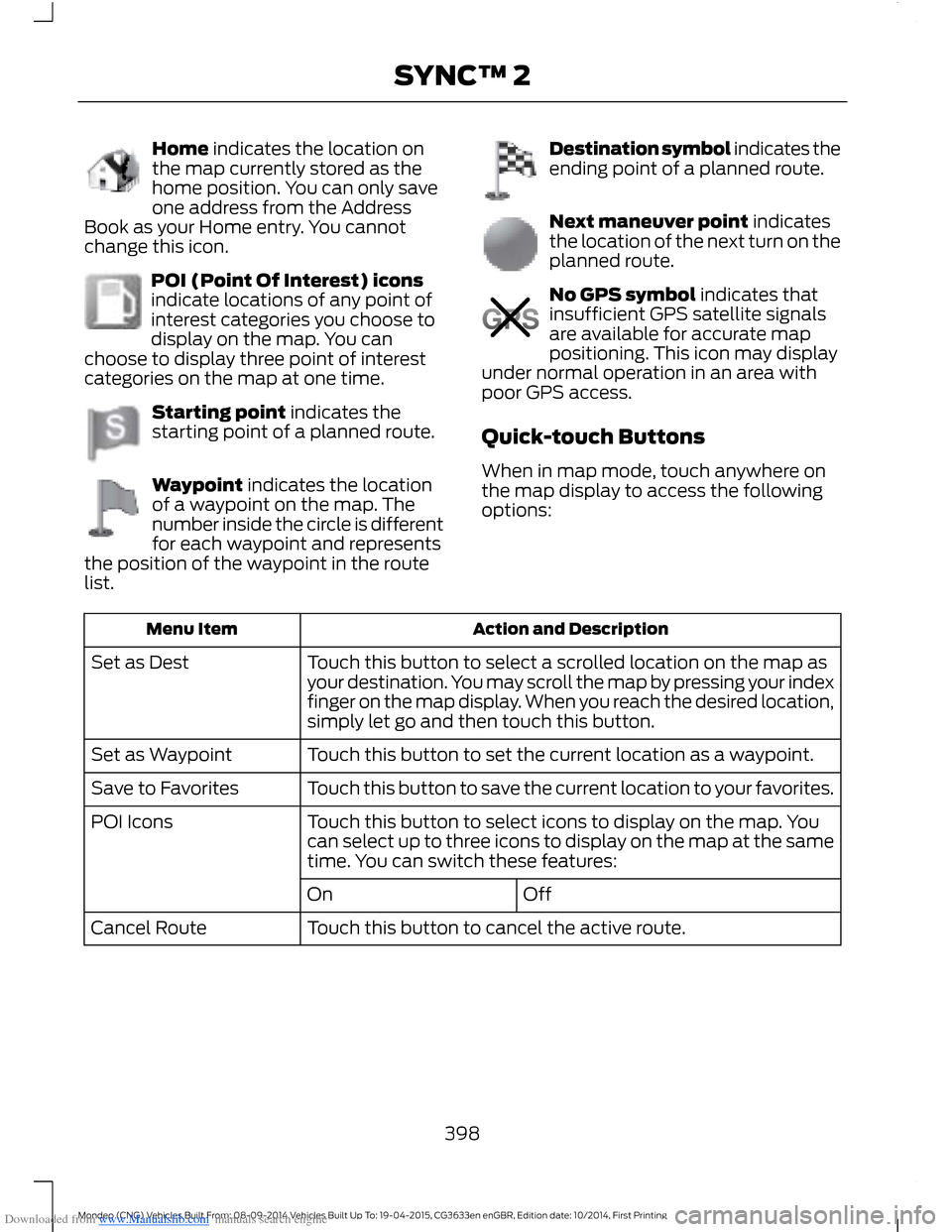
Downloaded from www.Manualslib.com manuals search engine Home indicates the location onthe map currently stored as thehome position. You can only saveone address from the AddressBook as your Home entry. You cannotchange this icon.
POI (Point Of Interest) iconsindicate locations of any point ofinterest categories you choose todisplay on the map. You canchoose to display three point of interestcategories on the map at one time.
Starting point indicates thestarting point of a planned route.
Waypoint indicates the locationof a waypoint on the map. Thenumber inside the circle is differentfor each waypoint and representsthe position of the waypoint in the routelist.
Destination symbol indicates theending point of a planned route.
Next maneuver point indicatesthe location of the next turn on theplanned route.
No GPS symbol indicates thatinsufficient GPS satellite signalsare available for accurate mappositioning. This icon may displayunder normal operation in an area withpoor GPS access.
Quick-touch Buttons
When in map mode, touch anywhere onthe map display to access the followingoptions:
Action and DescriptionMenu Item
Touch this button to select a scrolled location on the map asyour destination. You may scroll the map by pressing your indexfinger on the map display. When you reach the desired location,simply let go and then touch this button.
Set as Dest
Touch this button to set the current location as a waypoint.Set as Waypoint
Touch this button to save the current location to your favorites.Save to Favorites
Touch this button to select icons to display on the map. Youcan select up to three icons to display on the map at the sametime. You can switch these features:
POI Icons
OffOn
Touch this button to cancel the active route.Cancel Route
398Mondeo (CNG) Vehicles Built From: 08-09-2014 Vehicles Built Up To: 19-04-2015, CG3633en enGBR, Edition date: 10/2014, First PrintingSYNC™ 2
Page 405 of 446
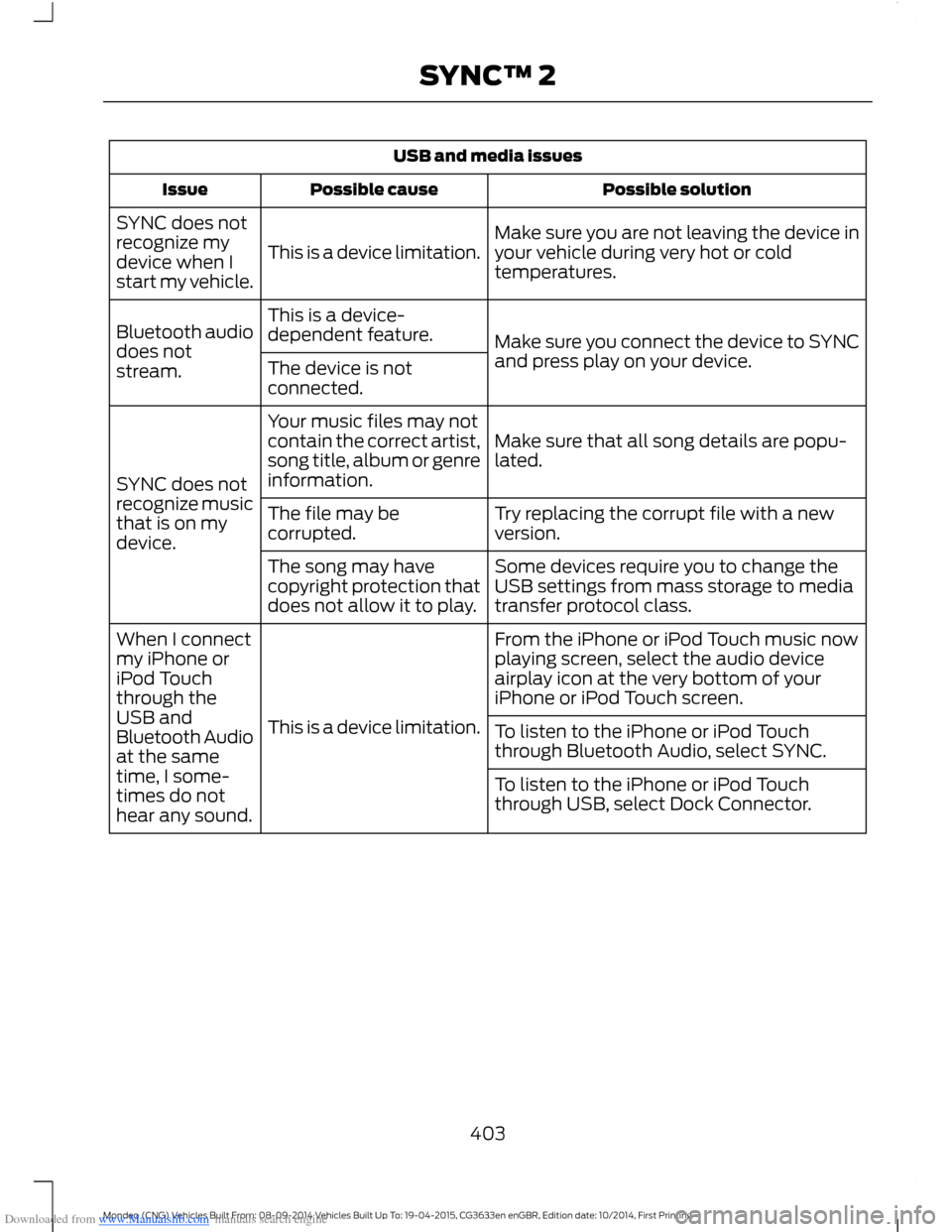
Downloaded from www.Manualslib.com manuals search engine USB and media issues
Possible solutionPossible causeIssue
Make sure you are not leaving the device inyour vehicle during very hot or coldtemperatures.This is a device limitation.
SYNC does notrecognize mydevice when Istart my vehicle.
Make sure you connect the device to SYNCand press play on your device.
This is a device-dependent feature.Bluetooth audiodoes notstream.The device is notconnected.
Make sure that all song details are popu-lated.
Your music files may notcontain the correct artist,song title, album or genreinformation.SYNC does notrecognize musicthat is on mydevice.
Try replacing the corrupt file with a newversion.The file may becorrupted.
Some devices require you to change theUSB settings from mass storage to mediatransfer protocol class.
The song may havecopyright protection thatdoes not allow it to play.
From the iPhone or iPod Touch music nowplaying screen, select the audio deviceairplay icon at the very bottom of youriPhone or iPod Touch screen.
This is a device limitation.
When I connectmy iPhone oriPod Touchthrough theUSB andBluetooth Audioat the sametime, I some-times do nothear any sound.
To listen to the iPhone or iPod Touchthrough Bluetooth Audio, select SYNC.
To listen to the iPhone or iPod Touchthrough USB, select Dock Connector.
403Mondeo (CNG) Vehicles Built From: 08-09-2014 Vehicles Built Up To: 19-04-2015, CG3633en enGBR, Edition date: 10/2014, First PrintingSYNC™ 2
Page 416 of 446
![FORD MONDEO 2014 4.G Owners Manual Downloaded from www.Manualslib.com manuals search engine •THERE ARE NO WARRANTIES OTHERTHAN THOSE THAT MAY EXPRESSLYBE PROVIDED FOR YOUR NEWVEHICLE.
Adobe
Contains Adobe® [Flash® Player] or[AIR®]](/img/11/5483/w960_5483-415.png "FORD MONDEO 2014 4.G Owners Manual Downloaded from www.Manualslib.com manuals search engine •THERE ARE NO WARRANTIES OTHERTHAN THOSE THAT MAY EXPRESSLYBE PROVIDED FOR YOUR NEWVEHICLE.
Adobe
Contains Adobe® [Flash® Player] or[AIR®]")
Downloaded from www.Manualslib.com manuals search engine •THERE ARE NO WARRANTIES OTHERTHAN THOSE THAT MAY EXPRESSLYBE PROVIDED FOR YOUR NEWVEHICLE.
Adobe
Contains Adobe® [Flash® Player] or[AIR®] technology by Adobe SystemsIncorporated. This [Licensee Product]contains [Adobe® Flash® Player][Adobe® AIR®] software under licensefrom Adobe Systems Incorporated,Copyright ©1995-2009 AdobeMacromedia Software LLC. All rightsreserved. Adobe, Flash and AIR aretrademarks of Adobe SystemsIncorporated.
End User Notice
Microsoft® Windows® Mobile forAutomotive Important SafetyInformation
This system Ford SYNC contains softwarethat is licensed to Manufacturer FORDMOTOR COMPANY by an affiliate ofMicrosoft Corporation pursuant to a licenseagreement. Any removal, reproduction,reverse engineering or other unauthorizeduse of the software from this system inviolation of the license agreement is strictlyprohibited and may subject you to legalaction.
Read and follow instructions: Beforeusing your Windows Automotive- basedsystem, read and follow all instructionsand safety information provided in this enduser manual ("User's Guide"). Notfollowing precautions found in this User'sGuide can lead to an accident or otherserious consequences.
Keep User's Guide in vehicle: When keptin the vehicle, the User's Guide will be aready reference for you and other usersunfamiliar with the WindowsAutomotive-based system. Please makecertain that before using the system forthe first time, all persons have access tothe User's Guide and read its instructionsand safety information carefully.
WARNING
Operating certain parts of thissystem while driving can distractyour attention away from the road,and possibly cause an accident or otherserious consequences. Do not changesystem settings or enter data non-verbally(using your hands) while driving. Stop thevehicle in a safe and legal manner beforeattempting these operations. This isimportant since while setting up orchanging some functions you might berequired to distract your attention awayfrom the road and remove your hands fromthe wheel.
General Operation
Voice Command Control: Functionswithin the Windows Automotive-basedsystem may be accomplished using onlyvoice commands. Using voice commandswhile driving allows you to operate thesystem without removing your hands fromthe wheel.
Prolonged Views of Screen: Do notaccess any function requiring a prolongedview of the screen while you are driving.Pull over in a safe and legal manner beforeattempting to access a function of thesystem requiring prolonged attention. Evenoccasional short scans to the screen maybe hazardous if your attention has beendiverted away from your driving task at acritical time.
414Mondeo (CNG) Vehicles Built From: 08-09-2014 Vehicles Built Up To: 19-04-2015, CG3633en enGBR, Edition date: 10/2014, First PrintingAppendices
Page 418 of 446
Downloaded from www.Manualslib.com manuals search engine conditions, all of whom shall also be boundby this Agreement. Additionally, all of youraccount information, as well as otherpayment and personal informationprovided by you to Telenav (directly orthrough the use of the Telenav Software,is subject to Telenav’s privacy policylocated at http://www.telenav.com.
Telenav may revise this Agreement andthe privacy policy at any time, with orwithout notice to you. You agree to visithttp://www.telenav.com from time to timeto review the then current version of thisAgreement and of the privacy policy.
1. Safe and Lawful Use
You acknowledge that devoting attentionto the Telenav Software may pose a riskof injury or death to you and others insituations that otherwise require yourundivided attention, and you thereforeagree to comply with the following whenusing the Telenav Software: (a) observeall traffic laws and otherwise drive safely;(b) use your own personal judgment whiledriving. If you feel that a route suggestedby the Telenav Software instructs you toperform an unsafe or illegal maneuver,places you in an unsafe situation, or directsyou into an area that you consider to beunsafe, do not follow such instructions; (c)do not input destinations, or otherwisemanipulate the Telenav Software, unlessyour vehicle is stationary and parked; (d)do not use the Telenav Software for anyillegal, unauthorized, unintended, unsafe,hazardous, or unlawful purposes, or in anymanner inconsistent with this Agreement;(e) arrange all GPS and wireless devicesand cables necessary for use of theTelenav Software in a secure manner inyour vehicle so that they will not interferewith your driving and will not prevent theoperation of any safety device (such as anairbag).
You agree to indemnify and hold Telenavharmless against all claims resulting fromany dangerous or otherwise inappropriateuse of the Telenav Software in any movingvehicle, including as a result of your failureto comply with the directions above.
2. Account Information
You agree: (a) when registering theTelenav Software, to provide Telenav withtrue, accurate, current, and completeinformation about yourself, and (b) toinform Telenav promptly of any changesto such information, and to keep it true,accurate, current and complete.
3. Software License
Subject to your compliance with the termsof this Agreement, Telenav hereby grantsto you a personal, non-exclusive,non-transferable license (except asexpressly permitted below in connectionwith your permanent transfer of theTelenav Software license), without theright to sublicense, to use the TelenavSoftware (in object code form only) inorder to access and use the TelenavSoftware. This license shall terminate uponany termination or expiration of thisAgreement. You agree that you will use theTelenav Software only for your personalbusiness or leisure purposes, and not toprovide commercial navigation services toother parties.
3.1 License Limitations
You agree not to do any of the following:(a) reverse engineer, decompile,disassemble, translate, modify, alter orotherwise change the Telenav Softwareor any part thereof; (b) attempt to derivethe source code, audio library or structureof the Telenav Software without the priorexpress written consent of Telenav; (c)remove from the Telenav Software, oralter, any of Telenav’s or its suppliers’trademarks, trade names, logos, patent or
416Mondeo (CNG) Vehicles Built From: 08-09-2014 Vehicles Built Up To: 19-04-2015, CG3633en enGBR, Edition date: 10/2014, First PrintingAppendices
Page 432 of 446
Downloaded from www.Manualslib.com manuals search engine THE GRACENOTE SOFTWARE, EACH ITEMOF GRACENOTE DATA AND THEGRACENOTE CONTENT ARE LICENSEDTO YOU "AS IS". NEITHER GRACENOTEMAKES ANY REPRESENTATIONS ORWARRANTIES, EXPRESS OR IMPLIED,REGARDING THE ACCURACY OF ANYGRACENOTE DATA FROM THEGRACENOTE SERVERS OR GRACENOTECONTENT. GRACENOTE COLLECTIVELYAND SEPARATELY RESERVE THE RIGHTTO DELETE DATA AND/OR CONTENTFROM THE COMPANIES' RESPECTIVESERVERS OR, IN THE CASE OFGRACENOTE, CHANGE DATACATEGORIES FOR ANY CAUSE THATGRACENOTE DEEMS SUFFICIENT. NOWARRANTY IS MADE THAT EITHERGRACENOTE CONTENT OR THEGRACENOTE SOFTWARE ORGRACENOTE SERVERS ARE ERROR-FREEOR THAT THE FUNCTIONING OF THEGRACENOTE SOFTWARE ORGRACENOTE SERVERS WILL BEUNINTERRUPTED. GRACENOTE IS NOTOBLIGATED TO PROVIDE YOU WITH ANYENHANCED OR ADDITIONAL DATA TYPESTHAT GRACENOTE MAY CHOOSE TOPROVIDE IN THE FUTURE AND IS FREETO DISCONTINUE ITS ONLINE SERVICESAT ANY TIME. GRACENOTE DISCLAIM ALLWARRANTIES EXPRESS OR IMPLIED,INCLUDING, BUT NOT LIMITED TO,IMPLIED WARRANTIES OFMERCHANTABILITY, FITNESS FOR APARTICULAR PURPOSE, TITLE, ANDNON-INFRINGEMENT. NEITHERGRACENOTE WARRANTS THE RESULTSTHAT WILL BE OBTAINED BY YOUR USEOF THE GRACENOTE SOFTWARE OR ANYGRACENOTE SERVER. IN NO CASE WILLGRACENOTE BE LIABLE FOR ANYCONSEQUENTIAL OR INCIDENTALDAMAGES OR FOR ANY LOST PROFITSOR LOST REVENUES FOR ANY REASONWHATSOEVER.
© Gracenote 2007.
Vehicle with SYNC only
United States and Mexico
FCC ID: KMHSG1G1
IC: 1422A-SG1G1
Mexico
Model: KMHSG1P1
NOM-121-SCT1-2009
The operation of this equipment is subjectto the following two conditions: (1) Thisequipment or device may not causeharmful interference, and (2) thisequipment or device must accept anyinterference, including interference thatmay cause undesired operation.
Vehicle with SYNC withTouchscreen/My Touch
FCC ID: KMHSYNCG2
IC: 1422A-SYNCG2
This device complies with Part 15 of theFCC Rules and with RSS-210 of IndustryCanada. Operation is subject to thefollowing two conditions: (1) This devicemay not cause harmful interference, and(2) this device must accept anyinterference received, includinginterference that may cause undesiredoperation.
WARNING
Changes or modifications notexpressively approved by the partyresponsible for compliance couldvoid the user's authority to operate theequipment. The term "IC" before the radiocertification number only signifies thatIndustry Canada technical specificationswere met.
The antenna used for this transmitter mustnot be co-located or operating inconjunction with any other antenna ortransmitter.
430Mondeo (CNG) Vehicles Built From: 08-09-2014 Vehicles Built Up To: 19-04-2015, CG3633en enGBR, Edition date: 10/2014, First PrintingAppendices