display FORD MUSTANG 2002 4.G Owners Manual
[x] Cancel search | Manufacturer: FORD, Model Year: 2002, Model line: MUSTANG, Model: FORD MUSTANG 2002 4.GPages: 264, PDF Size: 2.56 MB
Page 18 of 264
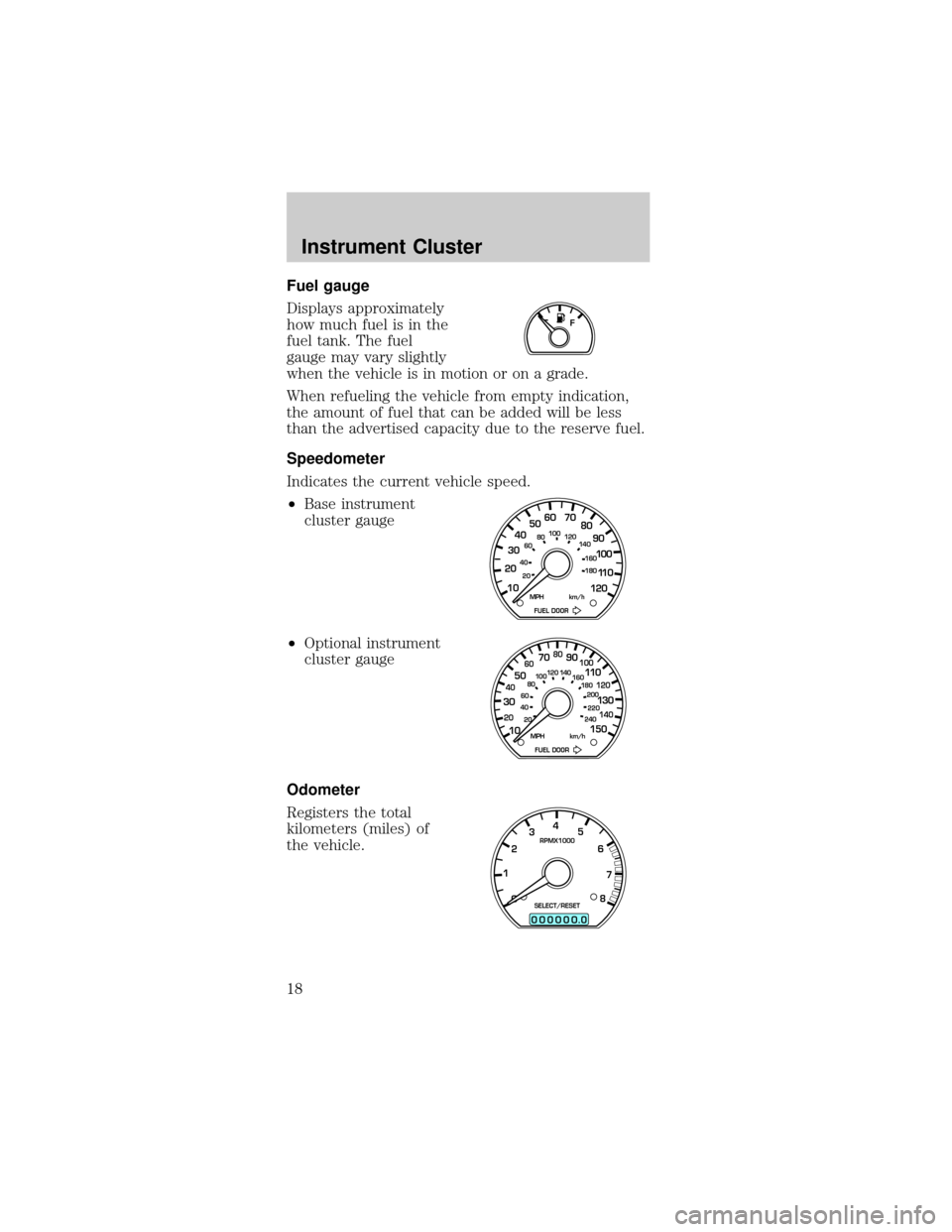
Fuel gauge
Displays approximately
how much fuel is in the
fuel tank. The fuel
gauge may vary slightly
when the vehicle is in motion or on a grade.
When refueling the vehicle from empty indication,
the amount of fuel that can be added will be less
than the advertised capacity due to the reserve fuel.
Speedometer
Indicates the current vehicle speed.
²Base instrument
cluster gauge
²Optional instrument
cluster gauge
Odometer
Registers the total
kilometers (miles) of
the vehicle.
F
10 203020 406080100
120
140
160
180
405060 70
80
90
100
11 0
120
FUEL DOOR MPH km/h
102040608020 40608010 012 0 14 0
160
180
200
220
240
100
120
140
305070 90
110
13 0
150
FUEL DOOR MPH km/h
0
00000 00
4
5
6
7
8 3
2
1RPMX1000
SELECT/RESET
.
Instrument Cluster
18
Page 19 of 264
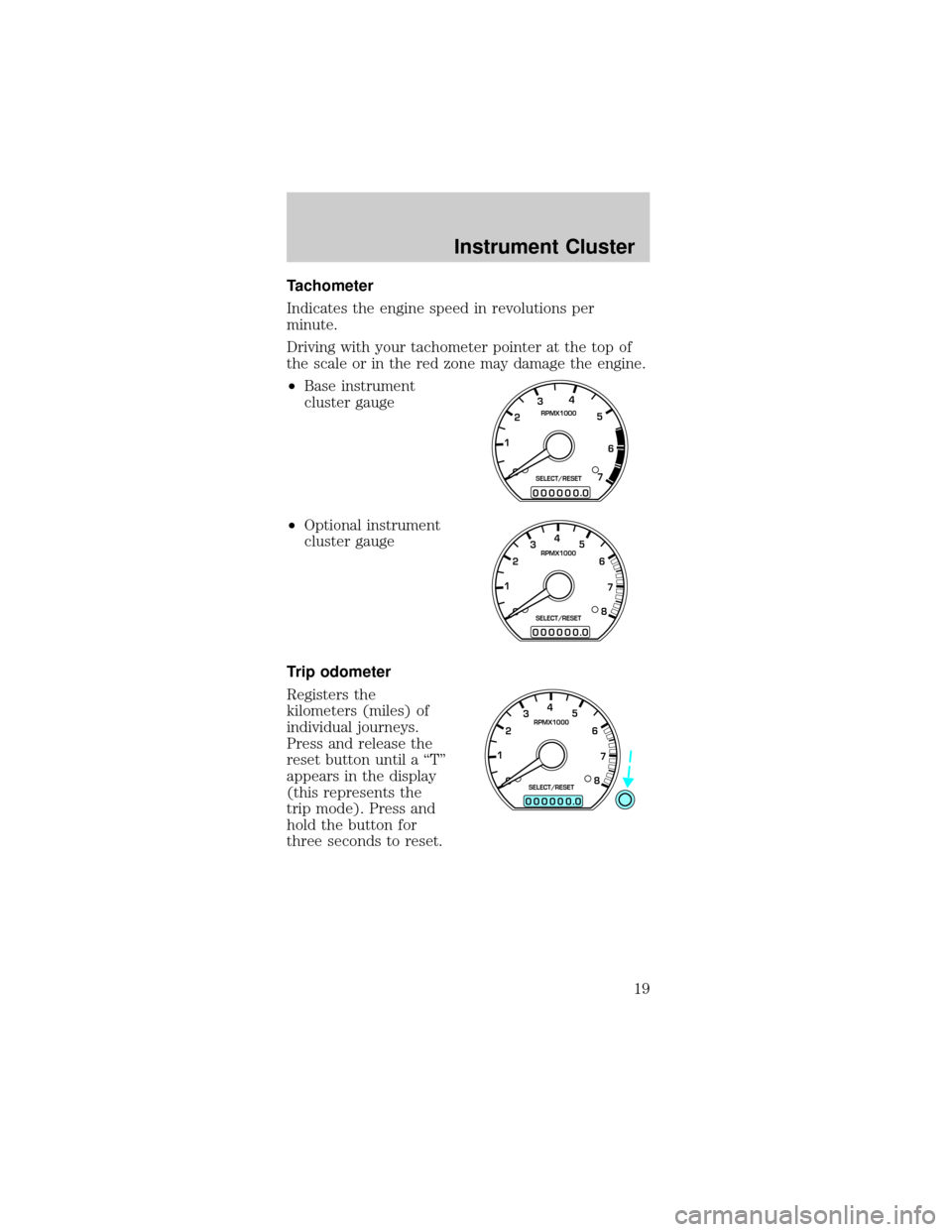
Tachometer
Indicates the engine speed in revolutions per
minute.
Driving with your tachometer pointer at the top of
the scale or in the red zone may damage the engine.
²Base instrument
cluster gauge
²Optional instrument
cluster gauge
Trip odometer
Registers the
kilometers (miles) of
individual journeys.
Press and release the
reset button until a ªTº
appears in the display
(this represents the
trip mode). Press and
hold the button for
three seconds to reset.
0
00000 00
4
5
6
7 3
2
1RPMX1000
SELECT/RESET
.
0
00000 00
4
5
6
7
8 3
2
1RPMX1000
SELECT/RESET
.
0
00000 00
4
5
6
7
8 3
2
1RPMX1000
SELECT/RESET
.
Instrument Cluster
19
Page 26 of 264
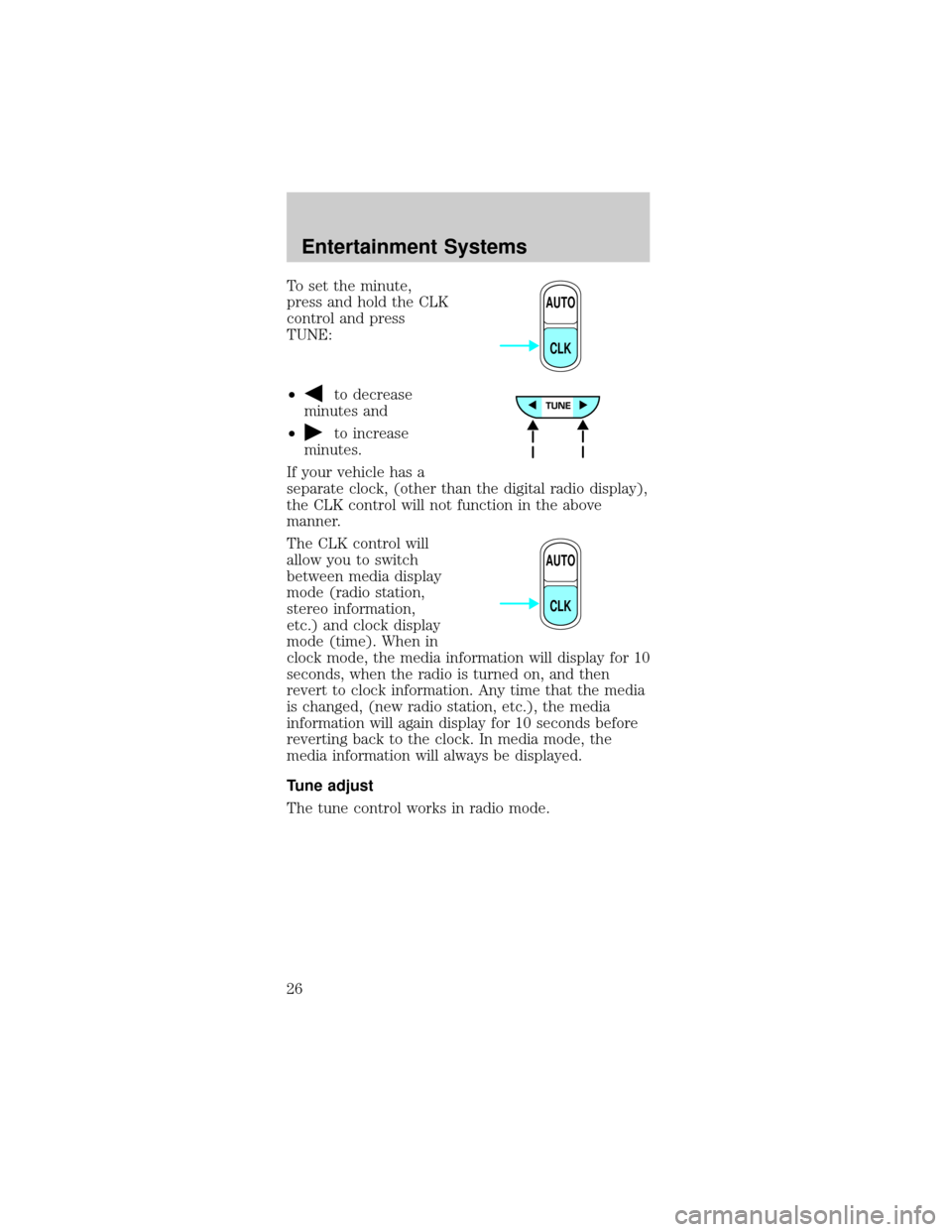
To set the minute,
press and hold the CLK
control and press
TUNE:
²
to decrease
minutes and
²
to increase
minutes.
If your vehicle has a
separate clock, (other than the digital radio display),
the CLK control will not function in the above
manner.
The CLK control will
allow you to switch
between media display
mode (radio station,
stereo information,
etc.) and clock display
mode (time). When in
clock mode, the media information will display for 10
seconds, when the radio is turned on, and then
revert to clock information. Any time that the media
is changed, (new radio station, etc.), the media
information will again display for 10 seconds before
reverting back to the clock. In media mode, the
media information will always be displayed.
Tune adjust
The tune control works in radio mode.
AUTO
CLK
AUTO
CLK
Entertainment Systems
26
Page 32 of 264
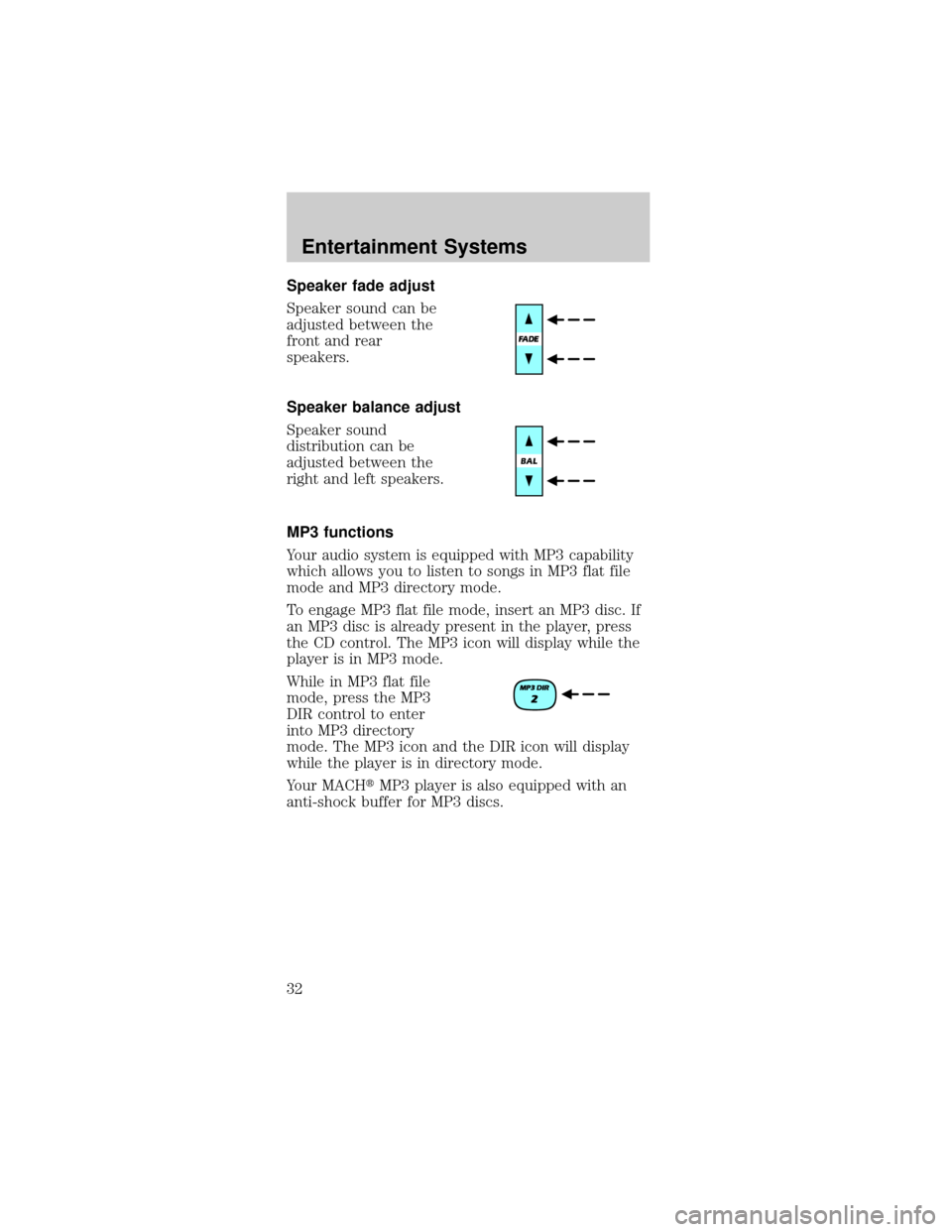
Speaker fade adjust
Speaker sound can be
adjusted between the
front and rear
speakers.
Speaker balance adjust
Speaker sound
distribution can be
adjusted between the
right and left speakers.
MP3 functions
Your audio system is equipped with MP3 capability
which allows you to listen to songs in MP3 flat file
mode and MP3 directory mode.
To engage MP3 flat file mode, insert an MP3 disc. If
an MP3 disc is already present in the player, press
the CD control. The MP3 icon will display while the
player is in MP3 mode.
While in MP3 flat file
mode, press the MP3
DIR control to enter
into MP3 directory
mode. The MP3 icon and the DIR icon will display
while the player is in directory mode.
Your MACHtMP3 player is also equipped with an
anti-shock buffer for MP3 discs.
Entertainment Systems
32
Page 35 of 264
Scan function in CD mode
Press SCN to engage
scan mode and to hear
a brief sampling of all
tracks on the disc. The
track number in the display will blink while the scan
function is enabled. When the end of the disc is
reached, the player will continue to scan from the
first track forward.
Press SCN again to disengage scan mode.
Scan function in MP3 flat file mode
The scan function in MP3 flat file mode allows you
to briefly audition all tracks on the MP3 disc.
Press SCN to engage
scan mode and to hear
a brief sampling of all
tracks on the MP3 disc.
The track number in the display will blink while the
scan function is enabled. When the end of the disc is
reached, the player will continue to scan from the
first track forward.
Press SCN again to disengage scan mode.
Scan function in MP3 directory mode
The scan function in MP3 directory mode allows you
to briefly audition all tracks within the current
directory on the MP3 disc.
Press SCN to engage
scan mode and to hear
a brief sampling of all
tracks in the current
directory. The track number in the display will blink
while the scan function is enabled. When the last
track is reached, the player will continue to scan
from the first track in the current directory forward.
Press SCN again to disengage scan mode.
Entertainment Systems
35
Page 37 of 264
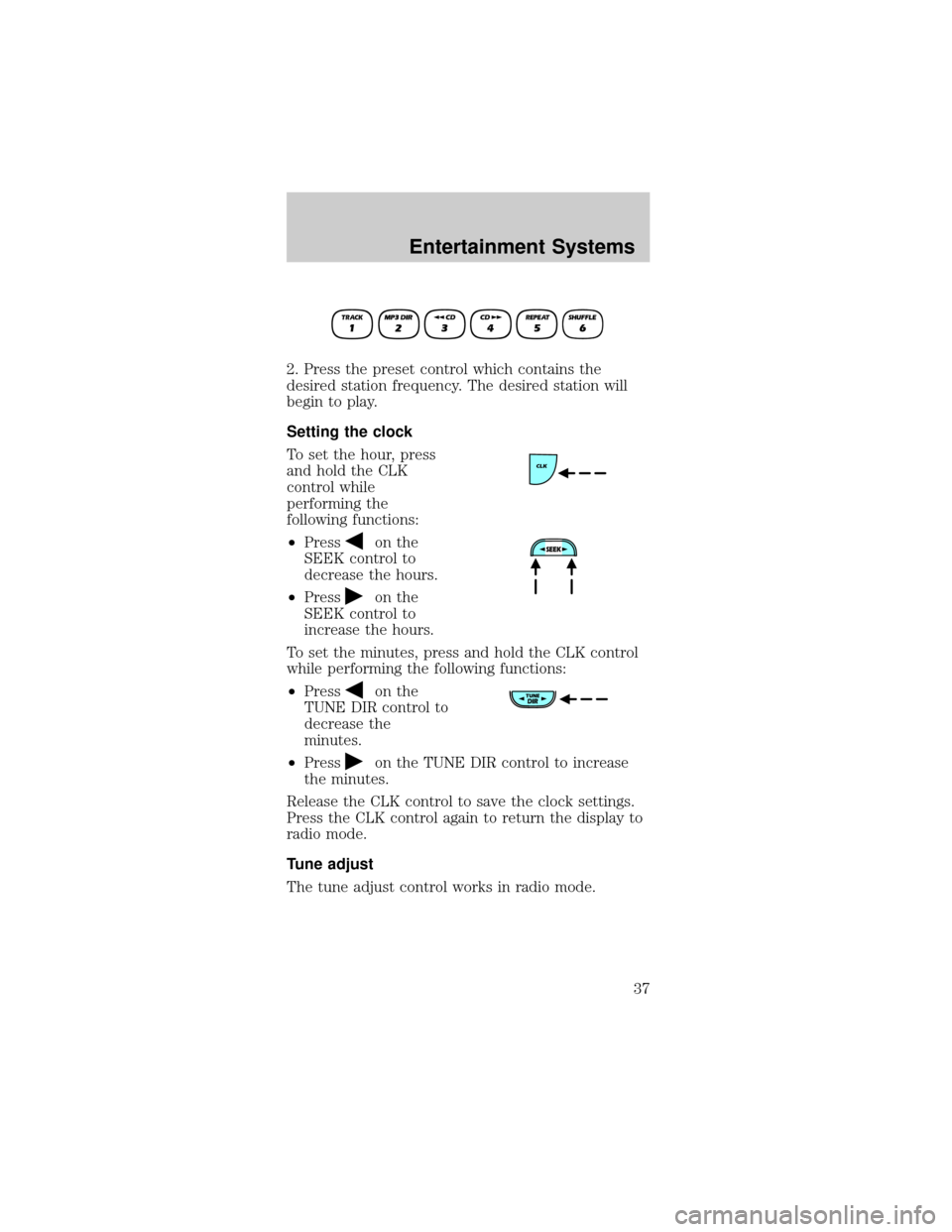
2. Press the preset control which contains the
desired station frequency. The desired station will
begin to play.
Setting the clock
To set the hour, press
and hold the CLK
control while
performing the
following functions:
²Press
on the
SEEK control to
decrease the hours.
²Press
on the
SEEK control to
increase the hours.
To set the minutes, press and hold the CLK control
while performing the following functions:
²Press
on the
TUNE DIR control to
decrease the
minutes.
²Press
on the TUNE DIR control to increase
the minutes.
Release the CLK control to save the clock settings.
Press the CLK control again to return the display to
radio mode.
Tune adjust
The tune adjust control works in radio mode.
Entertainment Systems
37
Page 38 of 264
Tune adjust in radio mode
²Pressto move to
the next frequency
down the band. Hold
for quick movement through the frequencies.
²Press
to move to the next frequency up the
band. Hold for quick movement through the
frequencies. When the top of the band is reached,
the tuner will continue to select from the lowest
frequency upward.
When a radio frequency is in tune, the ST icon will
appear in the display for stereo broadcasts.
CD select
The CD select function allows you to play CDs.
Playing a CD
²If a CD is already
loaded, press the CD
control. CD play will
begin where it
stopped last.
²If a CD is not already loaded, insert the CD into
the system. CD will briefly appear in the display
and then the first track on the disc will begin
playing.
Playing an MP3 disc in MP3 flat file mode and
MP3 directory mode
²Insert an MP3 disc into the player. CD and LOAD
will appear in the display. Initialization may take
up to two minutes for discs containing complex
file directories.
²The display will briefly show the total number of
tracks on the disc as TXXX (XXX= number of
tracks).
Entertainment Systems
38
Page 39 of 264
²If an MP3 disc is
already present in
the player, press the
CD control to begin
play.
²Press the MP3 DIR
control to engage
MP3 directory mode,
if desired. The track
number format on the display will change from
TXXX (XXX=current track number) to XX-XX
(directory Ðtrack number).
Note:If the car's ignition is turned off and on again,
play will begin at the beginning of the last song
played. If the radio was powered off by the VOL
control, play will start where it last left off.
²To stop MP3 disc
play, eject the disc
or press the AM/FM
control. The player
will return to radio mode.
Selecting a directory in MP3 directory mode
The TUNE DIR control allows you to select a
different directory to play on the MP3 disc.
²Press
on the
TUNE DIR control to
advance to the next
directory on the MP3 disc. If the current directory
is the last directory on the disc, pressing
will
select the first directory on the disc. Press and
hold for fast selection.
²Press
on TUNE DIR to revert to the previous
directory on the MP3 disc. If the current directory
is the first directory on the disc, pressing
will
select the last directory on the disc. Press and
hold for fast selection.
Entertainment Systems
39
Page 40 of 264
Eject function
Press the control to
stop and eject a disc.
If a disc is ejected and
not removed from the player, the player will
automatically reload the disc and return to radio
mode. This feature will operate when the ignition is
on or off.
Rewind
The rewind control works in CD mode. It is not
enabled in MP3 flat file mode or MP3 directory
mode.
Press and hold the
rewind control until the
desired selection point
is reached. The display
will show the elapsed time for each track as you
reverse through it. When the beginning of the disc is
reached, the first track on the disc will begin to play.
Release the rewind control again to disengage
rewind mode.
Fast forward
The fast forward control works in CD mode. It is not
enabled in MP3 flat file mode or MP3 directory
mode.
Press and hold the
control until the
desired selection point
is reached. The display
will show the elapsed time for each track as you
fast-forward through it. When the end of the disc is
reached, the player will continue fast-forwarding
from the first track forward.
Release the control to disengage fast-forwarding.
Entertainment Systems
40
Page 41 of 264
Shuffle feature
The shuffle feature works in CD mode, MP3 flat file
mode and MP3 directory mode.
Shuffle feature in CD mode
The shuffle feature plays all tracks on the current
disc in random order.
²Press the SHUFFLE
control to engage
random play. SHF
and then ON will
briefly appear in the display. The player will then
begin random play.
²To select another
random track on the
disc, press
oron the SEEK
control.
²Press the SCN
control to scan
through random
tracks. The track
number will flash in the display. The shuffle
feature will remain enabled.
Press the SHUFFLE control again to disable the
shuffle function. SHF and then OFF will briefly
appear in the display.
Shuffle feature in MP3 flat file mode
The shuffle feature in MP3 flat file mode allows you
to play all the tracks on the MP3 disc in random
order.
²Press the SHUFFLE
control to engage
random play. SHF
and then ON will
briefly appear in the display. The player will then
begin random play.
Entertainment Systems
41