audio FORD MUSTANG 2014 5.G Owner's Manual
[x] Cancel search | Manufacturer: FORD, Model Year: 2014, Model line: MUSTANG, Model: FORD MUSTANG 2014 5.GPages: 461, PDF Size: 5.47 MB
Page 360 of 461
2. Follow the voice prompts to select your destination. Once your
destination is selected, your current vehicle location is uploaded and
a route based on current traffic conditions is calculated and sent
back to your vehicle. After the route download is complete, the
phone call is automatically ended. You then receive audible and
visual driving instructions as you travel toward your destination.
3. While on an active route, you can select or say “Route summary” or
“Route status” to view the Route Summary turn list or the Route
Status ETA. You can also turn voice guidance on or off, cancel the
route or update the route.
If you miss a turn, SYNC automatically asks if you want the route
updated. Just say, “Yes” when prompted and a new route will be
delivered to your vehicle.
Disconnecting from SYNC Services
1. Press and hold the phone button on the steering wheel.
2. Say “Good-bye” from the SYNC Services main menu.
SYNC Services Quick Tips
PersonalizingYou can personalize your Services feature to
provide quicker access to your most used or
favorite information. You can save address
points such as work or home. You can also
save favorite information like sports teams or
a news category. To learn more, log onto
www.SYNCMyRide.com.
Push to interruptPress the voice button at any time (while you
are connected to SYNC TDI Services) to
interrupt a voice prompt or an audio clip
(such as a sports report), wait for the
listening tone, and say your voice command.
SYNC®359
2014 05+ Mustang(197)
Owners Guide gf, 1st Printing, November 2012
USA(fus)
Page 362 of 461
To Access Using the Media Menu
1. Press the AUX button to access the SYNC menu.
2. Press the Menu button to access the SYNC Media menu.
3. Browse to Mobile Applications and press OK.
4. Browse to your desired app and press OK.
5. Once an app is running through SYNC, you can access an app’s menu
by pressing the MENU button to first access the SYNC menu.
6. Scroll until “
then press OK. From here, you can access an application’s features,
such as Thumbs up, Thumbs down, etc. For more information, please
visit www.SYNCMyRide.com.
To Access Using the Navigation Screen (If Equipped)
1. Press the Phone button.
2. Press the SYNC Apps tab.
3. Press Mobile Apps.
4. Select the app to start it.
To Access Using Voice Commands
1. Press the voice icon.
2. When prompted, say “Mobile Apps”.
3. Say the name of the application after the tone.
4. The app should start. While an app is running through SYNC, you can
press the voice button and speak commands specific to the app, such
as “Play Station Quickmix”. Say “Help” to discover available voice
commands.
USING SYNC WITH YOUR MEDIA PLAYER
You can access and play music from your digital music player over
the vehicle’s speaker system using the system’s media menu or voice
commands. You can also sort and play your music by specific categories,
such as artists, albums, etc.
SYNC is capable of hosting nearly any digital media player including:
iPod®, Zune™, Plays from device players, and most USB drives. SYNC
also supports audio formats such as MP3, WMA, WAV and ACC.
SYNC®361
2014 05+ Mustang(197)
Owners Guide gf, 1st Printing, November 2012
USA(fus)
Page 365 of 461
Supported Media Players, Formats and Metadata Information
SYNC® is capable of hosting nearly any digital media player, including
iPod®, Zune™, Plays from device players, and most USB drives. Supported
audio formats include MP3, WMA, WAV and AAC.
You are also able to organize your indexed media from your playing device
by metadata tags. Metadata tags are descriptive software identifiers
embedded in the media files which provide information about the file.
If your indexed media files contain no information embedded in these
metadata tags, SYNC may classify the empty metadata tags asUnknown.
Media Menu Sources and Features
The User Device menu allows you to select your media source and how
to play your music (by artist, genre, shuffle, repeat, etc.).
1. Make sure your USB device is plugged in to your system.
2. Press the MEDIA hard button.
3. Select the User Device tab, then press Source repeatedly to cycle
through USB, BT Audio and Line In:
When you select: You can:
Music LibraryAccess SYNC’s many media features, such as:
Play All, Play Artists, Play Albums, Play
Tracks, Play Playlists, and Explore the USB.
Similar MusicPlay music similar to what is currently playing
from the USB port. The system uses the
metadata information of each song to compile
a playlist for you.
The system creates a new list of similar songs
and begins playing. The metadata tags must be
populated for this feature to include each track.
RepeatRepeat any song.
ShuffleRandomly play available media files in the
current playlist.
SettingsAccess Bluetooth Devices menu listings (add,
connect, set as primary, on/off, delete) as well
as Advanced menu listings (prompts,
languages, defaults, master reset, install
application and system information).
TextView additional information, if available.
364SYNC®
2014 05+ Mustang(197)
Owners Guide gf, 1st Printing, November 2012
USA(fus)
Page 367 of 461
When you select: You can:
PlaylistsAccess your playlists (from formats, such as
ASX, .M3U, .WPL, .MTP.). The system lists
your playlists alphabetically in flat file mode.
If there are more than 255, they are organized
into alphabetical categories.
TracksSearch for and play a specific track which
has been indexed. SYNC lists your tracks
alphabetically in flat file mode. If there are
more than 255, SYNC automatically organizes
them into alphabetical categories.
Explore USBExplore all supported digital media on your
media device connected to the USB port.
You can only view media content which is
compatible with SYNC; other files saved are
not visible.
Bluetooth Audio
Your system allows you to stream audio over your vehicle’s
speakers from your connected, Bluetooth-enabled cellular
phone.
To access:
1. Make sure your paired phone is in streaming mode.
2. Press the MEDIA hard button.
3. Select the User Device tab, then press Source repeatedly until BT
Audio appears.
Line In (Auxiliary Input Jack)
Your system allows you to select and play music from your
portable music player over the vehicle’s speakers.
To access:
1. Make sure your paired phone is in streaming mode.
2. Press the MEDIA hard button.
3. Select the User Device tab, then press Source repeatedly until Line
In appears.
366SYNC®
2014 05+ Mustang(197)
Owners Guide gf, 1st Printing, November 2012
USA(fus)
Page 369 of 461
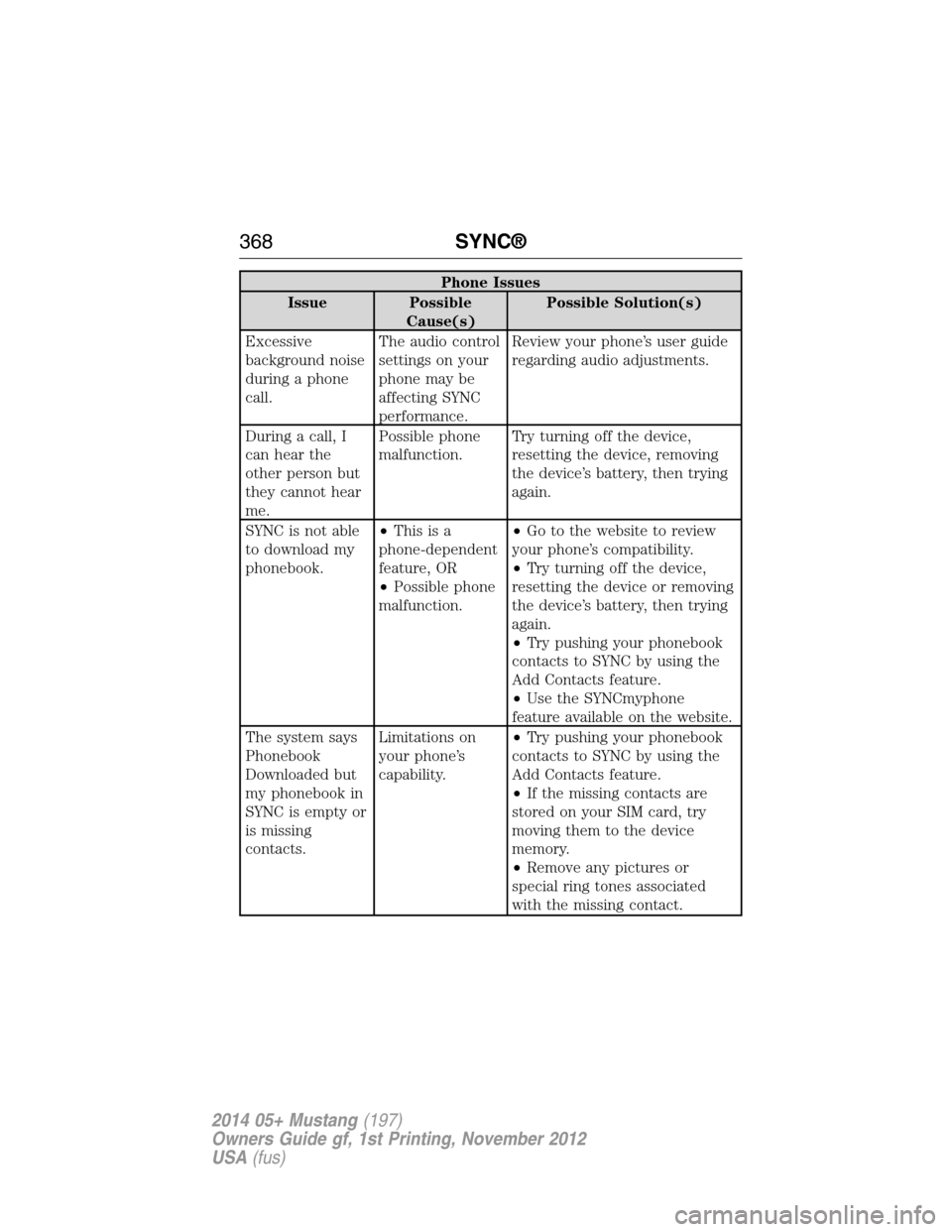
Phone Issues
Issue Possible
Cause(s)Possible Solution(s)
Excessive
background noise
during a phone
call.The audio control
settings on your
phone may be
affecting SYNC
performance.Review your phone’s user guide
regarding audio adjustments.
During a call, I
can hear the
other person but
they cannot hear
me.Possible phone
malfunction.Try turning off the device,
resetting the device, removing
the device’s battery, then trying
again.
SYNC is not able
to download my
phonebook.•Thisisa
phone-dependent
feature, OR
•Possible phone
malfunction.•Go to the website to review
your phone’s compatibility.
•Try turning off the device,
resetting the device or removing
the device’s battery, then trying
again.
•Try pushing your phonebook
contacts to SYNC by using the
Add Contacts feature.
•Use the SYNCmyphone
feature available on the website.
The system says
Phonebook
Downloaded but
my phonebook in
SYNC is empty or
is missing
contacts.Limitations on
your phone’s
capability.•Try pushing your phonebook
contacts to SYNC by using the
Add Contacts feature.
•If the missing contacts are
stored on your SIM card, try
moving them to the device
memory.
•Remove any pictures or
special ring tones associated
with the missing contact.
368SYNC®
2014 05+ Mustang(197)
Owners Guide gf, 1st Printing, November 2012
USA(fus)
Page 372 of 461
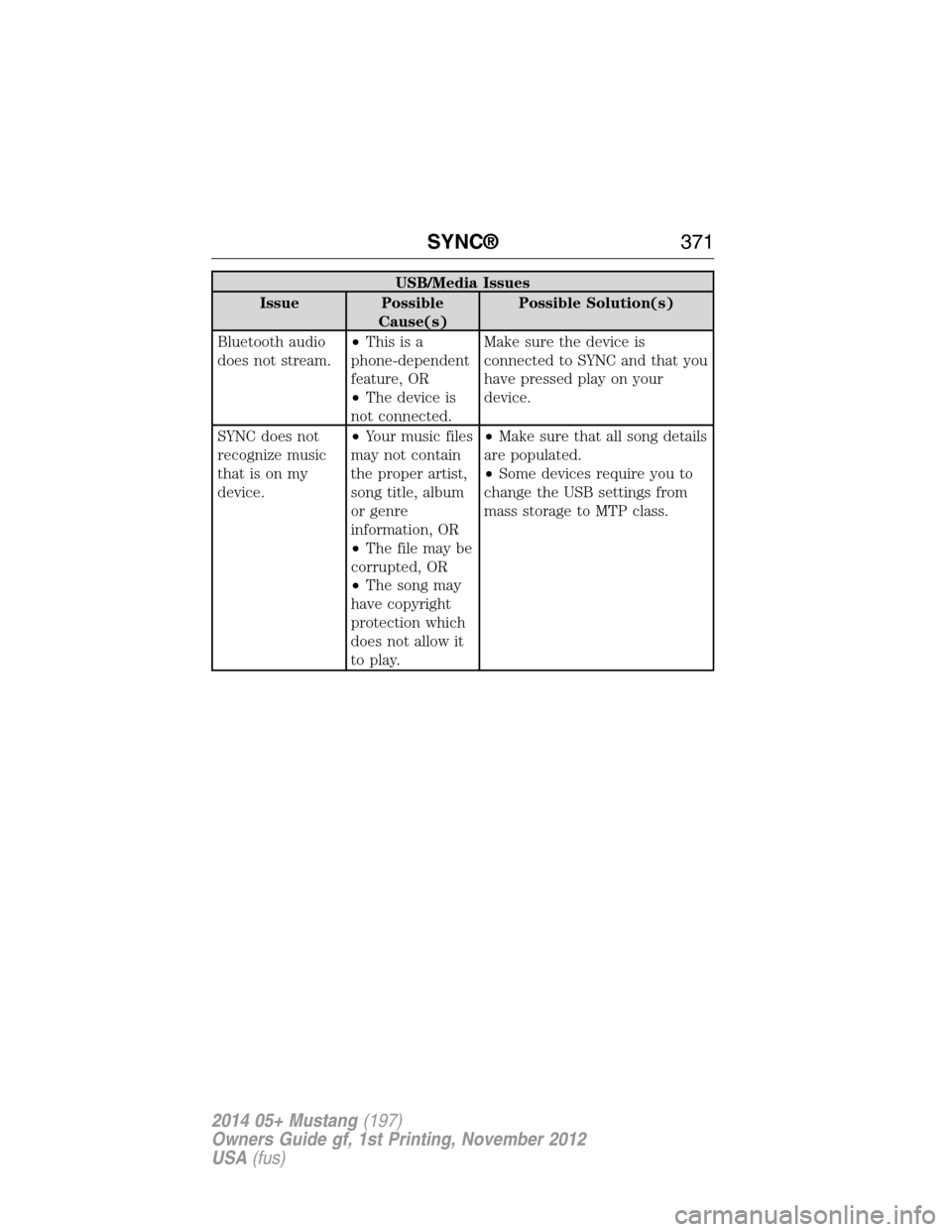
USB/Media Issues
Issue Possible
Cause(s)Possible Solution(s)
Bluetooth audio
does not stream.•Thisisa
phone-dependent
feature, OR
•The device is
not connected.Make sure the device is
connected to SYNC and that you
have pressed play on your
device.
SYNC does not
recognize music
that is on my
device.•Your music files
may not contain
the proper artist,
song title, album
or genre
information, OR
•The file may be
corrupted, OR
•The song may
have copyright
protection which
does not allow it
to play.•Make sure that all song details
are populated.
•Some devices require you to
change the USB settings from
mass storage to MTP class.
SYNC®371
2014 05+ Mustang(197)
Owners Guide gf, 1st Printing, November 2012
USA(fus)
Page 384 of 461
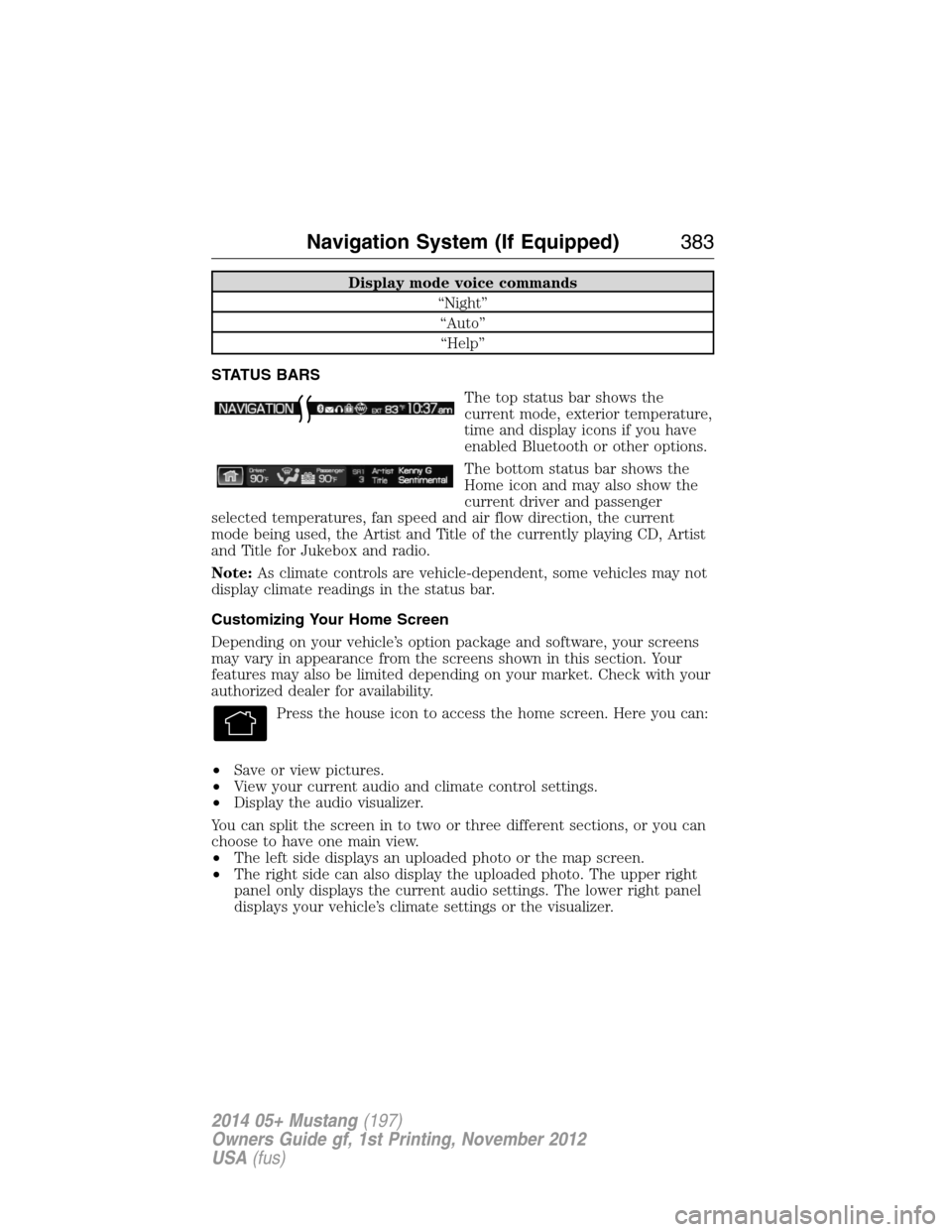
Display mode voice commands
“Night”
“Auto”
“Help”
STATUS BARS
The top status bar shows the
current mode, exterior temperature,
time and display icons if you have
enabled Bluetooth or other options.
The bottom status bar shows the
Home icon and may also show the
current driver and passenger
selected temperatures, fan speed and air flow direction, the current
mode being used, the Artist and Title of the currently playing CD, Artist
and Title for Jukebox and radio.
Note:As climate controls are vehicle-dependent, some vehicles may not
display climate readings in the status bar.
Customizing Your Home Screen
Depending on your vehicle’s option package and software, your screens
may vary in appearance from the screens shown in this section. Your
features may also be limited depending on your market. Check with your
authorized dealer for availability.
Press the house icon to access the home screen. Here you can:
•Save or view pictures.
•View your current audio and climate control settings.
•Display the audio visualizer.
You can split the screen in to two or three different sections, or you can
choose to have one main view.
•The left side displays an uploaded photo or the map screen.
•The right side can also display the uploaded photo. The upper right
panel only displays the current audio settings. The lower right panel
displays your vehicle’s climate settings or the visualizer.
Navigation System (If Equipped)383
2014 05+ Mustang(197)
Owners Guide gf, 1st Printing, November 2012
USA(fus)
Page 387 of 461
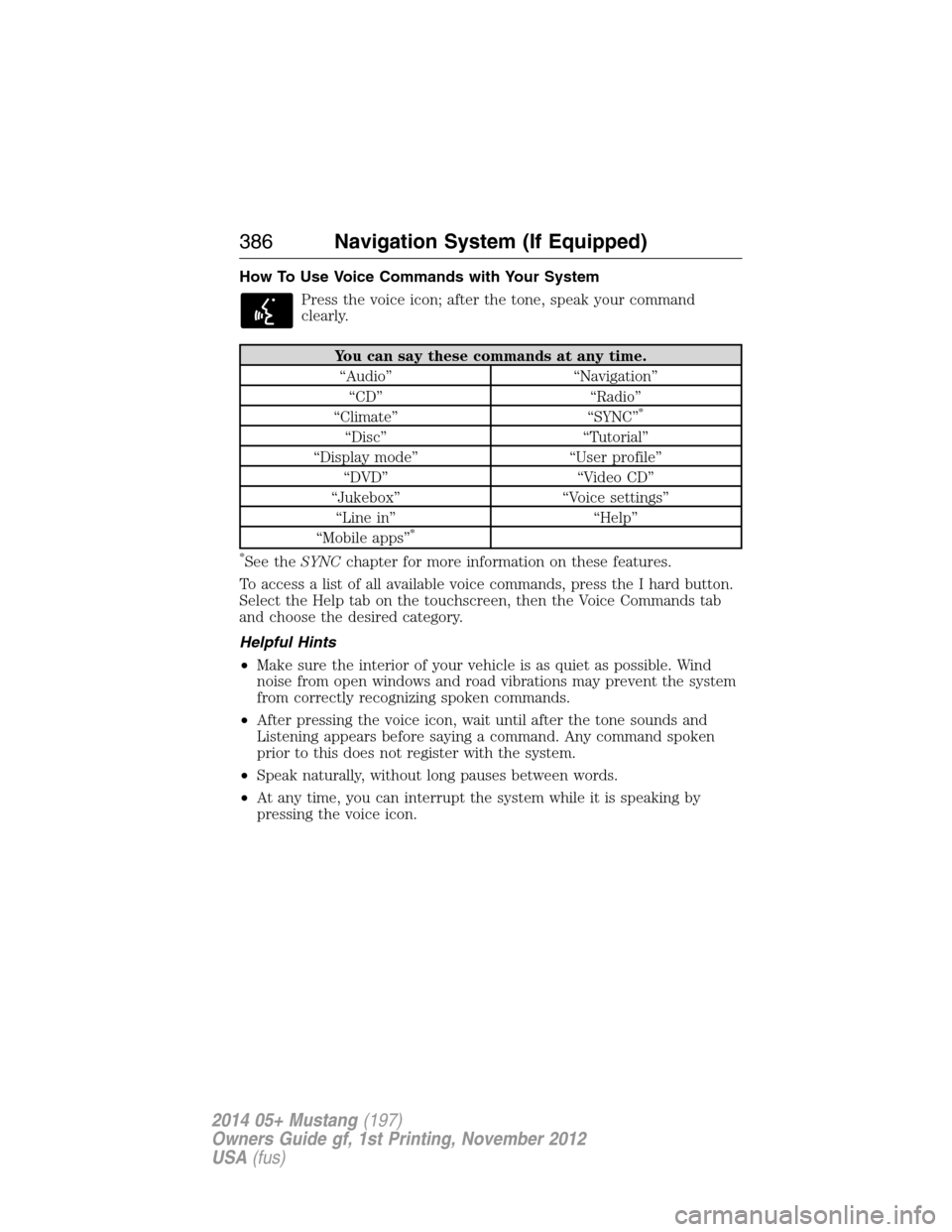
How To Use Voice Commands with Your System
Press the voice icon; after the tone, speak your command
clearly.
You can say these commands at any time.
“Audio” “Navigation”
“CD” “Radio”
“Climate” “SYNC”
*
“Disc” “Tutorial”
“Display mode” “User profile”
“DVD” “Video CD”
“Jukebox” “Voice settings”
“Line in” “Help”
“Mobile apps”
*
*
See theSYNCchapter for more information on these features.
To access a list of all available voice commands, press the I hard button.
Select the Help tab on the touchscreen, then the Voice Commands tab
and choose the desired category.
Helpful Hints
•Make sure the interior of your vehicle is as quiet as possible. Wind
noise from open windows and road vibrations may prevent the system
from correctly recognizing spoken commands.
•After pressing the voice icon, wait until after the tone sounds and
Listening appears before saying a command. Any command spoken
prior to this does not register with the system.
•Speak naturally, without long pauses between words.
•At any time, you can interrupt the system while it is speaking by
pressing the voice icon.
386Navigation System (If Equipped)
2014 05+ Mustang(197)
Owners Guide gf, 1st Printing, November 2012
USA(fus)
Page 393 of 461
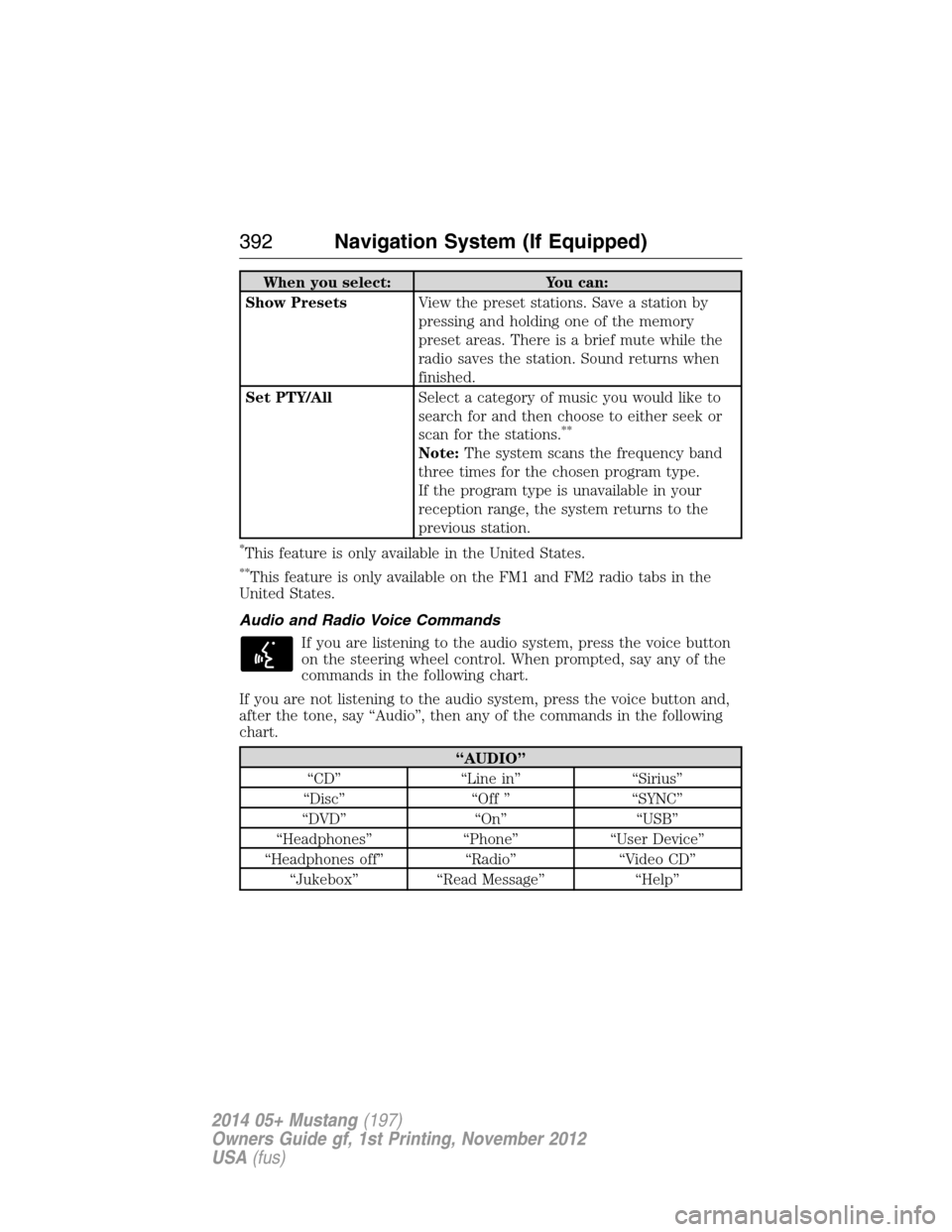
When you select: You can:
Show PresetsView the preset stations. Save a station by
pressing and holding one of the memory
preset areas. There is a brief mute while the
radio saves the station. Sound returns when
finished.
Set PTY/AllSelect a category of music you would like to
search for and then choose to either seek or
scan for the stations.
**
Note:The system scans the frequency band
three times for the chosen program type.
If the program type is unavailable in your
reception range, the system returns to the
previous station.
*This feature is only available in the United States.
**This feature is only available on the FM1 and FM2 radio tabs in the
United States.
Audio and Radio Voice Commands
If you are listening to the audio system, press the voice button
on the steering wheel control. When prompted, say any of the
commands in the following chart.
If you are not listening to the audio system, press the voice button and,
after the tone, say “Audio”, then any of the commands in the following
chart.
“AUDIO”
“CD” “Line in” “Sirius”
“Disc” “Off ” “SYNC”
“DVD” “On” “USB”
“Headphones” “Phone” “User Device”
“Headphones off” “Radio” “Video CD”
“Jukebox” “Read Message” “Help”
392Navigation System (If Equipped)
2014 05+ Mustang(197)
Owners Guide gf, 1st Printing, November 2012
USA(fus)
Page 395 of 461
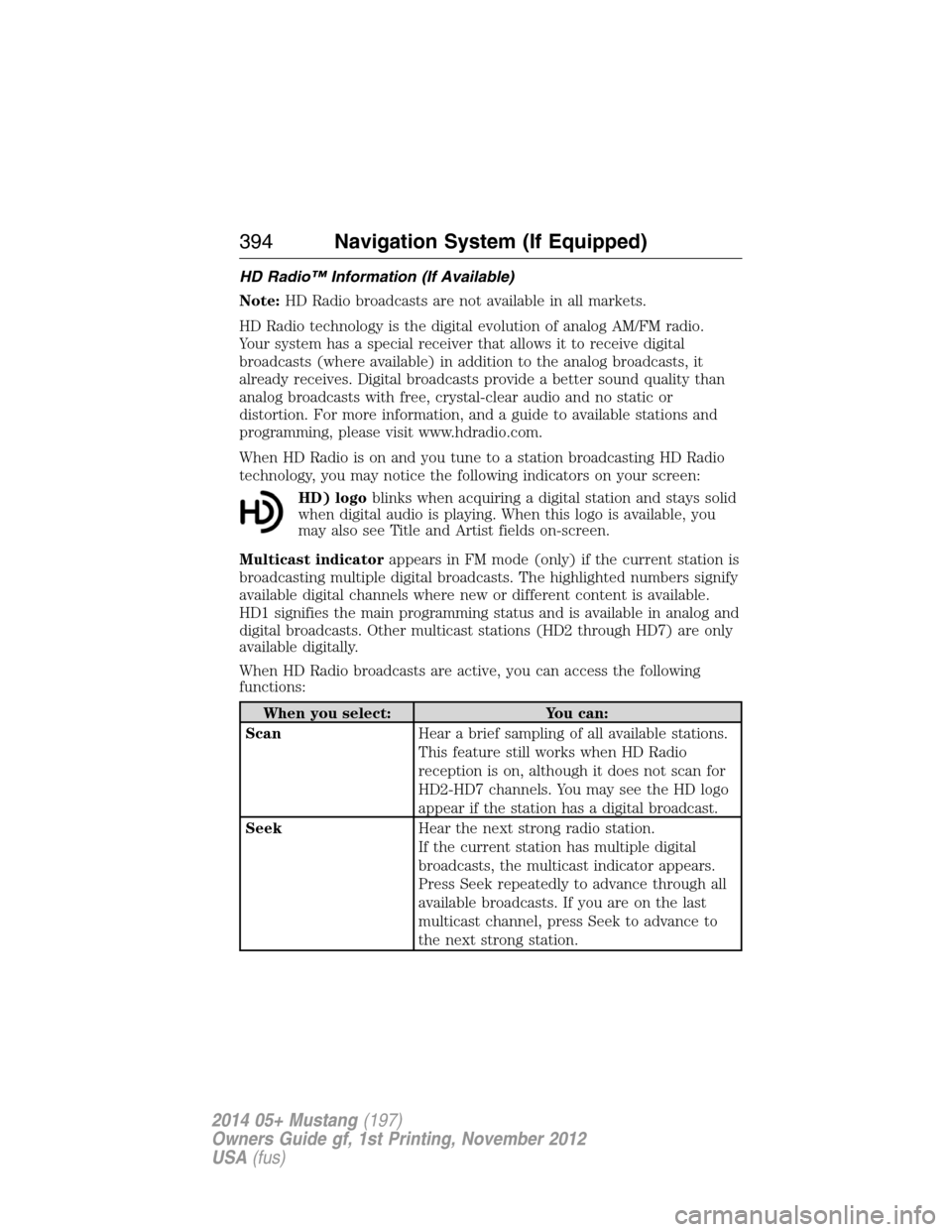
HD Radio™ Information (If Available)
Note:HD Radio broadcasts are not available in all markets.
HD Radio technology is the digital evolution of analog AM/FM radio.
Your system has a special receiver that allows it to receive digital
broadcasts (where available) in addition to the analog broadcasts, it
already receives. Digital broadcasts provide a better sound quality than
analog broadcasts with free, crystal-clear audio and no static or
distortion. For more information, and a guide to available stations and
programming, please visit www.hdradio.com.
When HD Radio is on and you tune to a station broadcasting HD Radio
technology, you may notice the following indicators on your screen:
HD) logoblinks when acquiring a digital station and stays solid
when digital audio is playing. When this logo is available, you
may also see Title and Artist fields on-screen.
Multicast indicatorappears in FM mode (only) if the current station is
broadcasting multiple digital broadcasts. The highlighted numbers signify
available digital channels where new or different content is available.
HD1 signifies the main programming status and is available in analog and
digital broadcasts. Other multicast stations (HD2 through HD7) are only
available digitally.
When HD Radio broadcasts are active, you can access the following
functions:
When you select: You can:
ScanHear a brief sampling of all available stations.
This feature still works when HD Radio
reception is on, although it does not scan for
HD2-HD7 channels. You may see the HD logo
appear if the station has a digital broadcast.
SeekHear the next strong radio station.
If the current station has multiple digital
broadcasts, the multicast indicator appears.
Press Seek repeatedly to advance through all
available broadcasts. If you are on the last
multicast channel, press Seek to advance to
the next strong station.
394Navigation System (If Equipped)
2014 05+ Mustang(197)
Owners Guide gf, 1st Printing, November 2012
USA(fus)