change time FORD MUSTANG 2014 5.G Owner's Manual
[x] Cancel search | Manufacturer: FORD, Model Year: 2014, Model line: MUSTANG, Model: FORD MUSTANG 2014 5.GPages: 461, PDF Size: 5.47 MB
Page 334 of 461
EXCEPTIONS
Normal vehicle axle maintenance:
Rear axles and power take-off units
with synthetic fluid and light-duty trucks equipped with Ford-design axles
are lubricated for life; do not check or change fluid unless a leak is
suspected, service is required or the assembly has been submerged in
water. During long periods of trailer towing with outside temperatures
above 70°F (21°C) and at wide-open throttle for long periods above
45 mph (72 km/h), non-synthetic rear axle fluids should be changed every
3000 miles (4800 kilometers) or three months, whichever comes first. This
interval can be waived if the axle is filled with 75W140 synthetic gear fluid
meeting Ford specification WSL-M2C192-A, part number F1TZ-19580-B or
equivalent. Add friction modifier XL-3 (EST-M2C118-A) or equivalent for
complete refill of Traction-Lok rear axles (seeTechnical specificationsin
theCapacities and Specificationschapter for details).
Police/Taxi/Livery vehicle axle maintenance:Change rear axle fluid
every 100000 miles (160000 km). Rear axle fluid change may be waived
if the axle was filled with 75W140 synthetic gear fluid meeting Ford
specification WSL-M2C192-A, part number FITZ-19580-B or equivalent.
Add four ounces (118 mL) of additive friction modifier XL-3
(EST-M2C118-A) or equivalent for complete refill of Traction-Lok rear
axles. The axle fluid should be changed anytime the axle has been
submerged in water.
California fuel filter replacement:If the vehicle is registered in
California, the California Air Resources Board has determined that the
failure to perform this maintenance item will not nullify the emission
warranty or limit recall liability prior to the completion of the vehicle’s
useful life. Ford Motor Company, however, urges you to have all
recommended maintenance services performed at the specified intervals
and to record all vehicle service.
Hot climate oil change intervals:Vehicles operating in the Middle
East, North Africa, Sub-Saharan Africa or locations with similar climates
using an American Petroleum Institute (API) Certified for Gasoline
Engines (Certification mark) oil of SM or SN quality, the normal oil
change interval is 5000 miles (8000 kilometers).
If the available API SM or SN oils are not available, then the oil change
service interval is 3000 miles (4800 kilometers).
Engine air filter and cabin air filter replacement:Engine air filter
and cabin air filter life are dependent on exposure to dusty and dirty
conditions. Vehicles operated in these conditions require frequent
inspection and replacement of the engine air filter and cabin air filter.
Scheduled Maintenance333
2014 05+ Mustang(197)
Owners Guide gf, 1st Printing, November 2012
USA(fus)
Page 337 of 461
GENERAL INFORMATION
Make sure you review your device’s manual before using it with SYNC.
Support
The SYNC support team is available to help you with any questions you
cannot answer on your own.
Monday-Saturday, 8:30am-8:00pm EST
In the United States, call: 1–888–270–1055
In Canada, call: 1–800–565–3673
Times are subject to change due to holidays.
SYNC Owner Account
Why do I need a SYNC owner account?
•Required to activate Vehicle Health Report and to view the reports
online.
•Required to activate the subscription-based SYNC Services and to
personalize your Saved Points and Favorites.
•Essential for keeping up with the latest software downloads available
for SYNC.
•Access to customer support for any questions you may have.
Driving Restrictions
For your safety, certain features are speed-dependent and restricted
when your vehicle is traveling over 3 mph (5 km/h).
336SYNC®
2014 05+ Mustang(197)
Owners Guide gf, 1st Printing, November 2012
USA(fus)
Page 340 of 461
Say: If you want to:
“Services” Access the SYNC Services portal.*
“Mobile apps” Access mobile applications.*
“Help” Hear a list of voice commands available in the
current mode.
*If equipped, U.S. only.
System Interaction and Feedback
The system provides feedback through audible tones, prompts, questions
and spoken confirmations depending on the situation and the chosen
level of interaction (voice settings). You can customize the voice
recognition system to provide more or less instruction and feedback.
The default setting is to a higher level of interaction in order to help you
learn to use the system. You can change these settings at any time.
Adjusting the Interaction Level
Push the voice icon; when prompted, say “Voice settings”, then
any of the following:
When you say: The system:
“Interaction mode standard” Provides more detailed interaction and
guidance.
“Interaction mode advanced” Provides less audible interaction and
more tone prompts.
The system defaults to the standard interaction mode.
Confirmation prompts are short questions the system asks when it is not
sure of your request or when there are multiple possible responses to your
request. (For example, the system may ask “Phone, is that correct?”) If
turned off, the system simply makes a best guess as to what you requested
and you may still occasionally be asked to confirm settings.
“Confirmation prompts on”
“Confirmation prompts off”
The system creates candidate lists when it has the same confidence level
of several options based on your voice command. When turned on, you
may be prompted with as many as four possibilities for clarification.
SYNC®339
2014 05+ Mustang(197)
Owners Guide gf, 1st Printing, November 2012
USA(fus)
Page 350 of 461
When you select: You can:
Modify PhonebookModify the contents of your phone book (i.e.,
add, delete, download). Press OK to select
and scroll between:
Add Contacts: Press OK to add more contacts
from your phone book. Push the desired
contact(s) on your phone. See your phone’s
user guide on how to push contacts.
Delete Phonebook: Press OK to delete the
current phone book and call history. When
Delete Phonebook appears, press OK to
confirm. SYNC takes you back to the Phone
Settings menu.
Download Phonebook: Press OK to select and
press OK again when Confirm
Download? appears.
Auto DownloadAutomatically download your phone book
each time your phone connects to SYNC.
Press OK to select. When Auto Download
On? appears, press OK to have your
phonebook automatically downloaded each
time.
Select Off to NOT download your phonebook
every time your phone connects to SYNC.
Your phonebook, call history and text
messages can only be accessed when your
specific phone is connected to SYNC.
Note:Downloading times are phone- and
quantity-dependent.
Note:When auto download is on, any
changes, additions or deletions saved since
your last download are deleted.
ReturnExit the current menu.
SYNC®349
2014 05+ Mustang(197)
Owners Guide gf, 1st Printing, November 2012
USA(fus)
Page 399 of 461
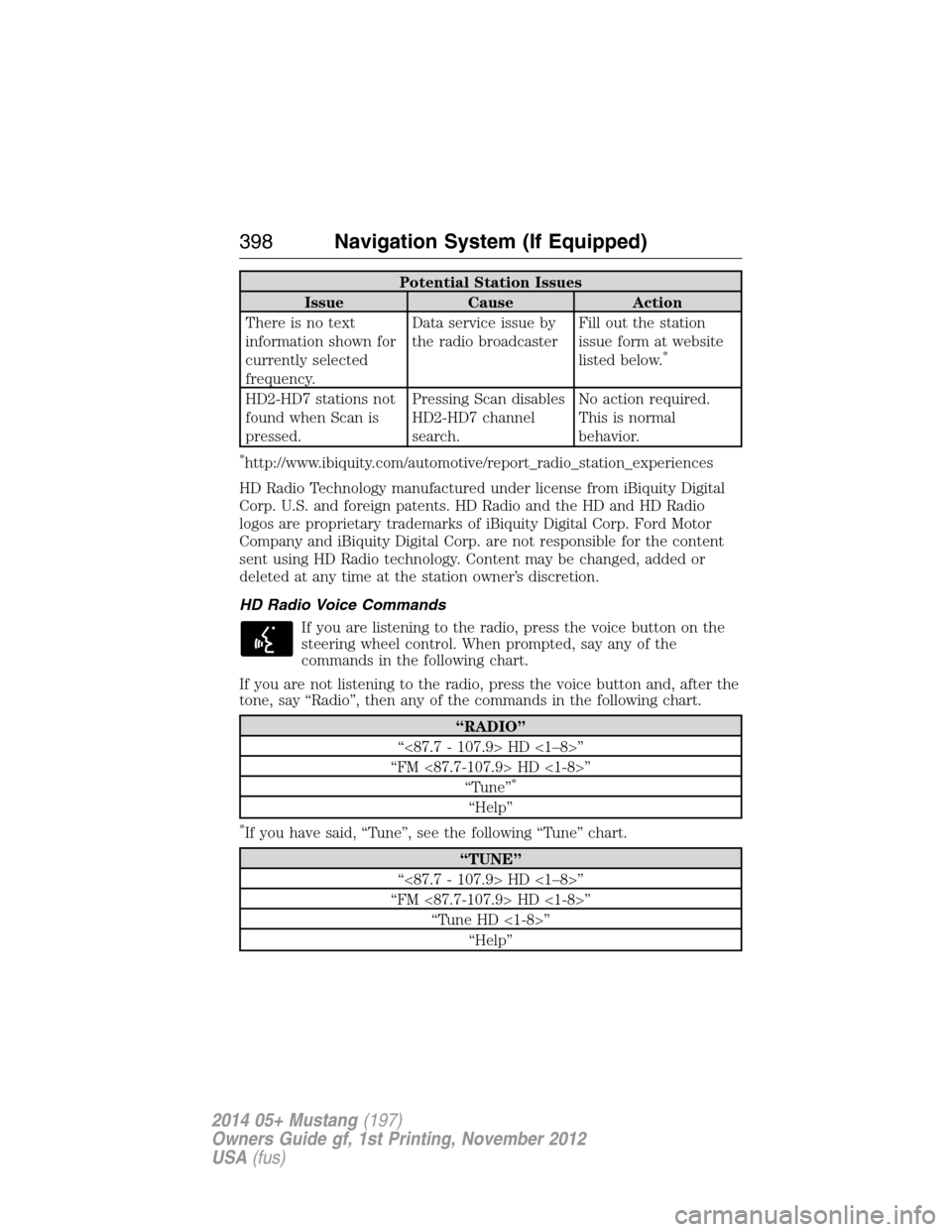
Potential Station Issues
Issue Cause Action
There is no text
information shown for
currently selected
frequency.Data service issue by
the radio broadcasterFill out the station
issue form at website
listed below.
*
HD2-HD7 stations not
found when Scan is
pressed.Pressing Scan disables
HD2-HD7 channel
search.No action required.
This is normal
behavior.
*http://www.ibiquity.com/automotive/report_radio_station_experiences
HD Radio Technology manufactured under license from iBiquity Digital
Corp. U.S. and foreign patents. HD Radio and the HD and HD Radio
logos are proprietary trademarks of iBiquity Digital Corp. Ford Motor
Company and iBiquity Digital Corp. are not responsible for the content
sent using HD Radio technology. Content may be changed, added or
deleted at any time at the station owner’s discretion.
HD Radio Voice Commands
If you are listening to the radio, press the voice button on the
steering wheel control. When prompted, say any of the
commands in the following chart.
If you are not listening to the radio, press the voice button and, after the
tone, say “Radio”, then any of the commands in the following chart.
“RADIO”
“<87.7 - 107.9> HD <1–8>”
“FM <87.7-107.9> HD <1-8>”
“Tune”
*
“Help”
*If you have said, “Tune”, see the following “Tune” chart.
“TUNE”
“<87.7 - 107.9> HD <1–8>”
“FM <87.7-107.9> HD <1-8>”
“Tune HD <1-8>”
“Help”
398Navigation System (If Equipped)
2014 05+ Mustang(197)
Owners Guide gf, 1st Printing, November 2012
USA(fus)
Page 403 of 461
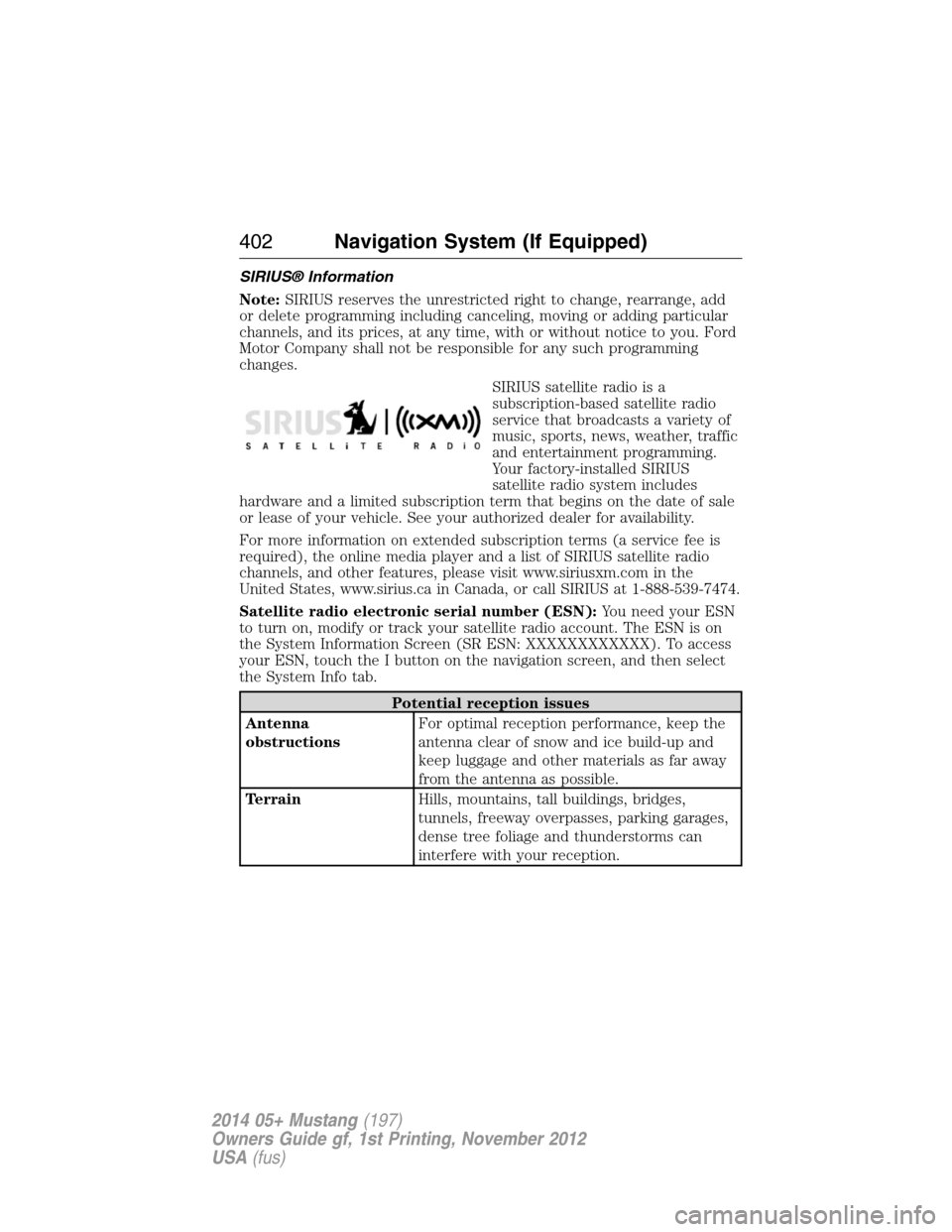
SIRIUS® Information
Note:SIRIUS reserves the unrestricted right to change, rearrange, add
or delete programming including canceling, moving or adding particular
channels, and its prices, at any time, with or without notice to you. Ford
Motor Company shall not be responsible for any such programming
changes.
SIRIUS satellite radio is a
subscription-based satellite radio
service that broadcasts a variety of
music, sports, news, weather, traffic
and entertainment programming.
Your factory-installed SIRIUS
satellite radio system includes
hardware and a limited subscription term that begins on the date of sale
or lease of your vehicle. See your authorized dealer for availability.
For more information on extended subscription terms (a service fee is
required), the online media player and a list of SIRIUS satellite radio
channels, and other features, please visit www.siriusxm.com in the
United States, www.sirius.ca in Canada, or call SIRIUS at 1-888-539-7474.
Satellite radio electronic serial number (ESN):You need your ESN
to turn on, modify or track your satellite radio account. The ESN is on
the System Information Screen (SR ESN: XXXXXXXXXXXX). To access
your ESN, touch the I button on the navigation screen, and then select
the System Info tab.
Potential reception issues
Antenna
obstructionsFor optimal reception performance, keep the
antenna clear of snow and ice build-up and
keep luggage and other materials as far away
from the antenna as possible.
TerrainHills, mountains, tall buildings, bridges,
tunnels, freeway overpasses, parking garages,
dense tree foliage and thunderstorms can
interfere with your reception.
402Navigation System (If Equipped)
2014 05+ Mustang(197)
Owners Guide gf, 1st Printing, November 2012
USA(fus)
Page 412 of 461
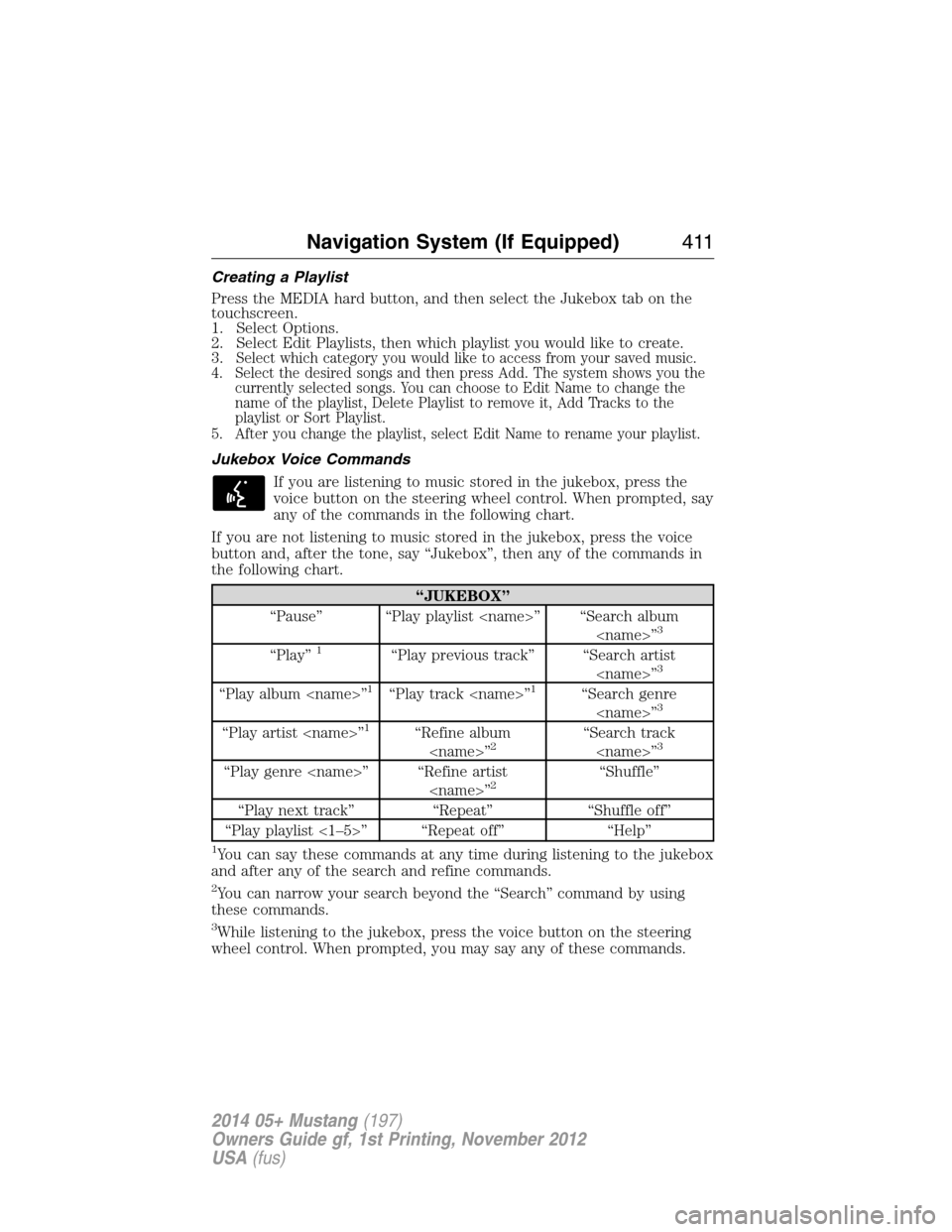
Creating a Playlist
Press the MEDIA hard button, and then select the Jukebox tab on the
touchscreen.
1. Select Options.
2. Select Edit Playlists, then which playlist you would like to create.
3.
Select which category you would like to access from your saved music.
4. Select the desired songs and then press Add. The system shows you the
currently selected songs. You can choose to Edit Name to change the
name of the playlist, Delete Playlist to remove it, Add Tracks to the
playlist or Sort Playlist.
5. After you change the playlist, select Edit Name to rename your playlist.
Jukebox Voice Commands
If you are listening to music stored in the jukebox, press the
voice button on the steering wheel control. When prompted, say
any of the commands in the following chart.
If you are not listening to music stored in the jukebox, press the voice
button and, after the tone, say “Jukebox”, then any of the commands in
the following chart.
“JUKEBOX”
“Pause” “Play playlist
3
“Play”1“Play previous track” “Search artist
“Play album
“Play artist
“Play genre
“Play next track” “Repeat” “Shuffle off”
“Play playlist <1–5>” “Repeat off” “Help”
1You can say these commands at any time during listening to the jukebox
and after any of the search and refine commands.
2You can narrow your search beyond the “Search” command by using
these commands.
3While listening to the jukebox, press the voice button on the steering
wheel control. When prompted, you may say any of these commands.
Navigation System (If Equipped)411
2014 05+ Mustang(197)
Owners Guide gf, 1st Printing, November 2012
USA(fus)
Page 421 of 461
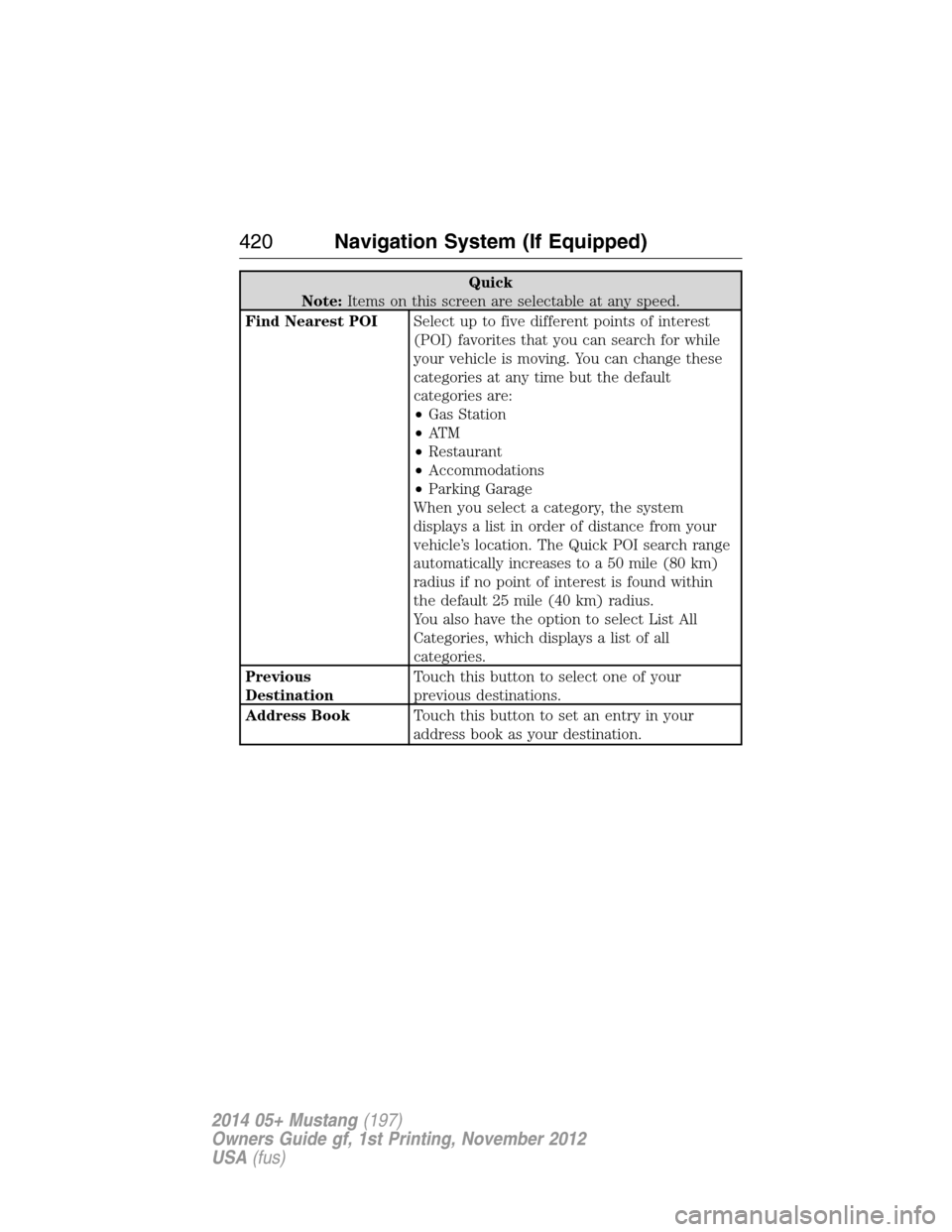
Quick
Note:Items on this screen are selectable at any speed.
Find Nearest POISelect up to five different points of interest
(POI) favorites that you can search for while
your vehicle is moving. You can change these
categories at any time but the default
categories are:
•Gas Station
•AT M
•Restaurant
•Accommodations
•Parking Garage
When you select a category, the system
displays a list in order of distance from your
vehicle’s location. The Quick POI search range
automatically increases to a 50 mile (80 km)
radius if no point of interest is found within
the default 25 mile (40 km) radius.
You also have the option to select List All
Categories, which displays a list of all
categories.
Previous
DestinationTouch this button to select one of your
previous destinations.
Address BookTouch this button to set an entry in your
address book as your destination.
420Navigation System (If Equipped)
2014 05+ Mustang(197)
Owners Guide gf, 1st Printing, November 2012
USA(fus)
Page 433 of 461
Navigation Preferences
Avg. Speed:
ResidentialWhen this feature is on, the system displays
the average speed on a residential road,
initially set to 25 mph (40 km/h). You can
change the setting for your driving
preferences. This setting helps estimate your
arrival time at a destination based on your
driving preferences.
Avg. Speed: Main
RoadsWhen this feature is on, the system displays
the average speed on a main road, initially set
to 45 mph (72 km/h). You can change the
setting for specific roads and for your driving
preferences. This setting helps estimate your
arrival time at a destination based on your
driving preferences.
Avg. Speed: FreewaysWhen this feature is on, the system displays
the average speed on a freeway, initially set to
65 mph (105 km/h). You can change the
setting for specific roads and for your driving
preferences. This setting helps estimate your
arrival time at a destination based on your
driving preferences.
Parking POI
NotificationWhen this feature is on, the system displays
available parking accommodations around a
destination that is part of your route.
Low Fuel POI
NotificationWhen this feature is on, the system displays
gas station icons when the fuel level is low.
Fuel Price DisplayWhen this feature is on, the system displays
fuel prices at local stations. You can choose to
display prices forUnleadedorDiesel.
*
432Navigation System (If Equipped)
2014 05+ Mustang(197)
Owners Guide gf, 1st Printing, November 2012
USA(fus)
Page 435 of 461
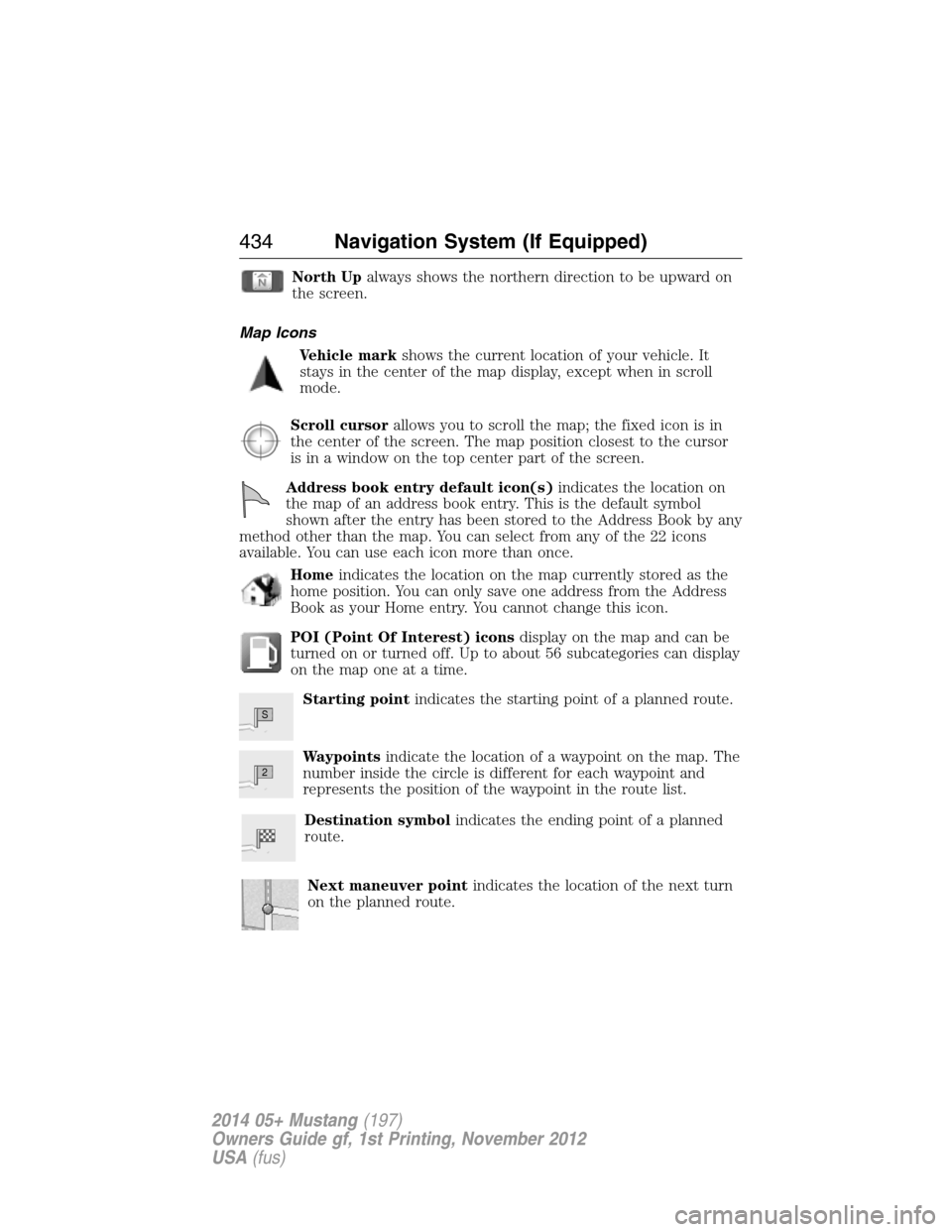
North Upalways shows the northern direction to be upward on
the screen.
Map Icons
Vehicle markshows the current location of your vehicle. It
stays in the center of the map display, except when in scroll
mode.
Scroll cursorallows you to scroll the map; the fixed icon is in
the center of the screen. The map position closest to the cursor
is in a window on the top center part of the screen.
Address book entry default icon(s)indicates the location on
the map of an address book entry. This is the default symbol
shown after the entry has been stored to the Address Book by any
method other than the map. You can select from any of the 22 icons
available. You can use each icon more than once.
Homeindicates the location on the map currently stored as the
home position. You can only save one address from the Address
Book as your Home entry. You cannot change this icon.
POI (Point Of Interest) iconsdisplay on the map and can be
turned on or turned off. Up to about 56 subcategories can display
on the map one at a time.
Starting pointindicates the starting point of a planned route.
Waypointsindicate the location of a waypoint on the map. The
number inside the circle is different for each waypoint and
represents the position of the waypoint in the route list.
Destination symbolindicates the ending point of a planned
route.
Next maneuver pointindicates the location of the next turn
on the planned route.
S
2
434Navigation System (If Equipped)
2014 05+ Mustang(197)
Owners Guide gf, 1st Printing, November 2012
USA(fus)