wheel FORD MUSTANG 2014 5.G Manual Online
[x] Cancel search | Manufacturer: FORD, Model Year: 2014, Model line: MUSTANG, Model: FORD MUSTANG 2014 5.GPages: 461, PDF Size: 5.47 MB
Page 402 of 461
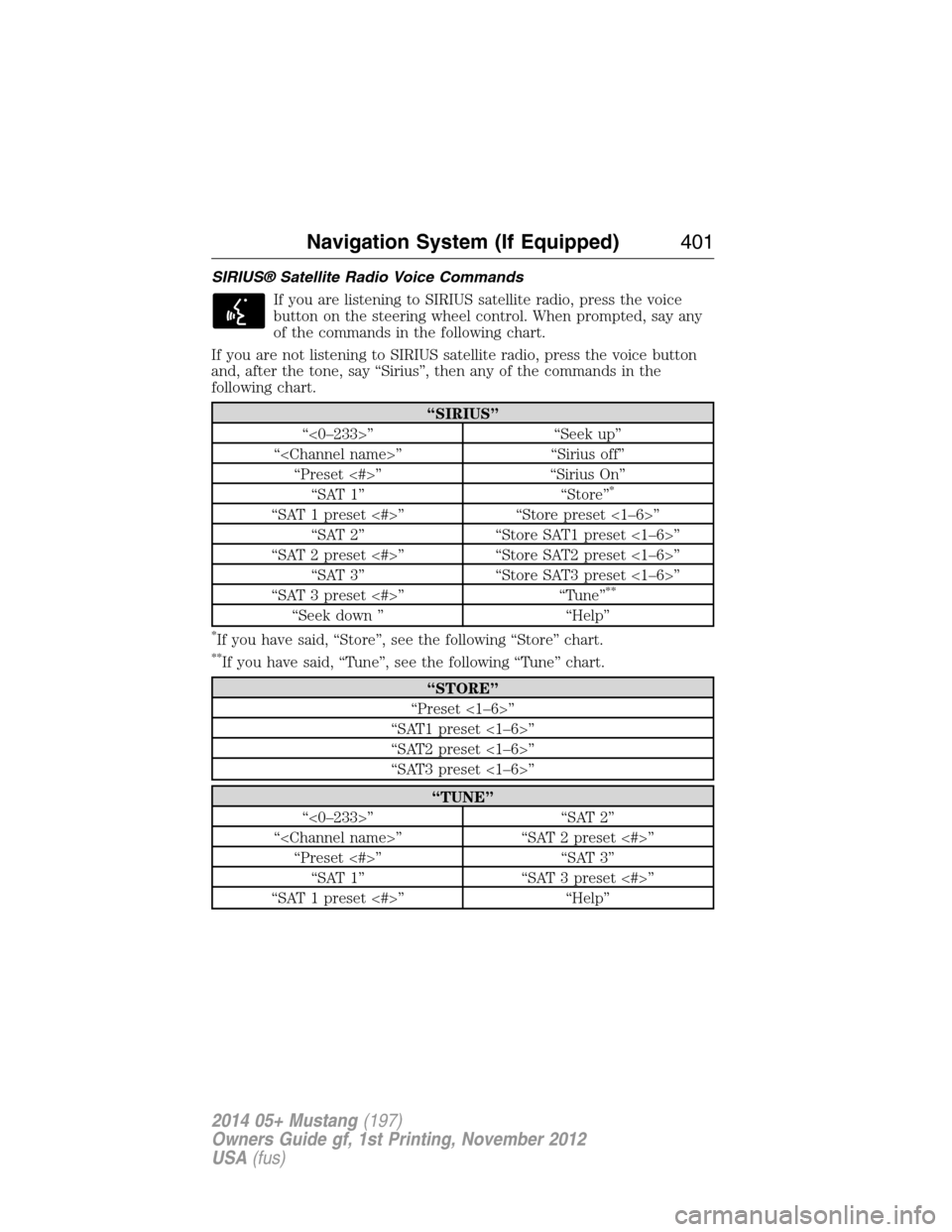
SIRIUS® Satellite Radio Voice Commands
If you are listening to SIRIUS satellite radio, press the voice
button on the steering wheel control. When prompted, say any
of the commands in the following chart.
If you are not listening to SIRIUS satellite radio, press the voice button
and, after the tone, say “Sirius”, then any of the commands in the
following chart.
“SIRIUS”
“<0–233>” “Seek up”
“
“Preset <#>” “Sirius On”
“SAT 1” “Store”
*
“SAT 1 preset <#>” “Store preset <1–6>”
“SAT 2” “Store SAT1 preset <1–6>”
“SAT 2 preset <#>” “Store SAT2 preset <1–6>”
“SAT 3” “Store SAT3 preset <1–6>”
“SAT 3 preset <#>” “Tune”
**
“Seek down ” “Help”
*If you have said, “Store”, see the following “Store” chart.
**If you have said, “Tune”, see the following “Tune” chart.
“STORE”
“Preset <1–6>”
“SAT1 preset <1–6>”
“SAT2 preset <1–6>”
“SAT3 preset <1–6>”
“TUNE”
“<0–233>” “SAT 2”
“
“Preset <#>” “SAT 3”
“SAT 1” “SAT 3 preset <#>”
“SAT 1 preset <#>” “Help”
Navigation System (If Equipped)401
2014 05+ Mustang(197)
Owners Guide gf, 1st Printing, November 2012
USA(fus)
Page 406 of 461
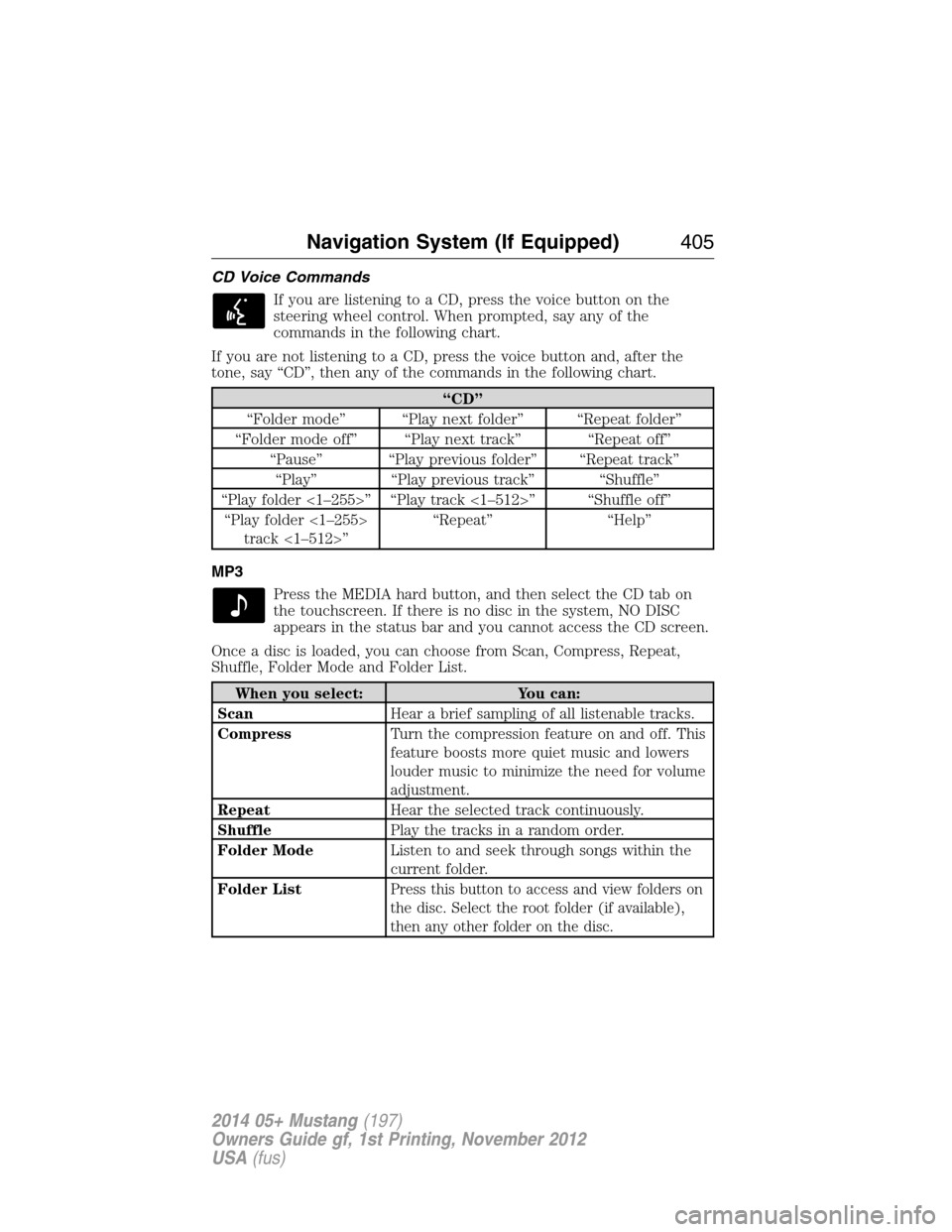
CD Voice Commands
If you are listening to a CD, press the voice button on the
steering wheel control. When prompted, say any of the
commands in the following chart.
If you are not listening to a CD, press the voice button and, after the
tone, say “CD”, then any of the commands in the following chart.
“CD”
“Folder mode” “Play next folder” “Repeat folder”
“Folder mode off” “Play next track” “Repeat off”
“Pause” “Play previous folder” “Repeat track”
“Play” “Play previous track” “Shuffle”
“Play folder <1–255>” “Play track <1–512>” “Shuffle off”
“Play folder <1–255>
track <1–512>”“Repeat” “Help”
MP3
Press the MEDIA hard button, and then select the CD tab on
the touchscreen. If there is no disc in the system, NO DISC
appears in the status bar and you cannot access the CD screen.
Once a disc is loaded, you can choose from Scan, Compress, Repeat,
Shuffle, Folder Mode and Folder List.
When you select: You can:
ScanHear a brief sampling of all listenable tracks.
CompressTurn the compression feature on and off. This
feature boosts more quiet music and lowers
louder music to minimize the need for volume
adjustment.
RepeatHear the selected track continuously.
ShufflePlay the tracks in a random order.
Folder ModeListen to and seek through songs within the
current folder.
Folder List
Press this button to access and view folders on
the disc. Select the root folder (if available),
then any other folder on the disc.
Navigation System (If Equipped)405
2014 05+ Mustang(197)
Owners Guide gf, 1st Printing, November 2012
USA(fus)
Page 408 of 461
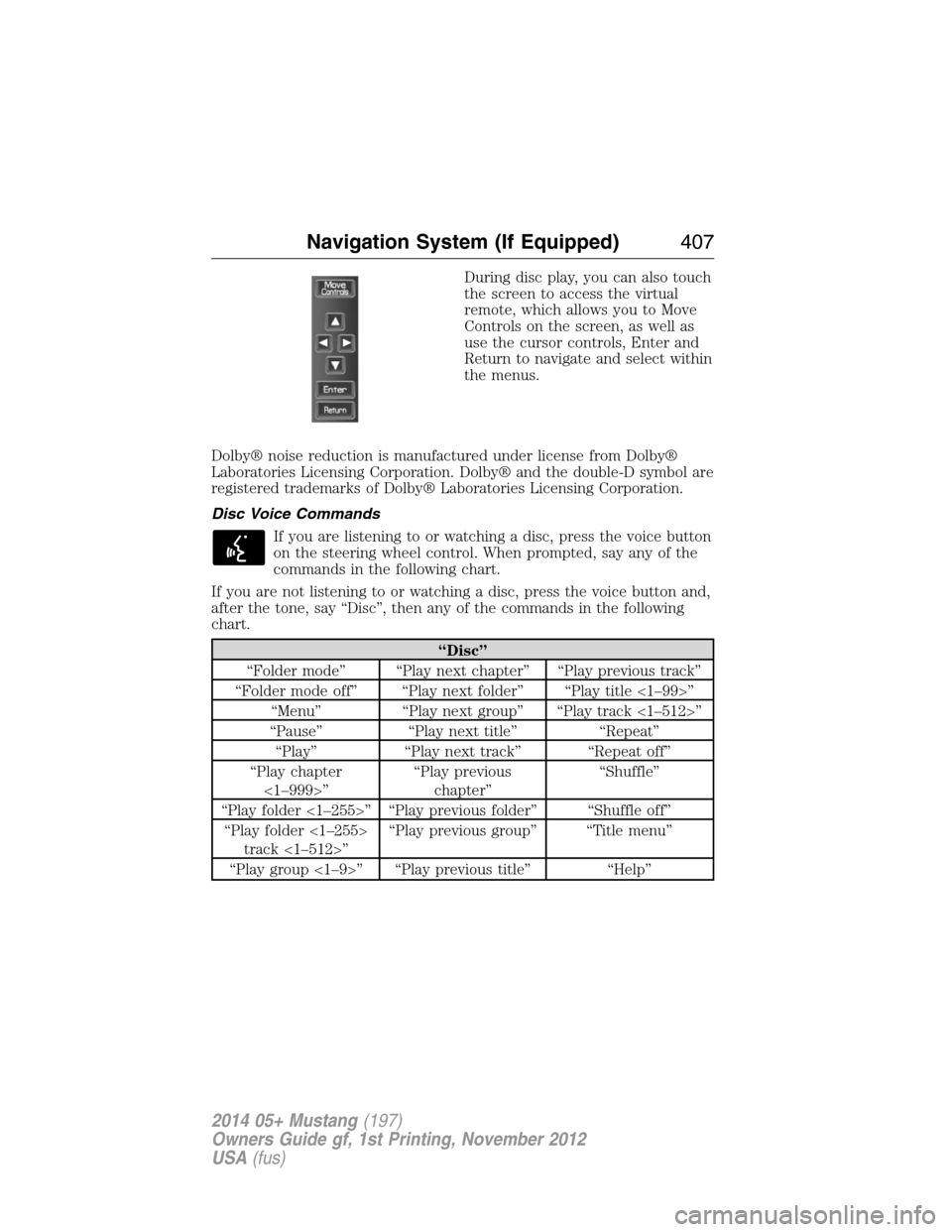
During disc play, you can also touch
the screen to access the virtual
remote, which allows you to Move
Controls on the screen, as well as
use the cursor controls, Enter and
Return to navigate and select within
the menus.
Dolby® noise reduction is manufactured under license from Dolby®
Laboratories Licensing Corporation. Dolby® and the double-D symbol are
registered trademarks of Dolby® Laboratories Licensing Corporation.
Disc Voice Commands
If you are listening to or watching a disc, press the voice button
on the steering wheel control. When prompted, say any of the
commands in the following chart.
If you are not listening to or watching a disc, press the voice button and,
after the tone, say “Disc”, then any of the commands in the following
chart.
“Disc”
“Folder mode” “Play next chapter” “Play previous track”
“Folder mode off” “Play next folder” “Play title <1–99>”
“Menu” “Play next group” “Play track <1–512>”
“Pause” “Play next title” “Repeat”
“Play” “Play next track” “Repeat off”
“Play chapter
<1–999>”“Play previous
chapter”“Shuffle”
“Play folder <1–255>” “Play previous folder” “Shuffle off”
“Play folder <1–255>
track <1–512>”“Play previous group” “Title menu”
“Play group <1–9>” “Play previous title” “Help”
Navigation System (If Equipped)407
2014 05+ Mustang(197)
Owners Guide gf, 1st Printing, November 2012
USA(fus)
Page 409 of 461
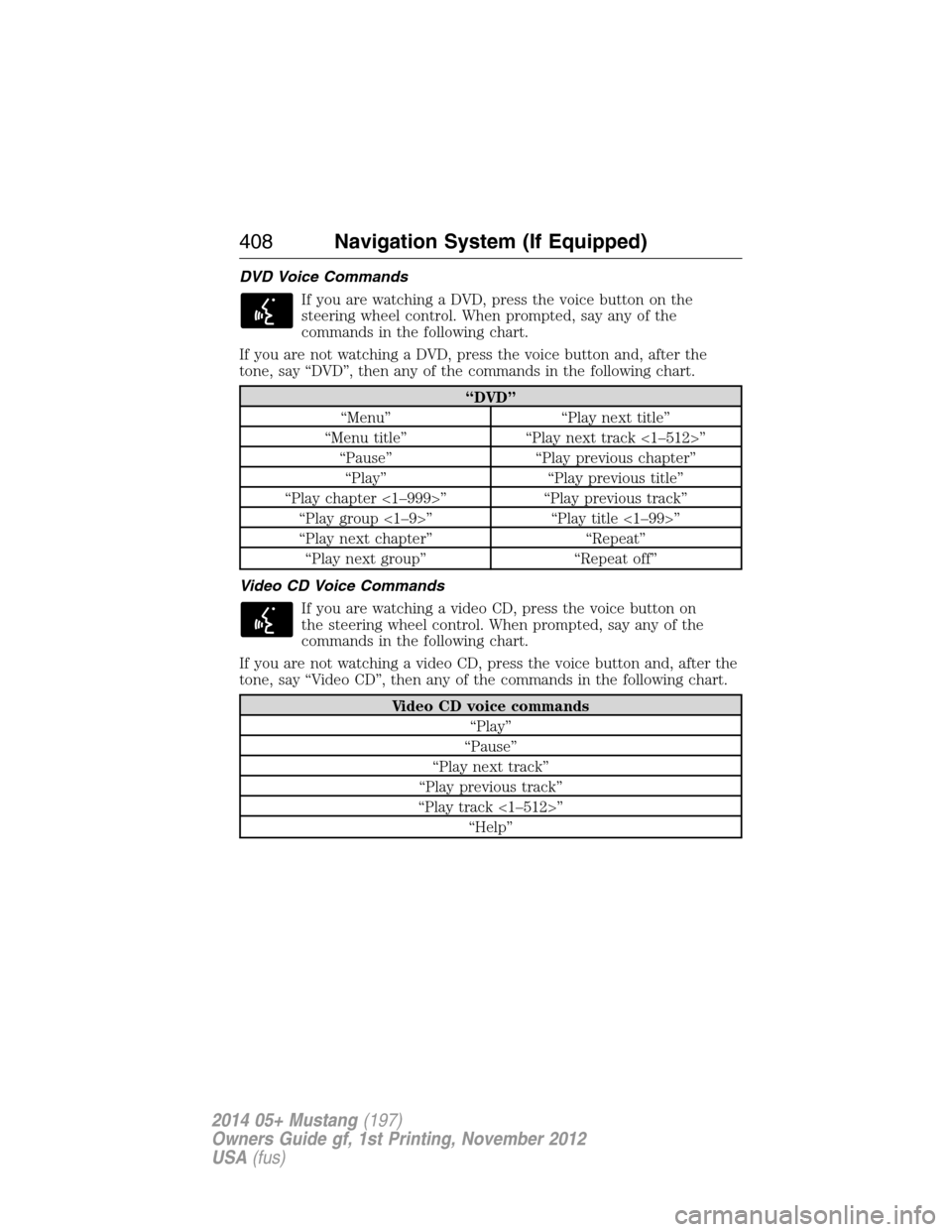
DVD Voice Commands
If you are watching a DVD, press the voice button on the
steering wheel control. When prompted, say any of the
commands in the following chart.
If you are not watching a DVD, press the voice button and, after the
tone, say “DVD”, then any of the commands in the following chart.
“DVD”
“Menu” “Play next title”
“Menu title” “Play next track <1–512>”
“Pause” “Play previous chapter”
“Play” “Play previous title”
“Play chapter <1–999>” “Play previous track”
“Play group <1–9>” “Play title <1–99>”
“Play next chapter” “Repeat”
“Play next group” “Repeat off”
Video CD Voice Commands
If you are watching a video CD, press the voice button on
the steering wheel control. When prompted, say any of the
commands in the following chart.
If you are not watching a video CD, press the voice button and, after the
tone, say “Video CD”, then any of the commands in the following chart.
Video CD voice commands
“Play”
“Pause”
“Play next track”
“Play previous track”
“Play track <1–512>”
“Help”
408Navigation System (If Equipped)
2014 05+ Mustang(197)
Owners Guide gf, 1st Printing, November 2012
USA(fus)
Page 412 of 461
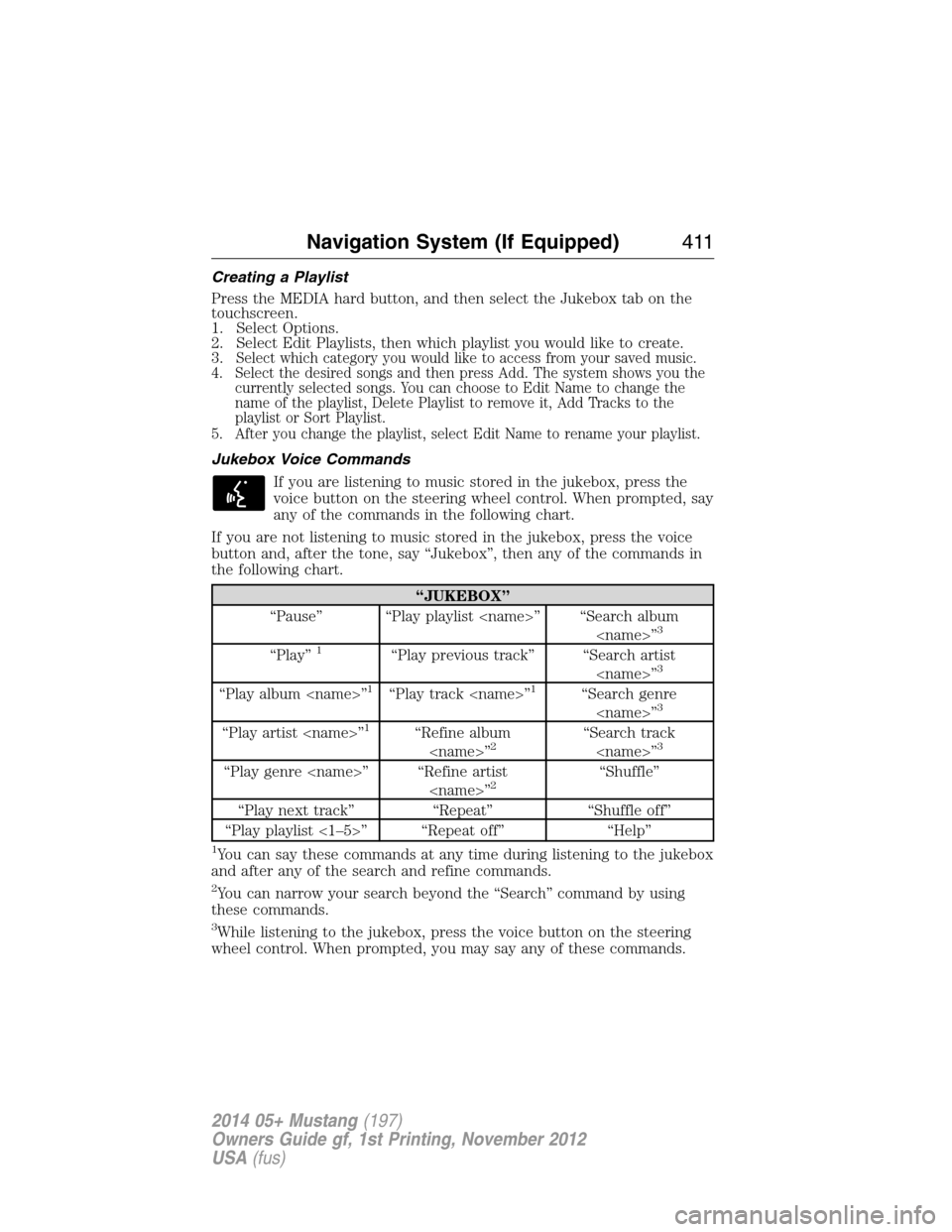
Creating a Playlist
Press the MEDIA hard button, and then select the Jukebox tab on the
touchscreen.
1. Select Options.
2. Select Edit Playlists, then which playlist you would like to create.
3.
Select which category you would like to access from your saved music.
4. Select the desired songs and then press Add. The system shows you the
currently selected songs. You can choose to Edit Name to change the
name of the playlist, Delete Playlist to remove it, Add Tracks to the
playlist or Sort Playlist.
5. After you change the playlist, select Edit Name to rename your playlist.
Jukebox Voice Commands
If you are listening to music stored in the jukebox, press the
voice button on the steering wheel control. When prompted, say
any of the commands in the following chart.
If you are not listening to music stored in the jukebox, press the voice
button and, after the tone, say “Jukebox”, then any of the commands in
the following chart.
“JUKEBOX”
“Pause” “Play playlist
3
“Play”1“Play previous track” “Search artist
“Play album
“Play artist
“Play genre
“Play next track” “Repeat” “Shuffle off”
“Play playlist <1–5>” “Repeat off” “Help”
1You can say these commands at any time during listening to the jukebox
and after any of the search and refine commands.
2You can narrow your search beyond the “Search” command by using
these commands.
3While listening to the jukebox, press the voice button on the steering
wheel control. When prompted, you may say any of these commands.
Navigation System (If Equipped)411
2014 05+ Mustang(197)
Owners Guide gf, 1st Printing, November 2012
USA(fus)
Page 428 of 461
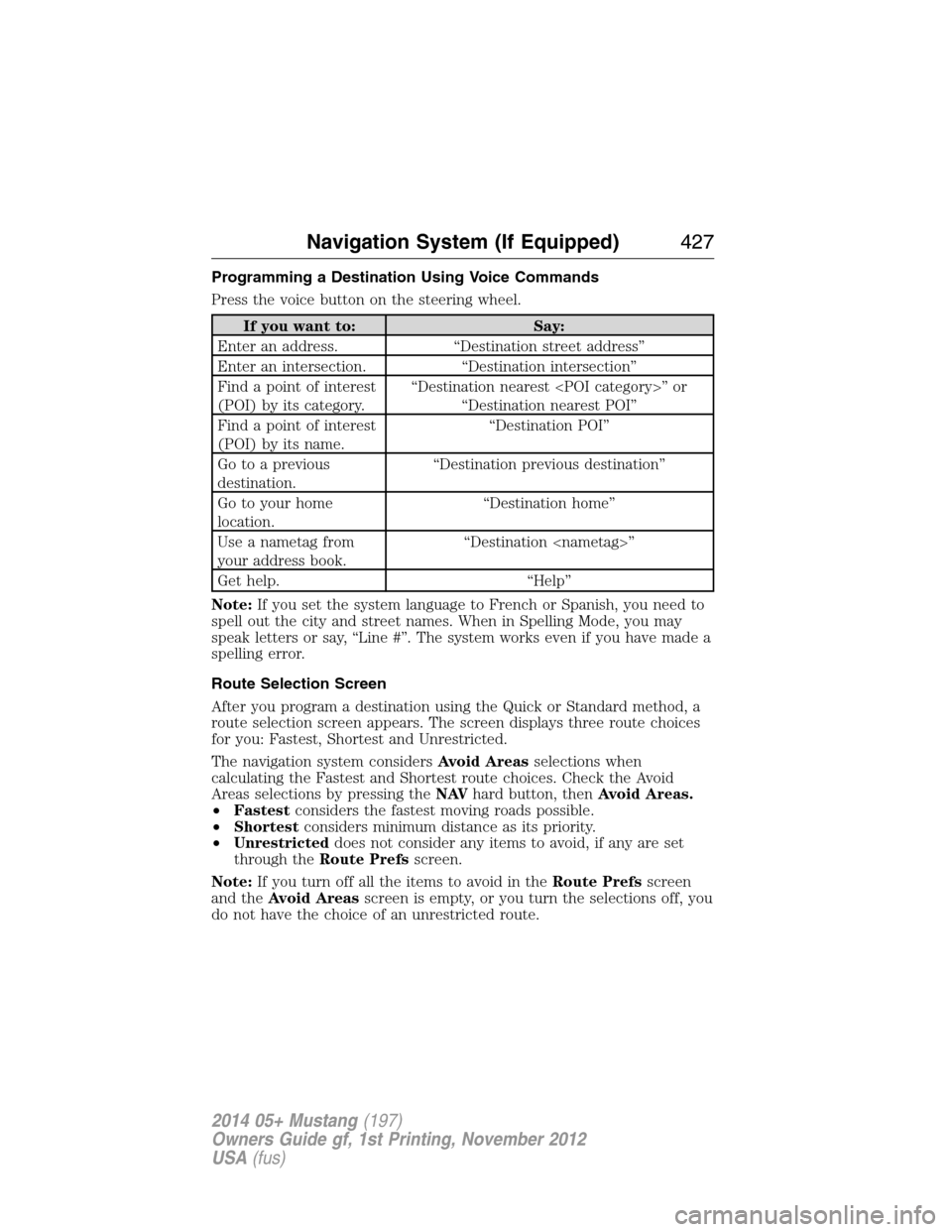
Programming a Destination Using Voice Commands
Press the voice button on the steering wheel.
If you want to: Say:
Enter an address. “Destination street address”
Enter an intersection. “Destination intersection”
Find a point of interest
(POI) by its category.“Destination nearest
“Destination nearest POI”
Find a point of interest
(POI) by its name.“Destination POI”
Go to a previous
destination.“Destination previous destination”
Go to your home
location.“Destination home”
Use a nametag from
your address book.“Destination
Get help. “Help”
Note:If you set the system language to French or Spanish, you need to
spell out the city and street names. When in Spelling Mode, you may
speak letters or say, “Line #”. The system works even if you have made a
spelling error.
Route Selection Screen
After you program a destination using the Quick or Standard method, a
route selection screen appears. The screen displays three route choices
for you: Fastest, Shortest and Unrestricted.
The navigation system considersAvoid Areasselections when
calculating the Fastest and Shortest route choices. Check the Avoid
Areas selections by pressing theNAVhard button, thenAvoid Areas.
•Fastestconsiders the fastest moving roads possible.
•Shortestconsiders minimum distance as its priority.
•Unrestricteddoes not consider any items to avoid, if any are set
through theRoute Prefsscreen.
Note:If you turn off all the items to avoid in theRoute Prefsscreen
and theAvoid Areasscreen is empty, or you turn the selections off, you
do not have the choice of an unrestricted route.
Navigation System (If Equipped)427
2014 05+ Mustang(197)
Owners Guide gf, 1st Printing, November 2012
USA(fus)
Page 438 of 461
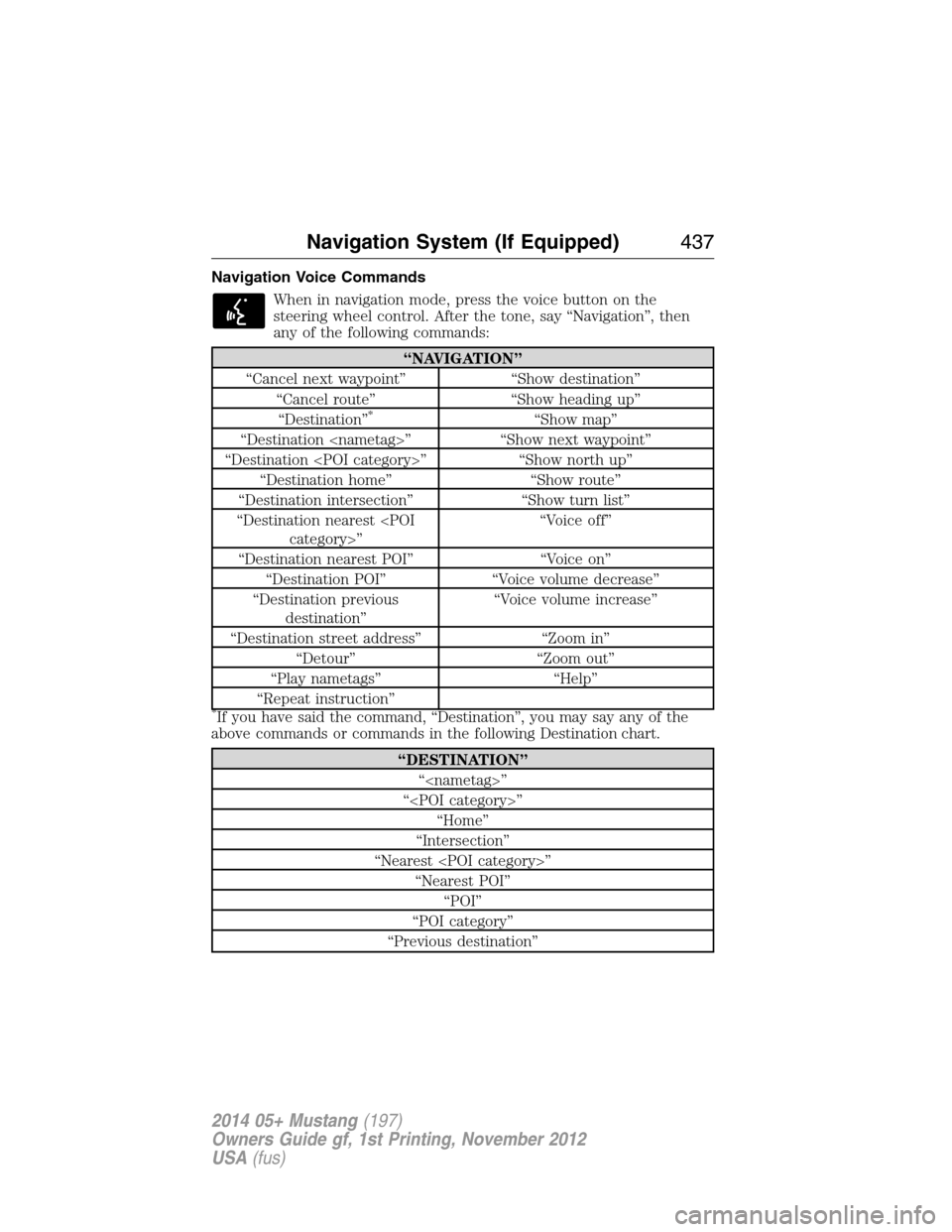
Navigation Voice Commands
When in navigation mode, press the voice button on the
steering wheel control. After the tone, say “Navigation”, then
any of the following commands:
“NAVIGATION”
“Cancel next waypoint” “Show destination”
“Cancel route” “Show heading up”
“Destination”
*“Show map”
“Destination
“Destination
“Destination home” “Show route”
“Destination intersection” “Show turn list”
“Destination nearest
“Destination nearest POI” “Voice on”
“Destination POI” “Voice volume decrease”
“Destination previous
destination”“Voice volume increase”
“Destination street address” “Zoom in”
“Detour” “Zoom out”
“Play nametags” “Help”
“Repeat instruction”
*If you have said the command, “Destination”, you may say any of the
above commands or commands in the following Destination chart.
“DESTINATION”
“
“
“Home”
“Intersection”
“Nearest
“Nearest POI”
“POI”
“POI category”
“Previous destination”
Navigation System (If Equipped)437
2014 05+ Mustang(197)
Owners Guide gf, 1st Printing, November 2012
USA(fus)
Page 447 of 461
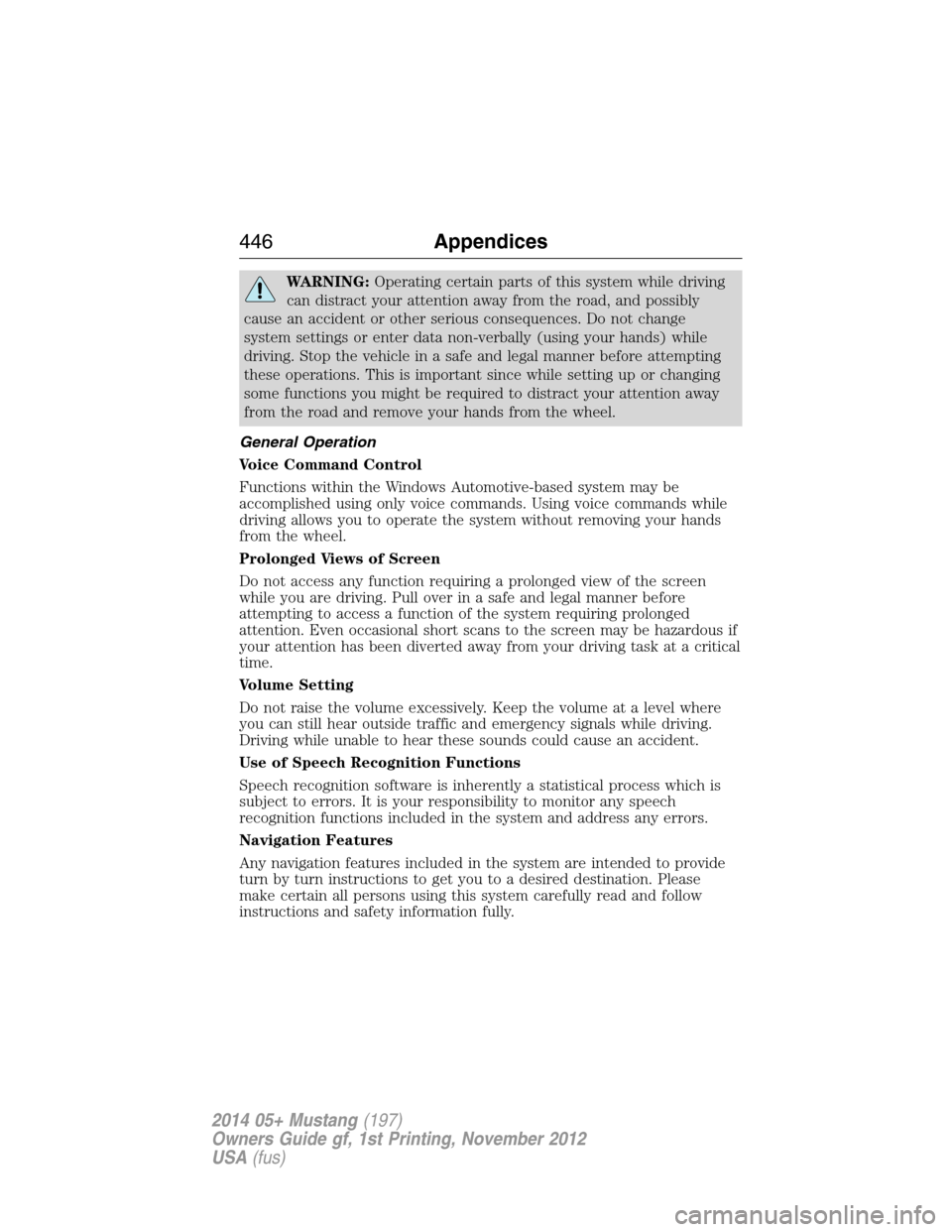
WARNING:Operating certain parts of this system while driving
can distract your attention away from the road, and possibly
cause an accident or other serious consequences. Do not change
system settings or enter data non-verbally (using your hands) while
driving. Stop the vehicle in a safe and legal manner before attempting
these operations. This is important since while setting up or changing
some functions you might be required to distract your attention away
from the road and remove your hands from the wheel.
General Operation
Voice Command Control
Functions within the Windows Automotive-based system may be
accomplished using only voice commands. Using voice commands while
driving allows you to operate the system without removing your hands
from the wheel.
Prolonged Views of Screen
Do not access any function requiring a prolonged view of the screen
while you are driving. Pull over in a safe and legal manner before
attempting to access a function of the system requiring prolonged
attention. Even occasional short scans to the screen may be hazardous if
your attention has been diverted away from your driving task at a critical
time.
Volume Setting
Do not raise the volume excessively. Keep the volume at a level where
you can still hear outside traffic and emergency signals while driving.
Driving while unable to hear these sounds could cause an accident.
Use of Speech Recognition Functions
Speech recognition software is inherently a statistical process which is
subject to errors. It is your responsibility to monitor any speech
recognition functions included in the system and address any errors.
Navigation Features
Any navigation features included in the system are intended to provide
turn by turn instructions to get you to a desired destination. Please
make certain all persons using this system carefully read and follow
instructions and safety information fully.
446Appendices
2014 05+ Mustang(197)
Owners Guide gf, 1st Printing, November 2012
USA(fus)
Page 455 of 461
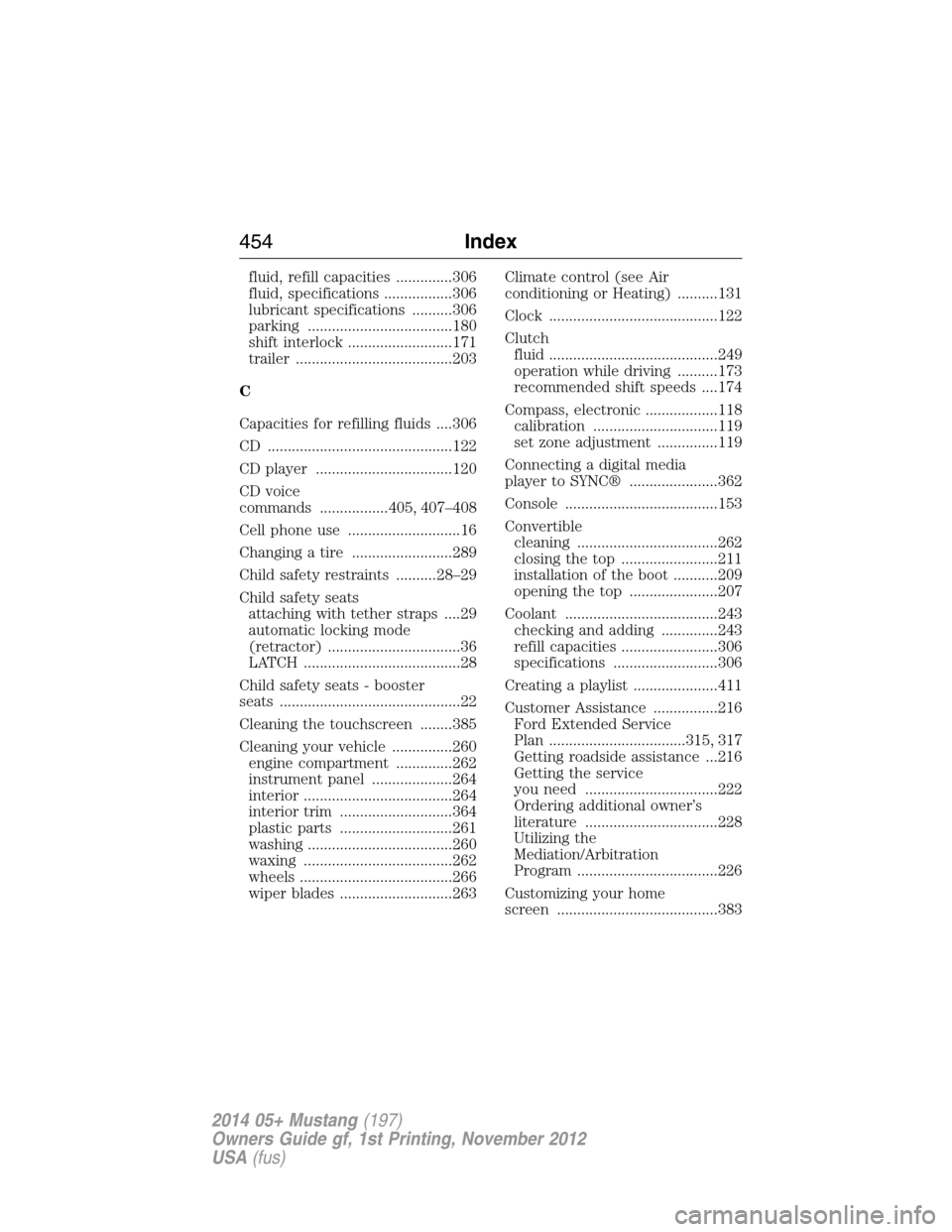
fluid, refill capacities ..............306
fluid, specifications .................306
lubricant specifications ..........306
parking ....................................180
shift interlock ..........................171
trailer .......................................203
C
Capacities for refilling fluids ....306
CD ..............................................122
CD player ..................................120
CD voice
commands .................405, 407–408
Cell phone use ............................16
Changing a tire .........................289
Child safety restraints ..........28–29
Child safety seats
attaching with tether straps ....29
automatic locking mode
(retractor) .................................36
LATCH .......................................28
Child safety seats - booster
seats .............................................22
Cleaning the touchscreen ........385
Cleaning your vehicle ...............260
engine compartment ..............262
instrument panel ....................264
interior .....................................264
interior trim ............................364
plastic parts ............................261
washing ....................................260
waxing .....................................262
wheels ......................................266
wiper blades ............................263Climate control (see Air
conditioning or Heating) ..........131
Clock ..........................................122
Clutch
fluid ..........................................249
operation while driving ..........173
recommended shift speeds ....174
Compass, electronic ..................118
calibration ...............................119
set zone adjustment ...............119
Connecting a digital media
player to SYNC® ......................362
Console ......................................153
Convertible
cleaning ...................................262
closing the top ........................211
installation of the boot ...........209
opening the top ......................207
Coolant ......................................243
checking and adding ..............243
refill capacities ........................306
specifications ..........................306
Creating a playlist .....................411
Customer Assistance ................216
Ford Extended Service
Plan ..................................315, 317
Getting roadside assistance ...216
Getting the service
you need .................................222
Ordering additional owner’s
literature .................................228
Utilizing the
Mediation/Arbitration
Program ...................................226
Customizing your home
screen ........................................383
454Index
2014 05+ Mustang(197)
Owners Guide gf, 1st Printing, November 2012
USA(fus)
Page 459 of 461
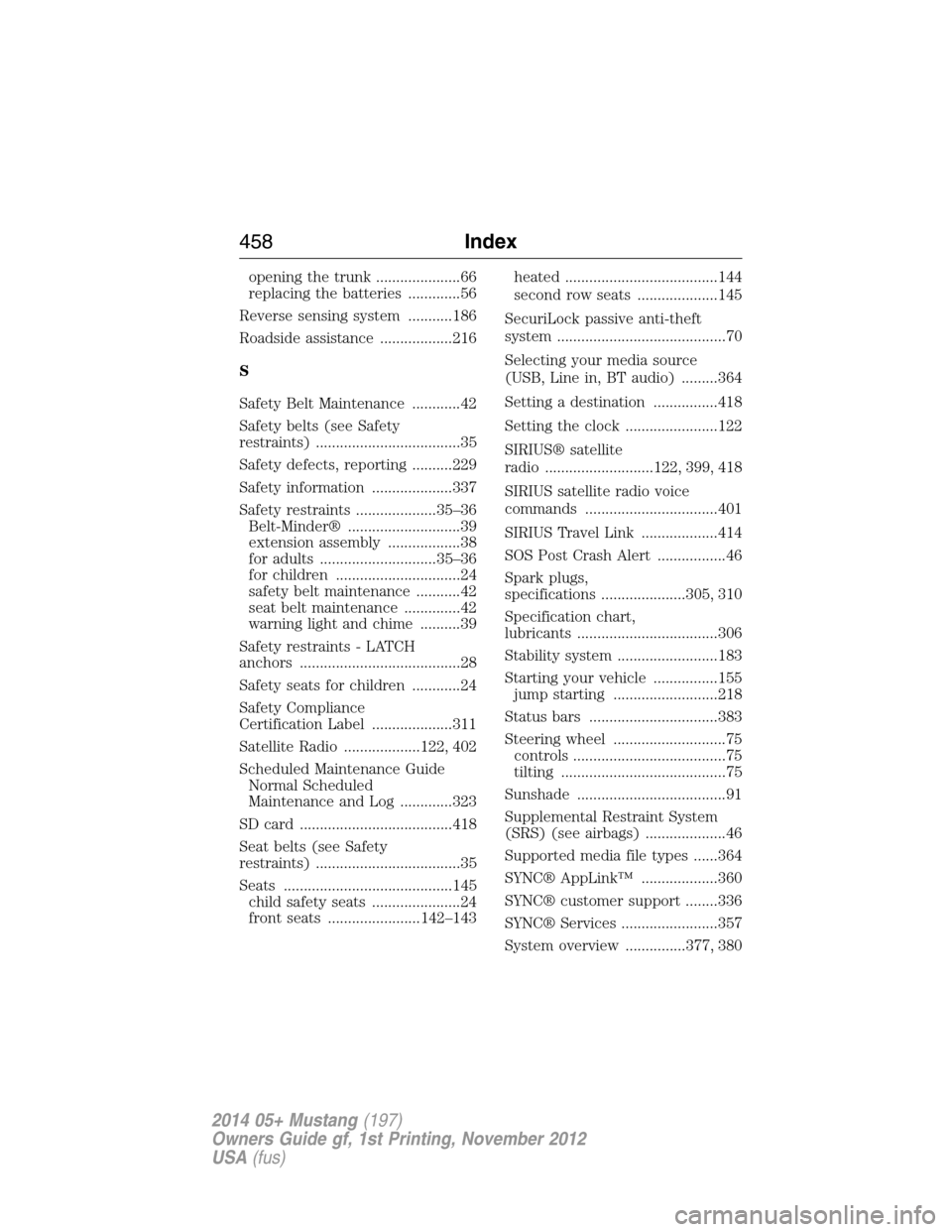
opening the trunk .....................66
replacing the batteries .............56
Reverse sensing system ...........186
Roadside assistance ..................216
S
Safety Belt Maintenance ............42
Safety belts (see Safety
restraints) ....................................35
Safety defects, reporting ..........229
Safety information ....................337
Safety restraints ....................35–36
Belt-Minder® ............................39
extension assembly ..................38
for adults .............................35–36
for children ...............................24
safety belt maintenance ...........42
seat belt maintenance ..............42
warning light and chime ..........39
Safety restraints - LATCH
anchors ........................................28
Safety seats for children ............24
Safety Compliance
Certification Label ....................311
Satellite Radio ...................122, 402
Scheduled Maintenance Guide
Normal Scheduled
Maintenance and Log .............323
SD card ......................................418
Seat belts (see Safety
restraints) ....................................35
Seats ..........................................145
child safety seats ......................24
front seats .......................142–143heated ......................................144
second row seats ....................145
SecuriLock passive anti-theft
system ..........................................70
Selecting your media source
(USB, Line in, BT audio) .........364
Setting a destination ................418
Setting the clock .......................122
SIRIUS® satellite
radio ...........................122, 399, 418
SIRIUS satellite radio voice
commands .................................401
SIRIUS Travel Link ...................414
SOS Post Crash Alert .................46
Spark plugs,
specifications .....................305, 310
Specification chart,
lubricants ...................................306
Stability system .........................183
Starting your vehicle ................155
jump starting ..........................218
Status bars ................................383
Steering wheel ............................75
controls ......................................75
tilting .........................................75
Sunshade .....................................91
Supplemental Restraint System
(SRS) (see airbags) ....................46
Supported media file types ......364
SYNC® AppLink™ ...................360
SYNC® customer support ........336
SYNC® Services ........................357
System overview ...............377, 380
458Index
2014 05+ Mustang(197)
Owners Guide gf, 1st Printing, November 2012
USA(fus)