USB FORD MUSTANG 2017 6.G Owners Manual
[x] Cancel search | Manufacturer: FORD, Model Year: 2017, Model line: MUSTANG, Model: FORD MUSTANG 2017 6.GPages: 475, PDF Size: 6.93 MB
Page 8 of 475
Audio Unit - Vehicles With: AM/FM/CD/
SYNC/Satellite Radio............................293
Audio Unit - Vehicles With: Premium AM/ FM/CD.........................................................296
Digital Radio
..................................................297
Satellite Radio..............................................299
USB Port.........................................................302
Media Hub
......................................................302
SYNC™
General Information
...................................303
Using Voice Recognition
...........................305
Using SYNC™ With Your Phone............307
SYNC™ Applications and Services.......319
Using SYNC™ With Your Media Player...........................................................324
SYNC™ Troubleshooting
..........................333
SYNC™ 3
General Information....................................341
Home Screen
.................................................352
Using Voice Recognition
...........................353
Entertainment..............................................360
Climate............................................................370
Phone...............................................................373
Navigation......................................................378
Apps.................................................................386
Settings
...........................................................388
SYNC™ 3 Troubleshooting.....................400
Accessories
Accessories.....................................................413
Ford Protect
Ford Protect....................................................415
Scheduled Maintenance
General Maintenance Information.........417
Normal Scheduled Maintenance
..........420 Special Operating Conditions Scheduled
Maintenance.............................................423
Scheduled Maintenance Record...........425
Appendices
End User License Agreement.................435
Type Approvals
............................................459
5
Mustang (CZG) Canada/United States of America, Vehicles Built From: 02-05-2016, enUSA, First Printing Table of Contents
Page 47 of 475
GENERAL INFORMATION ON
RADIO FREQUENCIES
This device complies with Part 15 of the
FCC Rules and with Industry Canada
license-exempt RSS standard(s).
Operation is subject to the following two
conditions: (1) This device may not cause
harmful interference, and (2) This device
must accept any interference received,
including interference that may cause
undesired operation.
Note:
Changes or modifications not
expressively approved by the party
responsible for compliance could void the
user's authority to operate the equipment.
The term IC before the radio certification
number only signifies that Industry Canada
technical specifications were met.
The typical operating range for your
transmitter is approximately 33 feet (10
meters). Vehicles with the remote start
feature will have a greater range. One of
the following could cause a decrease in
operating range:
• weather conditions
• nearby radio towers
• structures around the vehicle
• other vehicles parked next to your
vehicle
Other short-distance radio transmitters,
such as amateur radios, medical
equipment, wireless headphones, remote
controls and alarm systems may operate
on the same frequency as your remote
control. If other transmitters are operating
on those frequencies, you may not be able
to use your remote control. Using your
remote control near some types of
electronic equipment, such as USB devices, computers or cell phones can interfere with
remote operation. Operating your remote
control near metal or metallic-finished
purses, bags or clothing can interfere with
remote operation. You can lock and unlock
the doors with the key.
Note:
Make sure to lock your vehicle before
leaving it unattended.
Note: If you are in range, the remote control
will operate if you press any button
unintentionally.
Intelligent Access
The system uses a radio frequency signal
to communicate with your vehicle and
authorize your vehicle to unlock when one
of the following conditions are met:
• You touch the inside of any exterior
door handle within
3 ft (1 m) proximity
of an intelligent access key.
• You press the luggage compartment
button.
• You press a button on the transmitter.
If excessive radio frequency interference
is present in the area or if the transmitter
battery is low, you may need to
mechanically unlock your door. You can
use the mechanical key blade in your
intelligent access key to open the driver
door in this situation. See
Remote
Control (page 45).
44
Mustang (CZG) Canada/United States of America, Vehicles Built From: 02-05-2016, enUSA, First Printing Keys and Remote Controls
Page 123 of 475
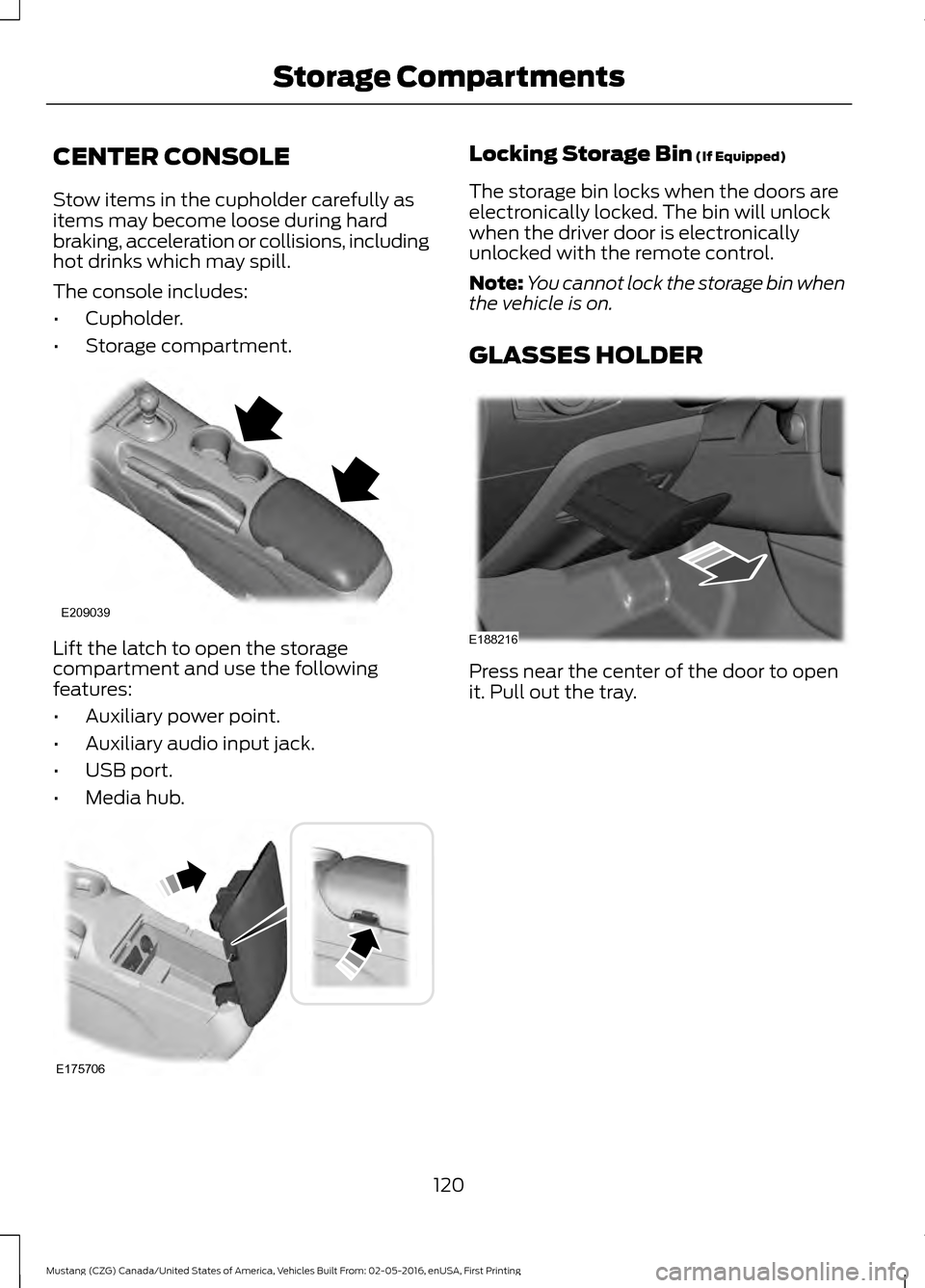
CENTER CONSOLE
Stow items in the cupholder carefully as
items may become loose during hard
braking, acceleration or collisions, including
hot drinks which may spill.
The console includes:
•
Cupholder.
• Storage compartment. Lift the latch to open the storage
compartment and use the following
features:
•
Auxiliary power point.
• Auxiliary audio input jack.
• USB port.
• Media hub. Locking Storage Bin (If Equipped)
The storage bin locks when the doors are
electronically locked. The bin will unlock
when the driver door is electronically
unlocked with the remote control.
Note: You cannot lock the storage bin when
the vehicle is on.
GLASSES HOLDER Press near the center of the door to open
it. Pull out the tray.
120
Mustang (CZG) Canada/United States of America, Vehicles Built From: 02-05-2016, enUSA, First Printing Storage CompartmentsE209039 E175706 E188216
Page 298 of 475
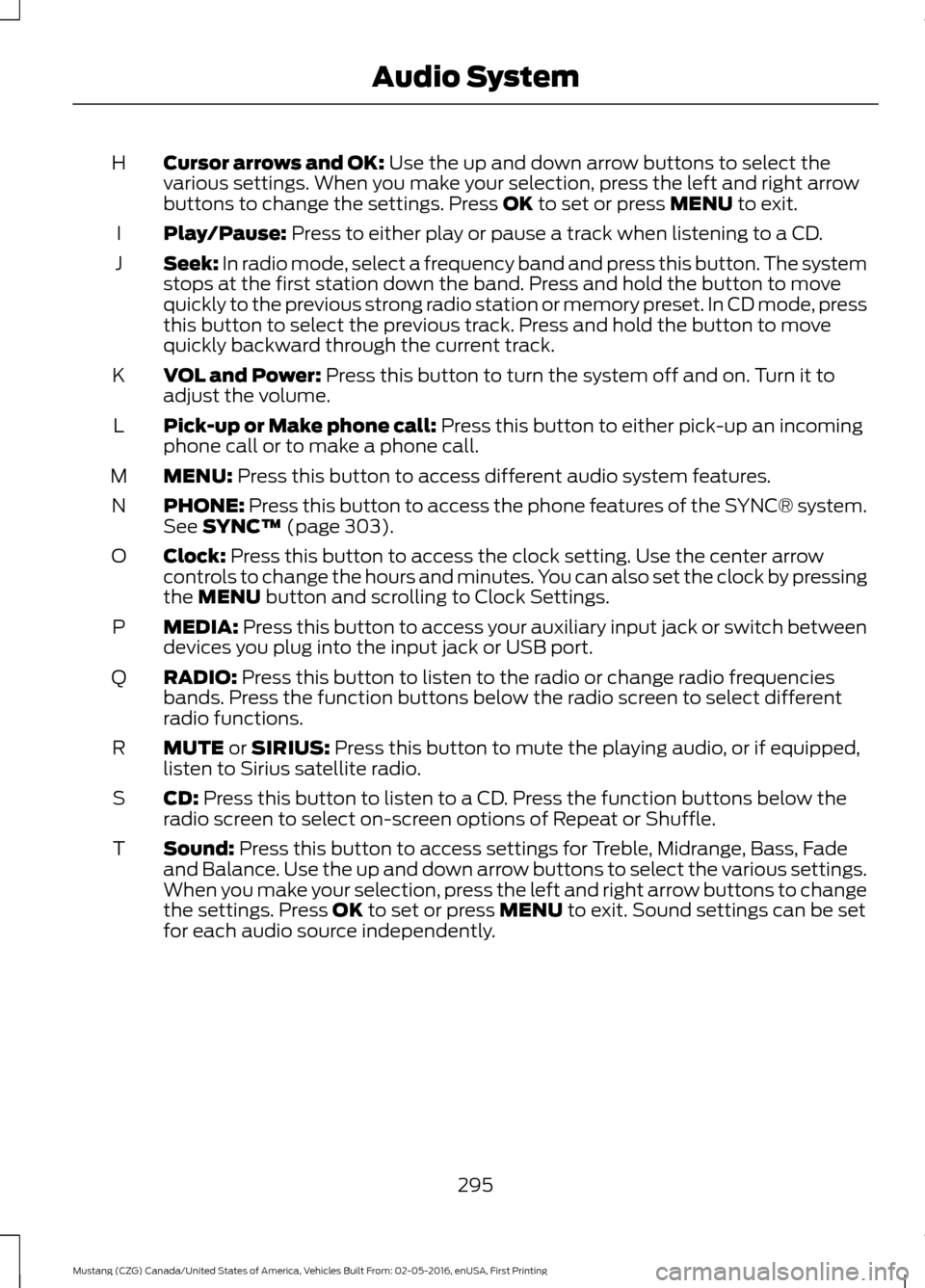
Cursor arrows and OK: Use the up and down arrow buttons to select the
various settings. When you make your selection, press the left and right arrow
buttons to change the settings. Press
OK to set or press MENU to exit.
H
Play/Pause:
Press to either play or pause a track when listening to a CD.
I
Seek:
In radio mode, select a frequency band and press this button. The system
stops at the first station down the band. Press and hold the button to move
quickly to the previous strong radio station or memory preset. In CD mode, press
this button to select the previous track. Press and hold the button to move
quickly backward through the current track.
J
VOL and Power:
Press this button to turn the system off and on. Turn it to
adjust the volume.
K
Pick-up or Make phone call:
Press this button to either pick-up an incoming
phone call or to make a phone call.
L
MENU:
Press this button to access different audio system features.
M
PHONE:
Press this button to access the phone features of the SYNC® system.
See SYNC™ (page 303).
N
Clock:
Press this button to access the clock setting. Use the center arrow
controls to change the hours and minutes. You can also set the clock by pressing
the
MENU button and scrolling to Clock Settings.
O
MEDIA:
Press this button to access your auxiliary input jack or switch between
devices you plug into the input jack or USB port.
P
RADIO:
Press this button to listen to the radio or change radio frequencies
bands. Press the function buttons below the radio screen to select different
radio functions.
Q
MUTE
or SIRIUS: Press this button to mute the playing audio, or if equipped,
listen to Sirius satellite radio.
R
CD:
Press this button to listen to a CD. Press the function buttons below the
radio screen to select on-screen options of Repeat or Shuffle.
S
Sound:
Press this button to access settings for Treble, Midrange, Bass, Fade
and Balance. Use the up and down arrow buttons to select the various settings.
When you make your selection, press the left and right arrow buttons to change
the settings. Press
OK to set or press MENU to exit. Sound settings can be set
for each audio source independently.
T
295
Mustang (CZG) Canada/United States of America, Vehicles Built From: 02-05-2016, enUSA, First Printing Audio System
Page 305 of 475
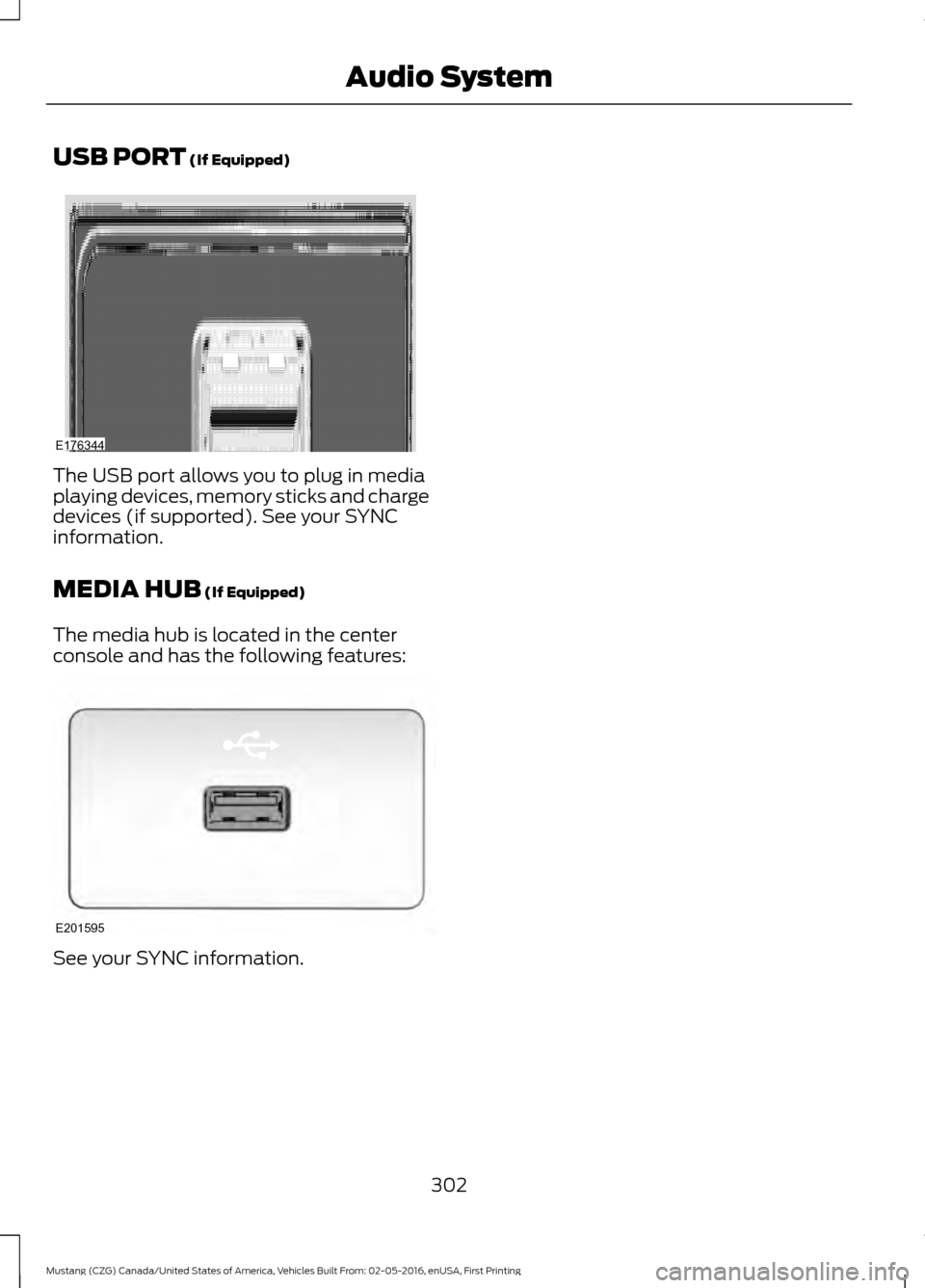
USB PORT (If Equipped)
The USB port allows you to plug in media
playing devices, memory sticks and charge
devices (if supported). See your SYNC
information.
MEDIA HUB
(If Equipped)
The media hub is located in the center
console and has the following features: See your SYNC information.
302
Mustang (CZG) Canada/United States of America, Vehicles Built From: 02-05-2016, enUSA, First Printing Audio SystemE176344 E201595
Page 306 of 475
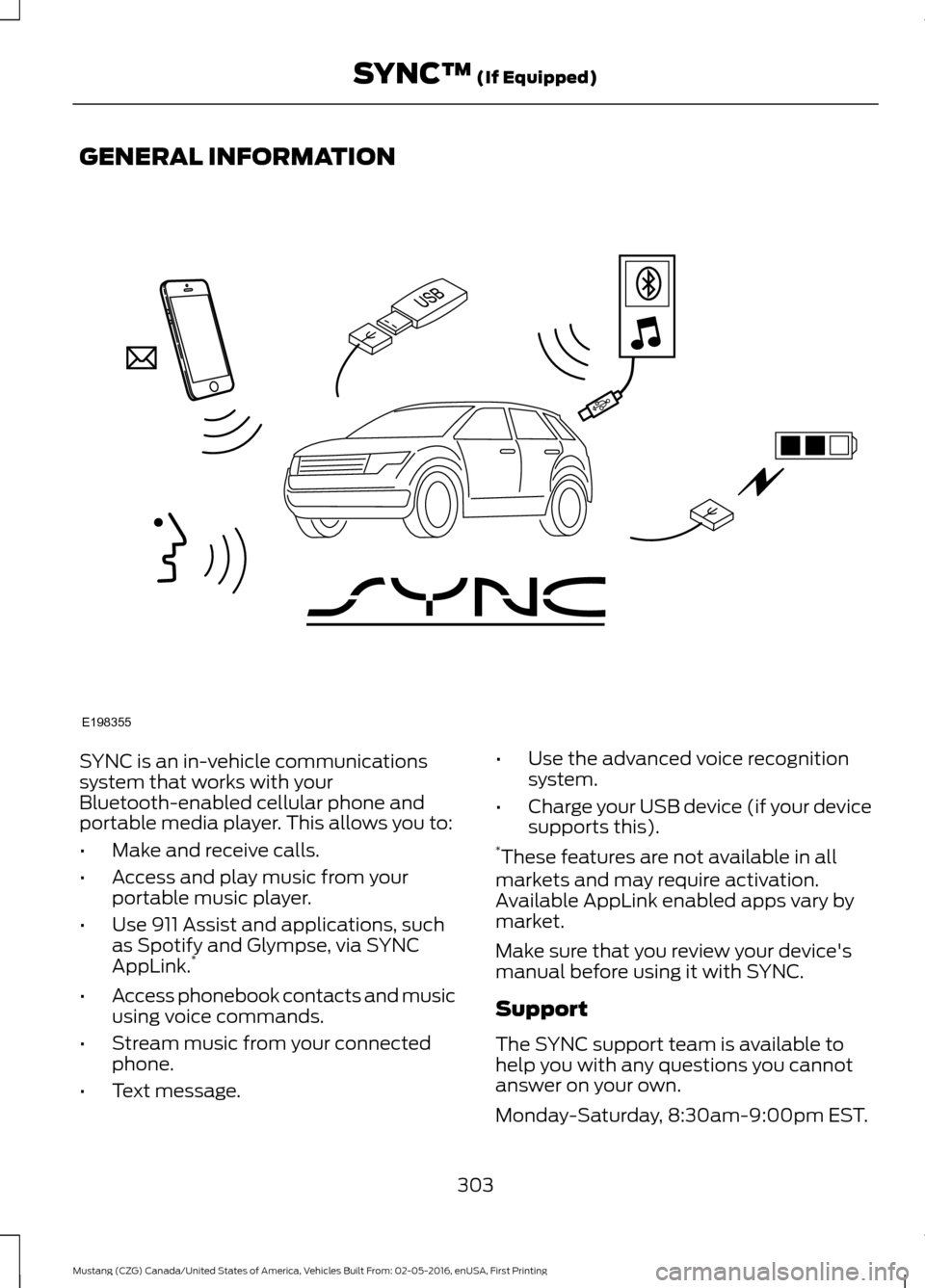
GENERAL INFORMATION
SYNC is an in-vehicle communications
system that works with your
Bluetooth-enabled cellular phone and
portable media player. This allows you to:
•
Make and receive calls.
• Access and play music from your
portable music player.
• Use 911 Assist and applications, such
as Spotify and Glympse, via SYNC
AppLink. *
• Access phonebook contacts and music
using voice commands.
• Stream music from your connected
phone.
• Text message. •
Use the advanced voice recognition
system.
• Charge your USB device (if your device
supports this).
* These features are not available in all
markets and may require activation.
Available AppLink enabled apps vary by
market.
Make sure that you review your device's
manual before using it with SYNC.
Support
The SYNC support team is available to
help you with any questions you cannot
answer on your own.
Monday-Saturday, 8:30am-9:00pm EST.
303
Mustang (CZG) Canada/United States of America, Vehicles Built From: 02-05-2016, enUSA, First Printing SYNC™ (If Equipped)E198355
Page 313 of 475
![FORD MUSTANG 2017 6.G Owners Manual Voice Command
3
[text] (messages | message)
help
___ is a dynamic listing that should be the
name of a contact in your phonebook. For
example you could say "Call Home".
1 See Dial table below.
2 The](/img/11/5250/w960_5250-312.png "FORD MUSTANG 2017 6.G Owners Manual Voice Command
3
[text] (messages | message)
help
___ is a dynamic listing that should be the
name of a contact in your phonebook. For
example you could say \"Call Home\".
1 See Dial table below.
2 The")
Voice Command
3
[text] (messages | message)
help
___ is a dynamic listing that should be the
name of a contact in your phonebook. For
example you could say "Call Home".
1 See Dial table below.
2 These commands are only valid while in
a phone call.
3 See the text message table below.
Dial Commands
Press the voice button and when prompted
say any of the following commands: Voice Commands
411 (four-one-one), 911 (nine-one-one) 700 (seven hundred)800 (eight hundred) 900 (nine hundred)
Clear (deletes all entered digits)
Delete (deletes last set of digits entered) Number <0-9>Plus
Pound (#) Star (*)
Note: To exit dial mode, press and hold the
phone button or press any button on the
audio system. To access text messages say: Voice Command
[text] (messages | message)
Then say any of the following:
(listen to | read) ([text] message)
forward (text | [text] message)
reply to (text | [text] message)
call [sender]
Phonebook Hints
To hear how the SYNC system speaks a
name browse phonebook, select a contact
and press: Menu Item
Hear it
Changing Devices Using Voice
Commands
Using SYNC, you can easily access multiple
phones, ipods, or USB devices. to switch
devices say:
310
Mustang (CZG) Canada/United States of America, Vehicles Built From: 02-05-2016, enUSA, First Printing SYNC™
(If Equipped)
Page 314 of 475
Voice Command
You can state the name of
the desired device, such as“My iPhone ”,“My Galaxy ”
or “My iPod ”. SYNC may
ask you to confirm the type of device (Phone, USB, or Bluetooth Audio).
(connect |
device) ___
Making Calls Press the voice button. When
prompted, say:
Voice Command
call [[a] name] SYNC prompts you to say
the numbers that you wish
to dial. After you say the
numbers, the system
confirms it. You can then
say:
dial [[a]
number]
When the system has stated the
number, you say any of the following: Voice Command
This initiates the call.
(dial | send)
This erases the spoken
digits.
(delete |
correct)
To end the call, press the end call button on the steering wheel or select the end call
option in the audio display.
Receiving Calls
Accepting calls
When receiving a call, you can answer the
call by pressing the accept call button on
the steering wheel or use the screen.
To use the screen to accept a call
select:
Menu Item
Accept
Rejecting Calls
When receiving a call, you can reject the
call by pressing the reject call button on
the steering wheel or use the screen.
To use the screen to reject a call select: Menu Item
Reject
Ignore the call by doing nothing.
Phone Options during an Active
Call
During an active call, you have more menu
features that become available, such as
putting a call on hold or joining calls.
To access this menu, choose one of the
options available at the bottom of the
audio display or select More to choose
from the following options:
311
Mustang (CZG) Canada/United States of America, Vehicles Built From: 02-05-2016, enUSA, First Printing SYNC™
(If Equipped)E142599
Page 321 of 475
Scroll to select from the following options:
Description and action
Display
Check or uncheck this option to switch the system's
Bluetooth interface off or on. Select this option, and then
press the OK button to change the option's status.
Bluetooth on
Return to the factory default settings without erasing your
indexed information (such as phonebook, call history, text
messages and paired devices). Select this option and
confirm when prompted in the audio display.
Set defaults
Completely erase all information stored in the system
(such as phonebook, call history, text messages and paired
devices) and return to factory default settings.
Master reset
Install downloaded applications or software updates.
Select this option and confirm when prompted in the audio
display. There must be a valid SYNC application or update
available on the USB drive in order to finish an installation
successfully.
Install on SYNC
Display the system's version numbers as well as its serial
number. Press the
OK button to select.
System info
The voice settings submenu contains various options. See
Using Voice Recognition
(page 305).
Voice settings
Browse the actual menu structure of the connected USB
device. Press the
OK button and use the up and down
arrow buttons to scroll through the folders and files. Use
the left or right arrow buttons to enter or leave a folder.
You can select media content for playback from this menu.
Browse USB
318
Mustang (CZG) Canada/United States of America, Vehicles Built From: 02-05-2016, enUSA, First Printing SYNC™
(If Equipped)
Page 324 of 475
911 Assist Privacy Notice
When you switch on 911 Assist, it may
disclose to emergency services that your
vehicle has been in a crash involving the
deployment of an airbag or activation of
the fuel pump shut-off. Certain versions or
updates to 911 Assist may also be capable
of electronically or verbally disclosing to
911 operators your vehicle location or other
details about your vehicle or crash to assist
911 operators to provide the most
appropriate emergency services. If you do
not want to disclose this information, do
not switch the feature on.
SYNC Mobile Apps
The system enables voice and steering
wheel control of SYNC AppLink enabled
smartphone apps. When an app is running
through AppLink, you can control main
features of the app through voice
commands and steering wheel controls.
Note:
You must pair and connect your
smartphone to SYNC to access AppLink.
Note: iPhone users need to connect the
phone to the USB port.
Note: Android users need to connect the
phone to SYNC using Bluetooth.
Note: For information on available apps,
supported smartphone devices and
troubleshooting tips please visit the Ford
website.
Availability of SYNC AppLink enabled Apps
will vary by region. Note:
Make sure you have an active account
for the app that you have downloaded.
Some apps work automatically with no
setup. Other apps want you to configure
your personal settings and personalize your
experience by creating stations or favorites.
We recommend you do this at home or
outside of your vehicle.
Note: AppLink is not available if your
vehicle is equipped with the MyFordTouch
system.
To Access Using the SYNC Menu
Press the MENU button to access the
menu on-screen. Then select: Action and Description
Menu
Item
SYNC-Apps Scroll through the list of
available applications and
select a particular app or
select:
Mobile
Apps
Find New Apps
Note: If you cannot find a compatible SYNC
AppLink app, make sure the required app is
running on the mobile device.
Accessing an App's Menu
When an app is running through SYNC,
press the right arrow button on the steering
wheel control to access the app menu.
You can access various app features from
here, for example thumbs up and thumbs
down.
Press the left arrow button on the steering
wheel control to exit the app menu.
321
Mustang (CZG) Canada/United States of America, Vehicles Built From: 02-05-2016, enUSA, First Printing SYNC™
(If Equipped)