USB FORD MUSTANG 2018 Owner's Guide
[x] Cancel search | Manufacturer: FORD, Model Year: 2018, Model line: MUSTANG, Model: FORD MUSTANG 2018Pages: 506, PDF Size: 7.66 MB
Page 389 of 506
Supported USB file systems include: FAT,
exFAT, and NTFS.
SYNC 3 is also able to organize the media
from your USB device by metadata tags.
Metadata tags, which are descriptive
software identifiers embedded in the
media files, provide information about the
file.
If your indexed media files contain no
information embedded in these metadata
tags, SYNC 3 may classify the empty
metadata tags as unknown.
SYNC 3 is capable of indexing up to
50,000 songs per USB device, for up to 10
devices.
CLIMATE
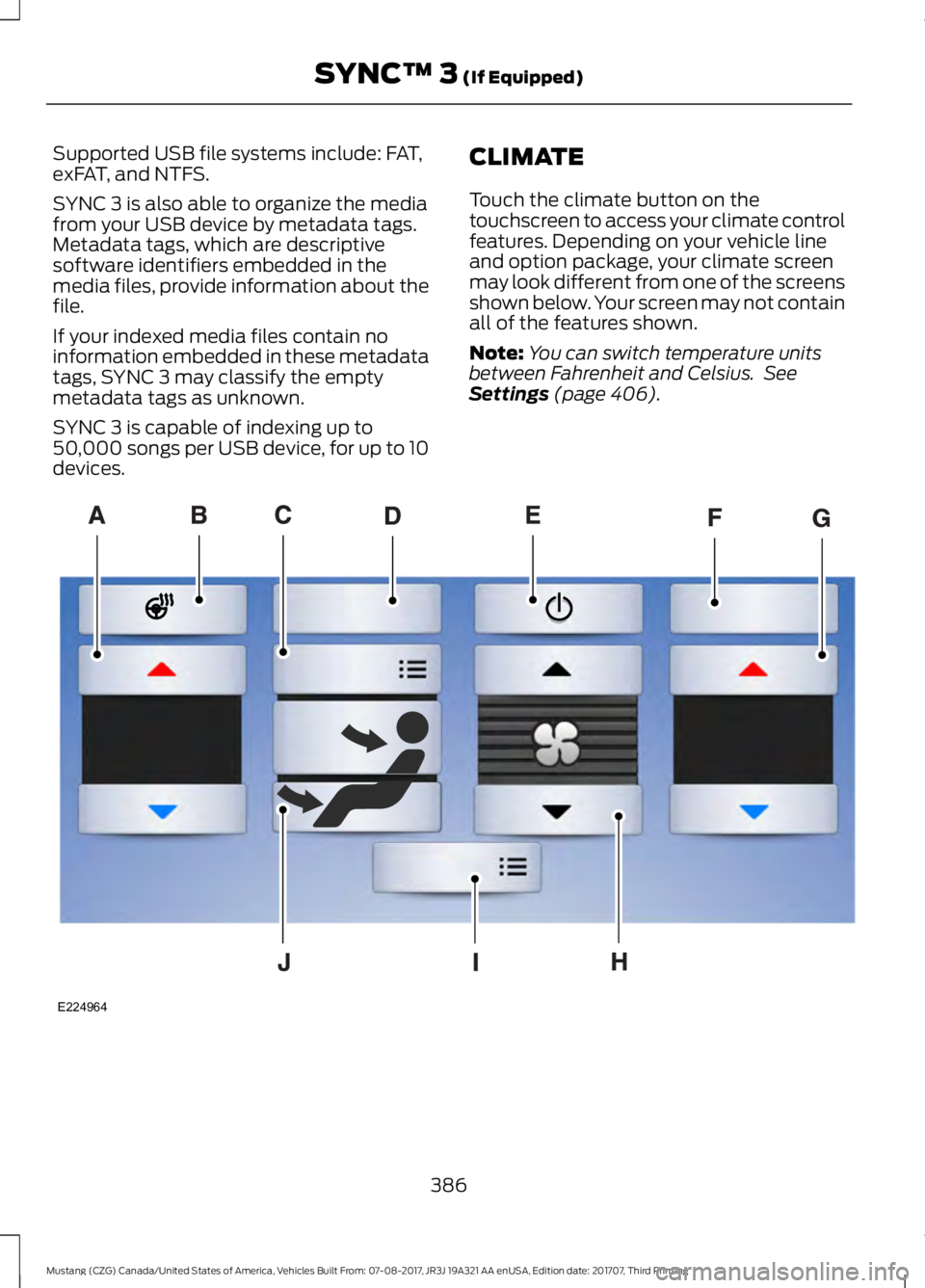
Touch the climate button on the
touchscreen to access your climate control
features. Depending on your vehicle line
and option package, your climate screen
may look different from one of the screens
shown below. Your screen may not contain
all of the features shown.
Note:
You can switch temperature units
between Fahrenheit and Celsius. See
Settings (page 406). 386
Mustang (CZG) Canada/United States of America, Vehicles Built From: 07-08-2017, JR3J 19A321 AA enUSA, Edition date: 201707, Third Printing SYNC™ 3
(If Equipped)E224964
Page 397 of 506
Item
Immediately end a
phone call. You can
also press and hold
the button on the
steering wheel.
End Call
Press this to access
the phone keypad.
Keypad
You can switch the
microphone off so
the caller does not
hear you.
Mute Item
Privacy Transfer the call to
the cell phone or
back to SYNC 3.
Text Messaging
Note: Downloading and sending text
messages using Bluetooth are cell
phone-dependent features.
Note: Certain features in text messaging
are speed-dependent and not available
when your vehicle is traveling at speeds over
3 mph (5 km/h).
Receiving a Text Message
When a new message arrives, an audible tone sounds and the screen displays a
pop-up with the caller name and ID, if supported by your cell phone. You can select: Action and Description
Menu Item
Have SYNC 3 read the message to you.
Hear It
View the text on the touchscreen.
View
To call the sender.
Call
You can select from 15 preset messages. Press the message
that you would like to use and confirm to send the message.
SYNC 3 confirms when the message is sent successfully.
Reply
To exit the screen.
Close
Smartphone Connectivity (If Equipped)
SYNC 3 allows you to use Apple CarPlay
and Android Auto to access your phone.
When you use Apple CarPlay or Android
Auto, you can:
• Make calls.
• Send and receive messages.
• Listen to music.
• Use your phone's voice assistant. Apple CarPlay and Android Auto disable
some SYNC 3 features.
Most Apple CarPlay and Android Auto
features use mobile data.
Apple CarPlay
Apple CarPlay requires an iPhone 5 or
newer with iOS 7.1 or newer. Updating to
the latest iOS version is recommended.
1. Plug your phone into a USB port. See
USB Port
(page 318).
394
Mustang (CZG) Canada/United States of America, Vehicles Built From: 07-08-2017, JR3J 19A321 AA enUSA, Edition date: 201707, Third Printing SYNC™ 3
(If Equipped)
Page 398 of 506
2. Follow the prompts on the
touchscreen.
3. Follow the prompts that appear on your phone to allow access to Apple
CarPlay.
After completing the setup, your phone
connects to CarPlay automatically when
plugged into a USB port.
To disable this feature from the
Settings screen, select: Menu Item
Apple CarPlay Preferences
Your device is listed if SYNC detects
Apple CarPlay. Select the name of your
device and select:
Disable
To return to SYNC 3, go to the Apple
CarPlay home screen and select the SYNC
app.
Note: Contact Apple for Apple CarPlay
support.
Android Auto
Android Auto is compatible with most
devices with Android 5.0 or newer.
1. Download the Android Auto app to your device from Google Play to
prepare your device (this may require
mobile data usage).
Note: The Android Auto App may not be
available within your current market.
2. Plug your device into a USB Port. See USB Port (page 318).
3. Follow the prompt on the touchscreen.
4. Follow the prompts that appear on your device.
Note: You may be prompted to update
additional apps on your device. This may
require mobile data usage. To disable this feature from the
Settings screen, select: Menu Item
Android Auto Preferences
Your device is listed if SYNC detects
Android Auto. Select the name of your
device and select:
Disable
Note: You may need to slide your Settings
screen to the left to select
Apple CarPlay
Preferences or Android Auto Preferences.
To return to SYNC 3, select the
speedometer icon in the Android Auto
menu bar at the bottom of the
touchscreen, and then touch the option to
return to SYNC.
Note: Contact Google for Android Auto
support.
NAVIGATION
(If Equipped)
Your navigation system is comprised of
two main features, destination mode and
map mode.
Map Mode
Map mode shows advanced viewing
comprised of 2D city maps, 3D landmarks
and 3D city models (when available). 2D
city maps show detailed outlines of
buildings, visible land use, landscape
features, and detailed railroad
infrastructure for the most essential cities
around the globe.
3D landmarks appear as clear, visible
objects that are typically recognizable and
have a certain tourism value.
395
Mustang (CZG) Canada/United States of America, Vehicles Built From: 07-08-2017, JR3J 19A321 AA enUSA, Edition date: 201707, Third Printing SYNC™ 3
(If Equipped)
Page 407 of 506
Note:
Available AppLink enabled apps will
vary by market.
Note: You must pair and connect your
smartphone via Bluetooth to SYNC 3 to
access AppLink.
Note: iPhone users need to connect the
phone to the USB port.
Note: For information on available apps,
supported smartphone devices and
troubleshooting tips please visit: Websites
owner.ford.com
www.syncmyride.ca
www.syncmaroute.ca
Note: Make sure you have an active account
for the app that you have downloaded.
Some apps will work automatically with no
setup. Other apps will want you to configure
your personal settings and personalize your
experience by creating stations or
favorites.We recommend you do this at
home or outside of your vehicle.
Note: We encourage you to review the
smartphone app ’s terms of service and
privacy policies because Ford is not
responsible for your app or its use of data.
Note: AppLink is a native SYNC system
feature. Accessing mobile apps through
AppLink is only possible when Android Auto
or Apple CarPlay are disabled. Some apps
may only be accessible in the car through
AppLink and others only through Android
Auto or Apple CarPlay. Please refer to the
Smartphone Connectivity information to
disable Android Auto or Apple CarPlay.
Note: In order to use an app with SYNC 3,
the app needs to be running in the
background of your phone. If you shut down
the app on your phone, it shuts down the
app on SYNC 3 as well. Note:
If a SYNC 3 AppLink compatible app
is not shown in the Apps Domain, make sure
the required app is running on the mobile
device. Action and Descrip-
tion
Menu Item
SYNC 3 will search
and connect to
compatible app(s)
running on your
mobile device.
Find Mobile Apps
Enabling SYNC 3 Mobile Apps
In order to enable mobile apps, SYNC 3
requires user consent to send and receive
app authorization information and updates
using the data plan associated with the
connected device.
The connected device sends data to Ford
in the United States. The information is
encrypted and includes your VIN, SYNC 3
module number, odometer, usage
statistics and debugging information. We
retain this data for only as long as
necessary to provide this service,
troubleshoot, and improve products and
services and to offer you products and
services that may interest you where
allowed by law.
Note: You must enable mobile apps for
each connected device the first time you
select a mobile app using the system.
Note: Ford reserves the right to limit
functionality or deactivate mobile apps at
any time.
Note: Standard data rates apply. Ford is
not responsible for any additional charges
you may receive from your service provider,
when your vehicle sends or receives data
through the connected device. This includes
any additional charges incurred due to
driving in areas when roaming out of a home
network.
404
Mustang (CZG) Canada/United States of America, Vehicles Built From: 07-08-2017, JR3J 19A321 AA enUSA, Edition date: 201707, Third Printing SYNC™ 3 (If Equipped)
Page 410 of 506
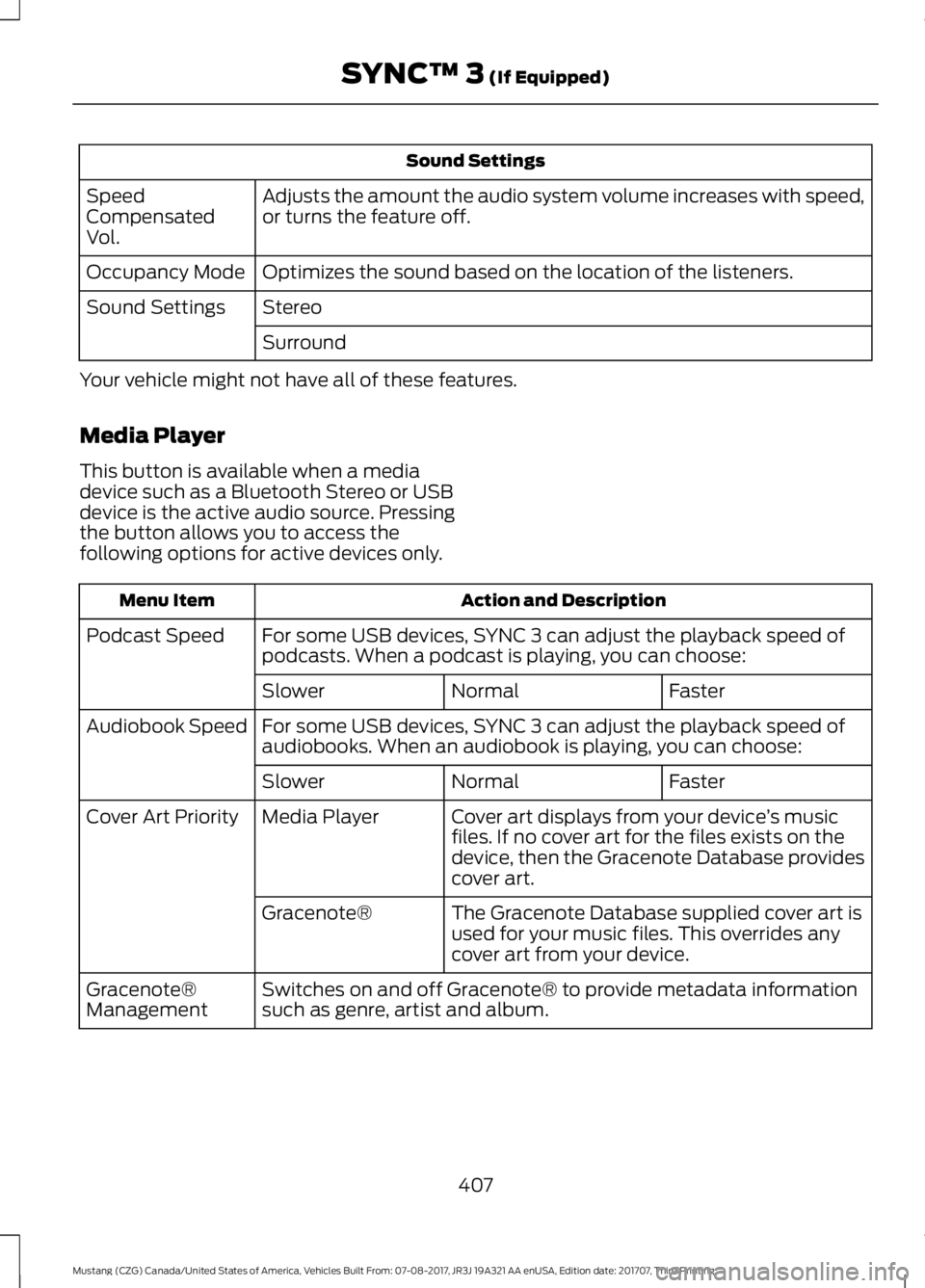
Sound Settings
Adjusts the amount the audio system volume increases with speed,
or turns the feature off.
Speed
Compensated
Vol.
Optimizes the sound based on the location of the listeners.
Occupancy Mode
Stereo
Sound Settings
Surround
Your vehicle might not have all of these features.
Media Player
This button is available when a media
device such as a Bluetooth Stereo or USB
device is the active audio source. Pressing
the button allows you to access the
following options for active devices only. Action and Description
Menu Item
For some USB devices, SYNC 3 can adjust the playback speed of
podcasts. When a podcast is playing, you can choose:
Podcast Speed
Faster
Normal
Slower
For some USB devices, SYNC 3 can adjust the playback speed of
audiobooks. When an audiobook is playing, you can choose:
Audiobook Speed
Faster
Normal
Slower
Cover art displays from your device ’s music
files. If no cover art for the files exists on the
device, then the Gracenote Database provides
cover art.
Media Player
Cover Art Priority
The Gracenote Database supplied cover art is
used for your music files. This overrides any
cover art from your device.
Gracenote®
Switches on and off Gracenote® to provide metadata information
such as genre, artist and album.
Gracenote®
Management
407
Mustang (CZG) Canada/United States of America, Vehicles Built From: 07-08-2017, JR3J 19A321 AA enUSA, Edition date: 201707, Third Printing SYNC™ 3 (If Equipped)
Page 418 of 506
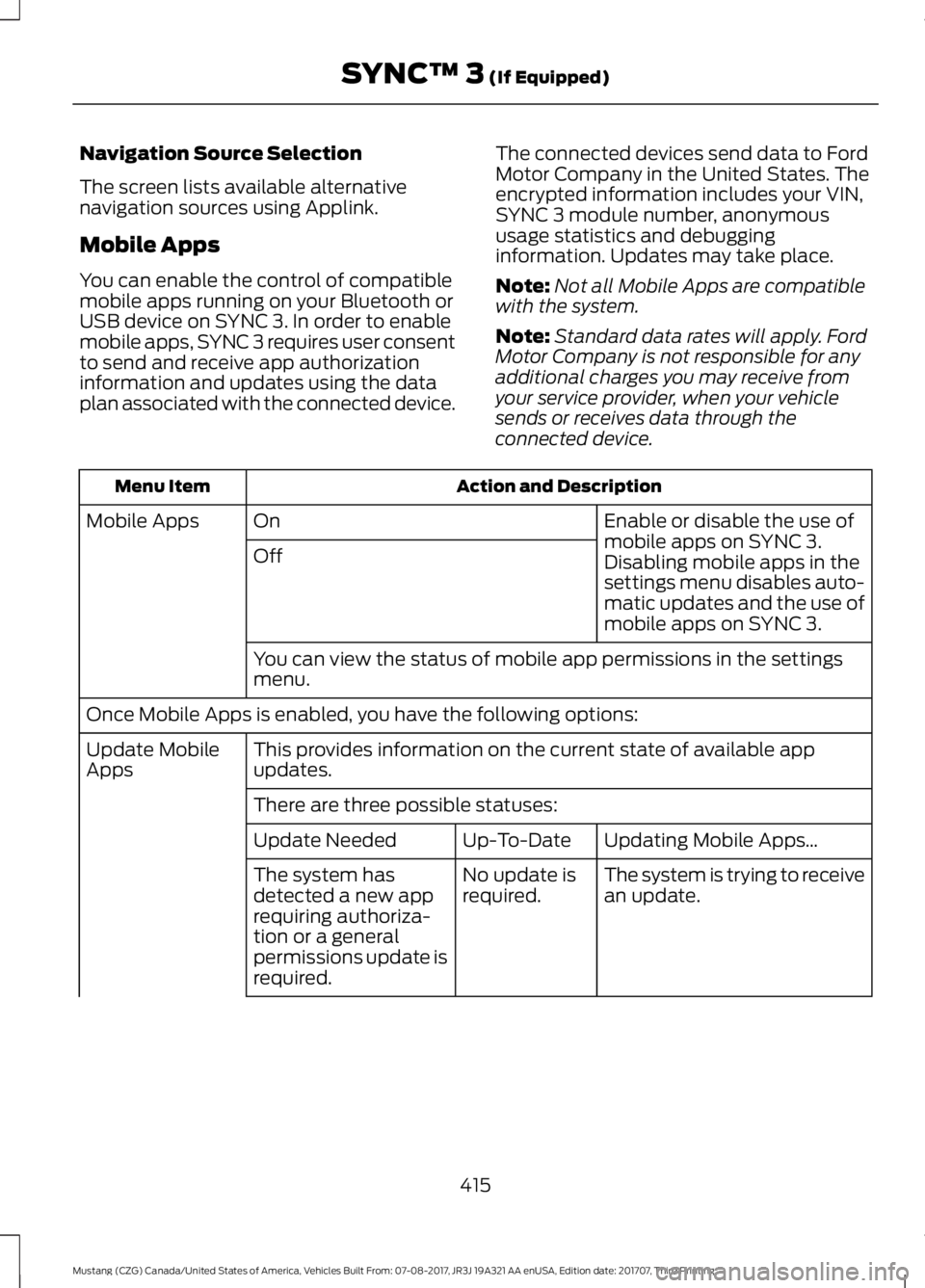
Navigation Source Selection
The screen lists available alternative
navigation sources using Applink.
Mobile Apps
You can enable the control of compatible
mobile apps running on your Bluetooth or
USB device on SYNC 3. In order to enable
mobile apps, SYNC 3 requires user consent
to send and receive app authorization
information and updates using the data
plan associated with the connected device.
The connected devices send data to Ford
Motor Company in the United States. The
encrypted information includes your VIN,
SYNC 3 module number, anonymous
usage statistics and debugging
information. Updates may take place.
Note:
Not all Mobile Apps are compatible
with the system.
Note: Standard data rates will apply. Ford
Motor Company is not responsible for any
additional charges you may receive from
your service provider, when your vehicle
sends or receives data through the
connected device. Action and Description
Menu Item
Enable or disable the use of
mobile apps on SYNC 3.
On
Mobile Apps
Off Disabling mobile apps in the
settings menu disables auto-
matic updates and the use of
mobile apps on SYNC 3.
You can view the status of mobile app permissions in the settings
menu.
Once Mobile Apps is enabled, you have the following options: This provides information on the current state of available app
updates.
Update Mobile
Apps
There are three possible statuses: Updating Mobile Apps…
Up-To-Date
Update Needed
The system is trying to receive
an update.
No update is
required.
The system has
detected a new app
requiring authoriza-
tion or a general
permissions update is
required.
415
Mustang (CZG) Canada/United States of America, Vehicles Built From: 07-08-2017, JR3J 19A321 AA enUSA, Edition date: 201707, Third Printing SYNC™ 3 (If Equipped)
Page 424 of 506
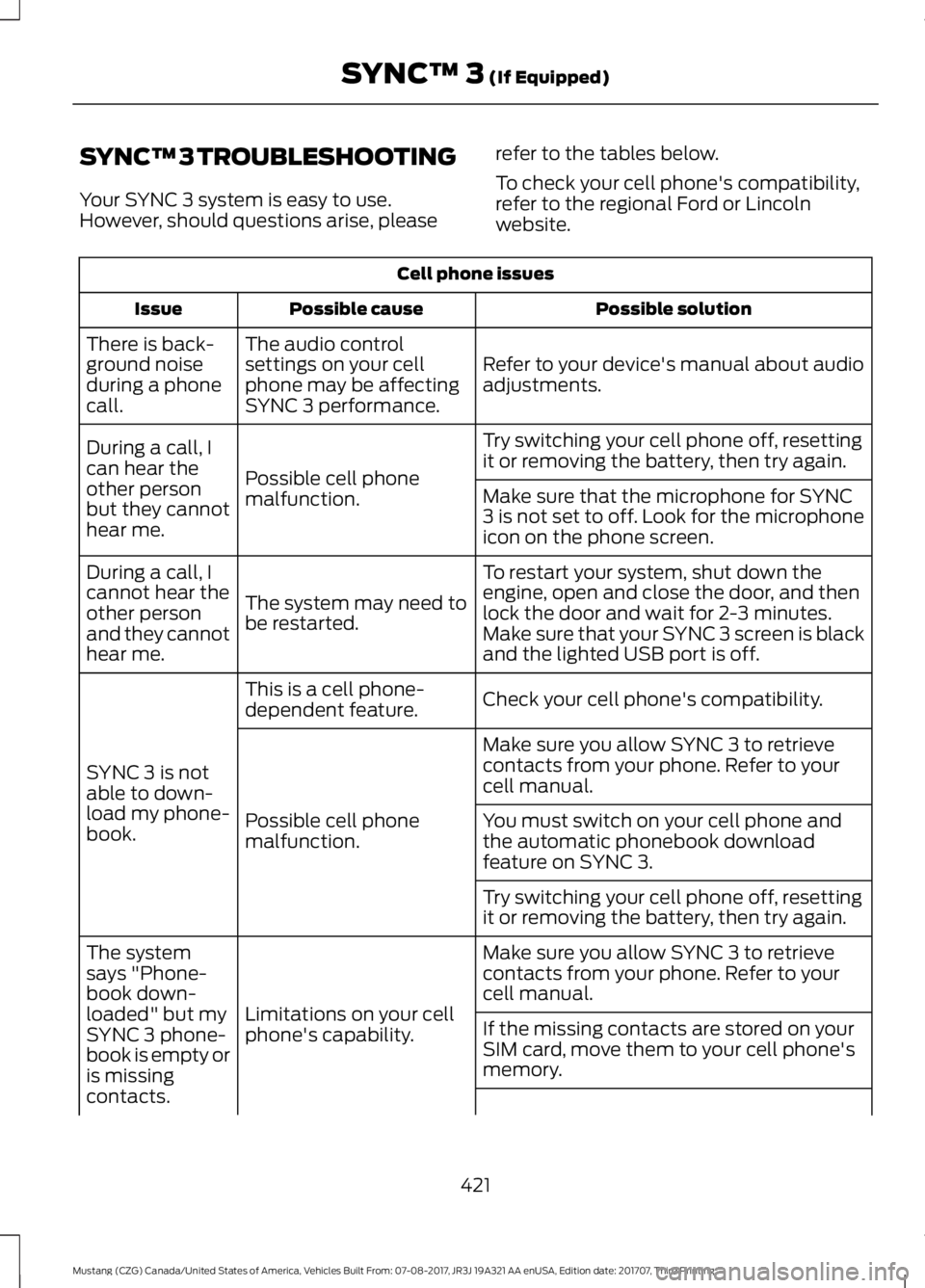
SYNC™ 3 TROUBLESHOOTING
Your SYNC 3 system is easy to use.
However, should questions arise, please
refer to the tables below.
To check your cell phone's compatibility,
refer to the regional Ford or Lincoln
website.Cell phone issues
Possible solution
Possible cause
Issue
Refer to your device's manual about audio
adjustments.
The audio control
settings on your cell
phone may be affecting
SYNC 3 performance.
There is back-
ground noise
during a phone
call.
Try switching your cell phone off, resetting
it or removing the battery, then try again.
Possible cell phone
malfunction.
During a call, I
can hear the
other person
but they cannot
hear me.
Make sure that the microphone for SYNC
3 is not set to off. Look for the microphone
icon on the phone screen.
To restart your system, shut down the
engine, open and close the door, and then
lock the door and wait for 2-3 minutes.
Make sure that your SYNC 3 screen is black
and the lighted USB port is off.
The system may need to
be restarted.
During a call, I
cannot hear the
other person
and they cannot
hear me.
Check your cell phone's compatibility.
This is a cell phone-
dependent feature.
SYNC 3 is not
able to down-
load my phone-
book. Make sure you allow SYNC 3 to retrieve
contacts from your phone. Refer to your
cell manual.
Possible cell phone
malfunction. You must switch on your cell phone and
the automatic phonebook download
feature on SYNC 3.
Try switching your cell phone off, resetting
it or removing the battery, then try again.
Make sure you allow SYNC 3 to retrieve
contacts from your phone. Refer to your
cell manual.
Limitations on your cell
phone's capability.
The system
says "Phone-
book down-
loaded" but my
SYNC 3 phone-
book is empty or
is missing
contacts.
If the missing contacts are stored on your
SIM card, move them to your cell phone's
memory.
421
Mustang (CZG) Canada/United States of America, Vehicles Built From: 07-08-2017, JR3J 19A321 AA enUSA, Edition date: 201707, Third Printing SYNC™ 3 (If Equipped)
Page 426 of 506
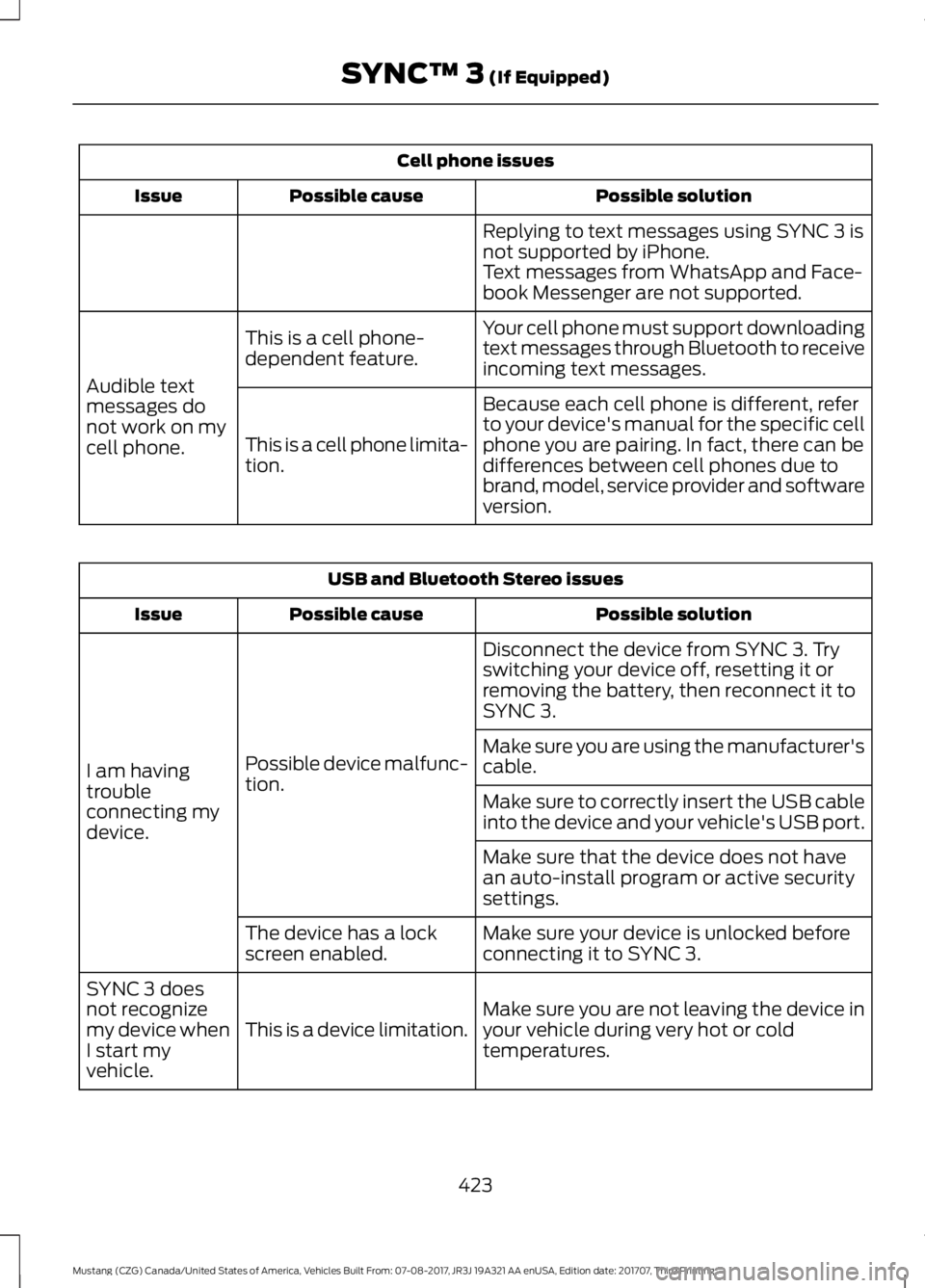
Cell phone issues
Possible solution
Possible cause
Issue
Replying to text messages using SYNC 3 is
not supported by iPhone.
Text messages from WhatsApp and Face-
book Messenger are not supported.
Your cell phone must support downloading
text messages through Bluetooth to receive
incoming text messages.
This is a cell phone-
dependent feature.
Audible text
messages do
not work on my
cell phone. Because each cell phone is different, refer
to your device's manual for the specific cell
phone you are pairing. In fact, there can be
differences between cell phones due to
brand, model, service provider and software
version.
This is a cell phone limita-
tion. USB and Bluetooth Stereo issues
Possible solution
Possible cause
Issue
Disconnect the device from SYNC 3. Try
switching your device off, resetting it or
removing the battery, then reconnect it to
SYNC 3.
Possible device malfunc-
tion.
I am having
trouble
connecting my
device. Make sure you are using the manufacturer's
cable.
Make sure to correctly insert the USB cable
into the device and your vehicle's USB port.
Make sure that the device does not have
an auto-install program or active security
settings.
Make sure your device is unlocked before
connecting it to SYNC 3.
The device has a lock
screen enabled.
Make sure you are not leaving the device in
your vehicle during very hot or cold
temperatures.
This is a device limitation.
SYNC 3 does
not recognize
my device when
I start my
vehicle.
423
Mustang (CZG) Canada/United States of America, Vehicles Built From: 07-08-2017, JR3J 19A321 AA enUSA, Edition date: 201707, Third Printing SYNC™ 3 (If Equipped)
Page 427 of 506
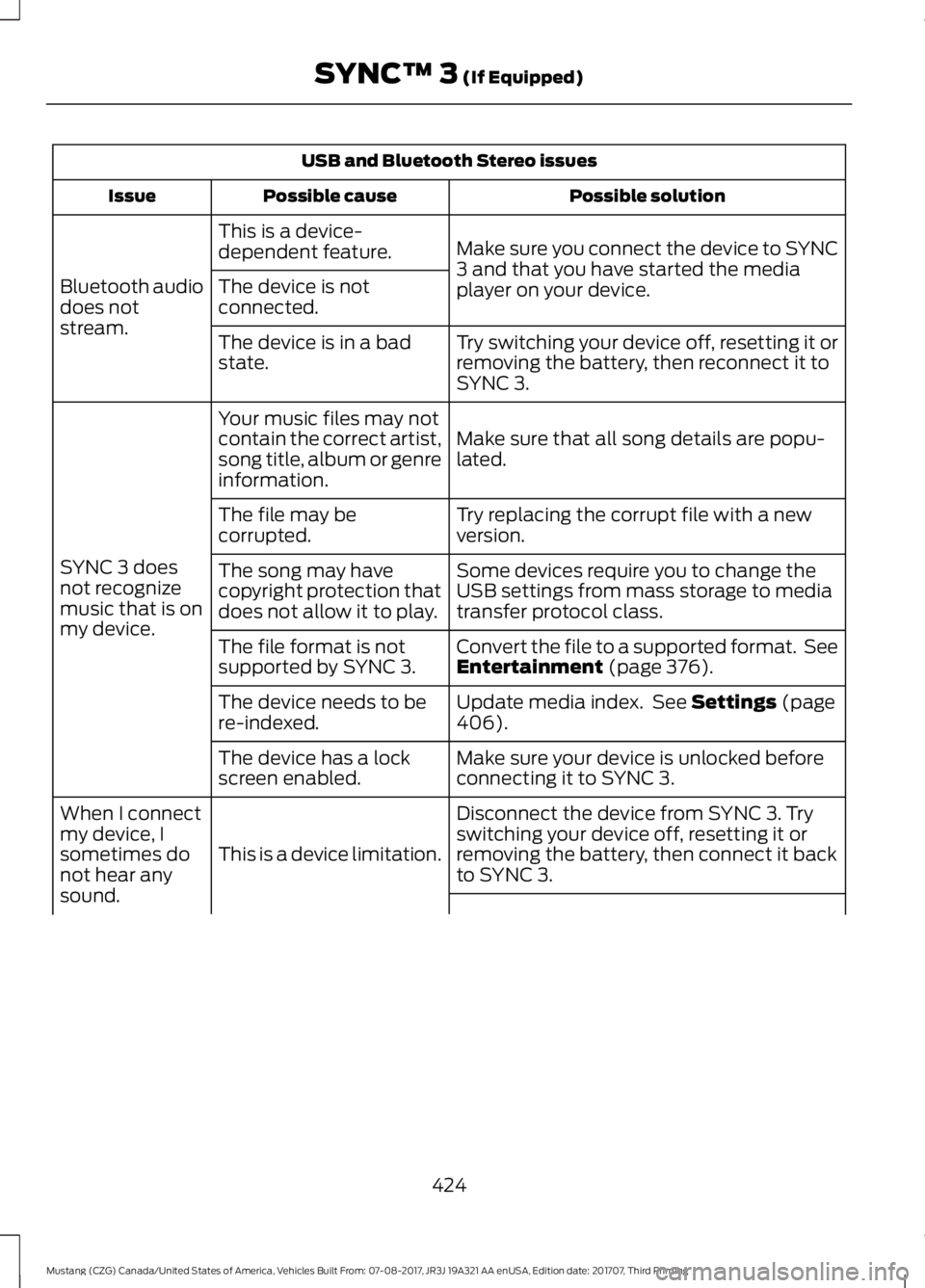
USB and Bluetooth Stereo issues
Possible solution
Possible cause
Issue
Make sure you connect the device to SYNC
3 and that you have started the media
player on your device.
This is a device-
dependent feature.
Bluetooth audio
does not
stream. The device is not
connected.
Try switching your device off, resetting it or
removing the battery, then reconnect it to
SYNC 3.
The device is in a bad
state.
Make sure that all song details are popu-
lated.
Your music files may not
contain the correct artist,
song title, album or genre
information.
SYNC 3 does
not recognize
music that is on
my device. Try replacing the corrupt file with a new
version.
The file may be
corrupted.
Some devices require you to change the
USB settings from mass storage to media
transfer protocol class.
The song may have
copyright protection that
does not allow it to play.
Convert the file to a supported format. See
Entertainment (page 376).
The file format is not
supported by SYNC 3.
Update media index. See
Settings (page
406).
The device needs to be
re-indexed.
Make sure your device is unlocked before
connecting it to SYNC 3.
The device has a lock
screen enabled.
Disconnect the device from SYNC 3. Try
switching your device off, resetting it or
removing the battery, then connect it back
to SYNC 3.
This is a device limitation.
When I connect
my device, I
sometimes do
not hear any
sound.
424
Mustang (CZG) Canada/United States of America, Vehicles Built From: 07-08-2017, JR3J 19A321 AA enUSA, Edition date: 201707, Third Printing SYNC™ 3
(If Equipped)
Page 428 of 506
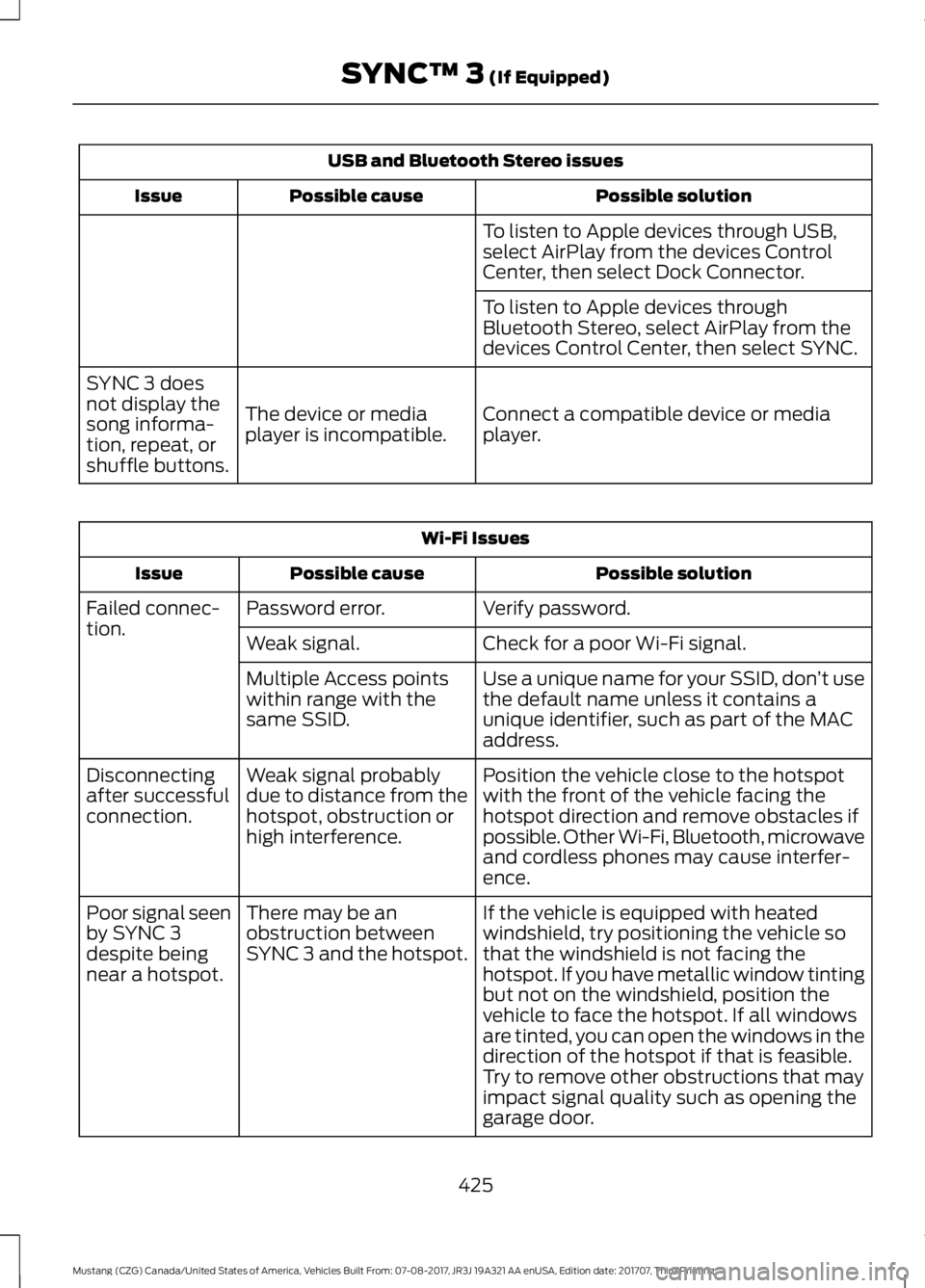
USB and Bluetooth Stereo issues
Possible solution
Possible cause
Issue
To listen to Apple devices through USB,
select AirPlay from the devices Control
Center, then select Dock Connector.
To listen to Apple devices through
Bluetooth Stereo, select AirPlay from the
devices Control Center, then select SYNC.
Connect a compatible device or media
player.
The device or media
player is incompatible.
SYNC 3 does
not display the
song informa-
tion, repeat, or
shuffle buttons. Wi-Fi Issues
Possible solution
Possible cause
Issue
Verify password.
Password error.
Failed connec-
tion.
Check for a poor Wi-Fi signal.
Weak signal.
Use a unique name for your SSID, don ’t use
the default name unless it contains a
unique identifier, such as part of the MAC
address.
Multiple Access points
within range with the
same SSID.
Position the vehicle close to the hotspot
with the front of the vehicle facing the
hotspot direction and remove obstacles if
possible. Other Wi-Fi, Bluetooth, microwave
and cordless phones may cause interfer-
ence.
Weak signal probably
due to distance from the
hotspot, obstruction or
high interference.
Disconnecting
after successful
connection.
If the vehicle is equipped with heated
windshield, try positioning the vehicle so
that the windshield is not facing the
hotspot. If you have metallic window tinting
but not on the windshield, position the
vehicle to face the hotspot. If all windows
are tinted, you can open the windows in the
direction of the hotspot if that is feasible.
There may be an
obstruction between
SYNC 3 and the hotspot.
Poor signal seen
by SYNC 3
despite being
near a hotspot.
Try to remove other obstructions that may
impact signal quality such as opening the
garage door.
425
Mustang (CZG) Canada/United States of America, Vehicles Built From: 07-08-2017, JR3J 19A321 AA enUSA, Edition date: 201707, Third Printing SYNC™ 3 (If Equipped)