ECO mode FORD MUSTANG 2020 Repair Manual
[x] Cancel search | Manufacturer: FORD, Model Year: 2020, Model line: MUSTANG, Model: FORD MUSTANG 2020Pages: 464, PDF Size: 7.44 MB
Page 304 of 464
VEHICLE IDENTIFICATION
NUMBER
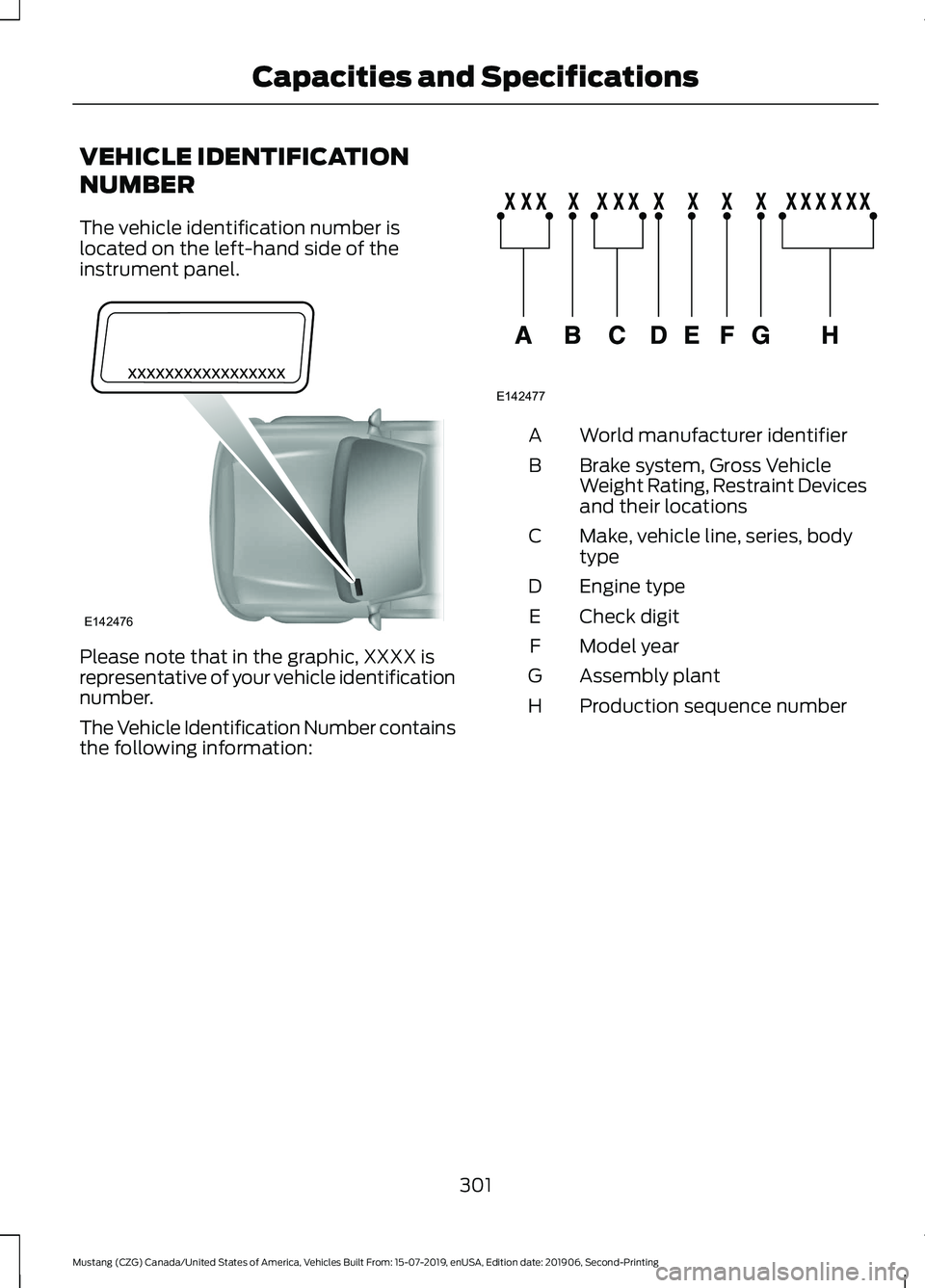
The vehicle identification number is
located on the left-hand side of the
instrument panel.
Please note that in the graphic, XXXX is
representative of your vehicle identification
number.
The Vehicle Identification Number contains
the following information: World manufacturer identifier
A
Brake system, Gross Vehicle
Weight Rating, Restraint Devices
and their locations
B
Make, vehicle line, series, body
type
C
Engine type
D
Check digit
E
Model year
F
Assembly plant
G
Production sequence number
H
301
Mustang (CZG) Canada/United States of America, Vehicles Built From: 15-07-2019, enUSA, Edition date: 201906, Second-Printing Capacities and SpecificationsE142476 E142477
Page 323 of 464
CONNECTING THE VEHICLE TO
A MOBILE NETWORK
What Is the Modem
The modem allows you to connect your
vehicle to the Internet to use when you are
on the road.
If you enable the modem using the
FordPass app, you can access the
following services:
•
Locating and remotely starting, locking
and unlocking your vehicle. See the
information in FordPass app.
• Automatic system updates.
Enabling the Modem Using
FordPass
1. Open the FordPass app on your device
and log in.
2. Select your vehicle. 3. Select the option for vehicle details.
4. Select the option to activate or
deactivate your vehicle.
5. Switch the ignition on.
6. Make sure that the name on the screen
matches the name shown in your
FordPass account.
7. Confirm the association of your vehicle
with your FordPass account.
Enabling the Modem Using the
Touchscreen Select the settings option on the
feature bar.
1. Select FordPass Connect.
2. Select
Connectivity Settings.
3. Switch
Connectivity Features on.
4. Switch
Send vehicle data on.
Note: To disable the modem, perform the
steps in reverse order.
320
Mustang (CZG) Canada/United States of America, Vehicles Built From: 15-07-2019, enUSA, Edition date: 201906, Second-Printing Network Connectivity
(If Equipped)E280315
Page 325 of 464
Possible Cause and Resolution
Symptom
I cannot see the Wi-Fi
Hotspot name when I search
for Wi-Fi networks on my
cell phone or other device. –
System limitation.
•Make sure Wi-Fi hotspot visibility is on.
• The system does not provide a Wi-Fi hotspot at
this time.
– Weak network signal
•Move your vehicle closer to the Wi-Fi hotspot or to
a place where the network signal is not obstructed.
– Wi-Fi hotspot in high demand or has a slow Internet
connection.
•Use an more reliable Wi-Fi hotspot.
Software downloads take
too long.
–No software update available.
– Wi-Fi network requires a subscription or acceptance
of terms and conditions.
•Test the connection using another device. If the
network requires a subscription or acceptance of
terms and conditions, contact the network service
provider.
The system seems to
connect to a Wi-Fi network
and the signal strength is
excellent but the software
does not update.
Mobile Network Possible Cause and Resolution
Symptom
–Modem is not enabled.
•Switch connectivity features on.
– Weak network signal.
•Move your vehicle closer to a place where the
network signal is not obstructed.
I cannot confirm the
connection of the modem
with the FordPass account.
322
Mustang (CZG) Canada/United States of America, Vehicles Built From: 15-07-2019, enUSA, Edition date: 201906, Second-Printing Network Connectivity (If Equipped)
Page 328 of 464
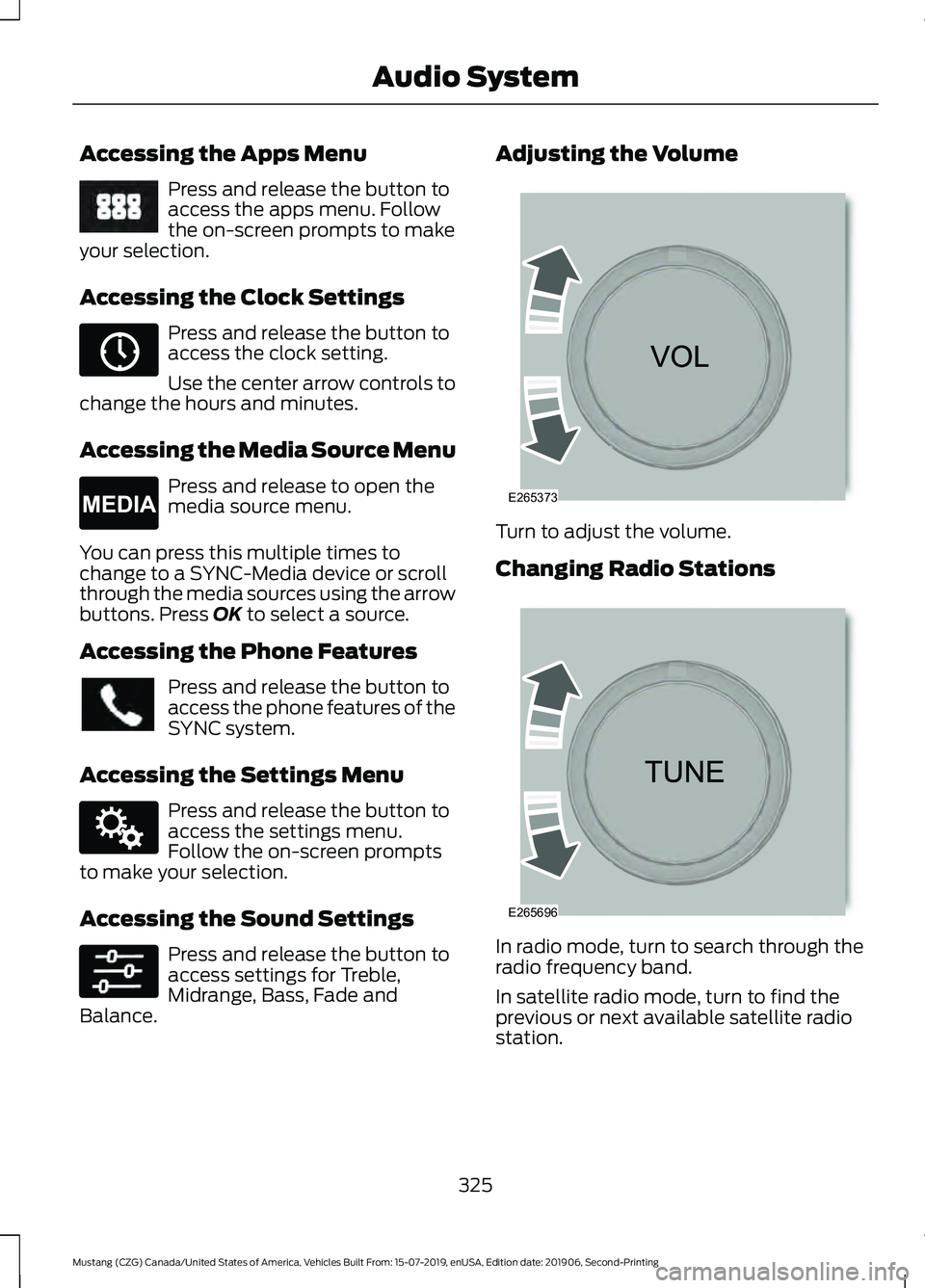
Accessing the Apps Menu
Press and release the button to
access the apps menu. Follow
the on-screen prompts to make
your selection.
Accessing the Clock Settings Press and release the button to
access the clock setting.
Use the center arrow controls to
change the hours and minutes.
Accessing the Media Source Menu Press and release to open the
media source menu.
You can press this multiple times to
change to a SYNC-Media device or scroll
through the media sources using the arrow
buttons. Press OK to select a source.
Accessing the Phone Features Press and release the button to
access the phone features of the
SYNC system.
Accessing the Settings Menu Press and release the button to
access the settings menu.
Follow the on-screen prompts
to make your selection.
Accessing the Sound Settings Press and release the button to
access settings for Treble,
Midrange, Bass, Fade and
Balance. Adjusting the Volume
Turn to adjust the volume.
Changing Radio Stations
In radio mode, turn to search through the
radio frequency band.
In satellite radio mode, turn to find the
previous or next available satellite radio
station.
325
Mustang (CZG) Canada/United States of America, Vehicles Built From: 15-07-2019, enUSA, Edition date: 201906, Second-Printing Audio SystemE249410 E265036 E265035 E142607 E265373 E265696
Page 329 of 464
Listening to the Radio
Press and release to listen to the
radio or change radio stations.
Muting the Audio Press and release the button to
mute the playing audio.
Playing or Pausing Media Press and release the button to
either play or pause the audio.
Switching the Audio Unit On and
Off Press and release the button.
Switching the Display On and Off Press and release the button.
Using the Display Control
Use the up and down arrow buttons to
select the various settings. When you make
your selection, press the left and right
arrow buttons to change the settings. Press and release to confirm a
selection.
Using the Number Block
In radio mode, store and recall your favorite
radio stations. To store a favorite station
press and hold until the sound returns. In
phone mode, enter a phone number. Using Seek, Fast Forward and
Reverse In radio mode, select a frequency band and
press and release either button. The
system stops at the first station it finds in
that direction.
In satellite radio mode, press and release
to select the next or previous satellite radio
station. If you select a specific category
(such as jazz, rock or news), press to find
the next or previous station in the category
you select.
AUDIO UNIT - VEHICLES WITH:
SYNC 3
WARNING: Driving while distracted
can result in loss of vehicle control, crash
and injury. We strongly recommend that
you use extreme caution when using any
device that may take your focus off the
road. Your primary responsibility is the
safe operation of your vehicle. We
recommend against the use of any
hand-held device while driving and
encourage the use of voice-operated
systems when possible. Make sure you
are aware of all applicable local laws
that may affect the use of electronic
devices while driving. 326
Mustang (CZG) Canada/United States of America, Vehicles Built From: 15-07-2019, enUSA, Edition date: 201906, Second-Printing Audio SystemE265033 E272035 E265041 E265045 E265044 E287199
Page 330 of 464
Note:
Depending on your vehicle option
package, the controls may look different
from what you see here.
Note: The touchscreen system controls
most of the audio features.
Note: Some features, such as satellite
radio, may not be available in your location.
Check with an authorized dealer.
Accessing the Sound Settings OR
Press and release to access settings for
Treble, Midrange, Bass, Fade or Balance.
Adjusting the Volume
Turn to adjust the volume. Changing Radio Stations
In radio mode, turn to search through the
radio frequency band. In satellite radio
mode, turn to find the previous or next
available satellite radio station.
Ejecting the CD (If Equipped)
Press and release the button to
eject a CD.
Inserting a CD
(If Equipped)
Insert a CD into the CD slot.
Switching the Audio Unit On and
Off Press and release the button.
Playing or Pausing Media Press and release the button to
either play or pause the audio.
327
Mustang (CZG) Canada/United States of America, Vehicles Built From: 15-07-2019, enUSA, Edition date: 201906, Second-Printing Audio SystemE280315 E142611 E265373 E265696 E265032
Page 331 of 464
Using Seek, Fast Forward and
Reverse
In radio mode, select a frequency band and
press and release either button. The
system stops at the first station it finds in
that direction.
In CD mode, press and release to select
the next or previous track. Press and hold
to move quickly forward or backward
through the current track.
In satellite radio mode, press and release
to select the next or previous satellite radio
station. If you select a specific category,
such as jazz, rock or news, press to find the
next or previous station in the category you
select.
DIGITAL RADIO
Note:
HD Radio broadcasts are not
available in all markets.
HD Radio technology is the digital
evolution of analog AM/FM radio. Your
system has a special receiver that allows
it to receive digital broadcasts, where
available, in addition to the analog
broadcasts, it already receives. Digital
broadcasts provide a better sound quality than analog broadcasts with free,
crystal-clear audio and no static or
distortion. For more information, and a
guide to available stations and
programming, please visit
www.hdradio.com.
When HD Radio is on and you tune to a
station broadcasting HD Radio technology,
you may notice the HD Radio logo on your
screen. When this logo is available, you
may also see Title and Artist fields
on-screen.
The multicast indicator appears in FM
mode, only, if the current station is
broadcasting multiple digital broadcasts.
The highlighted numbers signify available
digital channels where new or different
content is available. HD1 signifies the main
programming status and is available in
analog and digital broadcasts. Other
multicast stations, HD2 through HD7, are
only available digitally.
When HD Radio broadcasts are active, you
can access the following functions:
•
Memory presets allow you to save an
active channel as a memory preset.
Touch and hold a memory preset slot
until the sound returns. There is a brief
mute while the radio saves the station.
Sound returns when finished. When
switching to an HD2 or HD3 memory
preset, the sound mutes before the
digital audio plays, because the system
has to reacquire the digital signal.
Note: As with any saved radio station, you
cannot access the saved station if your
vehicle is outside the station ’s reception
area.
328
Mustang (CZG) Canada/United States of America, Vehicles Built From: 15-07-2019, enUSA, Edition date: 201906, Second-Printing Audio SystemE265044 E265045
Page 339 of 464
Helpful Hints
•
Make sure the interior of your vehicle is
as quiet as possible. Wind noise from
open windows and road vibrations may
prevent the system from correctly
recognizing spoken commands.
• Before giving a voice command, wait
for the system announcement to finish,
followed by a single tone. Any
command spoken before this does not
register with the system.
• Speak naturally, without long pauses
between words.
• You can interrupt the system at any
time while it is speaking by pressing the
voice button. You can cancel a voice
session by pressing and holding the
voice button. System Interaction and Feedback
The system provides feedback through
audible tones, prompts, questions and
spoken confirmations depending on the
situation and the chosen level of
interaction. You can customize the voice
recognition system to provide more or less
instruction and feedback.
The default setting is to a higher level of
interaction in order to help you learn to use
the system. You can change these settings
at any time.
Adjusting the Interaction Level Press the voice button. When
prompted, say:
Action and Description
Voice Command
Provides more detailed interaction and
guidance. (Recommended for first time
users.)
Interaction Mode Standard
Provides less audible interaction and guid-
ance.
Interaction Mode Advanced
Phone Confirmation
Using phone confirmations the system
asks you to verify before placing any calls.
To adjust this setting press the voice button, when prompted say: Action and Description
Voice Command
When enabled, this feature will prompt you
to confirm any voice initiated call command
prior to the call being placed.
Phone Confirmation Off
The system will make a best guess; you
may still occasionally be asked to confirm
settings.
Phone Confirmation On
336
Mustang (CZG) Canada/United States of America, Vehicles Built From: 15-07-2019, enUSA, Edition date: 201906, Second-Printing SYNC™ (If Equipped)E142599
Page 362 of 464
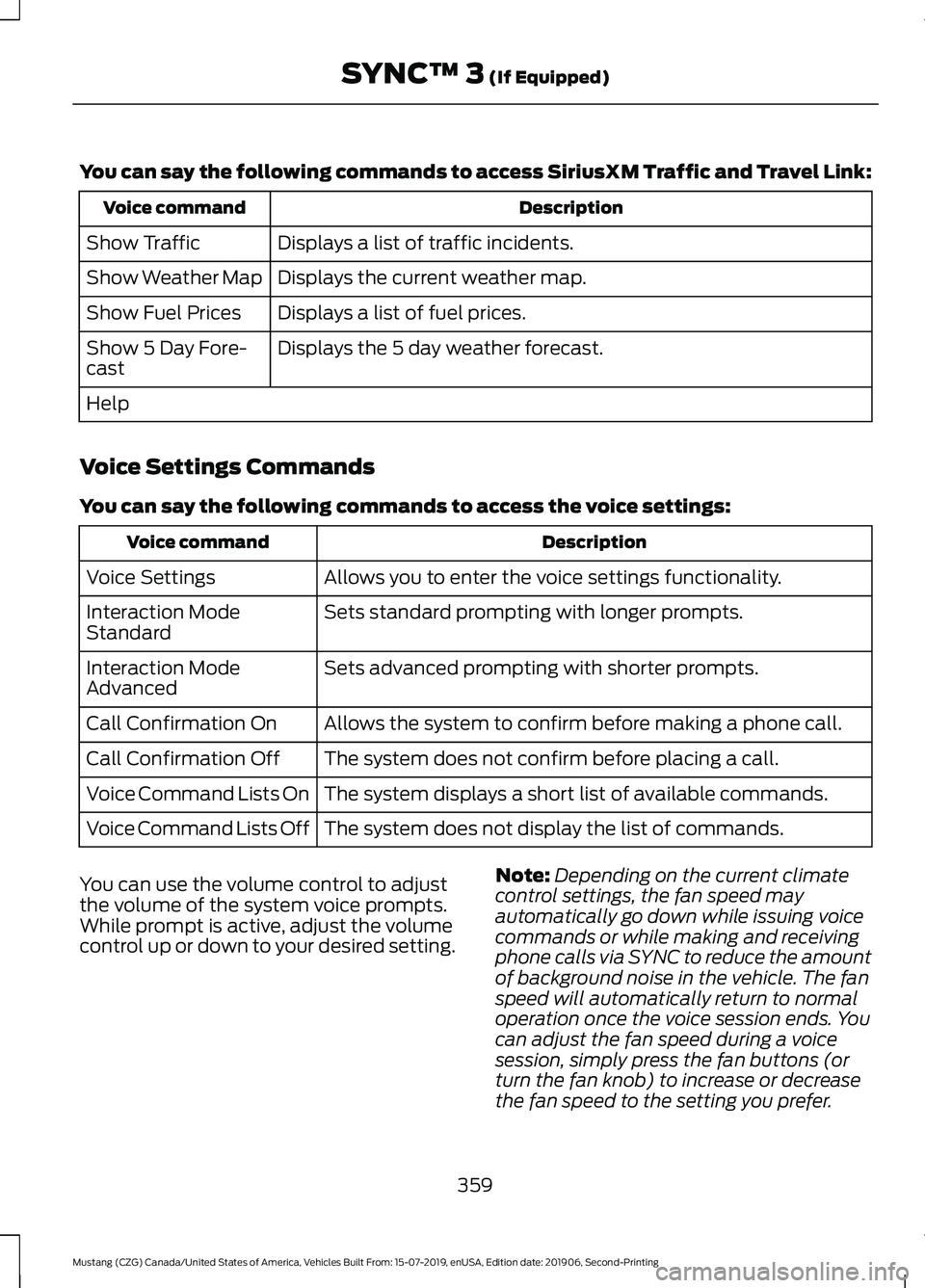
You can say the following commands to access SiriusXM Traffic and Travel Link:
Description
Voice command
Displays a list of traffic incidents.
Show Traffic
Displays the current weather map.
Show Weather Map
Displays a list of fuel prices.
Show Fuel Prices
Displays the 5 day weather forecast.
Show 5 Day Fore-
cast
Help
Voice Settings Commands
You can say the following commands to access the voice settings: Description
Voice command
Allows you to enter the voice settings functionality.
Voice Settings
Sets standard prompting with longer prompts.
Interaction Mode
Standard
Sets advanced prompting with shorter prompts.
Interaction Mode
Advanced
Allows the system to confirm before making a phone call.
Call Confirmation On
The system does not confirm before placing a call.
Call Confirmation Off
The system displays a short list of available commands.
Voice Command Lists On
The system does not display the list of commands.
Voice Command Lists Off
You can use the volume control to adjust
the volume of the system voice prompts.
While prompt is active, adjust the volume
control up or down to your desired setting. Note:
Depending on the current climate
control settings, the fan speed may
automatically go down while issuing voice
commands or while making and receiving
phone calls via SYNC to reduce the amount
of background noise in the vehicle. The fan
speed will automatically return to normal
operation once the voice session ends. You
can adjust the fan speed during a voice
session, simply press the fan buttons (or
turn the fan knob) to increase or decrease
the fan speed to the setting you prefer.
359
Mustang (CZG) Canada/United States of America, Vehicles Built From: 15-07-2019, enUSA, Edition date: 201906, Second-Printing SYNC™ 3 (If Equipped)
Page 365 of 464
SiriusXM satellite radio is a
subscription-based satellite radio service
that broadcasts a variety of music, sports,
news, weather, traffic and entertainment
programming. Your factory-installed
SiriusXM satellite radio system includes
hardware and a limited subscription term
that begins on the date of sale or lease of
your vehicle. See an authorized dealer for
availability.
For more information on extended
subscription terms (a service fee is
required), the online media player and a
list of SiriusXM satellite radio channels,
and other features, please visit
www.siriusxm.com in the United States,
www.siriusxm.ca in Canada, or call
SiriusXM at 1-888-539-7474.
Note:
SiriusXM reserves the unrestricted
right to change, rearrange, add or delete
programming. This includes canceling,
moving or adding particular channels, and
its prices, at any time, with or without notice
to you. We are not responsible for any such
programming changes.
Note: This receiver includes the eCos
real-time operating system. eCos is
published under the eCos License.
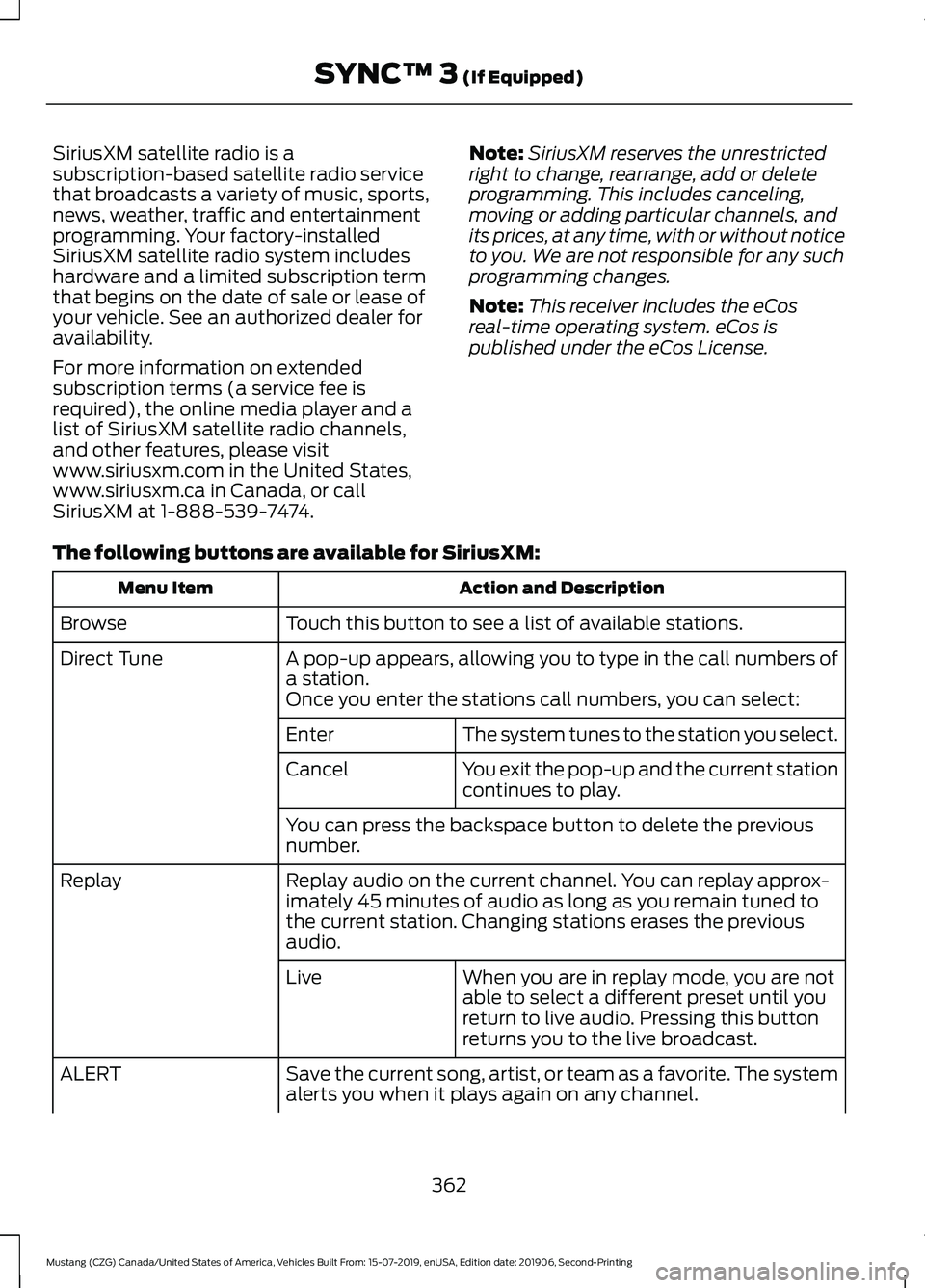
The following buttons are available for SiriusXM: Action and Description
Menu Item
Touch this button to see a list of available stations.
Browse
A pop-up appears, allowing you to type in the call numbers of
a station.
Direct Tune
Once you enter the stations call numbers, you can select:The system tunes to the station you select.
Enter
You exit the pop-up and the current station
continues to play.
Cancel
You can press the backspace button to delete the previous
number.
Replay audio on the current channel. You can replay approx-
imately 45 minutes of audio as long as you remain tuned to
the current station. Changing stations erases the previous
audio.
Replay
When you are in replay mode, you are not
able to select a different preset until you
return to live audio. Pressing this button
returns you to the live broadcast.
Live
Save the current song, artist, or team as a favorite. The system
alerts you when it plays again on any channel.
ALERT
362
Mustang (CZG) Canada/United States of America, Vehicles Built From: 15-07-2019, enUSA, Edition date: 201906, Second-Printing SYNC™ 3 (If Equipped)