navigation FORD MUSTANG 2023 User Guide
[x] Cancel search | Manufacturer: FORD, Model Year: 2023, Model line: MUSTANG, Model: FORD MUSTANG 2023Pages: 535, PDF Size: 15.46 MB
Page 406 of 535
Switching Automatic System UpdatesOn
Select the settings option on thefeature bar.
1.Select Automatic Updates.
2.Switch Automatic System Updateson.
The system is now set to check for andreceive system updates when it isconnected to a Wi-Fi network.
Note:You can use the system when adownload is in progress.
Note:If the system is disconnected fromthe Wi-Fi network when a download is inprogress, the download continues the nexttime the system is connected to a Wi-Finetwork.
Additional Information andAssistance
For additional information and assistance,we recommend that you contact anauthorized dealer or refer to the local Fordwebsite.
USING VOICE RECOGNITION
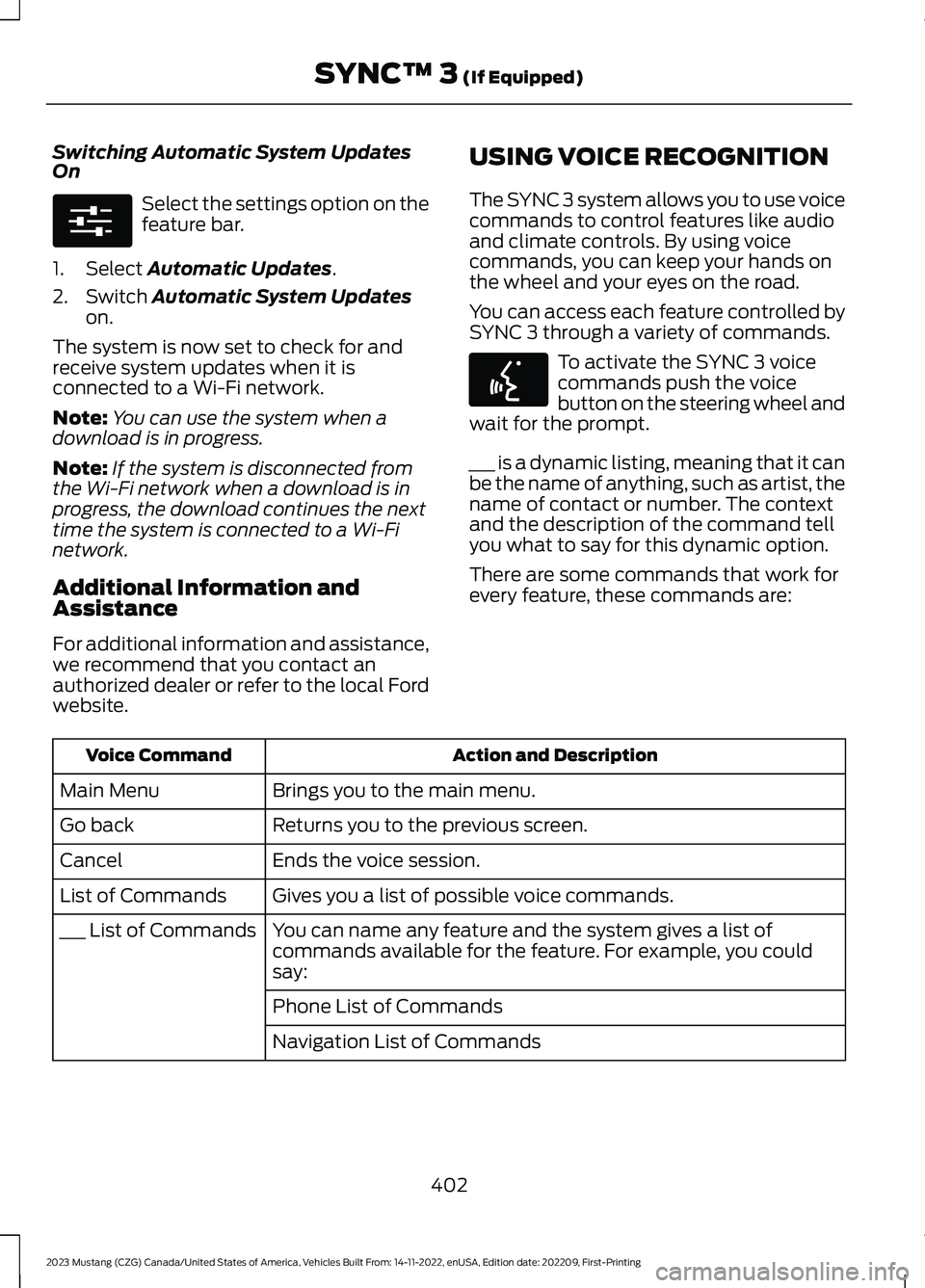
The SYNC 3 system allows you to use voicecommands to control features like audioand climate controls. By using voicecommands, you can keep your hands onthe wheel and your eyes on the road.
You can access each feature controlled bySYNC 3 through a variety of commands.
To activate the SYNC 3 voicecommands push the voicebutton on the steering wheel andwait for the prompt.
___ is a dynamic listing, meaning that it canbe the name of anything, such as artist, thename of contact or number. The contextand the description of the command tellyou what to say for this dynamic option.
There are some commands that work forevery feature, these commands are:
Action and DescriptionVoice Command
Brings you to the main menu.Main Menu
Returns you to the previous screen.Go back
Ends the voice session.Cancel
Gives you a list of possible voice commands.List of Commands
You can name any feature and the system gives a list ofcommands available for the feature. For example, you couldsay:
___ List of Commands
Phone List of Commands
Navigation List of Commands
402
2023 Mustang (CZG) Canada/United States of America, Vehicles Built From: 14-11-2022, enUSA, Edition date: 202209, First-PrintingSYNC™ 3 (If Equipped)E280315 E142599
Page 410 of 535
Text Message Voice Commands
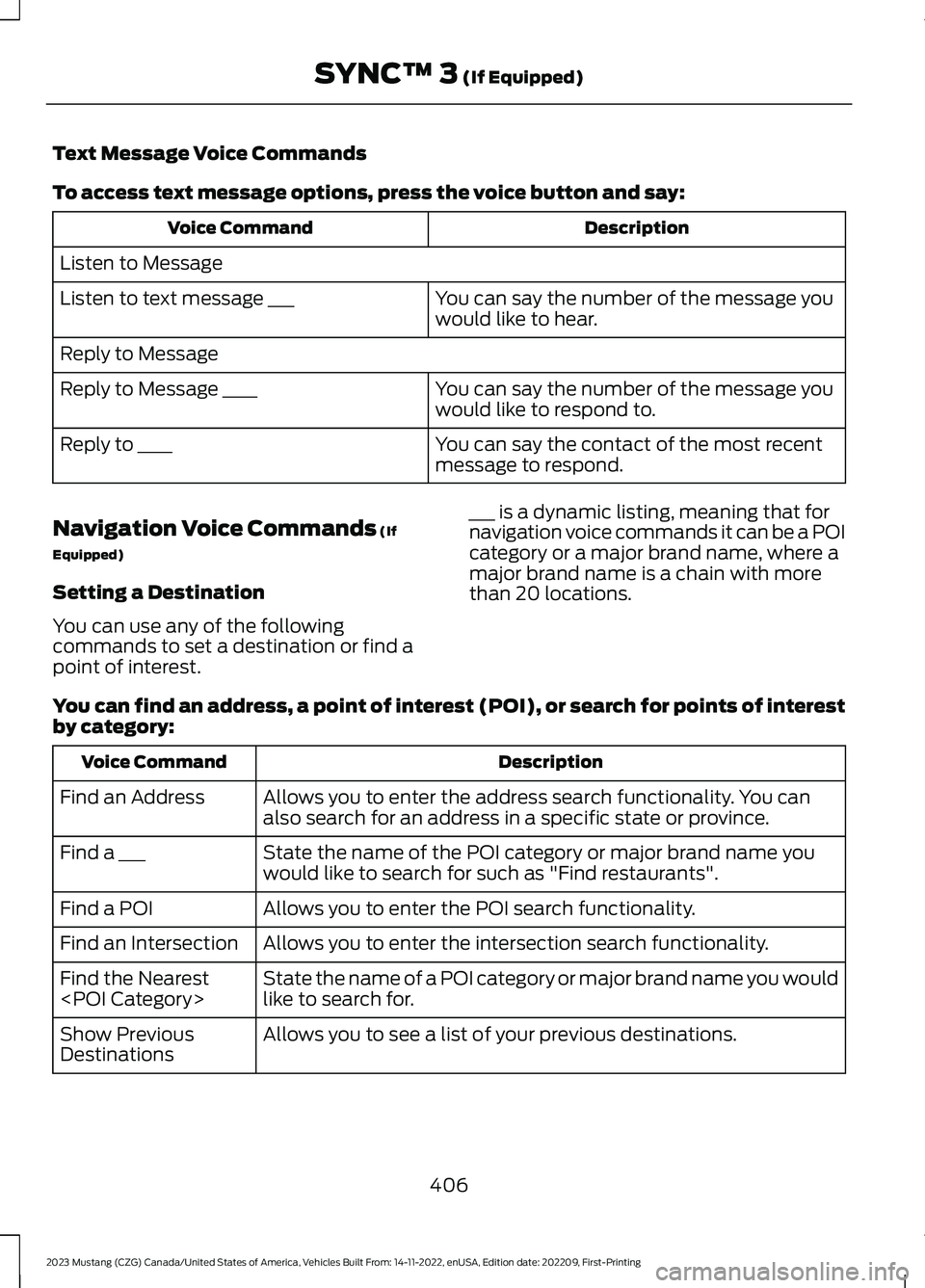
To access text message options, press the voice button and say:
DescriptionVoice Command
Listen to Message
You can say the number of the message youwould like to hear.Listen to text message ___
Reply to Message
You can say the number of the message youwould like to respond to.Reply to Message ____
You can say the contact of the most recentmessage to respond.Reply to ____
Navigation Voice Commands (If
Equipped)
Setting a Destination
You can use any of the followingcommands to set a destination or find apoint of interest.
___ is a dynamic listing, meaning that fornavigation voice commands it can be a POIcategory or a major brand name, where amajor brand name is a chain with morethan 20 locations.
You can find an address, a point of interest (POI), or search for points of interestby category:
DescriptionVoice Command
Allows you to enter the address search functionality. You canalso search for an address in a specific state or province.Find an Address
State the name of the POI category or major brand name youwould like to search for such as "Find restaurants".Find a ___
Allows you to enter the POI search functionality.Find a POI
Allows you to enter the intersection search functionality.Find an Intersection
State the name of a POI category or major brand name you wouldlike to search for.Find the Nearest
Allows you to see a list of your previous destinations.Show PreviousDestinations
406
2023 Mustang (CZG) Canada/United States of America, Vehicles Built From: 14-11-2022, enUSA, Edition date: 202209, First-PrintingSYNC™ 3 (If Equipped)
Page 427 of 535
Using Text Messaging
DescriptionMenu Item
Hear the text message.Hear It
View the text message.View
Call the sender.Call
Reply to the text message with a standard text message.Reply
Apple CarPlay (If Equipped)
1.Connect your device to a USB port.
2.Follow the instructions on thetouchscreen.
Note:Certain features of the system arenot available when you are using AppleCarPlay.
Switching Apple CarPlay Off
Select the settings option on thefeature bar.
1.Select Apple CarPlay Preferences.
2.Switch Apple CarPlay off.
Android Auto (If Equipped)
1.Connect your device to a USB port.
2.Follow the instructions on thetouchscreen.
Note:You might need to enable AndroidAuto from the settings menu.
Note:Certain features of the system arenot available when you are using AndroidAuto.
Switching Android Auto Off
Select the settings option on thefeature bar.
1.Select Android Auto.
2.Switch Android Auto off.
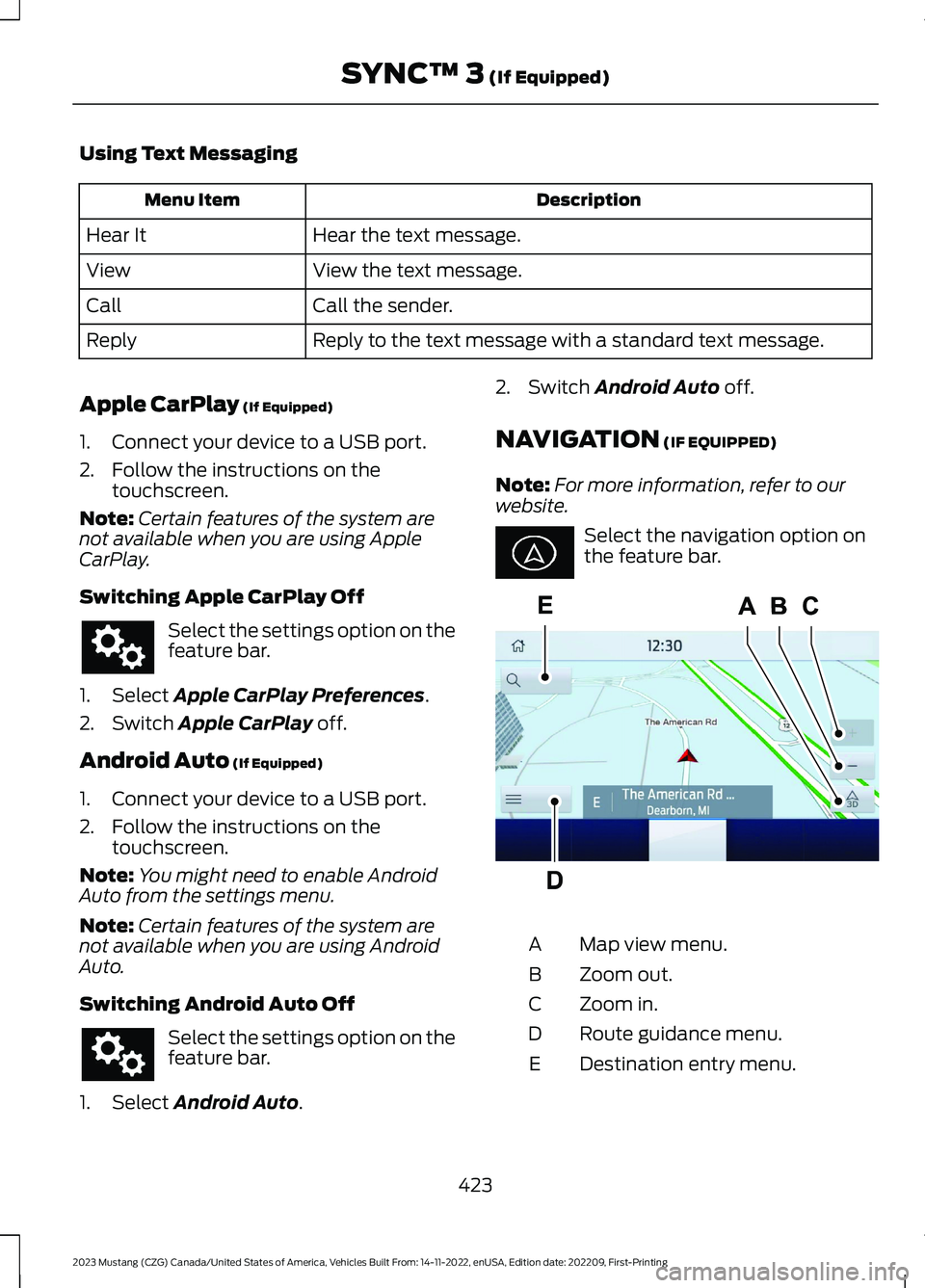
NAVIGATION (IF EQUIPPED)
Note:For more information, refer to ourwebsite.
Select the navigation option onthe feature bar.
Map view menu.A
Zoom out.B
Zoom in.C
Route guidance menu.D
Destination entry menu.E
423
2023 Mustang (CZG) Canada/United States of America, Vehicles Built From: 14-11-2022, enUSA, Edition date: 202209, First-PrintingSYNC™ 3 (If Equipped) E297557
Page 430 of 535
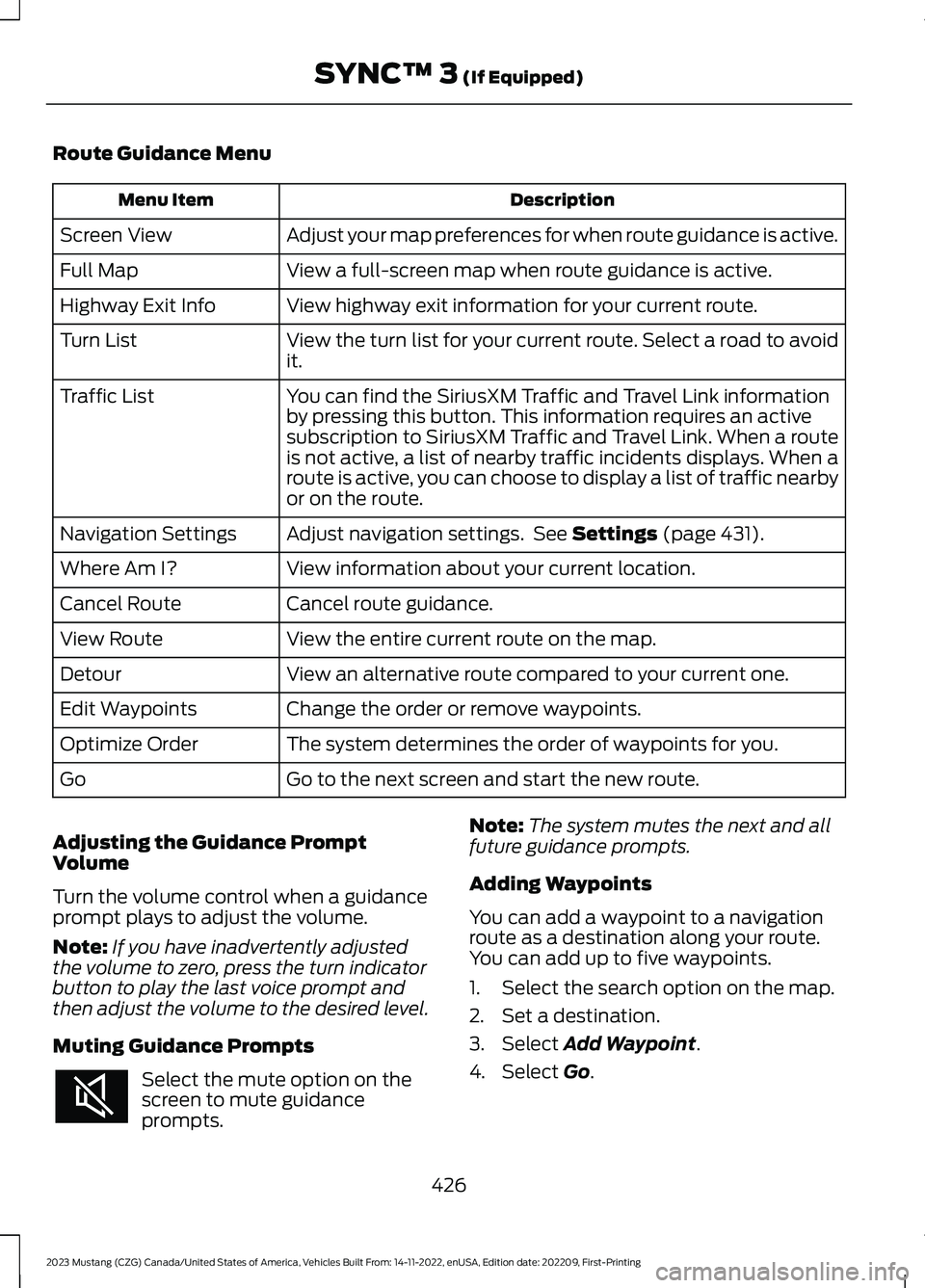
Route Guidance Menu
DescriptionMenu Item
Adjust your map preferences for when route guidance is active.Screen View
View a full-screen map when route guidance is active.Full Map
View highway exit information for your current route.Highway Exit Info
View the turn list for your current route. Select a road to avoidit.Turn List
You can find the SiriusXM Traffic and Travel Link informationby pressing this button. This information requires an activesubscription to SiriusXM Traffic and Travel Link. When a routeis not active, a list of nearby traffic incidents displays. When aroute is active, you can choose to display a list of traffic nearbyor on the route.
Traffic List
Adjust navigation settings. See Settings (page 431).Navigation Settings
View information about your current location.Where Am I?
Cancel route guidance.Cancel Route
View the entire current route on the map.View Route
View an alternative route compared to your current one.Detour
Change the order or remove waypoints.Edit Waypoints
The system determines the order of waypoints for you.Optimize Order
Go to the next screen and start the new route.Go
Adjusting the Guidance PromptVolume
Turn the volume control when a guidanceprompt plays to adjust the volume.
Note:If you have inadvertently adjustedthe volume to zero, press the turn indicatorbutton to play the last voice prompt andthen adjust the volume to the desired level.
Muting Guidance Prompts
Select the mute option on thescreen to mute guidanceprompts.
Note:The system mutes the next and allfuture guidance prompts.
Adding Waypoints
You can add a waypoint to a navigationroute as a destination along your route.You can add up to five waypoints.
1.Select the search option on the map.
2.Set a destination.
3.Select Add Waypoint.
4.Select Go.
426
2023 Mustang (CZG) Canada/United States of America, Vehicles Built From: 14-11-2022, enUSA, Edition date: 202209, First-PrintingSYNC™ 3 (If Equipped)
Page 432 of 535
SiriusXM Traffic and Travel Link (If
Equipped)
SiriusXM Traffic and Travel Link is availableon vehicles equipped with navigation andonly in select markets. You must activateand subscribe to receive SiriusXM Trafficand Travel Link information. It helps youlocate the best gas prices, find movielistings, get current traffic alerts, view theweather map, get accurate ski conditionsand see current sports scores.
The system calculates a reasonableefficient route based on available speedlimits, traffic, and road conditions. You mayknow a local shortcut that is more efficientat a given time than the route provided bySYNC 3, but you should expect a slightdifference in minutes or miles with theSYNC 3 route.
Michelin Travel Guide (If Equipped)
The Michelin travel guide is a service thatprovides additional information aboutcertain places of interest, for examplerestaurants, hotels and tourist sites. Pointsof interest that have Michelin travel guideinformation display a button to show youmore information. Push the button to seethe additional information. If you havepaired your phone with the system, youcan press the phone button to directlyestablish a call with the selected point ofinterest.
Navigation Map Accuracy andUpdates
HERE is the digital map provider for thenavigation application. If you find map dataerrors, you may report them directly toHERE by going to www.here.com. HEREevaluates all reported map errors andresponds with the result of theirinvestigation by e-mail.
The navigation system map data maycontain inaccurate or incompleteinformation due to the passage of time,changing circumstances, sources used andthe nature of collecting comprehensivegeographic data, any of which may lead toincorrect results. Inaccurate speed limitinformation, turn restrictions and otherroad attributes may affect the determinedroute and associated guidance
Annual navigation map updates areavailable for purchase through yourdealership. Depending on your purchaseagreement, you might be eligible for a freemap update. You can choose to downloadthe map data update onto a USB, order aUSB, or use Wi-Fi to deliver automaticupdates. To update your map data overWi-Fi, your vehicle must be connected toa Wi-Fi access point. Map data files arelarge, so it is highly recommended toperform the update when free Wi-Fi isavailable otherwise high data rates mayapply. For USB updates, free map updateeligibility, and other details, contactdealers at 1-866-462-8837 in the UnitedStates and Canada or 800-557-5539 inMexico or visit our local website for moreinformation.
APPS
The system allows you interact with selectmobile apps while keeping your eyes onthe road. Voice commands, your steeringwheel buttons, or a quick tap on yourtouchscreen give you advanced control ofcompatible mobile apps. You can alsostream your favorite music or podcasts,share your time of arrival with friends, andkeep connected safely.
428
2023 Mustang (CZG) Canada/United States of America, Vehicles Built From: 14-11-2022, enUSA, Edition date: 202209, First-PrintingSYNC™ 3 (If Equipped)
Page 433 of 535
When you start an app through the systemfor the first time, you could be asked togrant certain permissions. You can reviewand change the permissions that you havegranted at any time when your vehicle isnot moving. We recommend that youcheck your data plan before using yourapps through the system. Using themcould result in additional charges. We alsorecommend that you check the appprovider's terms and conditions andprivacy policy before using their app. Makesure that you have an active account forapps that you want to use through thesystem. Some apps will work with nosetup. Others require you to configuresome personal settings before you can usethem.
Note:For more information about availableapps, visit catalog.ford.com.
Using Apps on an iOS Device
Select the apps option on thefeature bar.
1.If your device is connected via USB,switch Apple CarPlay off. See Phone(page 421).
2.Connect your device to a USB port orpair and connect using Bluetooth.
3.If prompted to enable CarPlay, selectDisable.
4.Start the apps on your device that youwant to use through SYNC.
Note:If you close the apps on your device,you will not be able to use them through thesystem.
5.Select the app that you want to use onthe touchscreen.
Note:Connect your device to a USB port ifyou want to use a navigation app. Whenusing a navigation app, keep your deviceunlocked and the app open.
Using Apps on an Android Device
Select the apps option on thefeature bar.
1.If your device is connected via USB,switch Android Auto off. See Phone(page 421).
2.Pair your device. See Phone (page 421).
3.Start the apps on your device that youwant to use through SYNC.
Note:If you close the apps on your device,you will not be able to use them through thesystem.
4.Select Find Mobile Apps.
Note:The system searches and connectsto compatible apps that are running on yourdevice.
5.Select the app that you want to use onthe touchscreen.
Note:Mobile Apps on your device use theUSB port to establish a connection withSYNC. Some devices may lose the ability toplay music over USB when Mobile Apps areenabled.
Using Mobile Navigation on anAndroid Device
1.Connect your device to a USB port.
2.Switch Android Auto off. See Phone(page 421).
3.Switch on Enable Mobile Apps viaUSB in the Mobile Apps Settings tile.
4.Select the apps option on the featurebar.
5.Select the navigation app that youwant to use on the touchscreen.
Note:When using a navigation app, keepyour device unlocked and the app open.
429
2023 Mustang (CZG) Canada/United States of America, Vehicles Built From: 14-11-2022, enUSA, Edition date: 202209, First-PrintingSYNC™ 3 (If Equipped)
Page 434 of 535
SiriusXM Traffic and Travel Link (If
Equipped)
WARNING: Driving while distractedcan result in loss of vehicle control, crashand injury. We strongly recommend thatyou use extreme caution when using anydevice that may take your focus off theroad. Your primary responsibility is thesafe operation of your vehicle. Werecommend against the use of anyhand-held device while driving andencourage the use of voice-operatedsystems when possible. Make sure youare aware of all applicable local lawsthat may affect the use of electronicdevices while driving.
Note:SiriusXM Traffic and Travel Link maynot be available in all markets.
Note:In order to use SiriusXM Traffic andTravel Link, your vehicle must havenavigation.
Note:A paid subscription is required toaccess and use these features. Go towww.siriusxm.com/travellink for moreinformation.
Note:Visit www.siriusxm.com/traffic andclick on Coverage map and details for acomplete listing of all traffic areas coveredby SiriusXM Traffic and Travel Link.
Note:Neither Sirius nor Ford is responsiblefor any errors or inaccuracies in the SiriusXMTraffic and Travel Link services or its use invehicles.
When you subscribe to SiriusXM Trafficand Travel Link, it can help you locate thebest gas prices, find movie listings, getcurrent traffic alerts, view the currentweather map, get accurate ski conditionsand see scores to current sports games.
Action and DescriptionMenu Item
Touch these buttons to identify traffic incidents on your route,near your vehicle’s current location or near any of your favoriteplaces, if programmed.
Traffic on Route
Traffic Nearby
Touch this button to view fuel prices at stations close to yourvehicle’s location or on an active navigation route.Fuel Prices
Touch this button to view nearby movie theaters and theirshow times, if available.Movie Listings
Touch this button to view the nearby weather, current weather,or the five-day forecast for the chosen area.Weather
Select to see the weather map,which can show storms, radarinformation, charts and winds.
Map
430
2023 Mustang (CZG) Canada/United States of America, Vehicles Built From: 14-11-2022, enUSA, Edition date: 202209, First-PrintingSYNC™ 3 (If Equipped)
Page 436 of 535
Display
Select this tile to adjust display settingslike brightness and auto dim.
Charge Settings (If Equipped)
Select this tile to adjust the electric vehiclecharge settings.
Voice Control
Select this tile to adjust voice controlsettings like command confirmations anddisplayed lists.
Navigation (If Equipped)
Select this tile to adjust navigation settingslike map preferences and route guidance.
Seats (If Equipped)
Select this tile to adjust the lumbarfunction and massage function of yourmulti contour seats.
Message Center (If Equipped)
Select this tile to view vehicle messages.
Personal Profiles (If Equipped)
Select this tile to adjust recalled memoryfeatures when using personal profiles.
Valet Mode (If Equipped)
Select this tile to enable and disable valetmode.
Ambient Lighting (If Equipped)
Select this tile to change the color orintensity of the interior lighting.
432
2023 Mustang (CZG) Canada/United States of America, Vehicles Built From: 14-11-2022, enUSA, Edition date: 202209, First-PrintingSYNC™ 3 (If Equipped)
Page 443 of 535
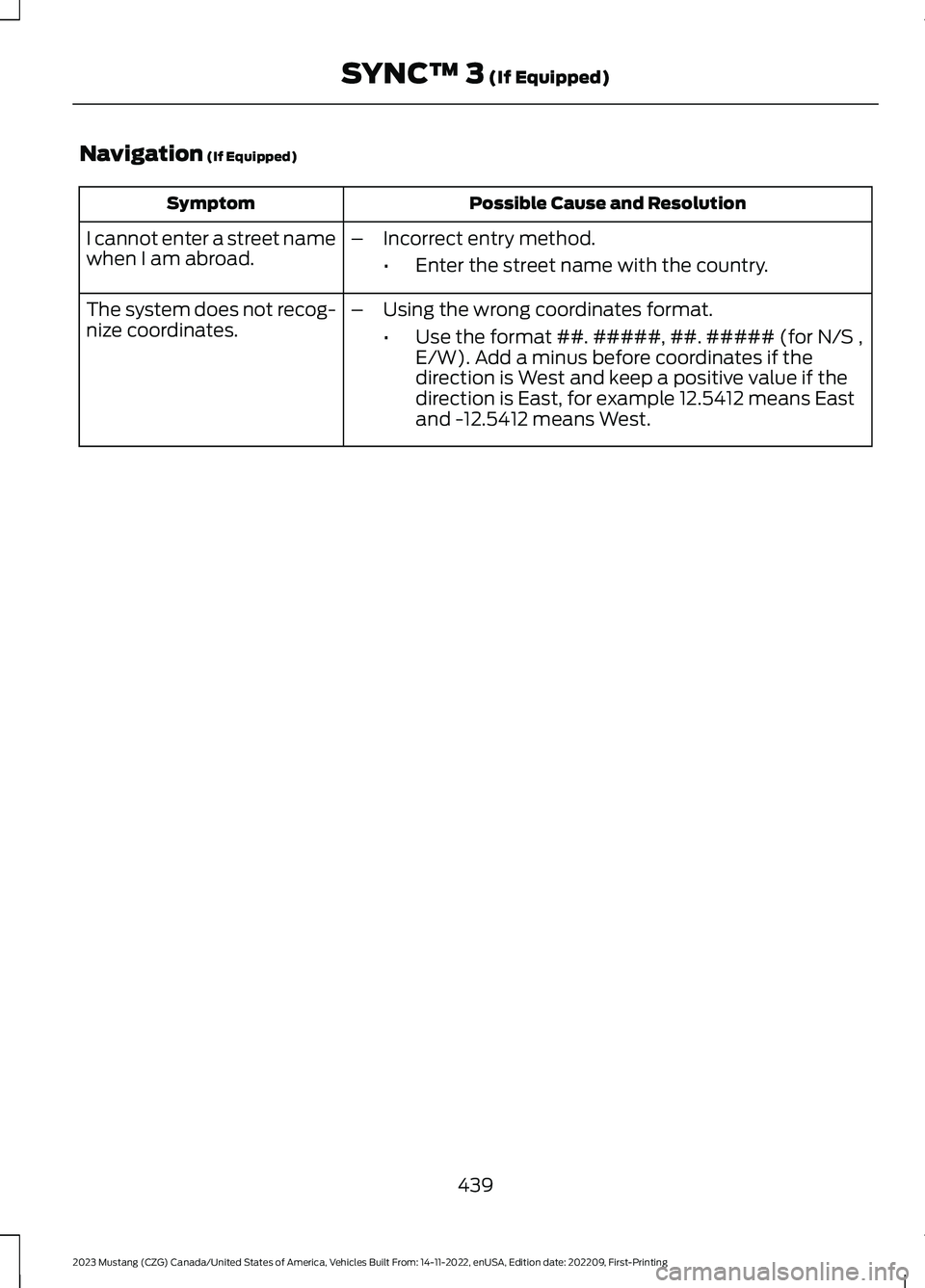
Navigation (If Equipped)
Possible Cause and ResolutionSymptom
I cannot enter a street namewhen I am abroad.–Incorrect entry method.
•Enter the street name with the country.
The system does not recog-nize coordinates.–Using the wrong coordinates format.
•Use the format ##. #####, ##. ##### (for N/S ,E/W). Add a minus before coordinates if thedirection is West and keep a positive value if thedirection is East, for example 12.5412 means Eastand -12.5412 means West.
439
2023 Mustang (CZG) Canada/United States of America, Vehicles Built From: 14-11-2022, enUSA, Edition date: 202209, First-PrintingSYNC™ 3 (If Equipped)
Page 500 of 535
ELECTROMAGNETIC
COMPATIBILITY
WARNING: Do not place objectsor mount equipment on or near theairbag cover, on the side of the front orrear seatbacks, or in areas that maycome into contact with a deployingairbag. Failure to follow theseinstructions may increase the risk ofpersonal injury in the event of a crash.
WARNING: Do not fasten antennacables to vehicle wiring, fuel pipes andbrake pipes.
WARNING: Keep antenna andpower cables at least 4 in (10 cm) fromany electronic modules and airbags.
Note:We test and certify your vehicle tomeet electromagnetic compatibilitylegislation. It is your responsibility to makesure that any equipment an authorizeddealer installs on your vehicle complies withapplicable local legislation and otherrequirements. Installation of someaftermarket electronic devices coulddegrade the performance of vehiclefunctions, which use radio frequency signalssuch as broadcast radio receiver, tirepressure monitoring system, push buttonstart,Bluetooth® connectivity or satellitenavigation.
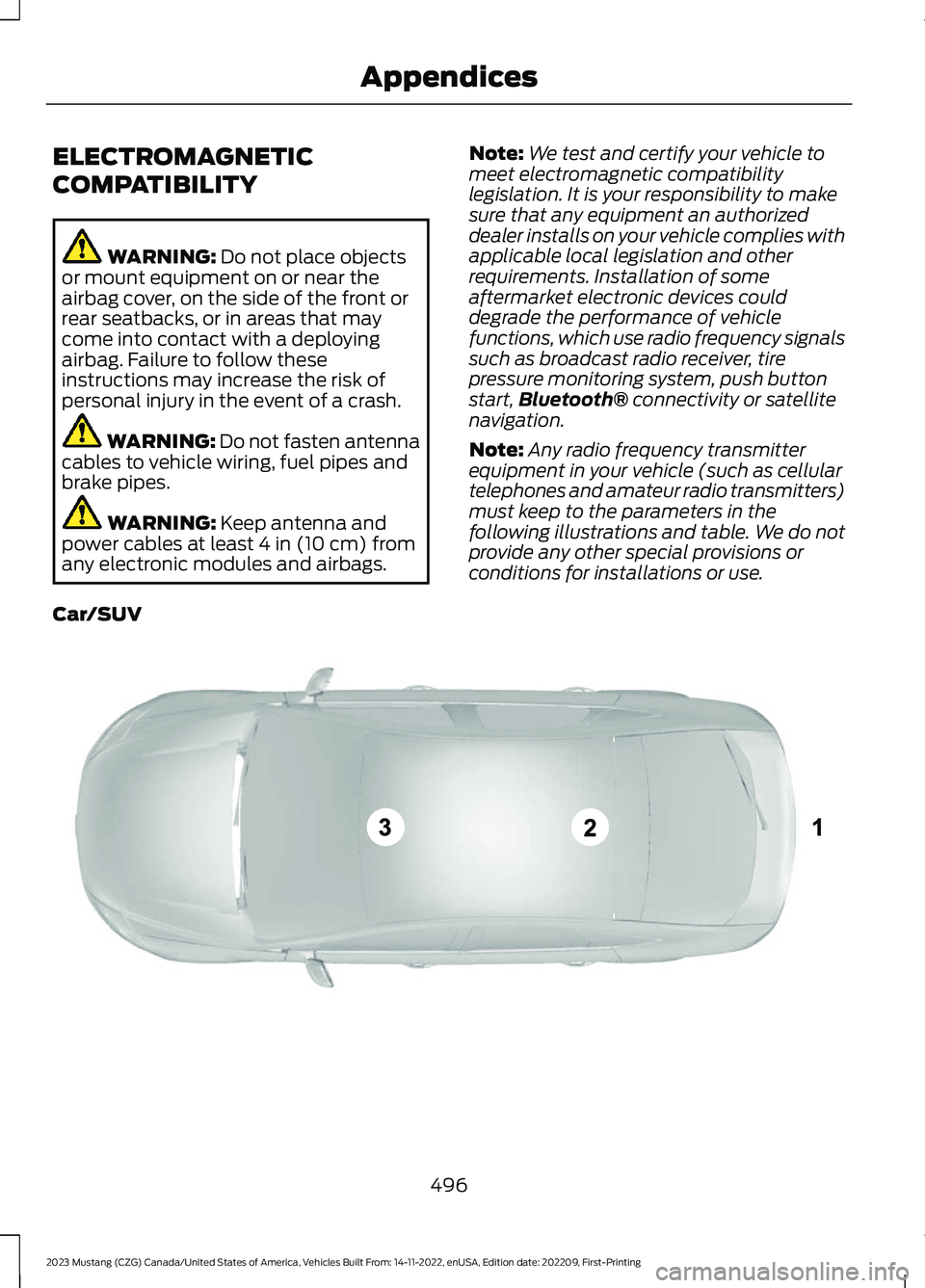
Note:Any radio frequency transmitterequipment in your vehicle (such as cellulartelephones and amateur radio transmitters)must keep to the parameters in thefollowing illustrations and table. We do notprovide any other special provisions orconditions for installations or use.
Car/SUV
496
2023 Mustang (CZG) Canada/United States of America, Vehicles Built From: 14-11-2022, enUSA, Edition date: 202209, First-PrintingAppendicesE239120