USB port FORD RANGER 2021 User Guide
[x] Cancel search | Manufacturer: FORD, Model Year: 2021, Model line: RANGER, Model: FORD RANGER 2021Pages: 475, PDF Size: 7.9 MB
Page 374 of 475
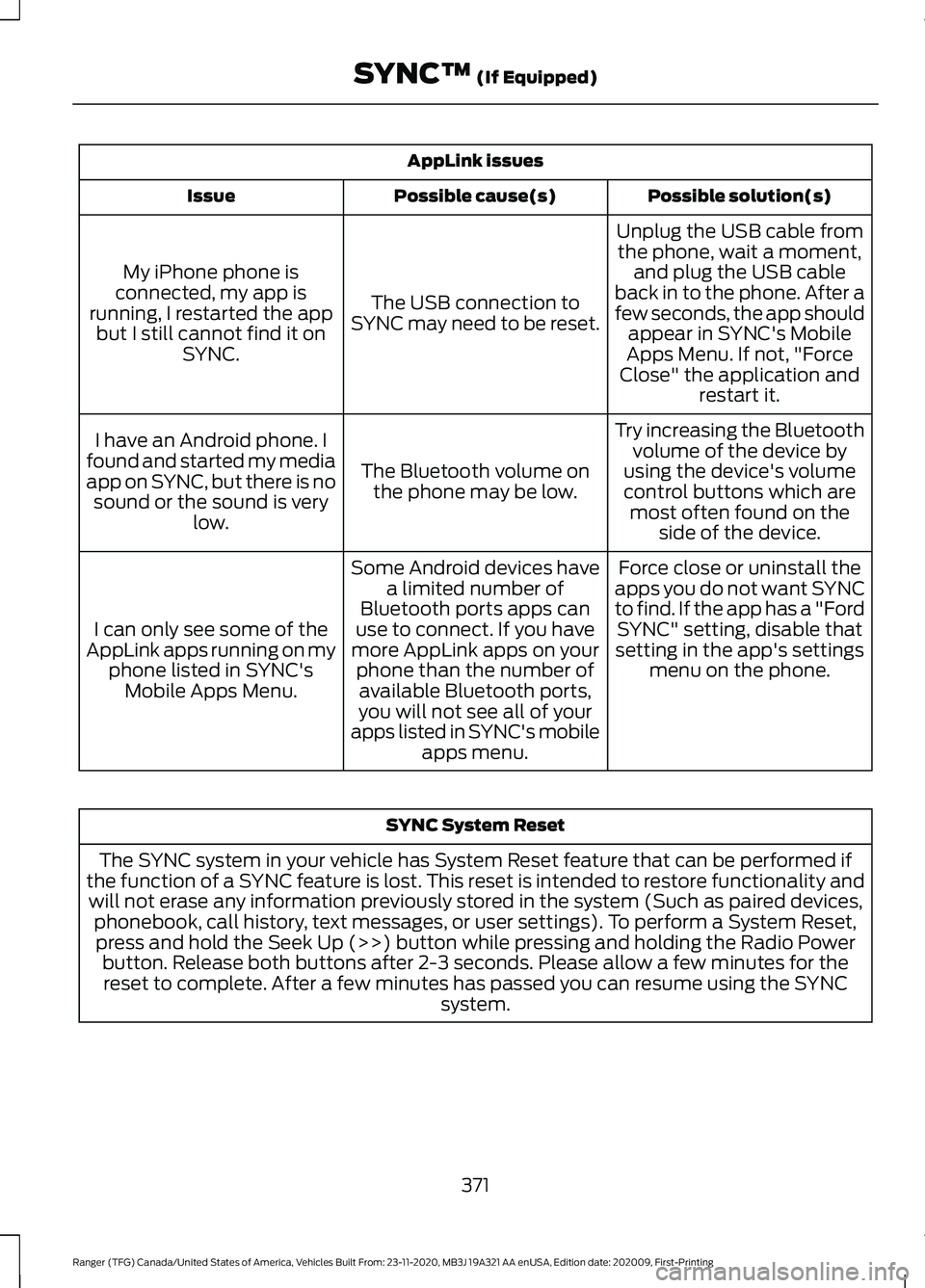
AppLink issues
Possible solution(s)
Possible cause(s)
Issue
Unplug the USB cable fromthe phone, wait a moment, and plug the USB cable
back in to the phone. After a
few seconds, the app should appear in SYNC's Mobile
Apps Menu. If not, "Force
Close" the application and restart it.
The USB connection to
SYNC may need to be reset.
My iPhone phone is
connected, my app is
running, I restarted the app but I still cannot find it on SYNC.
Try increasing the Bluetoothvolume of the device by
using the device's volume control buttons which are most often found on the side of the device.
The Bluetooth volume on
the phone may be low.
I have an Android phone. I
found and started my media
app on SYNC, but there is no sound or the sound is very low.
Force close or uninstall the
apps you do not want SYNC
to find. If the app has a "Ford SYNC" setting, disable that
setting in the app's settings menu on the phone.
Some Android devices have
a limited number of
Bluetooth ports apps can
use to connect. If you have
more AppLink apps on your phone than the number ofavailable Bluetooth ports,
you will not see all of your
apps listed in SYNC's mobile apps menu.
I can only see some of the
AppLink apps running on my phone listed in SYNC'sMobile Apps Menu. SYNC System Reset
The SYNC system in your vehicle has System Reset feature that can be performed if
the function of a SYNC feature is lost. This reset is intended to restore functionality and will not erase any information previously stored in the system (Such as paired devices, phonebook, call history, text messages, or user settings). To perform a System Reset,press and hold the Seek Up (>>) button while pressing and holding the Radio Power button. Release both buttons after 2-3 seconds. Please allow a few minutes for thereset to complete. After a few minutes has passed you can resume using the SYNC system.
371
Ranger (TFG) Canada/United States of America, Vehicles Built From: 23-11-2020, MB3J 19A321 AA enUSA, Edition date: 202009, First-Printing SYNC™ (If Equipped)
Page 376 of 475
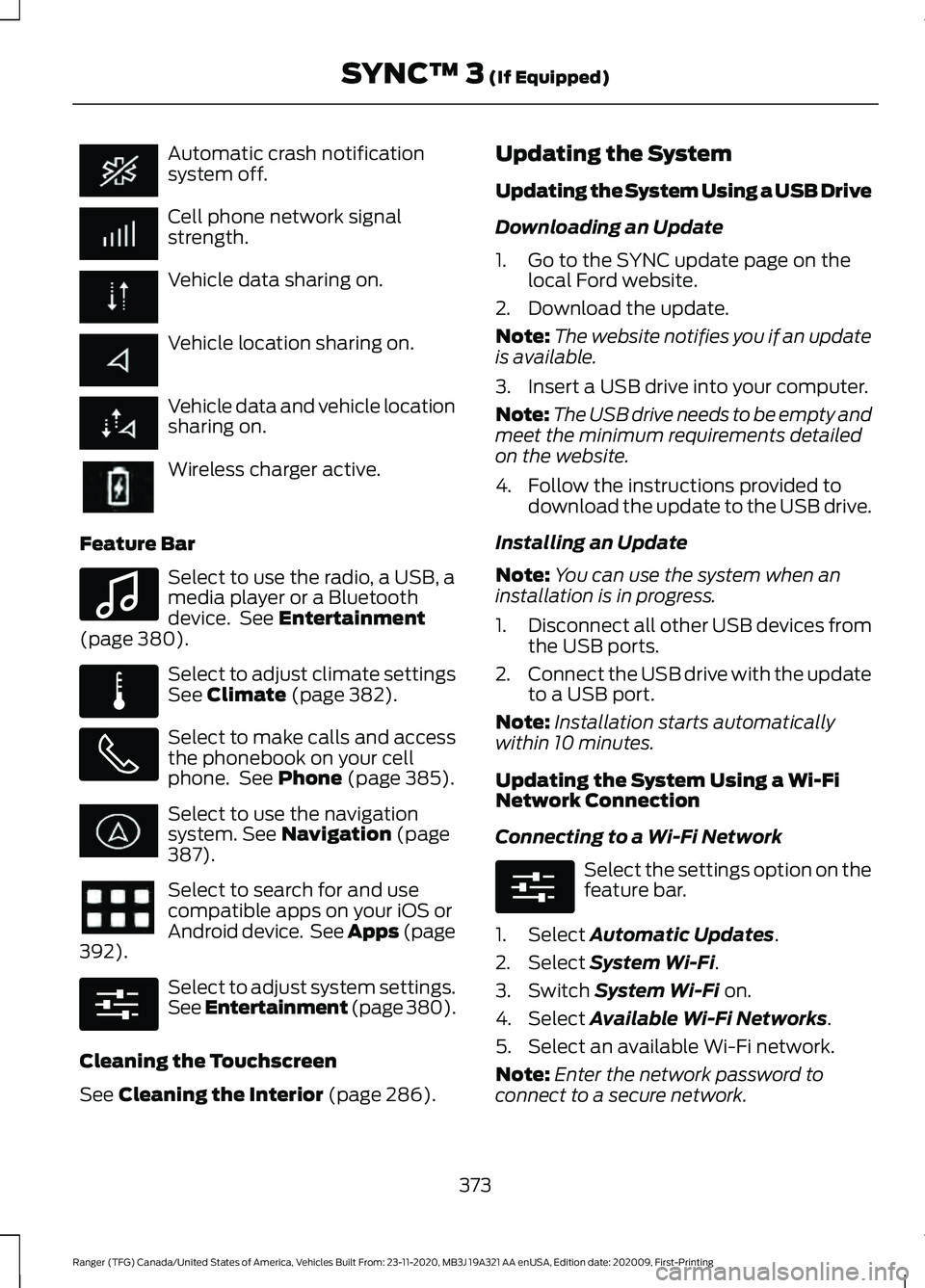
Automatic crash notification
system off.
Cell phone network signal
strength.
Vehicle data sharing on.
Vehicle location sharing on.
Vehicle data and vehicle location
sharing on.
Wireless charger active.
Feature Bar Select to use the radio, a USB, a
media player or a Bluetooth
device. See Entertainment
(page 380). Select to adjust climate settings
See
Climate (page 382).
Select to make calls and access
the phonebook on your cell
phone. See
Phone (page 385).
Select to use the navigation
system.
See Navigation (page
387). Select to search for and use
compatible apps on your iOS or
Android device. See Apps (page
392
). Select to adjust system settings.
See Entertainment (page 380
).
Cleaning the Touchscreen
See
Cleaning the Interior (page 286). Updating the System
Updating the System Using a USB Drive
Downloading an Update
1. Go to the SYNC update page on the
local Ford website.
2. Download the update.
Note: The website notifies you if an update
is available.
3. Insert a USB drive into your computer.
Note: The USB drive needs to be empty and
meet the minimum requirements detailed
on the website.
4. Follow the instructions provided to download the update to the USB drive.
Installing an Update
Note: You can use the system when an
installation is in progress.
1. Disconnect all other USB devices from
the USB ports.
2. Connect the USB drive with the update
to a USB port.
Note: Installation starts automatically
within 10 minutes.
Updating the System Using a Wi-Fi
Network Connection
Connecting to a Wi-Fi Network Select the settings option on the
feature bar.
1. Select
Automatic Updates.
2. Select
System Wi-Fi.
3. Switch
System Wi-Fi on.
4. Select
Available Wi-Fi Networks.
5. Select an available Wi-Fi network.
Note: Enter the network password to
connect to a secure network.
373
Ranger (TFG) Canada/United States of America, Vehicles Built From: 23-11-2020, MB3J 19A321 AA enUSA, Edition date: 202009, First-Printing SYNC™ 3
(If Equipped) E100027 E283811 E280315 E280315
Page 384 of 475
Using the Radio
Setting a Radio Station Using the
Touchscreen
Directly Tuning a Radio Station
Select Sources.
Select
AM or FM.
Select
Frequency.
Enter the frequency of the radio station
and select
Enter.
Note: You must enter the frequency to two
decimal places.
Selecting a Radio Station From a List
Select
Sources.
Select
FM or DAB.
Select
Station.
Select a radio station from the list.
Switching Traffic Announcements On
Select
Traffic (TA).
Note: If you switch traffic announcements
on, traffic announcements broadcast by
radio stations interrupt the current audio
source to help you plan your route.
Storing a Radio Station
You can use the different sets of presets
to allow different drivers to store their
favorite radio stations.
Set a radio station.
Select
Presets.
Note: Only do this if you wish to select a
different set of presets.
Press and hold one of the preset buttons.
Note: The radio briefly mutes to indicate
the radio station has been stored. Streaming Music From a Bluetooth
Device
Check the compatibility of your device on
the regional Ford website.
Pair your device. See
Phone (page 385).
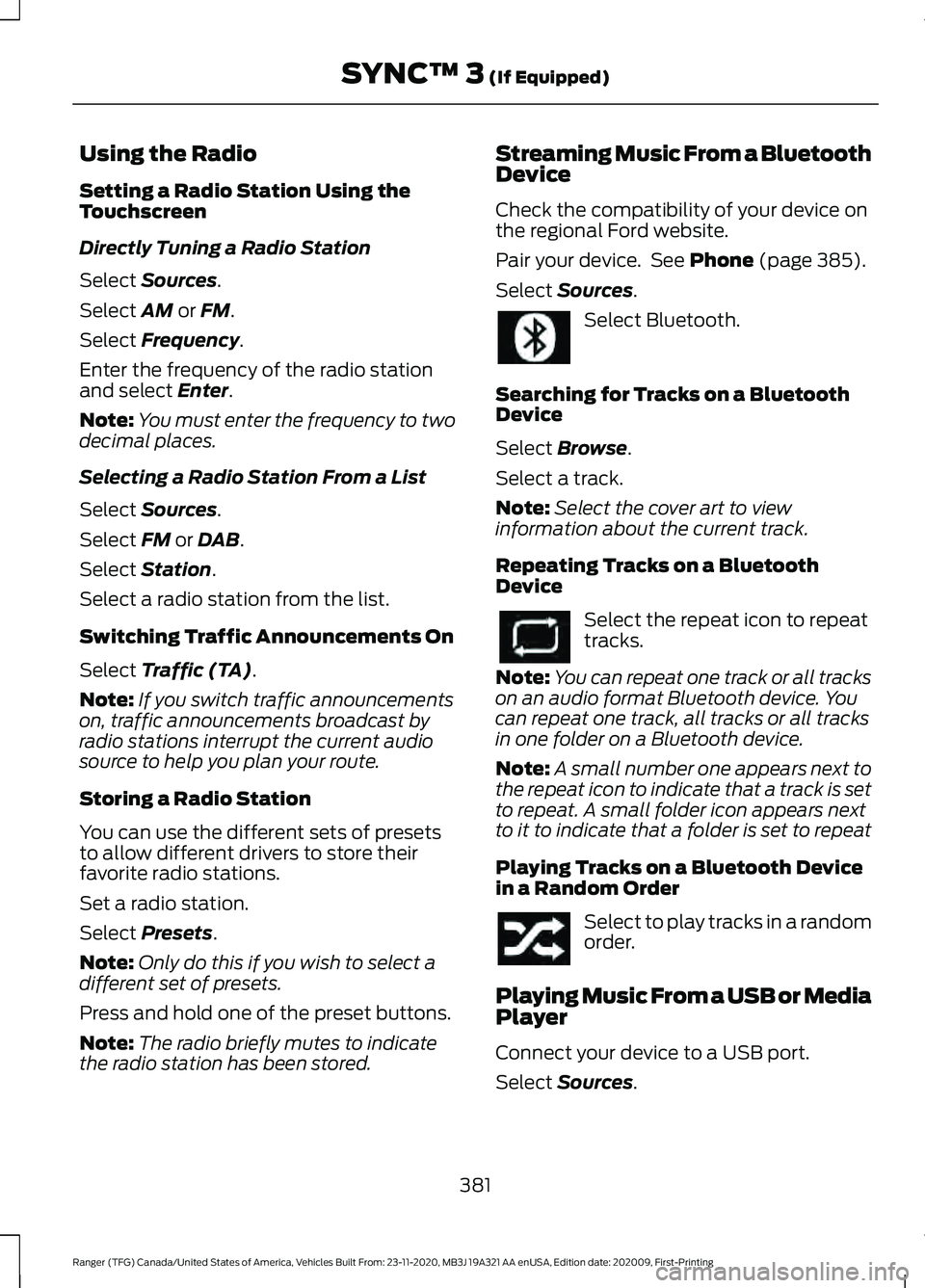
Select
Sources. Select Bluetooth.
Searching for Tracks on a Bluetooth
Device
Select
Browse.
Select a track.
Note: Select the cover art to view
information about the current track.
Repeating Tracks on a Bluetooth
Device Select the repeat icon to repeat
tracks.
Note: You can repeat one track or all tracks
on an audio format Bluetooth device. You
can repeat one track, all tracks or all tracks
in one folder on a Bluetooth device.
Note: A small number one appears next to
the repeat icon to indicate that a track is set
to repeat. A small folder icon appears next
to it to indicate that a folder is set to repeat
Playing Tracks on a Bluetooth Device
in a Random Order Select to play tracks in a random
order.
Playing Music From a USB or Media
Player
Connect your device to a USB port.
Select
Sources.
381
Ranger (TFG) Canada/United States of America, Vehicles Built From: 23-11-2020, MB3J 19A321 AA enUSA, Edition date: 202009, First-Printing SYNC™ 3
(If Equipped)
Page 385 of 475
Select USB.
Note: The system indexes your music
before you can play it.
Searching for Tracks on a USB or Media
Player
Select Browse.
Select a track.
Note: Select the cover art to view
information about the current track.
Note: You can also browse by album, artist,
audiobook, genre, playlist, podcast or track
name.
Repeating Tracks on a USB or Media
Player Select the repeat icon to repeat
tracks.
Note: You can repeat one track or all tracks
on an audio format USB or media player.
You can repeat one track, all tracks or all
tracks in one folder on a USB or media
player.
Note: A small number one appears next to
the repeat icon to indicate that a track is set
to repeat. A small folder icon appears next
to it to indicate that a folder is set to repeat
Supported Devices
The system supports most USB and media
players, including iOS and Android devices.
Supported File Formats
The system supports the following file
formats:
• MP3, MP4, WMA, WAV, AAC, AIFF, APE,
DSD, and FLAC audio file formats.
• MP3, WMA, WAV, M4A, M4B, AAC, and
FLAC file extensions.
• FAT, exFAT, and NTFS file systems. Audio File Metadata
The system organizes files on your USB or
media player by metadata tags. Metadata
tags contain information about the file. If
the metadata tags for the files on your USB
or media player contain no information,
the system classifies them as unknown.
The system can index up to 50000 tracks
on a USB device or media player, and up
to 10 devices.
CLIMATE
Touch the climate button on the
touchscreen to access your climate control
features.
Note:
You can switch temperature units
between Fahrenheit and Celsius. See
Settings
(page 393).
Accessing the Climate Control
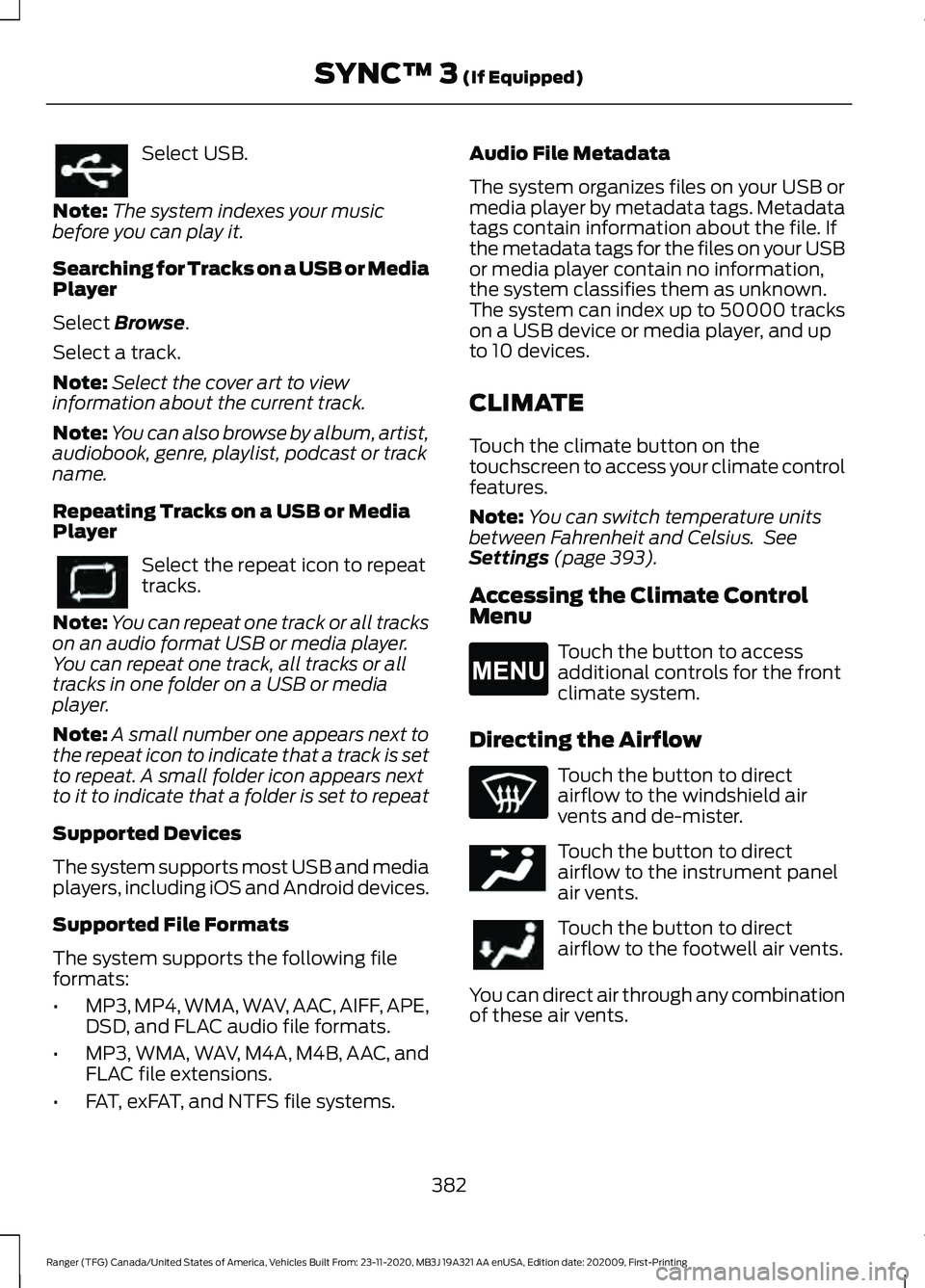
Menu Touch the button to access
additional controls for the front
climate system.
Directing the Airflow Touch the button to direct
airflow to the windshield air
vents and de-mister.
Touch the button to direct
airflow to the instrument panel
air vents.
Touch the button to direct
airflow to the footwell air vents.
You can direct air through any combination
of these air vents.
382
Ranger (TFG) Canada/United States of America, Vehicles Built From: 23-11-2020, MB3J 19A321 AA enUSA, Edition date: 202009, First-Printing SYNC™ 3
(If Equipped) E265038 E244097
Page 389 of 475
Phone Keypad
Directly dial a number.
Mute
Mute the microphone when in a call or
voice recognition session.
Text Messaging
Setting Text Message Notification
iOS
1. Go to the settings menu on your cell
phone. 2. Select Bluetooth.
3.
Select the information icon to the right
of your vehicle.
4. Switch text message notification on.
Android
1. Go to the settings menu on your cell phone.
2. Select Bluetooth.
3. Select the profiles option.
4. Select the phone profile.
5. Switch text message notification on.
Using Text Messaging Description
Menu Item
Hear the text message.
Hear It
View the text message.
View
Call the sender.
Call
Reply to the text message with a standard text message.
Reply
Apple CarPlay (If Equipped)
1. Connect your device to a USB port.
2. Follow the instructions on the touchscreen.
Note: Certain features of the system are
not available when you are using Apple
CarPlay.
Switching Apple CarPlay Off Select the settings option on the
feature bar.
1. Select
Apple CarPlay Preferences.
2. Switch
Apple CarPlay off. Android Auto
(If Equipped)
1. Connect your device to a USB port.
2. Follow the instructions on the touchscreen.
Note: You might need to enable Android
Auto from the settings menu.
Note: Certain features of the system are
not available when you are using Android
Auto.
Switching Android Auto Off Select the settings option on the
feature bar.
1. Select
Android Auto.
2. Switch
Android Auto off.
386
Ranger (TFG) Canada/United States of America, Vehicles Built From: 23-11-2020, MB3J 19A321 AA enUSA, Edition date: 202009, First-Printing SYNC™ 3
(If Equipped)
Page 395 of 475
Navigation Map Accuracy and
Updates
HERE is the digital map provider for the
navigation application. If you find map data
errors, you may report them directly to
HERE by going to www.here.com. HERE
evaluates all reported map errors and
responds with the result of their
investigation by e-mail.
The navigation system map data may
contain inaccurate or incomplete
information due to the passage of time,
changing circumstances, sources used and
the nature of collecting comprehensive
geographic data, any of which may lead to
incorrect results. Inaccurate speed limit
information, turn restrictions and other
road attributes may affect the determined
route and associated guidance
Annual navigation map updates are
available for purchase through your
dealership. Depending on your purchase
agreement, you might be eligible for free
Map update. You can choose to download
the Map data update onto a USB, order a
USB, or use Wi-Fi to deliver automatic
updates. To update your Map data over
Wi-Fi, your vehicle must be connected to
a Wi-Fi access point. Map Data files are
large, so it is highly recommended to
perform the update when free Wi-Fi is
available otherwise high data rates may
apply. For USB updates, free map update
eligibility, and other details, contact
dealers at 1-866-462-8837 in the United
States and Canada or 01-800-557-5539
in Mexico or visit our local website for more
information.
APPS
Note:
For more information about available
apps, supported devices and
troubleshooting, refer to our local website. When you start an app through the system
for the first time, you could be asked to
grant certain permissions. You can review
and change the permissions that you have
granted at any time when your vehicle is
not moving. See Settings (page 393).
Note: We recommend that you check your
data plan before using your apps through
the system. Using them could result in
additional charges.
Note: We recommend that you check the
app provider's terms and conditions and
privacy policy before using their app.
Note: Make sure that you have an active
account for apps that you want to use
through the system.
Note: Some apps will work with no setup.
Others require you to configure some
personal settings before you can use them.
Using Apps on an iOS Device Select the apps option on the
feature bar.
1. If your device is connected via USB, switch Apple CarPlay off. See
Phone
(page 385).
2. Connect your device to a USB port or pair and connect using Bluetooth.
3. If prompted to enable CarPlay, select Disable
.
4. Start the apps on your device that you want to use through SYNC.
Note: If you close the apps on your device,
you will not be able to use them through the
system.
5. Select the app that you want to use on
the touchscreen.
Note: Connect your device to a USB port if
you want to use a navigation app. When
using a navigation app, keep your device
unlocked and the app open.
392
Ranger (TFG) Canada/United States of America, Vehicles Built From: 23-11-2020, MB3J 19A321 AA enUSA, Edition date: 202009, First-Printing SYNC™ 3
(If Equipped)
Page 396 of 475
Using Apps on an Android Device
Select the apps option on the
feature bar.
1. If your device is connected via USB, switch Android Auto off. See Phone
(page 385).
2. Switch on
Enable Mobile Apps via
USB in the Mobile Apps Settings tile.
3. Pair your device. See Phone (page 385).
4. Start the apps on your device that you want to use through SYNC.
Note: If you close the apps on your device,
you will not be able to use them through the
system.
5. Select
Find Mobile Apps.
Note: The system searches and connects
to compatible apps that are running on your
device.
6. Select the app that you want to use on
the touchscreen.
Note: Mobile Apps on your device use the
USB port to establish a connection with
SYNC. Some devices may lose the ability to
play music over USB when Mobile Apps are
enabled.
Using Mobile Navigation on an
Android Device
1. Connect your device to a USB port.
2. Switch Android Auto off. See
Phone
(page 385).
3. Switch on
Enable Mobile Apps via
USB in the Mobile Apps Settings tile.
4. Select the apps option on the feature bar.
5. Select the navigation app that you want to use on the touchscreen.
Note: When using a navigation app, keep
your device unlocked and the app open. Note:
Mobile Apps on your device use the
USB port to establish a connection with
SYNC. Some devices may lose the ability to
play music over USB when Mobile Apps are
enabled.
SETTINGS Press the button to enter the
settings menu.
Once you select a tile, press the
button next to a menu item to
view an explanation of the
setting.
Sound
Select this tile to adjust the sound settings.
Clock
Select this tile to adjust the clock settings.
Bluetooth
Select this tile to switch Bluetooth on and
off and adjust the settings.
Phone
Select this tile to connect, disconnect, and
manage the connected device settings.
Audio
Select this tile to adjust the audio settings.
Driver Assist
(If Equipped)
Select this tile to adjust Driver Assist
features like Park Aid, Lane Keeping
system, Pedestrian Detection, and
Auto-Start-Stop.
Vehicle
Select this tile to adjust the vehicle settings
like windows, alarm, lighting, and MyKey
settings.
393
Ranger (TFG) Canada/United States of America, Vehicles Built From: 23-11-2020, MB3J 19A321 AA enUSA, Edition date: 202009, First-Printing SYNC™ 3
(If Equipped) E280315 E268570
Page 398 of 475
SYNC™ 3 TROUBLESHOOTING
Voice Recognition
Possible Cause and Resolution
Symptom
The system does not under-
stand what I am saying. –
You are using the wrong voice commands.
•See Using Voice Recognition (page 374).
• For a complete list of voice commands, refer to our
website.
– You are speaking too soon.
•Wait for the voice prompt before you speak.
The system does not under-
stand the name of a track or
artist. –
Device limitation. Bluetooth does not support voice
commands.
•Connect your device to a USB port.
• If you have an iOS device, press and hold the voice
control button on the steering wheel to use Siri to
play specific tracks.
– You are using the wrong voice commands.
•See
Using Voice Recognition (page 374).
• For a complete list of voice commands, refer to our
website.
– You are not saying the name exactly as it appears on
your device.
•Say the name of the track or artist exactly as it
appears on your device. Spell out any abbreviations
in the name.
The song or artist name may have some special char-
acters that are not being recognized by the system.
– The name contains special characters, for example *,
- or +.
•Rename the files on your device or use the touch-
screen to select and play the track.
395
Ranger (TFG) Canada/United States of America, Vehicles Built From: 23-11-2020, MB3J 19A321 AA enUSA, Edition date: 202009, First-Printing SYNC™ 3
(If Equipped)
Page 399 of 475
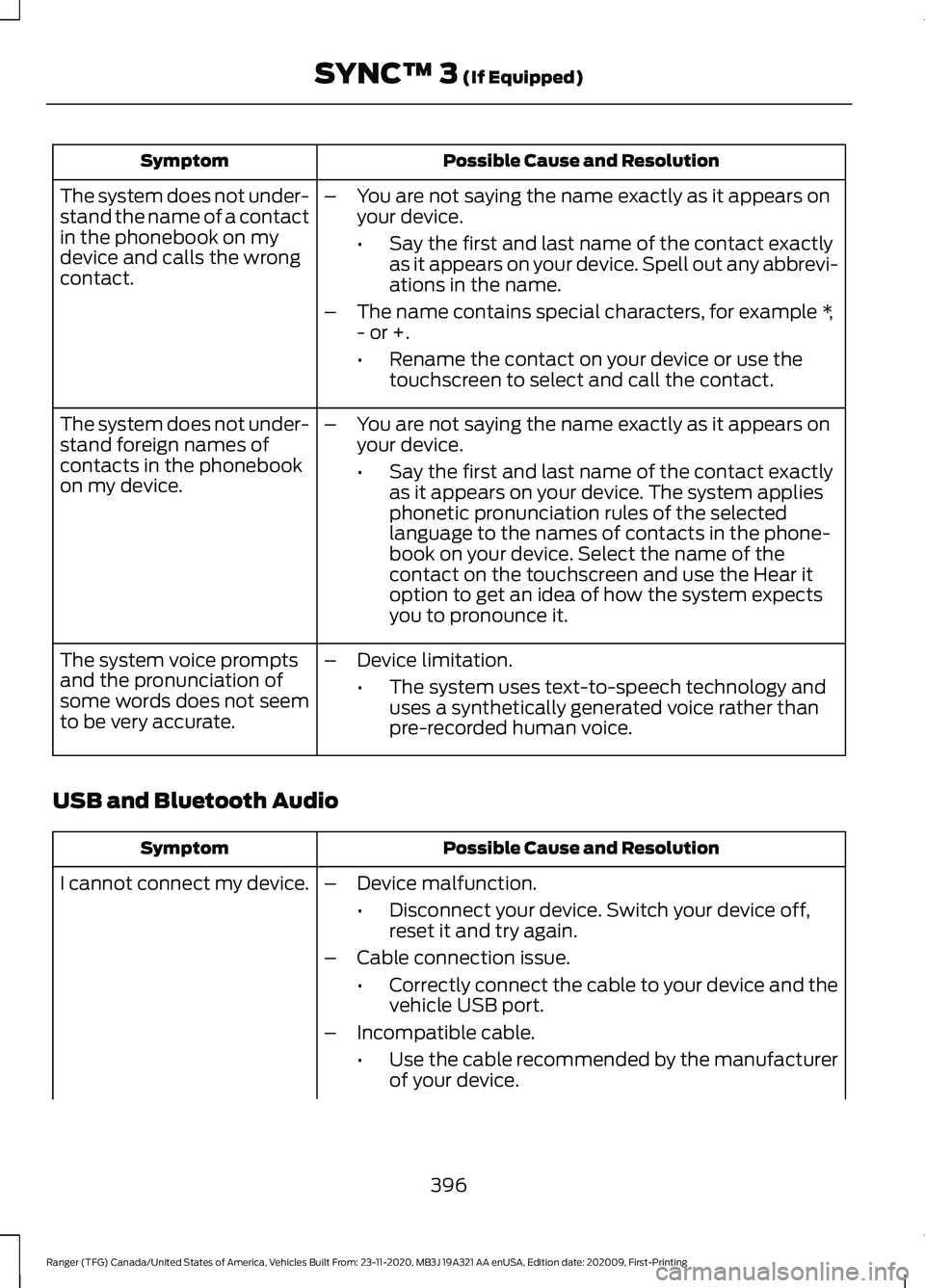
Possible Cause and Resolution
Symptom
–You are not saying the name exactly as it appears on
your device.
•Say the first and last name of the contact exactly
as it appears on your device. Spell out any abbrevi-
ations in the name.
– The name contains special characters, for example *,
- or +.
•Rename the contact on your device or use the
touchscreen to select and call the contact.
The system does not under-
stand the name of a contact
in the phonebook on my
device and calls the wrong
contact.
–You are not saying the name exactly as it appears on
your device.
•Say the first and last name of the contact exactly
as it appears on your device. The system applies
phonetic pronunciation rules of the selected
language to the names of contacts in the phone-
book on your device. Select the name of the
contact on the touchscreen and use the Hear it
option to get an idea of how the system expects
you to pronounce it.
The system does not under-
stand foreign names of
contacts in the phonebook
on my device.
–Device limitation.
•The system uses text-to-speech technology and
uses a synthetically generated voice rather than
pre-recorded human voice.
The system voice prompts
and the pronunciation of
some words does not seem
to be very accurate.
USB and Bluetooth Audio Possible Cause and Resolution
Symptom
I cannot connect my device. –Device malfunction.
•Disconnect your device. Switch your device off,
reset it and try again.
– Cable connection issue.
•Correctly connect the cable to your device and the
vehicle USB port.
– Incompatible cable.
•Use the cable recommended by the manufacturer
of your device.
396
Ranger (TFG) Canada/United States of America, Vehicles Built From: 23-11-2020, MB3J 19A321 AA enUSA, Edition date: 202009, First-Printing SYNC™ 3 (If Equipped)
Page 400 of 475
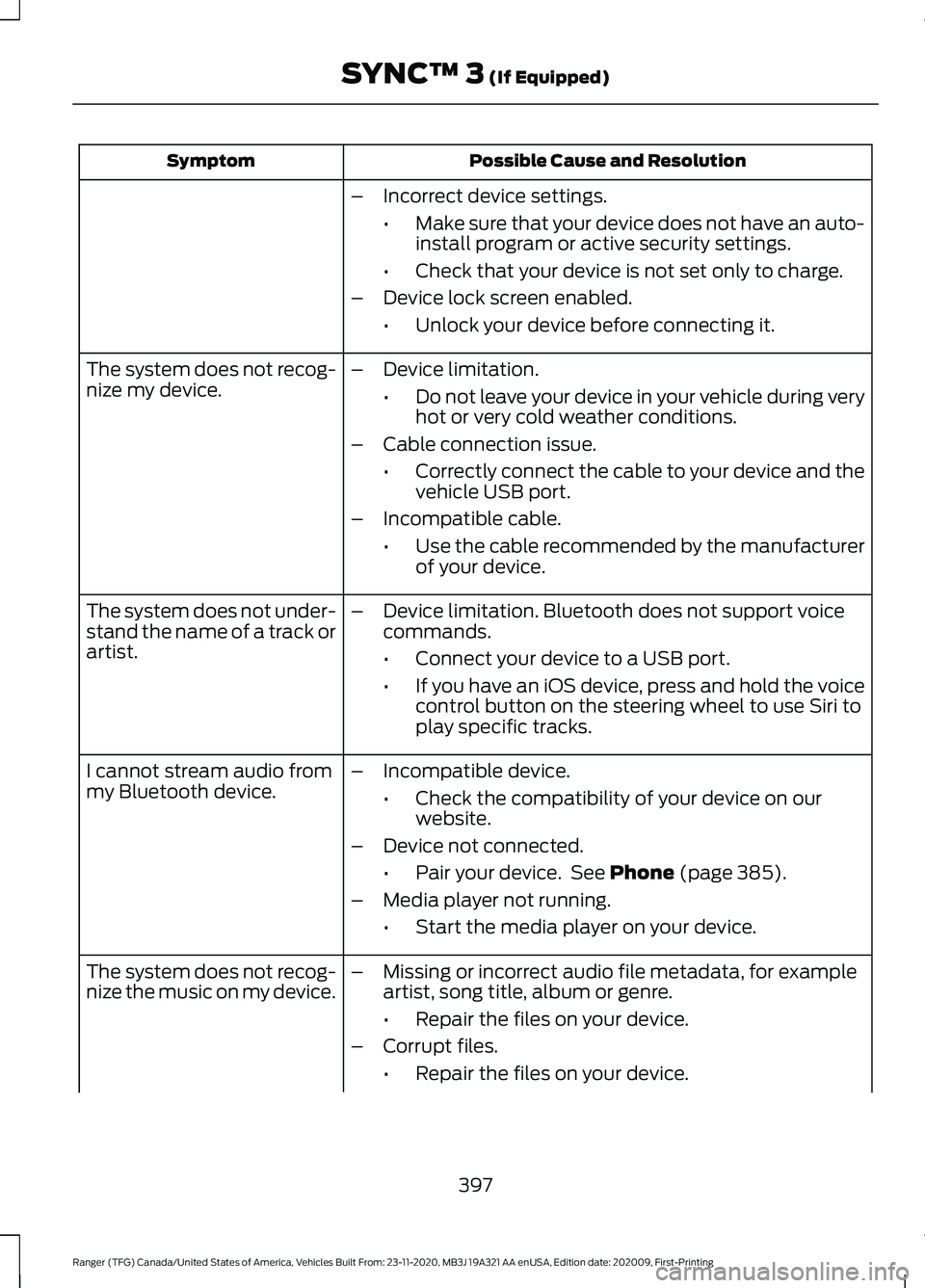
Possible Cause and Resolution
Symptom
–Incorrect device settings.
•Make sure that your device does not have an auto-
install program or active security settings.
• Check that your device is not set only to charge.
– Device lock screen enabled.
•Unlock your device before connecting it.
The system does not recog-
nize my device. –
Device limitation.
•Do not leave your device in your vehicle during very
hot or very cold weather conditions.
– Cable connection issue.
•Correctly connect the cable to your device and the
vehicle USB port.
– Incompatible cable.
•Use the cable recommended by the manufacturer
of your device.
The system does not under-
stand the name of a track or
artist. –
Device limitation. Bluetooth does not support voice
commands.
•Connect your device to a USB port.
• If you have an iOS device, press and hold the voice
control button on the steering wheel to use Siri to
play specific tracks.
I cannot stream audio from
my Bluetooth device. –
Incompatible device.
•Check the compatibility of your device on our
website.
– Device not connected.
•Pair your device. See Phone (page 385).
– Media player not running.
•Start the media player on your device.
The system does not recog-
nize the music on my device. –
Missing or incorrect audio file metadata, for example
artist, song title, album or genre.
•Repair the files on your device.
– Corrupt files.
•Repair the files on your device.
397
Ranger (TFG) Canada/United States of America, Vehicles Built From: 23-11-2020, MB3J 19A321 AA enUSA, Edition date: 202009, First-Printing SYNC™ 3
(If Equipped)