phone FORD RANGER 2023 Owner's Manual
[x] Cancel search | Manufacturer: FORD, Model Year: 2023, Model line: RANGER, Model: FORD RANGER 2023Pages: 470, PDF Size: 13.06 MB
Page 351 of 470
Playing or Pausing Media
Press and release the button toeither play or pause the audio.
Switching the Audio Unit On andOff
Press and release the button.
Switching the Display On and Off
Press and release the button.
Switching Repeat Mode On and Off
Press and release the button torepeat the current media source.
Switching Shuffle Mode On andOff
Press and release the button toshuffle the current media source.
Using a Cell Phone
Press and release to eitheranswer an incoming phone callor to make a phone call.
Press and hold to end a phonecall.
Using the Display Control
Use the up and down arrow buttons toselect the various settings. When you makeyour selection, press the left and rightarrow buttons to change the settings.
Press and release to confirm aselection.
Using the Number Block
In radio mode, store and recall your favoriteradio stations. To store a favorite stationpress and hold until the sound returns.
In phone mode, enter a phone number.
Using Seek, Fast Forward andReverse
In radio mode, select a frequency band andpress and release either button. Thesystem stops at the first station it finds inthat direction.
AUDIO UNIT - VEHICLES WITH:
SYNC 3
WARNING: Driving while distractedcan result in loss of vehicle control, crashand injury. We strongly recommend thatyou use extreme caution when using anydevice that may take your focus off theroad. Your primary responsibility is thesafe operation of your vehicle. Werecommend against the use of anyhand-held device while driving andencourage the use of voice-operatedsystems when possible. Make sure youare aware of all applicable local lawsthat may affect the use of electronicdevices while driving.
Note:The touchscreen system controlsmost of the audio features.
Note:Some features, such as satelliteradio, may not be available in your location.Check with an authorized dealer.
347
2023 Ranger (TFG) Canada/United States of America, Vehicles Built From: 10-10-2022, enUSA, Edition date: 202208, First-PrintingAudio System E272035 E268569 E265040 E265041
Page 358 of 470
hand-held device while driving andencourage the use of voice-operatedsystems when possible. Make sure youare aware of all applicable local lawsthat may affect the use of electronicdevices while driving.
WARNING: Always place yourdevice in a secure location in your vehicleso it does not become a projectile in asudden stop or crash. Failure to followthis instruction could result in personalinjury.
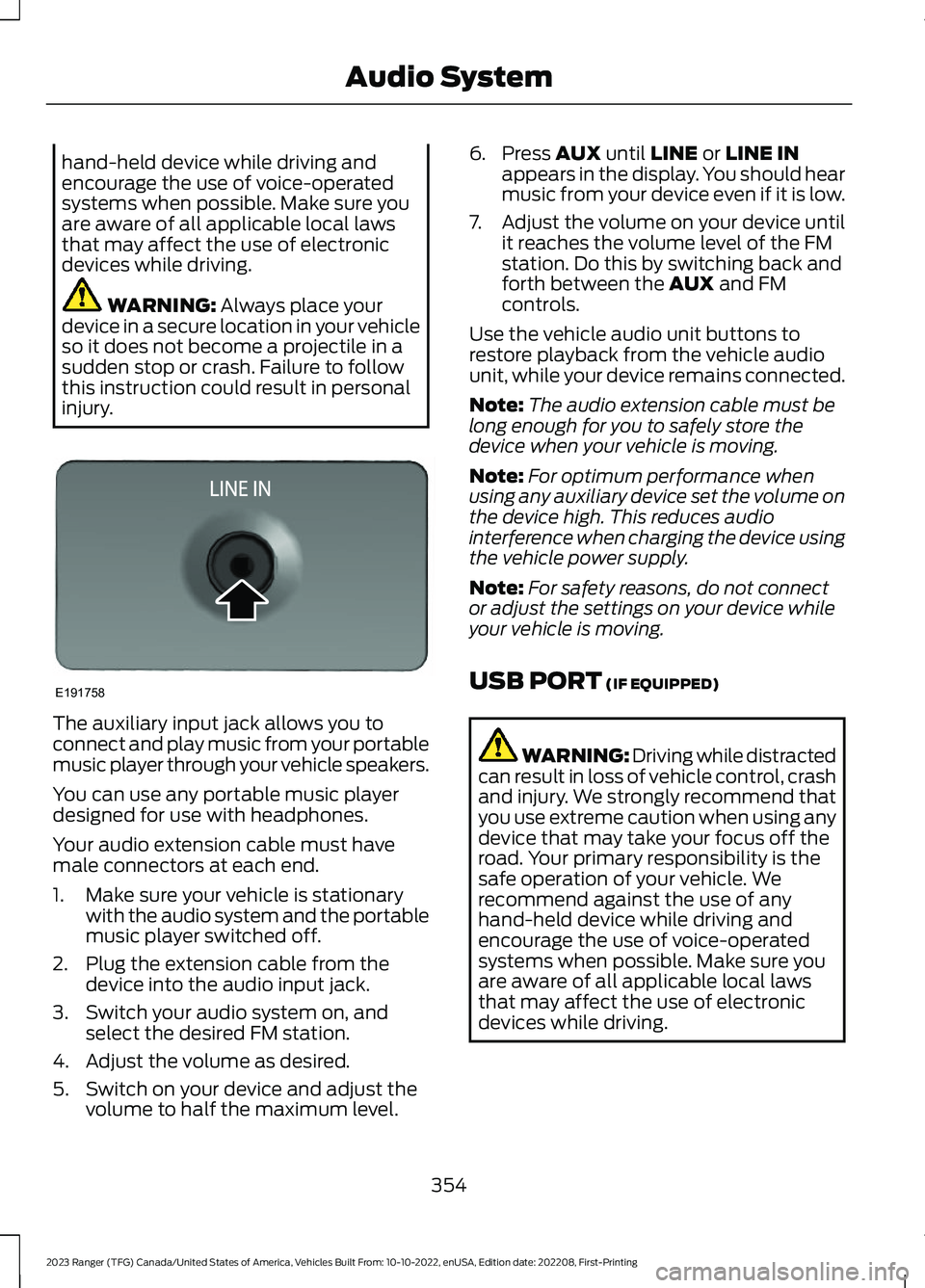
The auxiliary input jack allows you toconnect and play music from your portablemusic player through your vehicle speakers.
You can use any portable music playerdesigned for use with headphones.
Your audio extension cable must havemale connectors at each end.
1.Make sure your vehicle is stationarywith the audio system and the portablemusic player switched off.
2.Plug the extension cable from thedevice into the audio input jack.
3.Switch your audio system on, andselect the desired FM station.
4.Adjust the volume as desired.
5.Switch on your device and adjust thevolume to half the maximum level.
6.Press AUX until LINE or LINE INappears in the display. You should hearmusic from your device even if it is low.
7.Adjust the volume on your device untilit reaches the volume level of the FMstation. Do this by switching back andforth between the AUX and FMcontrols.
Use the vehicle audio unit buttons torestore playback from the vehicle audiounit, while your device remains connected.
Note:The audio extension cable must belong enough for you to safely store thedevice when your vehicle is moving.
Note:For optimum performance whenusing any auxiliary device set the volume onthe device high. This reduces audiointerference when charging the device usingthe vehicle power supply.
Note:For safety reasons, do not connector adjust the settings on your device whileyour vehicle is moving.
USB PORT (IF EQUIPPED)
WARNING: Driving while distractedcan result in loss of vehicle control, crashand injury. We strongly recommend thatyou use extreme caution when using anydevice that may take your focus off theroad. Your primary responsibility is thesafe operation of your vehicle. Werecommend against the use of anyhand-held device while driving andencourage the use of voice-operatedsystems when possible. Make sure youare aware of all applicable local lawsthat may affect the use of electronicdevices while driving.
354
2023 Ranger (TFG) Canada/United States of America, Vehicles Built From: 10-10-2022, enUSA, Edition date: 202208, First-PrintingAudio SystemE191758
Page 359 of 470
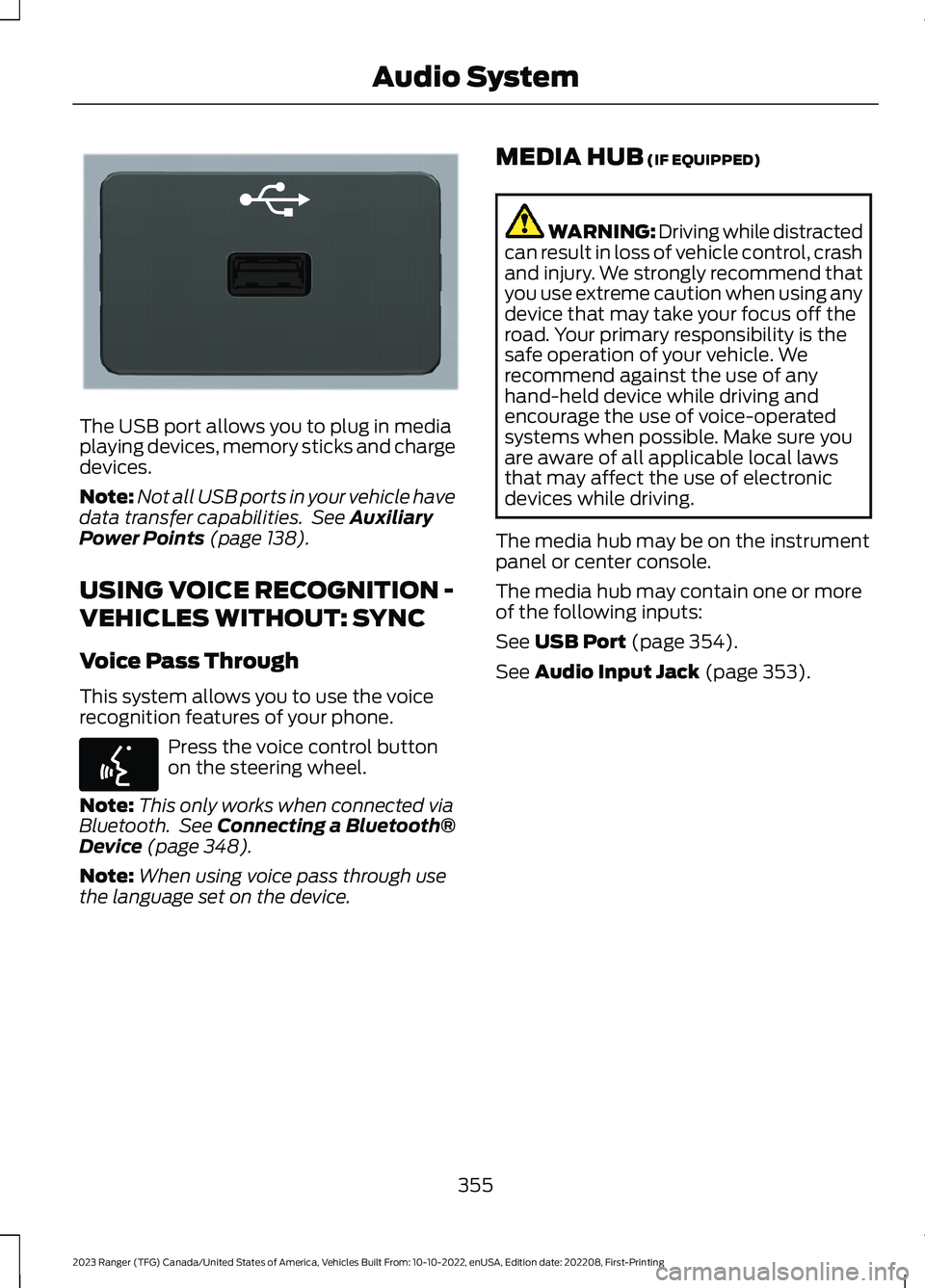
The USB port allows you to plug in mediaplaying devices, memory sticks and chargedevices.
Note:Not all USB ports in your vehicle havedata transfer capabilities. See AuxiliaryPower Points (page 138).
USING VOICE RECOGNITION -
VEHICLES WITHOUT: SYNC
Voice Pass Through
This system allows you to use the voicerecognition features of your phone.
Press the voice control buttonon the steering wheel.
Note:This only works when connected viaBluetooth. See Connecting a Bluetooth®Device (page 348).
Note:When using voice pass through usethe language set on the device.
MEDIA HUB (IF EQUIPPED)
WARNING: Driving while distractedcan result in loss of vehicle control, crashand injury. We strongly recommend thatyou use extreme caution when using anydevice that may take your focus off theroad. Your primary responsibility is thesafe operation of your vehicle. Werecommend against the use of anyhand-held device while driving andencourage the use of voice-operatedsystems when possible. Make sure youare aware of all applicable local lawsthat may affect the use of electronicdevices while driving.
The media hub may be on the instrumentpanel or center console.
The media hub may contain one or moreof the following inputs:
See USB Port (page 354).
See Audio Input Jack (page 353).
355
2023 Ranger (TFG) Canada/United States of America, Vehicles Built From: 10-10-2022, enUSA, Edition date: 202208, First-PrintingAudio SystemE201595 E142599
Page 360 of 470
GENERAL INFORMATION
SYNC is an in-vehicle communicationssystem that works with your Bluetoothenabled cellular phone and portable mediaplayer. This allows you to:
•Make and receive calls.
•Access and play music from yourportable music player.
•Use 911 Assist or Emergency Assistanceand applications via SYNC AppLink.*
•Access phonebook contacts and musicusing voice commands.
•Stream music from your connectedphone.
•Text message.
•Use the advanced voice recognitionsystem.
•Charge your USB device (if your devicesupports this).*These features are not available in allmarkets and may require activation.Available AppLink enabled apps vary bymarket.
Make sure that you review your device'smanual before using it with SYNC.
Support
SYNC support is available at your regionalFord website. See SYNC™Troubleshooting (page 362).
SYNC Owner Account
Why do I need a SYNC owner account?
•Essential for keeping up with the latestsoftware downloads available forSYNC.
•Access to customer support for anyquestions you may have.
Driving Restrictions
For your safety, certain features arespeed-dependent and restricted when yourvehicle is traveling over 3 mph (5 km/h).
Safety Information
WARNING: Driving while distractedcan result in loss of vehicle control, crashand injury. We strongly recommend thatyou use extreme caution when using anydevice that may take your focus off theroad. Your primary responsibility is thesafe operation of your vehicle. Werecommend against the use of anyhand-held device while driving andencourage the use of voice-operatedsystems when possible. Make sure youare aware of all applicable local lawsthat may affect the use of electronicdevices while driving.
When using SYNC:
•Do not operate playing devices if thepower cords or cables are broken, splitor damaged. Place cords and cablesout of the way, so they do not interferewith the operation of pedals, seats,compartments or safe driving abilities.
•Do not leave playing devices in yourvehicle during extreme conditions as itcould cause them damage. See yourdevice's manual for further information.
•Do not attempt to service or repair thesystem. See an authorized dealer.
Privacy Information
When a cellular phone is connected toSYNC, the system creates a profile withinyour vehicle that is linked to that cellularphone. This profile is created in order tooffer you more cellular features and tooperate more efficiently. Among otherthings, this profile may contain data aboutyour cellular phone book, text messages
356
2023 Ranger (TFG) Canada/United States of America, Vehicles Built From: 10-10-2022, enUSA, Edition date: 202208, First-PrintingSYNC™ (If Equipped)
Page 361 of 470
(read and unread), and call history,including history of calls when your cellularphone was not connected to the system.In addition, if you connect a media device,the system creates and retains an index ofsupported media content. The system alsorecords a short development log ofapproximately 10 minutes of all recentsystem activity. The log profile and othersystem data may be used to improve thesystem and help diagnose any problemsthat may occur.
The cellular profile, media device index,and development log will remain in thevehicle unless you delete them and aregenerally accessible only in the vehiclewhen you connect the cellular phone ormedia player. If you no longer plan to usethe system or the vehicle, we recommendyou perform a Master Reset to erase allstored information.
No one can access system data withoutspecial equipment and access to thevehicle's SYNC module. Ford MotorCompany and Ford of Canada will notaccess the system data for any purposeother than as described absent consent, a
court order, or where required by lawenforcement, other governmentauthorities, or other third parties actingwith lawful authority. Other parties mayseek to access the informationindependently of Ford Motor Company andFord of Canada. For further privacyinformation, see the section on 911 Assist.See SYNC™ Applications and Services(page 360).
USING VOICE RECOGNITION
This system helps you control manyfeatures using voice commands. Thisallows you to keep your hands on thewheel and focus on what is around you.
Initiating a Voice Session
Press the voice button. A list ofavailable voice commandsappear in the display.
Global Voice Commands
These voice commands are alwaysavailable. You can say them at any time.
Global Voice Commands
Gives you available commands you can useon the current screen.Help
Gives you a list of possible voicecommands.List of Commands
This command ends the voice session. Youcan also cancel a session by pressing seekup, seek down, or holding the voice buttonfor two or more seconds.
Cancel
357
2023 Ranger (TFG) Canada/United States of America, Vehicles Built From: 10-10-2022, enUSA, Edition date: 202208, First-PrintingSYNC™ (If Equipped)E142599
Page 362 of 470
Helpful Hints
•Make sure the interior of your vehicle isas quiet as possible. Wind noise fromopen windows and road vibrations mayprevent the system from correctlyrecognizing spoken commands.
•Before giving a voice command, waitfor the system announcement to finish,followed by a single tone. Anycommand spoken before this does notregister with the system.
•Speak naturally, without long pausesbetween words.
•You can interrupt the system at anytime while it is speaking by pressing thevoice button. You can cancel a voicesession by pressing and holding thevoice button.
System Interaction and Feedback
The system provides feedback throughaudible tones, prompts, questions andspoken confirmations depending on thesituation and the chosen level ofinteraction. You can customize the voicerecognition system to provide more or lessinstruction and feedback.
The default setting is to a higher level ofinteraction in order to help you learn to usethe system. You can change these settingsat any time.
Adjusting the Interaction Level
Press the voice button. Whenprompted, say:
Action and DescriptionVoice Command
Provides more detailed interaction andguidance. (Recommended for first timeusers.)
Interaction Mode Standard
Provides less audible interaction and guid-ance.Interaction Mode Advanced
Phone Confirmation
Using phone confirmations; the systemasks you to verify before placing any calls.
To adjust this setting press the voice button, when prompted say:
Action and DescriptionVoice Command
When enabled, this feature prompts you toconfirm any voice initiated call commandprior to placing the call.
Phone Confirmation Off
The system makes a best guess; occasion-ally, the system asks you to confirmsettings.
Phone Confirmation On
358
2023 Ranger (TFG) Canada/United States of America, Vehicles Built From: 10-10-2022, enUSA, Edition date: 202208, First-PrintingSYNC™ (If Equipped)E142599
Page 363 of 470
USING SYNC™ WITH YOUR
PHONE
Hands-free calling is one of the mainfeatures of SYNC. While the systemsupports a variety of features, many aredependent on your cellular phone'sfunctionality. At a minimum, most cellularphones with Bluetooth wireless technologysupport the following functions:
•Answering an incoming call.
•Ending a call.
•Dialing a number.
•Redialing.
•Call waiting notification.
•Caller identification.
Other features, such as text messagingusing Bluetooth® and automaticphonebook download, arephone-dependent features.
Pairing a Phone
Wirelessly pairing your phone with SYNCallows you to make and receive hands-freecalls.
Note:Make sure to switch on the ignitionand the radio. Shift the transmission intopark (P) for automatic transmission orneutral (N) for manual transmission.
Using the Audio System
Note:To scroll through the menus, pressthe up and down arrows on your audiosystem.
1.Make sure to switch on your phone'sBluetooth® feature before starting thesearch. See your device's manual ifnecessary.
2.Press the Settings button.
3.Select Bluetooth from the menu.
4.Press the OK button.
5.Select the option to add. This startsthe pairing process.
6.When a message to begin pairingappears in the center display, searchfor SYNC on your device.
Depending on your phone's capability andyour market, the system may prompt youwith questions, such as setting the currentphone as the primary phone anddownloading your phonebook.
Using Voice Commands
Make sure to switch on yourphone's Bluetooth® featurebefore starting the search. Seeyour device's manual if necessary.
Press the voice button and whenprompted say:
Action and Descrip-tionVoice Command
Follow the instruc-tions on the centerdisplay.
Pair Phone
Phone Voice Commands
Press the voice button. You cando things like place a phone calland access text messages.When prompted, say a command. See thefollowing table for examples ofcommands.
Voice Command
___ List of Commands
Help
Call ___
Dial ___
Text Messages
359
2023 Ranger (TFG) Canada/United States of America, Vehicles Built From: 10-10-2022, enUSA, Edition date: 202208, First-PrintingSYNC™ (If Equipped)E142599 E142599
Page 364 of 470
__ is a dynamic listing, meaning that itcould be the name of anything, such as acontact or phone number.
Phone Controls
Use the phone buttons on your steeringwheel to answer, reject, or hang up a call.
Accessing Features through thePhone Menu
You can access your call history,phonebook, sent text messages, as wellas access phone and system settings.
1.Press the PHONE button to enter thephone menu.
2.Scroll through the menu to viewcontacts, text messages, and thephone dialer.
SYNC™ APPLICATIONS AND
SERVICES
•SYNC AppLink: Allows you to connectto and use certain applications if yourphone is compatible.
These features may require activation.Available AppLink enabled apps vary bymarket.
SYNC Mobile Apps
The system enables voice and steeringwheel control of SYNC AppLink enabledsmartphone apps. When an app is runningthrough AppLink, you can control mainfeatures of the app through voicecommands and steering wheel controls.
Note:You must pair and connect yoursmartphone to SYNC to access AppLink.
Note:Android users need to connect thephone to SYNC using Bluetooth®.
Note:For information about available apps,supported devices and troubleshooting,please refer to the local Ford website.
Note:Availability of SYNC AppLink enabledapps vary by region.
Note: Make sure you have an activeaccount for the app that you havedownloaded. Some apps workautomatically with no setup. Other appswant you to configure your personal settingsand personalize your experience by creatingstations or favorites. We recommend youdo this at home or outside of your vehicle.
To Access Using the SYNC Menu
Press the Mobile Apps button to accessthe menu on-screen. Then select:
Action and DescriptionMenuItem
Scroll through the list ofavailable applications andselect a particular app.
FindMobileApps
Note:If you cannot find a compatible SYNCAppLink app, make sure the required app isrunning on the mobile device.
360
2023 Ranger (TFG) Canada/United States of America, Vehicles Built From: 10-10-2022, enUSA, Edition date: 202208, First-PrintingSYNC™ (If Equipped)
Page 366 of 470
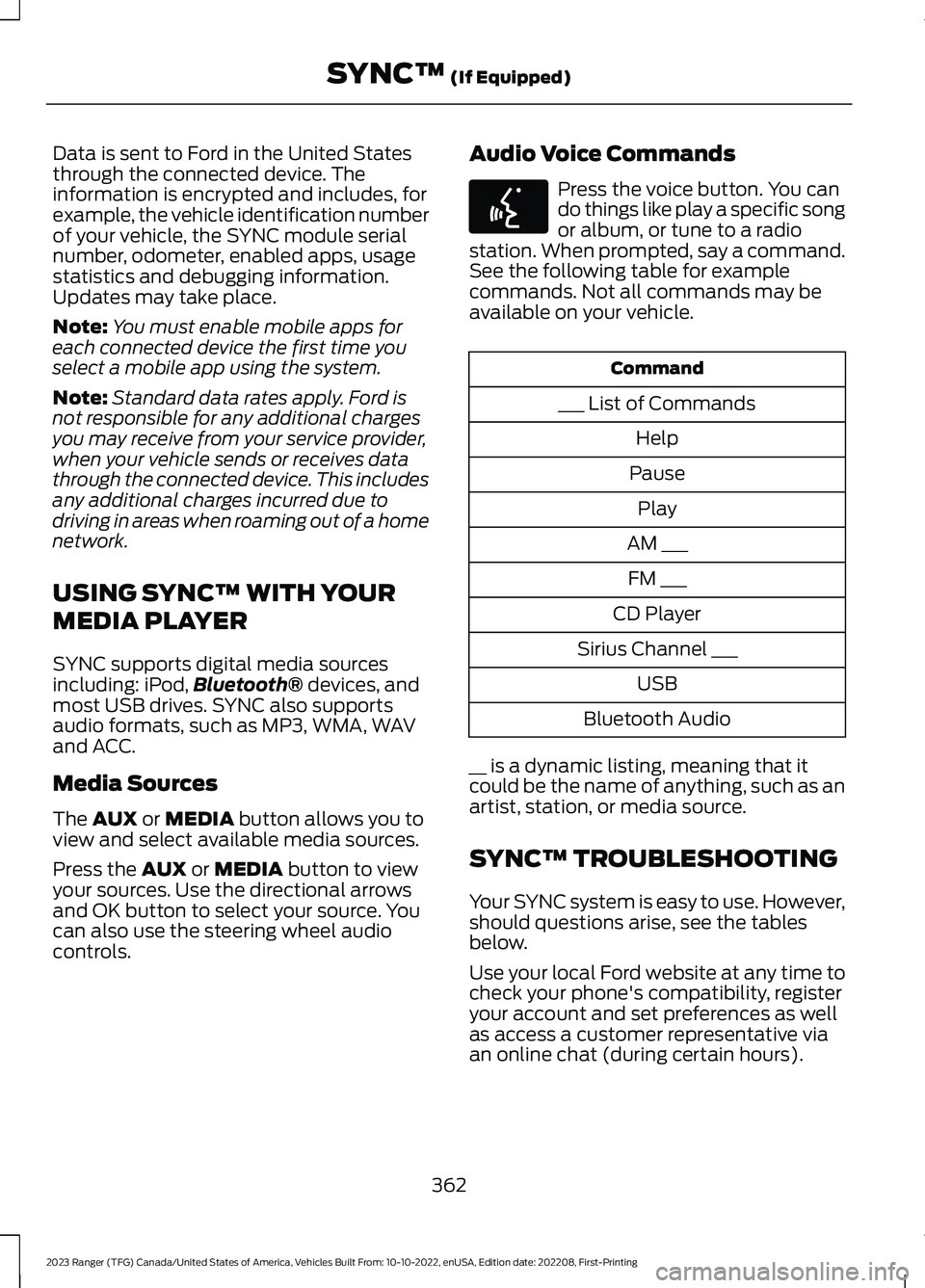
Data is sent to Ford in the United Statesthrough the connected device. Theinformation is encrypted and includes, forexample, the vehicle identification numberof your vehicle, the SYNC module serialnumber, odometer, enabled apps, usagestatistics and debugging information.Updates may take place.
Note:You must enable mobile apps foreach connected device the first time youselect a mobile app using the system.
Note:Standard data rates apply. Ford isnot responsible for any additional chargesyou may receive from your service provider,when your vehicle sends or receives datathrough the connected device. This includesany additional charges incurred due todriving in areas when roaming out of a homenetwork.
USING SYNC™ WITH YOUR
MEDIA PLAYER
SYNC supports digital media sourcesincluding: iPod,Bluetooth® devices, andmost USB drives. SYNC also supportsaudio formats, such as MP3, WMA, WAVand ACC.
Media Sources
The AUX or MEDIA button allows you toview and select available media sources.
Press the AUX or MEDIA button to viewyour sources. Use the directional arrowsand OK button to select your source. Youcan also use the steering wheel audiocontrols.
Audio Voice Commands
Press the voice button. You cando things like play a specific songor album, or tune to a radiostation. When prompted, say a command.See the following table for examplecommands. Not all commands may beavailable on your vehicle.
Command
___ List of Commands
Help
Pause
Play
AM ___
FM ___
CD Player
Sirius Channel ___
USB
Bluetooth Audio
__ is a dynamic listing, meaning that itcould be the name of anything, such as anartist, station, or media source.
SYNC™ TROUBLESHOOTING
Your SYNC system is easy to use. However,should questions arise, see the tablesbelow.
Use your local Ford website at any time tocheck your phone's compatibility, registeryour account and set preferences as wellas access a customer representative viaan online chat (during certain hours).
362
2023 Ranger (TFG) Canada/United States of America, Vehicles Built From: 10-10-2022, enUSA, Edition date: 202208, First-PrintingSYNC™ (If Equipped)E142599
Page 367 of 470
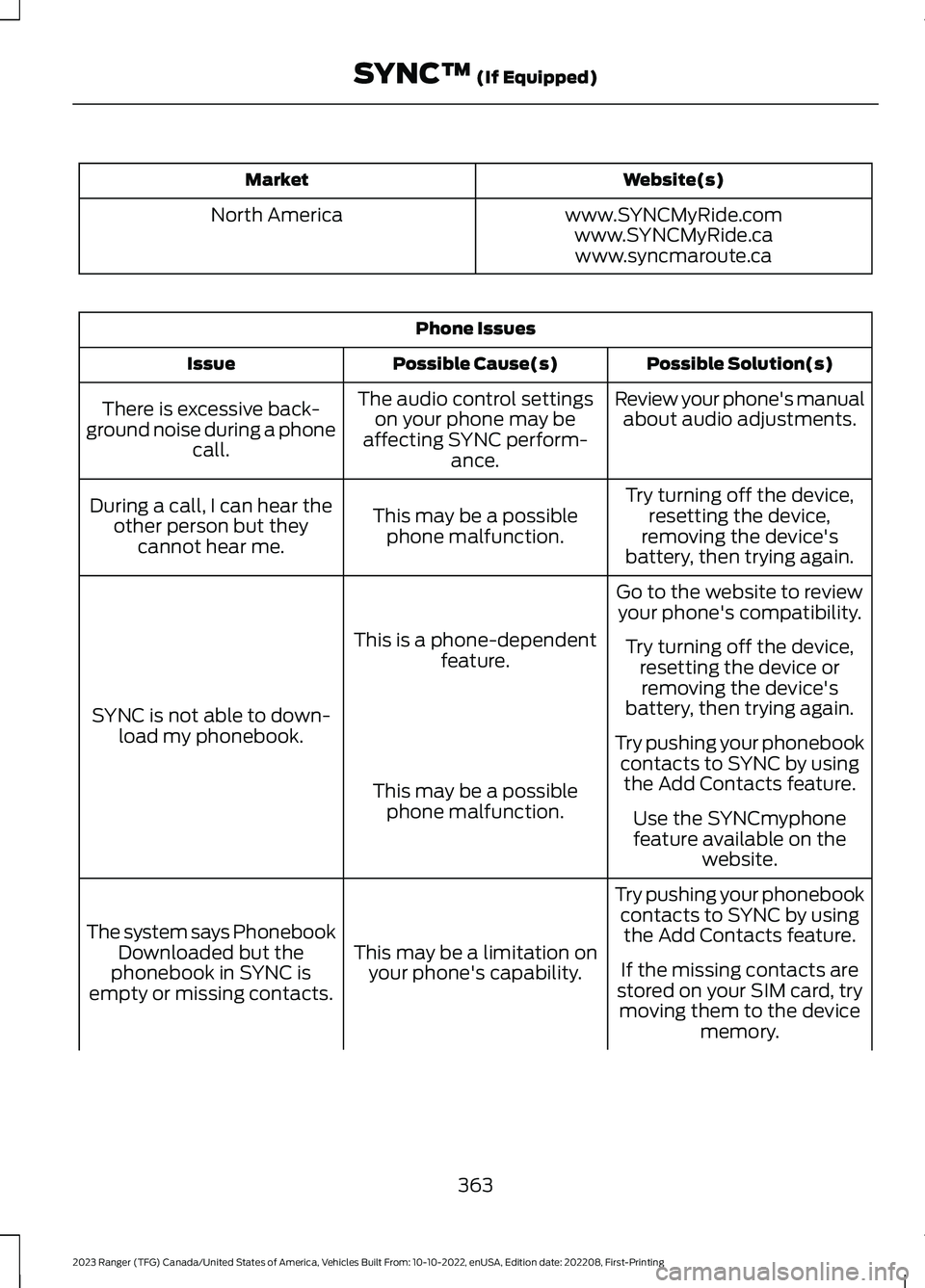
Website(s)Market
www.SYNCMyRide.comNorth Americawww.SYNCMyRide.cawww.syncmaroute.ca
Phone Issues
Possible Solution(s)Possible Cause(s)Issue
Review your phone's manualabout audio adjustments.The audio control settingson your phone may beaffecting SYNC perform-ance.
There is excessive back-ground noise during a phonecall.
Try turning off the device,resetting the device,removing the device'sbattery, then trying again.
This may be a possiblephone malfunction.
During a call, I can hear theother person but theycannot hear me.
Go to the website to reviewyour phone's compatibility.
This is a phone-dependentfeature.
SYNC is not able to down-load my phonebook.
Try turning off the device,resetting the device orremoving the device'sbattery, then trying again.
Try pushing your phonebookcontacts to SYNC by usingthe Add Contacts feature.This may be a possiblephone malfunction.Use the SYNCmyphonefeature available on thewebsite.
Try pushing your phonebookcontacts to SYNC by usingthe Add Contacts feature.This may be a limitation onyour phone's capability.
The system says PhonebookDownloaded but thephonebook in SYNC isempty or missing contacts.
If the missing contacts arestored on your SIM card, trymoving them to the devicememory.
363
2023 Ranger (TFG) Canada/United States of America, Vehicles Built From: 10-10-2022, enUSA, Edition date: 202208, First-PrintingSYNC™ (If Equipped)