display FORD SUPER DUTY 2013 3.G Owners Manual
[x] Cancel search | Manufacturer: FORD, Model Year: 2013, Model line: SUPER DUTY, Model: FORD SUPER DUTY 2013 3.GPages: 563, PDF Size: 7.27 MB
Page 433 of 563
SYNC APPLICATIONS AND SERVICES (IF EQUIPPED)
Note:In order for the following features to work, your cellular phone
must be compatible with SYNC. To check your phone’s compatibility, visit
www.SYNCMyRide.com, www.SYNCMyRide.ca or www.syncmaroute.ca.
•SYNC Services (if equipped, U.S. only): Provides access to traffic,
directions and information such as travel, horoscopes, stock prices and
more.
•911 Assist®: Can alert 911 in the event of an emergency.
•Vehicle Health Report (if equipped, U.S. only): Provides a diagnostic
and maintenance report card of your vehicle.
•
SYNC AppLink™: Allows you to connect to and use certain applications
such as Pandora and Stitcher (if your phone is compatible).
911 Assist®
WARNING:Unless the 911 Assist setting is set on prior to a
crash, the system will not dial for help which could delay
response time, potentially increasing the risk of serious injury or death
after a crash.
WARNING:Do not wait for 911 Assist to make an emergency
call if you can do it yourself. Dial emergency services
immediately to avoid delayed response time which could increase the
risk of serious injury or death after a crash. If you do not hear 911
Assist within five seconds of the crash, the system or phone may be
damaged or non-functional.
WARNING:Always place your phone in a secure location in the
vehicle so it does not become a projectile or get damaged in a
collision. Failure to do so may cause serious injury to someone or damage
the phone which could prevent 911 Assist from working properly.
Note:SYNC 911 Assist feature must be set on prior to the incident.
Note:Before setting this feature on, ensure that you read the 911 Assist
privacy notice later in this section for important information.
Note:If 911 Assist is turned on or off by any user, that setting applies
for all paired phones. If 911 Assist is turned off, a voice message plays
and/or a display message/icon comes on when the vehicle is started after
a previously paired phone connects.
432SYNC®
2013 F-250/350/450/550(f23)
Owners Guide gf, 1st Printing
USA(fus)
Page 434 of 563
Note:Every phone operates differently. While SYNC 911 Assist works
with most cellular phones, some may have trouble using this feature.
If a crash deploys an airbag (excludes knee airbags and rear inflatable
safety belts [if equipped]) or activates the fuel pump shut-off, your SYNC
equipped vehicle may be able to contact emergency services by dialing
911 through a paired and connected Bluetooth-enabled phone. For more
information about 911 Assist, visit www.SYNCMyRide.com,
www.SYNCMyRide.ca or www.syncmaroute.ca.
•For information on airbag deployment, see theSupplementary
Restraints Systemchapter.
•For information on the fuel pump shut-off, see theRoadside
Emergencieschapter.
Setting 911 Assist On
Perform the following:
1. Press the phone button to enter the Phone Menu.
2. Scroll until 911 Assist is selected.
3. Press OK to confirm and enter the 911 Assist menu.
4. Scroll to select between On and Off selections.
5. Press OK when the desired option appears in the radio display. Set
On or Set Off appears in the display as confirmation.
Off selections include: Off with reminder and Off without reminder. Off
with reminder provides a display and voice reminder at phone
connection at vehicle start. Off without reminder provides a display
reminder only without a voice reminder at phone connection.
To make sure that 911 Assist works properly:
•SYNC must be powered and working properly at the time of the
incident and throughout feature activation and use.
•SYNC 911 Assist feature must be set on prior to the incident.
•A Bluetooth-enabled and compatible phone has to be paired and
connected to SYNC.
•A connected Bluetooth-enabled phone must have the ability to make
and maintain an outgoing call at the time of the incident.
•A connected Bluetooth-enabled phone must have adequate network
coverage, battery power and signal strength.
•The vehicle must have battery power and be located in the U.S.,
Canada or in a territory in which 911 is the emergency number.
SYNC®433
2013 F-250/350/450/550(f23)
Owners Guide gf, 1st Printing
USA(fus)
Page 439 of 563
3. Once you are connected to the service, follow the voice prompts to
request the desired service, such as “Traffic” or “Directions”. You can
also say “What are my choices?” to receive a complete list of available
services from which to choose.
4. Say “Services” to return to the services main menu or for help, say
“Help”.
Connecting to SYNC Services Using the Phone Menu
1. Press the phone button to enter the Phone Menu.
2. Scroll untilServicesappears in the display.
3. Press OK to confirm and enter the Services menu. The display
indicates the system is connecting.
4. Press OK. SYNC initiates the call to the Services portal.
5. Once connected, follow the voice prompts to request your desired
Service, such as Traffic or Directions. You can also say “What are my
choices?” to receive a complete list of available services from which
to choose.
6. To return to the Services menu, say “Services” or for help, say
“Help”.
Receiving Turn-by-Turn Directions
1. When connected to SYNC Services, say “Directions” or “Business
search”. To find the closest business or type of business to your
current location, just say “Business search” and then “Search near
me”. If you need further assistance in finding a location you can say
“Operator” at any time within a Directions or Business search to
speak with a live operator. You may also be prompted to speak with
an operator when the automatic system has difficulty matching your
voice request. The live operator can assist you by searching for
businesses by name or by category, residential addresses by street
address or by name or specific street intersections. Operator Assist is
a feature of your SYNC Services subscription. For more information
on Operator Assist visit www.SYNCMyRide.com/support.
2. Follow the voice prompts to select your destination. Once your
destination is selected, your current vehicle location is uploaded and
a route based on current traffic conditions is calculated and sent
back to your vehicle. After the route download is complete, the
phone call is automatically ended. You then receive audible and visual
driving instructions as you travel toward your destination.
3. While on an active route, you can select or say “Route summary” or
“Route status” to view the Route Summary turn list or the Route
Status ETA. You can also turn voice guidance on or off, cancel the
route or update the route.
438SYNC®
2013 F-250/350/450/550(f23)
Owners Guide gf, 1st Printing
USA(fus)
Page 441 of 563
SYNC AppLink™
Note:Your smartphone must be paired and connected to SYNC to access
AppLink.
Note:iPhone® users need to connect the phone to the USB port in
order to start the application. It is recommended to lock your iPhone®
after starting an application.
Note:The AppLink feature is not available if your vehicle is equipped
with the MyFord Touch® or MyLincoln Touch™ system.
Depending on your display type, you can access AppLink from the media
menu, the phone menu, or by using voice commands. Once an app is
running through AppLink, you can control main features of the app
through voice commands and steering wheel controls.
To Access Using the Phone Menu
1. Press the phone button to access the SYNC phone menu on-screen.
2. Scroll to Mobile Apps and press OK to access a list of available
applications.
3. Scroll through the list of available applications and press OK to select
a particular app.
4. Once an app is running through SYNC, you can access an app’s menu
by pressing the MENU button to first access the SYNC menu.
5. Select “SYNC-Media” by pressing OK.
6. Scroll until “
then press OK. From here, you can access an application’s features,
such as Thumbs up, Thumbs down, etc. For more information, please
visit www.SYNCMyRide.com.
To Access Using the Media Menu
1. Press AUX button on the center console.
2. Press MENU to access the SYNC menu.
3. Select “SYNC-Media” by pressing OK.
4. Then scroll to Mobile Apps and press OK to access a list of available
applications.
5. Scroll through the list of available applications and press OK to select
a particular app.
6. Once an app is running through SYNC, you can access an app’s menu
by pressing the MENU button to first access the SYNC menu.
7. Select “SYNC-Media” by pressing OK.
8. Scroll until “
then press OK. From here, you can access an application’s features,
such as Thumbs up, Thumbs down, etc. For more information, please
visit www.SYNCMyRide.com.
440SYNC®
2013 F-250/350/450/550(f23)
Owners Guide gf, 1st Printing
USA(fus)
Page 442 of 563
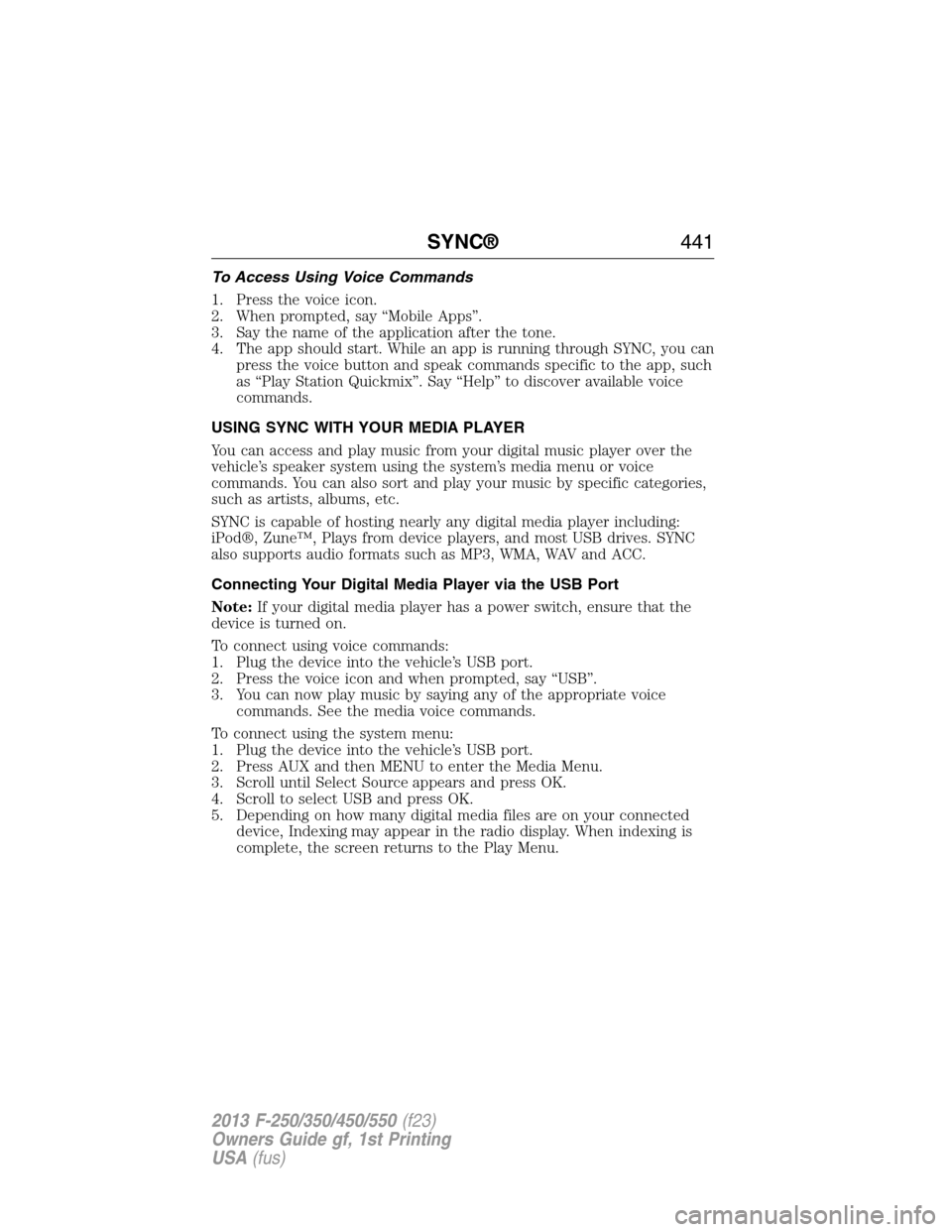
To Access Using Voice Commands
1. Press the voice icon.
2. When prompted, say “Mobile Apps”.
3. Say the name of the application after the tone.
4. The app should start. While an app is running through SYNC, you can
press the voice button and speak commands specific to the app, such
as “Play Station Quickmix”. Say “Help” to discover available voice
commands.
USING SYNC WITH YOUR MEDIA PLAYER
You can access and play music from your digital music player over the
vehicle’s speaker system using the system’s media menu or voice
commands. You can also sort and play your music by specific categories,
such as artists, albums, etc.
SYNC is capable of hosting nearly any digital media player including:
iPod®, Zune™, Plays from device players, and most USB drives. SYNC
also supports audio formats such as MP3, WMA, WAV and ACC.
Connecting Your Digital Media Player via the USB Port
Note:If your digital media player has a power switch, ensure that the
device is turned on.
To connect using voice commands:
1. Plug the device into the vehicle’s USB port.
2. Press the voice icon and when prompted, say “USB”.
3. You can now play music by saying any of the appropriate voice
commands. See the media voice commands.
To connect using the system menu:
1. Plug the device into the vehicle’s USB port.
2. Press AUX and then MENU to enter the Media Menu.
3. Scroll until Select Source appears and press OK.
4. Scroll to select USB and press OK.
5. Depending on how many digital media files are on your connected
device, Indexing may appear in the radio display. When indexing is
complete, the screen returns to the Play Menu.
SYNC®441
2013 F-250/350/450/550(f23)
Owners Guide gf, 1st Printing
USA(fus)
Page 443 of 563
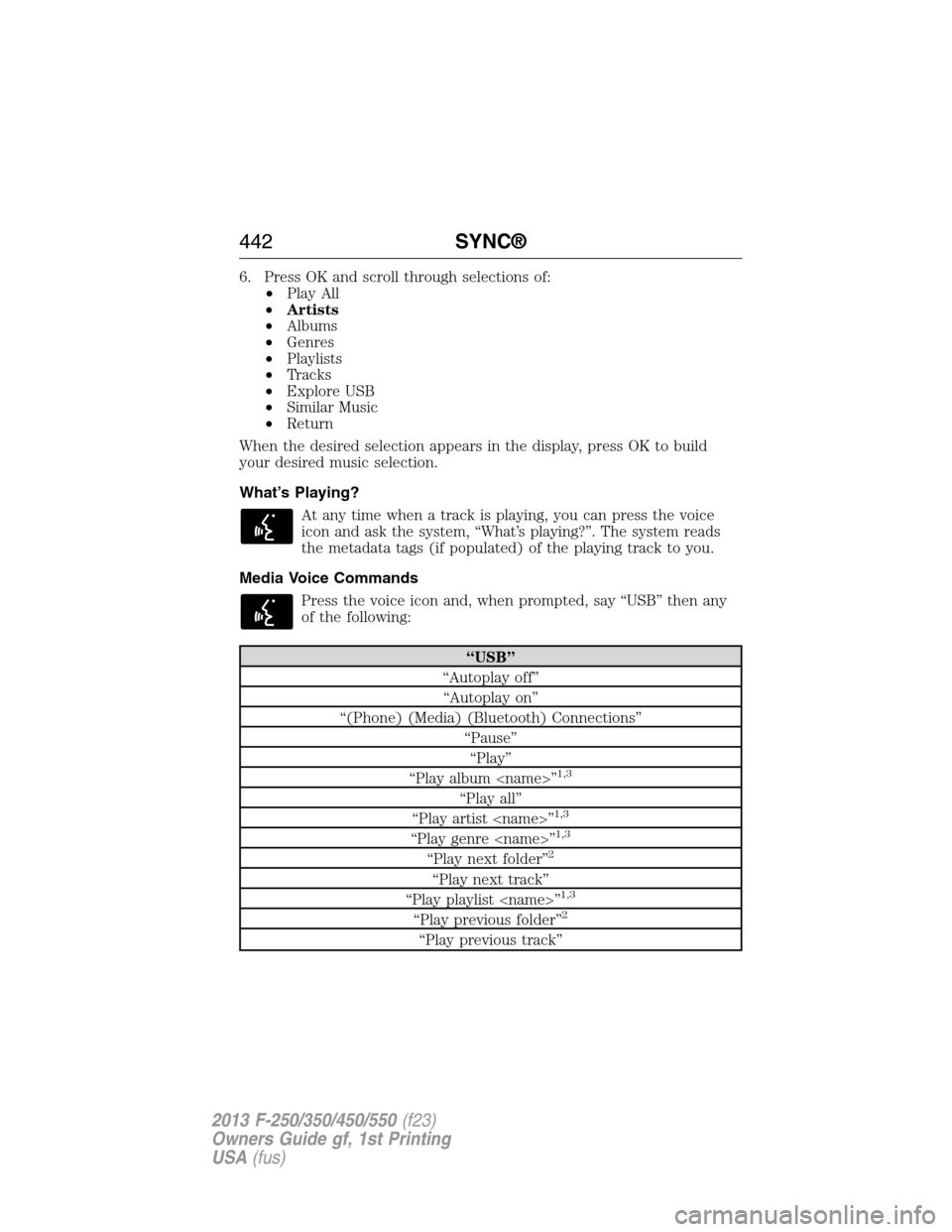
6. Press OK and scroll through selections of:
•Play All
•Artists
•Albums
•Genres
•Playlists
•Tracks
•Explore USB
•Similar Music
•Return
When the desired selection appears in the display, press OK to build
your desired music selection.
What’s Playing?
At any time when a track is playing, you can press the voice
icon and ask the system, “What’s playing?”. The system reads
the metadata tags (if populated) of the playing track to you.
Media Voice Commands
Press the voice icon and, when prompted, say “USB” then any
of the following:
“USB”
“Autoplay off”
“Autoplay on”
“(Phone) (Media) (Bluetooth) Connections”
“Pause”
“Play”
“Play album
1,3
“Play all”
“Play artist
“Play genre
“Play next folder”2
“Play next track”
“Play playlist
“Play previous folder”2
“Play previous track”
442SYNC®
2013 F-250/350/450/550(f23)
Owners Guide gf, 1st Printing
USA(fus)
Page 448 of 563
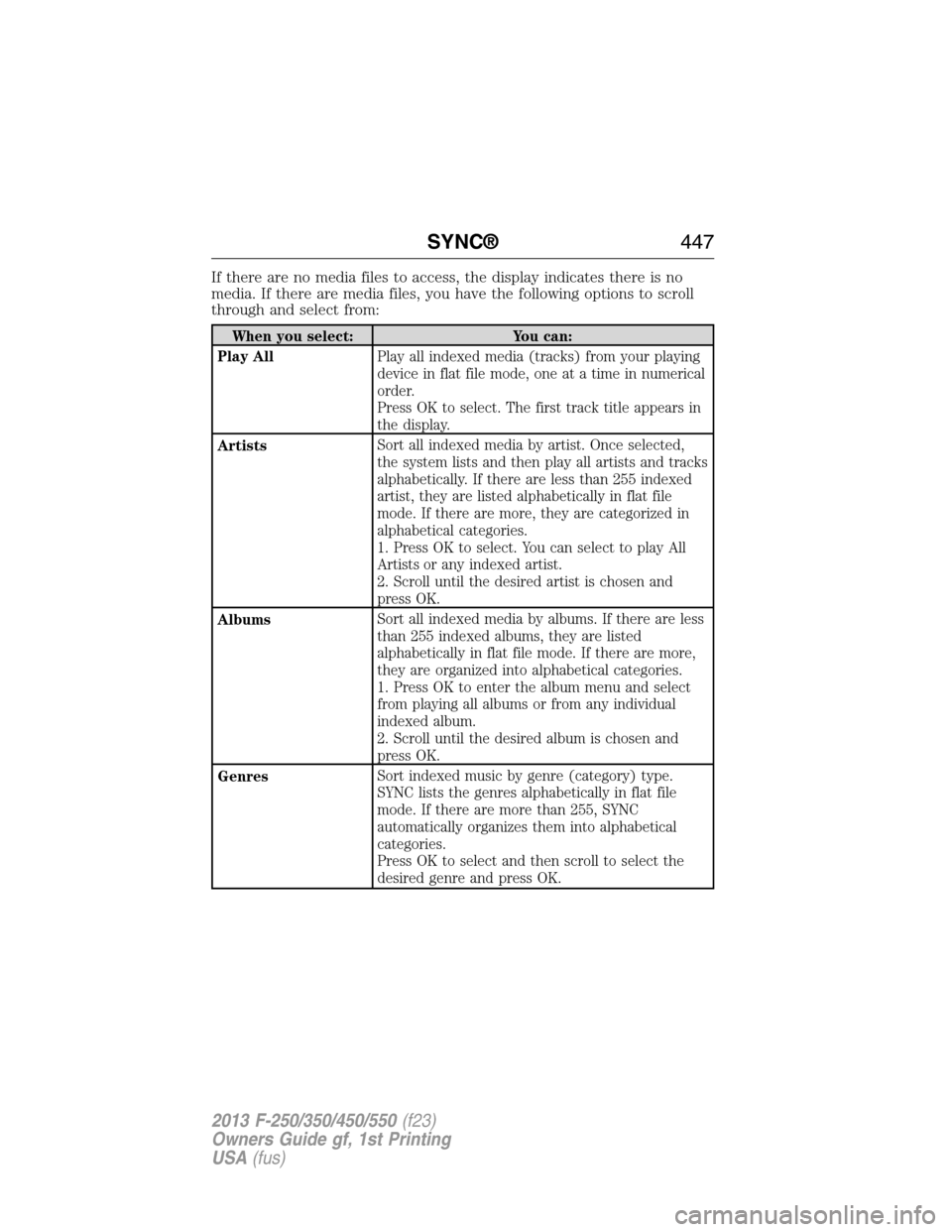
If there are no media files to access, the display indicates there is no
media. If there are media files, you have the following options to scroll
through and select from:
When you select: You can:
Play AllPlay all indexed media (tracks) from your playing
device in flat file mode, one at a time in numerical
order.
Press OK to select. The first track title appears in
the display.
ArtistsSort all indexed media by artist. Once selected,
the system lists and then play all artists and tracks
alphabetically. If there are less than 255 indexed
artist, they are listed alphabetically in flat file
mode. If there are more, they are categorized in
alphabetical categories.
1. Press OK to select. You can select to play All
Artists or any indexed artist.
2. Scroll until the desired artist is chosen and
press OK.
AlbumsSort all indexed media by albums. If there are less
than 255 indexed albums, they are listed
alphabetically in flat file mode. If there are more,
they are organized into alphabetical categories.
1. Press OK to enter the album menu and select
from playing all albums or from any individual
indexed album.
2. Scroll until the desired album is chosen and
press OK.
GenresSort indexed music by genre (category) type.
SYNC lists the genres alphabetically in flat file
mode. If there are more than 255, SYNC
automatically organizes them into alphabetical
categories.
Press OK to select and then scroll to select the
desired genre and press OK.
SYNC®447
2013 F-250/350/450/550(f23)
Owners Guide gf, 1st Printing
USA(fus)
Page 450 of 563
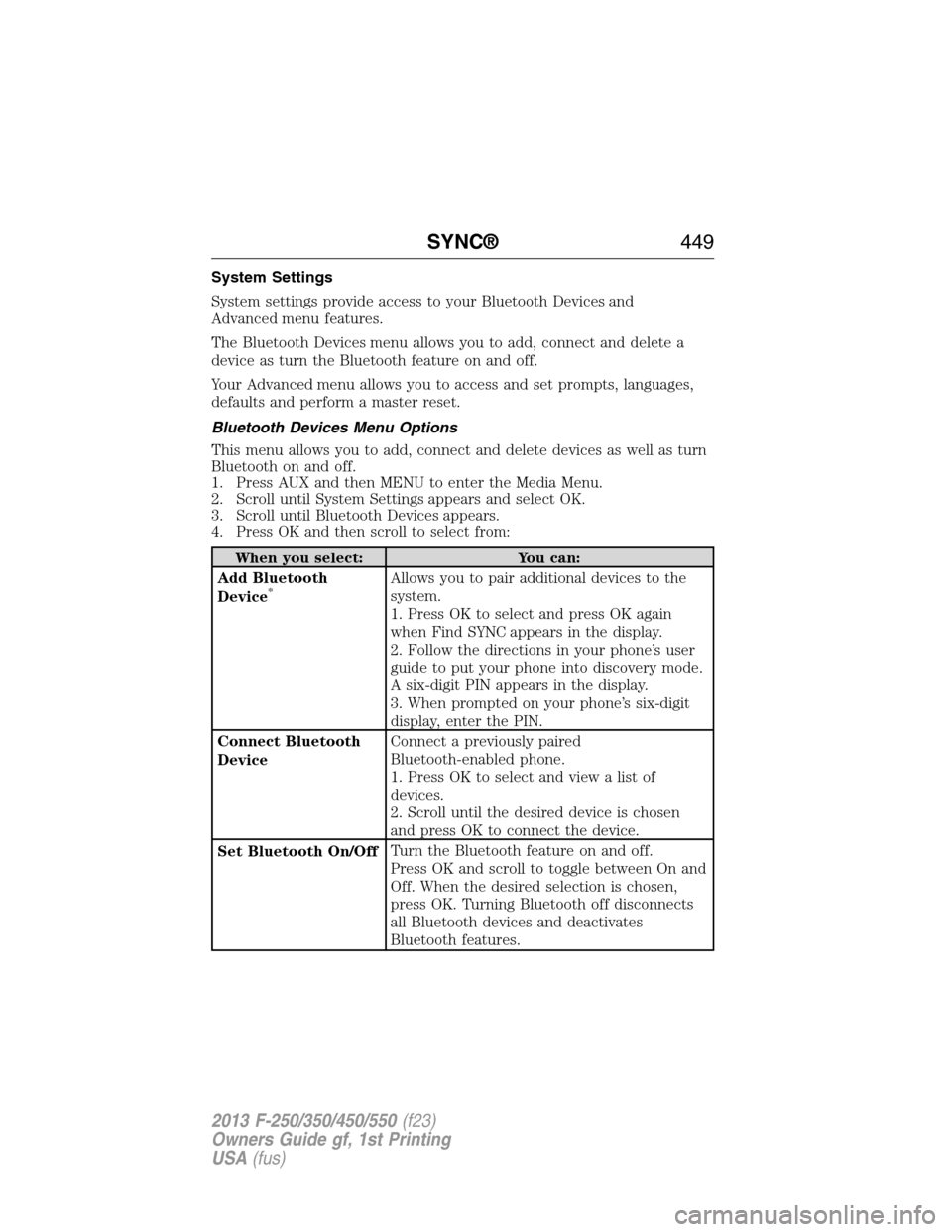
System Settings
System settings provide access to your Bluetooth Devices and
Advanced menu features.
The Bluetooth Devices menu allows you to add, connect and delete a
device as turn the Bluetooth feature on and off.
Your Advanced menu allows you to access and set prompts, languages,
defaults and perform a master reset.
Bluetooth Devices Menu Options
This menu allows you to add, connect and delete devices as well as turn
Bluetooth on and off.
1. Press AUX and then MENU to enter the Media Menu.
2. Scroll until System Settings appears and select OK.
3. Scroll until Bluetooth Devices appears.
4. Press OK and then scroll to select from:
When you select: You can:
Add Bluetooth
Device
*Allows you to pair additional devices to the
system.
1. Press OK to select and press OK again
when Find SYNC appears in the display.
2. Follow the directions in your phone’s user
guide to put your phone into discovery mode.
A six-digit PIN appears in the display.
3. When prompted on your phone’s six-digit
display, enter the PIN.
Connect Bluetooth
DeviceConnect a previously paired
Bluetooth-enabled phone.
1. Press OK to select and view a list of
devices.
2. Scroll until the desired device is chosen
and press OK to connect the device.
Set Bluetooth On/OffTurn the Bluetooth feature on and off.
Press OK and scroll to toggle between On and
Off. When the desired selection is chosen,
press OK. Turning Bluetooth off disconnects
all Bluetooth devices and deactivates
Bluetooth features.
SYNC®449
2013 F-250/350/450/550(f23)
Owners Guide gf, 1st Printing
USA(fus)
Page 451 of 563
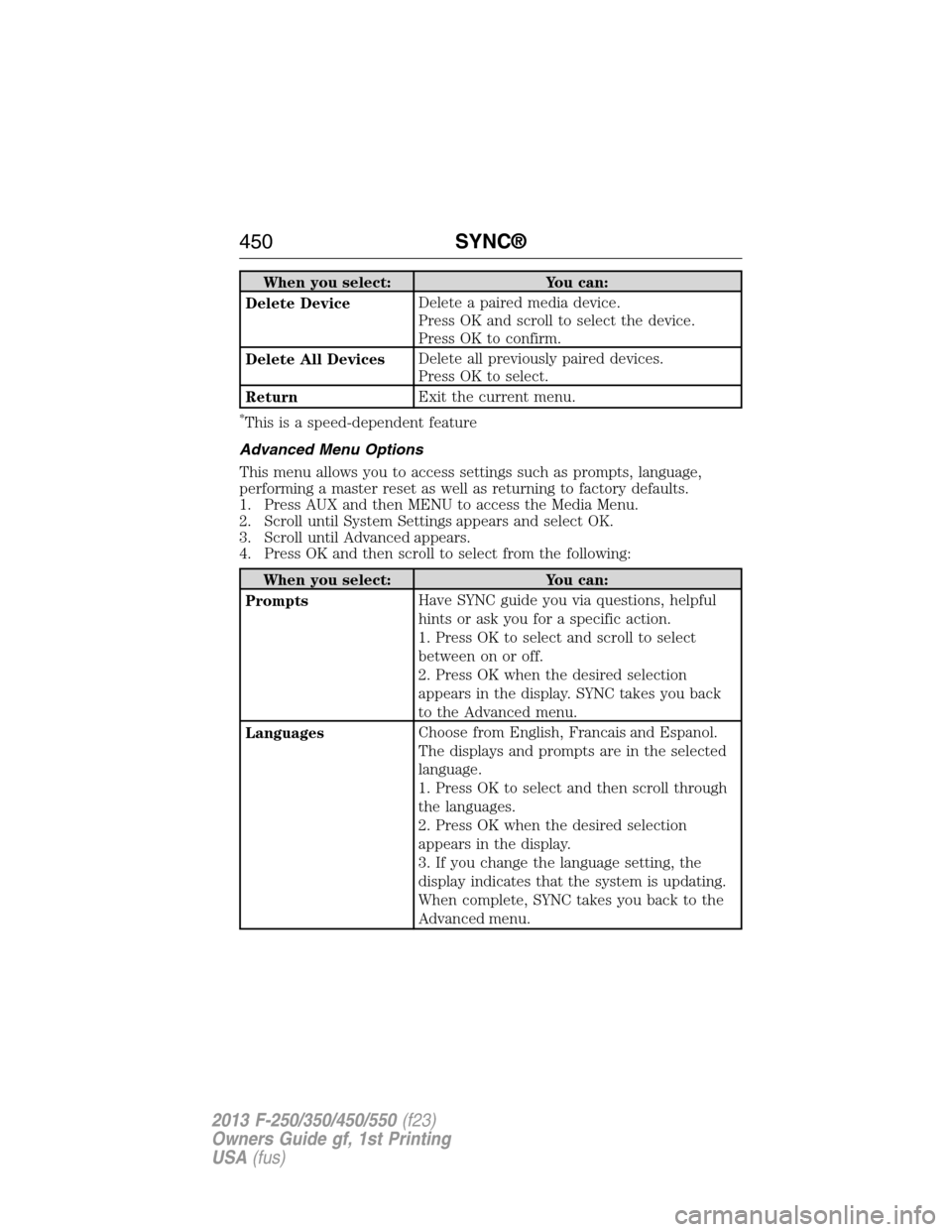
When you select: You can:
Delete DeviceDelete a paired media device.
Press OK and scroll to select the device.
Press OK to confirm.
Delete All DevicesDelete all previously paired devices.
Press OK to select.
ReturnExit the current menu.
*This is a speed-dependent feature
Advanced Menu Options
This menu allows you to access settings such as prompts, language,
performing a master reset as well as returning to factory defaults.
1. Press AUX and then MENU to access the Media Menu.
2. Scroll until System Settings appears and select OK.
3. Scroll until Advanced appears.
4. Press OK and then scroll to select from the following:
When you select: You can:
PromptsHave SYNC guide you via questions, helpful
hints or ask you for a specific action.
1. Press OK to select and scroll to select
between on or off.
2. Press OK when the desired selection
appears in the display. SYNC takes you back
to the Advanced menu.
LanguagesChoose from English, Francais and Espanol.
The displays and prompts are in the selected
language.
1. Press OK to select and then scroll through
the languages.
2. Press OK when the desired selection
appears in the display.
3. If you change the language setting, the
display indicates that the system is updating.
When complete, SYNC takes you back to the
Advanced menu.
450SYNC®
2013 F-250/350/450/550(f23)
Owners Guide gf, 1st Printing
USA(fus)
Page 452 of 563
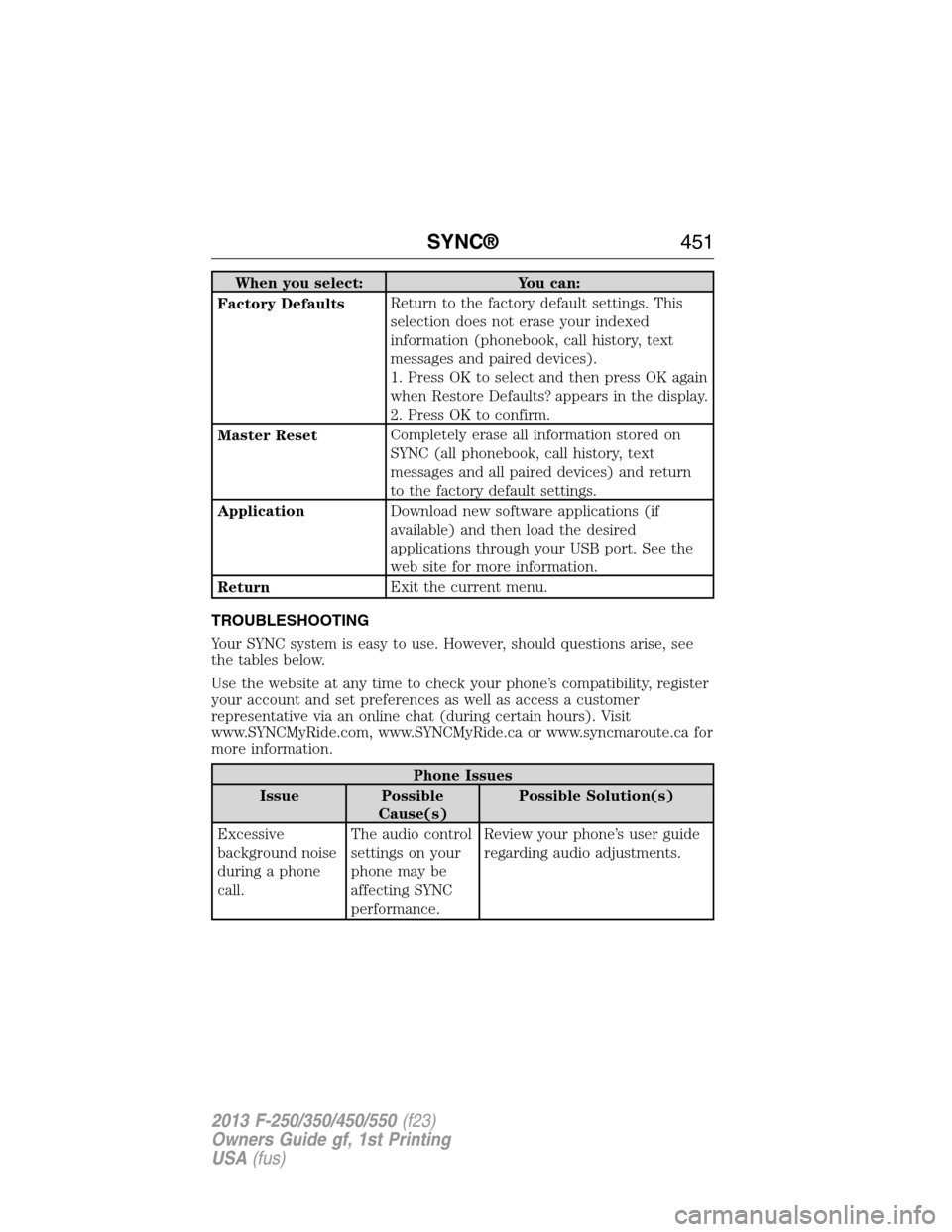
When you select: You can:
Factory DefaultsReturn to the factory default settings. This
selection does not erase your indexed
information (phonebook, call history, text
messages and paired devices).
1. Press OK to select and then press OK again
when Restore Defaults? appears in the display.
2. Press OK to confirm.
Master ResetCompletely erase all information stored on
SYNC (all phonebook, call history, text
messages and all paired devices) and return
to the factory default settings.
ApplicationDownload new software applications (if
available) and then load the desired
applications through your USB port. See the
web site for more information.
ReturnExit the current menu.
TROUBLESHOOTING
Your SYNC system is easy to use. However, should questions arise, see
the tables below.
Use the website at any time to check your phone’s compatibility, register
your account and set preferences as well as access a customer
representative via an online chat (during certain hours). Visit
www.SYNCMyRide.com, www.SYNCMyRide.ca or www.syncmaroute.ca for
more information.
Phone Issues
Issue Possible
Cause(s)Possible Solution(s)
Excessive
background noise
during a phone
call.The audio control
settings on your
phone may be
affecting SYNC
performance.Review your phone’s user guide
regarding audio adjustments.
SYNC®451
2013 F-250/350/450/550(f23)
Owners Guide gf, 1st Printing
USA(fus)