ECO mode FORD SUPER DUTY 2013 3.G Service Manual
[x] Cancel search | Manufacturer: FORD, Model Year: 2013, Model line: SUPER DUTY, Model: FORD SUPER DUTY 2013 3.GPages: 563, PDF Size: 7.27 MB
Page 274 of 563
HAZARD FLASHER CONTROL
Note:With extended use, the flasher may run down your battery.
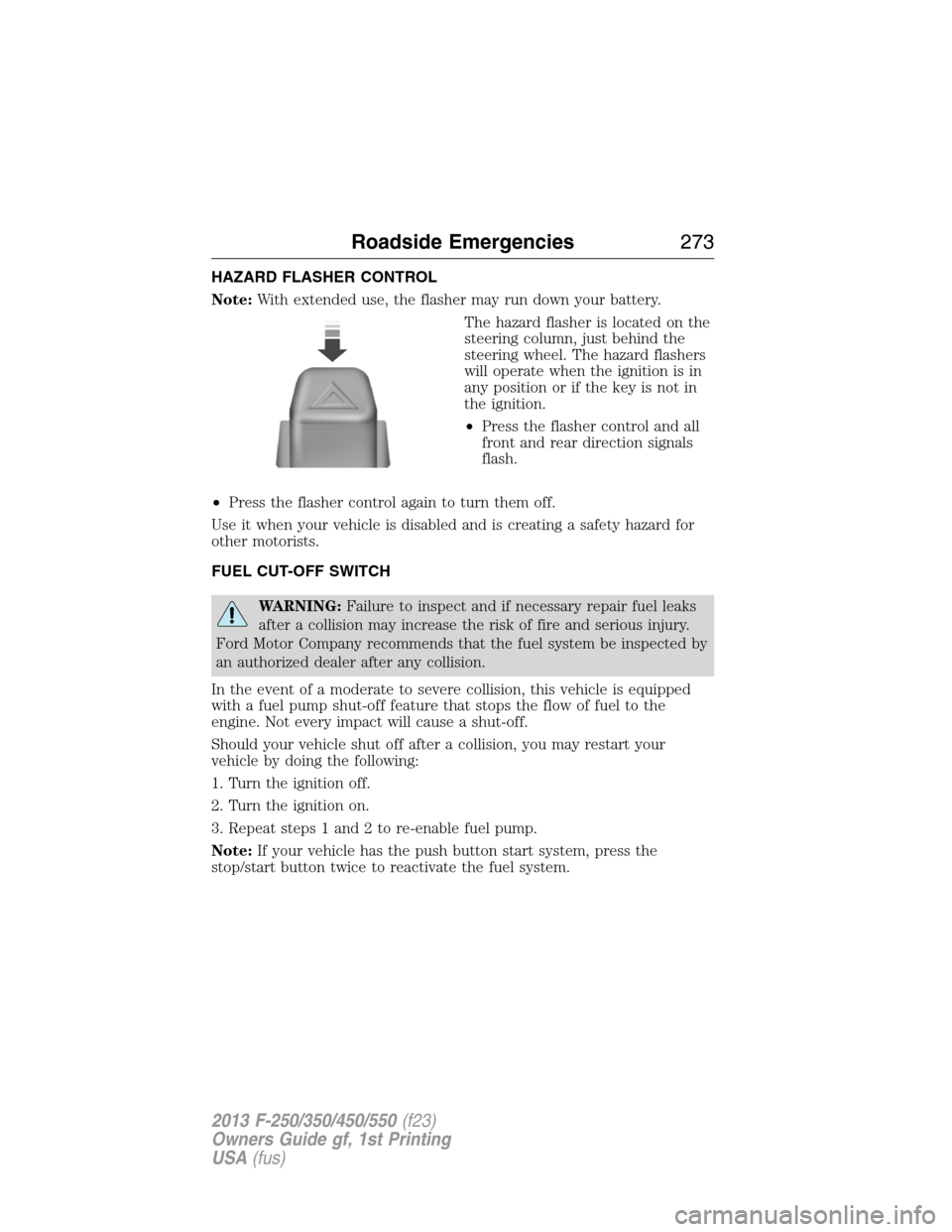
The hazard flasher is located on the
steering column, just behind the
steering wheel. The hazard flashers
will operate when the ignition is in
any position or if the key is not in
the ignition.
•Press the flasher control and all
front and rear direction signals
flash.
•Press the flasher control again to turn them off.
Use it when your vehicle is disabled and is creating a safety hazard for
other motorists.
FUEL CUT-OFF SWITCH
WARNING:Failure to inspect and if necessary repair fuel leaks
after a collision may increase the risk of fire and serious injury.
Ford Motor Company recommends that the fuel system be inspected by
an authorized dealer after any collision.
In the event of a moderate to severe collision, this vehicle is equipped
with a fuel pump shut-off feature that stops the flow of fuel to the
engine. Not every impact will cause a shut-off.
Should your vehicle shut off after a collision, you may restart your
vehicle by doing the following:
1. Turn the ignition off.
2. Turn the ignition on.
3. Repeat steps 1 and 2 to re-enable fuel pump.
Note:If your vehicle has the push button start system, press the
stop/start button twice to reactivate the fuel system.
Roadside Emergencies273
2013 F-250/350/450/550(f23)
Owners Guide gf, 1st Printing
USA(fus)
Page 340 of 563
Four-Wheel Drive System (If Equipped)
WARNING:Do not become overconfident in the ability of
four-wheel drive vehicles. Although a four-wheel drive vehicle
may accelerate better than two-wheel drive vehicle in low traction
situations, it will not stop any faster than two-wheel drive vehicles.
Always drive at a safe speed.
A vehicle equipped with four-wheel drive (when selected) has the ability
to use all four wheels to power itself. This increases traction which may
enable you to safely drive over terrain and road conditions that a
conventional two-wheel drive vehicle cannot.
Power is supplied to all four wheels through a transfer case or power
transfer unit. Four-wheel drive vehicles allow you to select different drive
modes as necessary. You can find information on transfer case operation
and shifting procedures in theTransmissionchapter. You can find
information on transfer case maintenance in theMaintenancechapter.
You should become thoroughly familiar with this information before you
operate your vehicle.
On some four-wheel drive models, the initial shift from two-wheel drive
to four-wheel drive while the vehicle is moving can cause a momentary
clunk and ratcheting sound. These sounds are normal as the front
drivetrain comes up to speed and is not cause for concern.
Wheels and Tires339
2013 F-250/350/450/550(f23)
Owners Guide gf, 1st Printing
USA(fus)
Page 366 of 563
Performing the System Reset Procedure
Read the entire procedure before attempting.
1. Drive the vehicle above 20 mph (32 km/h) for at least two minutes
and then park in a safe location where you can easily get to all four tires
and have access to an air pump.
2. Place the ignition in the off position and keep the key in the ignition.
3. Cycle the ignition to the on position with the engine off.
4. Turn the hazard flashers on then off three times. This must be
accomplished within 10 seconds.
If the reset mode has been entered successfully, the horn will sound
once, the system indicator will flash and a message is shown in the
information display (if equipped). If this does not occur, please try again
startingatStep2.
If after repeated attempts to enter the reset mode, the horn does not
sound, the system indicator does not flash and no message is shown in the
information display (if equipped), seek service from your authorized dealer.
5.Note:Train the tire pressure monitoring system sensors in the tires
using the following system reset sequence starting with the left front tire
in the following clockwise order:
•Left front (Driver’s side front tire)
•Right front (Passenger’s side front tire)
•Right rear (Passenger’s side rear tire)
•Left rear (Driver’s side rear tire)
6. Remove the valve cap from the valve stem on the left front tire;
decrease the air pressure until the horn sounds.
Note:The single horn chirp confirms that the sensor identification code
has been learned by the module for this position. If a double horn is
heard, the reset procedure was unsuccessful, and must be repeated.
7. Remove the valve cap from the valve stem on the right front tire;
decrease the air pressure until the horn sounds.
8. Remove the valve cap from the valve stem on the right rear tire;
decrease the air pressure until the horn sounds.
9. Remove the valve cap from the valve stem on the left rear tire;
decrease the air pressure until the horn sounds.
Training is complete after the horn sounds for the last tire trained
(driver’s side rear tire), the system indicator stops flashing, and a
message is shown in the information display (if equipped).
Wheels and Tires365
2013 F-250/350/450/550(f23)
Owners Guide gf, 1st Printing
USA(fus)
Page 417 of 563
USING VOICE RECOGNITION
This system helps you control many features using voice commands. This
allows you to keep your hands on the wheel and focus on what is in
front of you.
Initiating a Voice Session
Push the voice icon; a tone sounds and Listening appears in the
display. Say any of the following:
Say: If you want to:
“Phone” Make calls.
“USB” Access the device connected to your USB
port.
“Bluetooth Audio” Stream audio from your phone.
“Line in” Access the device connected to the auxiliary
input jack.
“Cancel” Cancel the requested action.
“SYNC” Return to the main menu.
“Voice settings” Adjust the level of voice interaction and
feedback.
“Vehicle Health Report” Run a vehicle health report.
*
“Services” Access the SYNC Services portal.*
“Mobile apps” Access mobile applications.*
“Help” Hear a list of voice commands available in the
current mode.
*If equipped, U.S. only.
System Interaction and Feedback
The system provides feedback through audible tones, prompts, questions
and spoken confirmations depending on the situation and the chosen
level of interaction (voice settings). You can customize the voice
recognition system to provide more or less instruction and feedback.
The default setting is to a higher level of interaction in order to help you
learn to use the system. You can change these settings at any time.
416SYNC®
2013 F-250/350/450/550(f23)
Owners Guide gf, 1st Printing
USA(fus)
Page 418 of 563
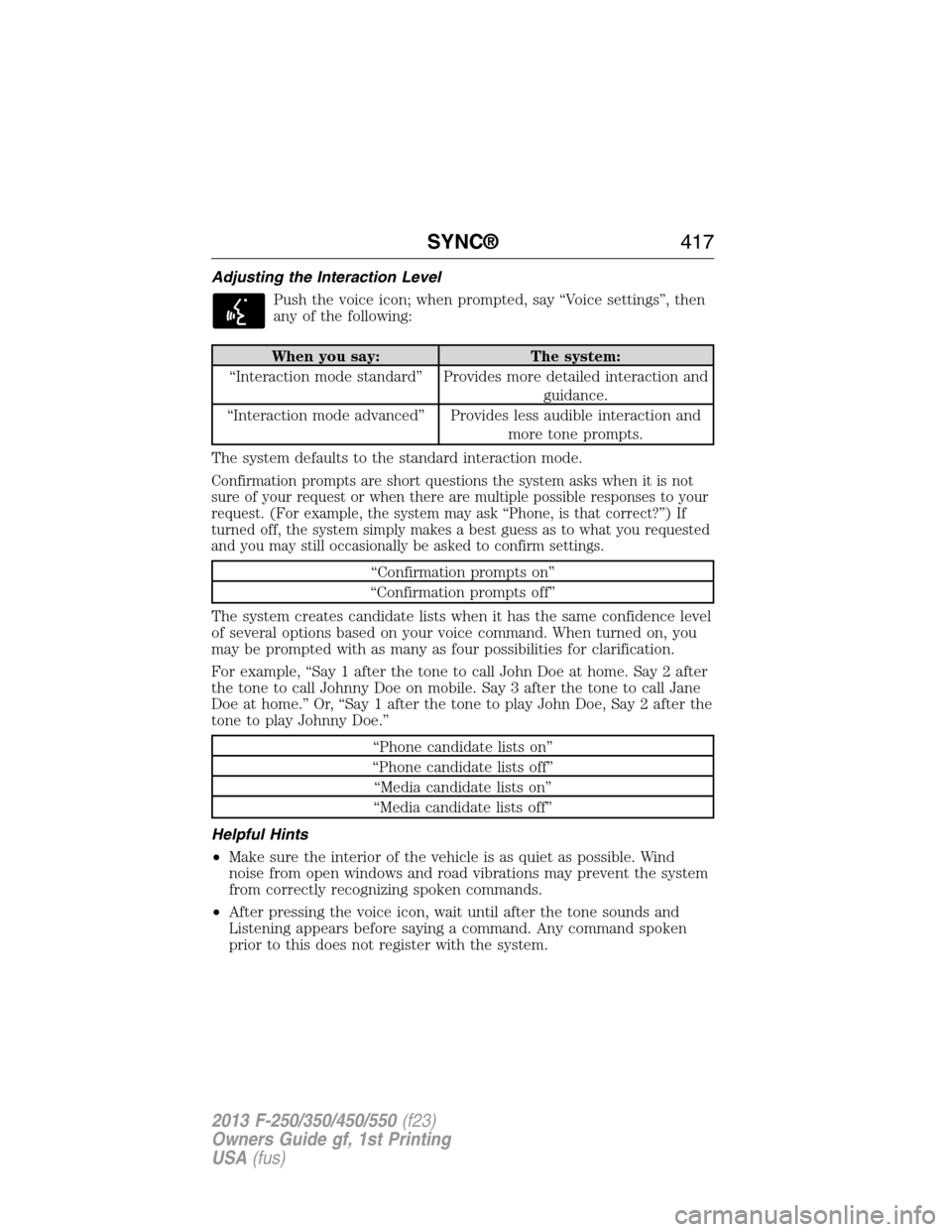
Adjusting the Interaction Level
Push the voice icon; when prompted, say “Voice settings”, then
any of the following:
When you say: The system:
“Interaction mode standard” Provides more detailed interaction and
guidance.
“Interaction mode advanced” Provides less audible interaction and
more tone prompts.
The system defaults to the standard interaction mode.
Confirmation prompts are short questions the system asks when it is not
sure of your request or when there are multiple possible responses to your
request. (For example, the system may ask “Phone, is that correct?”) If
turned off, the system simply makes a best guess as to what you requested
and you may still occasionally be asked to confirm settings.
“Confirmation prompts on”
“Confirmation prompts off”
The system creates candidate lists when it has the same confidence level
of several options based on your voice command. When turned on, you
may be prompted with as many as four possibilities for clarification.
For example, “Say 1 after the tone to call John Doe at home. Say 2 after
the tone to call Johnny Doe on mobile. Say 3 after the tone to call Jane
Doe at home.” Or, “Say 1 after the tone to play John Doe, Say 2 after the
tone to play Johnny Doe.”
“Phone candidate lists on”
“Phone candidate lists off”
“Media candidate lists on”
“Media candidate lists off”
Helpful Hints
•Make sure the interior of the vehicle is as quiet as possible. Wind
noise from open windows and road vibrations may prevent the system
from correctly recognizing spoken commands.
•After pressing the voice icon, wait until after the tone sounds and
Listening appears before saying a command. Any command spoken
prior to this does not register with the system.
SYNC®417
2013 F-250/350/450/550(f23)
Owners Guide gf, 1st Printing
USA(fus)
Page 449 of 563
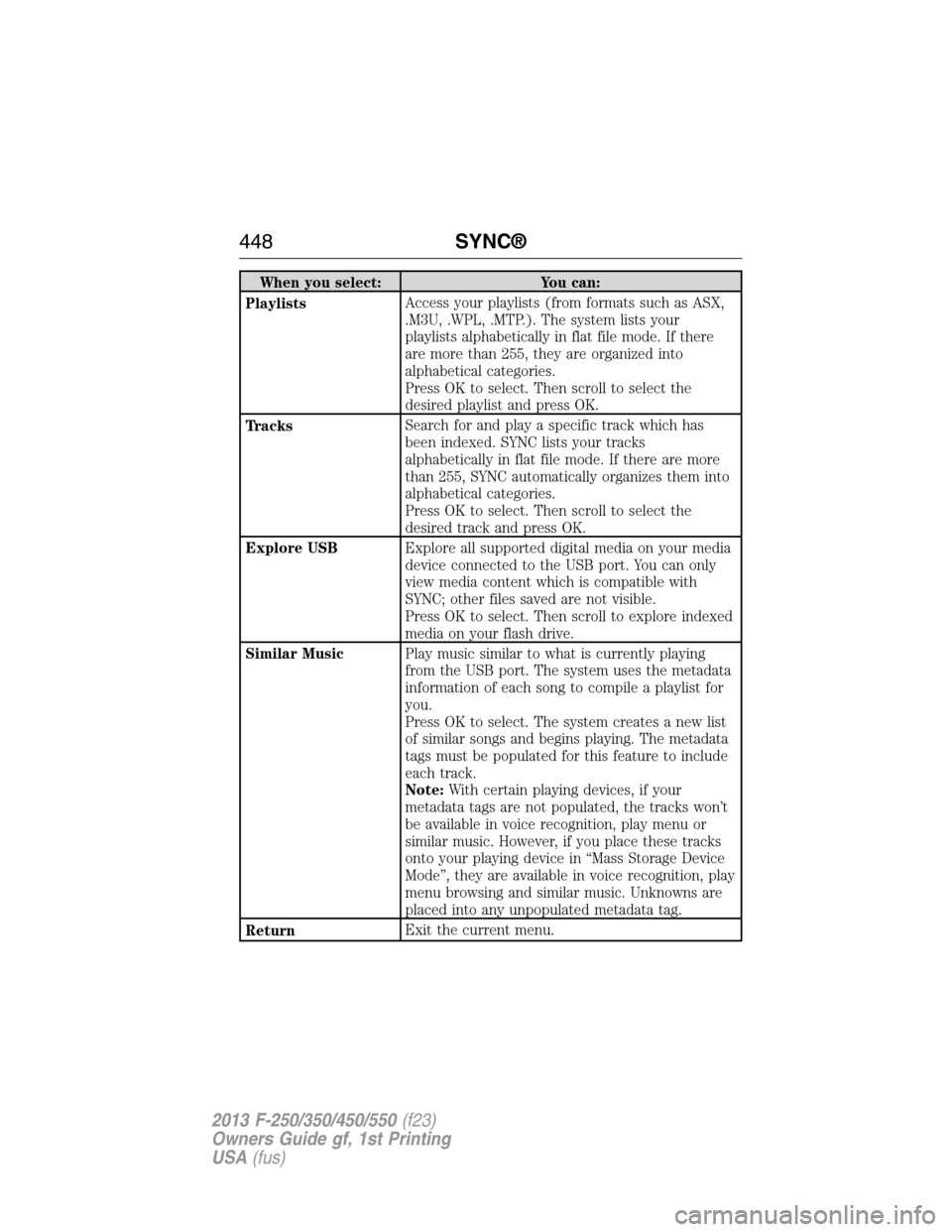
When you select: You can:
PlaylistsAccess your playlists (from formats such as ASX,
.M3U, .WPL, .MTP.). The system lists your
playlists alphabetically in flat file mode. If there
are more than 255, they are organized into
alphabetical categories.
Press OK to select. Then scroll to select the
desired playlist and press OK.
TracksSearch for and play a specific track which has
been indexed. SYNC lists your tracks
alphabetically in flat file mode. If there are more
than 255, SYNC automatically organizes them into
alphabetical categories.
Press OK to select. Then scroll to select the
desired track and press OK.
Explore USBExplore all supported digital media on your media
device connected to the USB port. You can only
view media content which is compatible with
SYNC; other files saved are not visible.
Press OK to select. Then scroll to explore indexed
media on your flash drive.
Similar MusicPlay music similar to what is currently playing
from the USB port. The system uses the metadata
information of each song to compile a playlist for
you.
Press OK to select. The system creates a new list
of similar songs and begins playing. The metadata
tags must be populated for this feature to include
each track.
Note:With certain playing devices, if your
metadata tags are not populated, the tracks won’t
be available in voice recognition, play menu or
similar music. However, if you place these tracks
onto your playing device in “Mass Storage Device
Mode”, they are available in voice recognition, play
menu browsing and similar music. Unknowns are
placed into any unpopulated metadata tag.
ReturnExit the current menu.
448SYNC®
2013 F-250/350/450/550(f23)
Owners Guide gf, 1st Printing
USA(fus)
Page 450 of 563
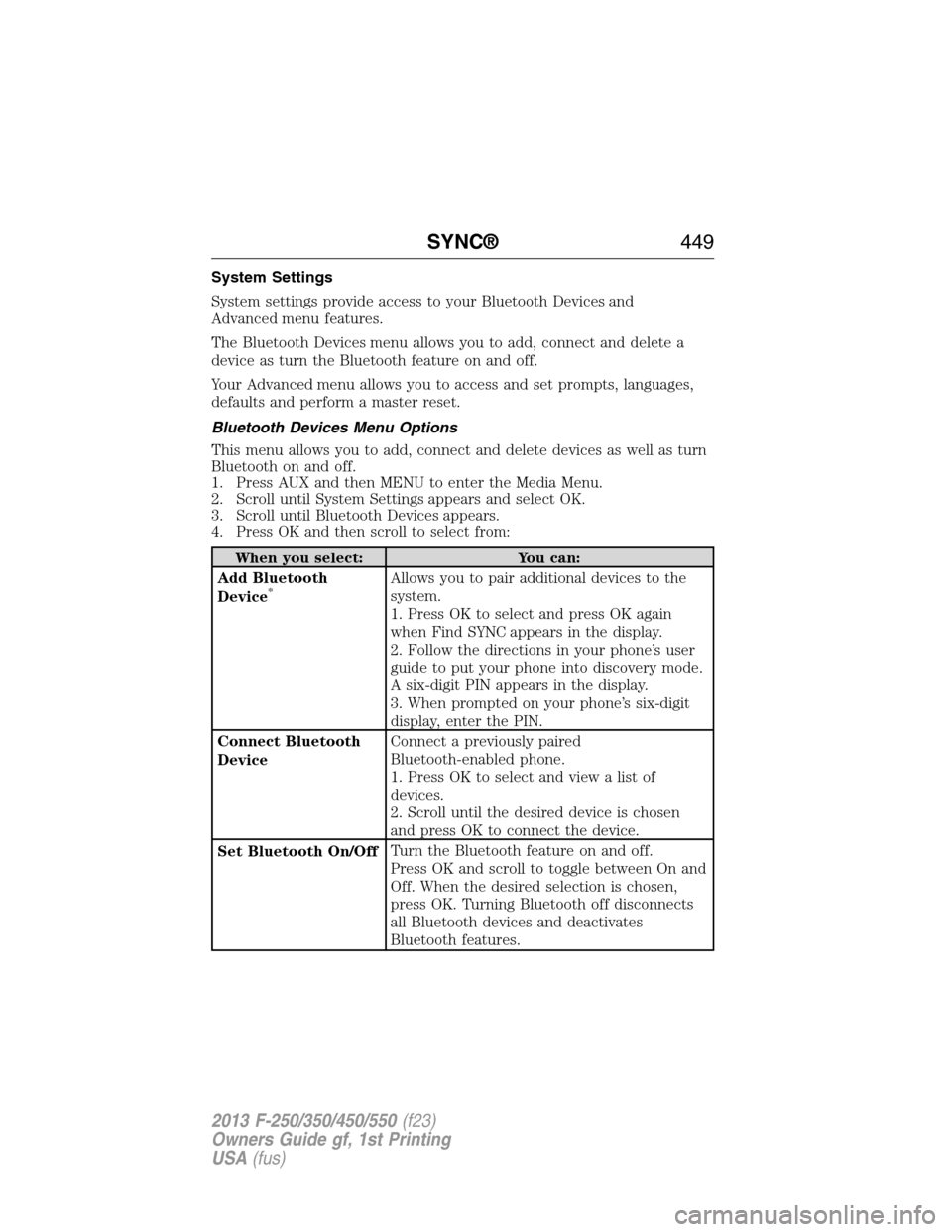
System Settings
System settings provide access to your Bluetooth Devices and
Advanced menu features.
The Bluetooth Devices menu allows you to add, connect and delete a
device as turn the Bluetooth feature on and off.
Your Advanced menu allows you to access and set prompts, languages,
defaults and perform a master reset.
Bluetooth Devices Menu Options
This menu allows you to add, connect and delete devices as well as turn
Bluetooth on and off.
1. Press AUX and then MENU to enter the Media Menu.
2. Scroll until System Settings appears and select OK.
3. Scroll until Bluetooth Devices appears.
4. Press OK and then scroll to select from:
When you select: You can:
Add Bluetooth
Device
*Allows you to pair additional devices to the
system.
1. Press OK to select and press OK again
when Find SYNC appears in the display.
2. Follow the directions in your phone’s user
guide to put your phone into discovery mode.
A six-digit PIN appears in the display.
3. When prompted on your phone’s six-digit
display, enter the PIN.
Connect Bluetooth
DeviceConnect a previously paired
Bluetooth-enabled phone.
1. Press OK to select and view a list of
devices.
2. Scroll until the desired device is chosen
and press OK to connect the device.
Set Bluetooth On/OffTurn the Bluetooth feature on and off.
Press OK and scroll to toggle between On and
Off. When the desired selection is chosen,
press OK. Turning Bluetooth off disconnects
all Bluetooth devices and deactivates
Bluetooth features.
SYNC®449
2013 F-250/350/450/550(f23)
Owners Guide gf, 1st Printing
USA(fus)
Page 459 of 563
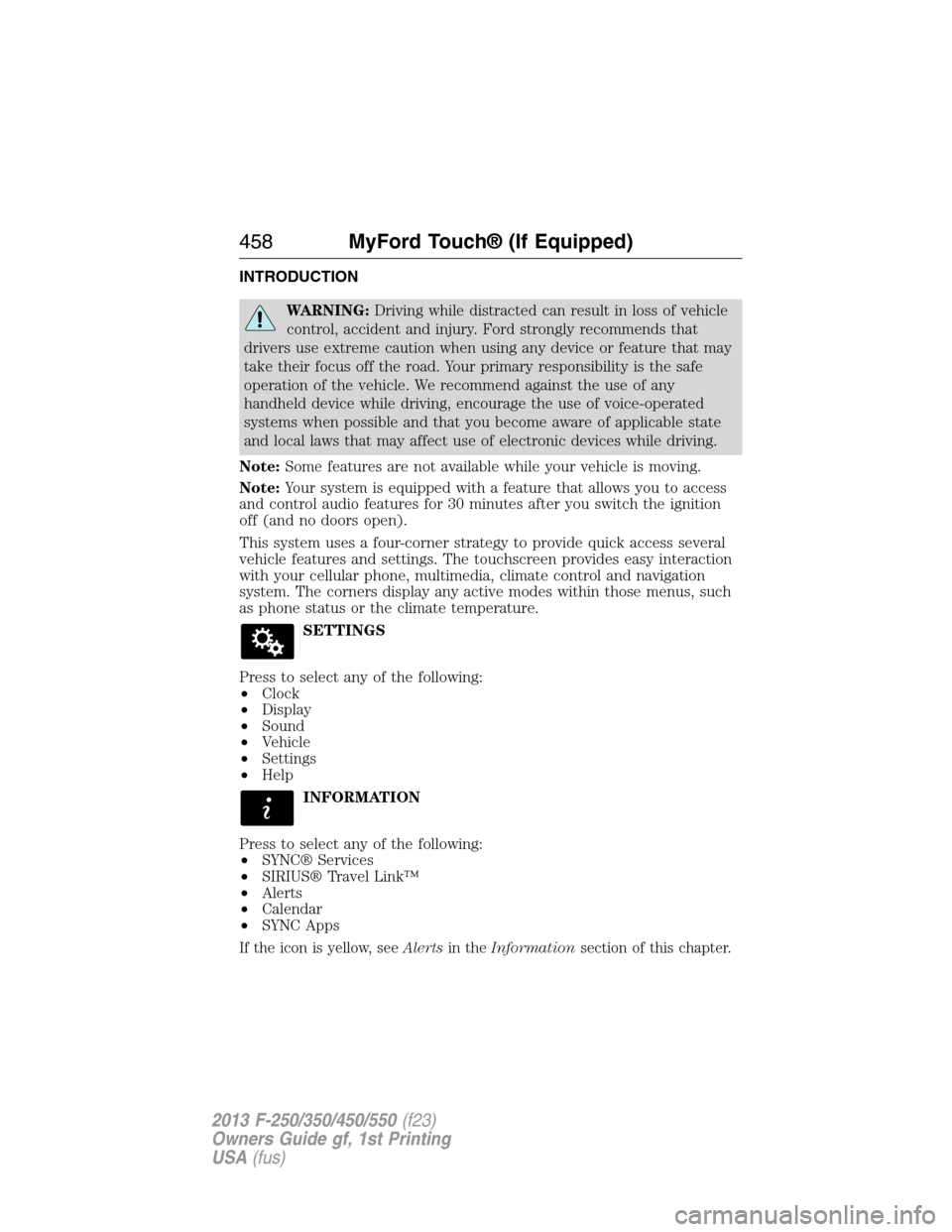
INTRODUCTION
WARNING:Driving while distracted can result in loss of vehicle
control, accident and injury. Ford strongly recommends that
drivers use extreme caution when using any device or feature that may
take their focus off the road. Your primary responsibility is the safe
operation of the vehicle. We recommend against the use of any
handheld device while driving, encourage the use of voice-operated
systems when possible and that you become aware of applicable state
and local laws that may affect use of electronic devices while driving.
Note:Some features are not available while your vehicle is moving.
Note:Your system is equipped with a feature that allows you to access
and control audio features for 30 minutes after you switch the ignition
off (and no doors open).
This system uses a four-corner strategy to provide quick access several
vehicle features and settings. The touchscreen provides easy interaction
with your cellular phone, multimedia, climate control and navigation
system. The corners display any active modes within those menus, such
as phone status or the climate temperature.
SETTINGS
Press to select any of the following:
•Clock
•Display
•Sound
•Vehicle
•Settings
•Help
INFORMATION
Press to select any of the following:
•SYNC® Services
•SIRIUS® Travel Link™
•Alerts
•Calendar
•SYNC Apps
If the icon is yellow, seeAlertsin theInformationsection of this chapter.
458MyFord Touch® (If Equipped)
2013 F-250/350/450/550(f23)
Owners Guide gf, 1st Printing
USA(fus)
Page 469 of 563
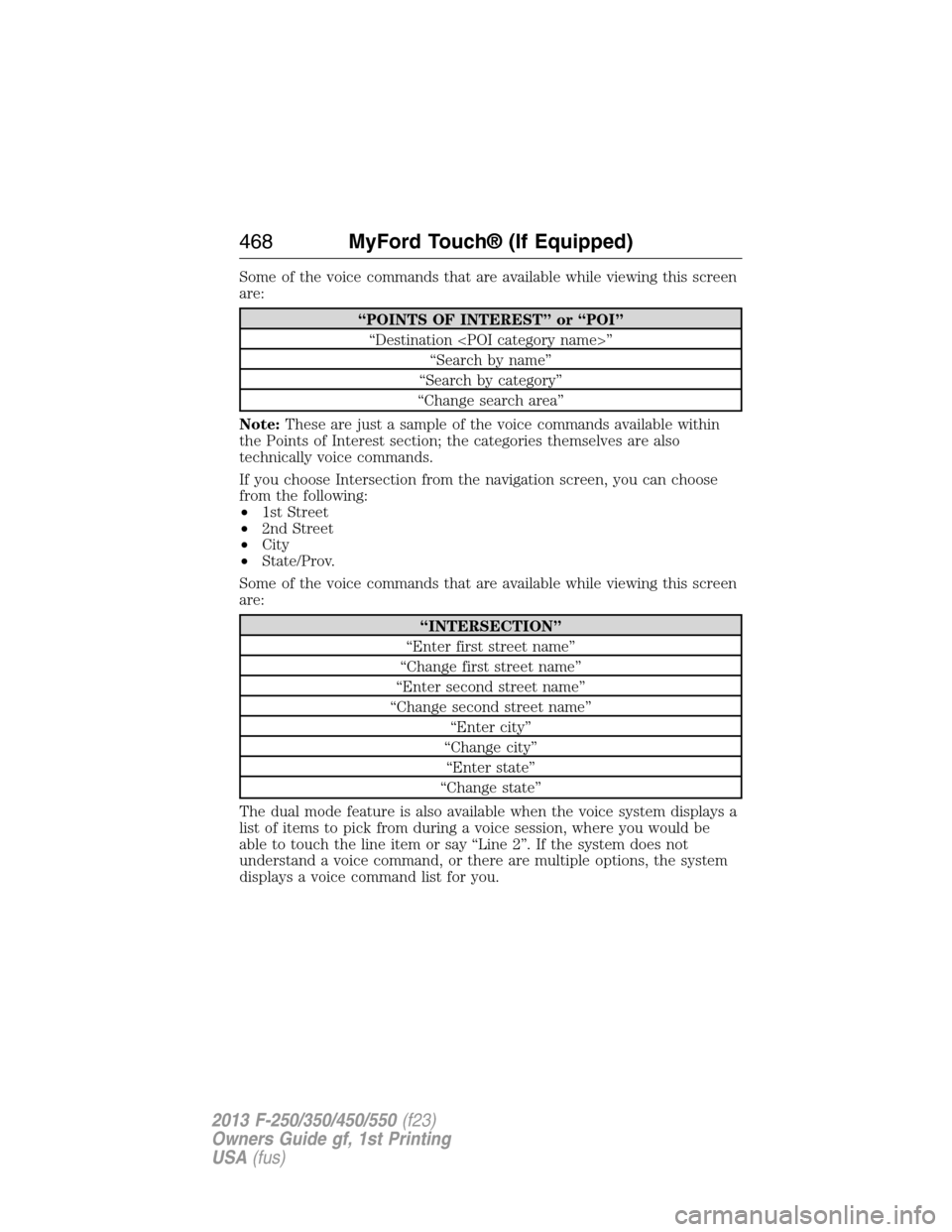
Some of the voice commands that are available while viewing this screen
are:
“POINTS OF INTEREST” or “POI”
“Destination
“Search by name”
“Search by category”
“Change search area”
Note:These are just a sample of the voice commands available within
the Points of Interest section; the categories themselves are also
technically voice commands.
If you choose Intersection from the navigation screen, you can choose
from the following:
•1st Street
•2nd Street
•City
•State/Prov.
Some of the voice commands that are available while viewing this screen
are:
“INTERSECTION”
“Enter first street name”
“Change first street name”
“Enter second street name”
“Change second street name”
“Enter city”
“Change city”
“Enter state”
“Change state”
The dual mode feature is also available when the voice system displays a
list of items to pick from during a voice session, where you would be
able to touch the line item or say “Line 2”. If the system does not
understand a voice command, or there are multiple options, the system
displays a voice command list for you.
468MyFord Touch® (If Equipped)
2013 F-250/350/450/550(f23)
Owners Guide gf, 1st Printing
USA(fus)
Page 492 of 563
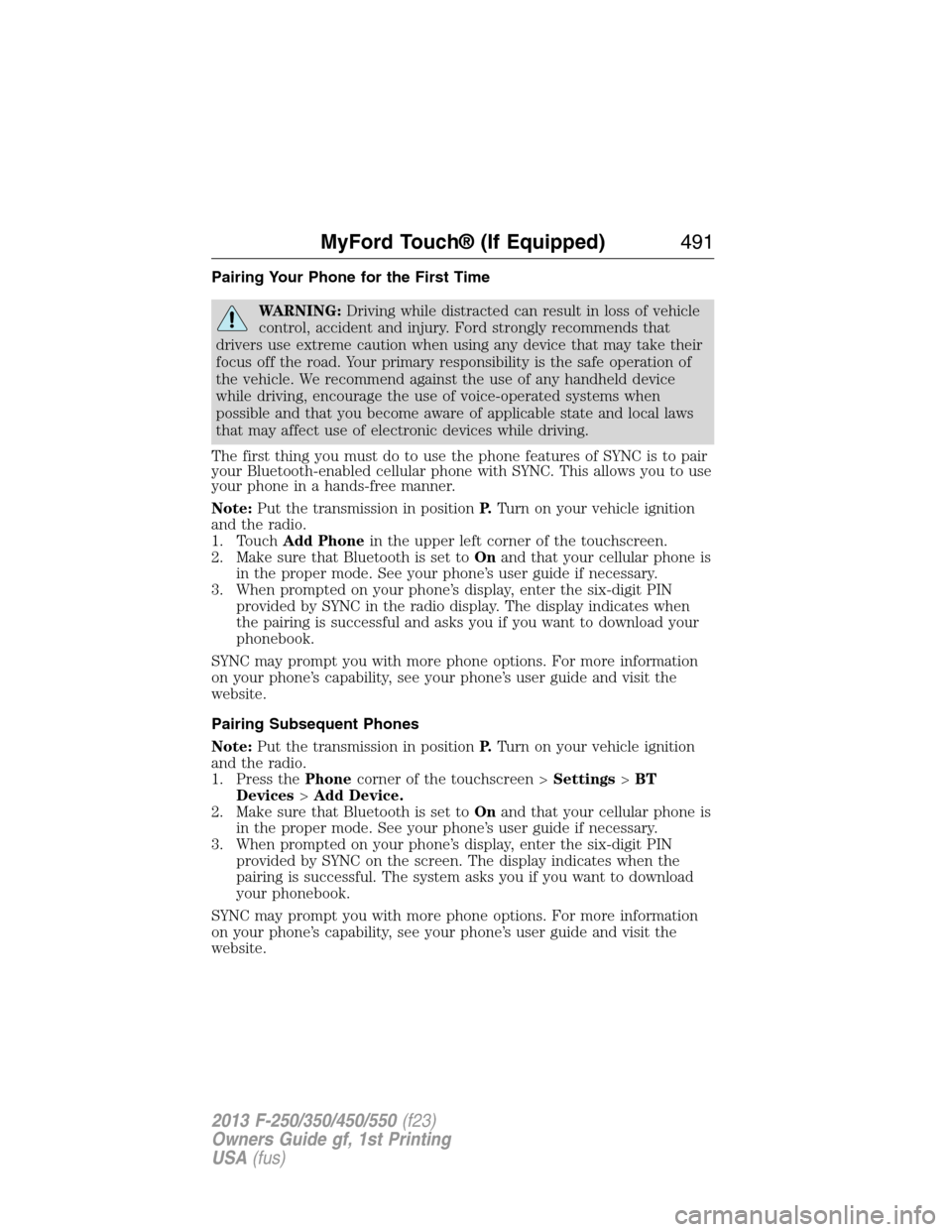
Pairing Your Phone for the First Time
WARNING:Driving while distracted can result in loss of vehicle
control, accident and injury. Ford strongly recommends that
drivers use extreme caution when using any device that may take their
focus off the road. Your primary responsibility is the safe operation of
the vehicle. We recommend against the use of any handheld device
while driving, encourage the use of voice-operated systems when
possible and that you become aware of applicable state and local laws
that may affect use of electronic devices while driving.
The first thing you must do to use the phone features of SYNC is to pair
your Bluetooth-enabled cellular phone with SYNC. This allows you to use
your phone in a hands-free manner.
Note:Put the transmission in positionP.Turn on your vehicle ignition
and the radio.
1. TouchAdd Phonein the upper left corner of the touchscreen.
2. Make sure that Bluetooth is set toOnand that your cellular phone is
in the proper mode. See your phone’s user guide if necessary.
3. When prompted on your phone’s display, enter the six-digit PIN
provided by SYNC in the radio display. The display indicates when
the pairing is successful and asks you if you want to download your
phonebook.
SYNC may prompt you with more phone options. For more information
on your phone’s capability, see your phone’s user guide and visit the
website.
Pairing Subsequent Phones
Note:Put the transmission in positionP.Turn on your vehicle ignition
and the radio.
1. Press thePhonecorner of the touchscreen >Settings>BT
Devices>Add Device.
2. Make sure that Bluetooth is set toOnand that your cellular phone is
in the proper mode. See your phone’s user guide if necessary.
3. When prompted on your phone’s display, enter the six-digit PIN
provided by SYNC on the screen. The display indicates when the
pairing is successful. The system asks you if you want to download
your phonebook.
SYNC may prompt you with more phone options. For more information
on your phone’s capability, see your phone’s user guide and visit the
website.
MyFord Touch® (If Equipped)491
2013 F-250/350/450/550(f23)
Owners Guide gf, 1st Printing
USA(fus)