ECU FORD SUPER DUTY 2015 3.G Service Manual
[x] Cancel search | Manufacturer: FORD, Model Year: 2015, Model line: SUPER DUTY, Model: FORD SUPER DUTY 2015 3.GPages: 470, PDF Size: 18.24 MB
Page 341 of 470
You can:If you select:
Press OK to select.
This is a Bluetooth component, which can further helpyour phone with the exchange of text messages.MAP Profile
Exit the current menu.Return
SYNC™ APPLICATIONS AND
SERVICES (IF EQUIPPED)
In order for the following features to work,your cellular phone must be compatiblewith SYNC. To check your phone'scompatibility, visit www.SYNCMyRide.com,www.SYNCMyRide.ca orwww.syncmaroute.ca.
•SYNC Services*: Provides access totraffic, directions and information suchas travel, horoscopes, stock prices andmore.
•911 Assist: Can alert 911 in the event ofan emergency.
•Vehicle Health Report*: Provides adiagnostic and maintenance reportcard of your vehicle.*This is an optional feature and availablein the United States only.
911 Assist
WARNINGS
Unless the 911 Assist setting is set onbefore a crash, the system will notdial for help which could delayresponse time, potentially increasing therisk of serious injury or death after a crash.
WARNINGS
Do not wait for 911 Assist to make anemergency call if you can do ityourself. Dial emergency servicesimmediately to avoid delayed responsetime which could increase the risk ofserious injury or death after a crash. If youdo not hear 911 Assist within five secondsof the crash, the system or phone may bedamaged or non-functional.
Always place your phone in a securelocation in your vehicle so it does notbecome a projectile or get damagedin a crash. Failure to do so may causeserious injury to someone or damage thephone which could prevent 911 Assist fromworking properly.
Note:The SYNC 911 Assist feature must beset on before the incident.
Note:Before setting this feature on, makesure that you read the 911 Assist PrivacyNotice later in this section for importantinformation.
Note:If any user turns 911 Assist on or off,that setting applies for all paired phones. If911 Assist is turned off, either a voicemessage plays or a display message (oricon) comes on (or both) when your vehicleis started after a previously paired phoneconnects.
Note:Every phone operates differently.While SYNC 911 Assist works with mostcellular phones, some may have troubleusing this feature.
338Super Duty (), enUSASYNC™ (If Equipped)
Page 351 of 470
Media Menu Features
The media menu allows you to select yourmedia source, how to play your music(such as by artist, genre, shuffle or repeat),
and also to add, connect or delete devices.
1.Press AUX and then MENU to enterthe media menu.
2.Scroll to cycle through:
You can:When you select:
Play your music by artist, album, genre, playlist, track,similar music or play all music. You can also choose toExplore USB to view the supported digital music files onyour playing device.
Play Menu
Select and play music from your USB port, auxiliary inputjack (line in) or stream music from your Bluetooth-enabledphone.
Select Source
SYNC USB: Press OK to access music plugged into yourUSB port. You can also plug in devices to charge them (ifsupported by your device). Once connected, the system
indexes any readable media files.1
Bluetooth Audio: This is a phone-dependent feature thatallows you to stream music playing on your Bluetooth-enabled phone. If supported by your device, you can pressSEEK to play the previous or next track.
SYNC Line In: Press OK to select and play music from your
portable music player over your vehicle's speakers.2
Choose to shuffle or repeat your music and select yourAutoplay settings. Once you turn these selections on, theyremain on until you turn them off. Press SEEK to play the
previous or next track.3
Media Settings
Shuffle: Press OK to shuffle available media files in thecurrent playlist. To shuffle all media tracks, you must selectPlay All in the play menu and then select Shuffle.
Repeat: Press OK to repeat any song.
Autoplay: Turn autoplay on to listen to music processedduring indexing. Turn autoplay off to allow the indexingprocess to finish before the system plays any of your
music.4
Interact with SYNC-capable mobile applications on yoursmartphone.Mobile Apps
348Super Duty (), enUSASYNC™ (If Equipped)
Page 357 of 470
Phone issues
Possible solution(s)Possible cause(s)Issue
· Try pushing your phone-book contacts to SYNC byusing the Add Contactsfeature.
This may be a limitation onyour phone's capability.The system says PhonebookDownloaded but thephonebook in SYNC isempty or missing contacts.· If the missing contacts arestored on your SIM card, trymoving them to the devicememory.· Remove any pictures orspecial ring tones associ-ated with the missingcontact.
· Go to the website to reviewyour phone's compatibility.· This is a phone-dependentfeature.I am having troubleconnecting my phone toSYNC.· Try turning off the device,resetting the device orremoving the device'sbattery, then trying again.
· This may be a possiblephone malfunction.
· Try deleting your devicefrom SYNC, deleting SYNCfrom your device and tryingagain.· Check the security and autoaccept and prompt alwayssettings relative to the SYNCBluetooth connection onyour phone.· Update your device's firm-ware.· Turn off the Auto phone-book download setting.
· Go to the website to reviewyour phone's compatibility.· This is a phone-dependentfeature.Text messaging is notworking on SYNC.· Try turning off the device,resetting the device orremoving the device'sbattery, then trying again.
· This may be a possiblephone malfunction.
354Super Duty (), enUSASYNC™ (If Equipped)
Page 358 of 470
USB and media issues
Possible solution(s)Possible cause(s)Issue
· Try turning off the device,resetting the device,removing the device'sbattery, then trying again.
This may be a possibledevice malfunction.I am having troubleconnecting my device.
· Make sure you are using themanufacturer's cable.· Make sure you insert theUSB cable properly into thedevice and the USB port.· Make sure that the devicedoes not have an auto-install program or activesecurity settings.
Make sure you are notleaving the device in yourvehicle during very hot orcold temperatures.
This is a device limitation.SYNC does not recognizemy device when I turn on thecar.
Make sure you properlyconnect the device to SYNCand that you have pressedplay on your device.
· This is a phone-dependentfeature.· The device is notconnected.
Bluetooth audio does notstream.
· Make sure that all songdetails are populated.· Your music files may notcontain the proper artist,song title, album or genreinformation.
SYNC does not recognizemusic that is on my device.· Some devices require youto change the USB settingsfrom mass storage to MTPclass.· The file may be corrupted.· The song may have copy-right protection, which doesnot allow it to play.
Vehicle Health Report and Services (Traffic, Directions and Information) issues
Possible solution(s)Possible cause(s)Issue
· This is a free feature, butyou must first register onlineto use it.
· You did not activate youraccount on the website.· You may have the wrongVIN (vehicle identificationnumber) listed.
I received a text that I didnot activate Vehicle HealthReport.
355Super Duty (), enUSASYNC™ (If Equipped)
Page 390 of 470
"SPORTS GAME"
"Tune to the
"Tune to the
"Tune to the
"Tune to the
"Help"
"TUNE"
"
"Preset <#>"
"SAT"
"SAT 1"
"SAT 1 preset <#>"
"SAT 2"
"SAT 2 preset <#>"
"SAT 3"
"SAT 3 preset <#>"
"Sirius <0-223>"
"Help"
CD
Press the lower left corner of thetouchscreen, and then select theCD tab.
You can also advance and reverse thecurrent track or current folder, if applicable.
Repeat
Touch this button to repeat the currentlyplaying track, all tracks on the disc or turnthe feature off if already on.
Shuffle
Touch this button to play the tracks orentire albums in random order, or turn thefeature off if already on.
Scan
Touch this button to hear a brief samplingof all available tracks.
More Info
Touch this button to see disc information.
Options
Sound Settings
Touch this button to adjust settings for:
•Bass
•Midrange
•Treble
•Balance and Fade
•DSP (Digital Signal processing)
•Occupancy Mode
•Speed Compensated Volume.
Note:Your vehicle may not have all thesesound settings.
Compression
Touch this button to turn the compressionfeature on and off.
Browse
Touch this button to look through allavailable CD tracks.
CD Voice Commands
If you are listening to a CD, pressthe voice button on the steeringwheel controls. When prompted,say any of the following commands.
If you are not listening to a CD, press thevoice button and, after the tone, say "CD",then any of the following commands.
387Super Duty (), enUSAMyFord Touch™ (If Equipped)E142611 E142599
Page 392 of 470
This feature allows you to plug in mediaplaying devices, memory sticks, flash drivesor thumb drives, and charge devices if theysupport this feature.
In order to playback video from your iPodor iPhone, you must have a specialcombination USB/RCA composite videocable (which you can buy from Apple).When you connect the cable to your iPodor iPhone, plug the other end into both theRCA jacks and the USB port.
Playing Music from Your Device
Note:The system is capable of indexing upto 30,000 songs.
Insert your device and select theSD Card or USB tab once thesystem recognizes it. You canthen select from the following options:
Repeat
This feature replays the currently playingsong or album.
Shuffle
Touch this button to play music on theselected album or folder in random order.
Similar Music
This feature allows you to choose musicsimilar to what is currently playing.
More Info
Touch this button to see disc informationsuch as current track, artist name, albumand genre.
Options
Touch this button to view and adjustvarious media settings.
Sound Settings allows you to adjustsettings for:
•Bass
•Midrange
•Treble
•Balance and Fade
•DSP (Digital Signal processing)
•Occupancy Mode
•Speed Compensated Volume.
Note:Your vehicle may not have all thesesound settings.
Media Player Settings allows you toselect more settings, which is under MediaPlayer. See Settings (page 366).
Device Information displays softwareand firmware information about thecurrently connected media device.
Update Media Index indexes your devicewhen you connect it for the first time andeach time the content changes (such asadding or removing tracks) to make sureyou have the latest voice commandsavailable for all media on the device.
Browse
This feature allows you to view thecontents of the device. It also allows youto search by categories, such as genre,artist or album.
If you want to view song information suchas Title, Artist, File, Folder, Album, andGenre, touch the on-screen album art.
You can also touch What’s Playing tohear how the system pronounces thecurrent band and song. This can be helpfulwhen using voice commands to make surethe system correctly plays your request.
389Super Duty (), enUSAMyFord Touch™ (If Equipped)E142611
Page 395 of 470
To access, press the lower leftcorner on the touchscreen, thenselect the BT Stereo tab.
Bluetooth Audio Voice Commands
If you are listening to a Bluetoothaudio device, press the voicebutton on the steering wheelcontrol. When prompted, say "Next song","Pause", "Play" or "Previous song".
If you are not listening to a Bluetooth audiodevice, press the voice button and, afterthe tone, say "Next song", "Pause", "Play"or "Previous song".
A/V Inputs
WARNINGS
Driving while distracted can result inloss of vehicle control, crash andinjury. We strongly recommend thatyou use extreme caution when using anydevice that may take your focus off theroad. Your primary responsibility is the safeoperation of your vehicle. We recommendagainst the use of any handheld devicewhile driving and encourage the use ofvoice-operated systems when possible.Make sure you are aware of all applicablelocal laws that may affect the use ofelectronic devices while driving.
For safety reasons, do not connector adjust the settings on yourportable music player while yourvehicle is moving.
Store the portable music player in asecure location, such as the centerconsole or the glove box, when yourvehicle is moving. Hard objects maybecome projectiles in a crash or suddenstop, which may increase the risk of seriousinjury. The audio extension cable must belong enough to allow the portable musicplayer to be safely stored while yourvehicle is moving.
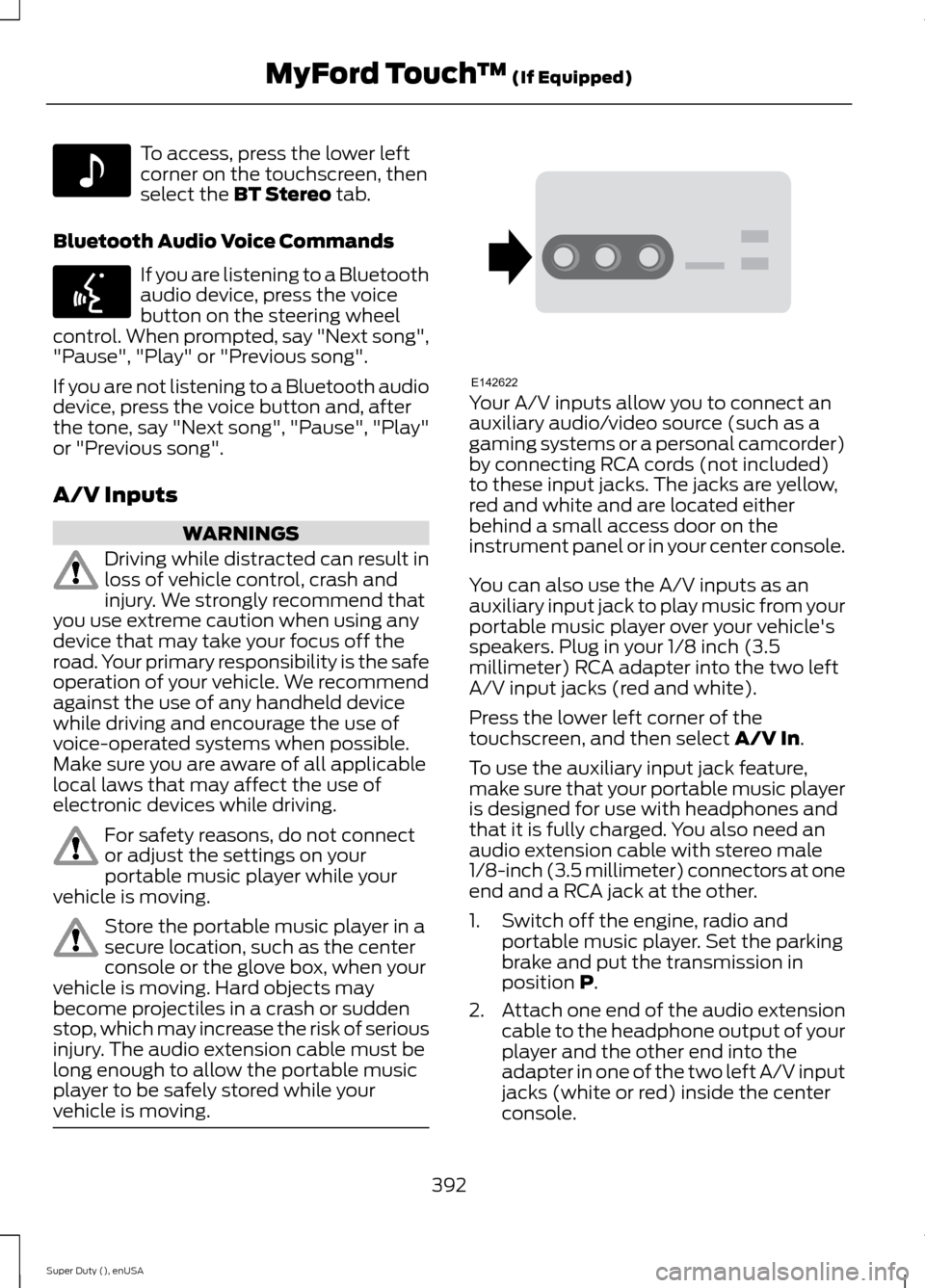
Your A/V inputs allow you to connect anauxiliary audio/video source (such as agaming systems or a personal camcorder)by connecting RCA cords (not included)to these input jacks. The jacks are yellow,red and white and are located eitherbehind a small access door on theinstrument panel or in your center console.
You can also use the A/V inputs as anauxiliary input jack to play music from yourportable music player over your vehicle'sspeakers. Plug in your 1/8 inch (3.5millimeter) RCA adapter into the two leftA/V input jacks (red and white).
Press the lower left corner of thetouchscreen, and then select A/V In.
To use the auxiliary input jack feature,make sure that your portable music playeris designed for use with headphones andthat it is fully charged. You also need anaudio extension cable with stereo male1/8-inch (3.5 millimeter) connectors at oneend and a RCA jack at the other.
1.Switch off the engine, radio andportable music player. Set the parkingbrake and put the transmission inposition P.
2.Attach one end of the audio extensioncable to the headphone output of yourplayer and the other end into theadapter in one of the two left A/V inputjacks (white or red) inside the centerconsole.
392Super Duty (), enUSAMyFord Touch™ (If Equipped)E142611 E142599 E142622
Page 398 of 470
Note:Select SYNC, and a six-digit PINappears on your device.
3.If prompted to enter a PIN on yourdevice, it does not support SecureSimple Pairing. To pair, enter the PINdisplayed on the touchscreen. Skip thenext step.
4.When prompted on your phone’sdisplay, confirm that the PIN providedby SYNC matches the PIN displayedon your cellular phone.
5.The display indicates when the pairingis successful.
SYNC may prompt you with more phoneoptions. For more information on yourphone's capability, see your phone'smanual and visit the website.
Pairing Subsequent Phones
Note:Put the transmission in position P.Turn on your vehicle ignition and the radio.
1.Press the Phone corner of thetouchscreen > Settings > BT Devices> Add Device.
2.Make sure that Bluetooth is set to Onand that your cellular phone is in theproper mode. See your phone’s manualif necessary.
Note:Select SYNC, and a six-digit PINappears on your device.
3.If prompted to enter a PIN on yourdevice, it does not support SecureSimple Pairing. To pair, enter the PINdisplayed on the touchscreen. Skip thenext step.
4.When prompted on your phone’sdisplay, confirm that the PIN providedby SYNC matches the PIN displayedon your cellular phone.
5.The display indicates when the pairingis successful.
SYNC may prompt you with more phoneoptions. For more information on yourphone's capability, see your phone'smanual and visit the website.
Making Calls
Press the voice button on yoursteering wheel controls. Whenprompted, say, "Call
To end the call or exit phonemode, press and hold the phonebutton.
Receiving Calls
During an incoming call, an audible tonesounds. Call information appears in thedisplay if it is available.
Accept the call by pressingAccept on the touchscreen orby pressing the phone button onyour steering wheel controls.
Reject the call by pressing Reject on thetouchscreen or by pressing and holding thephone button on your steering wheelcontrols.
Ignore the call by doing nothing. SYNC logsit as a missed call.
Phone Menu Options
Press the top left corner on yourtouchscreen to select from the followingoptions:
Phone
Touch this button to access the on-screennumerical pad to enter a number and placea call. During an active call, you can alsochoose to:
•Mute the call
•Put the call on hold
•Turn on the privacy feature
395Super Duty (), enUSAMyFord Touch™ (If Equipped)E142599 E165966 E165966
Page 408 of 470
Additional sports-related voicecommands
"WNBA schedule"
"WNBA scores"
"Help"
Alerts
If your vehicle is equipped withNavigation, touch the i(Information) button to accessthese features. If your vehicle is notequipped with Navigation, touch the cornerof the touchscreen with the green tab.
Press Alerts, and then choose from anyof the following services:
•View the complete message.
•Delete the message.
•Delete All messages.
This screen displays any system messages(such as an SD card fault).
Note:The system alerts you to anymessages by turning the information iconyellow. After you read or delete themessages, the icon returns to white.
Calendar
If your vehicle is equipped withNavigation, touch the i(Information) button to accessthese features. If your vehicle is notequipped with Navigation, touch the cornerof the touchscreen with the green tab.
Press Calendar. You can view the currentcalendar by day, week or month.
911 Assist (If Equipped)
WARNINGS
Unless the 911 Assist setting is set onbefore a crash, the system will notdial for help, which could delayresponse time, potentially increasing therisk of serious injury or death after a crash.
Do not wait for 911 Assist to make anemergency call if you can do ityourself. Dial emergency servicesimmediately to avoid delayed responsetime, which could increase the risk ofserious injury or death after a crash. If youdo not hear 911 Assist within five secondsof the crash, the system or phone may bedamaged or non-functional.
Always place your phone in a securelocation in your vehicle so it does notbecome a projectile or damaged ina crash. Failure to do so may cause seriousinjury to someone or damage the phone,which could prevent 911 Assist fromworking properly.
Note:The SYNC 911 Assist feature must beset on prior to the incident.
Note:Before setting this feature on, makesure that you read the 911 Assist PrivacyNotice later in this section for importantinformation.
Note:If any user turns 911 Assist on or off,that setting applies for all paired phones. If911 Assist is turned off, either a voicemessage plays or a display message (oricon) comes on (or both) when your vehicleis started after a previously paired phoneconnects.
Note:Every phone operates differently.While SYNC 911 Assist works with mostcellular phones, some may have troubleusing this feature.
405Super Duty (), enUSAMyFord Touch™ (If Equipped)E142608 E142608
Page 427 of 470
Description of Other Rights andLimitations
•Speech Recognition: If theSOFTWARE includes speechrecognition component(s), you shouldunderstand that speech recognition isan inherently statistical process andthat recognition errors are inherent inthe process. Neither FORD MOTORCOMPANY nor its suppliers shall beliable for any damages arising out oferrors in the speech recognitionprocess.
•Limitations on Reverse Engineering,Decompilation and Disassembly:You may not reverse engineer,decompile, or disassemble nor permitothers to reverse engineer, decompileor disassemble the SOFTWARE, exceptand only to the extent that such activityis expressly permitted by applicablelaw notwithstanding this limitation.
•Limitations on Distributing,Copying, Modifying and CreatingDerivative Works: You may notdistribute, copy, make modificationsto or create derivative works based onthe SOFTWARE, except and only to theextent that such activity is expresslypermitted by applicable lawnotwithstanding this limitation.
•Single EULA: The end userdocumentation for the DEVICE andrelated systems and services maycontain multiple EULAs, such asmultiple translations and/or multiplemedia versions (e.g., in the userdocumentation and in the software).Even if you receive multiple EULAs, youare licensed to use only one (1) copy ofthe SOFTWARE.
•SOFTWARE Transfer: You maypermanently transfer your rights underthis EULA only as part of a sale ortransfer of the DEVICE, provided youretain no copies, you transfer all of theSOFTWARE (including all componentparts, the media and printed materials,any upgrades, and, if applicable, theCertificate(s) of Authenticity), and therecipient agrees to the terms of thisEULA. If the SOFTWARE is an upgrade,any transfer must include all priorversions of the SOFTWARE.
•Termination: Without prejudice to anyother rights, FORD MOTOR COMPANYor MS may terminate this EULA if youfail to comply with the terms andconditions of this EULA.
•Security Updates/Digital RightsManagement: Content owners usethe WMDRM technology included inyour DEVICE to protect theirintellectual property, includedcopyrighted content. Portions of theSOFTWARE on your DEVICE useWMDRM software to accessWMDRM-protected content. If theWMDRM software fails to protect thecontent, content owners may askMicrosoft to revoke the SOFTWARE'sability to use WMDRM to play or copyprotected content. This action doesnot affect unprotected content. Whenyour DEVICE downloads licenses forprotected content, you agree thatMicrosoft may include a revocation listwith the licenses. Content owners mayrequire you to upgrade the SOFTWAREon your DEVICE to access their content.If you decline an upgrade, you will notbe able to access content that requiresthe upgrade.
424Super Duty (), enUSAAppendices