steering FORD SUPER DUTY 2023 Owner's Manual
[x] Cancel search | Manufacturer: FORD, Model Year: 2023, Model line: SUPER DUTY, Model: FORD SUPER DUTY 2023Pages: 738, PDF Size: 18.49 MB
Page 117 of 738
WIPERS
WIPER PRECAUTIONS
Do not operate the wipers on a drywindshield. This could scratch the glass ordamage the wiper blades. Use thewindshield washers before wiping a drywindshield.
Fully defrost the windshield before youswitch the windshield wipers on.
Switch the windshield wipers off beforeentering a car wash.
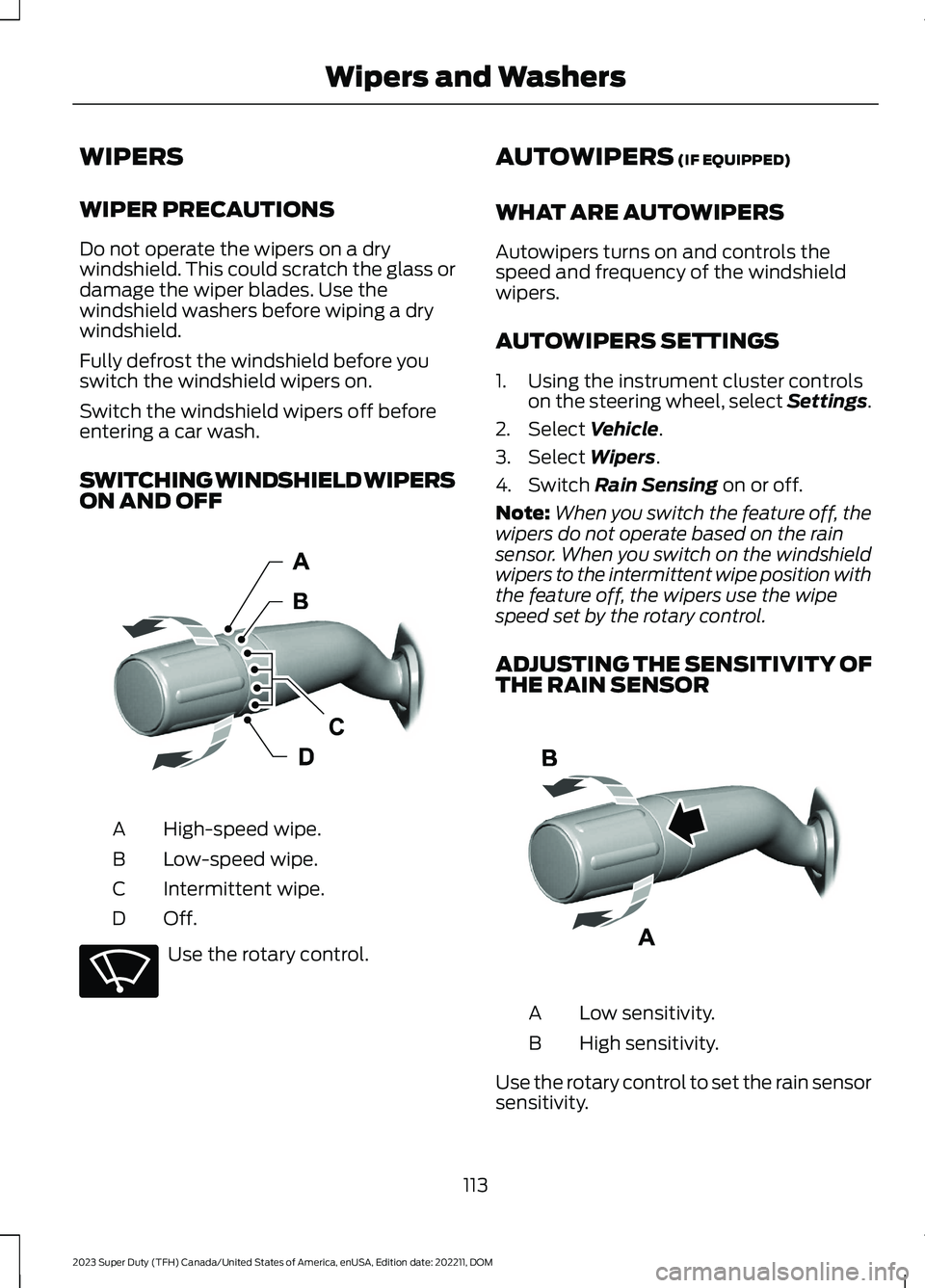
SWITCHING WINDSHIELD WIPERSON AND OFF
High-speed wipe.A
Low-speed wipe.B
Intermittent wipe.C
Off.D
Use the rotary control.
AUTOWIPERS (IF EQUIPPED)
WHAT ARE AUTOWIPERS
Autowipers turns on and controls thespeed and frequency of the windshieldwipers.
AUTOWIPERS SETTINGS
1.Using the instrument cluster controlson the steering wheel, select Settings.
2.Select Vehicle.
3.Select Wipers.
4.Switch Rain Sensing on or off.
Note:When you switch the feature off, thewipers do not operate based on the rainsensor. When you switch on the windshieldwipers to the intermittent wipe position withthe feature off, the wipers use the wipespeed set by the rotary control.
ADJUSTING THE SENSITIVITY OFTHE RAIN SENSOR
Low sensitivity.A
High sensitivity.B
Use the rotary control to set the rain sensorsensitivity.
113
2023 Super Duty (TFH) Canada/United States of America, enUSA, Edition date: 202211, DOMWipers and WashersE382879 E270969 E383614
Page 123 of 738
Set the lever to the middle position toswitch the turn signal lamps off.
Note:Tap the lever up or down to make theturn signal lamps flash three times.
Turn Signal Lamp Indicator
It flashes when you switch theturn signal lamps on.
Note:An increase in the rate of flashingwarns of a failed turn signal lamp.
HOW DO CORNERING LAMPSWORK
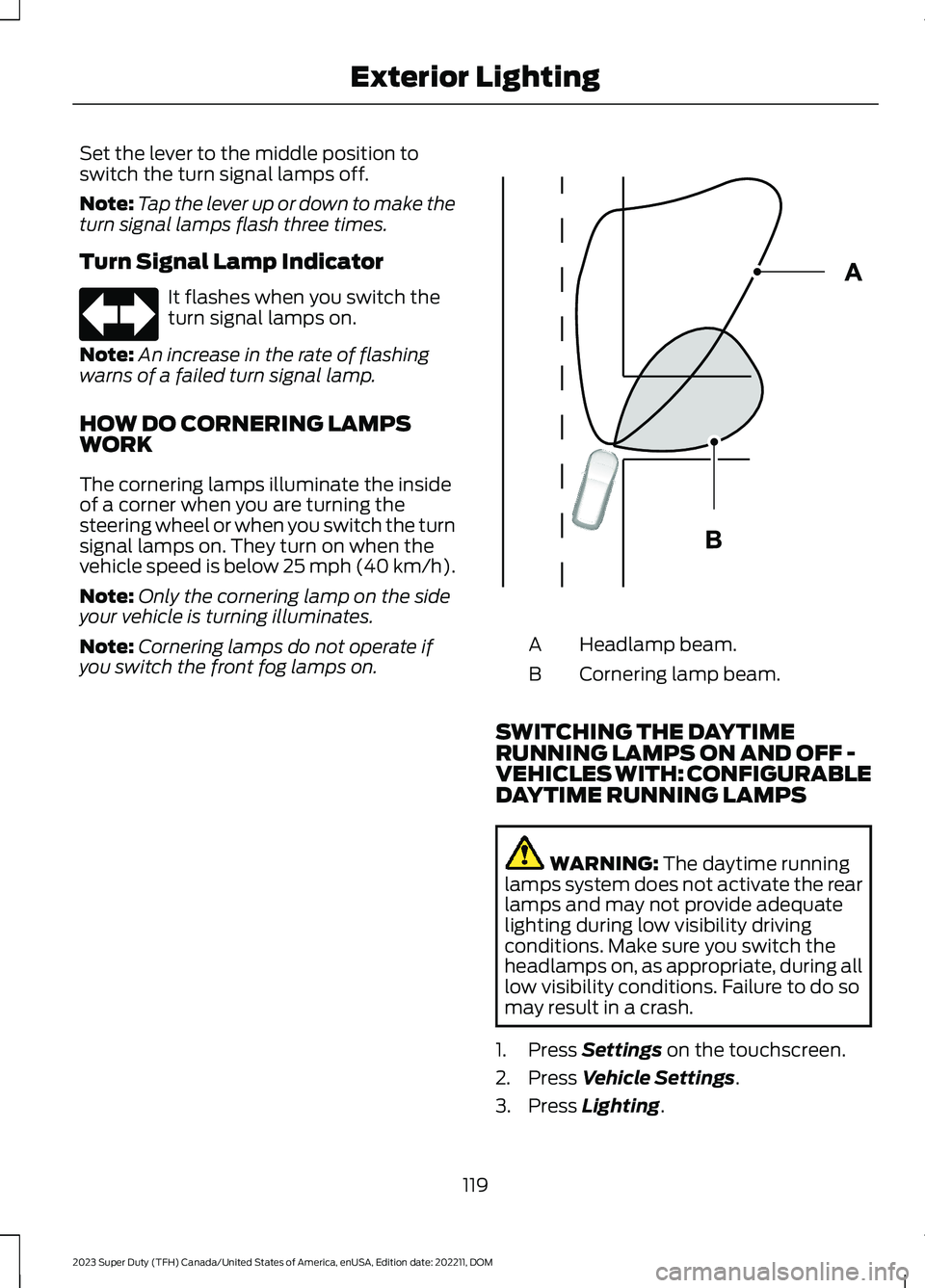
The cornering lamps illuminate the insideof a corner when you are turning thesteering wheel or when you switch the turnsignal lamps on. They turn on when thevehicle speed is below 25 mph (40 km/h).
Note:Only the cornering lamp on the sideyour vehicle is turning illuminates.
Note:Cornering lamps do not operate ifyou switch the front fog lamps on.Headlamp beam.A
Cornering lamp beam.B
SWITCHING THE DAYTIMERUNNING LAMPS ON AND OFF -VEHICLES WITH: CONFIGURABLEDAYTIME RUNNING LAMPS
WARNING: The daytime runninglamps system does not activate the rearlamps and may not provide adequatelighting during low visibility drivingconditions. Make sure you switch theheadlamps on, as appropriate, during alllow visibility conditions. Failure to do somay result in a crash.
1.Press Settings on the touchscreen.
2.Press Vehicle Settings.
3.Press Lighting.
119
2023 Super Duty (TFH) Canada/United States of America, enUSA, Edition date: 202211, DOMExterior LightingE67018 E327599
Page 127 of 738
WARNING: The system may notswitch the high beams off if the lights ofoncoming vehicles are hidden byobstacles, for example guard rails.
WARNING: You may need tooverride the system when approachingother road users.
WARNING: In situations with poorvisibility, such as fog, heavy rain or otherinclement weather, you may need tooverride or completely switch off thesystem.
AUTOMATIC HIGH BEAMCONTROL REQUIREMENTS
The system turns the high beams on if allof the following occur:
•You switch the system on.
•You set the lighting control to theautolamps position.
•The ambient light level is low enoughthat you require high beams.
•There is no traffic in front of yourvehicle.
•The vehicle speed is greater thanapproximately 25 mph (40 km/h).
AUTOMATIC HIGH BEAMCONTROL LIMITATIONS
The system turns the high beams off if anyof the following occur:
•You switch the system off.
•You set the lighting control to anyposition except autolamps.
•The ambient light level is high enoughthat you do not require high beams.
•The system detects an approachingvehicle's headlamps or a leadingvehicle's tail lamps.
•The system detects severe rain, snowor fog.
•The system detects street lighting.
•The camera has reduced visibility.
•The vehicle speed falls belowapproximately 19 mph (30 km/h).
SWITCHING AUTOMATIC HIGHBEAM CONTROL ON AND OFF
1.Using the instrument cluster controlson the steering wheel, select Settings.
2.Select Vehicle.
3.Select Lighting.
4.Switch Auto High Beam on or off.
AUTOMATIC HIGH BEAMCONTROL INDICATORS
Illuminates to confirm when thesystem is ready to assist.
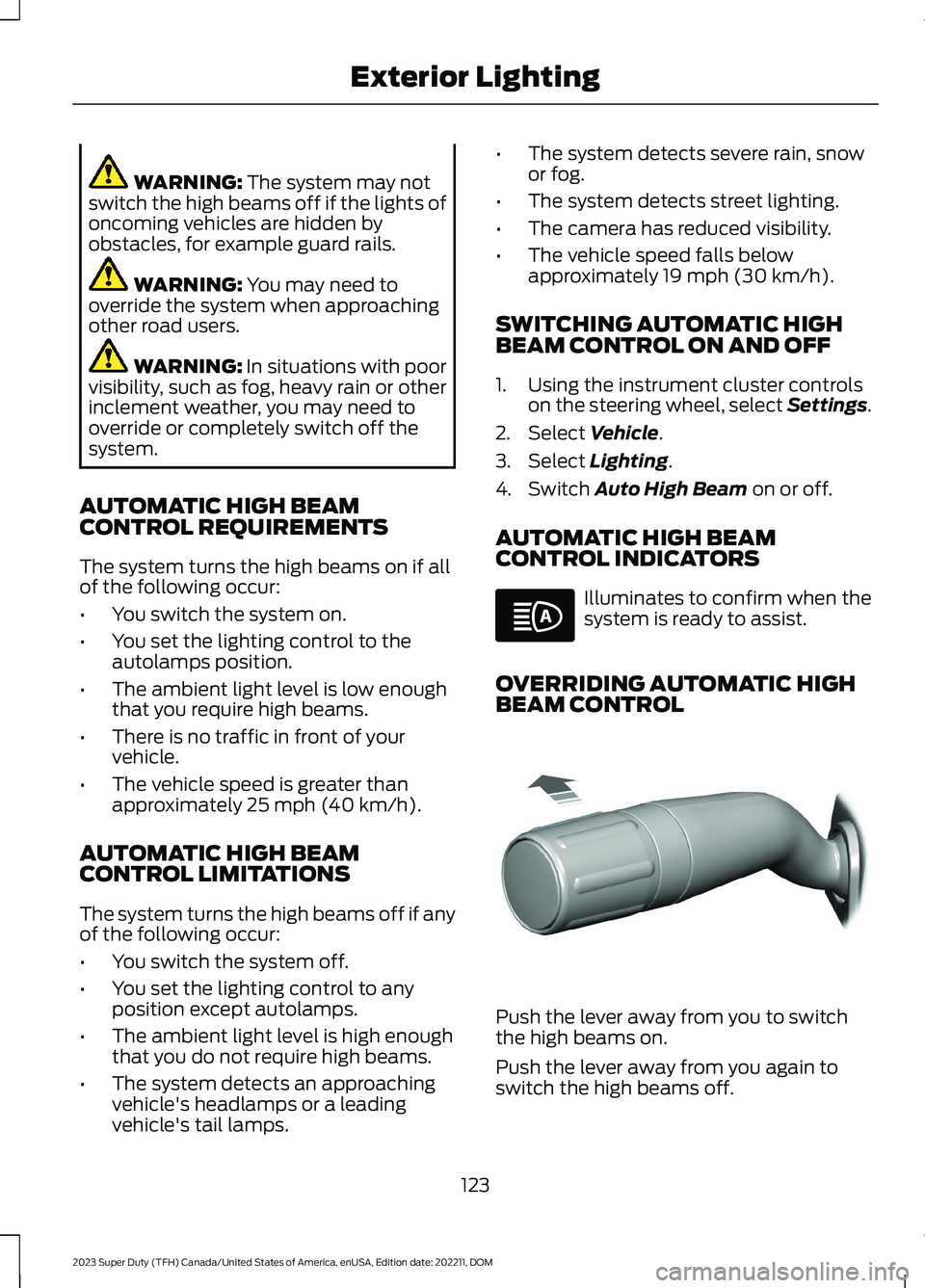
OVERRIDING AUTOMATIC HIGHBEAM CONTROL
Push the lever away from you to switchthe high beams on.
Push the lever away from you again toswitch the high beams off.
123
2023 Super Duty (TFH) Canada/United States of America, enUSA, Edition date: 202211, DOMExterior LightingE146105 E308790
Page 128 of 738
Push the lever away from you for a thirdtime to switch automatic high beamcontrol back on.
AUTOMATIC HIGH BEAM CONTROL – TROUBLESHOOTING (IF
EQUIPPED)
AUTOMATIC HIGH BEAM CONTROL – INFORMATION MESSAGES
DetailsMessage
The camera has reduced visibility. Clean the windshield. Ifthe message continues to appear, have your vehicle checkedas soon as possible.
Front Camera Low Visib-ility Clean Screen
The camera has malfunctioned. Wait a short period of timefor the camera to cool down. If the message continues toappear, have your vehicle checked as soon as possible.
Front Camera Tempor-arily Not Available
The camera has malfunctioned. Have your vehicle checkedas soon as possible.Front Camera Malfunc-tion Service Required
ADAPTIVE FRONT LIGHTING (IF
EQUIPPED)
HOW DOES ADAPTIVE FRONTLIGHTING WORK
Adaptive front lighting adapts when youare steering around a curve or if the cameradetects lane markings indicating a curve.
124
2023 Super Duty (TFH) Canada/United States of America, enUSA, Edition date: 202211, DOMExterior Lighting
Page 133 of 738
SWITCHING GLOBAL OPENING ONAND OFF
1.Using the information display controlson the steering wheel, select Settings.
2.Select Vehicle.
3.Select Windows.
4.Switch Remote Open on or off.
WINDOW BOUNCE-BACK
WHAT IS WINDOW BOUNCE-BACK
The window stops and reverses if it detectsan obstruction when closing.
OVERRIDING WINDOW BOUNCE-BACK
WARNING: If you overridebounce-back, the window does notreverse if it detects an obstacle. Takecare when closing the windows to avoidpersonal injury or damage to yourvehicle.
1.Close the window until it reaches thepoint of resistance and let it reverse.
2.Lift and hold the window control switchwithin two seconds to overridebounce-back and close the window.Bounce-back is now disabled and youcan close the window manually.
Note:The window goes past the point ofresistance and you can fully close it.
Note:If the window does not close, haveyour vehicle checked as soon as possible.
LOCKING THE REAR WINDOW
CONTROLS
Press the window control switchto lock or unlock the rear windowcontrols. It illuminates when youlock the rear window controls.
OPENING AND CLOSING THE
SLIDING WINDOWS (IF EQUIPPED)
WARNING: When closing thepower windows, verify they are free ofobstruction and make sure that childrenand pets are not in the proximity of thewindow openings.
WARNING: Do not leave childrenunattended in your vehicle and do notlet them play with the power windows.Failure to follow this instruction couldresult in personal injury.
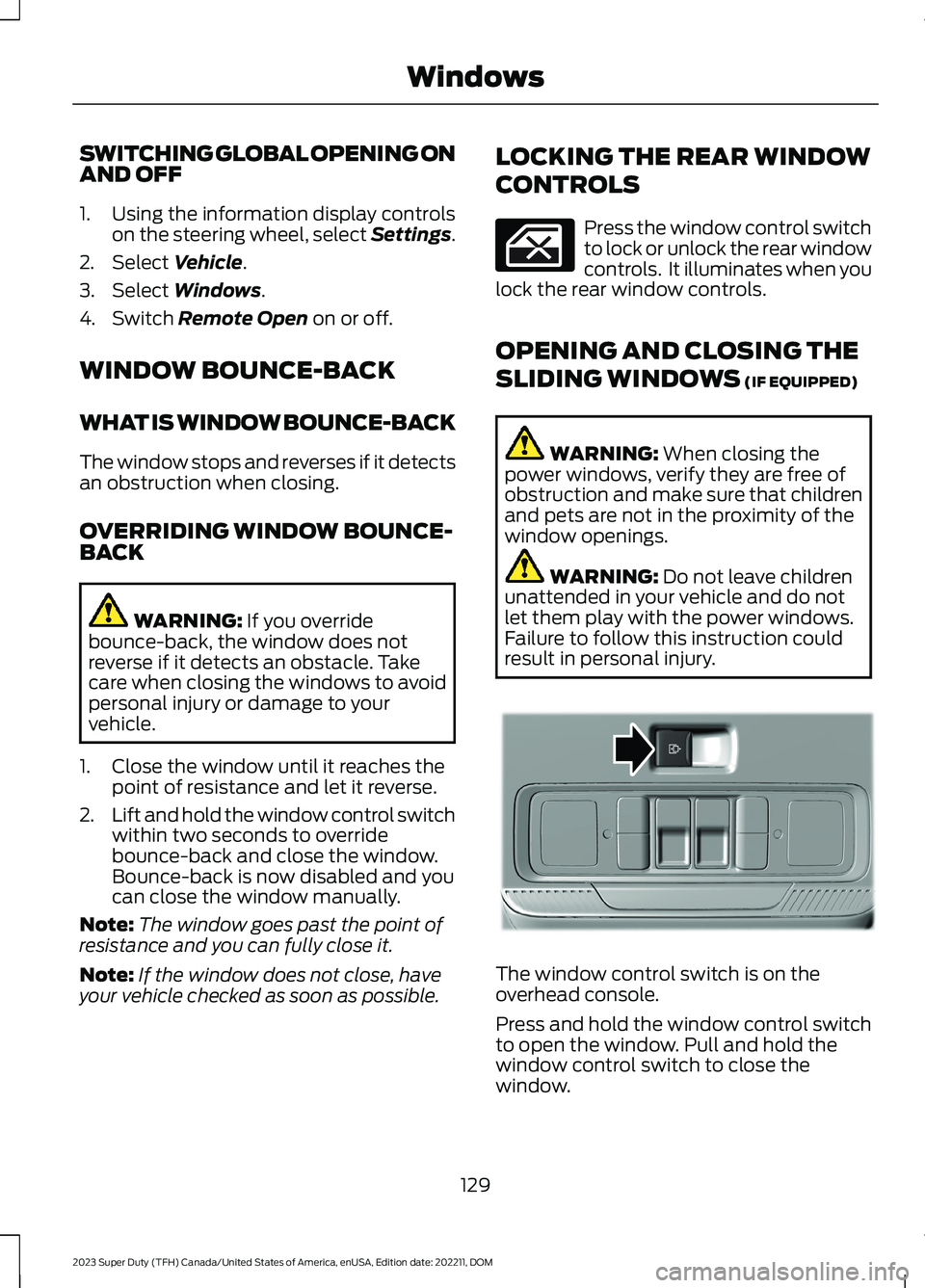
The window control switch is on theoverhead console.
Press and hold the window control switchto open the window. Pull and hold thewindow control switch to close thewindow.
129
2023 Super Duty (TFH) Canada/United States of America, enUSA, Edition date: 202211, DOMWindows E311430
Page 147 of 738
USING THE INSTRUMENT
CLUSTER DISPLAY CONTROLS
WARNING: Driving while distractedcan result in loss of vehicle control, crashand injury. We strongly recommend thatyou use extreme caution when using anydevice that may take your focus off theroad. Your primary responsibility is thesafe operation of your vehicle. Werecommend against the use of anyhand-held device while driving andencourage the use of voice-operatedsystems when possible. Make sure youare aware of all applicable local lawsthat may affect the use of electronicdevices while driving.
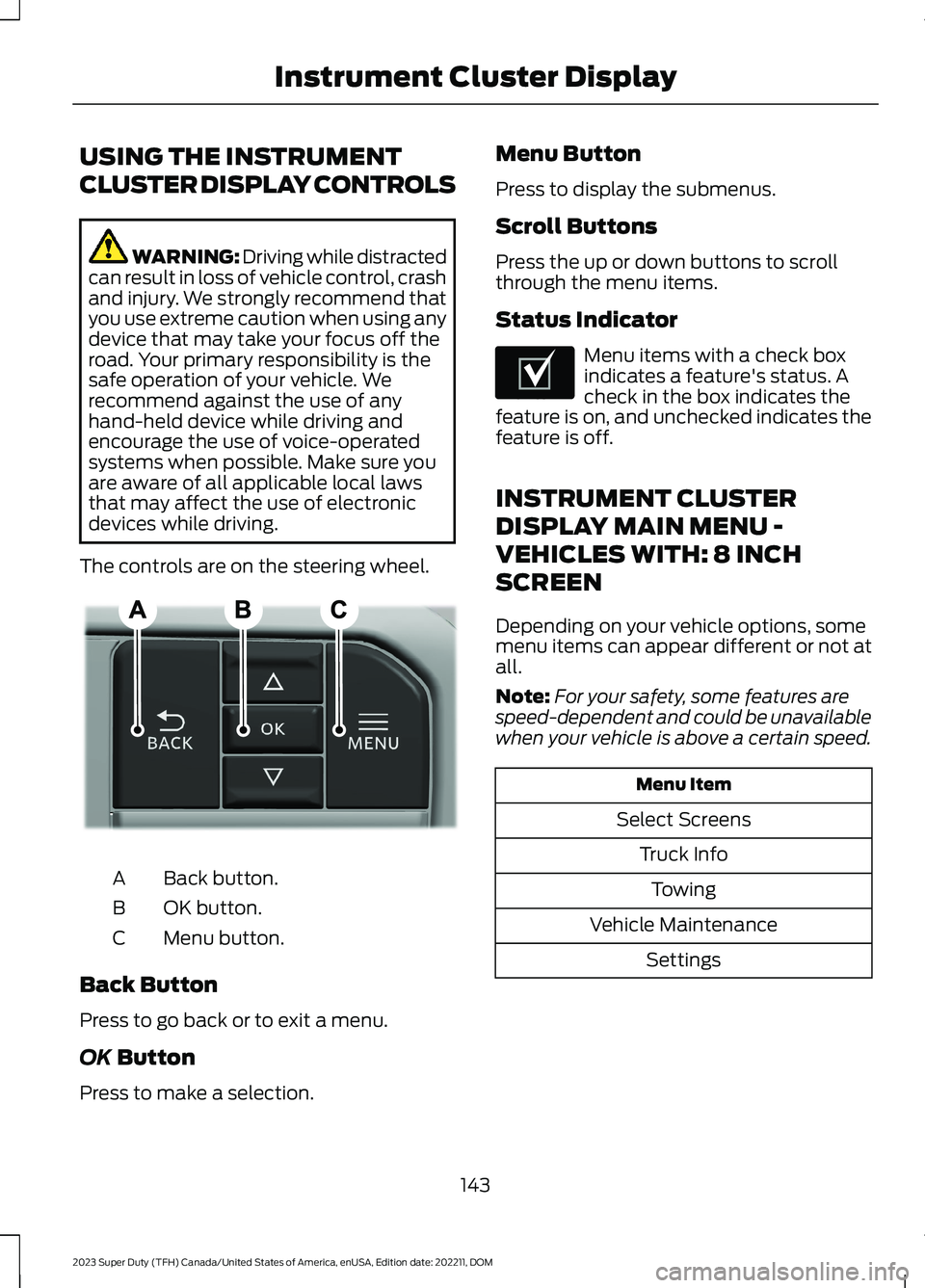
The controls are on the steering wheel.
Back button.A
OK button.B
Menu button.C
Back Button
Press to go back or to exit a menu.
OK Button
Press to make a selection.
Menu Button
Press to display the submenus.
Scroll Buttons
Press the up or down buttons to scrollthrough the menu items.
Status Indicator
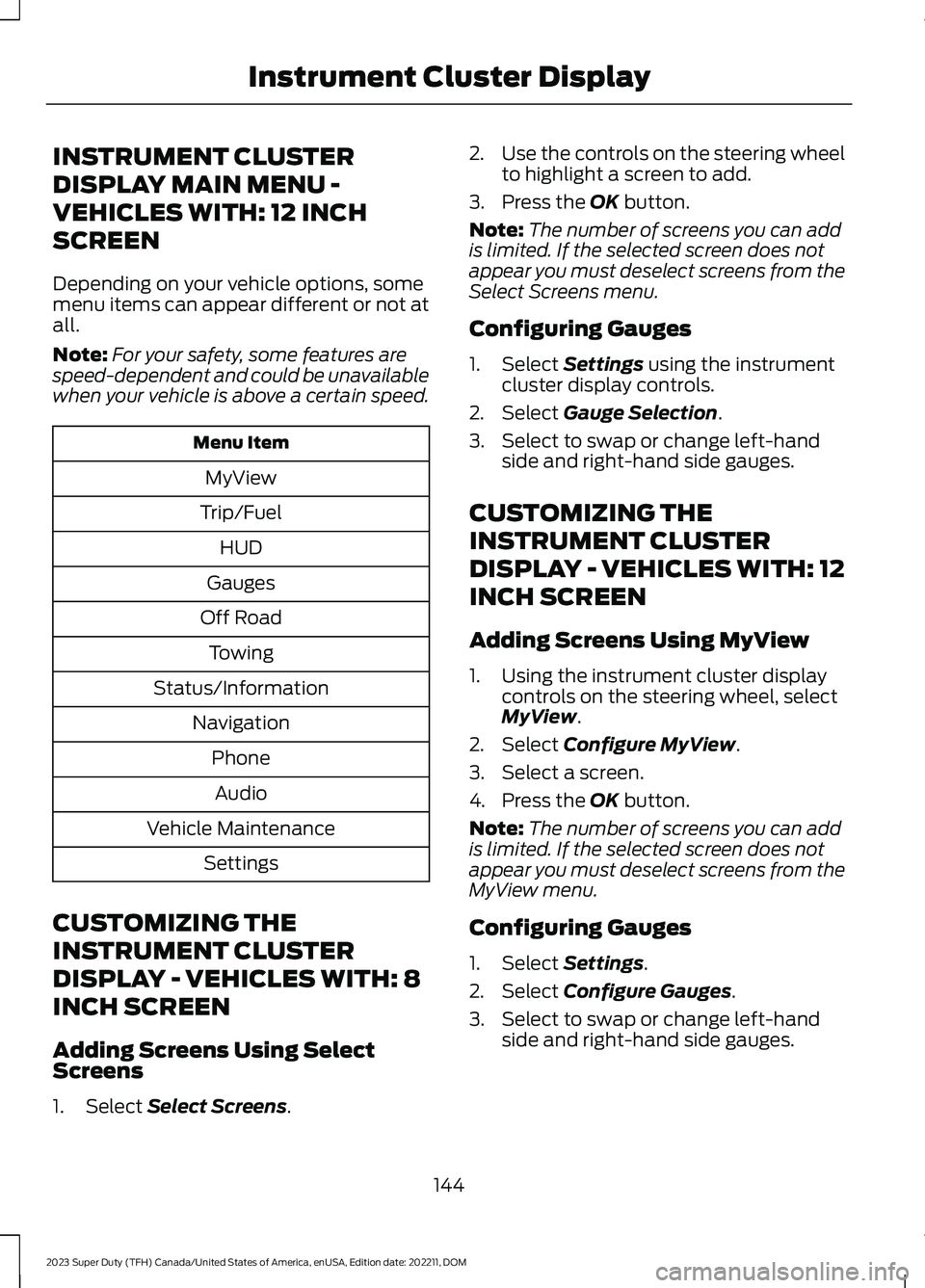
Menu items with a check boxindicates a feature's status. Acheck in the box indicates thefeature is on, and unchecked indicates thefeature is off.
INSTRUMENT CLUSTER
DISPLAY MAIN MENU -
VEHICLES WITH: 8 INCH
SCREEN
Depending on your vehicle options, somemenu items can appear different or not atall.
Note:For your safety, some features arespeed-dependent and could be unavailablewhen your vehicle is above a certain speed.
Menu Item
Select Screens
Truck Info
Towing
Vehicle Maintenance
Settings
143
2023 Super Duty (TFH) Canada/United States of America, enUSA, Edition date: 202211, DOMInstrument Cluster DisplayE309379 E204495
Page 148 of 738
INSTRUMENT CLUSTER
DISPLAY MAIN MENU -
VEHICLES WITH: 12 INCH
SCREEN
Depending on your vehicle options, somemenu items can appear different or not atall.
Note:For your safety, some features arespeed-dependent and could be unavailablewhen your vehicle is above a certain speed.
Menu Item
MyView
Trip/Fuel
HUD
Gauges
Off Road
Towing
Status/Information
Navigation
Phone
Audio
Vehicle Maintenance
Settings
CUSTOMIZING THE
INSTRUMENT CLUSTER
DISPLAY - VEHICLES WITH: 8
INCH SCREEN
Adding Screens Using SelectScreens
1.Select Select Screens.
2.Use the controls on the steering wheelto highlight a screen to add.
3.Press the OK button.
Note:The number of screens you can addis limited. If the selected screen does notappear you must deselect screens from theSelect Screens menu.
Configuring Gauges
1.Select Settings using the instrumentcluster display controls.
2.Select Gauge Selection.
3.Select to swap or change left-handside and right-hand side gauges.
CUSTOMIZING THE
INSTRUMENT CLUSTER
DISPLAY - VEHICLES WITH: 12
INCH SCREEN
Adding Screens Using MyView
1.Using the instrument cluster displaycontrols on the steering wheel, selectMyView.
2.Select Configure MyView.
3.Select a screen.
4.Press the OK button.
Note:The number of screens you can addis limited. If the selected screen does notappear you must deselect screens from theMyView menu.
Configuring Gauges
1.Select Settings.
2.Select Configure Gauges.
3.Select to swap or change left-handside and right-hand side gauges.
144
2023 Super Duty (TFH) Canada/United States of America, enUSA, Edition date: 202211, DOMInstrument Cluster Display
Page 150 of 738
ACCESSING THE TRIP
COMPUTER - VEHICLES WITH:
8 INCH SCREEN
Using Select Screens
1.Select Select Screens.
2.Use the controls on the steering wheelto navigate the menu. SeeCustomizing the Instrument ClusterDisplay (page 144). or SeeCustomizing the Instrument ClusterDisplay (page 144).
Using the Home Screen
After screens have been added, use thecontrols on the steering wheel to view eachtrip screen.
ACCESSING THE TRIP
COMPUTER - VEHICLES WITH:
12 INCH SCREEN
1.Select Trip/Fuel.
2.Select Trip 1 or Trip 2.
RESETTING THE TRIP
COMPUTER
1.Use the instrument cluster displaycontrols to navigate the home screen.
2.Select the trip screen you want to reset.
3.Press and hold the OK button until thesystem reset confirmation appears.
TRIP DATA
Trip 1 and 2
Provides trip timer, trip average fueleconomy and total trip distance traveled.
Note:Trip 1 and 2 are selectable screens.See Accessing the Trip Computer (page146). See Accessing the Trip Computer(page 146).
146
2023 Super Duty (TFH) Canada/United States of America, enUSA, Edition date: 202211, DOMTrip Computer
Page 151 of 738
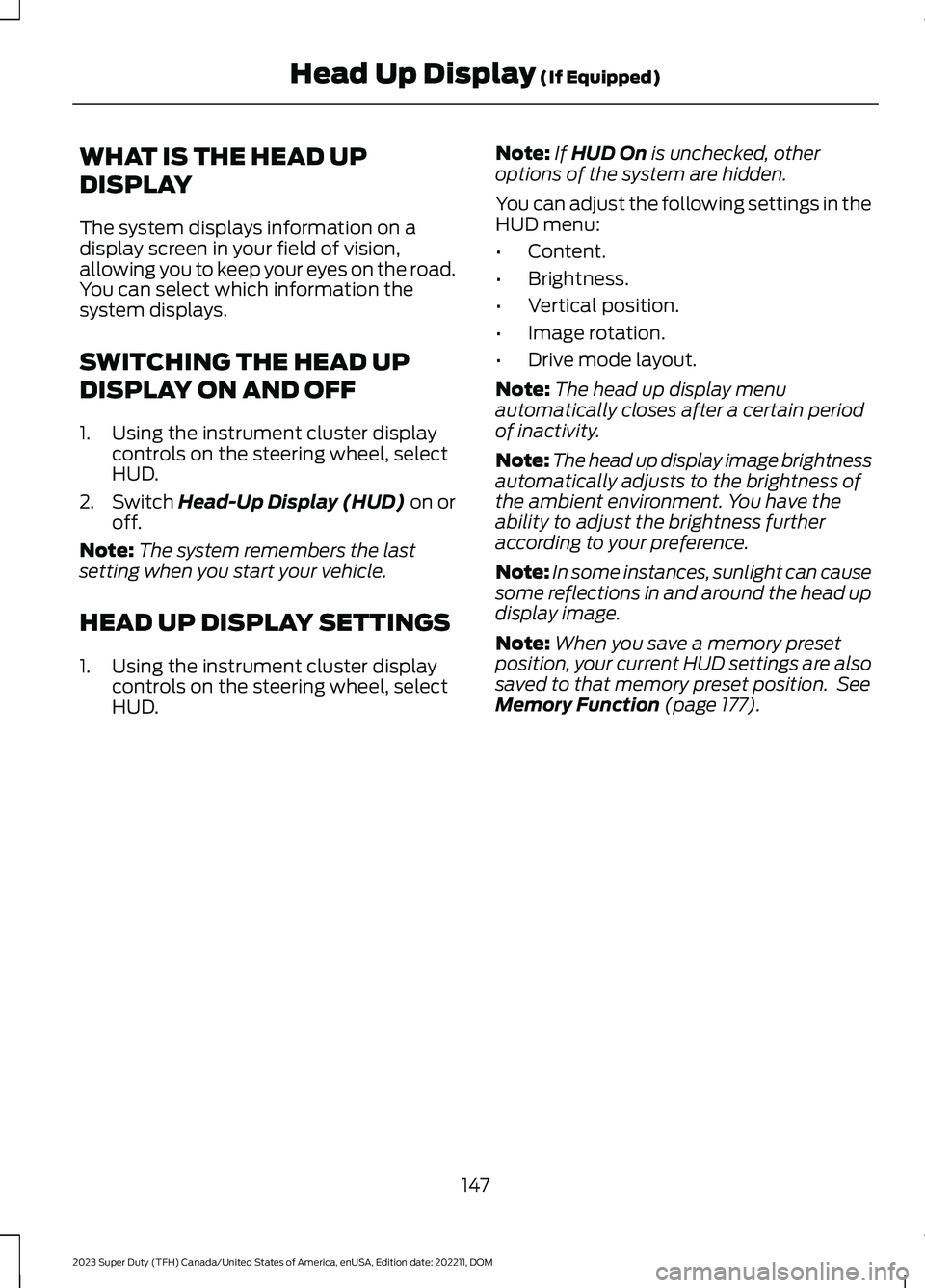
WHAT IS THE HEAD UP
DISPLAY
The system displays information on adisplay screen in your field of vision,allowing you to keep your eyes on the road.You can select which information thesystem displays.
SWITCHING THE HEAD UP
DISPLAY ON AND OFF
1.Using the instrument cluster displaycontrols on the steering wheel, selectHUD.
2.Switch Head-Up Display (HUD) on oroff.
Note:The system remembers the lastsetting when you start your vehicle.
HEAD UP DISPLAY SETTINGS
1.Using the instrument cluster displaycontrols on the steering wheel, selectHUD.
Note:If HUD On is unchecked, otheroptions of the system are hidden.
You can adjust the following settings in theHUD menu:
•Content.
•Brightness.
•Vertical position.
•Image rotation.
•Drive mode layout.
Note:The head up display menuautomatically closes after a certain periodof inactivity.
Note:The head up display image brightnessautomatically adjusts to the brightness ofthe ambient environment. You have theability to adjust the brightness furtheraccording to your preference.
Note:In some instances, sunlight can causesome reflections in and around the head updisplay image.
Note:When you save a memory presetposition, your current HUD settings are alsosaved to that memory preset position. SeeMemory Function (page 177).
147
2023 Super Duty (TFH) Canada/United States of America, enUSA, Edition date: 202211, DOMHead Up Display (If Equipped)
Page 152 of 738
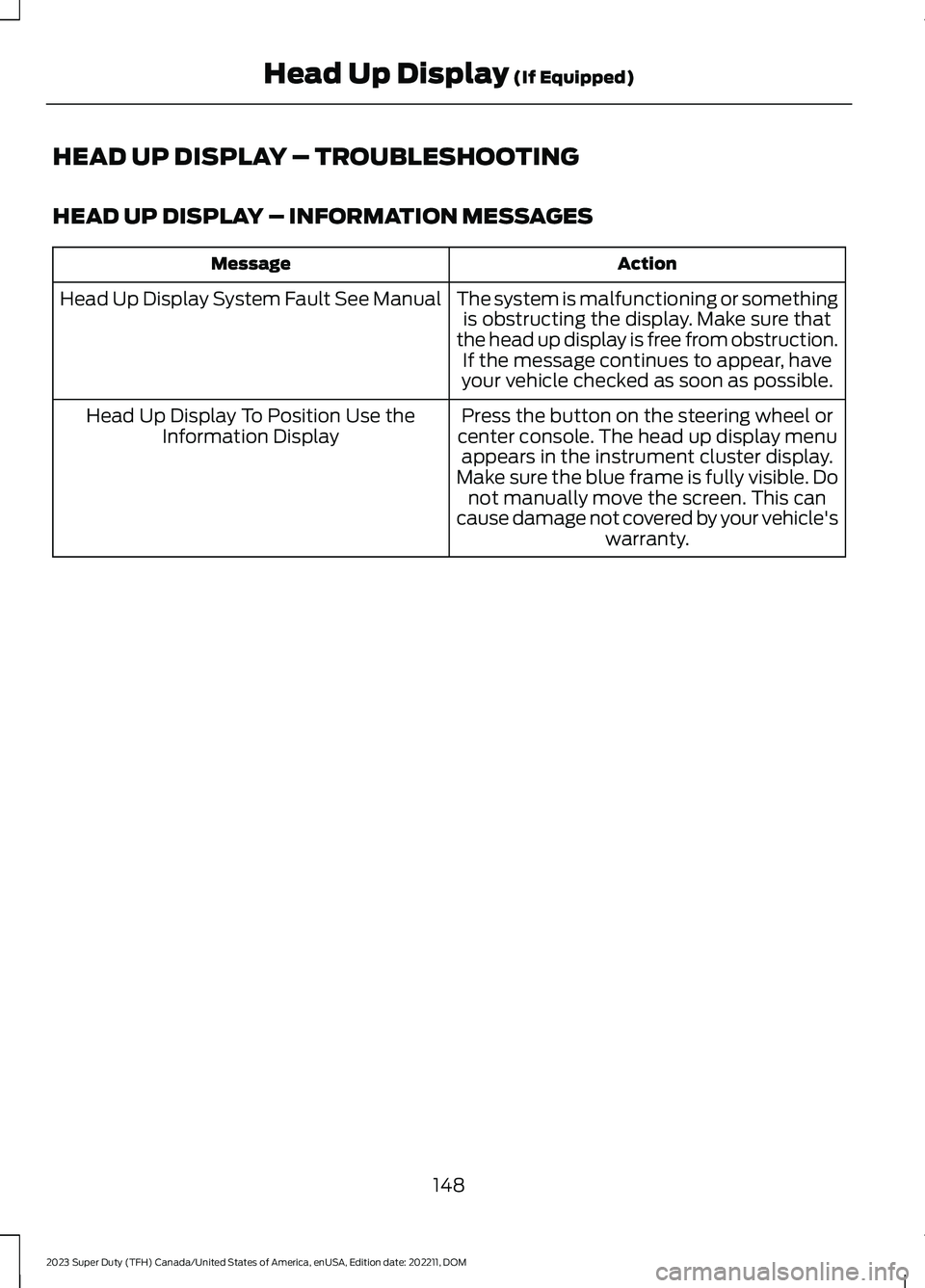
HEAD UP DISPLAY – TROUBLESHOOTING
HEAD UP DISPLAY – INFORMATION MESSAGES
ActionMessage
The system is malfunctioning or somethingis obstructing the display. Make sure thatthe head up display is free from obstruction.If the message continues to appear, haveyour vehicle checked as soon as possible.
Head Up Display System Fault See Manual
Press the button on the steering wheel orcenter console. The head up display menuappears in the instrument cluster display.Make sure the blue frame is fully visible. Donot manually move the screen. This cancause damage not covered by your vehicle'swarranty.
Head Up Display To Position Use theInformation Display
148
2023 Super Duty (TFH) Canada/United States of America, enUSA, Edition date: 202211, DOMHead Up Display (If Equipped)