navigation system FORD TAURUS 2015 6.G Owner's Manual
[x] Cancel search | Manufacturer: FORD, Model Year: 2015, Model line: TAURUS, Model: FORD TAURUS 2015 6.GPages: 558, PDF Size: 4.42 MB
Page 504 of 558
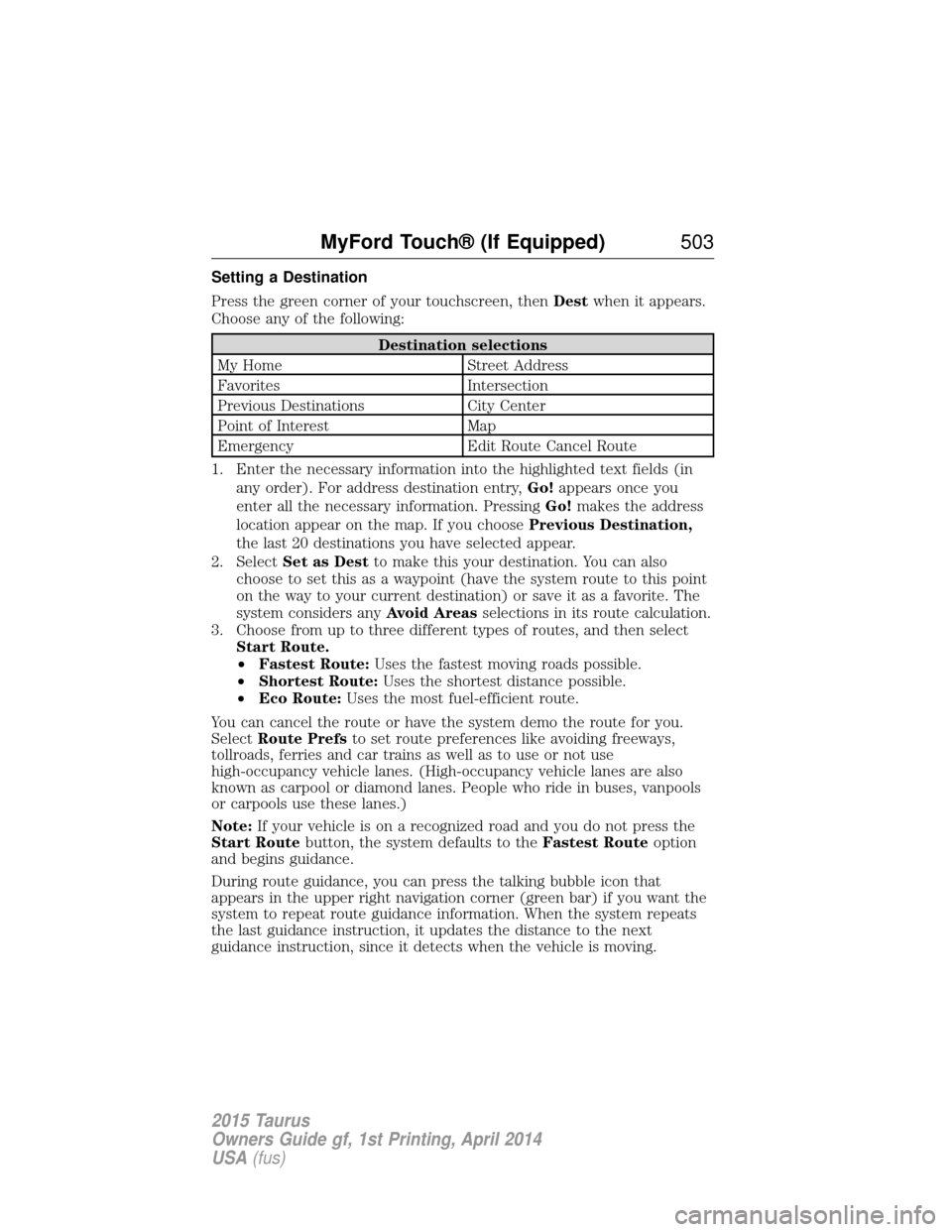
Setting a Destination
Press the green corner of your touchscreen, thenDestwhen it appears.
Choose any of the following:
Destination selections
My Home Street Address
Favorites Intersection
Previous Destinations City Center
Point of Interest Map
Emergency Edit Route Cancel Route
1. Enter the necessary information into the highlighted text fields (in any order). For address destination entry, Go!appears once you
enter all the necessary information. Pressing Go!makes the address
location appear on the map. If you choose Previous Destination,
the last 20 destinations you have selected appear.
2. Select Set as Dest to make this your destination. You can also
choose to set this as a waypoint (have the system route to this point
on the way to your current destination) or save it as a favorite. The
system considers any Avoid Areasselections in its route calculation.
3. Choose from up to three different types of routes, and then select Start Route.
•Fastest Route: Uses the fastest moving roads possible.
• Shortest Route: Uses the shortest distance possible.
• Eco Route: Uses the most fuel-efficient route.
You can cancel the route or have the system demo the route for you.
Select Route Prefs to set route preferences like avoiding freeways,
tollroads, ferries and car trains as well as to use or not use
high-occupancy vehicle lanes. (High-occupancy vehicle lanes are also
known as carpool or diamond lanes. People who ride in buses, vanpools
or carpools use these lanes.)
Note: If your vehicle is on a recognized road and you do not press the
Start Route button, the system defaults to the Fastest Routeoption
and begins guidance.
During route guidance, you can press the talking bubble icon that
appears in the upper right navigation corner (green bar) if you want the
system to repeat route guidance information. When the system repeats
the last guidance instruction, it updates the distance to the next
guidance instruction, since it detects when the vehicle is moving.
MyFord Touch® (If Equipped) 503
2015 Taurus
Owners Guide gf, 1st Printing, April 2014
USA(fus)
Page 507 of 558
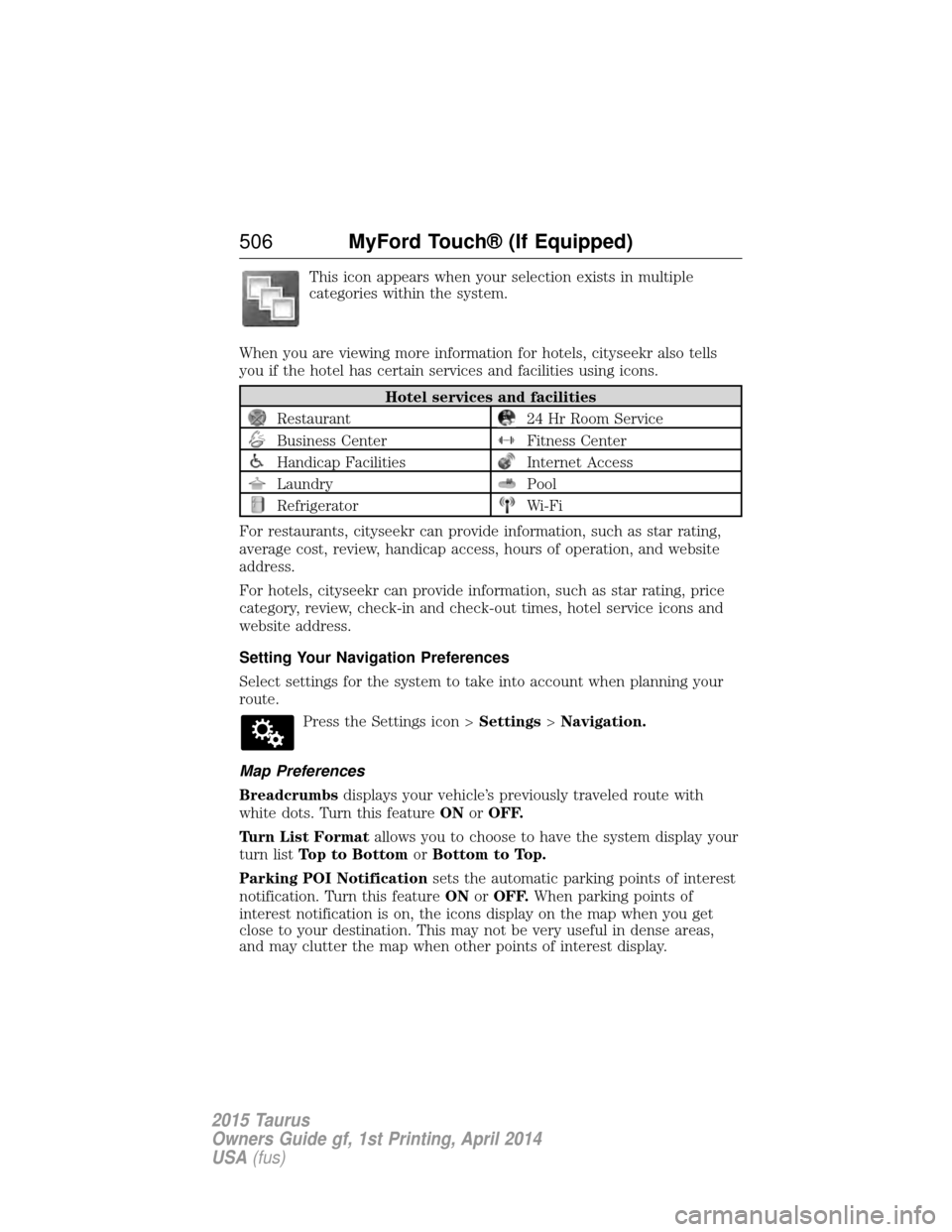
This icon appears when your selection exists in multiple
categories within the system.
When you are viewing more information for hotels, cityseekr also tells
you if the hotel has certain services and facilities using icons.
Hotel services and facilities
Restaurant24 Hr Room Service
Business CenterFitness Center
Handicap FacilitiesInternet Access
LaundryPool
RefrigeratorWi-Fi
For restaurants, cityseekr can provide information, such as star rating,
average cost, review, handicap access, hours of operation, and website
address.
For hotels, cityseekr can provide information, such as star rating, price
category, review, check-in and check-out times, hotel service icons and
website address.
Setting Your Navigation Preferences
Select settings for the system to take into account when planning your
route. Press the Settings icon > Settings>Navigation.
Map Preferences
Breadcrumbs displays your vehicle’s previously traveled route with
white dots. Turn this feature ONorOFF.
Turn List Format allows you to choose to have the system display your
turn list Top to Bottom orBottom to Top.
Parking POI Notification sets the automatic parking points of interest
notification. Turn this feature ONorOFF. When parking points of
interest notification is on, the icons display on the map when you get
close to your destination. This may not be very useful in dense areas,
and may clutter the map when other points of interest display.
506 MyFord Touch® (If Equipped)
2015 Taurus
Owners Guide gf, 1st Printing, April 2014
USA(fus)
Page 508 of 558
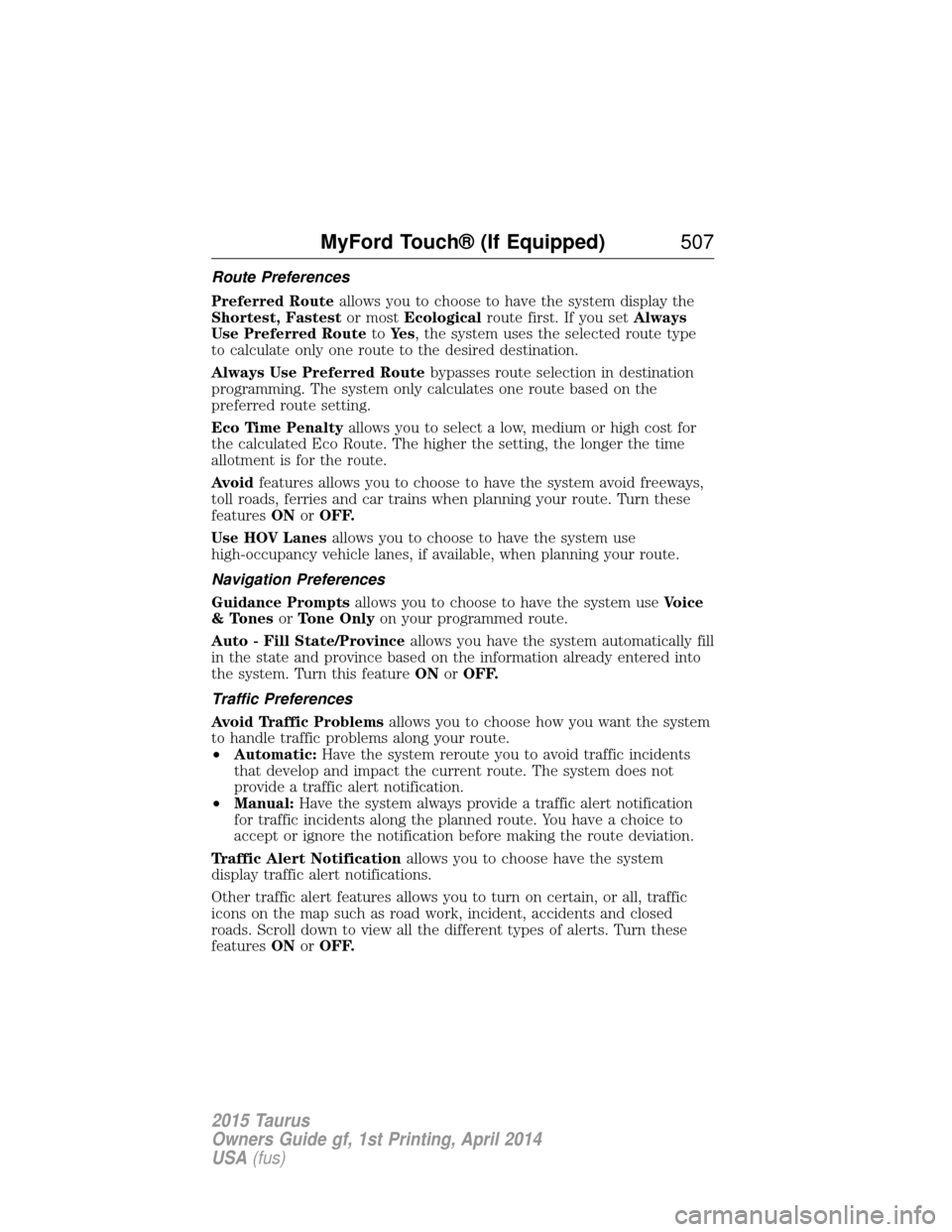
Route Preferences
Preferred Routeallows you to choose to have the system display the
Shortest, Fastest or mostEcological route first. If you set Always
Use Preferred Route toYe s , the system uses the selected route type
to calculate only one route to the desired destination.
Always Use Preferred Route bypasses route selection in destination
programming. The system only calculates one route based on the
preferred route setting.
Eco Time Penalty allows you to select a low, medium or high cost for
the calculated Eco Route. The higher the setting, the longer the time
allotment is for the route.
Avoid features allows you to choose to have the system avoid freeways,
toll roads, ferries and car trains when planning your route. Turn these
features ONorOFF.
Use HOV Lanes allows you to choose to have the system use
high-occupancy vehicle lanes, if available, when planning your route.
Navigation Preferences
Guidance Prompts allows you to choose to have the system use Voice
& Tones orTone Only on your programmed route.
Auto - Fill State/Province allows you have the system automatically fill
in the state and province based on the information already entered into
the system. Turn this feature ONorOFF.
Traffic Preferences
Avoid Traffic Problems allows you to choose how you want the system
to handle traffic problems along your route.
• Automatic: Have the system reroute you to avoid traffic incidents
that develop and impact the current route. The system does not
provide a traffic alert notification.
• Manual: Have the system always provide a traffic alert notification
for traffic incidents along the planned route. You have a choice to
accept or ignore the notification before making the route deviation.
Traffic Alert Notification allows you to choose have the system
display traffic alert notifications.
Other traffic alert features allows you to turn on certain, or all, traffic
icons on the map such as road work, incident, accidents and closed
roads. Scroll down to view all the different types of alerts. Turn these
features ONorOFF.
MyFord Touch® (If Equipped) 507
2015 Taurus
Owners Guide gf, 1st Printing, April 2014
USA(fus)
Page 513 of 558
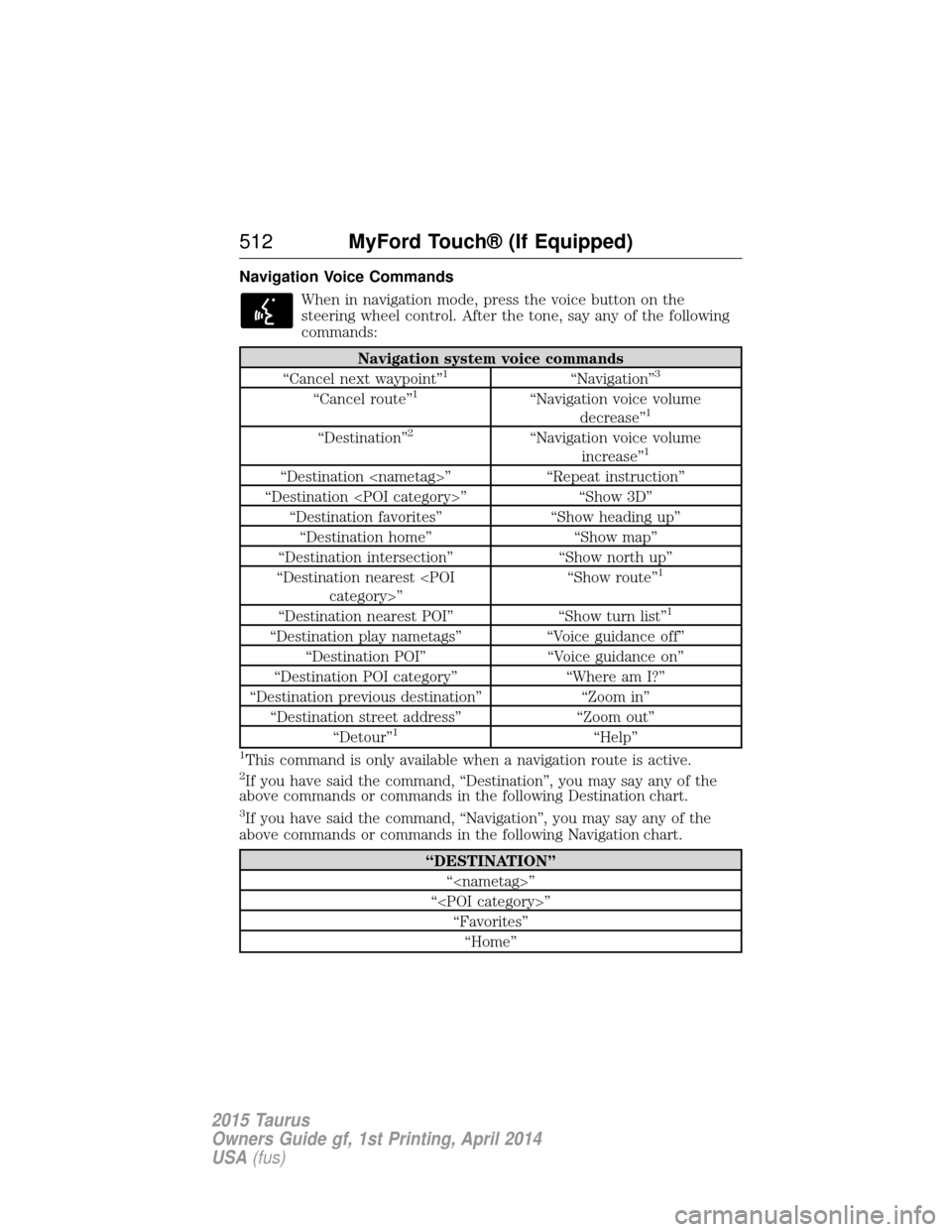
Navigation Voice CommandsWhen in navigation mode, press the voice button on the
steering wheel control. After the tone, say any of the following
commands:
Navigation system voice commands
“Cancel next waypoint”1“Navigation”3
“Cancel route”1“Navigation voice volume decrease”1
“Destination”2“Navigation voice volume increase”1
“Destination
“Destination
“Destination favorites” “Show heading up”
“Destination home” “Show map”
“Destination intersection” “Show north up”
“Destination nearest
1
“Destination nearest POI”
“Show turn list”1
“Destination play nametags”“Voice guidance off”
“Destination POI” “Voice guidance on”
“Destination POI category” “Where am I?”
“Destination previous destination” “Zoom in”
“Destination street address” “Zoom out”
“Detour”
1“Help”
1This command is only available when a navigation route is active.2If you have said the command, “Destination”, you may say any of the
above commands or commands in the following Destination chart.
3If you have said the command, “Navigation”, you may say any of the
above commands or commands in the following Navigation chart.
“DESTINATION”
“
“
512 MyFord Touch® (If Equipped)
2015 Taurus
Owners Guide gf, 1st Printing, April 2014
USA(fus)
Page 514 of 558
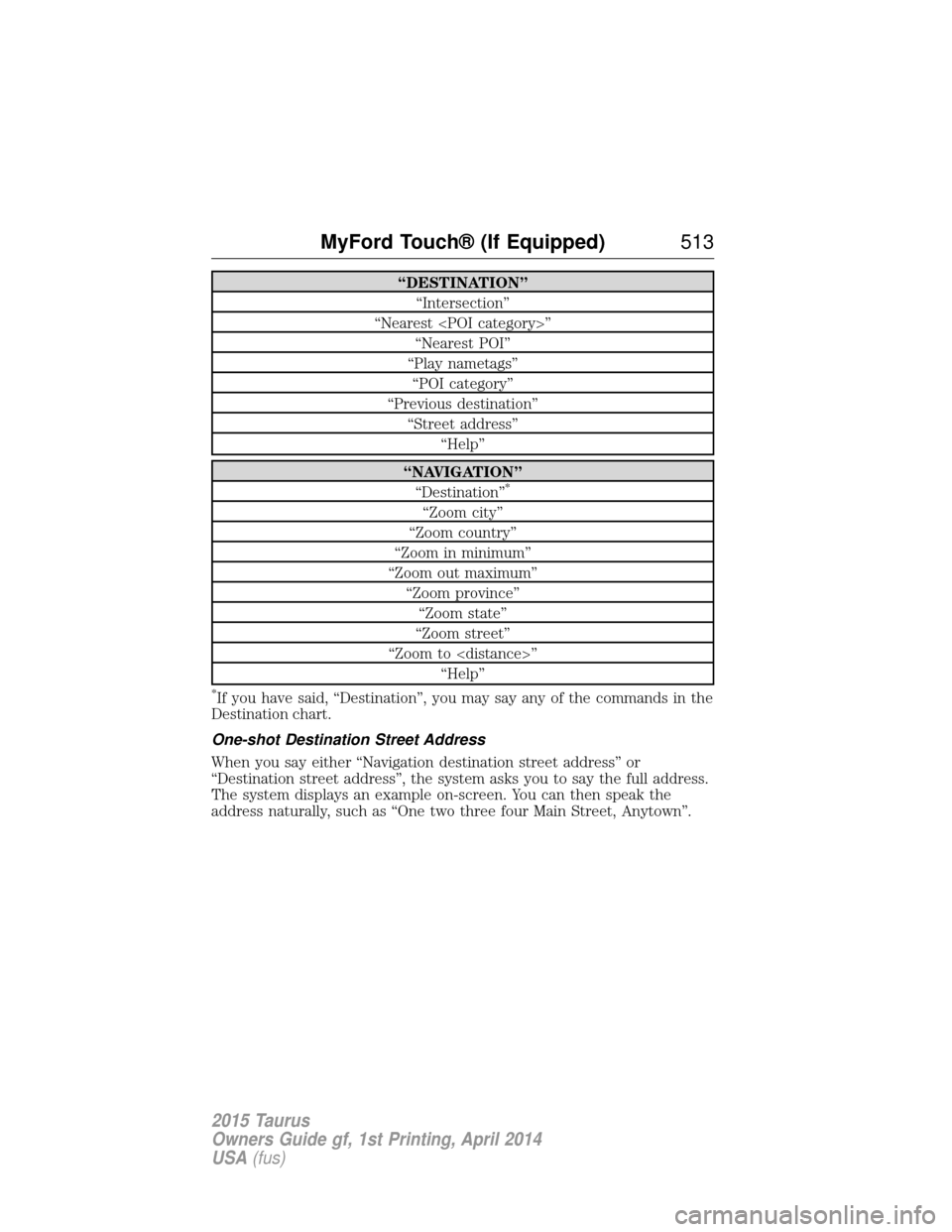
“DESTINATION”“Intersection”
“Nearest
“Play nametags” “POI category”
“Previous destination” “Street address” “Help”
“NAVIGATION”“Destination”*
“Zoom city”
“Zoom country”
“Zoom in minimum”
“Zoom out maximum” “Zoom province”“Zoom state”
“Zoom street”
“Zoom to
*If you have said, “Destination”, you may say any of the commands in the
Destination chart.
One-shot Destination Street Address
When you say either “Navigation destination street address” or
“Destination street address”, the system asks you to say the full address.
The system displays an example on-screen. You can then speak the
address naturally, such as “One two three four Main Street, Anytown”.
MyFord Touch® (If Equipped) 513
2015 Taurus
Owners Guide gf, 1st Printing, April 2014
USA(fus)
Page 521 of 558
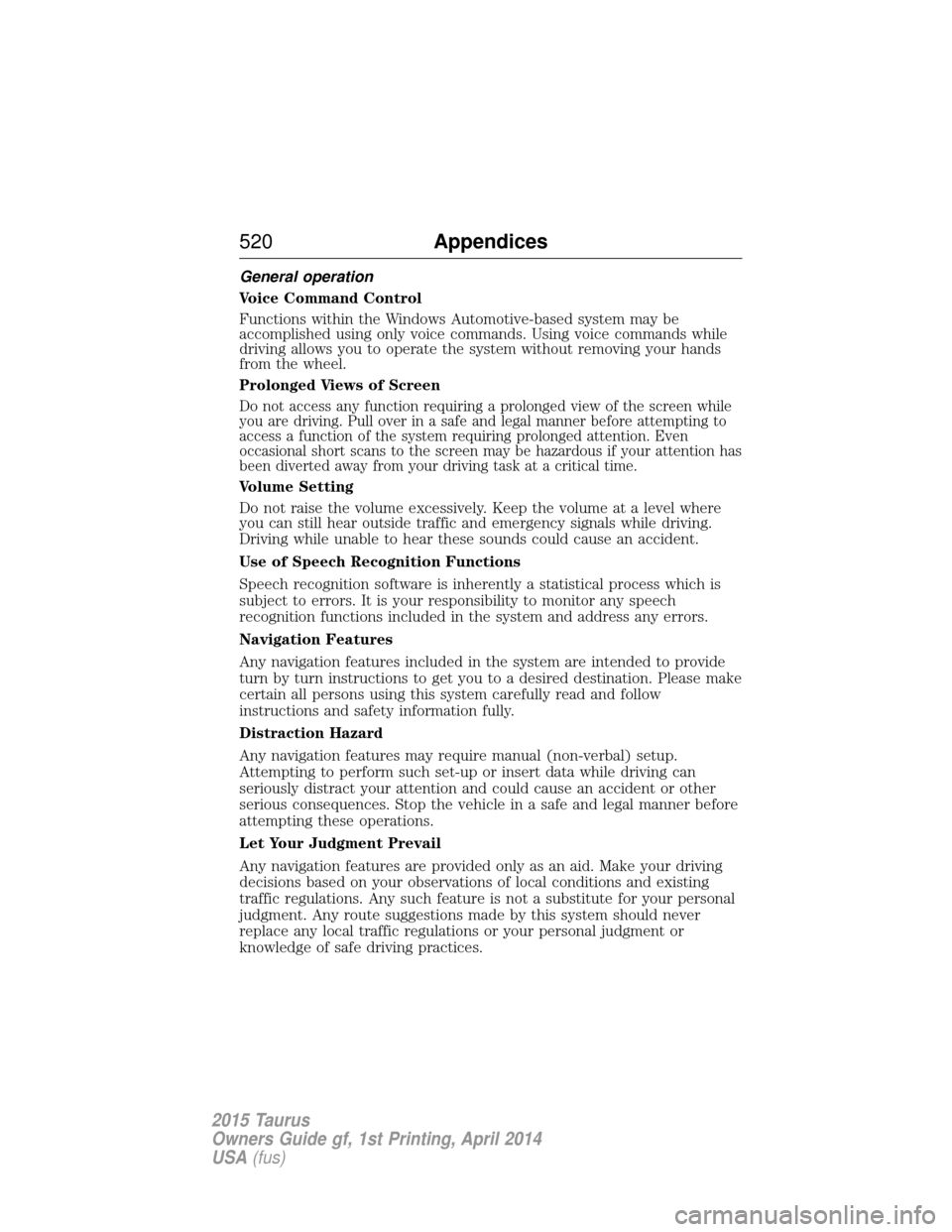
General operation
Voice Command Control
Functions within the Windows Automotive-based system may be
accomplished using only voice commands. Using voice commands while
driving allows you to operate the system without removing your hands
from the wheel.
Prolonged Views of Screen
Do not access any function requiring a prolonged view of the screen while
you are driving. Pull over in a safe and legal manner before attempting to
access a function of the system requiring prolonged attention. Even
occasional short scans to the screen may be hazardous if your attention has
been diverted away from your driving task at a critical time.
Volume Setting
Do not raise the volume excessively. Keep the volume at a level where
you can still hear outside traffic and emergency signals while driving.
Driving while unable to hear these sounds could cause an accident.
Use of Speech Recognition Functions
Speech recognition software is inherently a statistical process which is
subject to errors. It is your responsibility to monitor any speech
recognition functions included in the system and address any errors.
Navigation Features
Any navigation features included in the system are intended to provide
turn by turn instructions to get you to a desired destination. Please make
certain all persons using this system carefully read and follow
instructions and safety information fully.
Distraction Hazard
Any navigation features may require manual (non-verbal) setup.
Attempting to perform such set-up or insert data while driving can
seriously distract your attention and could cause an accident or other
serious consequences. Stop the vehicle in a safe and legal manner before
attempting these operations.
Let Your Judgment Prevail
Any navigation features are provided only as an aid. Make your driving
decisions based on your observations of local conditions and existing
traffic regulations. Any such feature is not a substitute for your personal
judgment. Any route suggestions made by this system should never
replace any local traffic regulations or your personal judgment or
knowledge of safe driving practices.
520Appendices
2015 Taurus
Owners Guide gf, 1st Printing, April 2014
USA(fus)
Page 522 of 558
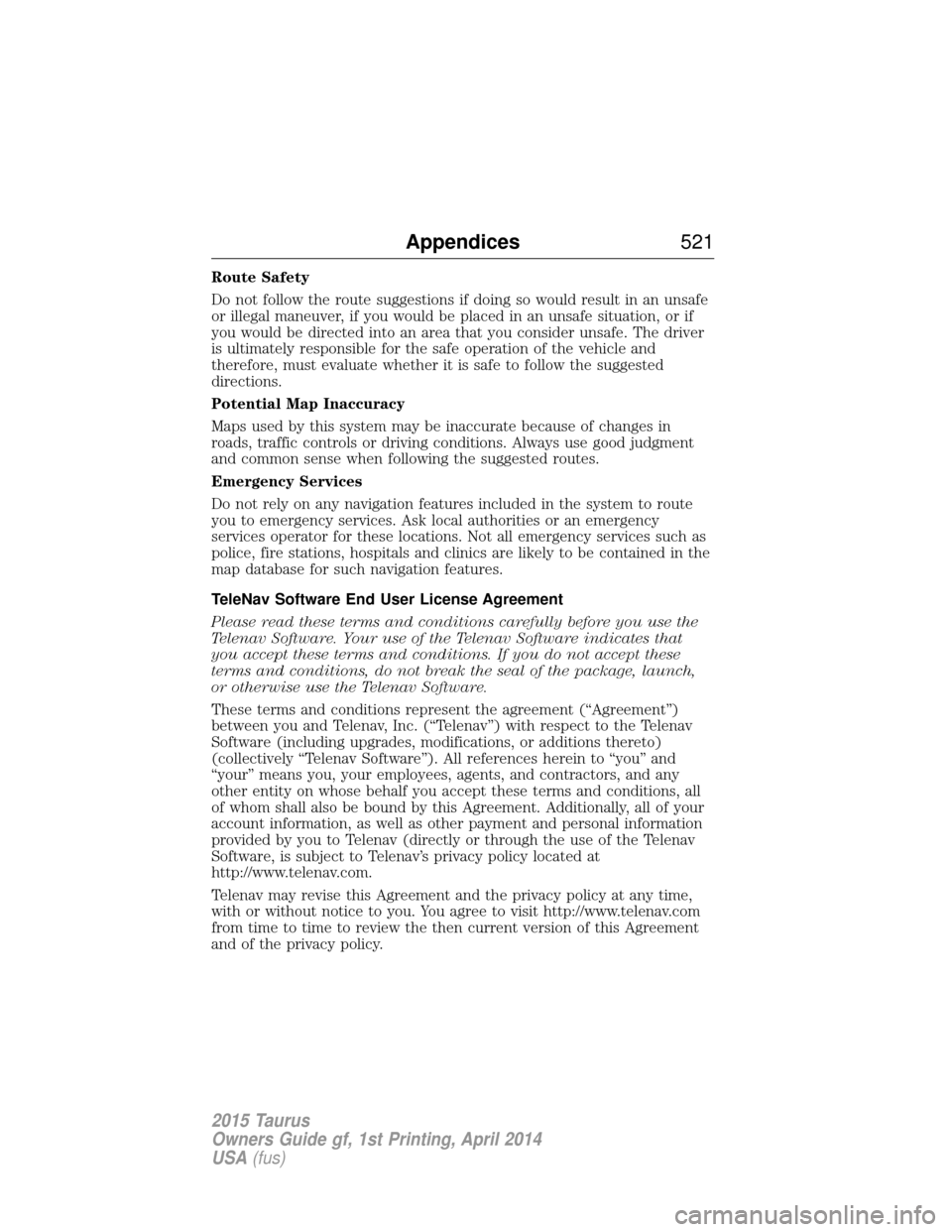
Route Safety
Do not follow the route suggestions if doing so would result in an unsafe
or illegal maneuver, if you would be placed in an unsafe situation, or if
you would be directed into an area that you consider unsafe. The driver
is ultimately responsible for the safe operation of the vehicle and
therefore, must evaluate whether it is safe to follow the suggested
directions.
Potential Map Inaccuracy
Maps used by this system may be inaccurate because of changes in
roads, traffic controls or driving conditions. Always use good judgment
and common sense when following the suggested routes.
Emergency Services
Do not rely on any navigation features included in the system to route
you to emergency services. Ask local authorities or an emergency
services operator for these locations. Not all emergency services such as
police, fire stations, hospitals and clinics are likely to be contained in the
map database for such navigation features.
TeleNav Software End User License Agreement
Please read these terms and conditions carefully before you use the
Telenav Software. Your use of the Telenav Software indicates that
you accept these terms and conditions. If you do not accept these
terms and conditions, do not break the seal of the package, launch,
or otherwise use the Telenav Software.
These terms and conditions represent the agreement (“Agreement”)
between you and Telenav, Inc. (“Telenav”) with respect to the Telenav
Software (including upgrades, modifications, or additions thereto)
(collectively “Telenav Software”). All references herein to “you” and
“your” means you, your employees, agents, and contractors, and any
other entity on whose behalf you accept these terms and conditions, all
of whom shall also be bound by this Agreement. Additionally, all of your
account information, as well as other payment and personal information
provided by you to Telenav (directly or through the use of the Telenav
Software, is subject to Telenav’s privacy policy located at
http://www.telenav.com.
Telenav may revise this Agreement and the privacy policy at any time,
with or without notice to you. You agree to visit http://www.telenav.com
from time to time to review the then current version of this Agreement
and of the privacy policy.
Appendices521
2015 Taurus
Owners Guide gf, 1st Printing, April 2014
USA(fus)
Page 528 of 558
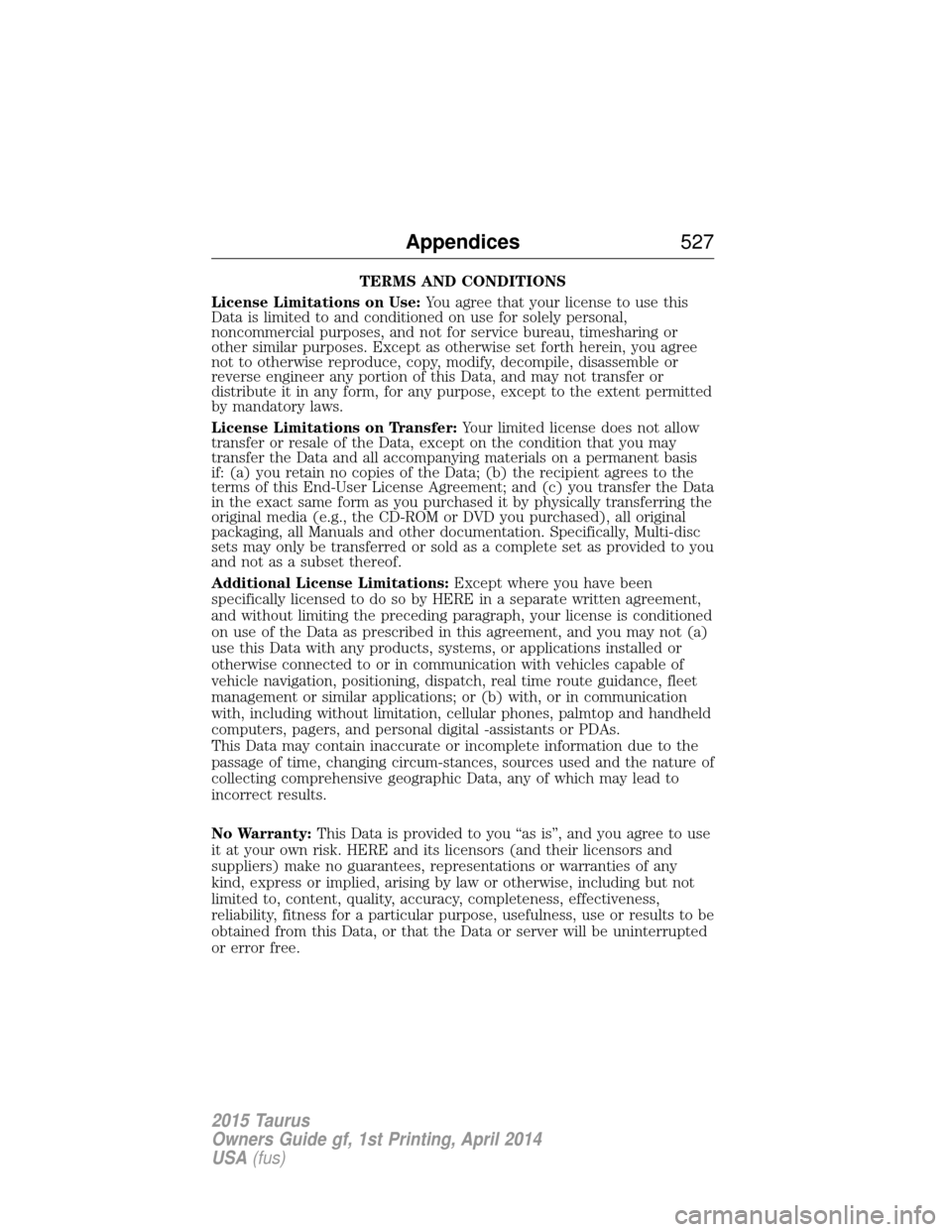
TERMS AND CONDITIONS
License Limitations on Use: You agree that your license to use this
Data is limited to and conditioned on use for solely personal,
noncommercial purposes, and not for service bureau, timesharing or
other similar purposes. Except as otherwise set forth herein, you agree
not to otherwise reproduce, copy, modify, decompile, disassemble or
reverse engineer any portion of this Data, and may not transfer or
distribute it in any form, for any purpose, except to the extent permitted
by mandatory laws.
License Limitations on Transfer: Your limited license does not allow
transfer or resale of the Data, except on the condition that you may
transfer the Data and all accompanying materials on a permanent basis
if: (a) you retain no copies of the Data; (b) the recipient agrees to the
terms of this End-User License Agreement; and (c) you transfer the Data
in the exact same form as you purchased it by physically transferring the
original media (e.g., the CD-ROM or DVD you purchased), all original
packaging, all Manuals and other documentation. Specifically, Multi-disc
sets may only be transferred or sold as a complete set as provided to you
and not as a subset thereof.
Additional License Limitations: Except where you have been
specifically licensed to do so by HERE in a separate written agreement,
and without limiting the preceding paragraph, your license is conditioned
on use of the Data as prescribed in this agreement, and you may not (a)
use this Data with any products, systems, or applications installed or
otherwise connected to or in communication with vehicles capable of
vehicle navigation, positioning, dispatch, real time route guidance, fleet
management or similar applications; or (b) with, or in communication
with, including without limitation, cellular phones, palmtop and handheld
computers, pagers, and personal digital -assistants or PDAs.
This Data may contain inaccurate or incomplete information due to the
passage of time, changing circum-stances, sources used and the nature of
collecting comprehensive geographic Data, any of which may lead to
incorrect results.
No Warranty: This Data is provided to you “as is”, and you agree to use
it at your own risk. HERE and its licensors (and their licensors and
suppliers) make no guarantees, representations or warranties of any
kind, express or implied, arising by law or otherwise, including but not
limited to, content, quality, accuracy, completeness, effectiveness,
reliability, fitness for a particular purpose, usefulness, use or results to be
obtained from this Data, or that the Data or server will be uninterrupted
or error free.
Appendices 527
2015 Taurus
Owners Guide gf, 1st Printing, April 2014
USA(fus)
Page 555 of 558
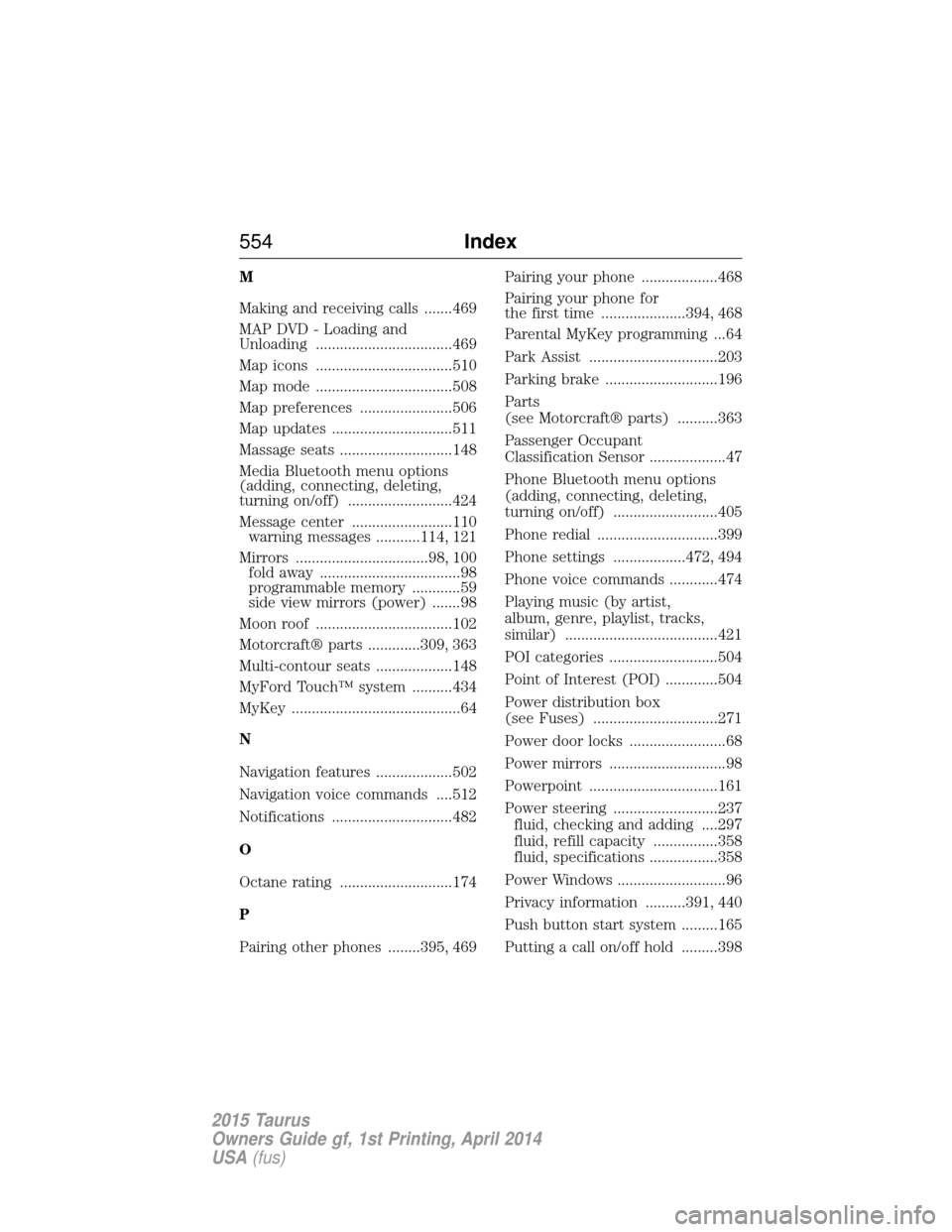
M
Making and receiving calls .......469
MAP DVD - Loading and
Unloading ..................................469
Map icons ..................................510
Map mode ..................................508
Map preferences .......................506
Map updates ..............................511
Massage seats ............................148
Media Bluetooth menu options
(adding, connecting, deleting,
turning on/off) ..........................424
Message center .........................110warning messages ...........114, 121
Mirrors .................................98, 100 fold away ...................................98
programmable memory ............59
side view mirrors (power) .......98
Moon roof ..................................102
Motorcraft® parts .............309, 363
Multi-contour seats ...................148
MyFord Touch™ system ..........434
MyKey ..........................................64
N
Navigation features ...................502
Navigation voice commands ....512
Notifications ..............................482
O
Octane rating ............................174
P
Pairing other phones ........395, 469 Pairing your phone ...................468
Pairing your phone for
the first time .....................394, 468
Parental MyKey programming ...64
Park Assist ................................203
Parking brake ............................196
Parts
(see Motorcraft® parts) ..........363
Passenger Occupant
Classification Sensor ...................47
Phone Bluetooth menu options
(adding, connecting, deleting,
turning on/off) ..........................405
Phone redial ..............................399
Phone settings ..................472, 494
Phone voice commands ............474
Playing music (by artist,
album, genre, playlist, tracks,
similar) ......................................421
POI categories ...........................504
Point of Interest (POI) .............504
Power distribution box
(see Fuses) ...............................271
Power door locks ........................68
Power mirrors .............................98
Powerpoint ................................161
Power steering ..........................237
fluid, checking and adding ....297
fluid, refill capacity ................358
fluid, specifications .................358
Power Windows ...........................96
Privacy information ..........391, 440
Push button start system .........165
Putting a call on/off hold .........398
554 Index
2015 Taurus
Owners Guide gf, 1st Printing, April 2014
USA(fus)