steering wheel FORD TAURUS 2015 6.G Workshop Manual
[x] Cancel search | Manufacturer: FORD, Model Year: 2015, Model line: TAURUS, Model: FORD TAURUS 2015 6.GPages: 558, PDF Size: 4.42 MB
Page 454 of 558
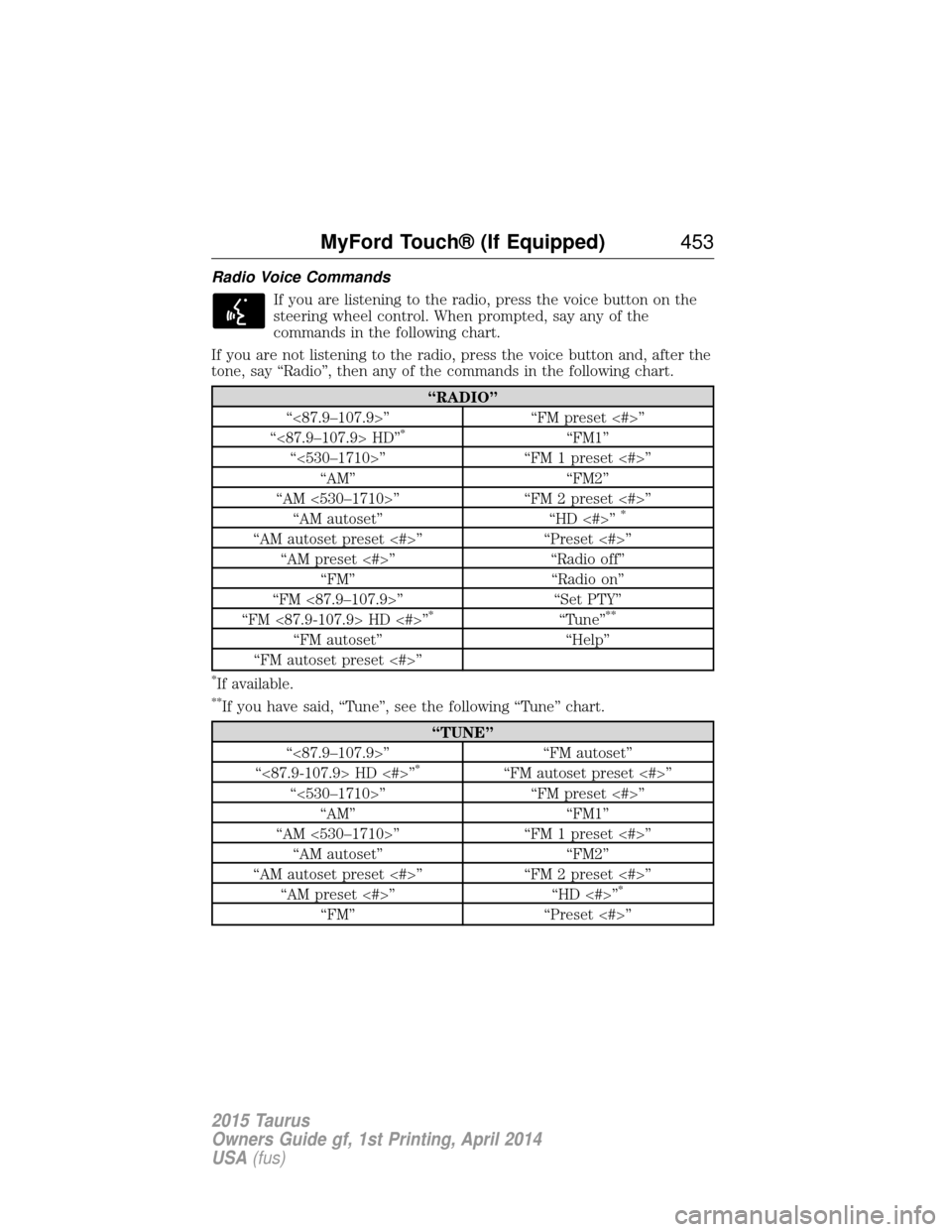
Radio Voice CommandsIf you are listening to the radio, press the voice button on the
steering wheel control. When prompted, say any of the
commands in the following chart.
If you are not listening to the radio, press the voice button and, after the
tone, say “Radio”, then any of the commands in the following chart.
“RADIO”
“<87.9–107.9>” “FM preset <#>”
“<87.9–107.9> HD”
*“FM1”
“<530–1710>” “FM 1 preset <#>” “AM” “FM2”
“AM <530–1710>” “FM 2 preset <#>” “AM autoset” “HD <#>”
*
“AM autoset preset <#>” “Preset <#>”
“AM preset <#>” “Radio off”
“FM” “Radio on”
“FM <87.9–107.9>” “Set PTY”
“FM <87.9-107.9> HD <#>”
*“Tune”**
“FM autoset” “Help”
“FM autoset preset <#>”
*If available.
**If you have said, “Tune”, see the following “Tune” chart.
“TUNE”
“<87.9–107.9>” “FM autoset”
“<87.9-107.9> HD <#>”
*“FM autoset preset <#>”
“<530–1710>” “FM preset <#>” “AM” “FM1”
“AM <530–1710>” “FM 1 preset <#>” “AM autoset” “FM2”
“AM autoset preset <#>” “FM 2 preset <#>” “AM preset <#>” “HD <#>”
*
“FM” “Preset <#>”
MyFord Touch® (If Equipped) 453
2015 Taurus
Owners Guide gf, 1st Printing, April 2014
USA(fus)
Page 457 of 558
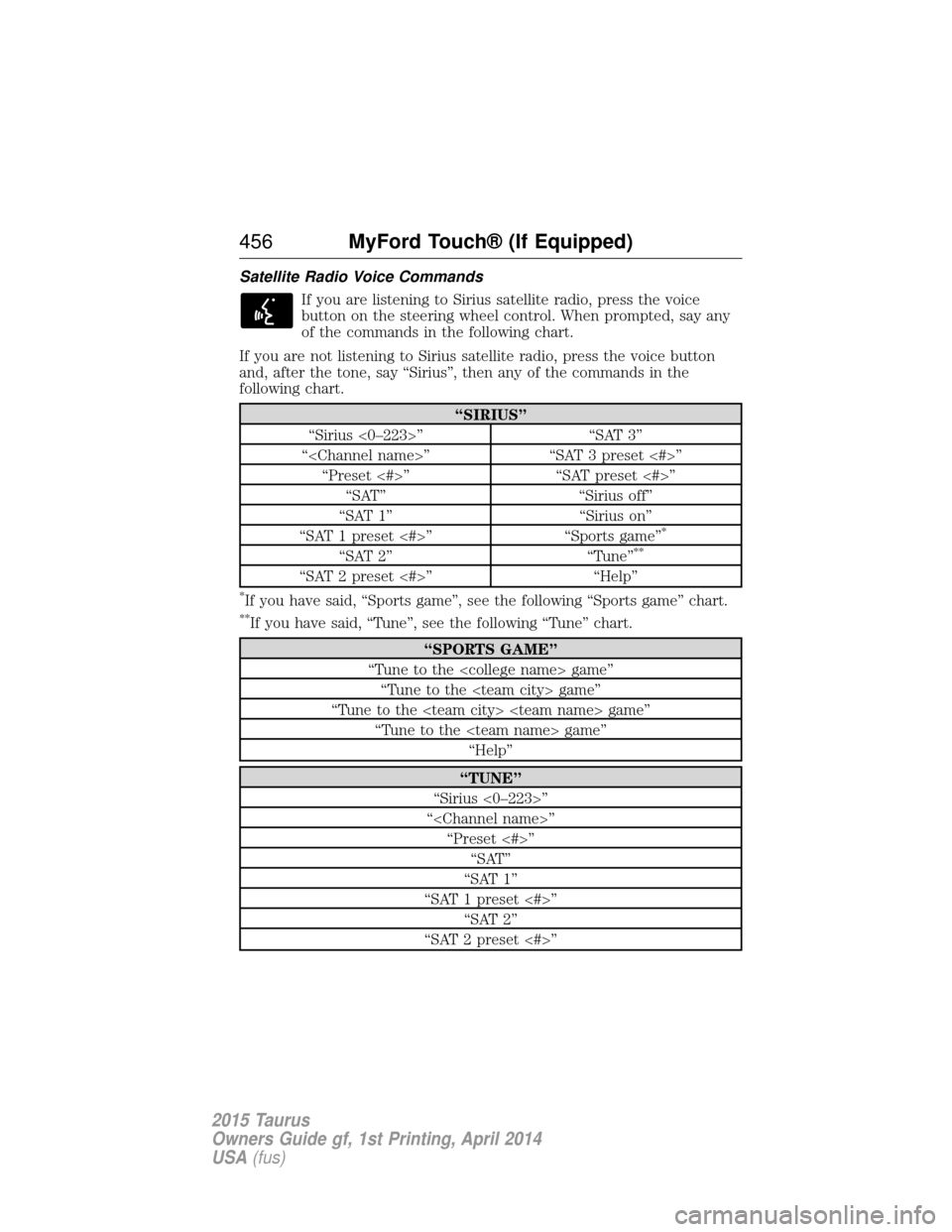
Satellite Radio Voice CommandsIf you are listening to Sirius satellite radio, press the voice
button on the steering wheel control. When prompted, say any
of the commands in the following chart.
If you are not listening to Sirius satellite radio, press the voice button
and, after the tone, say “Sirius”, then any of the commands in the
following chart.
“SIRIUS”
“Sirius <0–223>” “SAT 3”
“
“SAT 1” “Sirius on”
“SAT 1 preset <#>” “Sports game”
*
“SAT 2” “Tune”**
“SAT 2 preset <#>” “Help”
*If you have said, “Sports game”, see the following “Sports game” chart.
**If you have said, “Tune”, see the following “Tune” chart.
“SPORTS GAME”
“Tune to the
“Tune to the
“TUNE”
“Sirius <0–223>”
“
“SAT 1”
“SAT 1 preset <#>” “SAT 2”
“SAT 2 preset <#>”
456 MyFord Touch® (If Equipped)
2015 Taurus
Owners Guide gf, 1st Printing, April 2014
USA(fus)
Page 461 of 558
Options
Sound Settingsallows you to adjust settings for:
• Bass
• Midrange
• Treble
• Balance and Fade
• DSP (Digital Signal Processing)
• Occupancy Mode
• Speed Compensated Volume.
Note: Your vehicle may not have all these sound settings.
Compression allows you to turn the compression feature on and off.
Browse
Touch this button to look through all available CD tracks.
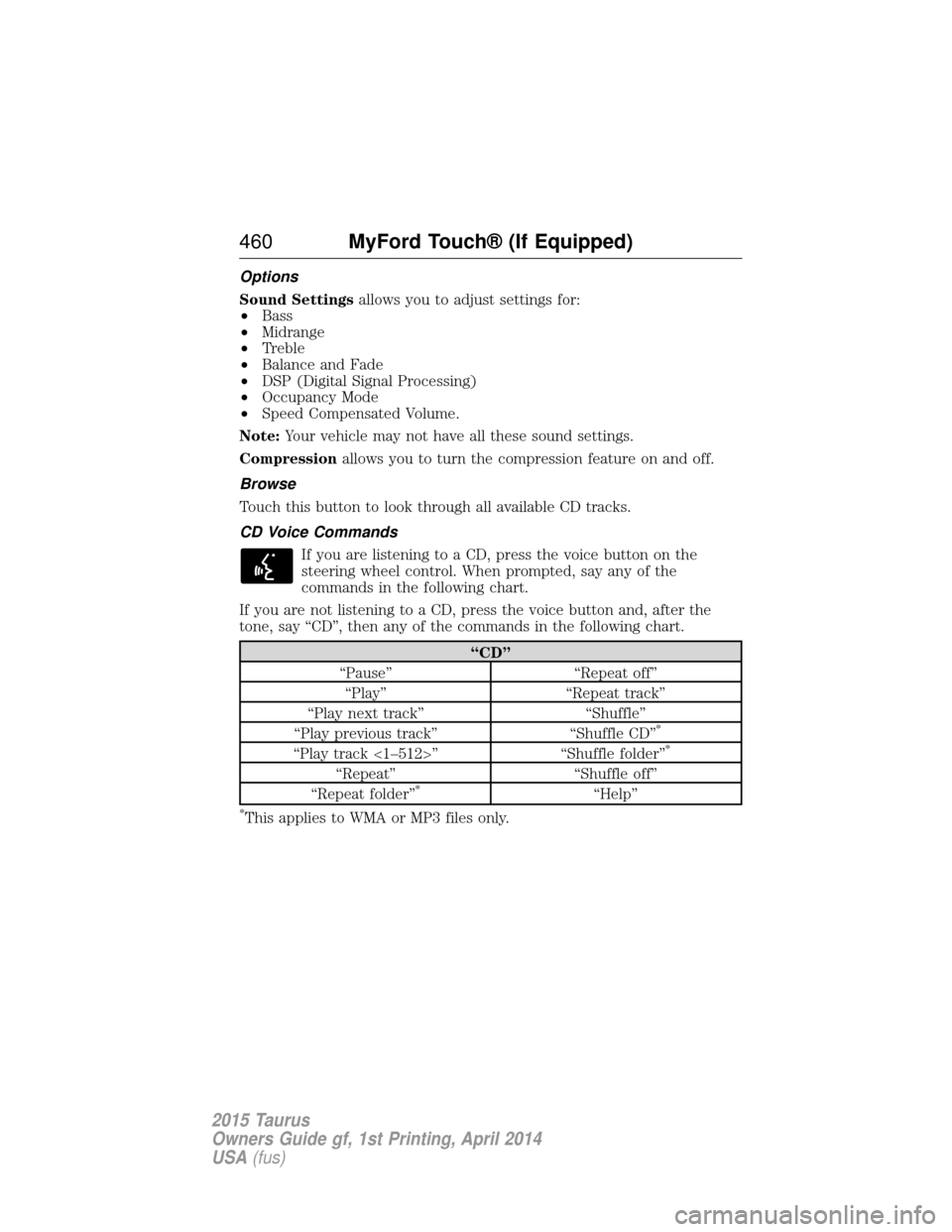
CD Voice Commands If you are listening to a CD, press the voice button on the
steering wheel control. When prompted, say any of the
commands in the following chart.
If you are not listening to a CD, press the voice button and, after the
tone, say “CD”, then any of the commands in the following chart.
“CD”
“Pause” “Repeat off” “Play” “Repeat track”
“Play next track” “Shuffle”
“Play previous track” “Shuffle CD”
*
“Play track <1–512>” “Shuffle folder”*
“Repeat”“Shuffle off”
“Repeat folder”*“Help”
*This applies to WMA or MP3 files only.
460 MyFord Touch® (If Equipped)
2015 Taurus
Owners Guide gf, 1st Printing, April 2014
USA(fus)
Page 464 of 558
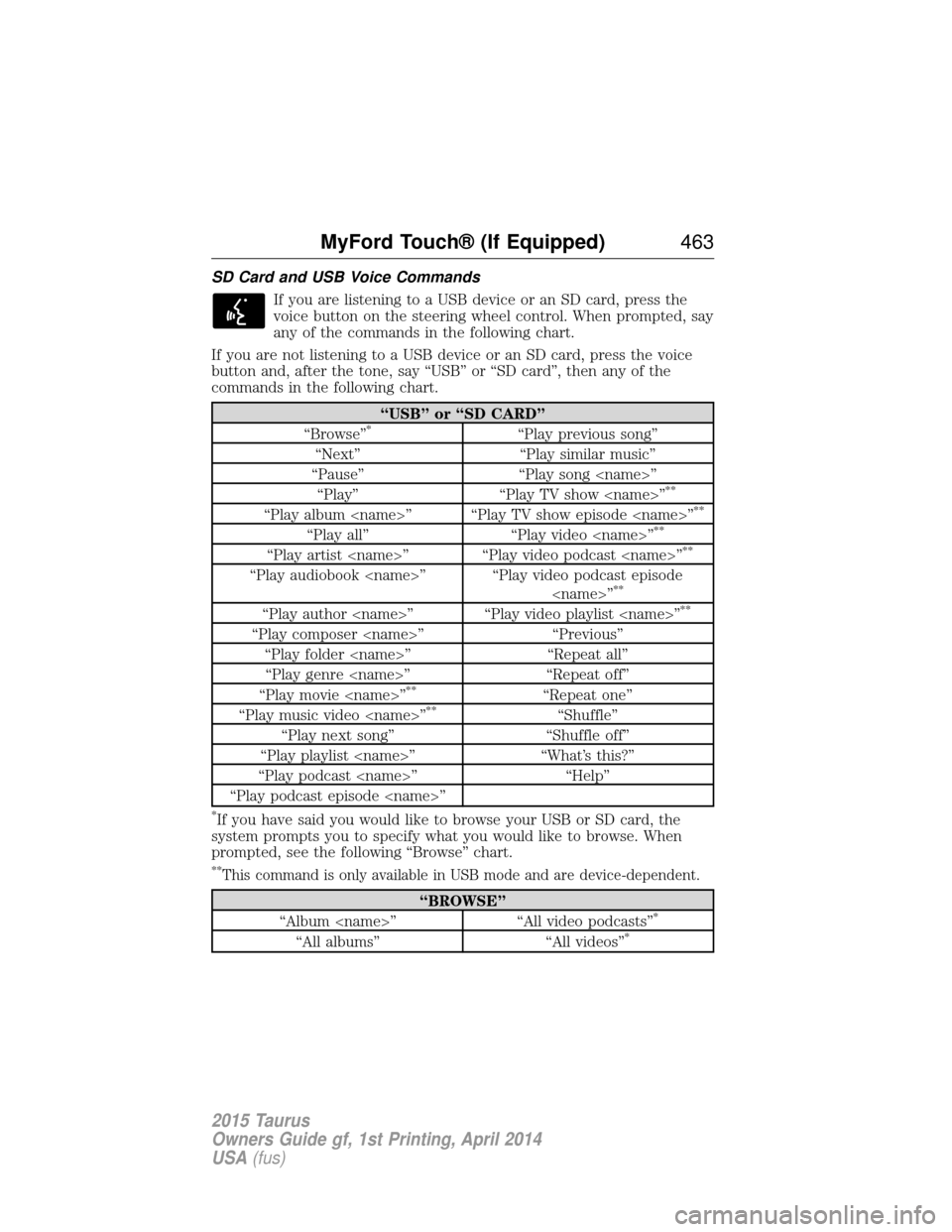
SD Card and USB Voice CommandsIf you are listening to a USB device or an SD card, press the
voice button on the steering wheel control. When prompted, say
any of the commands in the following chart.
If you are not listening to a USB device or an SD card, press the voice
button and, after the tone, say “USB” or “SD card”, then any of the
commands in the following chart.
“USB” or “SD CARD”
“Browse”*“Play previous song”
“Next” “Play similar music”
“Pause” “Play song
**
“Play album
“Play all” “Play video
“Play artist
“Play audiobook
“Play author
“Play composer
“Play folder
“Play genre
“Play movie
**“Repeat one”
“Play music video
“Play next song” “Shuffle off”
“Play playlist
“Play podcast
“Play podcast episode
*If you have said you would like to browse your USB or SD card, the
system prompts you to specify what you would like to browse. When
prompted, see the following “Browse” chart.
**This command is only available in USB mode and are device-dependent.
“BROWSE”
“Album
“All albums” “All videos”*
MyFord Touch® (If Equipped) 463
2015 Taurus
Owners Guide gf, 1st Printing, April 2014
USA(fus)
Page 466 of 558
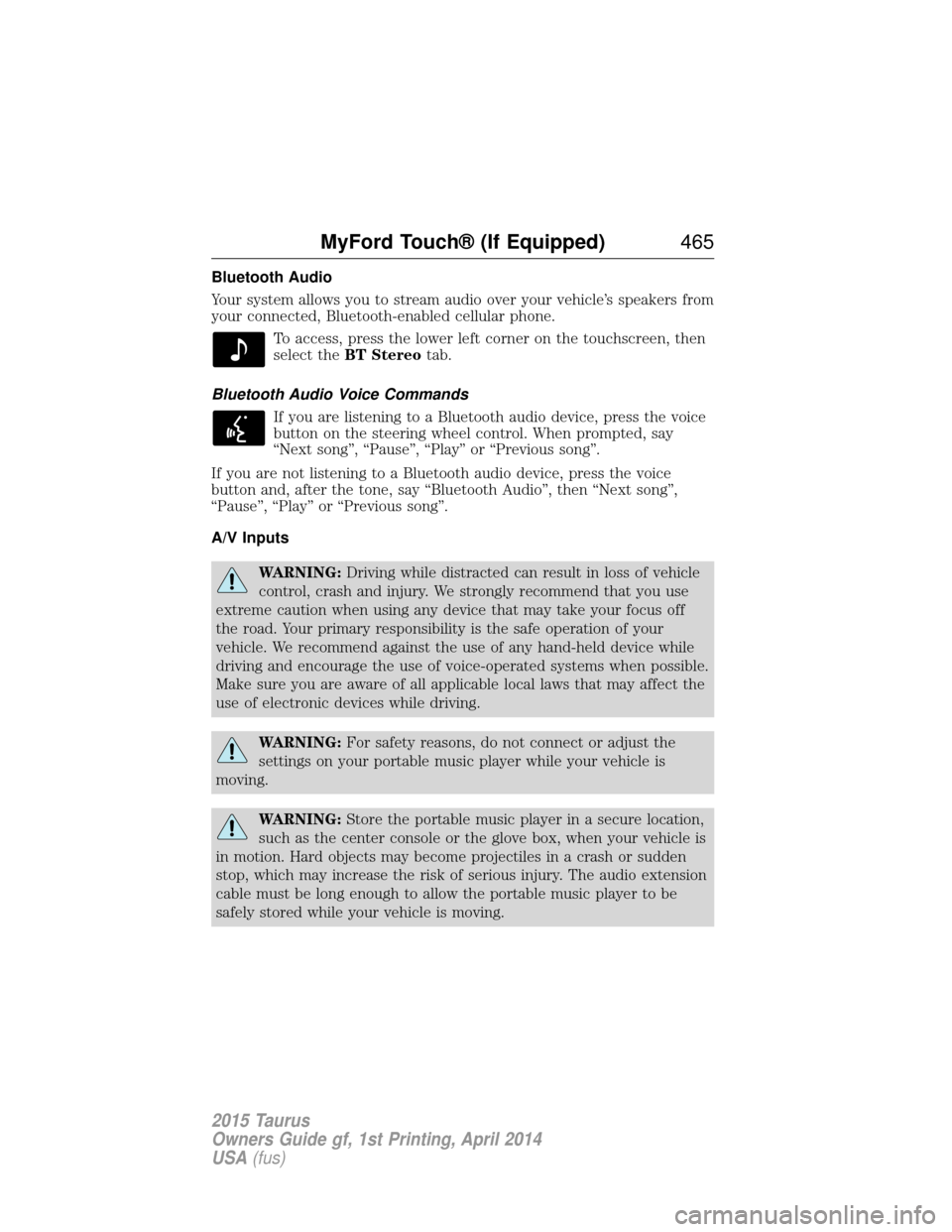
Bluetooth Audio
Your system allows you to stream audio over your vehicle’s speakers from
your connected, Bluetooth-enabled cellular phone.To access, press the lower left corner on the touchscreen, then
select the BT Stereo tab.
Bluetooth Audio Voice Commands If you are listening to a Bluetooth audio device, press the voice
button on the steering wheel control. When prompted, say
“Next song”, “Pause”, “Play” or “Previous song”.
If you are not listening to a Bluetooth audio device, press the voice
button and, after the tone, say “Bluetooth Audio”, then “Next song”,
“Pause”, “Play” or “Previous song”.
A/V Inputs
WARNING: Driving while distracted can result in loss of vehicle
control, crash and injury. We strongly recommend that you use
extreme caution when using any device that may take your focus off
the road. Your primary responsibility is the safe operation of your
vehicle. We recommend against the use of any hand-held device while
driving and encourage the use of voice-operated systems when possible.
Make sure you are aware of all applicable local laws that may affect the
use of electronic devices while driving.
WARNING: For safety reasons, do not connect or adjust the
settings on your portable music player while your vehicle is
moving.
WARNING: Store the portable music player in a secure location,
such as the center console or the glove box, when your vehicle is
in motion. Hard objects may become projectiles in a crash or sudden
stop, which may increase the risk of serious injury. The audio extension
cable must be long enough to allow the portable music player to be
safely stored while your vehicle is moving.
MyFord Touch® (If Equipped) 465
2015 Taurus
Owners Guide gf, 1st Printing, April 2014
USA(fus)
Page 470 of 558
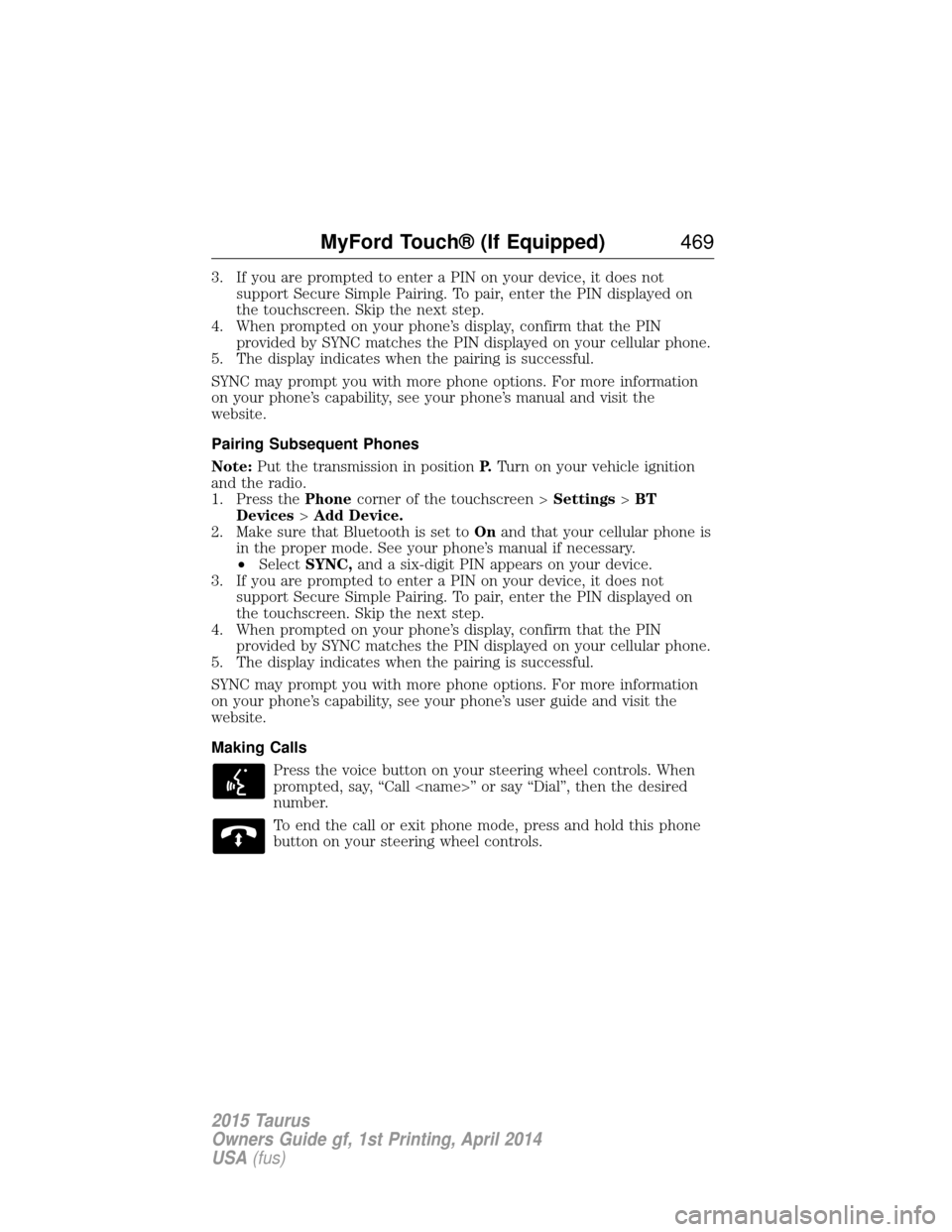
3. If you are prompted to enter a PIN on your device, it does notsupport Secure Simple Pairing. To pair, enter the PIN displayed on
the touchscreen. Skip the next step.
4. When prompted on your phone’s display, confirm that the PIN provided by SYNC matches the PIN displayed on your cellular phone.
5. The display indicates when the pairing is successful.
SYNC may prompt you with more phone options. For more information
on your phone’s capability, see your phone’s manual and visit the
website.
Pairing Subsequent Phones
Note: Put the transmission in position P.Turn on your vehicle ignition
and the radio.
1. Press the Phonecorner of the touchscreen > Settings>BT
Devices >Add Device.
2. Make sure that Bluetooth is set to Onand that your cellular phone is
in the proper mode. See your phone’s manual if necessary.
• Select SYNC, and a six-digit PIN appears on your device.
3. If you are prompted to enter a PIN on your device, it does not support Secure Simple Pairing. To pair, enter the PIN displayed on
the touchscreen. Skip the next step.
4. When prompted on your phone’s display, confirm that the PIN provided by SYNC matches the PIN displayed on your cellular phone.
5. The display indicates when the pairing is successful.
SYNC may prompt you with more phone options. For more information
on your phone’s capability, see your phone’s user guide and visit the
website.
Making Calls
Press the voice button on your steering wheel controls. When
prompted, say, “Call
number.
To end the call or exit phone mode, press and hold this phone
button on your steering wheel controls.
MyFord Touch® (If Equipped) 469
2015 Taurus
Owners Guide gf, 1st Printing, April 2014
USA(fus)
Page 471 of 558
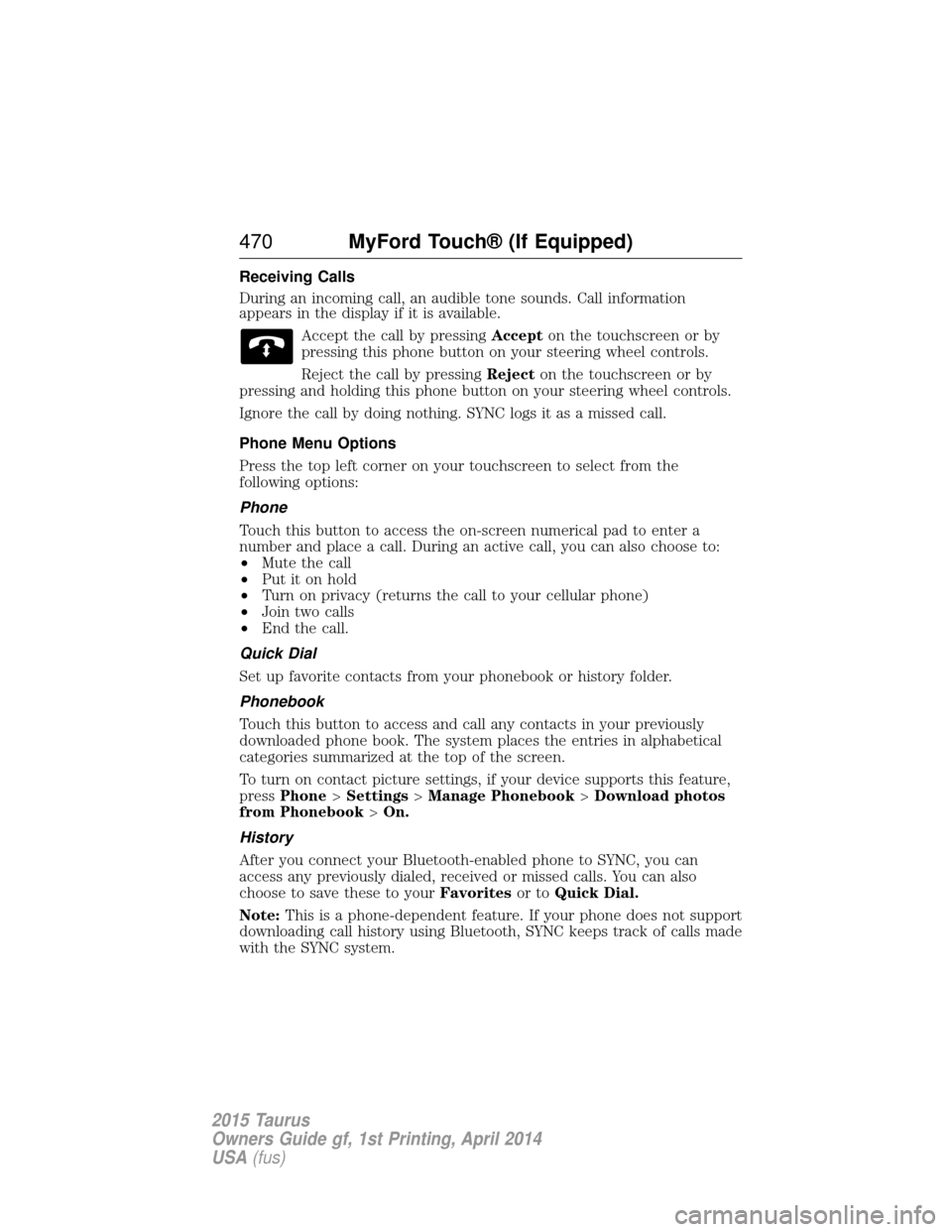
Receiving Calls
During an incoming call, an audible tone sounds. Call information
appears in the display if it is available.Accept the call by pressing Accepton the touchscreen or by
pressing this phone button on your steering wheel controls.
Reject the call by pressing Rejecton the touchscreen or by
pressing and holding this phone button on your steering wheel controls.
Ignore the call by doing nothing. SYNC logs it as a missed call.
Phone Menu Options
Press the top left corner on your touchscreen to select from the
following options:
Phone
Touch this button to access the on-screen numerical pad to enter a
number and place a call. During an active call, you can also choose to:
• Mute the call
• Put it on hold
• Turn on privacy (returns the call to your cellular phone)
• Join two calls
• End the call.
Quick Dial
Set up favorite contacts from your phonebook or history folder.
Phonebook
Touch this button to access and call any contacts in your previously
downloaded phone book. The system places the entries in alphabetical
categories summarized at the top of the screen.
To turn on contact picture settings, if your device supports this feature,
press Phone >Settings >Manage Phonebook >Download photos
from Phonebook >On.
History
After you connect your Bluetooth-enabled phone to SYNC, you can
access any previously dialed, received or missed calls. You can also
choose to save these to your Favoritesor toQuick Dial.
Note: This is a phone-dependent feature. If your phone does not support
downloading call history using Bluetooth, SYNC keeps track of calls made
with the SYNC system.
470 MyFord Touch® (If Equipped)
2015 Taurus
Owners Guide gf, 1st Printing, April 2014
USA(fus)
Page 475 of 558
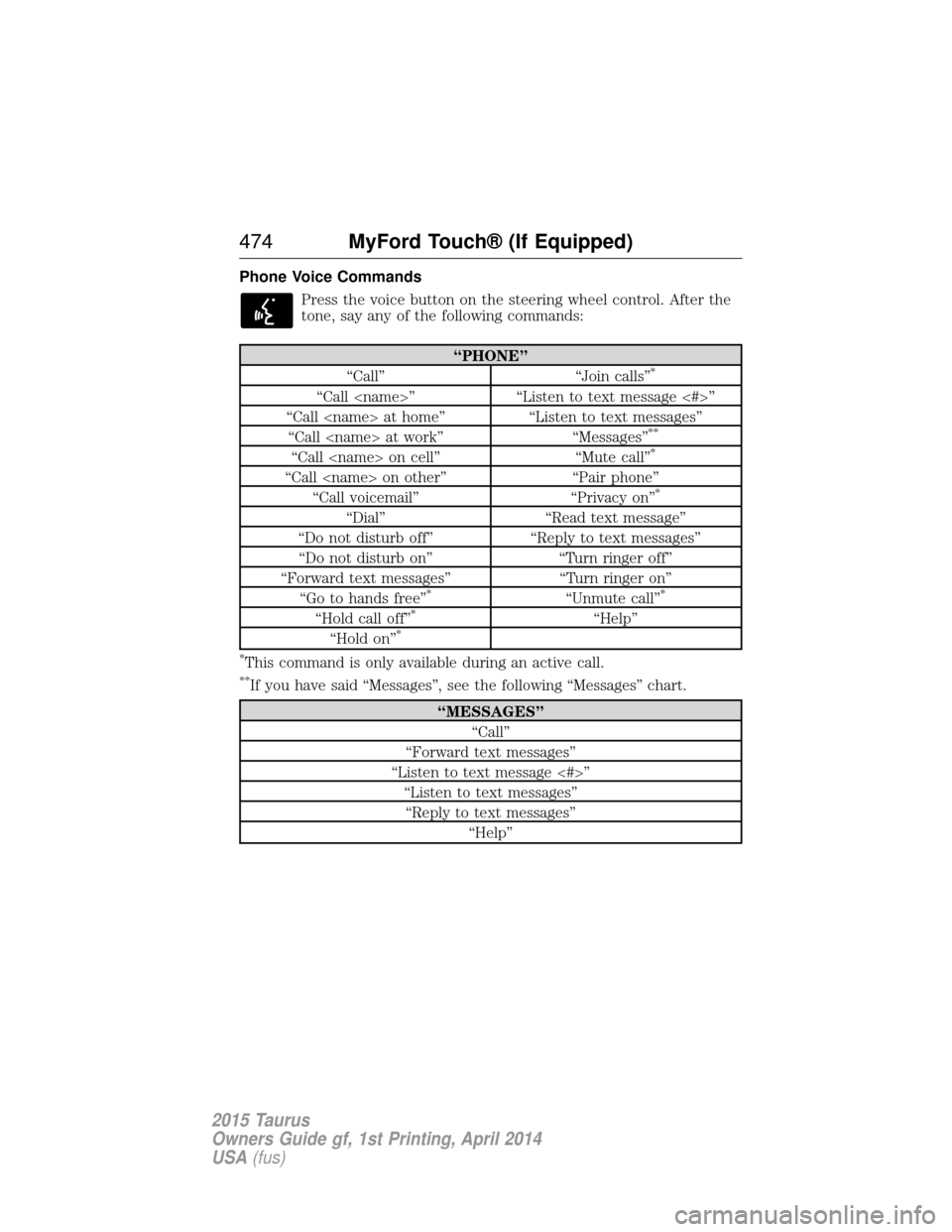
Phone Voice CommandsPress the voice button on the steering wheel control. After the
tone, say any of the following commands:
“PHONE”
“Call” “Join calls”*
“Call
“Call
“Call
**
“Call
“Call
“Call voicemail” “Privacy on”*
“Dial”“Read text message”
“Do not disturb off” “Reply to text messages”
“Do not disturb on” “Turn ringer off”
“Forward text messages” “Turn ringer on”
“Go to hands free”
*“Unmute call”*
“Hold call off”*“Help”
“Hold on”*
*
This command is only available during an active call.
**If you have said “Messages”, see the following “Messages” chart.
“MESSAGES” “Call”
“Forward text messages”
“Listen to text message <#>” “Listen to text messages”“Reply to text messages” “Help”
474 MyFord Touch® (If Equipped)
2015 Taurus
Owners Guide gf, 1st Printing, April 2014
USA(fus)
Page 477 of 558
system in order to connect to, and use, SYNC Services. SeePhone
earlier in this chapter for pairing instructions.
Note: This feature does not function properly if you have enabled caller
ID blocking on your mobile phone. Make sure your mobile phone is not
blocking caller ID before using SYNC Services.
Note: The driver is ultimately responsible for the safe operation of the
vehicle, and therefore, must evaluate whether it is safe to follow the
suggested directions. Any navigation features are provided only as an aid.
Make your driving decisions based on your observations of local conditions
and existing traffic regulations. Do not follow the route suggestions if doing
so would result in an unsafe or illegal maneuver, if you would be placed in
an unsafe situation, or if you would be directed into an area that you
consider unsafe. Maps used by this system may be inaccurate because of
errors, changes in roads, traffic conditions or driving conditions.
Note: When you connect, the service uses GPS technology and advanced
vehicle sensors to collect your vehicle’s current location, travel direction
and speed to help provide you with the directions, traffic reports, or
business searches you request. Further, to provide the services you
request, for continuous improvement, the service may collect and record
call details and voice communications. For more information, see SYNC
Services Terms and Conditions at www.SYNCMyRide.com. If you do not
want Ford or its service providers to collect your vehicle travel
information or other information identified in the Terms and Conditions,
do not subscribe or use the service.
SYNC Services uses advanced vehicle sensors, integrated GPS technology
and comprehensive map and traffic data, to give you personalized traffic
reports, precise turn-by-turn directions, business search, news, sports,
weather and more. For a complete list of services, or to learn more,
please visit www.SYNCMyRide.com.
Connecting to SYNC Services Using Voice Commands
Press the voice button on the steering wheel controls.
1. When prompted, say “Services”. This initiates an outgoing call to SYNC Services using your paired and connected Bluetooth-enabled
cellular phone.
2. Once you connect to the service, follow the voice prompts to request the desired service, such as “Traffic” or “Directions”. You can also
say, “What are my choices?” to receive a list of available services
from which to choose.
3. Say, “Services” to return to the Services main menu or for help, say, “Help”.
476 MyFord Touch® (If Equipped)
2015 Taurus
Owners Guide gf, 1st Printing, April 2014
USA(fus)
Page 479 of 558
If you miss a turn, SYNC automatically asks if you want the route
updated. Just say, “Yes” when prompted and the system delivers a new
route to your vehicle.
If your vehicle is equipped with Navigation, SYNC Services downloads
your requested destination to the navigation system. The navigation
system then calculates the route and provides driving instructions. See
theNavigation system section for more information.
Disconnecting from SYNC Services
1. Press and hold the phone button on the steering wheel.
2. Say “Good-bye” from the SYNC Services main menu.
SYNC Services quick tips
Personalizing You can personalize your Services feature to
provide quicker access to your most used or
favorite information. You can save address
points, such as work or home. You can also
save favorite information like sports teams,
such as Detroit Lions, or a news category. You
can learn more about personalization by
logging onto www.SYNCMyRide.com.
Push to interrupt Press the voice button at any time (while
connected to SYNC Services) to interrupt a
voice prompt or an audio clip (such as a
sports report) and say your voice command.
Portable Your subscription is associated with your
Bluetooth-enabled cellular phone number, not
your VIN (Vehicle Identification Number). You
can pair and connect your phone to any
vehicle equipped with SYNC Services and
continue enjoying your personalized services.
478MyFord Touch® (If Equipped)
2015 Taurus
Owners Guide gf, 1st Printing, April 2014
USA(fus)