display FORD TAURUS 2017 Owners Manual
[x] Cancel search | Manufacturer: FORD, Model Year: 2017, Model line: TAURUS, Model: FORD TAURUS 2017Pages: 504, PDF Size: 5.84 MB
Page 414 of 504
DescriptionMenu Item
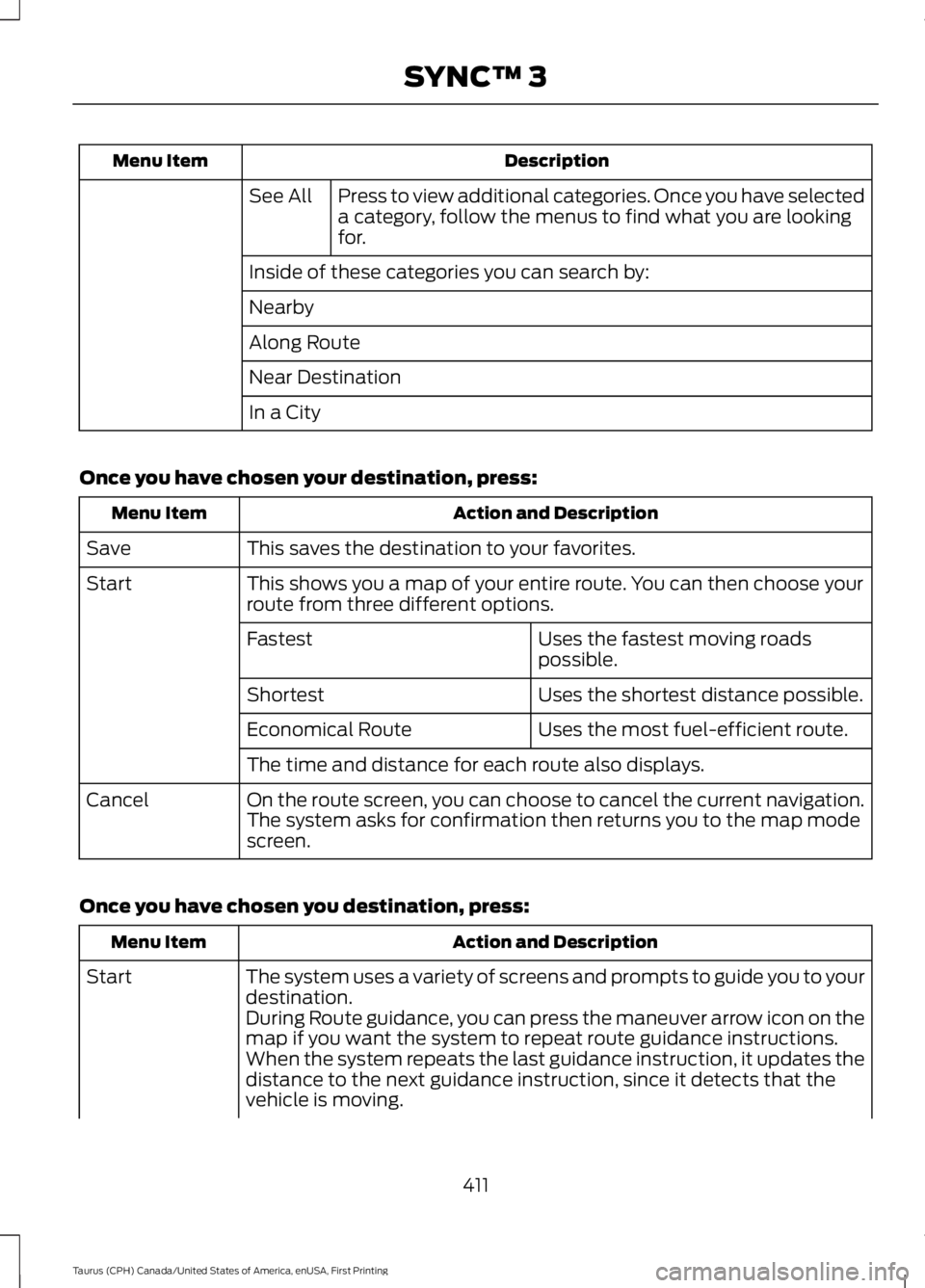
Press to view additional categories. Once you have selecteda category, follow the menus to find what you are lookingfor.
See All
Inside of these categories you can search by:
Nearby
Along Route
Near Destination
In a City
Once you have chosen your destination, press:
Action and DescriptionMenu Item
This saves the destination to your favorites.Save
This shows you a map of your entire route. You can then choose yourroute from three different options.Start
Uses the fastest moving roadspossible.Fastest
Uses the shortest distance possible.Shortest
Uses the most fuel-efficient route.Economical Route
The time and distance for each route also displays.
On the route screen, you can choose to cancel the current navigation.The system asks for confirmation then returns you to the map modescreen.
Cancel
Once you have chosen you destination, press:
Action and DescriptionMenu Item
The system uses a variety of screens and prompts to guide you to yourdestination.Start
During Route guidance, you can press the maneuver arrow icon on themap if you want the system to repeat route guidance instructions.When the system repeats the last guidance instruction, it updates thedistance to the next guidance instruction, since it detects that thevehicle is moving.
411
Taurus (CPH) Canada/United States of America, enUSA, First Printing
SYNC™ 3
Page 415 of 504
Action and DescriptionMenu Item
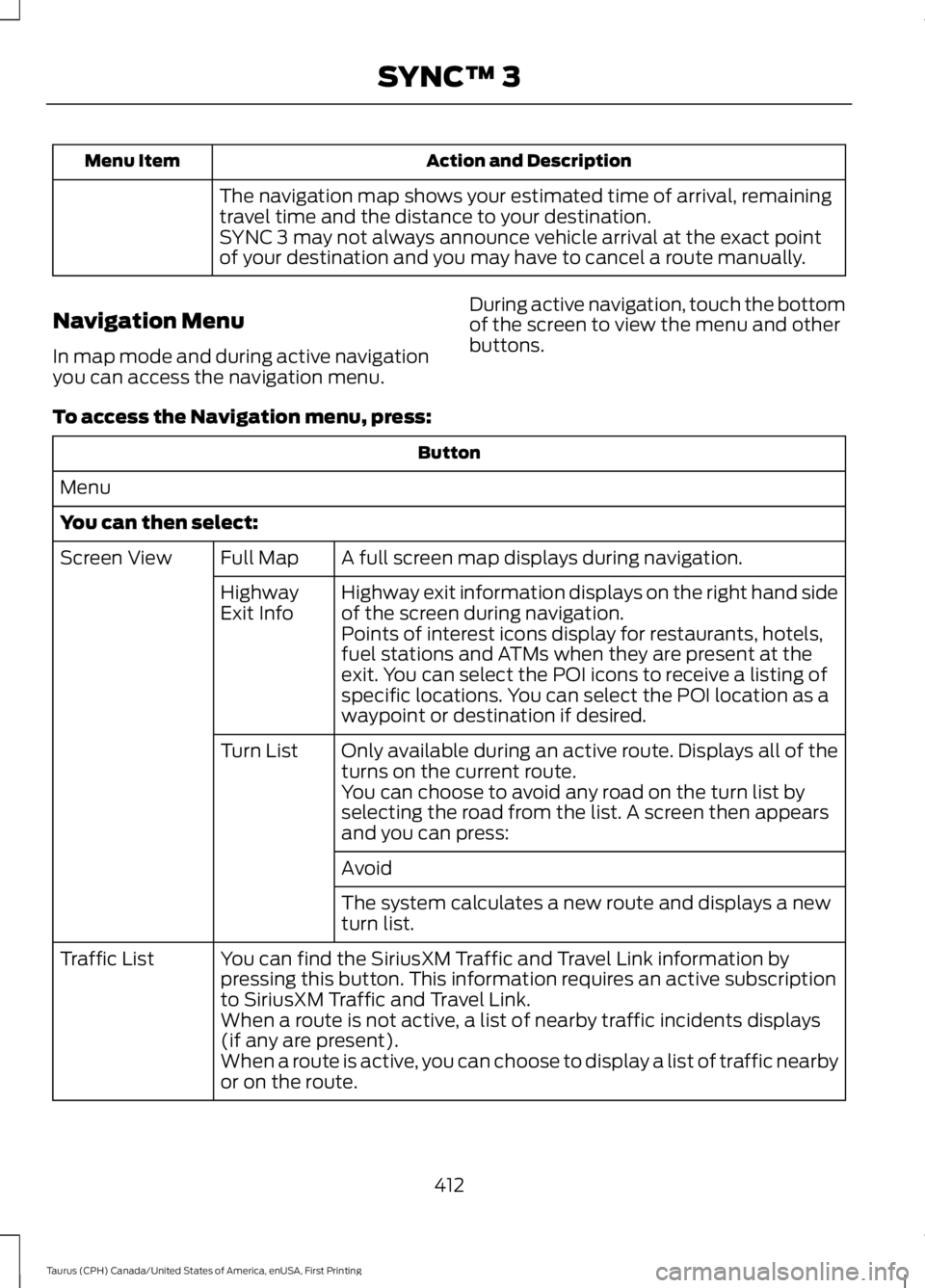
The navigation map shows your estimated time of arrival, remainingtravel time and the distance to your destination.SYNC 3 may not always announce vehicle arrival at the exact pointof your destination and you may have to cancel a route manually.
Navigation Menu
In map mode and during active navigationyou can access the navigation menu.
During active navigation, touch the bottomof the screen to view the menu and otherbuttons.
To access the Navigation menu, press:
Button
Menu
You can then select:
A full screen map displays during navigation.Full MapScreen View
Highway exit information displays on the right hand sideof the screen during navigation.HighwayExit InfoPoints of interest icons display for restaurants, hotels,fuel stations and ATMs when they are present at theexit. You can select the POI icons to receive a listing ofspecific locations. You can select the POI location as awaypoint or destination if desired.
Only available during an active route. Displays all of theturns on the current route.Turn List
You can choose to avoid any road on the turn list byselecting the road from the list. A screen then appearsand you can press:
Avoid
The system calculates a new route and displays a newturn list.
You can find the SiriusXM Traffic and Travel Link information bypressing this button. This information requires an active subscriptionto SiriusXM Traffic and Travel Link.
Traffic List
When a route is not active, a list of nearby traffic incidents displays(if any are present).When a route is active, you can choose to display a list of traffic nearbyor on the route.
412
Taurus (CPH) Canada/United States of America, enUSA, First Printing
SYNC™ 3
Page 416 of 504
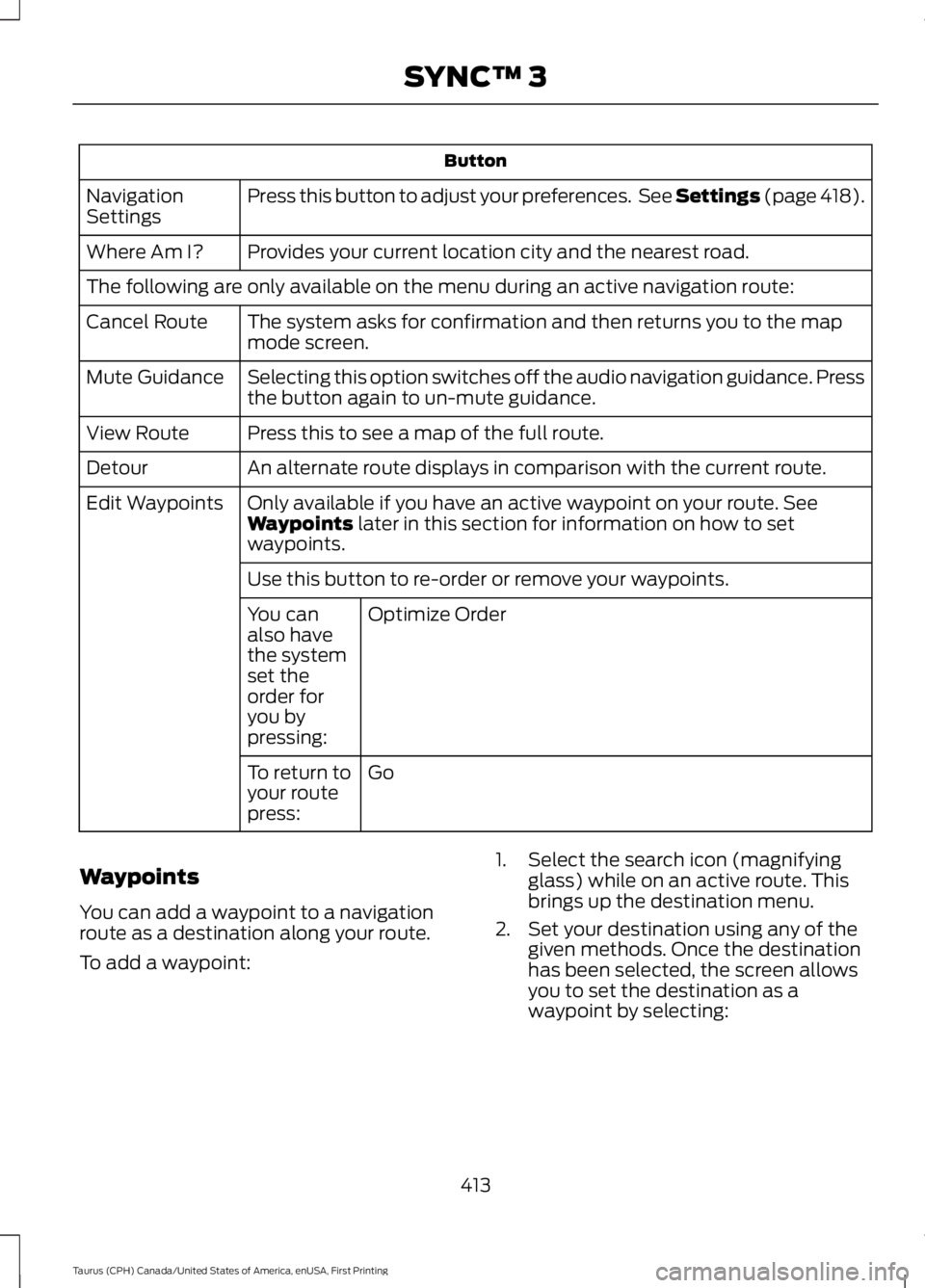
Button
Press this button to adjust your preferences. See Settings (page 418).NavigationSettings
Provides your current location city and the nearest road.Where Am I?
The following are only available on the menu during an active navigation route:
The system asks for confirmation and then returns you to the mapmode screen.Cancel Route
Selecting this option switches off the audio navigation guidance. Pressthe button again to un-mute guidance.Mute Guidance
Press this to see a map of the full route.View Route
An alternate route displays in comparison with the current route.Detour
Only available if you have an active waypoint on your route. SeeWaypoints later in this section for information on how to setwaypoints.
Edit Waypoints
Use this button to re-order or remove your waypoints.
Optimize OrderYou canalso havethe systemset theorder foryou bypressing:
GoTo return toyour routepress:
Waypoints
You can add a waypoint to a navigationroute as a destination along your route.
To add a waypoint:
1. Select the search icon (magnifyingglass) while on an active route. Thisbrings up the destination menu.
2. Set your destination using any of thegiven methods. Once the destinationhas been selected, the screen allowsyou to set the destination as awaypoint by selecting:
413
Taurus (CPH) Canada/United States of America, enUSA, First Printing
SYNC™ 3
Page 417 of 504
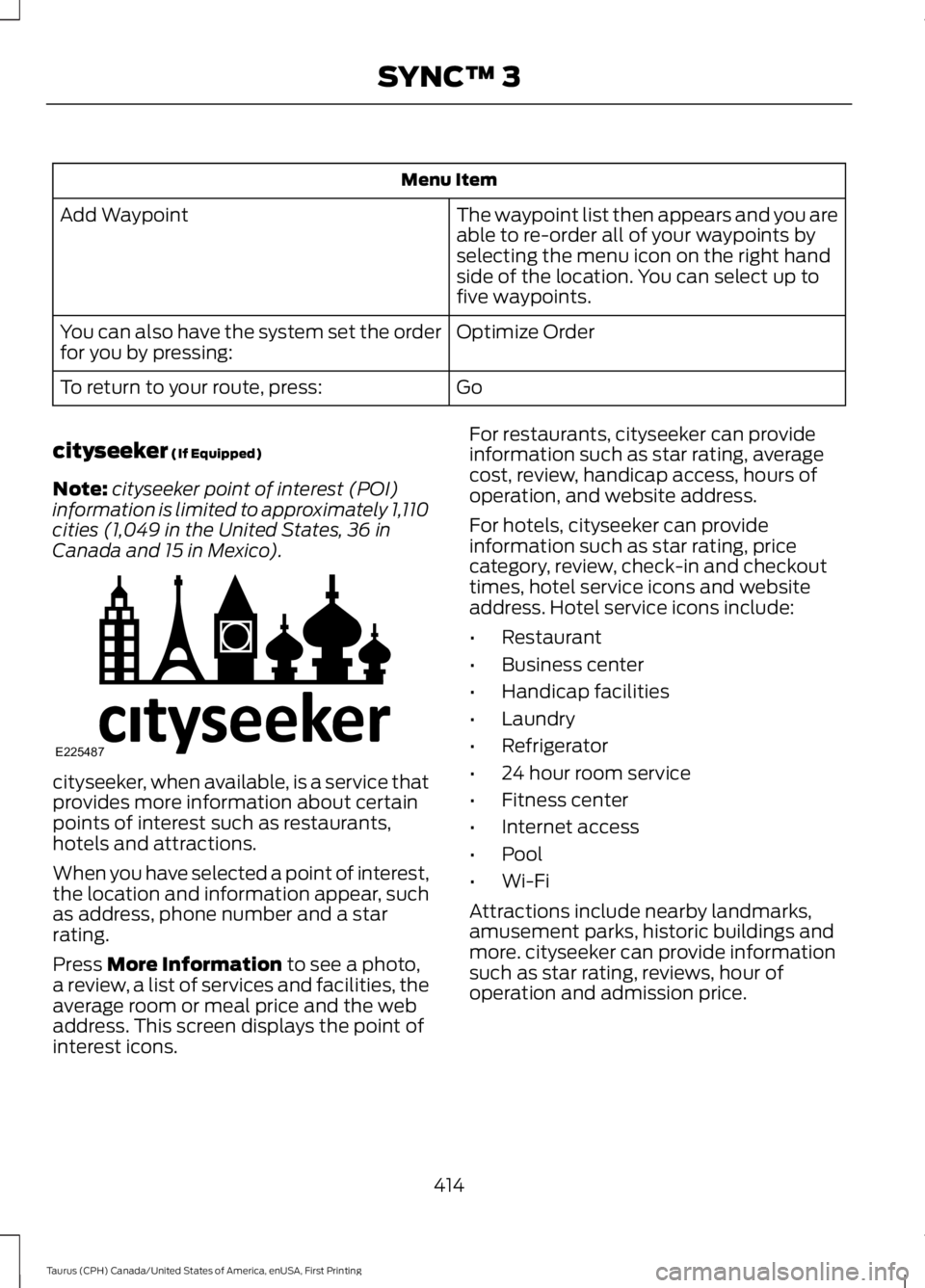
Menu Item
The waypoint list then appears and you areable to re-order all of your waypoints byselecting the menu icon on the right handside of the location. You can select up tofive waypoints.
Add Waypoint
Optimize OrderYou can also have the system set the orderfor you by pressing:
GoTo return to your route, press:
cityseeker (If Equipped)
Note:cityseeker point of interest (POI)information is limited to approximately 1,110cities (1,049 in the United States, 36 inCanada and 15 in Mexico).
cityseeker, when available, is a service thatprovides more information about certainpoints of interest such as restaurants,hotels and attractions.
When you have selected a point of interest,the location and information appear, suchas address, phone number and a starrating.
Press More Information to see a photo,a review, a list of services and facilities, theaverage room or meal price and the webaddress. This screen displays the point ofinterest icons.
For restaurants, cityseeker can provideinformation such as star rating, averagecost, review, handicap access, hours ofoperation, and website address.
For hotels, cityseeker can provideinformation such as star rating, pricecategory, review, check-in and checkouttimes, hotel service icons and websiteaddress. Hotel service icons include:
•Restaurant
•Business center
•Handicap facilities
•Laundry
•Refrigerator
•24 hour room service
•Fitness center
•Internet access
•Pool
•Wi-Fi
Attractions include nearby landmarks,amusement parks, historic buildings andmore. cityseeker can provide informationsuch as star rating, reviews, hour ofoperation and admission price.
414
Taurus (CPH) Canada/United States of America, enUSA, First Printing
SYNC™ 3E225487
Page 422 of 504
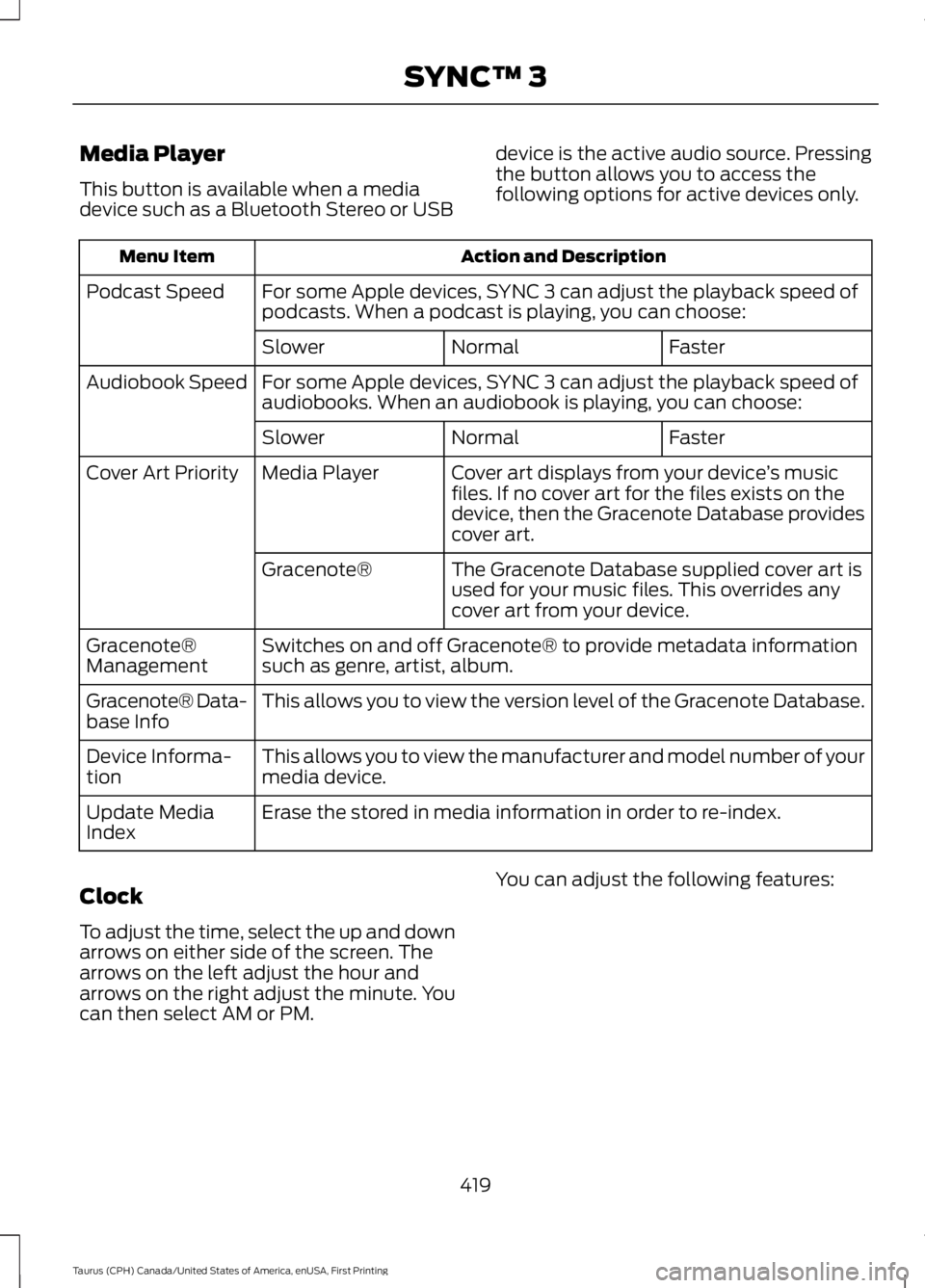
Media Player
This button is available when a mediadevice such as a Bluetooth Stereo or USB
device is the active audio source. Pressingthe button allows you to access thefollowing options for active devices only.
Action and DescriptionMenu Item
For some Apple devices, SYNC 3 can adjust the playback speed ofpodcasts. When a podcast is playing, you can choose:Podcast Speed
FasterNormalSlower
For some Apple devices, SYNC 3 can adjust the playback speed ofaudiobooks. When an audiobook is playing, you can choose:Audiobook Speed
FasterNormalSlower
Cover art displays from your device’s musicfiles. If no cover art for the files exists on thedevice, then the Gracenote Database providescover art.
Media PlayerCover Art Priority
The Gracenote Database supplied cover art isused for your music files. This overrides anycover art from your device.
Gracenote®
Switches on and off Gracenote® to provide metadata informationsuch as genre, artist, album.Gracenote®Management
This allows you to view the version level of the Gracenote Database.Gracenote® Data-base Info
This allows you to view the manufacturer and model number of yourmedia device.Device Informa-tion
Erase the stored in media information in order to re-index.Update MediaIndex
Clock
To adjust the time, select the up and downarrows on either side of the screen. Thearrows on the left adjust the hour andarrows on the right adjust the minute. Youcan then select AM or PM.
You can adjust the following features:
419
Taurus (CPH) Canada/United States of America, enUSA, First Printing
SYNC™ 3
Page 423 of 504
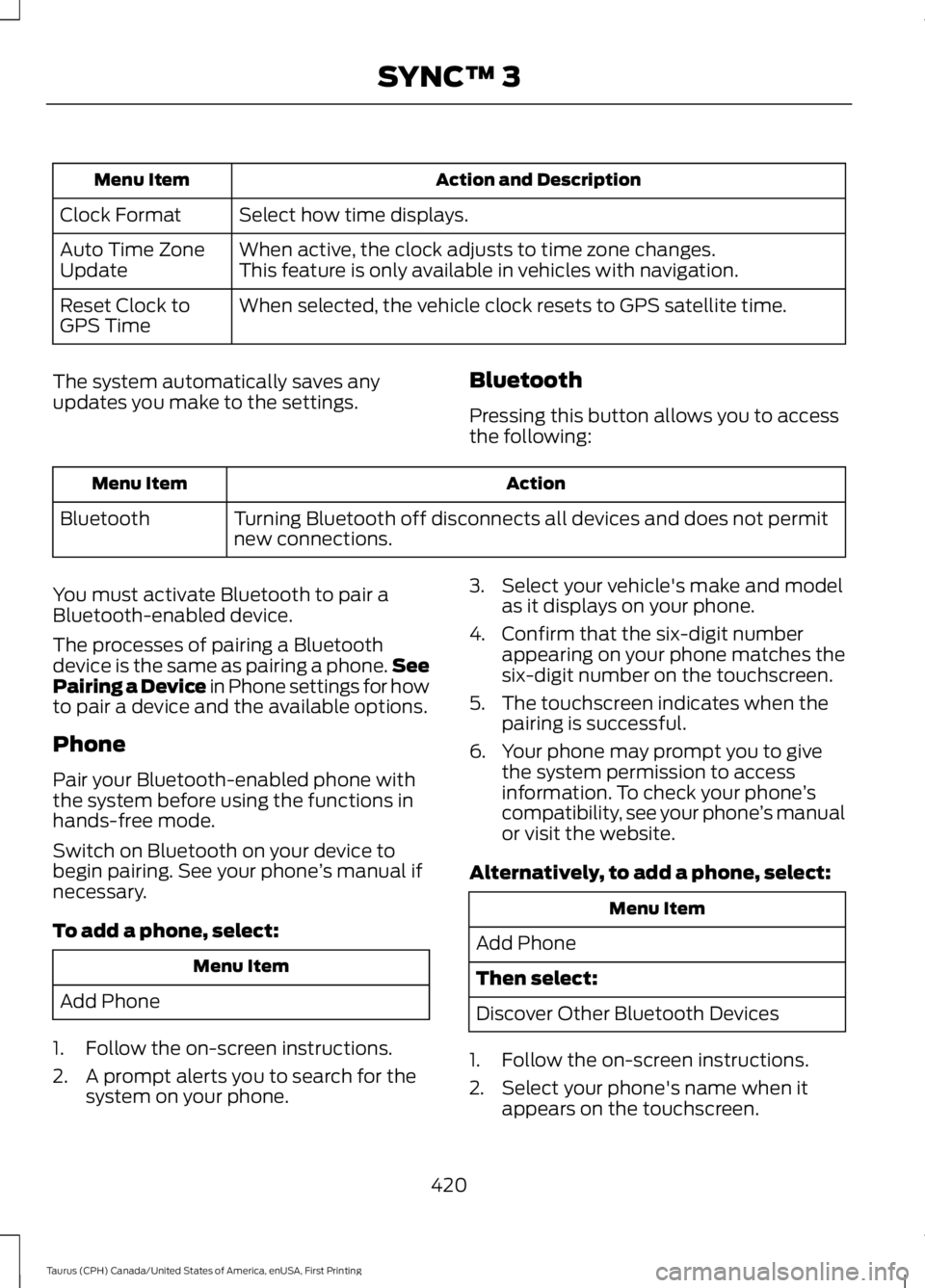
Action and DescriptionMenu Item
Select how time displays.Clock Format
When active, the clock adjusts to time zone changes.Auto Time ZoneUpdateThis feature is only available in vehicles with navigation.
When selected, the vehicle clock resets to GPS satellite time.Reset Clock toGPS Time
The system automatically saves anyupdates you make to the settings.Bluetooth
Pressing this button allows you to accessthe following:
ActionMenu Item
Turning Bluetooth off disconnects all devices and does not permitnew connections.Bluetooth
You must activate Bluetooth to pair aBluetooth-enabled device.
The processes of pairing a Bluetoothdevice is the same as pairing a phone.SeePairing a Device in Phone settings for howto pair a device and the available options.
Phone
Pair your Bluetooth-enabled phone withthe system before using the functions inhands-free mode.
Switch on Bluetooth on your device tobegin pairing. See your phone’s manual ifnecessary.
To add a phone, select:
Menu Item
Add Phone
1. Follow the on-screen instructions.
2. A prompt alerts you to search for thesystem on your phone.
3. Select your vehicle's make and modelas it displays on your phone.
4. Confirm that the six-digit numberappearing on your phone matches thesix-digit number on the touchscreen.
5. The touchscreen indicates when thepairing is successful.
6. Your phone may prompt you to givethe system permission to accessinformation. To check your phone’scompatibility, see your phone’s manualor visit the website.
Alternatively, to add a phone, select:
Menu Item
Add Phone
Then select:
Discover Other Bluetooth Devices
1. Follow the on-screen instructions.
2. Select your phone's name when itappears on the touchscreen.
420
Taurus (CPH) Canada/United States of America, enUSA, First Printing
SYNC™ 3
Page 424 of 504
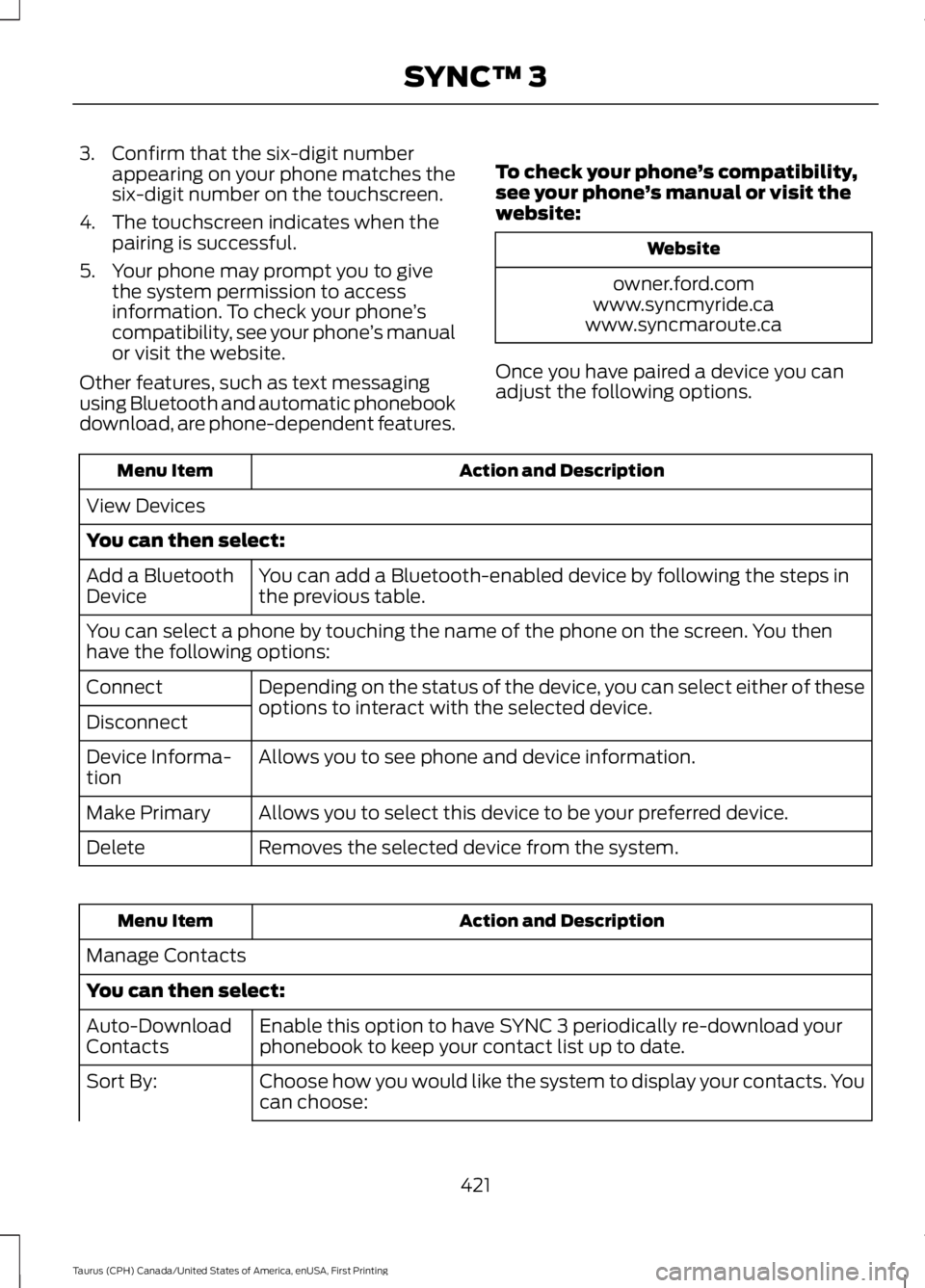
3. Confirm that the six-digit numberappearing on your phone matches thesix-digit number on the touchscreen.
4. The touchscreen indicates when thepairing is successful.
5. Your phone may prompt you to givethe system permission to accessinformation. To check your phone’scompatibility, see your phone’s manualor visit the website.
Other features, such as text messagingusing Bluetooth and automatic phonebookdownload, are phone-dependent features.
To check your phone’s compatibility,see your phone’s manual or visit thewebsite:
Website
owner.ford.comwww.syncmyride.cawww.syncmaroute.ca
Once you have paired a device you canadjust the following options.
Action and DescriptionMenu Item
View Devices
You can then select:
You can add a Bluetooth-enabled device by following the steps inthe previous table.Add a BluetoothDevice
You can select a phone by touching the name of the phone on the screen. You thenhave the following options:
Depending on the status of the device, you can select either of theseoptions to interact with the selected device.Connect
Disconnect
Allows you to see phone and device information.Device Informa-tion
Allows you to select this device to be your preferred device.Make Primary
Removes the selected device from the system.Delete
Action and DescriptionMenu Item
Manage Contacts
You can then select:
Enable this option to have SYNC 3 periodically re-download yourphonebook to keep your contact list up to date.Auto-DownloadContacts
Choose how you would like the system to display your contacts. Youcan choose:Sort By:
421
Taurus (CPH) Canada/United States of America, enUSA, First Printing
SYNC™ 3
Page 426 of 504
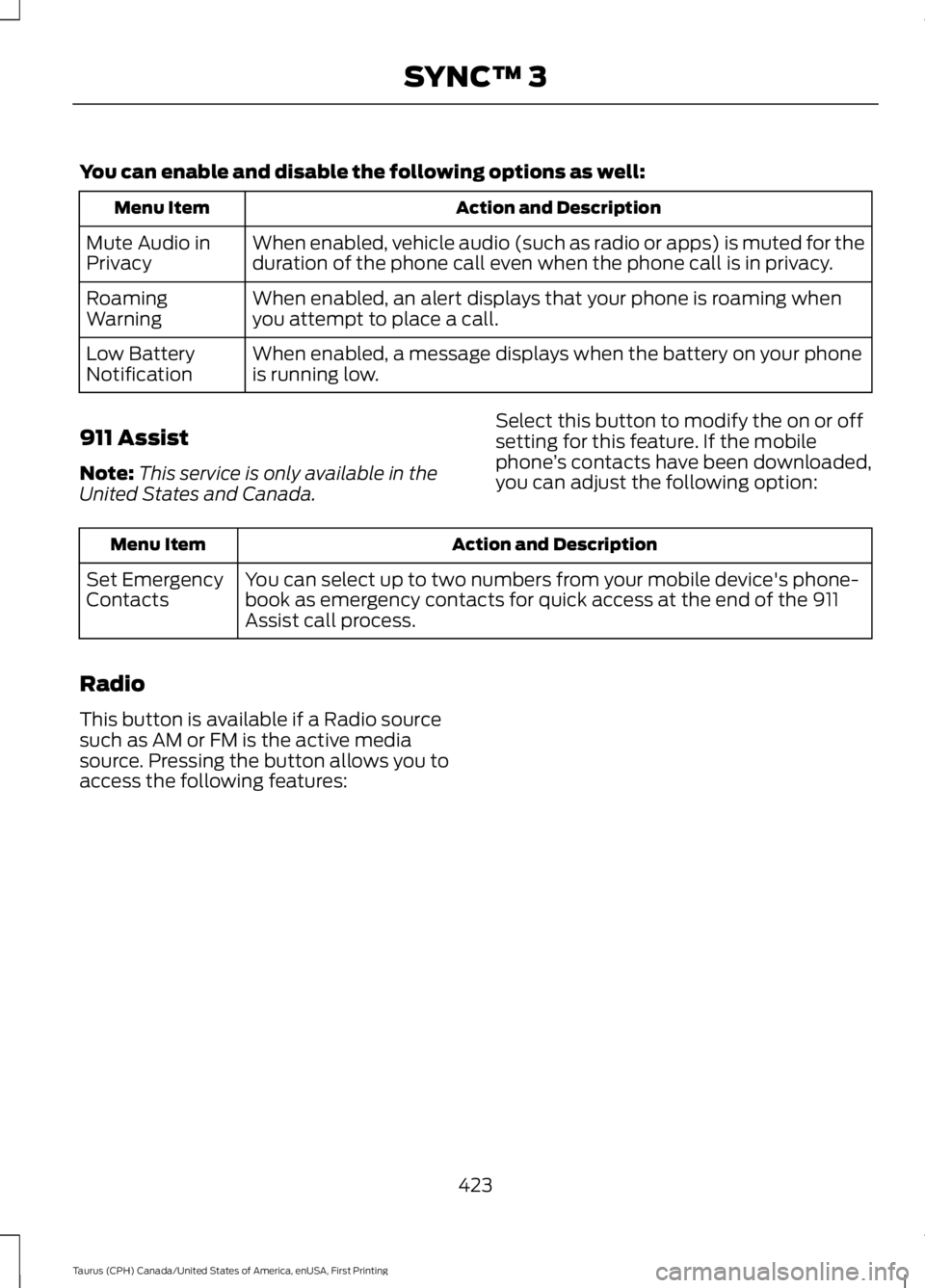
You can enable and disable the following options as well:
Action and DescriptionMenu Item
When enabled, vehicle audio (such as radio or apps) is muted for theduration of the phone call even when the phone call is in privacy.Mute Audio inPrivacy
When enabled, an alert displays that your phone is roaming whenyou attempt to place a call.RoamingWarning
When enabled, a message displays when the battery on your phoneis running low.Low BatteryNotification
911 Assist
Note:This service is only available in theUnited States and Canada.
Select this button to modify the on or offsetting for this feature. If the mobilephone’s contacts have been downloaded,you can adjust the following option:
Action and DescriptionMenu Item
You can select up to two numbers from your mobile device's phone-book as emergency contacts for quick access at the end of the 911Assist call process.
Set EmergencyContacts
Radio
This button is available if a Radio sourcesuch as AM or FM is the active mediasource. Pressing the button allows you toaccess the following features:
423
Taurus (CPH) Canada/United States of America, enUSA, First Printing
SYNC™ 3
Page 427 of 504
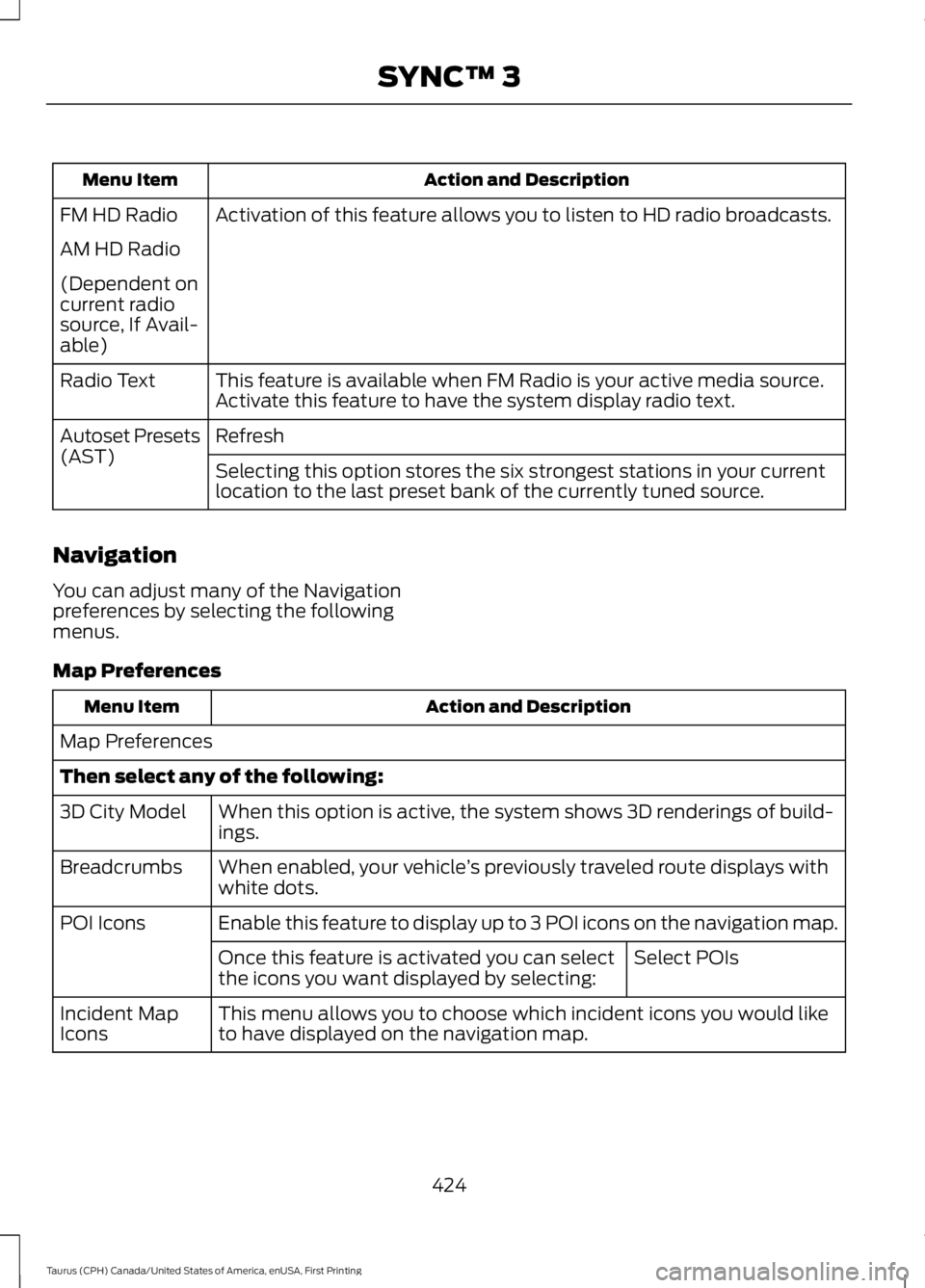
Action and DescriptionMenu Item
Activation of this feature allows you to listen to HD radio broadcasts.FM HD Radio
AM HD Radio
(Dependent oncurrent radiosource, If Avail-able)
This feature is available when FM Radio is your active media source.Activate this feature to have the system display radio text.Radio Text
RefreshAutoset Presets(AST)Selecting this option stores the six strongest stations in your currentlocation to the last preset bank of the currently tuned source.
Navigation
You can adjust many of the Navigationpreferences by selecting the followingmenus.
Map Preferences
Action and DescriptionMenu Item
Map Preferences
Then select any of the following:
When this option is active, the system shows 3D renderings of build-ings.3D City Model
When enabled, your vehicle’s previously traveled route displays withwhite dots.Breadcrumbs
Enable this feature to display up to 3 POI icons on the navigation map.POI Icons
Select POIsOnce this feature is activated you can selectthe icons you want displayed by selecting:
This menu allows you to choose which incident icons you would liketo have displayed on the navigation map.Incident MapIcons
424
Taurus (CPH) Canada/United States of America, enUSA, First Printing
SYNC™ 3
Page 428 of 504
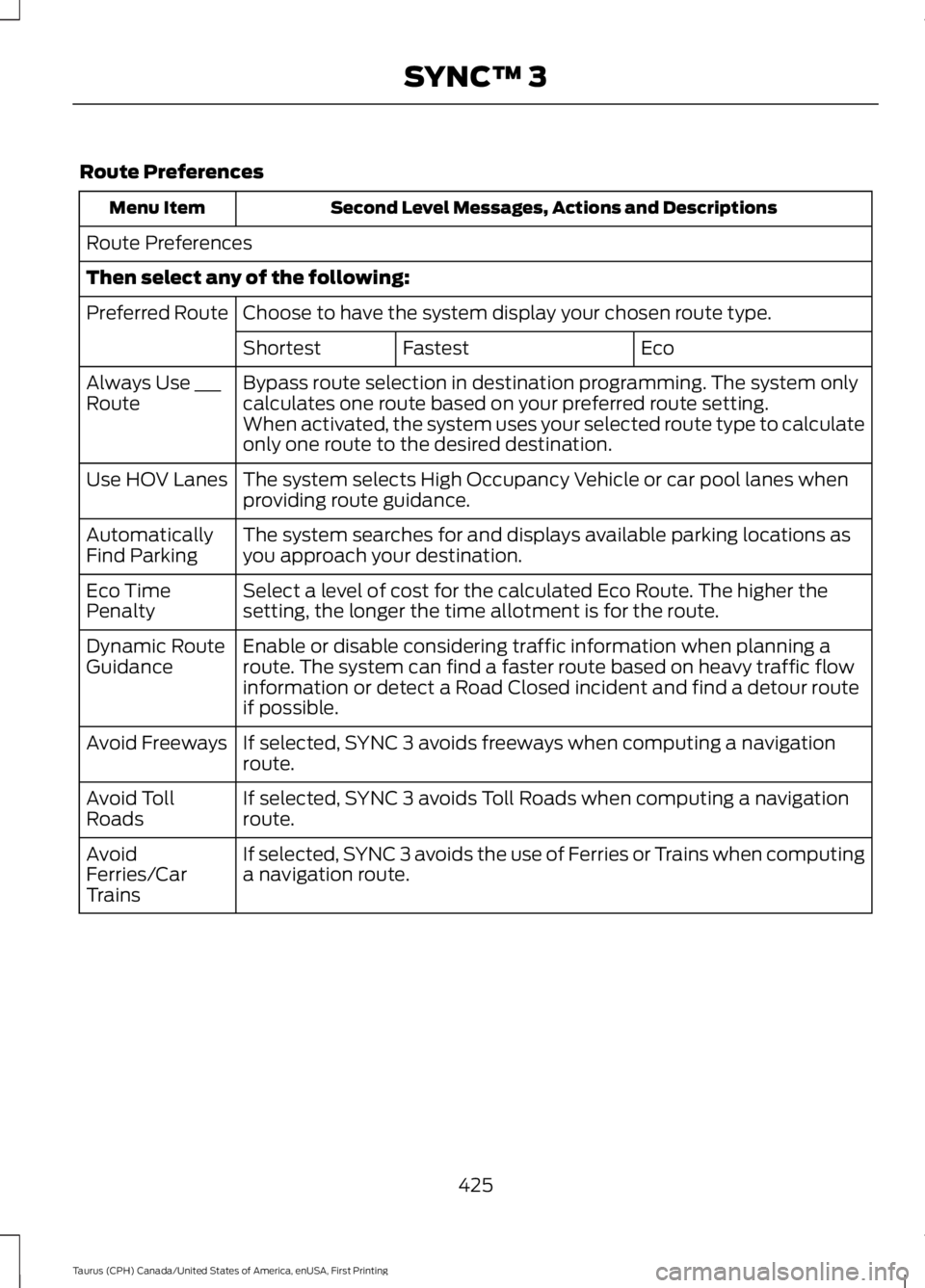
Route Preferences
Second Level Messages, Actions and DescriptionsMenu Item
Route Preferences
Then select any of the following:
Choose to have the system display your chosen route type.Preferred Route
EcoFastestShortest
Bypass route selection in destination programming. The system onlycalculates one route based on your preferred route setting.Always Use ___RouteWhen activated, the system uses your selected route type to calculateonly one route to the desired destination.
The system selects High Occupancy Vehicle or car pool lanes whenproviding route guidance.Use HOV Lanes
The system searches for and displays available parking locations asyou approach your destination.AutomaticallyFind Parking
Select a level of cost for the calculated Eco Route. The higher thesetting, the longer the time allotment is for the route.Eco TimePenalty
Enable or disable considering traffic information when planning aroute. The system can find a faster route based on heavy traffic flowinformation or detect a Road Closed incident and find a detour routeif possible.
Dynamic RouteGuidance
If selected, SYNC 3 avoids freeways when computing a navigationroute.Avoid Freeways
If selected, SYNC 3 avoids Toll Roads when computing a navigationroute.Avoid TollRoads
If selected, SYNC 3 avoids the use of Ferries or Trains when computinga navigation route.AvoidFerries/CarTrains
425
Taurus (CPH) Canada/United States of America, enUSA, First Printing
SYNC™ 3