ignition FORD TAURUS 2017 Manual PDF
[x] Cancel search | Manufacturer: FORD, Model Year: 2017, Model line: TAURUS, Model: FORD TAURUS 2017Pages: 504, PDF Size: 5.84 MB
Page 265 of 504
•Use a quality wax that does not containabrasives.
•Follow the manufacturer’s instructionsto apply and remove the wax.
•Apply a small amount of wax in aback-and-forth motion, not in circles.
•Do not allow wax to come in contactwith any non-body (low-gloss black)colored trim. The wax will discolor orstain the parts over time.
•Roof racks.
•Bumpers.
•Grained door handles.
•Side moldings.
•Mirror housings.
•Windshield cowl area.
•Do not apply wax to glass areas.
•After waxing, your car's paint shouldfeel smooth, and be free of streaks andsmudges.
CLEANING THE ENGINE
Engines are more efficient when they areclean because grease and dirt buildup keepthe engine warmer than normal.
When washing:
•Take care when using a power washerto clean the engine. The high-pressurefluid could penetrate the sealed partsand cause damage.
•Do not spray a hot engine with coldwater to avoid cracking the engineblock or other engine components.
•Spray Motorcraft Engine Shampoo andDegreaser on all parts that requirecleaning and pressure rinse clean. InCanada, use Motorcraft EngineShampoo.
•Never wash or rinse the engine while itis hot or running; water in the runningengine may cause internal damage.
•Never wash or rinse any ignition coil,spark plug wire or spark plug well, orthe area in and around these locations.
•Cover the battery, power distributionbox, and air filter assembly to preventwater damage when cleaning theengine.
CLEANING THE WINDOWS AND
WIPER BLADES
Car wash chemicals and environmentalfallout can result in windshield and wiperblade contamination. Dirty windshield andwipers will result in poor windshield wiperoperation. Keep the windshield and wiperblades clean to maintain windshield wiperperformance.
To clean the windshield and wiper blades:
•Clean the windshield with anon-abrasive glass cleaner. Whencleaning the interior of the windshield,avoid getting any glass cleaner on theinstrument panel or door panels. Wipeany glass cleaner off these surfacesimmediately.
•For windshields contaminated withtree sap, chemicals, wax or bugs, cleanthe entire windshield using steel wool(no greater than 0000 grade) in acircular motion and rinse with water.
•Clean the wiper blades with isopropylrubbing alcohol or windshield washerconcentrate.
Note: Do not use razor blades or othersharp objects to clean or remove decalsfrom the inside of the heated rear window.The vehicle warranty does not coverdamage caused to the heated rear windowgrid lines.
262
Taurus (CPH) Canada/United States of America, enUSA, First Printing
Vehicle Care
Page 300 of 504
ENGINE SPECIFICATIONS - 2.0L ECOBOOST™
2.0L EcoBoostEngine
122Cubic inches
1-3-4-2Firing order
Coil on plugIgnition system
9.3:1Compression ratio
0.027-0.031 in. (0.70-0.80 mm)Spark plug gap
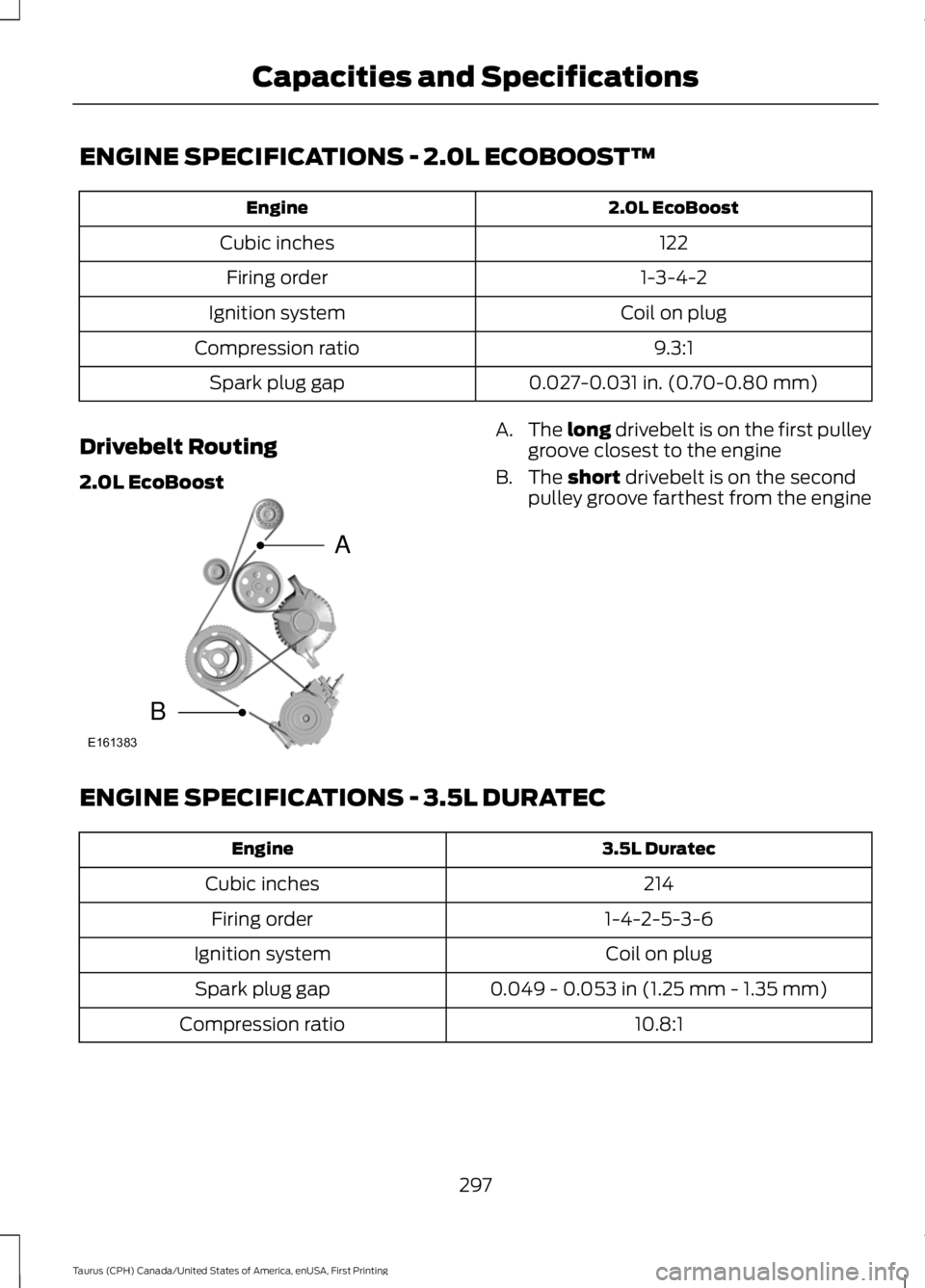
Drivebelt Routing
2.0L EcoBoost
A.The long drivebelt is on the first pulleygroove closest to the engine
B. The short drivebelt is on the secondpulley groove farthest from the engine
ENGINE SPECIFICATIONS - 3.5L DURATEC
3.5L DuratecEngine
214Cubic inches
1-4-2-5-3-6Firing order
Coil on plugIgnition system
0.049 - 0.053 in (1.25 mm - 1.35 mm)Spark plug gap
10.8:1Compression ratio
297
Taurus (CPH) Canada/United States of America, enUSA, First Printing
Capacities and SpecificationsE161383
A
B
Page 301 of 504
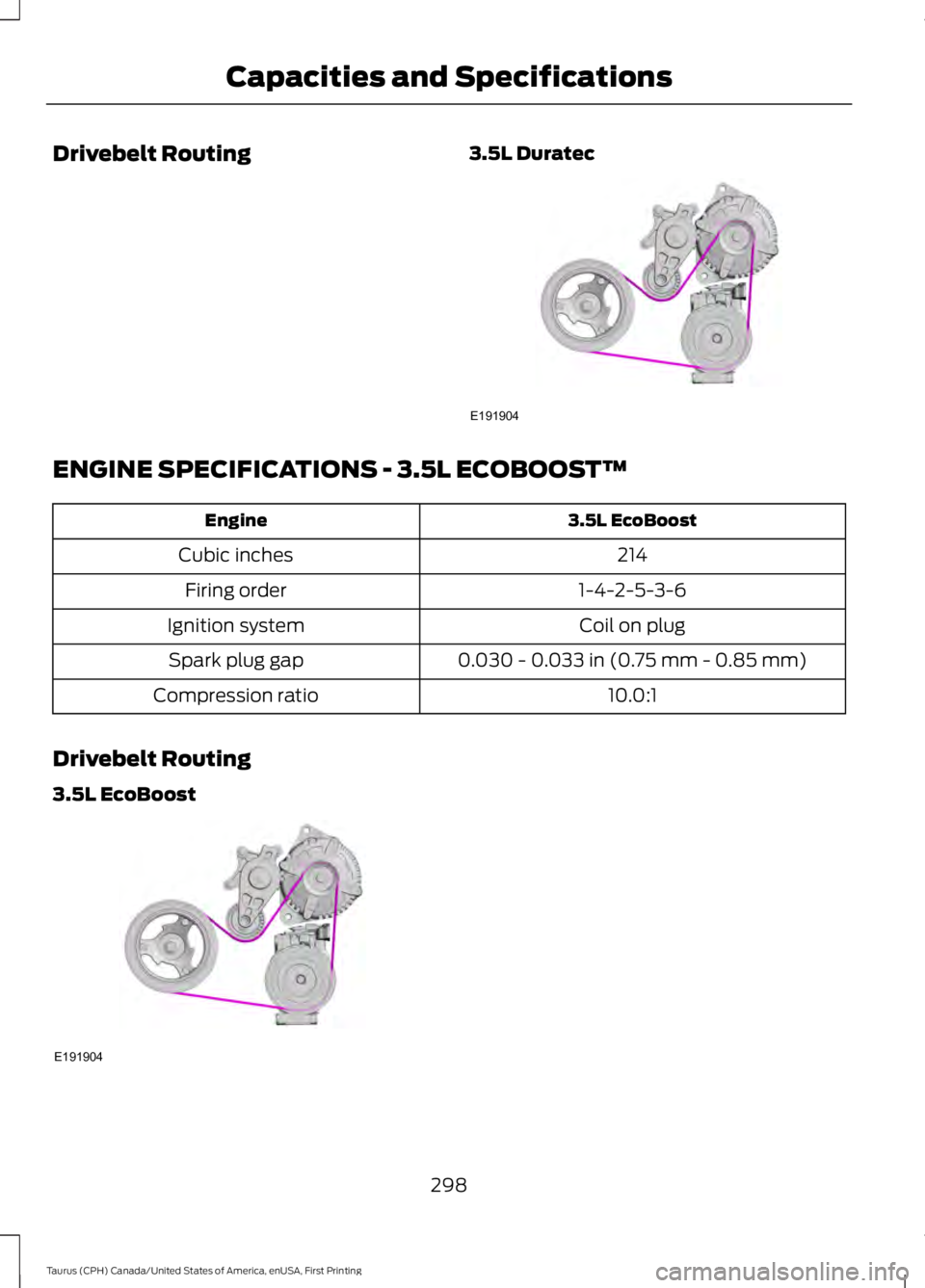
Drivebelt Routing3.5L Duratec
ENGINE SPECIFICATIONS - 3.5L ECOBOOST™
3.5L EcoBoostEngine
214Cubic inches
1-4-2-5-3-6Firing order
Coil on plugIgnition system
0.030 - 0.033 in (0.75 mm - 0.85 mm)Spark plug gap
10.0:1Compression ratio
Drivebelt Routing
3.5L EcoBoost
298
Taurus (CPH) Canada/United States of America, enUSA, First Printing
Capacities and SpecificationsE191904 E191904
Page 335 of 504
USING SYNC™ WITH YOUR
PHONE
Hands-free calling is one of the mainfeatures of SYNC. While the systemsupports a variety of features, many aredependent on your cell phone'sfunctionality. At a minimum, most cellphones with Bluetooth wireless technologysupport the following functions:
•Answering an incoming call.
•Ending a call.
•Using privacy mode.
•Dialing a number.
•Redialing.
•Call waiting notification.
•Caller ID.
Other features, such as text messagingusing Bluetooth and automatic phonebookdownload, are cell phone-dependentfeatures. To check your cell phone'scompatibility, see your cell phone's manualand visit www.SYNCMyRide.com,www.SYNCMyRide.ca orwww.syncmaroute.ca.
Pairing a Cell Phone for the FirstTime
Note:SYNC can support downloading upto approximately 1000 entries perBluetooth-enabled cell phone.
Note:Make sure to switch on the ignitionand the radio. Put the transmission inposition park (P) (automatic transmission)or neutral with the parking brake applied(manual transmission).
Note:To scroll through the menus, pressthe up and down arrows on your audiosystem.
Wirelessly pairing your cell phone withSYNC allows you to make and receivehands-free calls.
Press the phone button. When the display indicates there is no cell phone paired,do the following:
Action and DescriptionMessage
Press the OK button.NO PHONE
FIND SYNC1. Press the OK button.
2. Put your cell phone into Bluetooth discovery mode. Seeyour device's manual if necessary.
3. When prompted on your cell phone's display, enter thesix-digit PIN provided by SYNC in the radio display. Thedisplay indicates when the pairing is successful.
332
Taurus (CPH) Canada/United States of America, enUSA, First Printing
SYNC™
Page 336 of 504
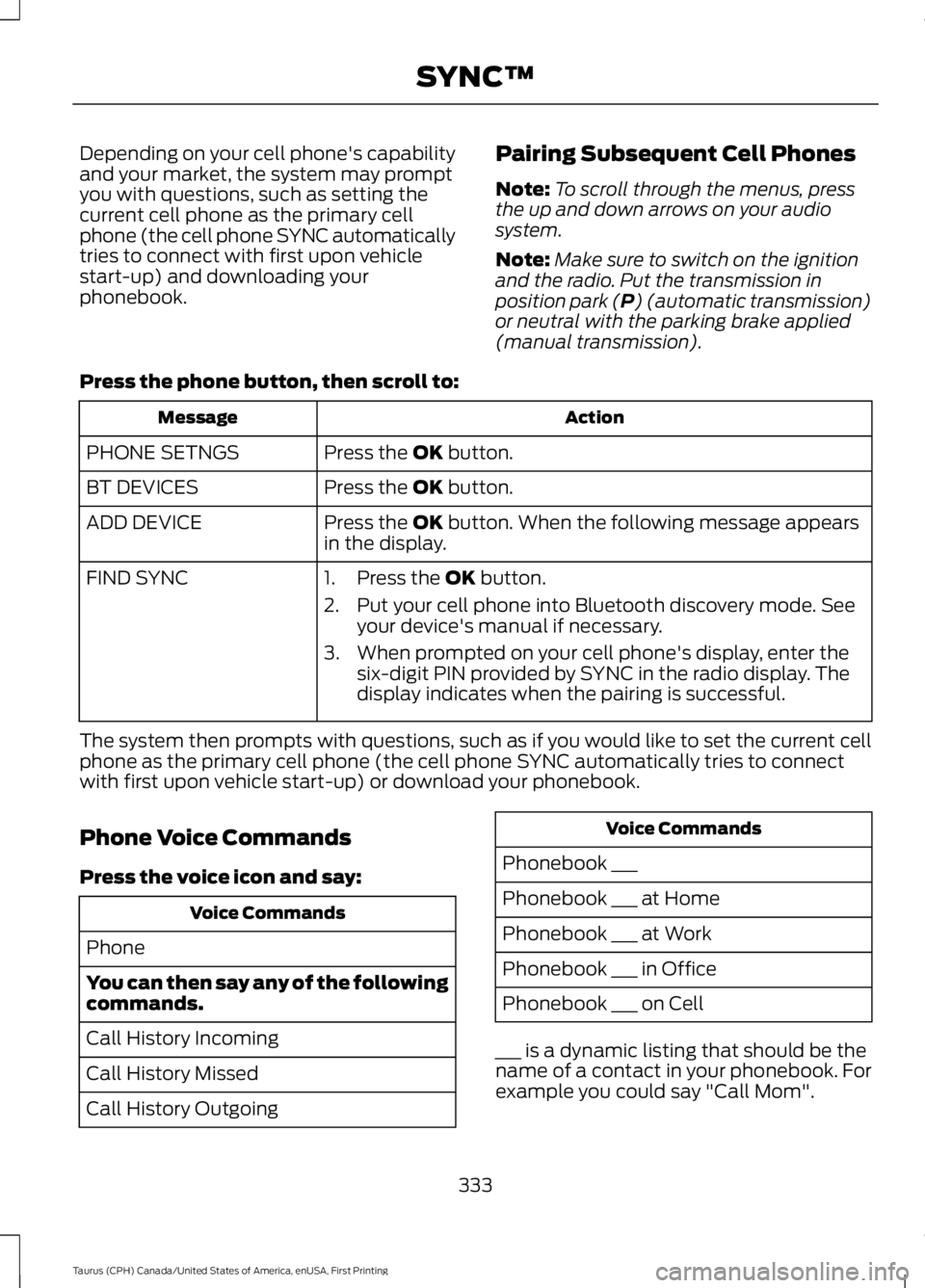
Depending on your cell phone's capabilityand your market, the system may promptyou with questions, such as setting thecurrent cell phone as the primary cellphone (the cell phone SYNC automaticallytries to connect with first upon vehiclestart-up) and downloading yourphonebook.
Pairing Subsequent Cell Phones
Note:To scroll through the menus, pressthe up and down arrows on your audiosystem.
Note:Make sure to switch on the ignitionand the radio. Put the transmission inposition park (P) (automatic transmission)or neutral with the parking brake applied(manual transmission).
Press the phone button, then scroll to:
ActionMessage
Press the OK button.PHONE SETNGS
Press the OK button.BT DEVICES
Press the OK button. When the following message appearsin the display.ADD DEVICE
FIND SYNC1. Press the OK button.
2. Put your cell phone into Bluetooth discovery mode. Seeyour device's manual if necessary.
3. When prompted on your cell phone's display, enter thesix-digit PIN provided by SYNC in the radio display. Thedisplay indicates when the pairing is successful.
The system then prompts with questions, such as if you would like to set the current cellphone as the primary cell phone (the cell phone SYNC automatically tries to connectwith first upon vehicle start-up) or download your phonebook.
Phone Voice Commands
Press the voice icon and say:
Voice Commands
Phone
You can then say any of the followingcommands.
Call History Incoming
Call History Missed
Call History Outgoing
Voice Commands
Phonebook ___
Phonebook ___ at Home
Phonebook ___ at Work
Phonebook ___ in Office
Phonebook ___ on Cell
___ is a dynamic listing that should be thename of a contact in your phonebook. Forexample you could say "Call Mom".
333
Taurus (CPH) Canada/United States of America, enUSA, First Printing
SYNC™
Page 346 of 504
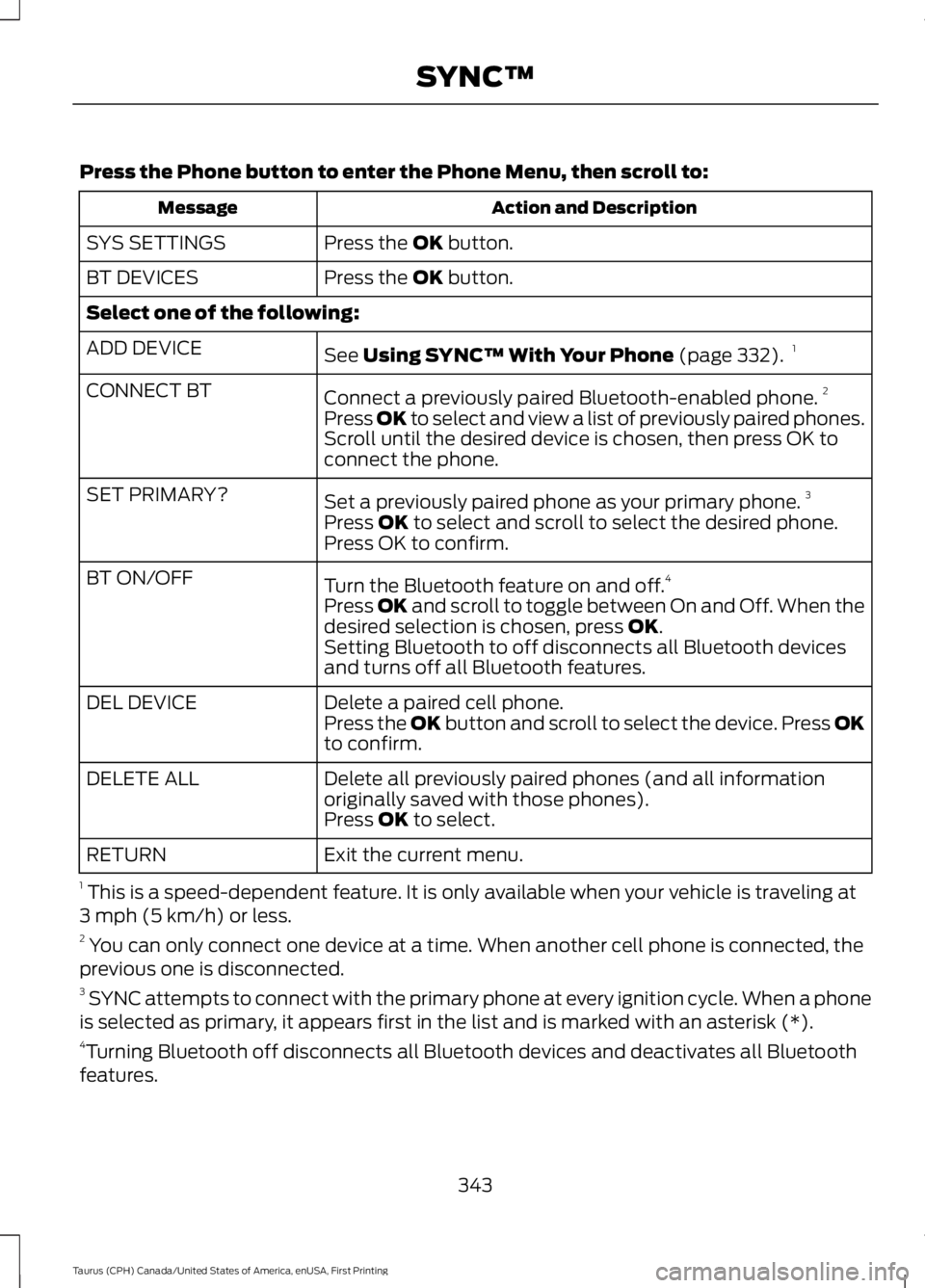
Press the Phone button to enter the Phone Menu, then scroll to:
Action and DescriptionMessage
Press the OK button.SYS SETTINGS
Press the OK button.BT DEVICES
Select one of the following:
See Using SYNC™ With Your Phone (page 332).1ADD DEVICE
Connect a previously paired Bluetooth-enabled phone.2CONNECT BT
Press OK to select and view a list of previously paired phones.Scroll until the desired device is chosen, then press OK toconnect the phone.
Set a previously paired phone as your primary phone.3SET PRIMARY?
Press OK to select and scroll to select the desired phone.Press OK to confirm.
Turn the Bluetooth feature on and off.4BT ON/OFF
Press OK and scroll to toggle between On and Off. When thedesired selection is chosen, press OK.Setting Bluetooth to off disconnects all Bluetooth devicesand turns off all Bluetooth features.
Delete a paired cell phone.DEL DEVICEPress the OK button and scroll to select the device. Press OKto confirm.
Delete all previously paired phones (and all informationoriginally saved with those phones).DELETE ALL
Press OK to select.
Exit the current menu.RETURN
1 This is a speed-dependent feature. It is only available when your vehicle is traveling at3 mph (5 km/h) or less.2 You can only connect one device at a time. When another cell phone is connected, theprevious one is disconnected.3 SYNC attempts to connect with the primary phone at every ignition cycle. When a phoneis selected as primary, it appears first in the list and is marked with an asterisk (*).4Turning Bluetooth off disconnects all Bluetooth devices and deactivates all Bluetoothfeatures.
343
Taurus (CPH) Canada/United States of America, enUSA, First Printing
SYNC™
Page 368 of 504
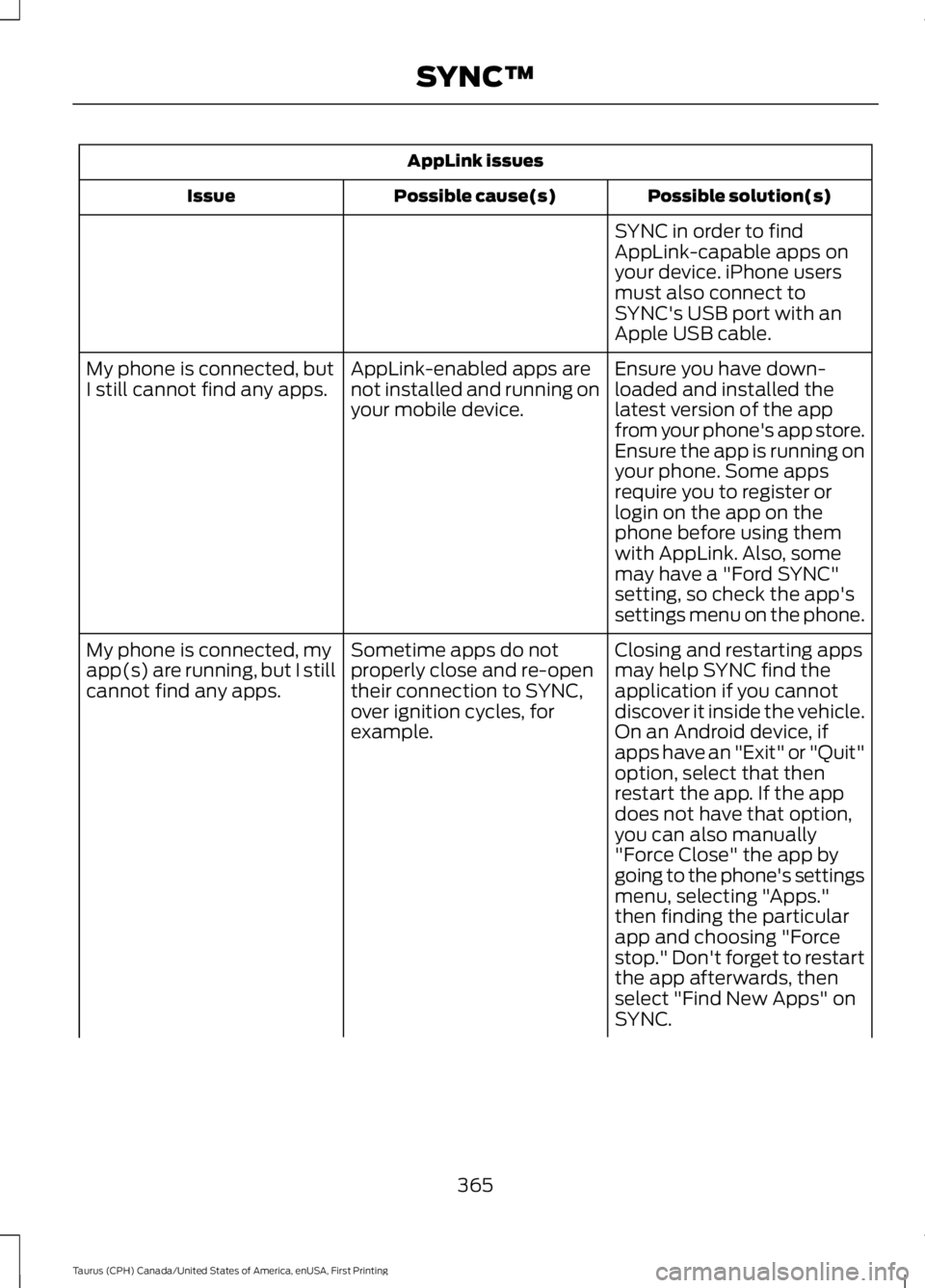
AppLink issues
Possible solution(s)Possible cause(s)Issue
SYNC in order to findAppLink-capable apps onyour device. iPhone usersmust also connect toSYNC's USB port with anApple USB cable.
Ensure you have down-loaded and installed thelatest version of the appfrom your phone's app store.Ensure the app is running onyour phone. Some apps
AppLink-enabled apps arenot installed and running onyour mobile device.
My phone is connected, butI still cannot find any apps.
require you to register orlogin on the app on thephone before using themwith AppLink. Also, somemay have a "Ford SYNC"setting, so check the app'ssettings menu on the phone.
Closing and restarting appsmay help SYNC find theapplication if you cannotdiscover it inside the vehicle.On an Android device, ifapps have an "Exit" or "Quit"
Sometime apps do notproperly close and re-opentheir connection to SYNC,over ignition cycles, forexample.
My phone is connected, myapp(s) are running, but I stillcannot find any apps.
option, select that thenrestart the app. If the appdoes not have that option,you can also manually"Force Close" the app bygoing to the phone's settingsmenu, selecting "Apps."then finding the particularapp and choosing "Forcestop." Don't forget to restartthe app afterwards, thenselect "Find New Apps" onSYNC.
365
Taurus (CPH) Canada/United States of America, enUSA, First Printing
SYNC™
Page 372 of 504
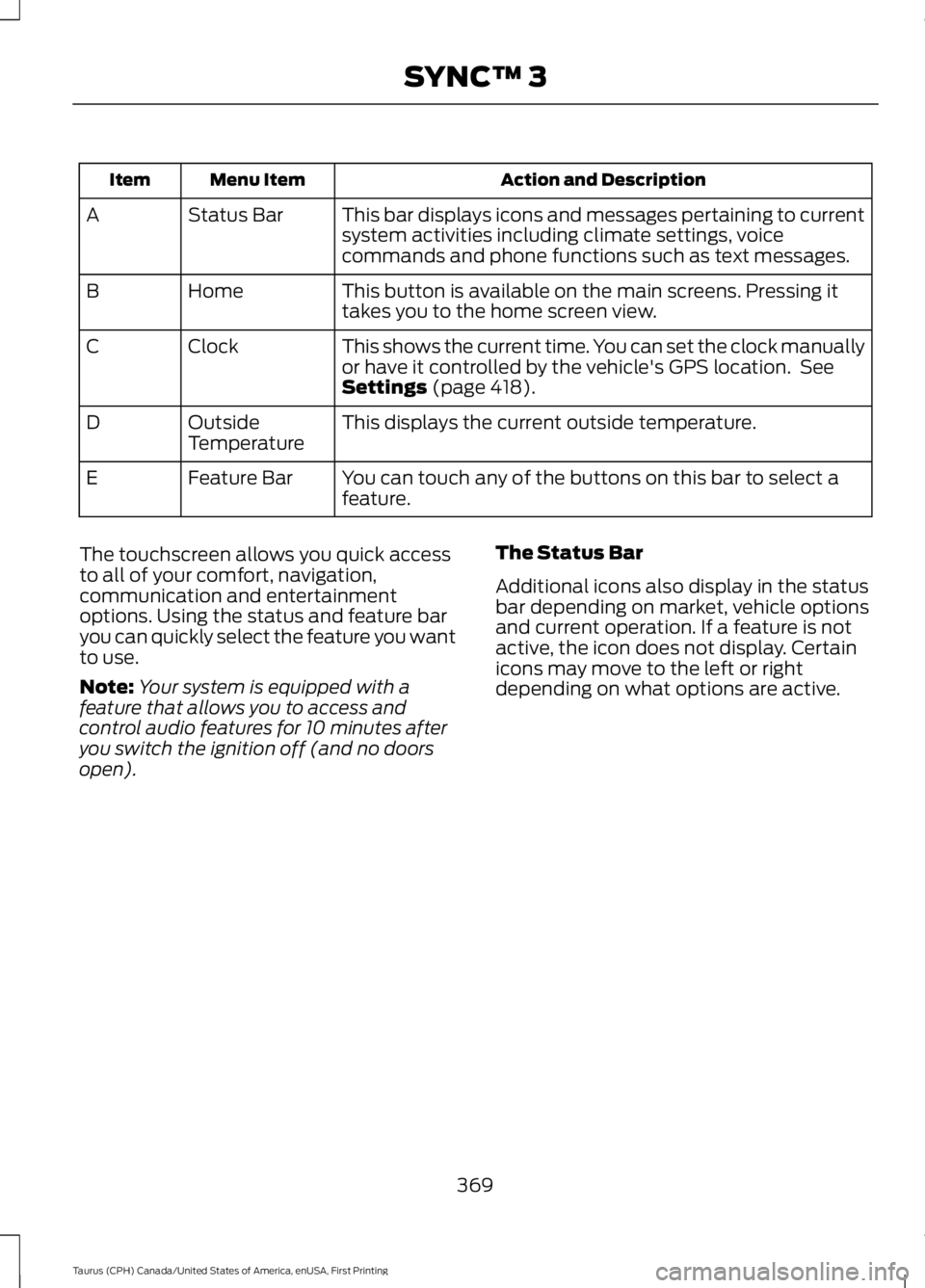
Action and DescriptionMenu ItemItem
This bar displays icons and messages pertaining to currentsystem activities including climate settings, voicecommands and phone functions such as text messages.
Status BarA
This button is available on the main screens. Pressing ittakes you to the home screen view.HomeB
This shows the current time. You can set the clock manuallyor have it controlled by the vehicle's GPS location. SeeSettings (page 418).
ClockC
This displays the current outside temperature.OutsideTemperatureD
You can touch any of the buttons on this bar to select afeature.Feature BarE
The touchscreen allows you quick accessto all of your comfort, navigation,communication and entertainmentoptions. Using the status and feature baryou can quickly select the feature you wantto use.
Note:Your system is equipped with afeature that allows you to access andcontrol audio features for 10 minutes afteryou switch the ignition off (and no doorsopen).
The Status Bar
Additional icons also display in the statusbar depending on market, vehicle optionsand current operation. If a feature is notactive, the icon does not display. Certainicons may move to the left or rightdepending on what options are active.
369
Taurus (CPH) Canada/United States of America, enUSA, First Printing
SYNC™ 3
Page 383 of 504
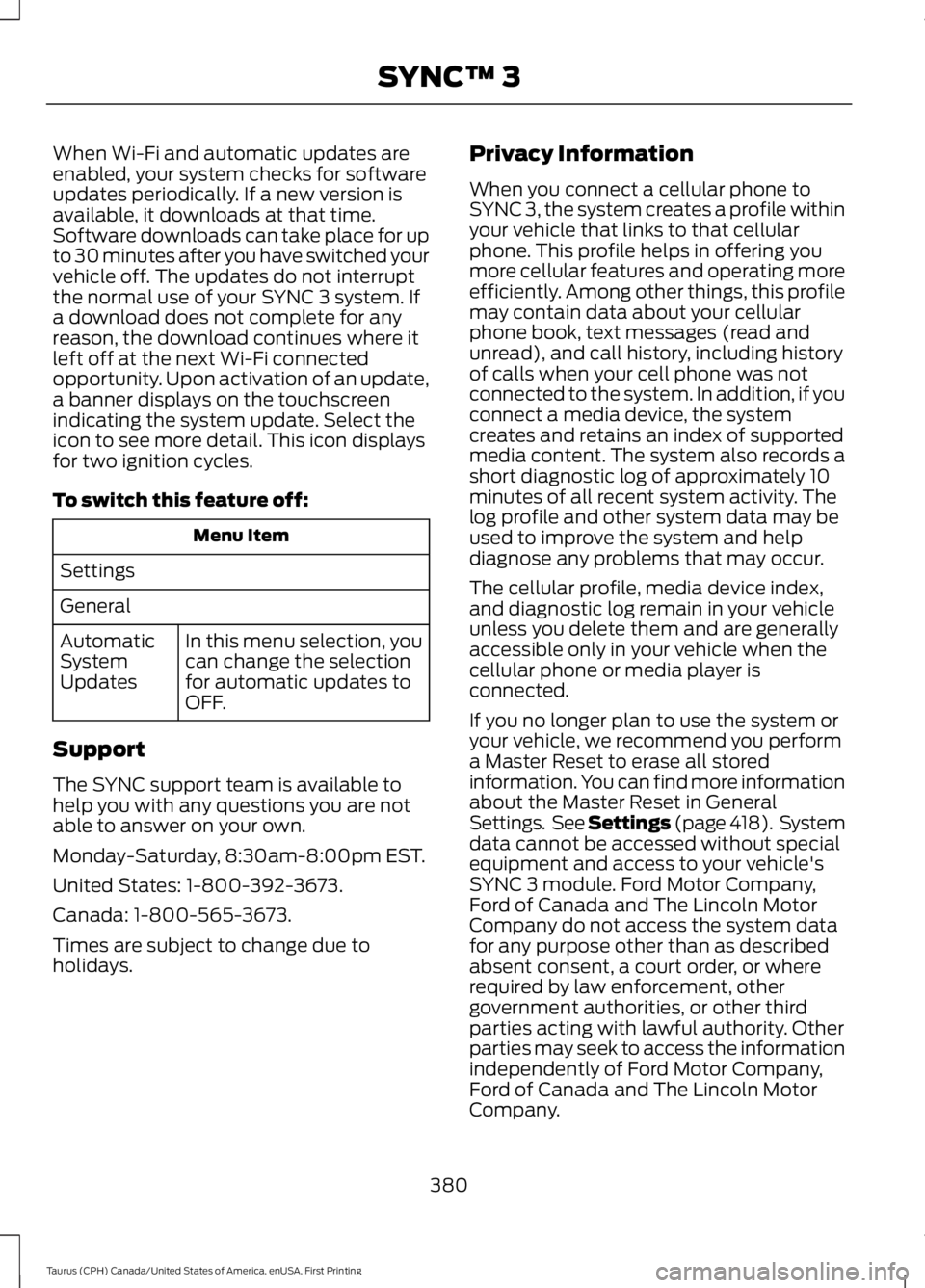
When Wi-Fi and automatic updates areenabled, your system checks for softwareupdates periodically. If a new version isavailable, it downloads at that time.Software downloads can take place for upto 30 minutes after you have switched yourvehicle off. The updates do not interruptthe normal use of your SYNC 3 system. Ifa download does not complete for anyreason, the download continues where itleft off at the next Wi-Fi connectedopportunity. Upon activation of an update,a banner displays on the touchscreenindicating the system update. Select theicon to see more detail. This icon displaysfor two ignition cycles.
To switch this feature off:
Menu Item
Settings
General
In this menu selection, youcan change the selectionfor automatic updates toOFF.
AutomaticSystemUpdates
Support
The SYNC support team is available tohelp you with any questions you are notable to answer on your own.
Monday-Saturday, 8:30am-8:00pm EST.
United States: 1-800-392-3673.
Canada: 1-800-565-3673.
Times are subject to change due toholidays.
Privacy Information
When you connect a cellular phone toSYNC 3, the system creates a profile withinyour vehicle that links to that cellularphone. This profile helps in offering youmore cellular features and operating moreefficiently. Among other things, this profilemay contain data about your cellularphone book, text messages (read andunread), and call history, including historyof calls when your cell phone was notconnected to the system. In addition, if youconnect a media device, the systemcreates and retains an index of supportedmedia content. The system also records ashort diagnostic log of approximately 10minutes of all recent system activity. Thelog profile and other system data may beused to improve the system and helpdiagnose any problems that may occur.
The cellular profile, media device index,and diagnostic log remain in your vehicleunless you delete them and are generallyaccessible only in your vehicle when thecellular phone or media player isconnected.
If you no longer plan to use the system oryour vehicle, we recommend you performa Master Reset to erase all storedinformation. You can find more informationabout the Master Reset in GeneralSettings. See Settings (page 418). Systemdata cannot be accessed without specialequipment and access to your vehicle'sSYNC 3 module. Ford Motor Company,Ford of Canada and The Lincoln MotorCompany do not access the system datafor any purpose other than as describedabsent consent, a court order, or whererequired by law enforcement, othergovernment authorities, or other thirdparties acting with lawful authority. Otherparties may seek to access the informationindependently of Ford Motor Company,Ford of Canada and The Lincoln MotorCompany.
380
Taurus (CPH) Canada/United States of America, enUSA, First Printing
SYNC™ 3
Page 396 of 504
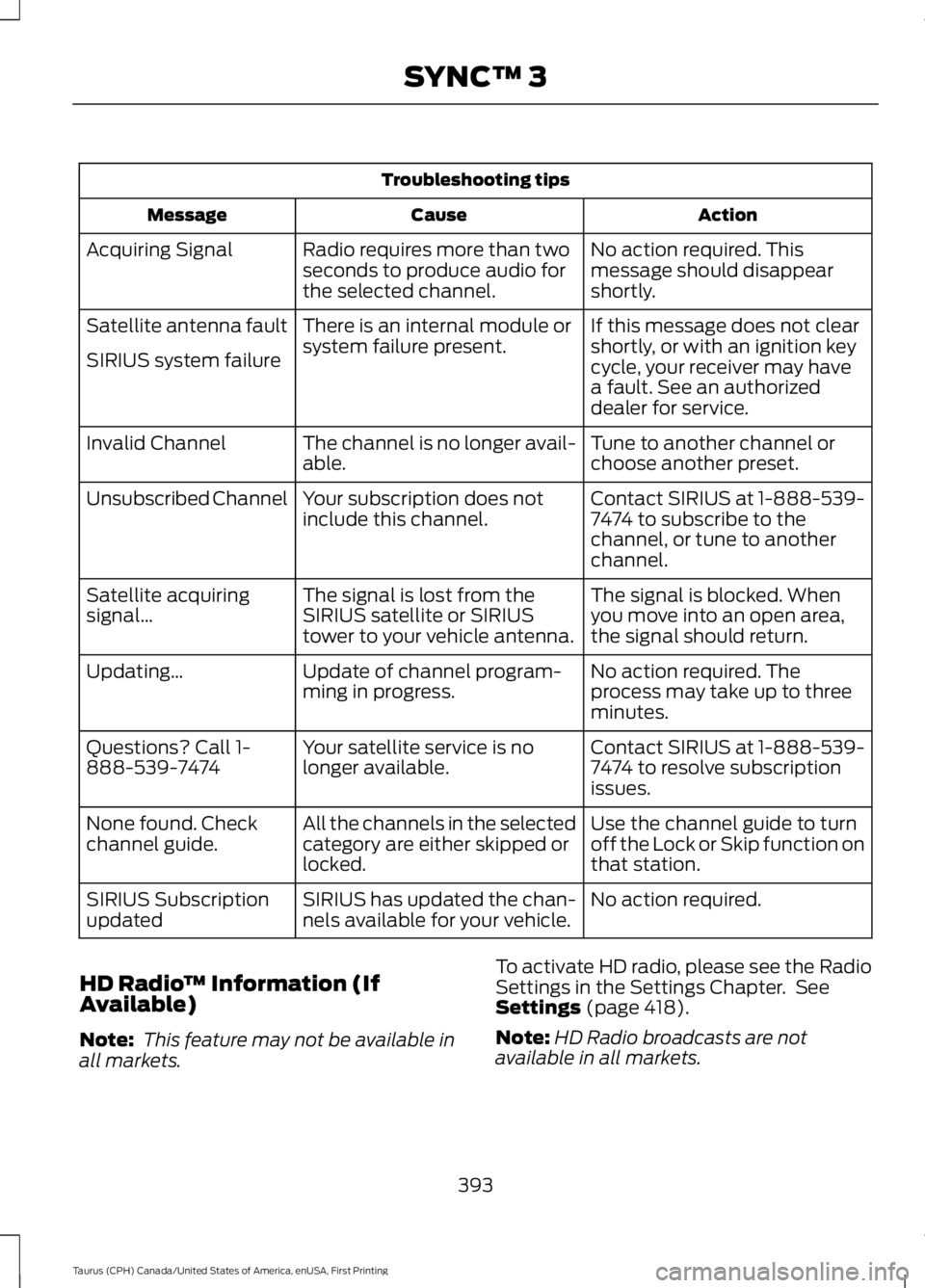
Troubleshooting tips
ActionCauseMessage
No action required. Thismessage should disappearshortly.
Radio requires more than twoseconds to produce audio forthe selected channel.
Acquiring Signal
If this message does not clearshortly, or with an ignition keycycle, your receiver may havea fault. See an authorizeddealer for service.
There is an internal module orsystem failure present.Satellite antenna fault
SIRIUS system failure
Tune to another channel orchoose another preset.The channel is no longer avail-able.Invalid Channel
Contact SIRIUS at 1-888-539-7474 to subscribe to thechannel, or tune to anotherchannel.
Your subscription does notinclude this channel.Unsubscribed Channel
The signal is blocked. Whenyou move into an open area,the signal should return.
The signal is lost from theSIRIUS satellite or SIRIUStower to your vehicle antenna.
Satellite acquiringsignal…
No action required. Theprocess may take up to threeminutes.
Update of channel program-ming in progress.Updating…
Contact SIRIUS at 1-888-539-7474 to resolve subscriptionissues.
Your satellite service is nolonger available.Questions? Call 1-888-539-7474
Use the channel guide to turnoff the Lock or Skip function onthat station.
All the channels in the selectedcategory are either skipped orlocked.
None found. Checkchannel guide.
No action required.SIRIUS has updated the chan-nels available for your vehicle.SIRIUS Subscriptionupdated
HD Radio™ Information (IfAvailable)
Note: This feature may not be available inall markets.
To activate HD radio, please see the RadioSettings in the Settings Chapter. SeeSettings (page 418).
Note:HD Radio broadcasts are notavailable in all markets.
393
Taurus (CPH) Canada/United States of America, enUSA, First Printing
SYNC™ 3