page 42 FORD TRANSIT 2015 5.G Owners Manual
[x] Cancel search | Manufacturer: FORD, Model Year: 2015, Model line: TRANSIT, Model: FORD TRANSIT 2015 5.GPages: 461, PDF Size: 5.82 MB
Page 301 of 461
WARNINGS
against the use of any hand-held device
while driving and encourage the use of
voice-operated systems when possible.
Make sure you are aware of all applicable
local laws that may affect the use of
electronic devices while driving. For safety reasons, do not connect
or adjust the settings on your device
while your vehicle is moving.
Store all devices in a secure location
when your vehicle is moving, for
example the glove compartment.
Hard objects may become projectiles in a
crash or sudden stop, which may increase
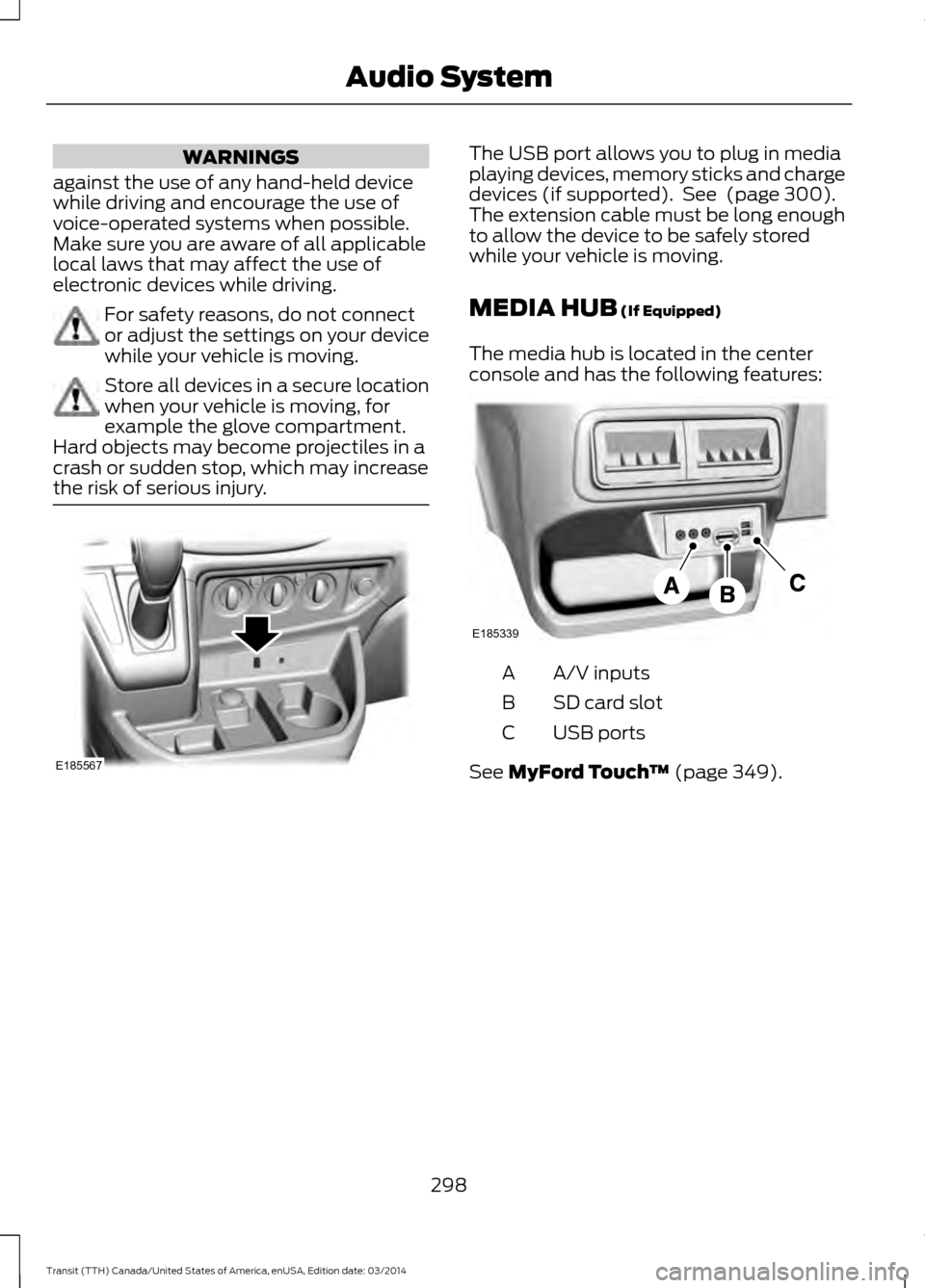
the risk of serious injury. The USB port allows you to plug in media
playing devices, memory sticks and charge
devices (if supported). See (page 300).
The extension cable must be long enough
to allow the device to be safely stored
while your vehicle is moving.
MEDIA HUB
(If Equipped)
The media hub is located in the center
console and has the following features: A/V inputs
A
SD card slot
B
USB ports
C
See
MyFord Touch ™ (page 349).
298 Transit (TTH) Canada/United States of America, enUSA, Edition date: 03/2014 Audio SystemE185567 E185339
Page 305 of 461
System data cannot be accessed without
special equipment and access to the
vehicle's SYNC module. Ford Motor
Company and Ford of Canada will not
access the system data for any purpose
other than as described absent consent, a
court order, or where required by law
enforcement, other government
authorities, or other third parties acting
with lawful authority. Other parties may
seek to access the information
independently of Ford Motor Company and
Ford of Canada. For further privacy
information, see the sections on 911 Assist,
Vehicle Health Report, and Traffic,
Directions and Information.
USING VOICE RECOGNITION
This system helps you control many
features using voice commands. This
allows you to keep your hands on the
wheel and focus on what is in front of you.
Helpful Hints
•
Make sure the interior of your vehicle is
as quiet as possible. Wind noise from
open windows and road vibrations may
prevent the system from correctly
recognizing spoken commands.
• After pressing the voice button, wait
until after the tone sounds and
Listening appears before saying a
command. Any command spoken
before this does not register with the
system.
• Speak naturally, without long pauses
between words.
• At any time, you can interrupt the
system while it is speaking by pressing
the voice button.
Initiating a Voice Session Initiate a voice session by
pressing the voice button on the
steering wheel controls. See
Voice Control (page 62).
A tone sounds and the following
message appears in the information
display. Message
Listening
You can then say any of the following: If you want the system to carry out the following
Voice command
Stream audio from your phone.
Bluetooth audio
Cancel the requested action.
(cancel | stop | exit)
Access the device connected to the auxiliary input jack.
((line | AV | audio video)
in | AUX | audio video)
Access mobile applications.
mobile (apps | applica-
tions)
302Transit (TTH) Canada/United States of America, enUSA, Edition date: 03/2014 SYNC™E142599
Page 306 of 461
If you want the system to carry out the following
Voice command
Make calls.
(phone | Blackberry |
iPhone | Mobile)
Access the SYNC Services portal.
Services
Return to the main menu.
SYNC
Access the device connected to your USB port.
(USB [stick] | iPod | MP3
[player])
Run a vehicle health report.
vehicle [health] report
Adjust the level of voice interaction and feedback.
voice settings
Hear a list of voice commands available in the current mode.
[main menu] help
You can say any of the voice commands that appear within open and close brackets that
are separated by |. For example, where (cancel | stop | exit) appears you say; cancel or
stop or exit.
You must say any of the voice commands that appear outside of open and close brackets.
For example, where mobile (apps | applications) appears, you must say mobile followed
by either apps or applications.
You do not need to say words that appear within square brackets. For example, for where
(USB [stick] | iPOD | MP3 [player]) appears, you can say USB or USB stick.
Note: Mobile Applications, Services and Vehicle health report, is only available in the United
States of America.
System Interaction and Feedback
The system provides feedback through
audible tones, prompts, questions and
spoken confirmations depending on the
situation and the chosen level of
interaction (voice settings). You can
customize the voice recognition system to
provide more or less instruction and
feedback.
The default setting is to a higher level of
interaction in order to help you learn to use
the system. You can change these settings
at any time. Adjusting the Interaction Level Initiate a voice session by
pressing the voice button on the
steering wheel controls. See
Voice Control (page 62).
A tone sounds and the following
message appears in the information
display. Message
Listen
303 Transit (TTH) Canada/United States of America, enUSA, Edition date: 03/2014 SYNC™E142599
Page 321 of 461
System Settings
This menu provides access to your
Bluetooth Devices and Advanced menu
features. Use the arrow buttons to scroll
through the menu options.
Bluetooth Devices
The Bluetooth Devices menu allows you
to add, connect and delete devices, set a
cell phone as primary as well as turn your
Bluetooth feature on and off.
Press the phone button, then scroll to: Action and Description
Message
Press the OK button.
System settings
Press the
OK button.
BT Devices
Select one of the following:
See
Using SYNC™ With Your Phone (page 305). *
Add Device
Connect a previously paired Bluetooth-enabled cell phone. **
Connect Bluetooth
Device
1.Press the OK button to select and view a list of previously
p
aired cell phones.
2. Scroll until you find the desired device, and then press OK
to connect the cell phone.
Set a previously paired cell phone as your primary cell phone.
Set as Primary Phone
Press the OK button to select and scroll to select the desired
c
ell phone. Press OK to confirm.
SYNC attempts to connect with the primary cell phone at
every ignition cycle. When you select a cell phone as a primary
cell phone, it appears first in the list and the system marks it
with an asterisk.
Turn the Bluetooth feature on and off.
Bluetooth On and Off
Press the OK button and scroll to toggle between on and off.
P
ress the OK button again.
Setting Bluetooth to off disconnects all Bluetooth devices
and turns off all Bluetooth features.
Delete a paired cell phone.
Delete Device
Press the OK button and scroll to select the device. Press OK
t
o confirm.
Delete all previously paired cell phones and all information
originally saved with those cell phones.
Delete All Devices
318Transit (TTH) Canada/United States of America, enUSA, Edition date: 03/2014 SYNC™
Page 324 of 461
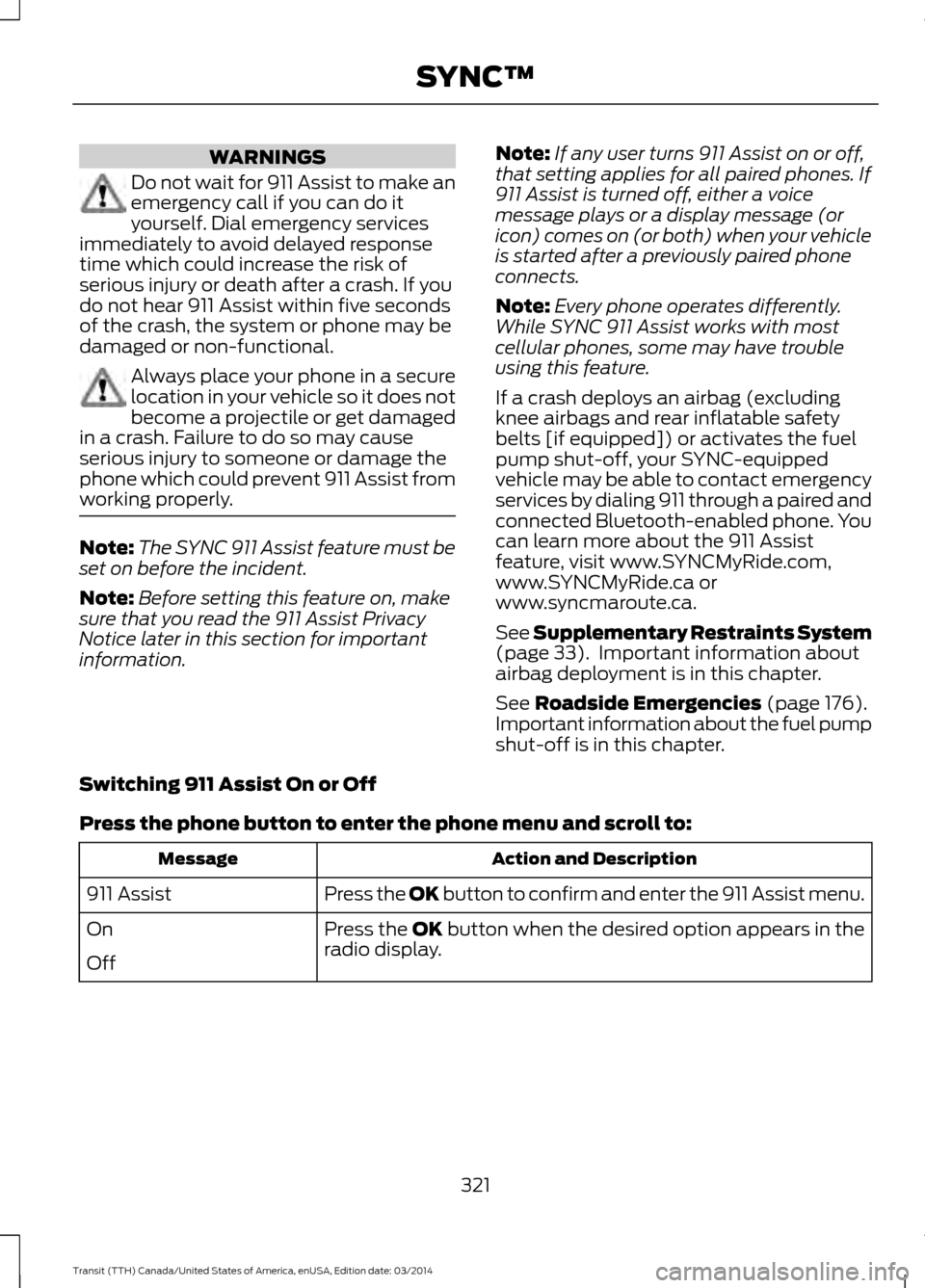
WARNINGS
Do not wait for 911 Assist to make an
emergency call if you can do it
yourself. Dial emergency services
immediately to avoid delayed response
time which could increase the risk of
serious injury or death after a crash. If you
do not hear 911 Assist within five seconds
of the crash, the system or phone may be
damaged or non-functional. Always place your phone in a secure
location in your vehicle so it does not
become a projectile or get damaged
in a crash. Failure to do so may cause
serious injury to someone or damage the
phone which could prevent 911 Assist from
working properly. Note:
The SYNC 911 Assist feature must be
set on before the incident.
Note: Before setting this feature on, make
sure that you read the 911 Assist Privacy
Notice later in this section for important
information. Note:
If any user turns 911 Assist on or off,
that setting applies for all paired phones. If
911 Assist is turned off, either a voice
message plays or a display message (or
icon) comes on (or both) when your vehicle
is started after a previously paired phone
connects.
Note: Every phone operates differently.
While SYNC 911 Assist works with most
cellular phones, some may have trouble
using this feature.
If a crash deploys an airbag (excluding
knee airbags and rear inflatable safety
belts [if equipped]) or activates the fuel
pump shut-off, your SYNC-equipped
vehicle may be able to contact emergency
services by dialing 911 through a paired and
connected Bluetooth-enabled phone. You
can learn more about the 911 Assist
feature, visit www.SYNCMyRide.com,
www.SYNCMyRide.ca or
www.syncmaroute.ca.
See Supplementary Restraints System
(page 33). Important information about
airbag deployment is in this chapter.
See
Roadside Emergencies (page 176).
Important information about the fuel pump
shut-off is in this chapter.
Switching 911 Assist On or Off
Press the phone button to enter the phone menu and scroll to: Action and Description
Message
Press the OK button to confirm and enter the 911 Assist menu.
911 Assist
Press the OK button when the desired option appears in the
radio display.
On
Off
321Transit (TTH) Canada/United States of America, enUSA, Edition date: 03/2014 SYNC™
Page 328 of 461
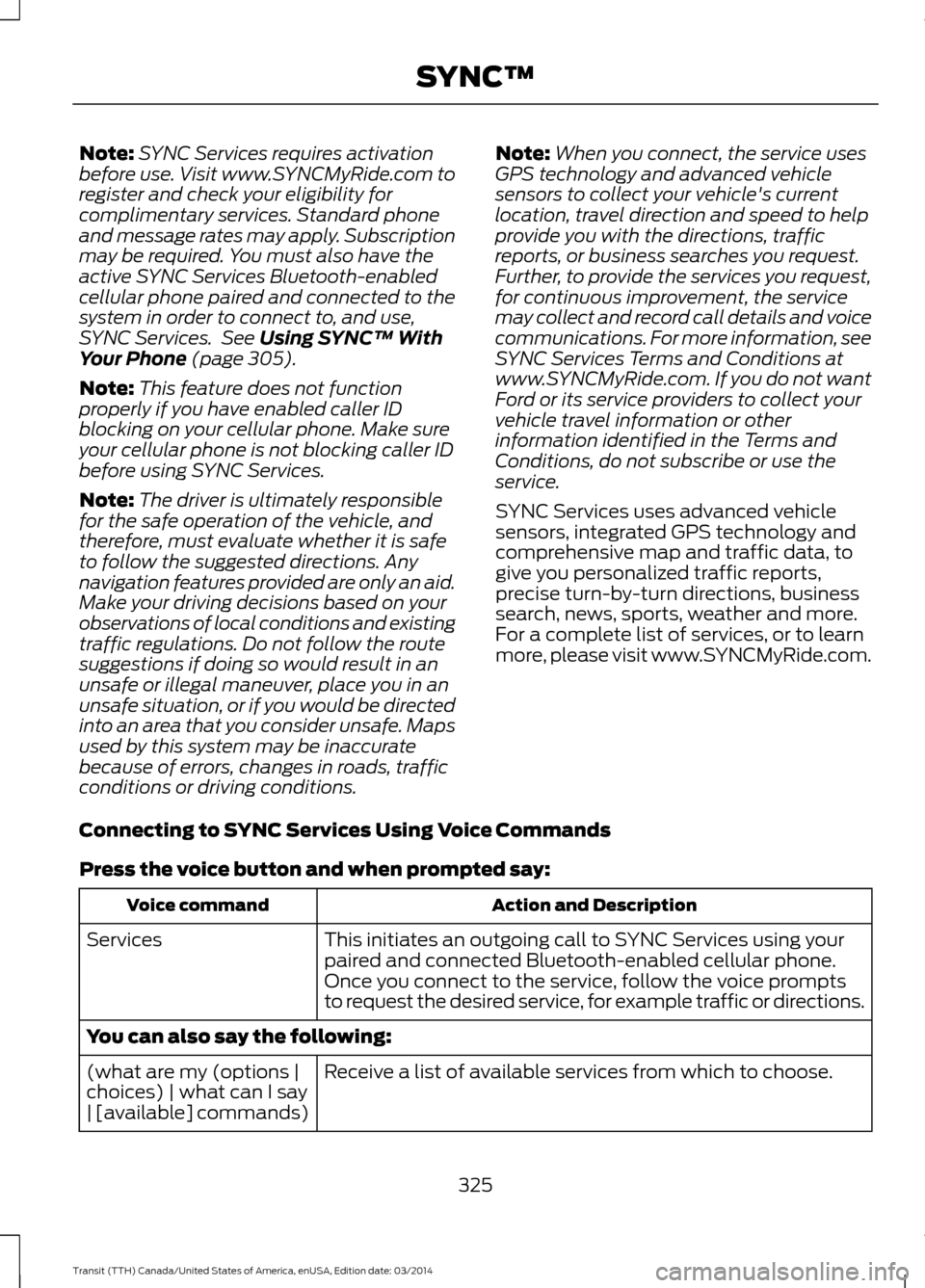
Note:
SYNC Services requires activation
before use. Visit www.SYNCMyRide.com to
register and check your eligibility for
complimentary services. Standard phone
and message rates may apply. Subscription
may be required. You must also have the
active SYNC Services Bluetooth-enabled
cellular phone paired and connected to the
system in order to connect to, and use,
SYNC Services. See Using SYNC™ With
Your Phone (page 305).
Note: This feature does not function
properly if you have enabled caller ID
blocking on your cellular phone. Make sure
your cellular phone is not blocking caller ID
before using SYNC Services.
Note: The driver is ultimately responsible
for the safe operation of the vehicle, and
therefore, must evaluate whether it is safe
to follow the suggested directions. Any
navigation features provided are only an aid.
Make your driving decisions based on your
observations of local conditions and existing
traffic regulations. Do not follow the route
suggestions if doing so would result in an
unsafe or illegal maneuver, place you in an
unsafe situation, or if you would be directed
into an area that you consider unsafe. Maps
used by this system may be inaccurate
because of errors, changes in roads, traffic
conditions or driving conditions. Note:
When you connect, the service uses
GPS technology and advanced vehicle
sensors to collect your vehicle's current
location, travel direction and speed to help
provide you with the directions, traffic
reports, or business searches you request.
Further, to provide the services you request,
for continuous improvement, the service
may collect and record call details and voice
communications. For more information, see
SYNC Services Terms and Conditions at
www.SYNCMyRide.com. If you do not want
Ford or its service providers to collect your
vehicle travel information or other
information identified in the Terms and
Conditions, do not subscribe or use the
service.
SYNC Services uses advanced vehicle
sensors, integrated GPS technology and
comprehensive map and traffic data, to
give you personalized traffic reports,
precise turn-by-turn directions, business
search, news, sports, weather and more.
For a complete list of services, or to learn
more, please visit www.SYNCMyRide.com.
Connecting to SYNC Services Using Voice Commands
Press the voice button and when prompted say: Action and Description
Voice command
This initiates an outgoing call to SYNC Services using your
paired and connected Bluetooth-enabled cellular phone.
Services
Once you connect to the service, follow the voice prompts
to request the desired service, for example traffic or directions.
You can also say the following: Receive a list of available services from which to choose.
(what are my (options |
choices) | what can I say
| [available] commands)
325Transit (TTH) Canada/United States of America, enUSA, Edition date: 03/2014 SYNC™
Page 335 of 461
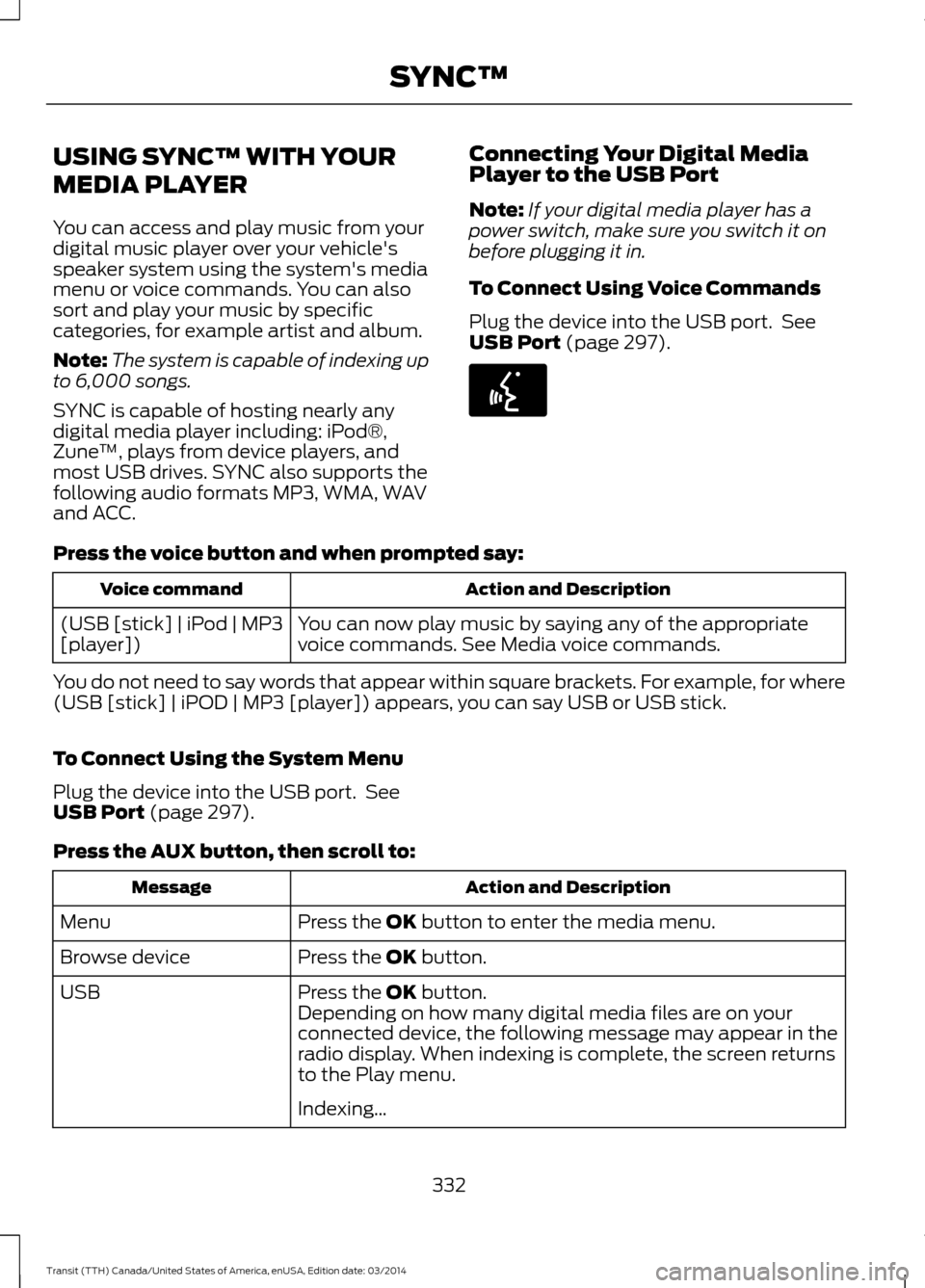
USING SYNC™ WITH YOUR
MEDIA PLAYER
You can access and play music from your
digital music player over your vehicle's
speaker system using the system's media
menu or voice commands. You can also
sort and play your music by specific
categories, for example artist and album.
Note:
The system is capable of indexing up
to 6,000 songs.
SYNC is capable of hosting nearly any
digital media player including: iPod®,
Zune ™, plays from device players, and
most USB drives. SYNC also supports the
following audio formats MP3, WMA, WAV
and ACC. Connecting Your Digital Media
Player to the USB Port
Note:
If your digital media player has a
power switch, make sure you switch it on
before plugging it in.
To Connect Using Voice Commands
Plug the device into the USB port. See
USB Port (page 297). Press the voice button and when prompted say:
Action and Description
Voice command
You can now play music by saying any of the appropriate
voice commands. See Media voice commands.
(USB [stick] | iPod | MP3
[player])
You do not need to say words that appear within square brackets. For example, for where
(USB [stick] | iPOD | MP3 [player]) appears, you can say USB or USB stick.
To Connect Using the System Menu
Plug the device into the USB port. See
USB Port
(page 297).
Press the
AUX button, then scroll to: Action and Description
Message
Press the
OK button to enter the media menu.
Menu
Press the
OK button.
Browse device
Press the
OK button.
USB
Depending on how many digital media files are on your
connected device, the following message may appear in the
radio display. When indexing is complete, the screen returns
to the Play menu.
Indexing…
332Transit (TTH) Canada/United States of America, enUSA, Edition date: 03/2014 SYNC™E142599
Page 357 of 461
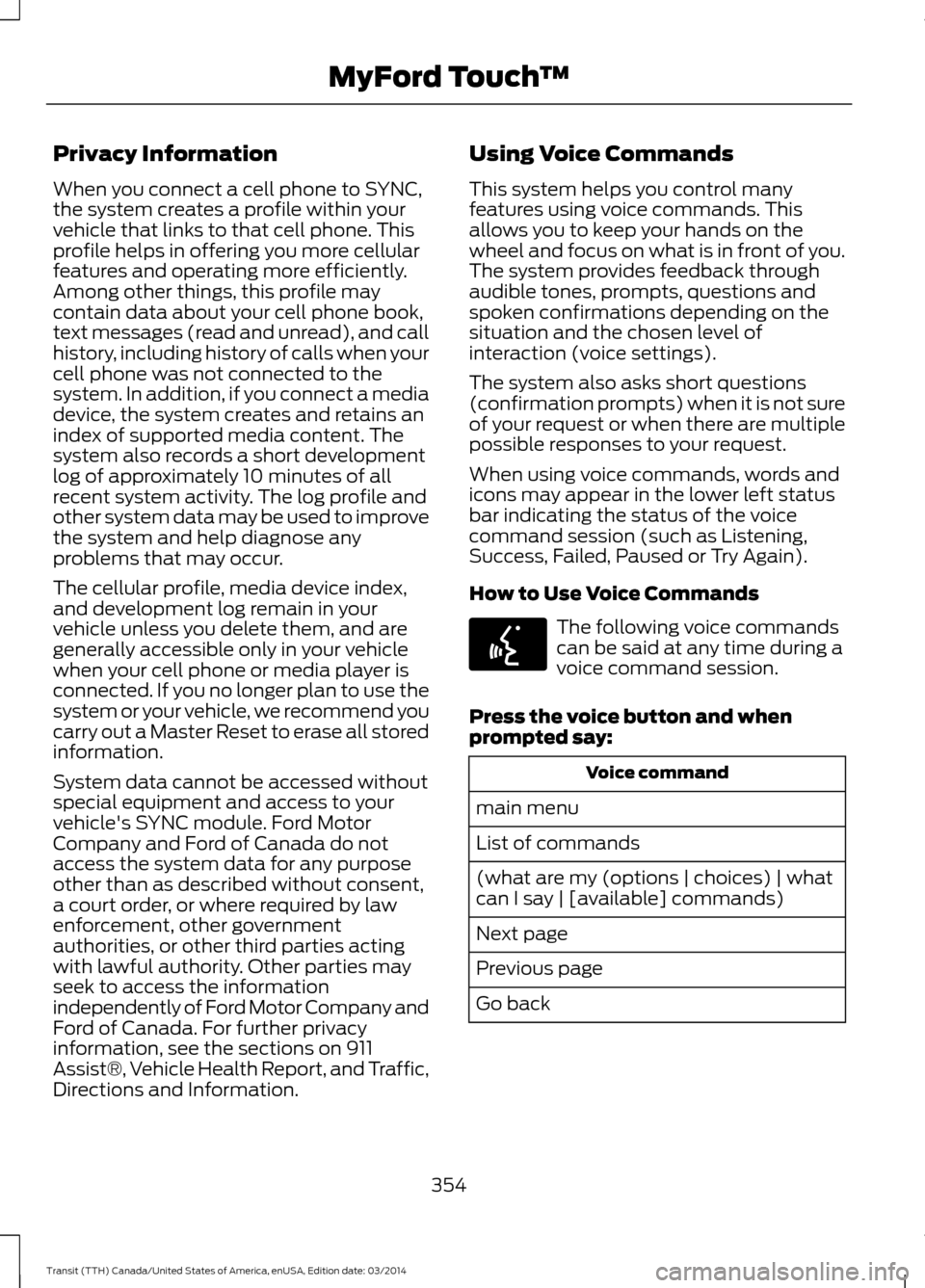
Privacy Information
When you connect a cell phone to SYNC,
the system creates a profile within your
vehicle that links to that cell phone. This
profile helps in offering you more cellular
features and operating more efficiently.
Among other things, this profile may
contain data about your cell phone book,
text messages (read and unread), and call
history, including history of calls when your
cell phone was not connected to the
system. In addition, if you connect a media
device, the system creates and retains an
index of supported media content. The
system also records a short development
log of approximately 10 minutes of all
recent system activity. The log profile and
other system data may be used to improve
the system and help diagnose any
problems that may occur.
The cellular profile, media device index,
and development log remain in your
vehicle unless you delete them, and are
generally accessible only in your vehicle
when your cell phone or media player is
connected. If you no longer plan to use the
system or your vehicle, we recommend you
carry out a Master Reset to erase all stored
information.
System data cannot be accessed without
special equipment and access to your
vehicle's SYNC module. Ford Motor
Company and Ford of Canada do not
access the system data for any purpose
other than as described without consent,
a court order, or where required by law
enforcement, other government
authorities, or other third parties acting
with lawful authority. Other parties may
seek to access the information
independently of Ford Motor Company and
Ford of Canada. For further privacy
information, see the sections on 911
Assist®, Vehicle Health Report, and Traffic,
Directions and Information.
Using Voice Commands
This system helps you control many
features using voice commands. This
allows you to keep your hands on the
wheel and focus on what is in front of you.
The system provides feedback through
audible tones, prompts, questions and
spoken confirmations depending on the
situation and the chosen level of
interaction (voice settings).
The system also asks short questions
(confirmation prompts) when it is not sure
of your request or when there are multiple
possible responses to your request.
When using voice commands, words and
icons may appear in the lower left status
bar indicating the status of the voice
command session (such as Listening,
Success, Failed, Paused or Try Again).
How to Use Voice Commands
The following voice commands
can be said at any time during a
voice command session.
Press the voice button and when
prompted say: Voice command
main menu
List of commands
(what are my (options | choices) | what
can I say | [available] commands)
Next page
Previous page
Go back
354 Transit (TTH) Canada/United States of America, enUSA, Edition date: 03/2014 MyFord Touch
™E142599
Page 364 of 461
Camera Settings
This menu allows you to access settings
for your rear view camera.
To make adjustments using the touchscreen, select:
Action and Description
Message
Press the settings icon.
Settings
Vehicle
Rear View Camera
Camera Settings
Then select from the following:
Enhanced Park Aids
Rear Camera Delay
You can find more information on the rear view camera system in another chapter. See
Parking Aids (page 143).
Enable Valet Mode
Valet mode allows you to lock the system.
No information is accessible until the
system is unlocked with the correct PIN. Note:
If the system locks, and you need to
reset the PIN, enter 3681 and the system
unlocks. To make adjustments using the touchscreen, select:
Action and Description
Message
Press the settings icon.
Settings
Vehicle
Enable Valet Mode
After you press Continue the system locks until you enter the
PIN again.
Continue
Settings
Access and adjust system settings, voice
features, as well as phone, navigation and
wireless settings. System
361
Transit (TTH) Canada/United States of America, enUSA, Edition date: 03/2014 MyFord Touch
™E142607 E142607 E142607
Page 368 of 461
Action and Description
Message
Have all calls go directly to your voice mail and not ring inside
your vehicle. With this feature turned on, text message noti-
fications are also suppressed and do not ring inside your
vehicle.
Do Not Disturb
Turn on or turn off the 911 Assist feature. See Information
(page 395).
911 Assist
Select the type of notification for phone calls - ring tone,
beep, text to speech or silent.
Phone Ringer
Select the type of notification for text messages - alert tone,
beep, text to speech, or have it be silent.
Text Message Notifica-
tion
If compatible with your phone, you can adjust your internet
data connection. Select to make your connection profile with
the personal area network or to turn off your connection. You
can also choose to adjust your settings or have the system
always connect, never connect when roaming, or query on
connect. Press
? for more information.
Internet Data Connection
Access features, such as automatic phonebook download,
re-download your phonebook, add contacts from your phone
as well as delete or upload your phonebook.
Manage Phonebook
Have the system alert you when in Roaming mode.
Roaming Warning
Wireless & Internet
Your system has a Wi-Fi feature that
creates a wireless network within your
vehicle, thereby allowing other devices
(such as personal computers or phones)
in your vehicle to speak to each other,
share files or play games. Using this Wi-Fi feature, everyone in your vehicle can also
gain access the internet if you have a USB
mobile broadband connection inside your
vehicle, your phone supports personal area
networking and if you park outside a
wireless hotspot.To make adjustments using the touchscreen, select:
Action and Description
Message
Press the settings icon.
Settings
Wireless & Internet
Then select from the following:
Wi-Fi Network (Client) Mode
Wi-Fi Settings
365Transit (TTH) Canada/United States of America, enUSA, Edition date: 03/2014 MyFord Touch
™E142607