buttons FORD TRANSIT 2015 5.G User Guide
[x] Cancel search | Manufacturer: FORD, Model Year: 2015, Model line: TRANSIT, Model: FORD TRANSIT 2015 5.GPages: 461, PDF Size: 5.82 MB
Page 289 of 461
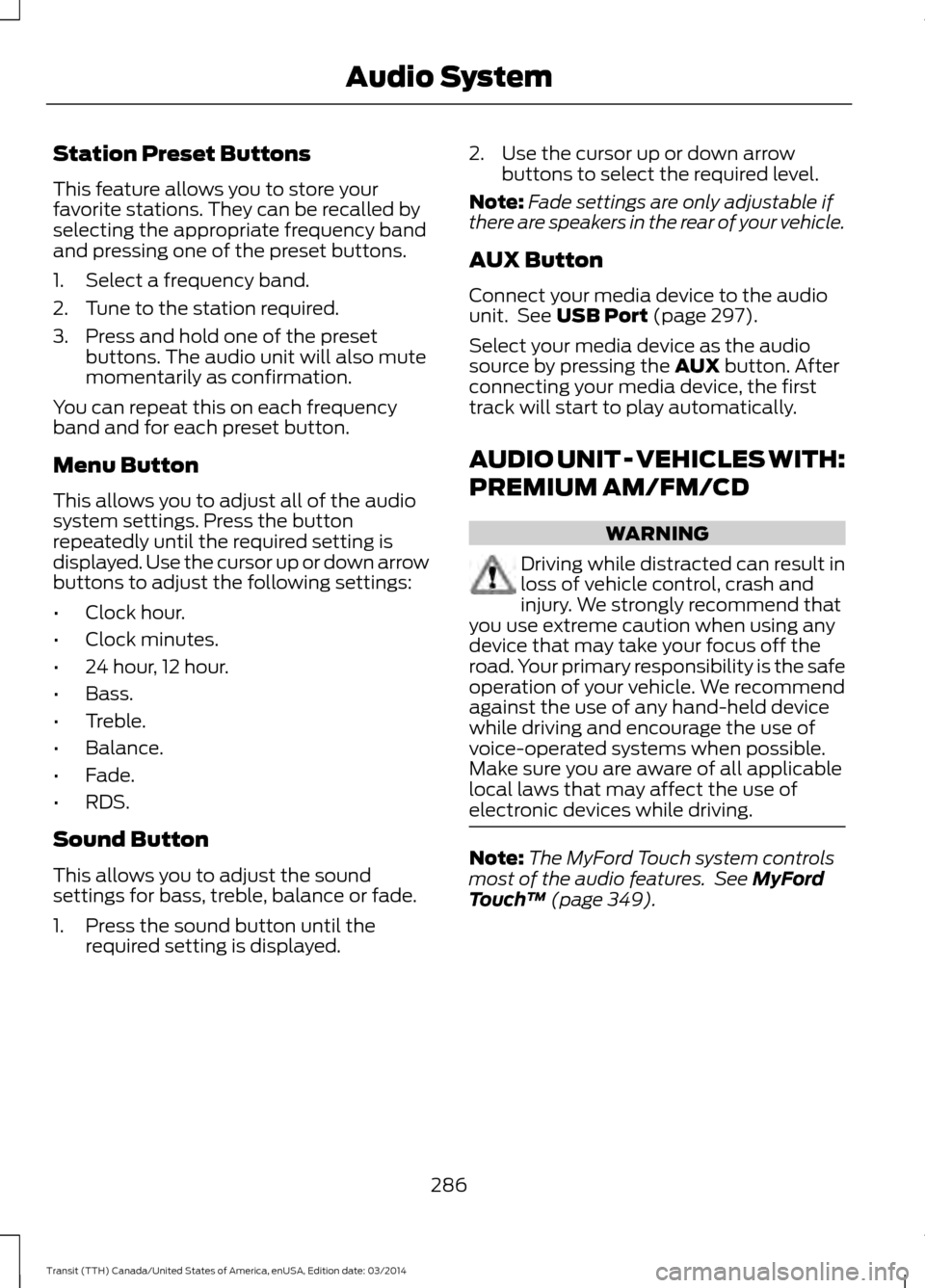
Station Preset Buttons
This feature allows you to store your
favorite stations. They can be recalled by
selecting the appropriate frequency band
and pressing one of the preset buttons.
1. Select a frequency band.
2. Tune to the station required.
3. Press and hold one of the preset
buttons. The audio unit will also mute
momentarily as confirmation.
You can repeat this on each frequency
band and for each preset button.
Menu Button
This allows you to adjust all of the audio
system settings. Press the button
repeatedly until the required setting is
displayed. Use the cursor up or down arrow
buttons to adjust the following settings:
• Clock hour.
• Clock minutes.
• 24 hour, 12 hour.
• Bass.
• Treble.
• Balance.
• Fade.
• RDS.
Sound Button
This allows you to adjust the sound
settings for bass, treble, balance or fade.
1. Press the sound button until the required setting is displayed. 2. Use the cursor up or down arrow
buttons to select the required level.
Note: Fade settings are only adjustable if
there are speakers in the rear of your vehicle.
AUX Button
Connect your media device to the audio
unit. See USB Port (page 297).
Select your media device as the audio
source by pressing the
AUX button. After
connecting your media device, the first
track will start to play automatically.
AUDIO UNIT - VEHICLES WITH:
PREMIUM AM/FM/CD WARNING
Driving while distracted can result in
loss of vehicle control, crash and
injury. We strongly recommend that
you use extreme caution when using any
device that may take your focus off the
road. Your primary responsibility is the safe
operation of your vehicle. We recommend
against the use of any hand-held device
while driving and encourage the use of
voice-operated systems when possible.
Make sure you are aware of all applicable
local laws that may affect the use of
electronic devices while driving. Note:
The MyFord Touch system controls
most of the audio features. See
MyFord
Touch ™ (page 349).
286 Transit (TTH) Canada/United States of America, enUSA, Edition date: 03/2014 Audio System
Page 292 of 461
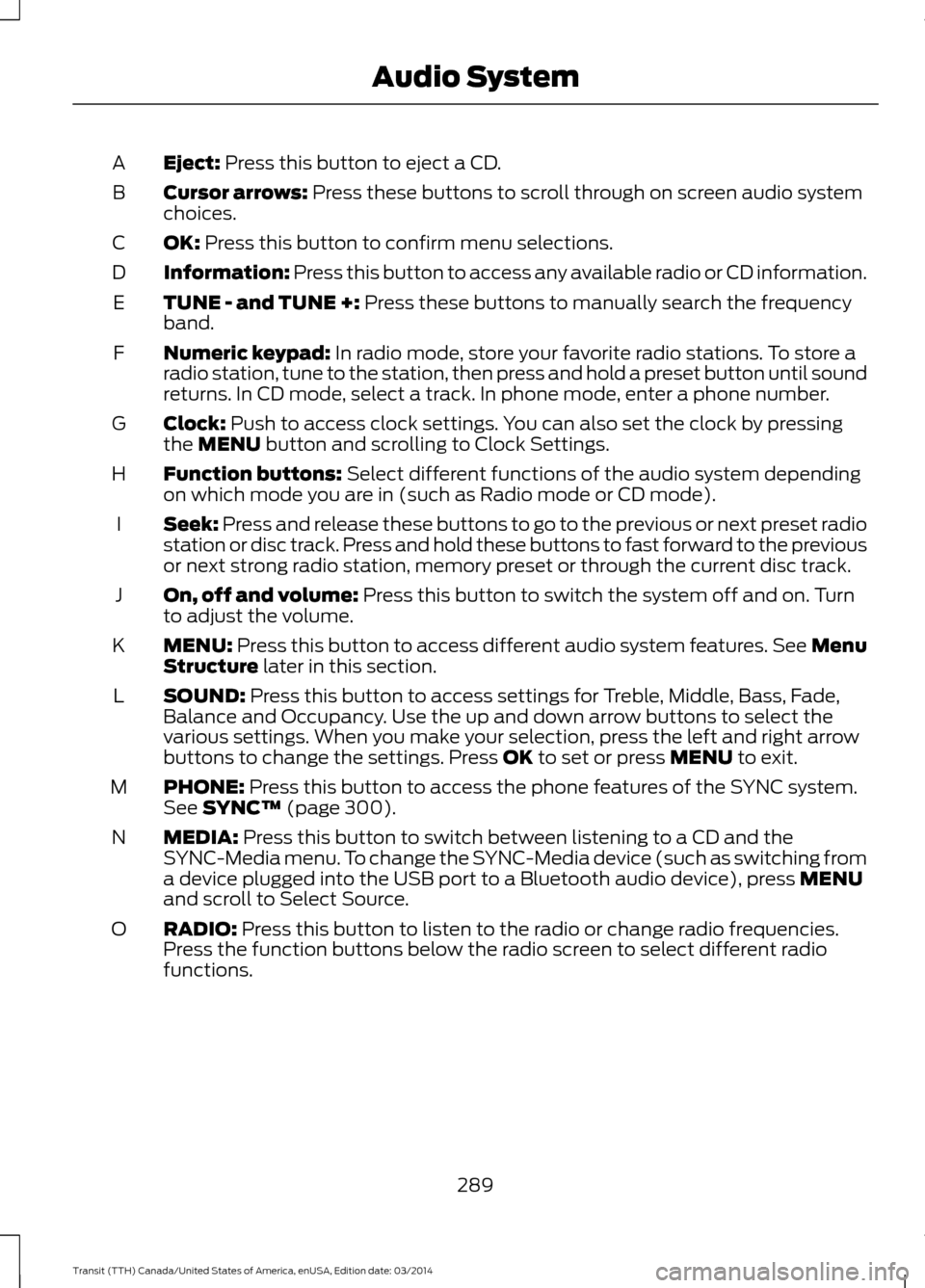
Eject: Press this button to eject a CD.
A
Cursor arrows:
Press these buttons to scroll through on screen audio system
choices.
B
OK: Press this button to confirm menu selections.
C
Information: Press this button to access any available radio or CD information.
D
TUNE - and TUNE +:
Press these buttons to manually search the frequency
band.
E
Numeric keypad:
In radio mode, store your favorite radio stations. To store a
radio station, tune to the station, then press and hold a preset button until sound
returns. In CD mode, select a track. In phone mode, enter a phone number.
F
Clock:
Push to access clock settings. You can also set the clock by pressing
the MENU button and scrolling to Clock Settings.
G
Function buttons: Select different functions of the audio system depending
on which mode you are in (such as Radio mode or CD mode).
H
Seek:
Press and release these buttons to go to the previous or next preset radio
station or disc track. Press and hold these buttons to fast forward to the previous
or next strong radio station, memory preset or through the current disc track.
I
On, off and volume:
Press this button to switch the system off and on. Turn
to adjust the volume.
J
MENU: Press this button to access different audio system features. See Menu
Structure later in this section.
K
SOUND: Press this button to access settings for Treble, Middle, Bass, Fade,
Balance and Occupancy. Use the up and down arrow buttons to select the
various settings. When you make your selection, press the left and right arrow
buttons to change the settings. Press OK
to set or press MENU to exit.
L
PHONE:
Press this button to access the phone features of the SYNC system.
See SYNC™ (page 300).
M
MEDIA:
Press this button to switch between listening to a CD and the
SYNC-Media menu. To change the SYNC-Media device (such as switching from
a device plugged into the USB port to a Bluetooth audio device), press MENU
and scroll to Select Source.
N
RADIO: Press this button to listen to the radio or change radio frequencies.
Press the function buttons below the radio screen to select different radio
functions.
O
289Transit (TTH) Canada/United States of America, enUSA, Edition date: 03/2014 Audio System
Page 294 of 461
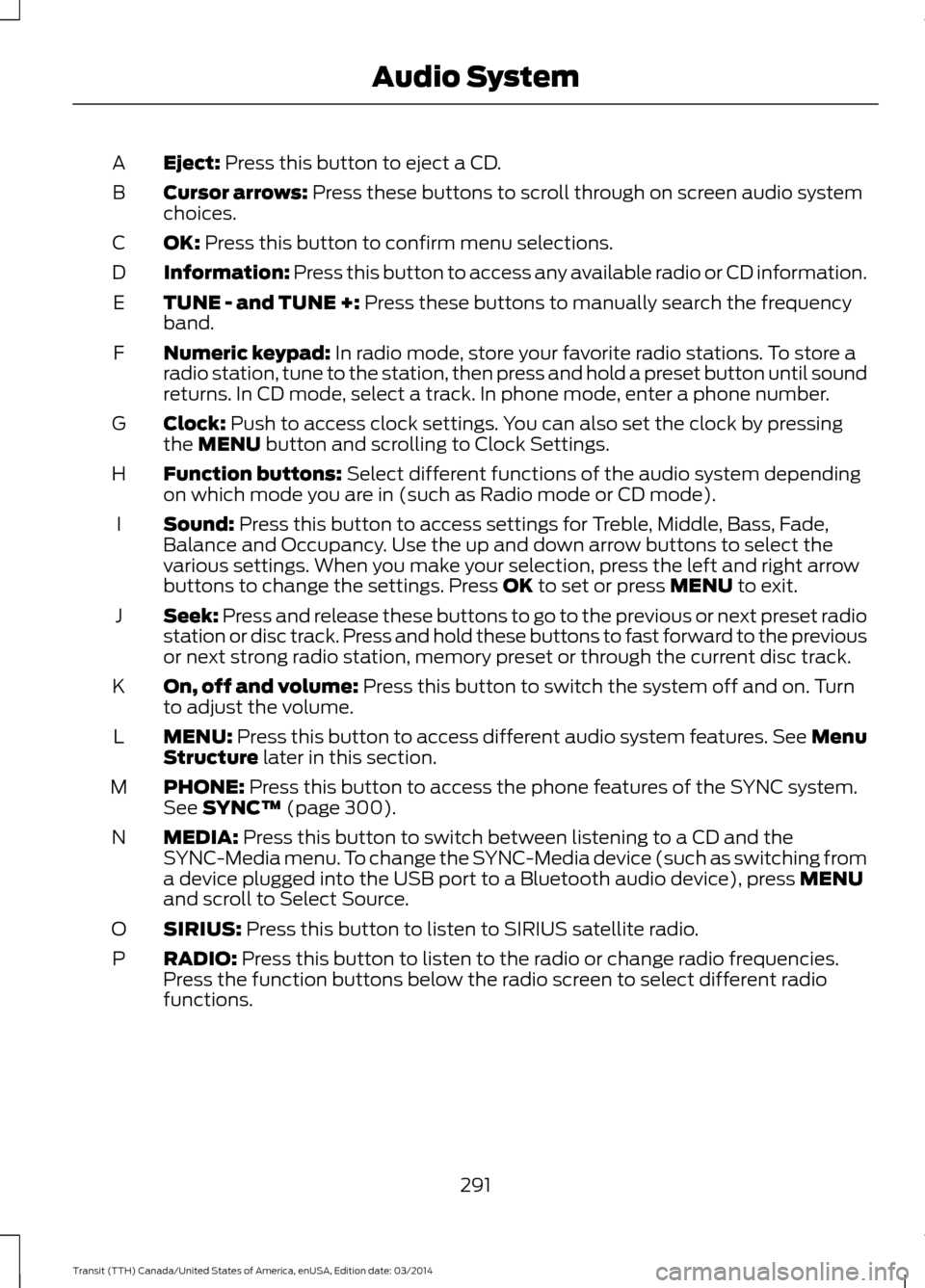
Eject: Press this button to eject a CD.
A
Cursor arrows:
Press these buttons to scroll through on screen audio system
choices.
B
OK: Press this button to confirm menu selections.
C
Information: Press this button to access any available radio or CD information.
D
TUNE - and TUNE +:
Press these buttons to manually search the frequency
band.
E
Numeric keypad:
In radio mode, store your favorite radio stations. To store a
radio station, tune to the station, then press and hold a preset button until sound
returns. In CD mode, select a track. In phone mode, enter a phone number.
F
Clock:
Push to access clock settings. You can also set the clock by pressing
the MENU button and scrolling to Clock Settings.
G
Function buttons: Select different functions of the audio system depending
on which mode you are in (such as Radio mode or CD mode).
H
Sound:
Press this button to access settings for Treble, Middle, Bass, Fade,
Balance and Occupancy. Use the up and down arrow buttons to select the
various settings. When you make your selection, press the left and right arrow
buttons to change the settings. Press
OK to set or press MENU to exit.
I
Seek:
Press and release these buttons to go to the previous or next preset radio
station or disc track. Press and hold these buttons to fast forward to the previous
or next strong radio station, memory preset or through the current disc track.
J
On, off and volume:
Press this button to switch the system off and on. Turn
to adjust the volume.
K
MENU: Press this button to access different audio system features. See Menu
Structure later in this section.
L
PHONE: Press this button to access the phone features of the SYNC system.
See
SYNC™ (page 300).
M
MEDIA: Press this button to switch between listening to a CD and the
SYNC-Media menu. To change the SYNC-Media device (such as switching from
a device plugged into the USB port to a Bluetooth audio device), press
MENU
and scroll to Select Source.
N
SIRIUS:
Press this button to listen to SIRIUS satellite radio.
O
RADIO: Press this button to listen to the radio or change radio frequencies.
Press the function buttons below the radio screen to select different radio
functions.
P
291Transit (TTH) Canada/United States of America, enUSA, Edition date: 03/2014 Audio System
Page 314 of 461
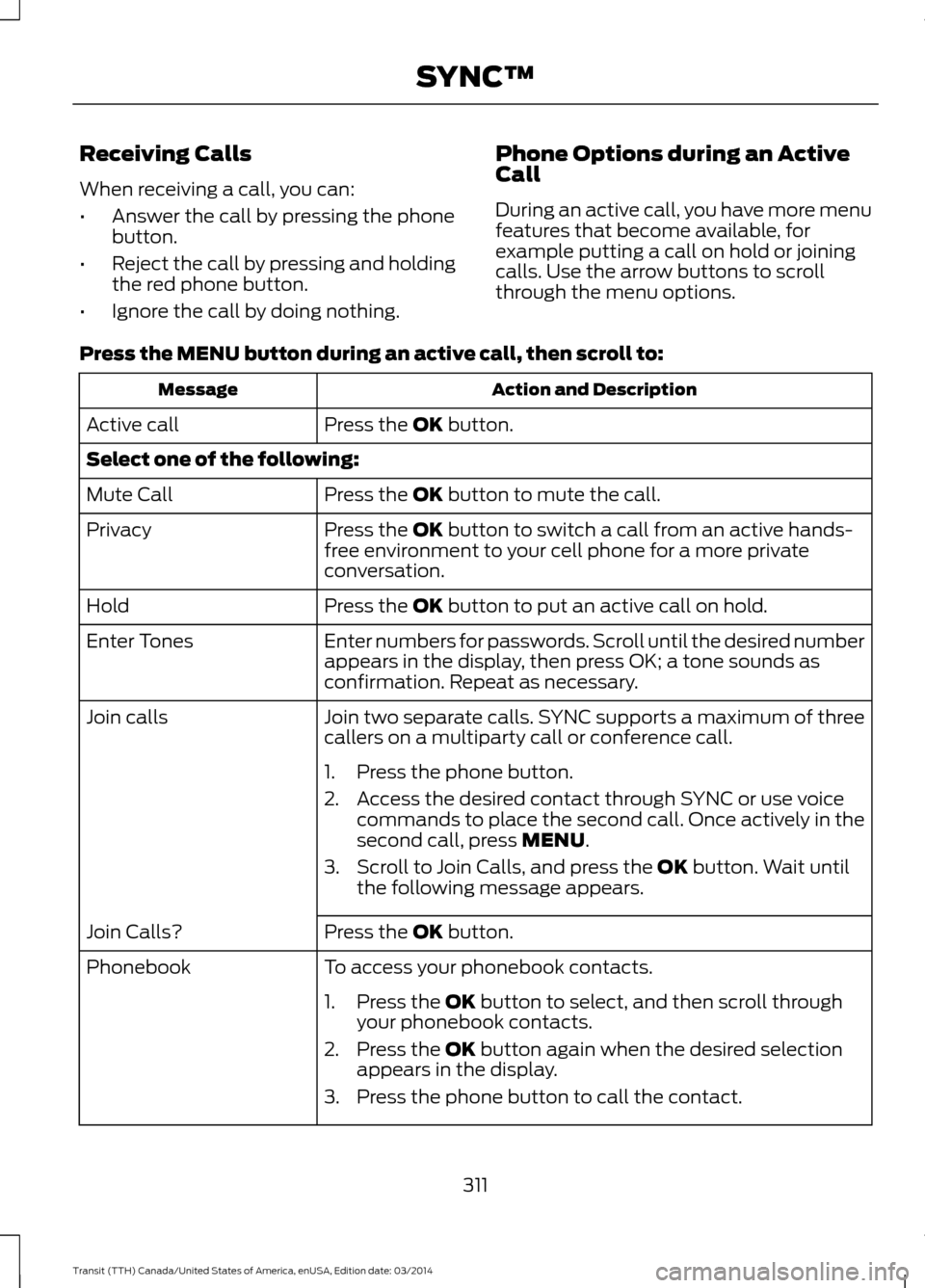
Receiving Calls
When receiving a call, you can:
•
Answer the call by pressing the phone
button.
• Reject the call by pressing and holding
the red phone button.
• Ignore the call by doing nothing. Phone Options during an Active
Call
During an active call, you have more menu
features that become available, for
example putting a call on hold or joining
calls. Use the arrow buttons to scroll
through the menu options.
Press the MENU button during an active call, then scroll to: Action and Description
Message
Press the
OK button.
Active call
Select one of the following:
Press the
OK button to mute the call.
Mute Call
Press the
OK button to switch a call from an active hands-
free environment to your cell phone for a more private
conversation.
Privacy
Press the
OK button to put an active call on hold.
Hold
Enter numbers for passwords. Scroll until the desired number
appears in the display, then press OK; a tone sounds as
confirmation. Repeat as necessary.
Enter Tones
Join two separate calls. SYNC supports a maximum of three
callers on a multiparty call or conference call.
Join calls
1. Press the phone button.
2. Access the desired contact through SYNC or use voicecommands to place the second call. Once actively in the
second call, press MENU.
3. Scroll to Join Calls, and press the
OK button. Wait until
the following message appears.
Press the
OK button.
Join Calls?
To access your phonebook contacts.
Phonebook
1. Press the
OK button to select, and then scroll through
your phonebook contacts.
2. Press the
OK button again when the desired selection
appears in the display.
3. Press the phone button to call the contact.
311Transit (TTH) Canada/United States of America, enUSA, Edition date: 03/2014 SYNC™
Page 321 of 461
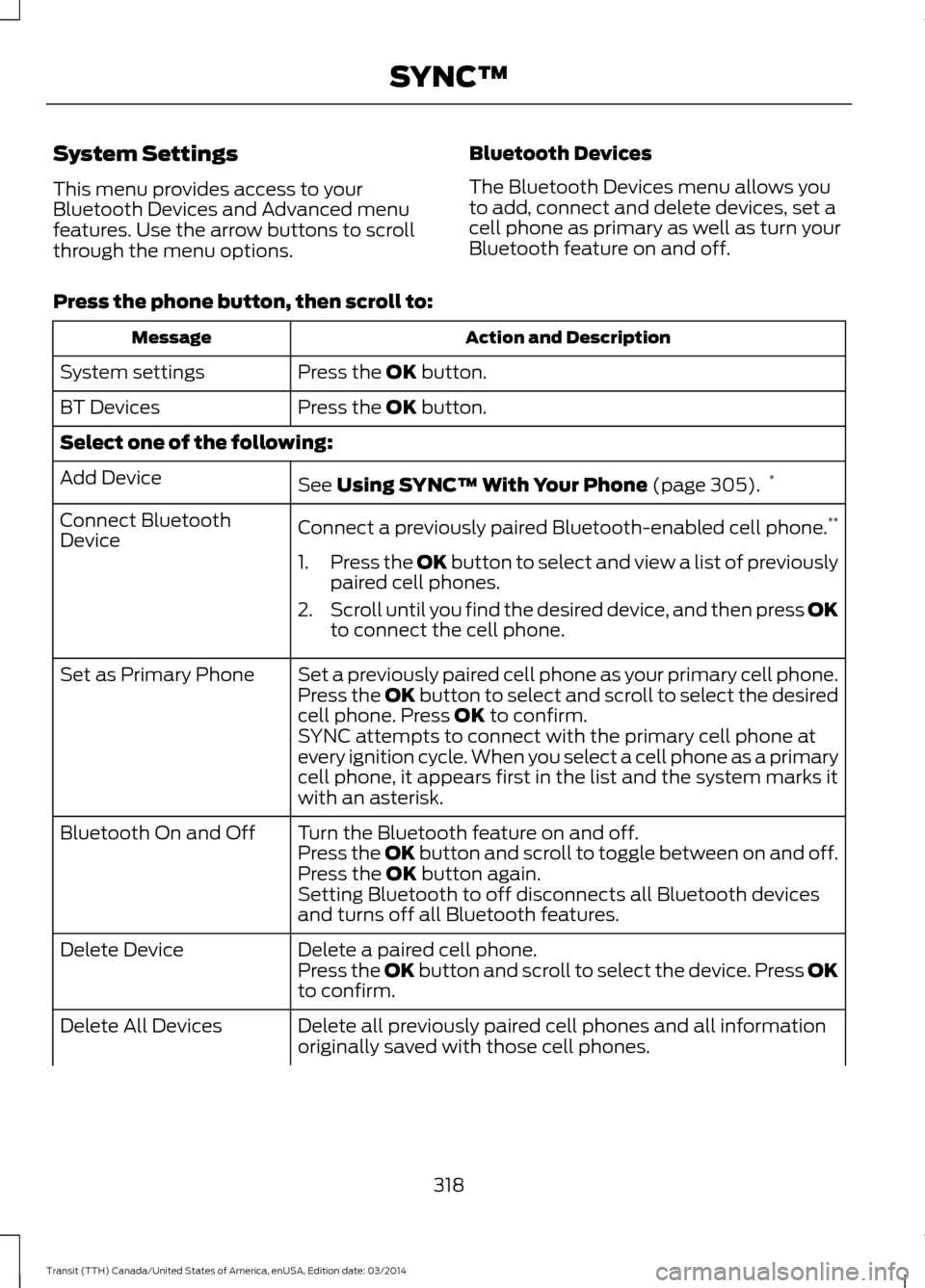
System Settings
This menu provides access to your
Bluetooth Devices and Advanced menu
features. Use the arrow buttons to scroll
through the menu options.
Bluetooth Devices
The Bluetooth Devices menu allows you
to add, connect and delete devices, set a
cell phone as primary as well as turn your
Bluetooth feature on and off.
Press the phone button, then scroll to: Action and Description
Message
Press the OK button.
System settings
Press the
OK button.
BT Devices
Select one of the following:
See
Using SYNC™ With Your Phone (page 305). *
Add Device
Connect a previously paired Bluetooth-enabled cell phone. **
Connect Bluetooth
Device
1.Press the OK button to select and view a list of previously
p
aired cell phones.
2. Scroll until you find the desired device, and then press OK
to connect the cell phone.
Set a previously paired cell phone as your primary cell phone.
Set as Primary Phone
Press the OK button to select and scroll to select the desired
c
ell phone. Press OK to confirm.
SYNC attempts to connect with the primary cell phone at
every ignition cycle. When you select a cell phone as a primary
cell phone, it appears first in the list and the system marks it
with an asterisk.
Turn the Bluetooth feature on and off.
Bluetooth On and Off
Press the OK button and scroll to toggle between on and off.
P
ress the OK button again.
Setting Bluetooth to off disconnects all Bluetooth devices
and turns off all Bluetooth features.
Delete a paired cell phone.
Delete Device
Press the OK button and scroll to select the device. Press OK
t
o confirm.
Delete all previously paired cell phones and all information
originally saved with those cell phones.
Delete All Devices
318Transit (TTH) Canada/United States of America, enUSA, Edition date: 03/2014 SYNC™
Page 371 of 461
Action and Description
Message
In Case of Emergency (ICE) Quick Dial: allows you to save
up to two numbers as ICE contacts for quick access if there
is an emergency. Select Edit to access your phonebook and
then select the desired contacts. The numbers then appear
as options on this screen for the ICE 1 and ICE 2 buttons. The
ICE contacts you select appear at the end of the 911 Assist
call process.
View categorized lists of voice commands.
Voice Command List
You can also access Help using the voice
commands. The system provides
allowable voice commands for the current
mode. Press the voice button and when
prompted say:
Voice command
Help
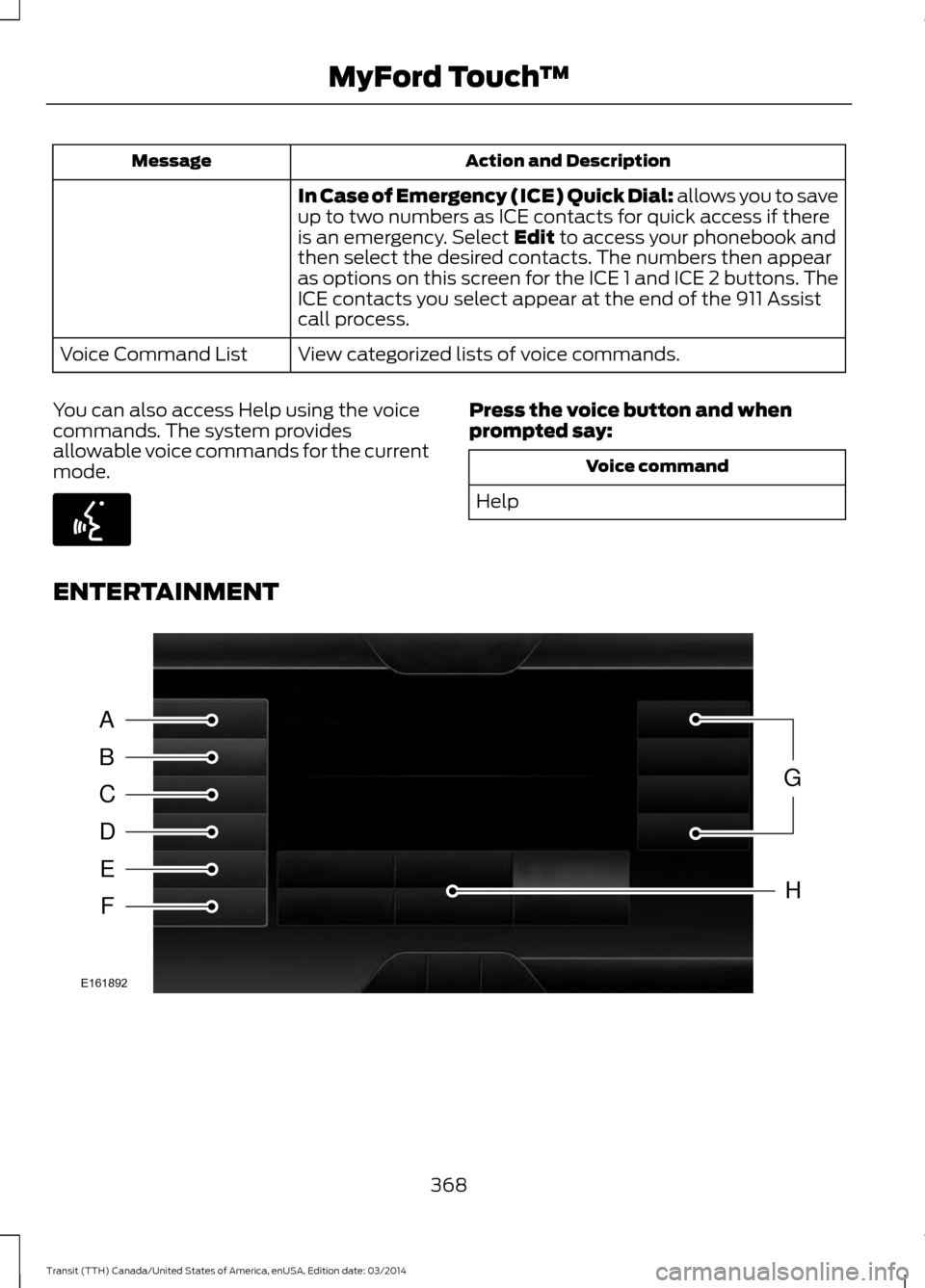
ENTERTAINMENT 368
Transit (TTH) Canada/United States of America, enUSA, Edition date: 03/2014 MyFord Touch
™E142599 A
B
C
D
E
F
G
H
E161892
Page 372 of 461
Message and Description
Message
AM 1 and AM AST
A
FM 1, FM 2 and FM AST
B
SIRIUS
C
USBD
BT Stereo
E
Touch this button to scroll down
for more options, for example
SD Card and A/V In
F
These buttons change with the
media mode you are in.
G
Radio memory presets.
H
Note: Some features may not be available
in your area. Contact an authorized dealer
for more information.
You can access these options using the
touchscreen or voice commands.
Browsing Device Content
When listening to audio on a device, you
can browse through other devices without
having to change sources. For example, if
you are currently listening to audio on an
SD card, you can browse all the artists that
are stored on your USB device. Browse Within Devices
Press the voice button and when
prompted say one of the following: Voice command
*
Browse
**
Browse
**
Browse
Browse SD card **
Browse Sirius channel guide
Browse USB
Help
* If you only say browse, you can then say
any commands in the following chart.
** These commands are only usable if you
have an active subscription to SIRIUS
satellite radio.
Browse Voice command
*
*
**
SD card
*
Sirius Channel Guide
**
USB
Help
* This command is only usable if you have
an active subscription to SIRIUS satellite
radio.
** For more commands in SD card or USB
mode, see the "SD Card and USB Port"
section of this chapter.
The voice system allows you to change
audio sources with a simple voice
command. For example, if you are listening
to music on a USB device, then want to
switch to a satellite radio channel, simply
press the voice button on the steering
wheel controls and say the name of the
369 Transit (TTH) Canada/United States of America, enUSA, Edition date: 03/2014 MyFord Touch
™E142599
Page 379 of 461
Voice command
AM preset <#> *
FM
FM <87.9-107.9>
FM <87.9-107.9> HD <#>
FM autoset
FM autoset preset <#>
FM preset <#>
FM 1
FM 1 preset <#>
FM 2
FM 2 preset <#>
*
HD <#>
Preset <#>
Help
* If available.
SIRIUS® Satellite Radio (If
Activated) To turn the feature on press the lower
left corner of the touchscreen, and then
select:
Message
SIRIUS
Memory Presets
Save a channel by pressing and holding
one of the memory preset areas. There is
a brief mute while the radio saves the
channel. Sound returns when finished.
ALERT
Save the current song, artist, or team as a
favorite. The system alerts you when it
plays again on any channel.
Replay
Replay audio on the current channel. You
can replay approximately 45 minutes of
audio as long as you have remained tuned
to the current station. Changing stations
erases the previous audio.
While in replay mode:
• Press and release the seek buttons to
hear the previous or next song.
• Press and hold the seek buttons to
reverse or fast forward in the current
track.
• Press play or pause to play or pause
the audio.
• Press Replay to return to live audio if
you have been using the feature to
replay audio.
Scan
Touch this button to hear a brief sampling
of channels.
376 Transit (TTH) Canada/United States of America, enUSA, Edition date: 03/2014 MyFord Touch
™E142611
Page 402 of 461
Note:
In order to use Sirius Travel Link, your
vehicle must be equipped with navigation
and your navigation SD card must be in the
SD card slot.
Note: A paid subscription is required to
access and use these features. Go to
www.siriusxm.com/travellink for more
information.
Note: Visit www.siriusxm.com/traffic and
click on Coverage map and details for a
complete listing of all traffic areas covered
by Sirius Travel Link.
Note: Neither Sirius nor Ford is responsible
for any errors or inaccuracies in the Sirius
Travel Link services or its use in vehicles.
When you subscribe to Sirius Travel Link,
it can help you locate the best gas prices,
find movie listings, get current traffic alerts,
view the current weather map, get
accurate ski conditions and see scores to
current sports games. If your vehicle is equipped with
Navigation, touch the I
(Information) button to access
these features. If your vehicle is not
equipped with Navigation, touch the corner
of the touchscreen with the green tab.
Traffic On Route and Traffic Nearby
Touch these buttons to identify traffic
incidents on your route, nearby your
vehicle ’s current location or near any of
your favorite places, if programmed.
Fuel Prices
Touch this button to view fuel prices at
stations close to your vehicle ’s location or
on an active navigation route.
Movie Listings
Touch this button to view nearby movie
theaters and their show times, if available. Weather
Touch this button to view the nearby
weather, current weather, or the five day
forecast for the chosen area. Select Map
to see the weather map, which can show
storms, radar information, charts and
winds. Select Area to select from a listing
of weather locations.
Sports Info
Touch this button to view scores and
schedules from a variety of sports. You can
also save up to 10 favorite teams for easier
access. The score automatically refreshes
when a game is in progress.
Ski Conditions
Touch this button to view ski conditions
for a specific area.
Sirius Travel Link Voice Commands Press the voice button on the
steering wheel controls. When
prompted, say any of the
following commands:
Sirius Travel Link Voice command
5-day weather forecast
Fuel prices
Movie listings *
Sports headlines
*
Sports schedules
*
Sports scores
Traffic
Weather
399 Transit (TTH) Canada/United States of America, enUSA, Edition date: 03/2014 MyFord Touch
™E142608 E142599
Page 412 of 461
Press Add to program an entry. Once you
make a selection, the system tries to avoid
the area(s) if possible for all routes. To
delete a selection, choose the listing on
the screen. When the screen changes to
Avoid Areas Edit
, you can press Delete
at the bottom right of the screen.
Map Mode
Press the green bar in the upper right area
of the touchscreen to view map mode. Map
mode shows advanced viewing comprised
of both 2D city maps as well as 3D
landmarks (when available).
2D city maps show detailed outlines of
buildings, visible land use and land
elements and detailed railway
infrastructure for the most essential cities
around the globe. These maps also contain
features, such as town blocks, building
footprints and railways.
3D landmarks appear as clear, visible
objects that are typically recognizable and
have a certain tourist value. The 3D
landmarks appear in 3D map mode only.
Coverage varies and improves with
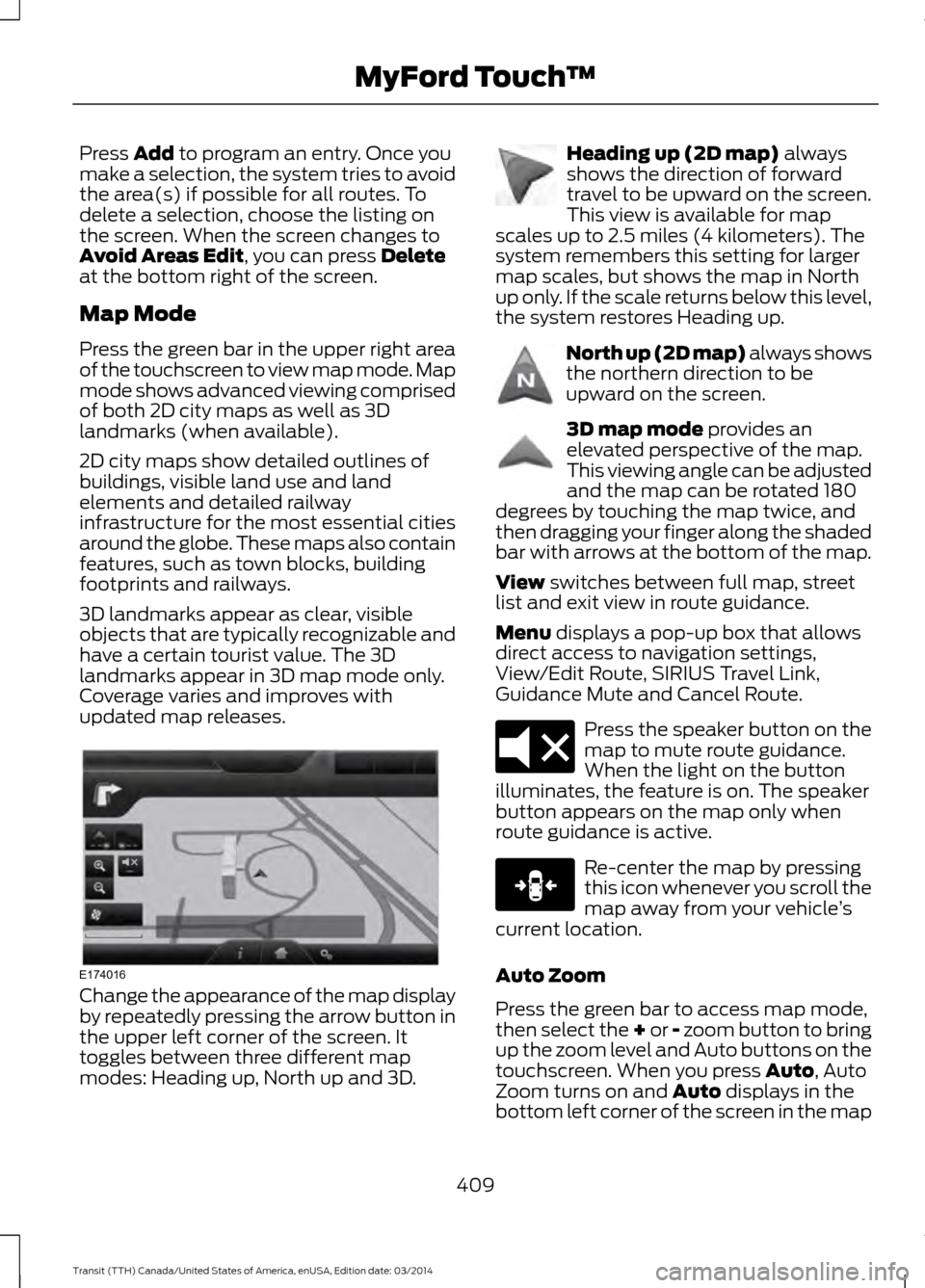
updated map releases. Change the appearance of the map display
by repeatedly pressing the arrow button in
the upper left corner of the screen. It
toggles between three different map
modes: Heading up, North up and 3D. Heading up (2D map)
always
shows the direction of forward
travel to be upward on the screen.
This view is available for map
scales up to 2.5 miles (4 kilometers). The
system remembers this setting for larger
map scales, but shows the map in North
up only. If the scale returns below this level,
the system restores Heading up. North up (2D map) always shows
the northern direction to be
upward on the screen.
3D map mode
provides an
elevated perspective of the map.
This viewing angle can be adjusted
and the map can be rotated 180
degrees by touching the map twice, and
then dragging your finger along the shaded
bar with arrows at the bottom of the map.
View
switches between full map, street
list and exit view in route guidance.
Menu
displays a pop-up box that allows
direct access to navigation settings,
View/Edit Route, SIRIUS Travel Link,
Guidance Mute and Cancel Route. Press the speaker button on the
map to mute route guidance.
When the light on the button
illuminates, the feature is on. The speaker
button appears on the map only when
route guidance is active. Re-center the map by pressing
this icon whenever you scroll the
map away from your vehicle
’s
current location.
Auto Zoom
Press the green bar to access map mode,
then select the + or - zoom button to bring
up the zoom level and Auto buttons on the
touchscreen. When you press Auto, Auto
Zoom turns on and Auto displays in the
bottom left corner of the screen in the map
409 Transit (TTH) Canada/United States of America, enUSA, Edition date: 03/2014 MyFord Touch
™E174016 E142642 E142643 E142644 E174017 E146188