light FORD TRANSIT 2015 5.G Repair Manual
[x] Cancel search | Manufacturer: FORD, Model Year: 2015, Model line: TRANSIT, Model: FORD TRANSIT 2015 5.GPages: 461, PDF Size: 5.82 MB
Page 258 of 461
Overview
WARNING
To determine the required
pressure(s) for your vehicle, see the
Safety Compliance Certification
Label (affixed to either the door hinge
pillar, door-latch post, or the door edge
that meets the door-latch post, next to the
driver seating position), or Tire Label
located on the B-Pillar or the edge of the
driver door. To maintain your vehicle
’s load carrying
capability, this vehicle requires different
tire pressures in the front tires compared
to the rear tires. The system on your vehicle
is designed to illuminate the warning light
at different pressures for the front and rear
tires.
The tires need to be periodically rotated
to provide consistent performance and
maximum tire life, the system needs to
know when the tires have been rotated to
determine which set of tires are on the
front and rear axles. With this information,
the system can detect and correctly warn
of low tire pressures.
System Reset Tips:
• To reduce the chance of interference
from another vehicle, the system reset
procedure should be carried out at
least three feet (one meter) away from
another Ford vehicle undergoing the
system reset procedure.
• Do not wait more than two minutes
between resetting each tire sensor or
the system will time-out and the entire
procedure will have to be repeated on
all four wheels. A double horn chirp
indicates the need to repeat the
procedure. Carrying Out the System Reset
Procedure
Read the entire procedure before carrying
out a system reset.
1. Drive your vehicle above 20 mph (32
km/h) for at least two minutes and
then park in a safe location where you
can easily get to all four tires and have
access to a tire inflation pump.
2. Switch the ignition off.
3. Switch the ignition on with the engine off.
4. Turn the hazard flashers on then off three times, this must be completed
within 10 seconds. If the reset mode
has been entered successfully, the horn
will chirp once and the system indicator
will flash. If this does not occur, repeat
the procedure from step 2. If after
repeated attempts to enter the reset
mode, the horn does not chirp and the
system indicator does not flash, have
your vehicle checked by an authorized
dealer as soon as possible.
5. Train the system sensors in the tires using the following reset sequence
starting with the left front tire and
following a clockwise order: Left front,
right front, right rear, left rear.
6. Remove the valve cap from the valve stem on the left front tire. Decrease the
air pressure until the horn chirps.
Note: The single horn chirp confirms that
the sensor identification code has been
learned by your vehicle for this position. If a
double horn chirp is heard, the reset
procedure was unsuccessful and must be
repeated.
7. Remove the valve cap from the valve stem on the right front tire. Decrease
the air pressure until the horn chirps.
8. Remove the valve cap from the valve stem on the right rear tire. Decrease the
air pressure until the horn chirps.
255 Transit (TTH) Canada/United States of America, enUSA, Edition date: 03/2014 Wheels and Tires
Page 259 of 461
9. Remove the valve cap from the valve
stem on the left rear tire. Decrease the
air pressure until the horn chirps.
Training is complete when the horn
chirps after the last system sensor (left
rear) has been trained and the system
indicator stops flashing.
10. Switch the ignition off. If two short horn chirps are heard, the reset
procedure was unsuccessful and
must be repeated.
Note: If after repeating the procedure two
short horn chirps are heard again, have your
vehicle checked by an authorized dealer as
soon as possible.
11. Set all four tires to the correct pressure See Maintenance (page
200). or the tire inflation pressure label
(located on the edge of driver door or
the B-Pillar).
CHANGING A ROAD WHEEL WARNINGS
The use of tire sealant may damage
your tire pressure monitoring system
and should only be used in roadside
emergencies. If you must use a sealant, the
Ford Tire Mobility Kit sealant should be
used. The tire pressure monitoring system
sensor and valve stem on the wheel must
be replaced by an authorized dealer after
use of the sealant. If the tire pressure monitor sensor
becomes damaged, it will no longer
function. See
Tire Pressure
Monitoring System (page 251). Note:
The tire pressure monitoring system
indicator light will illuminate when the spare
tire is in use. To restore the full function of
the monitoring system, all road wheels
equipped with tire pressure monitoring
sensors must be mounted on this vehicle. If you get a flat tire while driving, do not
apply the brake heavily. Instead, gradually
decrease your speed. Hold the steering
wheel firmly and slowly move to a safe
place on the side of the road.
Have a flat serviced by an authorized
dealer in order to prevent damage to the
system sensors
See Tire Pressure
Monitoring System (page 251). Replace
the spare tire with a road tire as soon as
possible. During repairing or replacing of
the flat tire, have the authorized dealer
inspect the system sensor for damage.
Dissimilar Spare Wheel and Tire
Assembly Information WARNING
Failure to follow these guidelines
could result in an increased risk of
loss of vehicle control, injury or death.
If you have a dissimilar spare wheel and
tire, then it is intended for temporary use
only. This means that if you need to use it,
you should replace it as soon as possible
with a road wheel and tire assembly that
is the same size and type as the road tires
and wheels that were originally provided
by Ford. If the dissimilar spare tire or wheel
is damaged, it should be replaced rather
than repaired.
A dissimilar spare wheel and tire assembly
is defined as a spare wheel and tire
assembly that is different in brand, size or
appearance from the road tires and wheels
and can be one of three types:
1.
T-type mini-spare: This spare tire
begins with the letter T for tire size and
may have Temporary Use Only molded in
the sidewall.
2. Full-size dissimilar spare with label
on wheel:
This spare tire has a label on
the wheel that states: THIS WHEEL AND
TIRE ASSEMBLY FOR TEMPORARY USE
ONLY
256 Transit (TTH) Canada/United States of America, enUSA, Edition date: 03/2014 Wheels and Tires
Page 285 of 461
GENERAL INFORMATION
Radio Frequencies and Reception
Factors
AM and FM frequencies are established by
the Federal Communications Commission
(FCC) and the Canadian Radio and
Telecommunications Commission (CRTC).
Those frequencies are:
•
AM: 530, 540-1700, 1710 kHz
• FM: 87.9-107.7, 107.9 MHz Radio Reception Factors
The further you travel from an FM station, the weaker the
signal and the weaker the reception.
Distance and Strength
Hills, mountains, tall buildings, bridges, tunnels, freeway
overpasses, parking garages, dense tree foliage and
thunderstorms can interfere with the reception.
Terrain
When you pass a ground-based broadcast repeating
tower, a stronger signal may overtake a weaker one and
result in the audio system muting.
Station overload
CD and CD Player Information
Note: CD units play commercially pressed
4.75-inch (12 centimeter) audio compact
discs only. Due to technical incompatibility,
certain recordable and re-recordable
compact discs may not function correctly
when used in Ford CD players.
Note: Do not insert CDs with homemade
paper (adhesive) labels into the CD player
as the label may peel and cause the CD to
become jammed. You should use a
permanent felt tip marker rather than
adhesive labels on your homemade CDs.
Ballpoint pens may damage CDs. Please
contact an authorized dealer for further
information.
Note: Do not use any irregularly shaped
discs or discs with a scratch protection film
attached.
Always handle discs by their edges only.
Clean the disc with an approved CD
cleaner only. Wipe it from the center of the
disc toward the edge. Do not clean in a
circular motion. Do not expose discs to direct sunlight or
heat sources for extended periods.
MP3 and WMA Track and Folder
Structure
Audio systems capable of recognizing and
playing MP3 and WMA individual tracks
and folder structures work as follows:
•
There are two different modes for MP3
and WMA disc playback: MP3 and
WMA track mode (system default) and
MP3 and WMA folder mode.
• MP3 and WMA track mode ignores any
folder structure on the MP3 and WMA
disc. The player numbers each MP3
and WMA track on the disc (noted by
the MP3 or WMA file extension) from
T001 to a maximum of T255. The
maximum number of playable MP3 and
WMA files may be less depending on
the structure of the CD and exact
model of radio present.
282 Transit (TTH) Canada/United States of America, enUSA, Edition date: 03/2014 Audio System
Page 295 of 461
DIGITAL RADIO
Note:
HD Radio broadcasts are not
available in all markets.
HD Radio technology is the digital
evolution of analog AM/FM radio. Your
system has a special receiver that allows
it to receive digital broadcasts (where
available) in addition to the analog
broadcasts, it already receives. Digital
broadcasts provide a better sound quality
than analog broadcasts with free,
crystal-clear audio and no static or
distortion. For more information, and a
guide to available stations and
programming, please visit
www.hdradio.com.
When HD Radio is on and you tune to a
station broadcasting HD Radio technology,
you may notice the HD Radio logo on your
screen. When this logo is available, you
may also see Title and Artist fields
on-screen.
The multicast indicator appears in FM
mode (only) if the current station is
broadcasting multiple digital broadcasts.
The highlighted numbers signify available
digital channels where new or different
content is available. HD1 signifies the main
programming status and is available in
analog and digital broadcasts. Other
multicast stations (HD2 through HD7) are
only available digitally. When HD Radio broadcasts are active, you
can access the following functions:
When HD Radio broadcasts are active, you
can access the following functions:
•
Scan allows you to hear a brief
sampling of all available stations. This
feature still works when HD Radio
reception is on, although it does not
scan for HD2-HD7 channels. You may
see the HD logo appear if the station
has a digital broadcast.
• Memory presets allow you to save an
active channel as a memory preset.
Touch and hold a memory preset slot
until the sound returns. There is a brief
mute while the radio saves the station.
Sound returns when finished. When
switching to an HD2 or HD3 memory
preset, the sound mutes before the
digital audio plays, because the system
has to reacquire the digital signal.
Note: As with any saved radio station, you
cannot access the saved station if your
vehicle is outside the station ’s reception
area.
292 Transit (TTH) Canada/United States of America, enUSA, Edition date: 03/2014 Audio System
Page 296 of 461
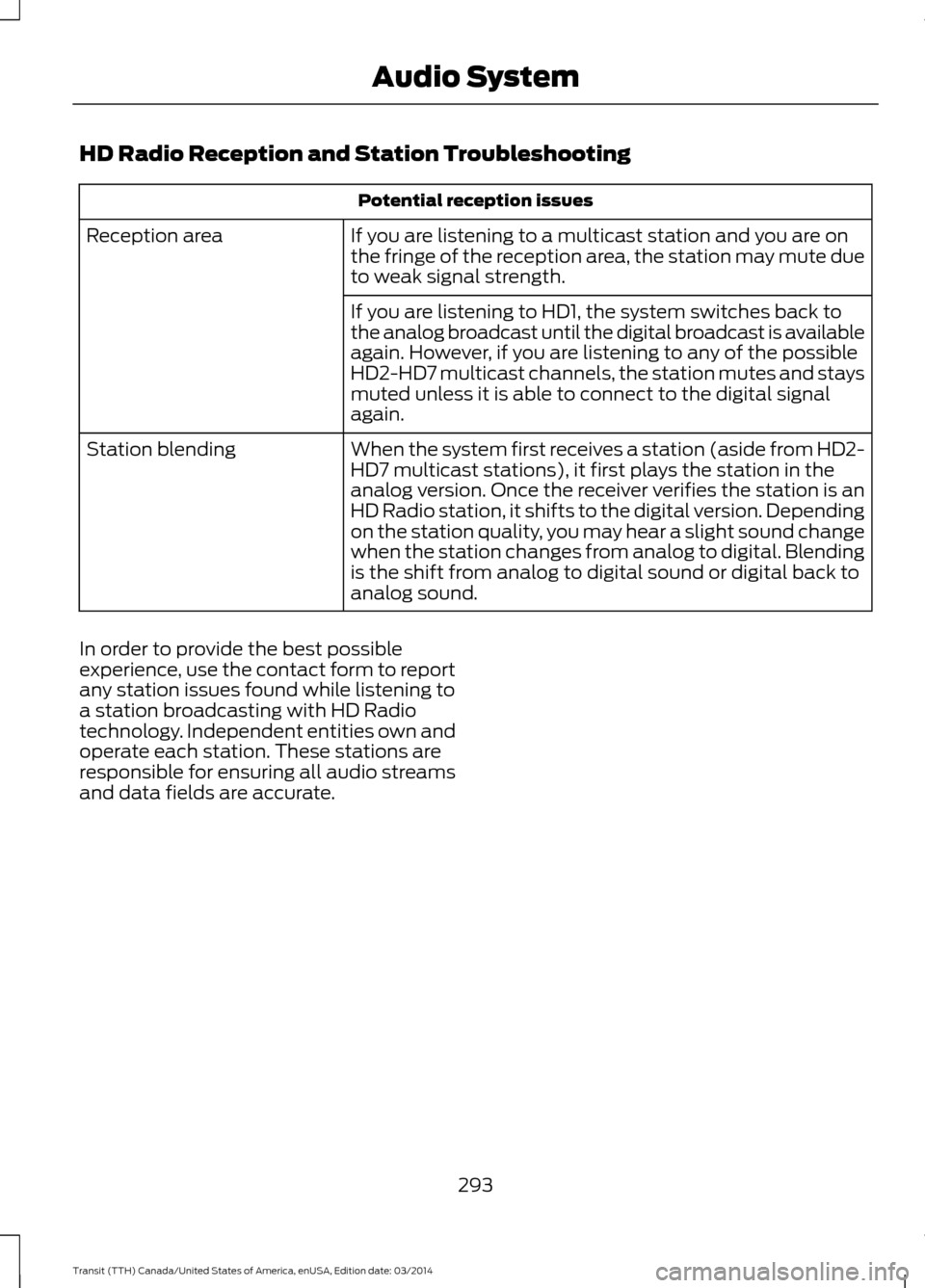
HD Radio Reception and Station Troubleshooting
Potential reception issues
If you are listening to a multicast station and you are on
the fringe of the reception area, the station may mute due
to weak signal strength.
Reception area
If you are listening to HD1, the system switches back to
the analog broadcast until the digital broadcast is available
again. However, if you are listening to any of the possible
HD2-HD7 multicast channels, the station mutes and stays
muted unless it is able to connect to the digital signal
again.
When the system first receives a station (aside from HD2-
HD7 multicast stations), it first plays the station in the
analog version. Once the receiver verifies the station is an
HD Radio station, it shifts to the digital version. Depending
on the station quality, you may hear a slight sound change
when the station changes from analog to digital. Blending
is the shift from analog to digital sound or digital back to
analog sound.
Station blending
In order to provide the best possible
experience, use the contact form to report
any station issues found while listening to
a station broadcasting with HD Radio
technology. Independent entities own and
operate each station. These stations are
responsible for ensuring all audio streams
and data fields are accurate.
293Transit (TTH) Canada/United States of America, enUSA, Edition date: 03/2014 Audio System
Page 362 of 461
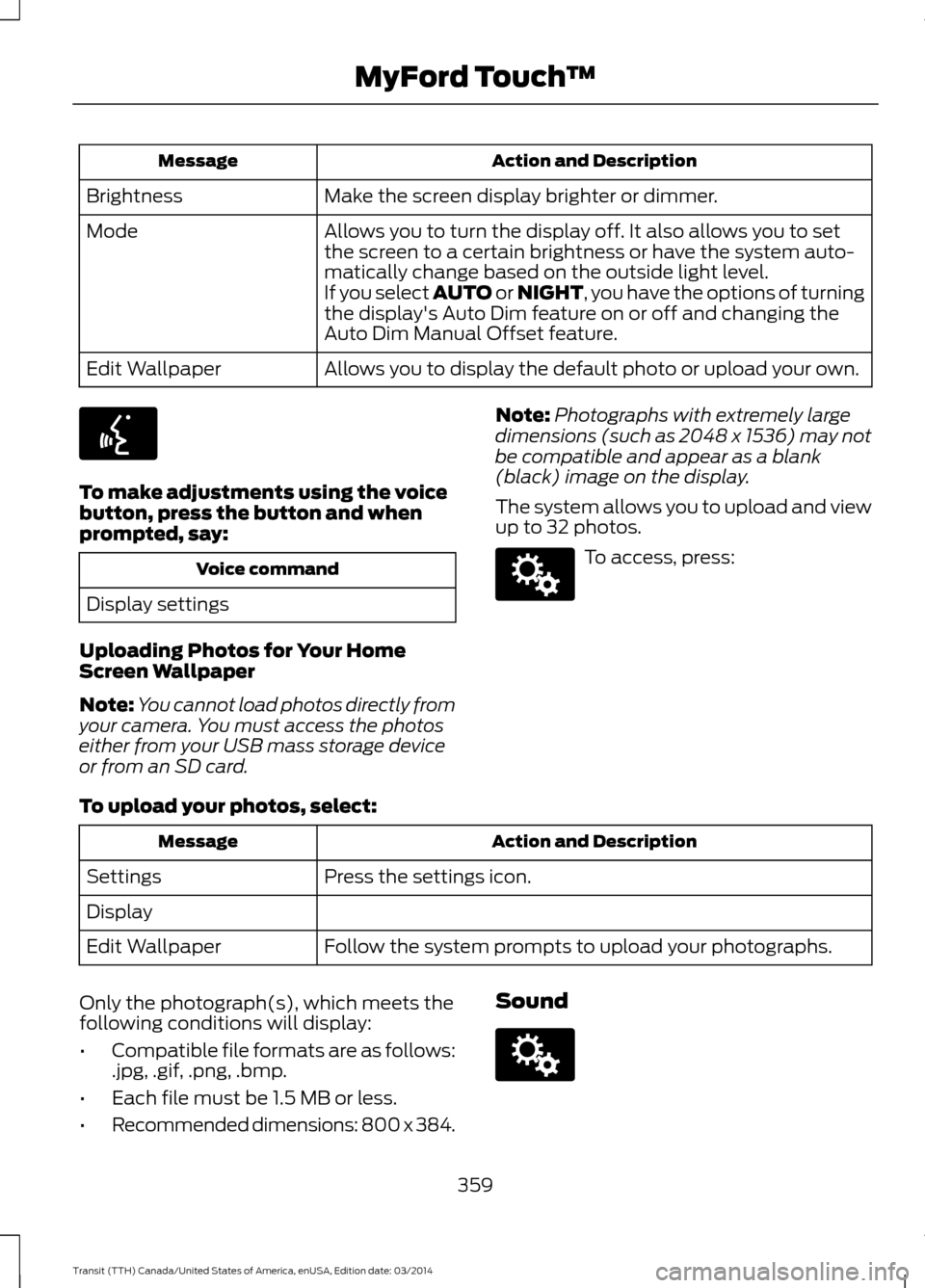
Action and Description
Message
Make the screen display brighter or dimmer.
Brightness
Allows you to turn the display off. It also allows you to set
the screen to a certain brightness or have the system auto-
matically change based on the outside light level.
Mode
If you select AUTO or NIGHT, you have the options of turning
the display's Auto Dim feature on or off and changing the
Auto Dim Manual Offset feature.
Allows you to display the default photo or upload your own.
Edit Wallpaper To make adjustments using the voice
button, press the button and when
prompted, say:
Voice command
Display settings
Uploading Photos for Your Home
Screen Wallpaper
Note: You cannot load photos directly from
your camera. You must access the photos
either from your USB mass storage device
or from an SD card. Note:
Photographs with extremely large
dimensions (such as 2048 x 1536) may not
be compatible and appear as a blank
(black) image on the display.
The system allows you to upload and view
up to 32 photos. To access, press:
To upload your photos, select: Action and Description
Message
Press the settings icon.
Settings
Display
Follow the system prompts to upload your photographs.
Edit Wallpaper
Only the photograph(s), which meets the
following conditions will display:
• Compatible file formats are as follows:
.jpg, .gif, .png, .bmp.
• Each file must be 1.5 MB or less.
• Recommended dimensions: 800 x 384. Sound
359
Transit (TTH) Canada/United States of America, enUSA, Edition date: 03/2014 MyFord Touch
™E142599 E142607 E142607
Page 373 of 461
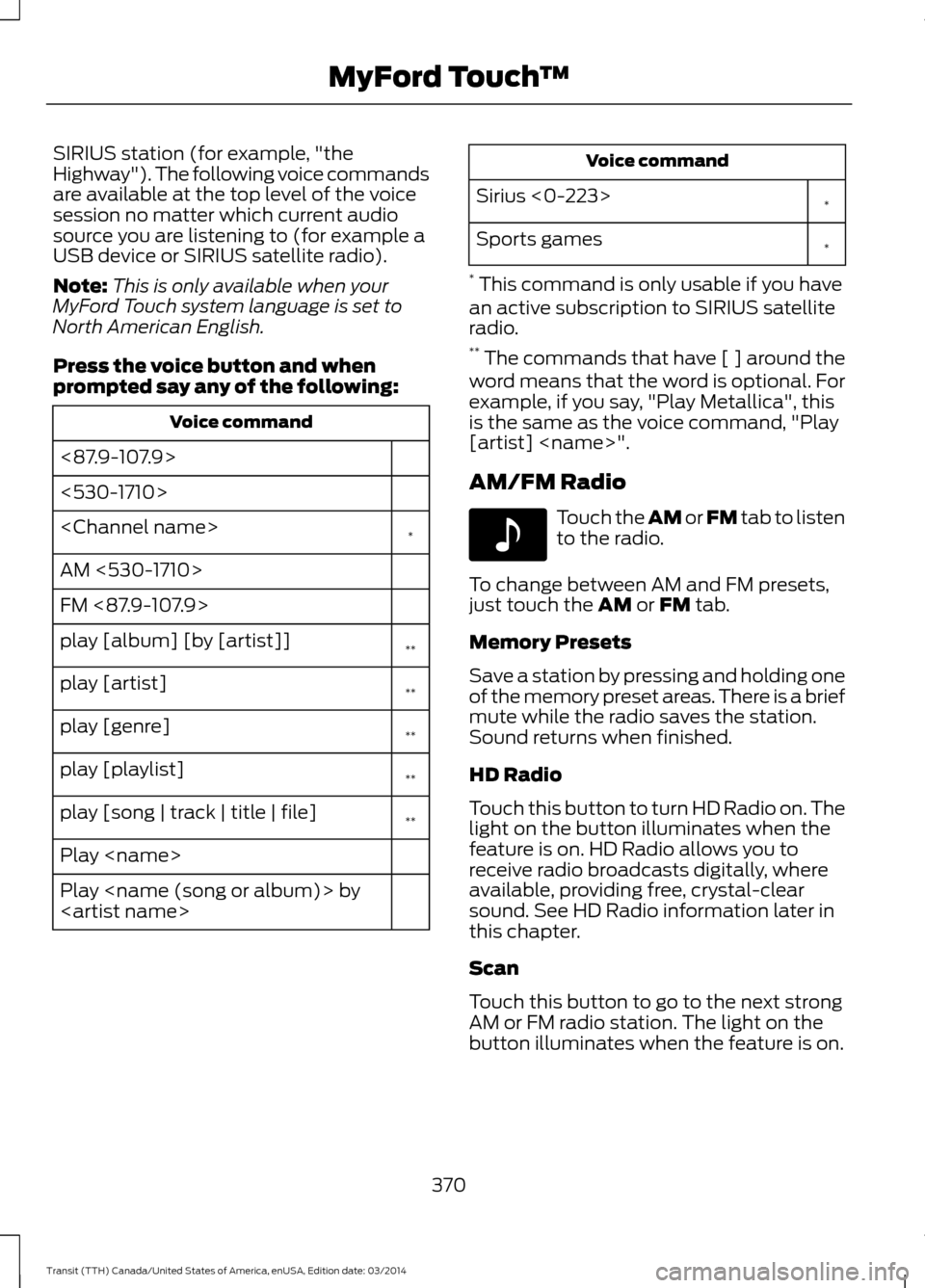
SIRIUS station (for example, "the
Highway"). The following voice commands
are available at the top level of the voice
session no matter which current audio
source you are listening to (for example a
USB device or SIRIUS satellite radio).
Note:
This is only available when your
MyFord Touch system language is set to
North American English.
Press the voice button and when
prompted say any of the following: Voice command
<87.9-107.9>
<530-1710>
*
AM <530-1710>
FM <87.9-107.9>
**
play [album] [by [artist]]
**
play [artist]
**
play [genre]
**
play [playlist]
**
play [song | track | title | file]
Play
Play
*
Sirius <0-223>
*
Sports games
* This command is only usable if you have
an active subscription to SIRIUS satellite
radio.
** The commands that have [ ] around the
word means that the word is optional. For
example, if you say, "Play Metallica", this
is the same as the voice command, "Play
[artist]
AM/FM Radio Touch the AM or FM tab to listen
t
o the radio.
To change between AM and FM presets,
just touch the
AM or FM tab.
Memory Presets
Save a station by pressing and holding one
of the memory preset areas. There is a brief
mute while the radio saves the station.
Sound returns when finished.
HD Radio
Touch this button to turn HD Radio on. The
light on the button illuminates when the
feature is on. HD Radio allows you to
receive radio broadcasts digitally, where
available, providing free, crystal-clear
sound. See HD Radio information later in
this chapter.
Scan
Touch this button to go to the next strong
AM or FM radio station. The light on the
button illuminates when the feature is on.
370 Transit (TTH) Canada/United States of America, enUSA, Edition date: 03/2014 MyFord Touch
™E142611
Page 375 of 461
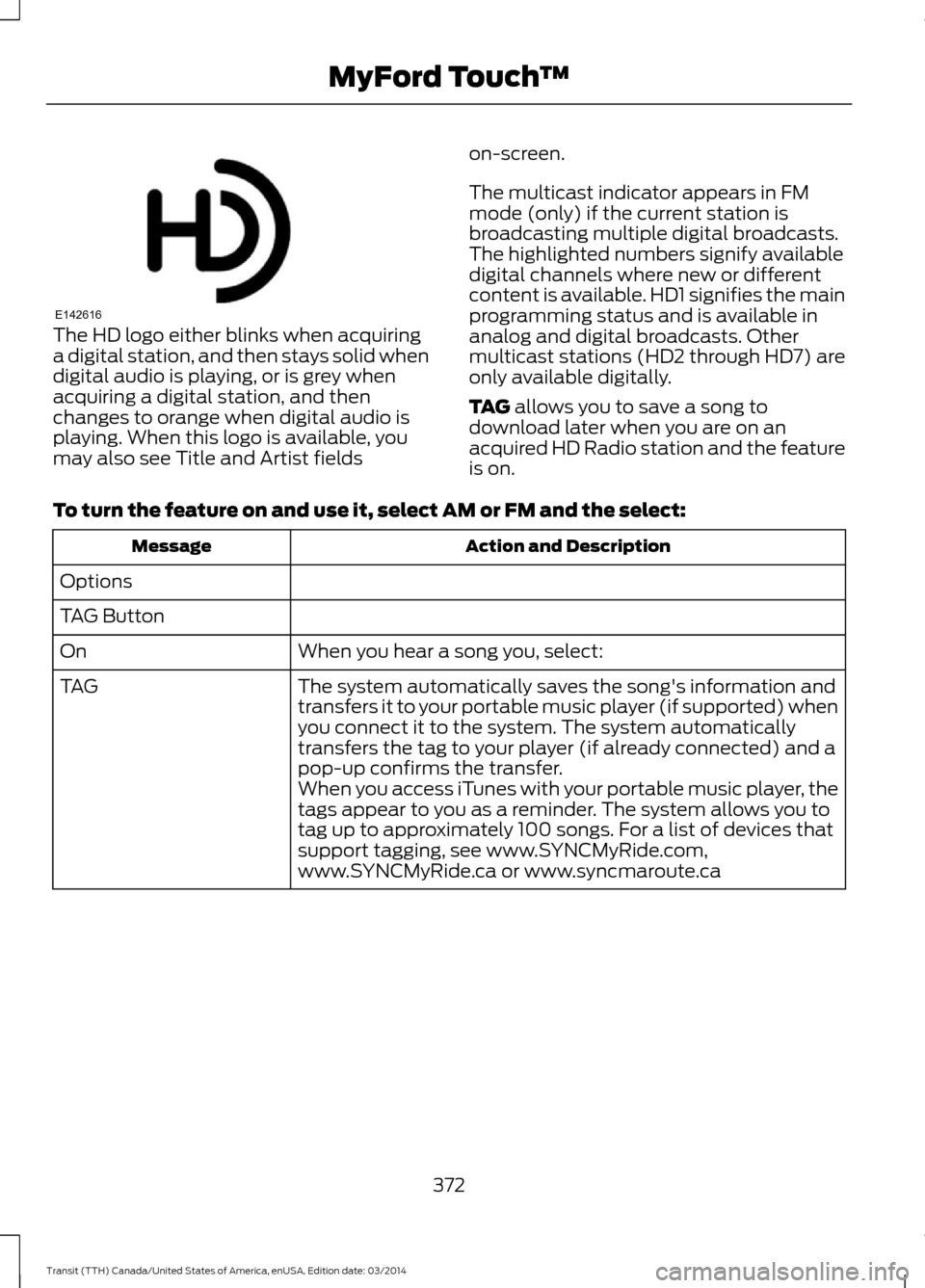
The HD logo either blinks when acquiring
a digital station, and then stays solid when
digital audio is playing, or is grey when
acquiring a digital station, and then
changes to orange when digital audio is
playing. When this logo is available, you
may also see Title and Artist fields
on-screen.
The multicast indicator appears in FM
mode (only) if the current station is
broadcasting multiple digital broadcasts.
The highlighted numbers signify available
digital channels where new or different
content is available. HD1 signifies the main
programming status and is available in
analog and digital broadcasts. Other
multicast stations (HD2 through HD7) are
only available digitally.
TAG allows you to save a song to
download later when you are on an
acquired HD Radio station and the feature
is on.
To turn the feature on and use it, select
AM or FM and the select: Action and Description
Message
Options
TAG Button When you hear a song you, select:
On
The system automatically saves the song's information and
transfers it to your portable music player (if supported) when
you connect it to the system. The system automatically
transfers the tag to your player (if already connected) and a
pop-up confirms the transfer.
TAG
When you access iTunes with your portable music player, the
tags appear to you as a reminder. The system allows you to
tag up to approximately 100 songs. For a list of devices that
support tagging, see www.SYNCMyRide.com,
www.SYNCMyRide.ca or www.syncmaroute.ca
372Transit (TTH) Canada/United States of America, enUSA, Edition date: 03/2014 MyFord Touch
™E142616
Page 376 of 461
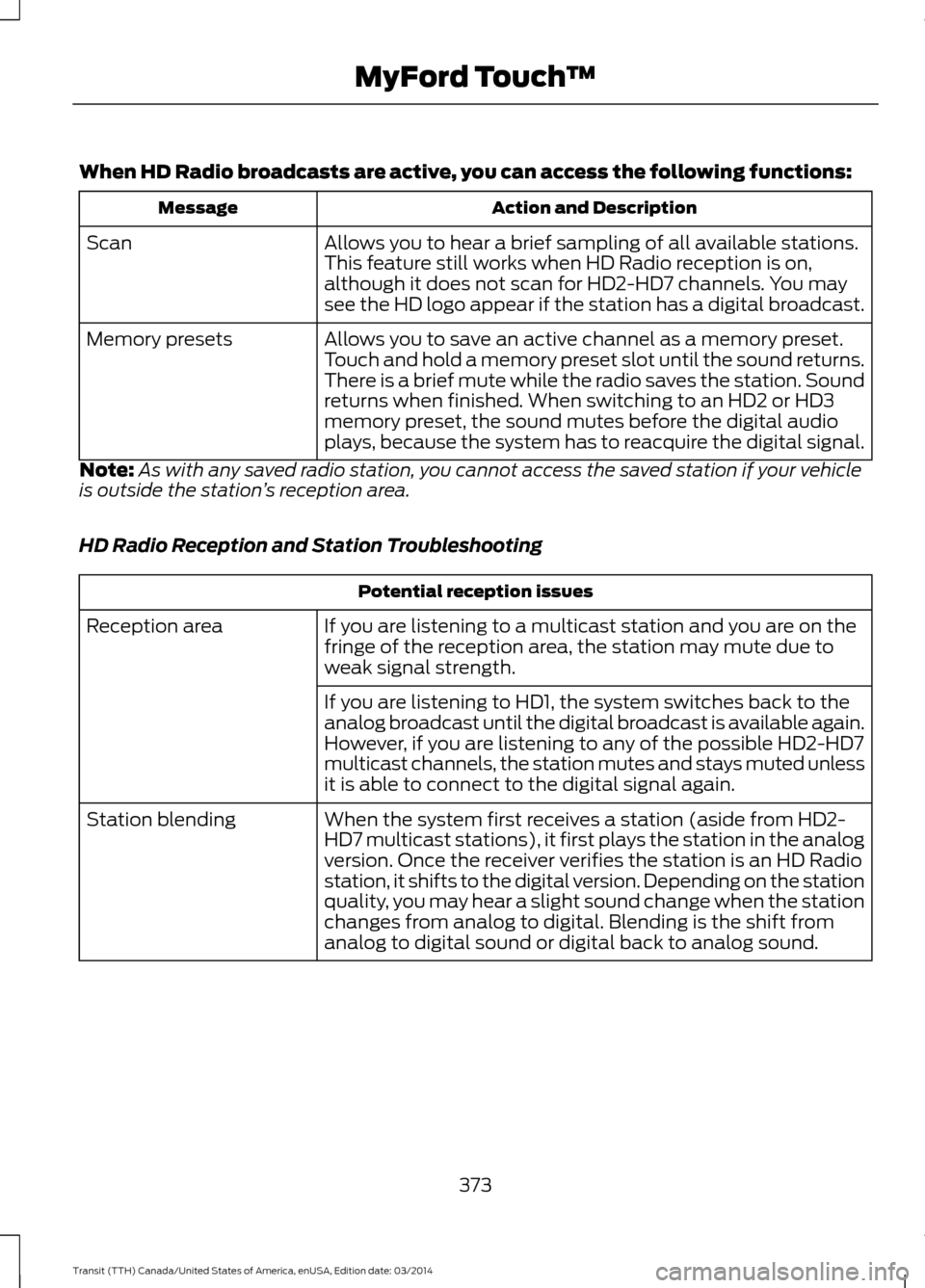
When HD Radio broadcasts are active, you can access the following functions:
Action and Description
Message
Allows you to hear a brief sampling of all available stations.
This feature still works when HD Radio reception is on,
although it does not scan for HD2-HD7 channels. You may
see the HD logo appear if the station has a digital broadcast.
Scan
Allows you to save an active channel as a memory preset.
Touch and hold a memory preset slot until the sound returns.
There is a brief mute while the radio saves the station. Sound
returns when finished. When switching to an HD2 or HD3
memory preset, the sound mutes before the digital audio
plays, because the system has to reacquire the digital signal.
Memory presets
Note: As with any saved radio station, you cannot access the saved station if your vehicle
is outside the station ’s reception area.
HD Radio Reception and Station Troubleshooting Potential reception issues
If you are listening to a multicast station and you are on the
fringe of the reception area, the station may mute due to
weak signal strength.
Reception area
If you are listening to HD1, the system switches back to the
analog broadcast until the digital broadcast is available again.
However, if you are listening to any of the possible HD2-HD7
multicast channels, the station mutes and stays muted unless
it is able to connect to the digital signal again.
When the system first receives a station (aside from HD2-
HD7 multicast stations), it first plays the station in the analog
version. Once the receiver verifies the station is an HD Radio
station, it shifts to the digital version. Depending on the station
quality, you may hear a slight sound change when the station
changes from analog to digital. Blending is the shift from
analog to digital sound or digital back to analog sound.
Station blending
373Transit (TTH) Canada/United States of America, enUSA, Edition date: 03/2014 MyFord Touch
™
Page 408 of 461
Note:
The SD card slot is spring-loaded. To
remove the SD card, just push the card in
and release it. Do not attempt to pull the
card out to remove it; this could cause
damage.
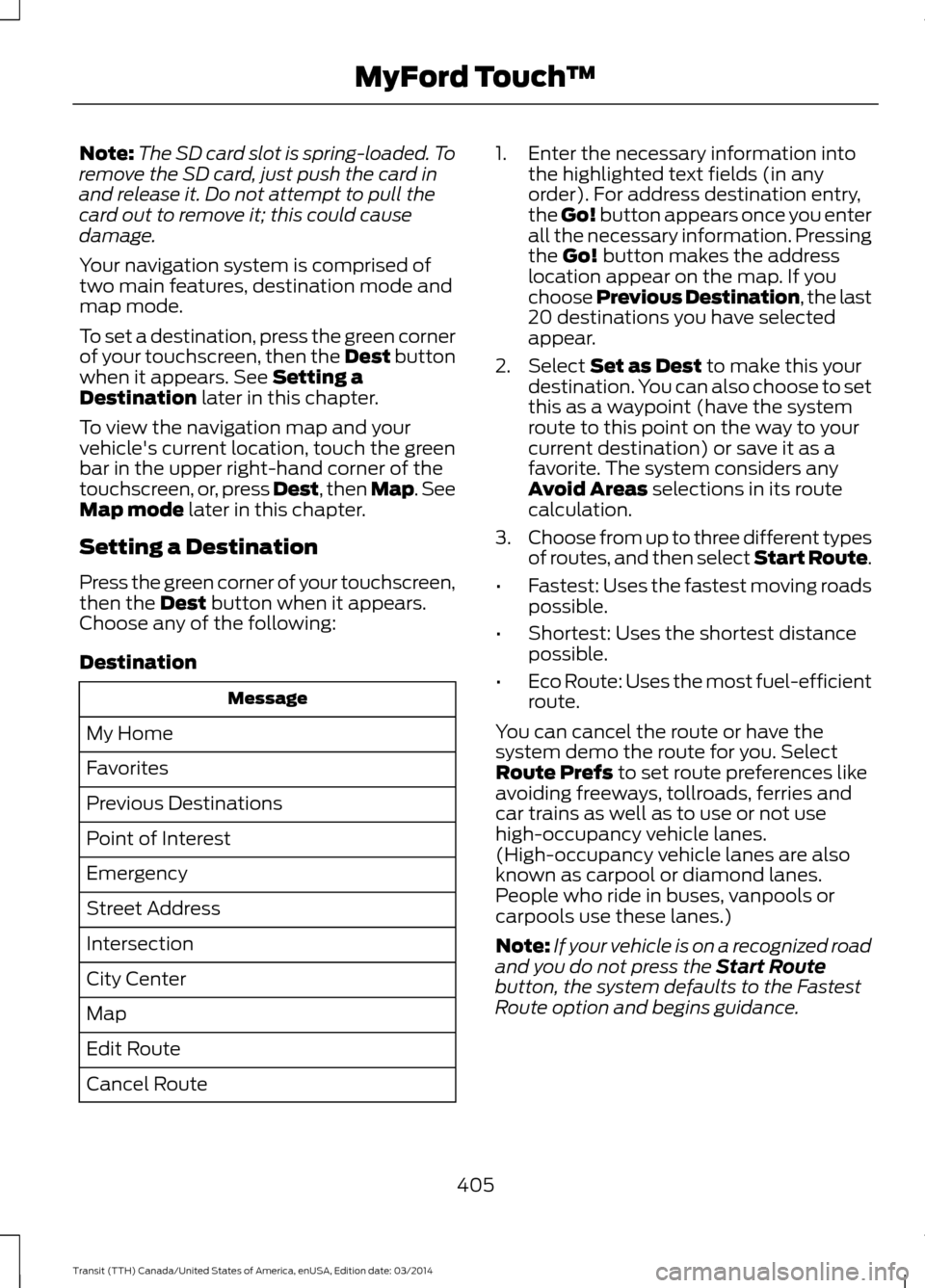
Your navigation system is comprised of
two main features, destination mode and
map mode.
To set a destination, press the green corner
of your touchscreen, then the Dest button
when it appears. See Setting a
Destination later in this chapter.
To view the navigation map and your
vehicle's current location, touch the green
bar in the upper right-hand corner of the
touchscreen, or, press Dest, then Map. See
Map mode
later in this chapter.
Setting a Destination
Press the green corner of your touchscreen,
then the
Dest button when it appears.
Choose any of the following:
Destination Message
My Home
Favorites
Previous Destinations
Point of Interest
Emergency
Street Address
Intersection
City Center
Map
Edit Route
Cancel Route 1. Enter the necessary information into
the highlighted text fields (in any
order). For address destination entry,
the Go! button appears once you enter
all the necessary information. Pressing
the
Go! button makes the address
location appear on the map. If you
choose Previous Destination, the last
20 destinations you have selected
appear.
2. Select
Set as Dest to make this your
destination. You can also choose to set
this as a waypoint (have the system
route to this point on the way to your
current destination) or save it as a
favorite. The system considers any
Avoid Areas selections in its route
calculation.
3. Choose from up to three different types
of routes, and then select Start Route.
• Fastest: Uses the fastest moving roads
possible.
• Shortest: Uses the shortest distance
possible.
• Eco Route: Uses the most fuel-efficient
route.
You can cancel the route or have the
system demo the route for you. Select
Route Prefs to set route preferences like
avoiding freeways, tollroads, ferries and
car trains as well as to use or not use
high-occupancy vehicle lanes.
(High-occupancy vehicle lanes are also
known as carpool or diamond lanes.
People who ride in buses, vanpools or
carpools use these lanes.)
Note: If your vehicle is on a recognized road
and you do not press the
Start Route
button, the system defaults to the Fastest
Route option and begins guidance.
405 Transit (TTH) Canada/United States of America, enUSA, Edition date: 03/2014 MyFord Touch
™