buttons FORD TRANSIT 2016 5.G User Guide
[x] Cancel search | Manufacturer: FORD, Model Year: 2016, Model line: TRANSIT, Model: FORD TRANSIT 2016 5.GPages: 411, PDF Size: 5.65 MB
Page 301 of 411
Station Preset Buttons
This feature allows you to store your
favorite stations. They can be recalled by
selecting the appropriate frequency band
and pressing one of the preset buttons.
1. Select a frequency band.
2. Tune to the station required.
3. Press and hold one of the preset
buttons. The audio unit will also mute
momentarily as confirmation.
You can repeat this on each frequency
band and for each preset button.
Menu Button
This allows you to adjust all of the audio
system settings. Press the button
repeatedly until the required setting is
displayed. Use the cursor up or down arrow
buttons to adjust the following settings:
• Clock hour.
• Clock minutes.
• 24 hour, 12 hour.
• Bass.
• Treble.
• Balance.
• Fade.
• RDS.
Sound Button
This allows you to adjust the sound
settings for bass, treble, balance or fade.
1. Press the sound button until the required setting is displayed. 2. Use the cursor up or down arrow
buttons to select the required level.
Note: Fade settings are only adjustable if
there are speakers in the rear of your vehicle.
AUX Button
Connect your media device to the audio
unit. See USB Port (page 309).
Select your media device as the audio
source by pressing the
AUX button. After
connecting your media device, the first
track will start to play automatically.
AUDIO UNIT - VEHICLES WITH:
PREMIUM AM/FM/CD WARNING
Driving while distracted can result in
loss of vehicle control, crash and
injury. We strongly recommend that
you use extreme caution when using any
device that may take your focus off the
road. Your primary responsibility is the safe
operation of your vehicle. We recommend
against the use of any hand-held device
while driving and encourage the use of
voice-operated systems when possible.
Make sure you are aware of all applicable
local laws that may affect the use of
electronic devices while driving. Note:
The touchscreen system controls
most of the audio features. See SYNC
Supplement.
298
Transit (TTH) Canada/United States of America, enUSA, First Printing Audio System
Page 302 of 411
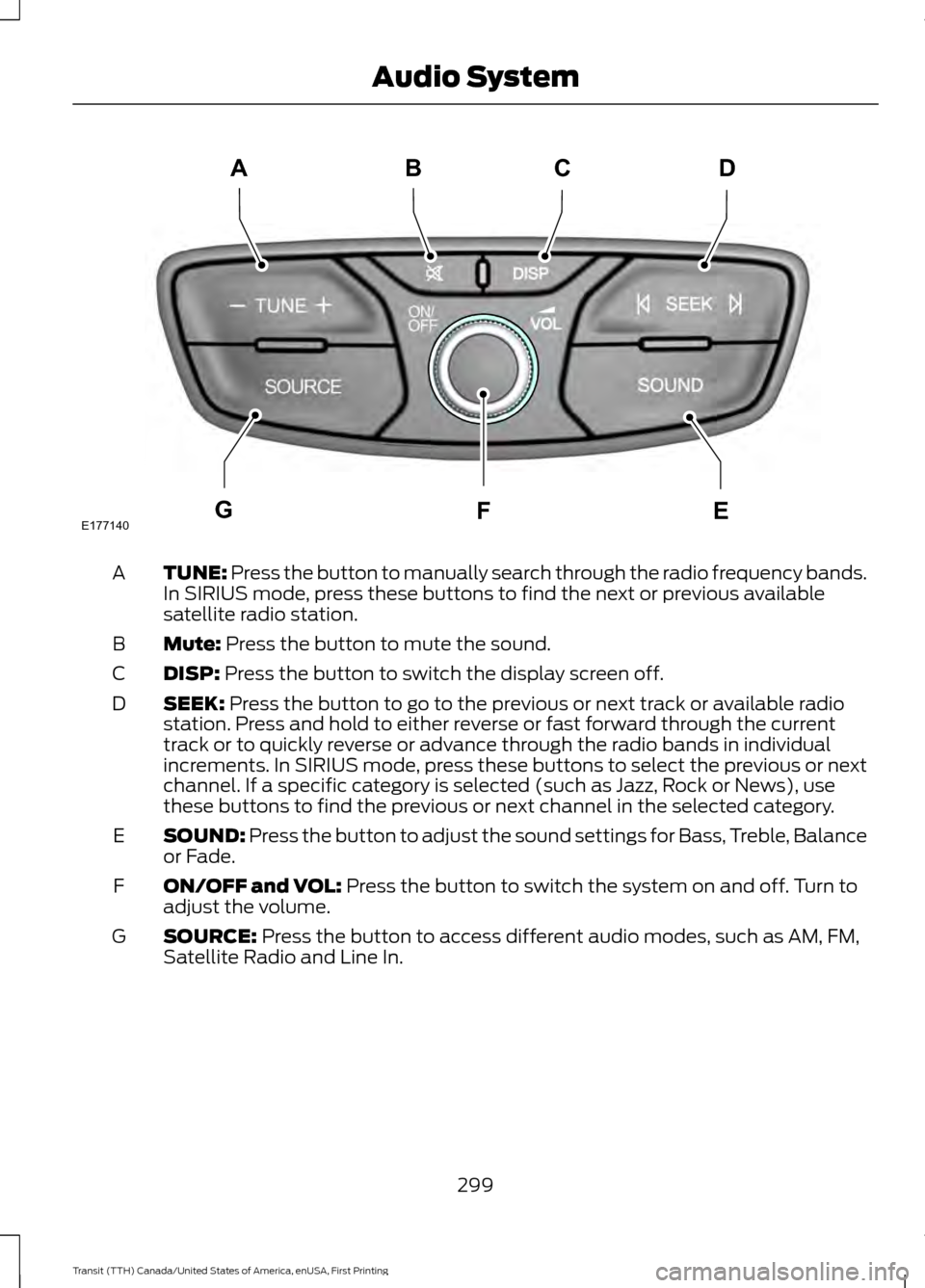
TUNE: Press the button to manually search through the radio frequency bands.
In SIRIUS mode, press these buttons to find the next or previous available
satellite radio station.
A
Mute:
Press the button to mute the sound.
B
DISP:
Press the button to switch the display screen off.
C
SEEK:
Press the button to go to the previous or next track or available radio
station. Press and hold to either reverse or fast forward through the current
track or to quickly reverse or advance through the radio bands in individual
increments. In SIRIUS mode, press these buttons to select the previous or next
channel. If a specific category is selected (such as Jazz, Rock or News), use
these buttons to find the previous or next channel in the selected category.
D
SOUND:
Press the button to adjust the sound settings for Bass, Treble, Balance
or Fade.
E
ON/OFF and VOL:
Press the button to switch the system on and off. Turn to
adjust the volume.
F
SOURCE:
Press the button to access different audio modes, such as AM, FM,
Satellite Radio and Line In.
G
299
Transit (TTH) Canada/United States of America, enUSA, First Printing Audio SystemE177140
CD
GEF
B
A
Page 304 of 411
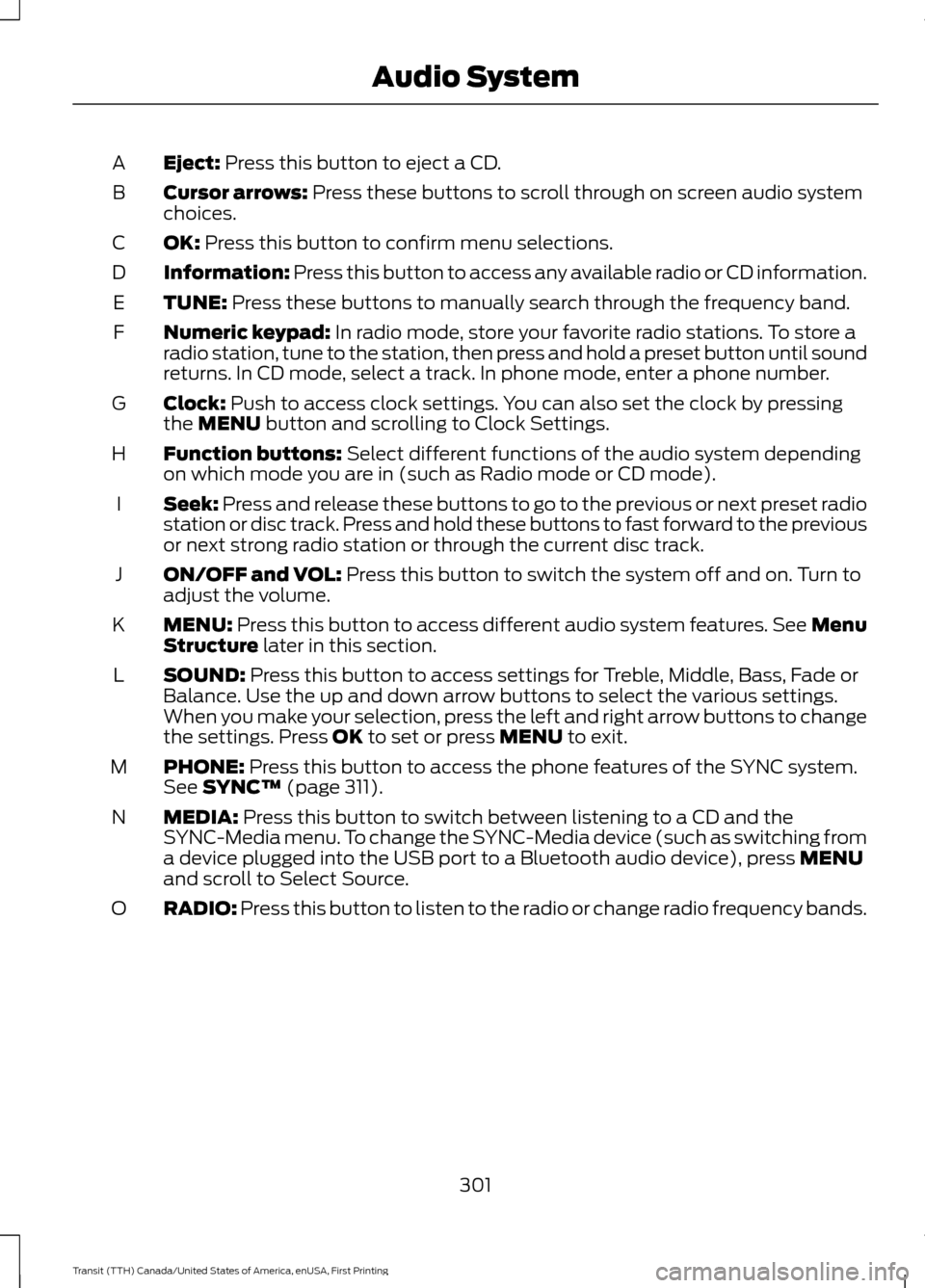
Eject: Press this button to eject a CD.
A
Cursor arrows:
Press these buttons to scroll through on screen audio system
choices.
B
OK:
Press this button to confirm menu selections.
C
Information:
Press this button to access any available radio or CD information.
D
TUNE:
Press these buttons to manually search through the frequency band.
E
Numeric keypad:
In radio mode, store your favorite radio stations. To store a
radio station, tune to the station, then press and hold a preset button until sound
returns. In CD mode, select a track. In phone mode, enter a phone number.
F
Clock:
Push to access clock settings. You can also set the clock by pressing
the MENU button and scrolling to Clock Settings.
G
Function buttons:
Select different functions of the audio system depending
on which mode you are in (such as Radio mode or CD mode).
H
Seek:
Press and release these buttons to go to the previous or next preset radio
station or disc track. Press and hold these buttons to fast forward to the previous
or next strong radio station or through the current disc track.
I
ON/OFF and VOL:
Press this button to switch the system off and on. Turn to
adjust the volume.
J
MENU:
Press this button to access different audio system features. See Menu
Structure later in this section.
K
SOUND:
Press this button to access settings for Treble, Middle, Bass, Fade or
Balance. Use the up and down arrow buttons to select the various settings.
When you make your selection, press the left and right arrow buttons to change
the settings. Press
OK to set or press MENU to exit.
L
PHONE:
Press this button to access the phone features of the SYNC system.
See SYNC™ (page 311).
M
MEDIA:
Press this button to switch between listening to a CD and the
SYNC-Media menu. To change the SYNC-Media device (such as switching from
a device plugged into the USB port to a Bluetooth audio device), press
MENU
and scroll to Select Source.
N
RADIO:
Press this button to listen to the radio or change radio frequency bands.
O
301
Transit (TTH) Canada/United States of America, enUSA, First Printing Audio System
Page 306 of 411
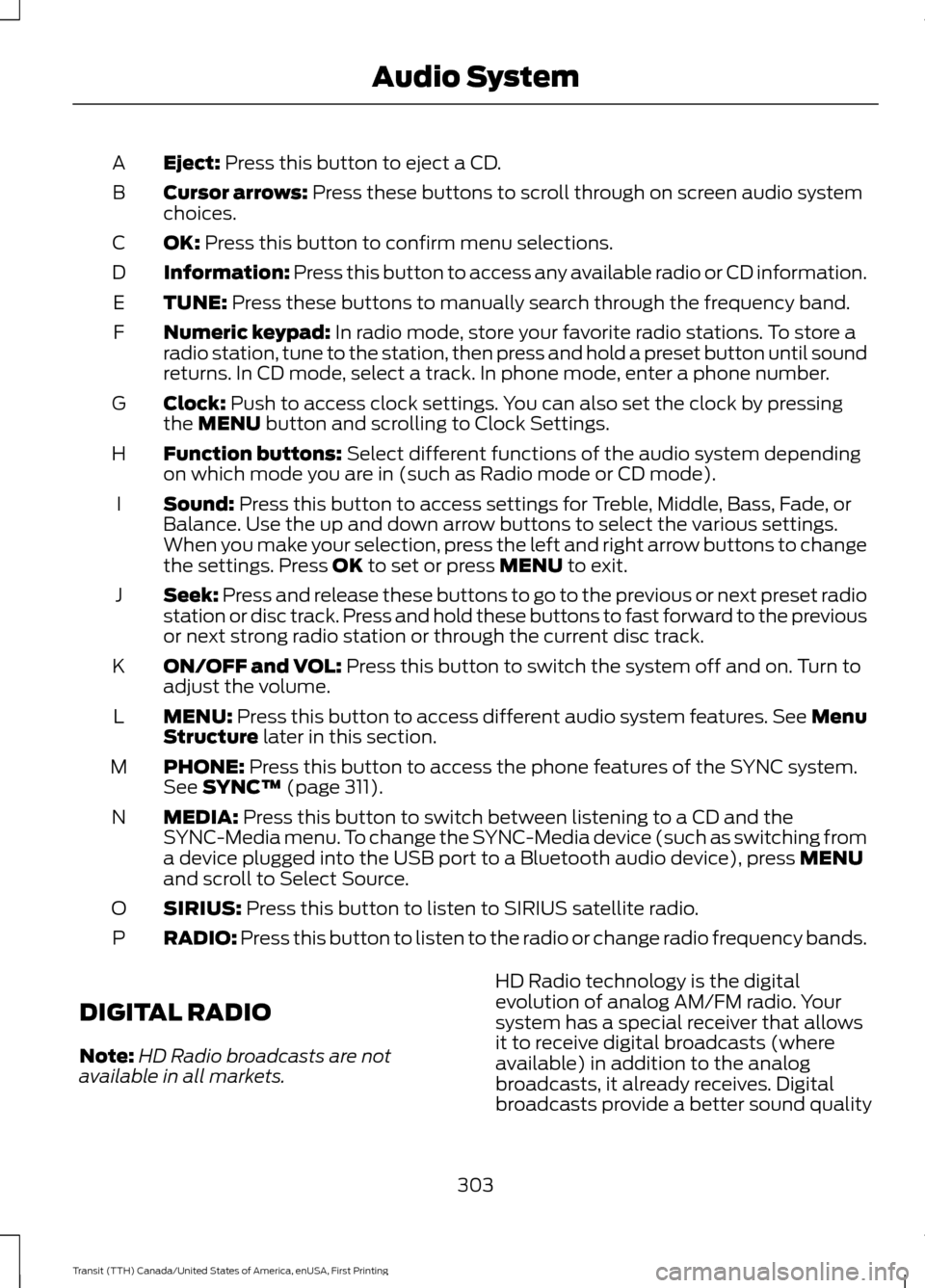
Eject: Press this button to eject a CD.
A
Cursor arrows:
Press these buttons to scroll through on screen audio system
choices.
B
OK:
Press this button to confirm menu selections.
C
Information:
Press this button to access any available radio or CD information.
D
TUNE:
Press these buttons to manually search through the frequency band.
E
Numeric keypad:
In radio mode, store your favorite radio stations. To store a
radio station, tune to the station, then press and hold a preset button until sound
returns. In CD mode, select a track. In phone mode, enter a phone number.
F
Clock:
Push to access clock settings. You can also set the clock by pressing
the MENU button and scrolling to Clock Settings.
G
Function buttons:
Select different functions of the audio system depending
on which mode you are in (such as Radio mode or CD mode).
H
Sound:
Press this button to access settings for Treble, Middle, Bass, Fade, or
Balance. Use the up and down arrow buttons to select the various settings.
When you make your selection, press the left and right arrow buttons to change
the settings. Press
OK to set or press MENU to exit.
I
Seek:
Press and release these buttons to go to the previous or next preset radio
station or disc track. Press and hold these buttons to fast forward to the previous
or next strong radio station or through the current disc track.
J
ON/OFF and VOL:
Press this button to switch the system off and on. Turn to
adjust the volume.
K
MENU:
Press this button to access different audio system features. See Menu
Structure later in this section.
L
PHONE:
Press this button to access the phone features of the SYNC system.
See SYNC™ (page 311).
M
MEDIA:
Press this button to switch between listening to a CD and the
SYNC-Media menu. To change the SYNC-Media device (such as switching from
a device plugged into the USB port to a Bluetooth audio device), press
MENU
and scroll to Select Source.
N
SIRIUS:
Press this button to listen to SIRIUS satellite radio.
O
RADIO:
Press this button to listen to the radio or change radio frequency bands.
P
DIGITAL RADIO
Note: HD Radio broadcasts are not
available in all markets. HD Radio technology is the digital
evolution of analog AM/FM radio. Your
system has a special receiver that allows
it to receive digital broadcasts (where
available) in addition to the analog
broadcasts, it already receives. Digital
broadcasts provide a better sound quality
303
Transit (TTH) Canada/United States of America, enUSA, First Printing Audio System
Page 322 of 411
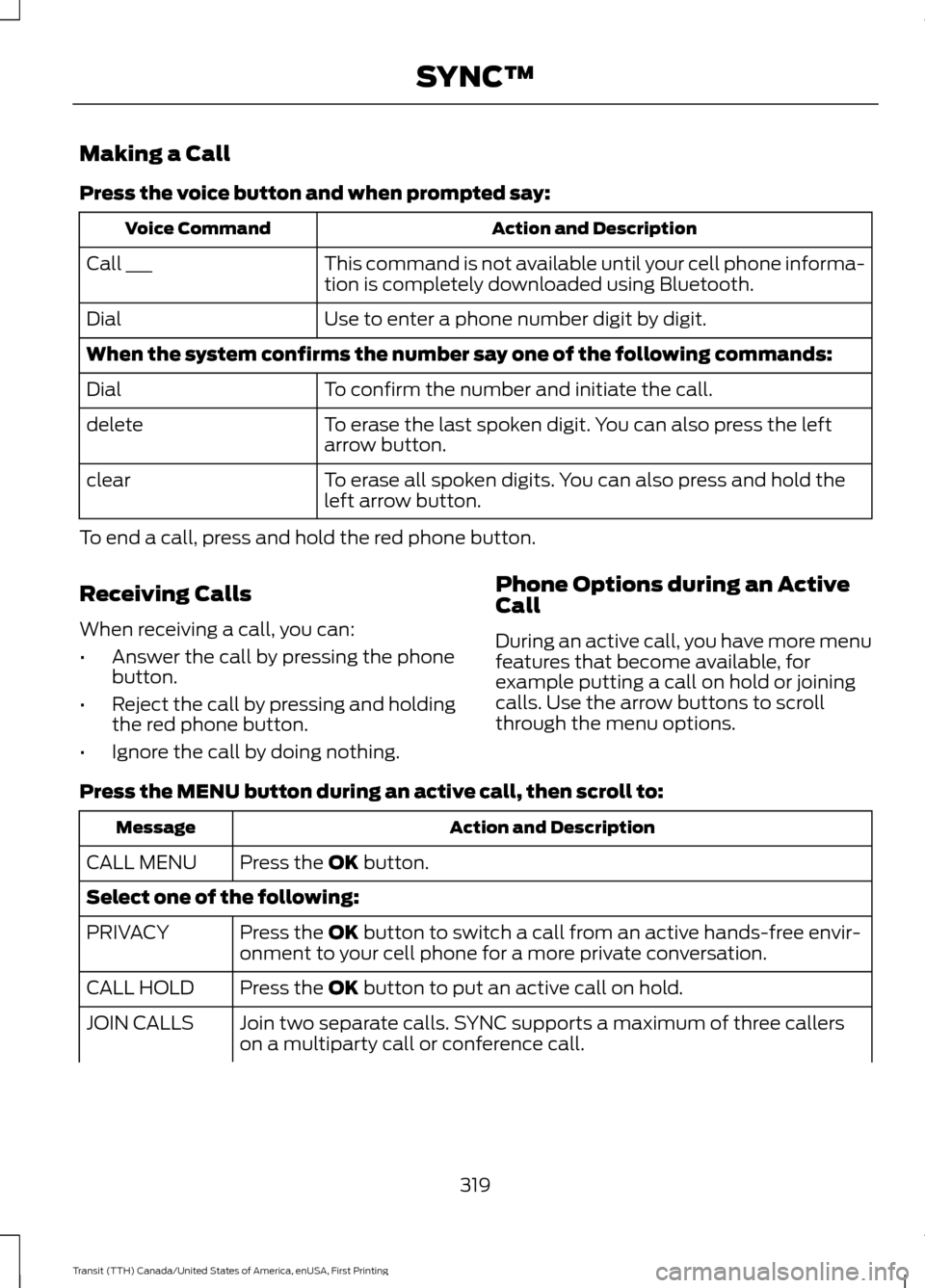
Making a Call
Press the voice button and when prompted say:
Action and Description
Voice Command
This command is not available until your cell phone informa-
tion is completely downloaded using Bluetooth.
Call ___
Use to enter a phone number digit by digit.
Dial
When the system confirms the number say one of the following commands:
To confirm the number and initiate the call.
Dial
To erase the last spoken digit. You can also press the left
arrow button.
delete
To erase all spoken digits. You can also press and hold the
left arrow button.
clear
To end a call, press and hold the red phone button.
Receiving Calls
When receiving a call, you can:
• Answer the call by pressing the phone
button.
• Reject the call by pressing and holding
the red phone button.
• Ignore the call by doing nothing. Phone Options during an Active
Call
During an active call, you have more menu
features that become available, for
example putting a call on hold or joining
calls. Use the arrow buttons to scroll
through the menu options.
Press the MENU button during an active call, then scroll to: Action and Description
Message
Press the
OK button.
CALL MENU
Select one of the following:
Press the
OK button to switch a call from an active hands-free envir-
onment to your cell phone for a more private conversation.
PRIVACY
Press the
OK button to put an active call on hold.
CALL HOLD
Join two separate calls. SYNC supports a maximum of three callers
on a multiparty call or conference call.
JOIN CALLS
319
Transit (TTH) Canada/United States of America, enUSA, First Printing SYNC™
Page 329 of 411
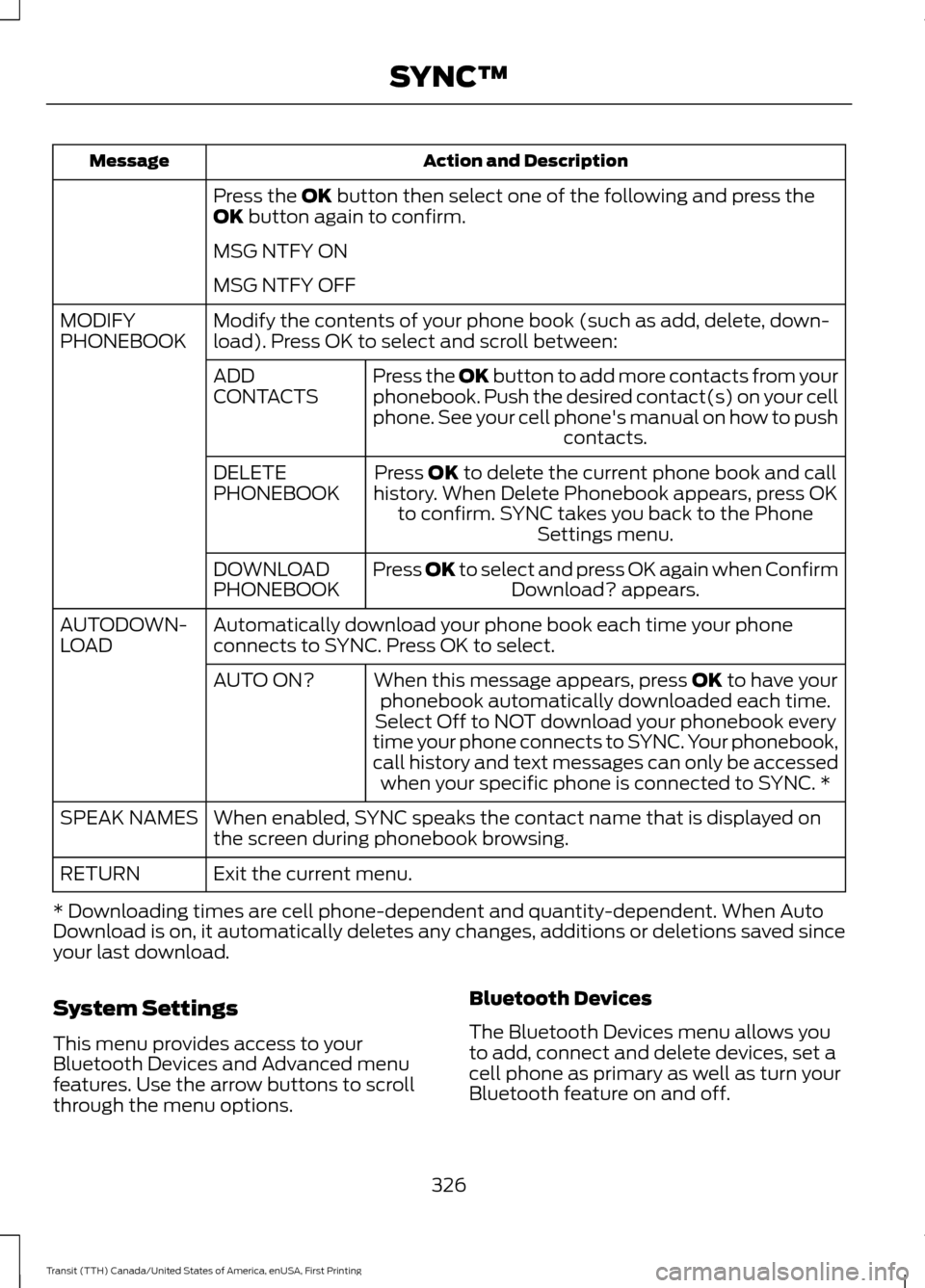
Action and Description
Message
Press the OK button then select one of the following and press the
OK button again to confirm.
MSG NTFY ON
MSG NTFY OFF
Modify the contents of your phone book (such as add, delete, down-
load). Press OK to select and scroll between:
MODIFY
PHONEBOOK
Press the
OK button to add more contacts from your
phonebook. Push the desired contact(s) on your cell
phone. See your cell phone's manual on how to push contacts.
ADD
CONTACTS
Press
OK to delete the current phone book and call
history. When Delete Phonebook appears, press OK to confirm. SYNC takes you back to the Phone Settings menu.
DELETE
PHONEBOOK
Press
OK to select and press OK again when ConfirmDownload? appears.
DOWNLOAD
PHONEBOOK
Automatically download your phone book each time your phone
connects to SYNC. Press OK to select.
AUTODOWN-
LOAD
When this message appears, press
OK to have your
phonebook automatically downloaded each time.
AUTO ON?
Select Off to NOT download your phonebook every
time your phone connects to SYNC. Your phonebook,
call history and text messages can only be accessed when your specific phone is connected to SYNC. *
When enabled, SYNC speaks the contact name that is displayed on
the screen during phonebook browsing.
SPEAK NAMES
Exit the current menu.
RETURN
* Downloading times are cell phone-dependent and quantity-dependent. When Auto
Download is on, it automatically deletes any changes, additions or deletions saved since
your last download.
System Settings
This menu provides access to your
Bluetooth Devices and Advanced menu
features. Use the arrow buttons to scroll
through the menu options. Bluetooth Devices
The Bluetooth Devices menu allows you
to add, connect and delete devices, set a
cell phone as primary as well as turn your
Bluetooth feature on and off.
326
Transit (TTH) Canada/United States of America, enUSA, First Printing SYNC™
Page 360 of 411
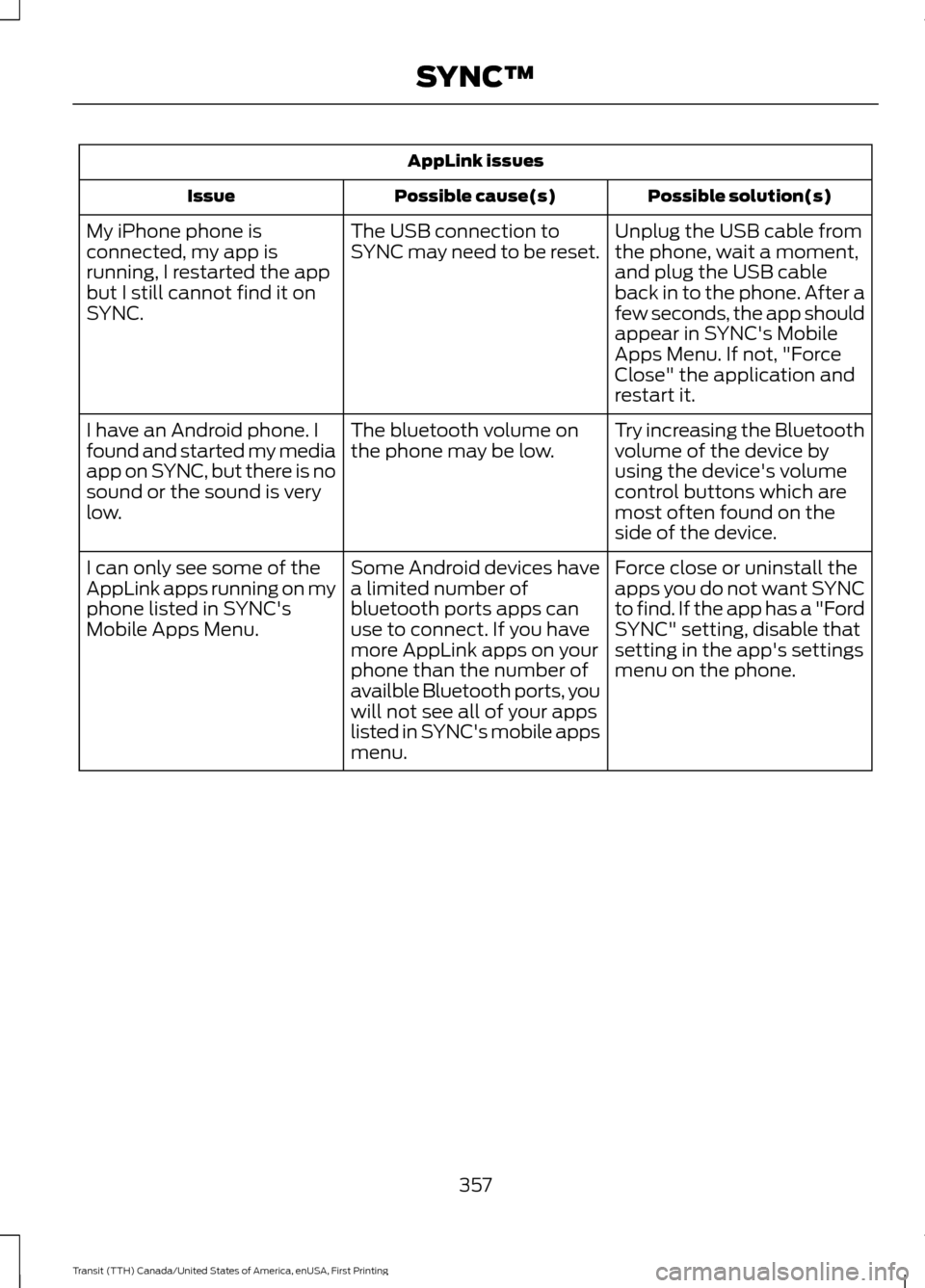
AppLink issues
Possible solution(s)
Possible cause(s)
Issue
Unplug the USB cable from
the phone, wait a moment,
and plug the USB cable
back in to the phone. After a
few seconds, the app should
appear in SYNC's Mobile
Apps Menu. If not, "Force
Close" the application and
restart it.
The USB connection to
SYNC may need to be reset.
My iPhone phone is
connected, my app is
running, I restarted the app
but I still cannot find it on
SYNC.
Try increasing the Bluetooth
volume of the device by
using the device's volume
control buttons which are
most often found on the
side of the device.
The bluetooth volume on
the phone may be low.
I have an Android phone. I
found and started my media
app on SYNC, but there is no
sound or the sound is very
low.
Force close or uninstall the
apps you do not want SYNC
to find. If the app has a "Ford
SYNC" setting, disable that
setting in the app's settings
menu on the phone.
Some Android devices have
a limited number of
bluetooth ports apps can
use to connect. If you have
more AppLink apps on your
phone than the number of
availble Bluetooth ports, you
will not see all of your apps
listed in SYNC's mobile apps
menu.
I can only see some of the
AppLink apps running on my
phone listed in SYNC's
Mobile Apps Menu.
357
Transit (TTH) Canada/United States of America, enUSA, First Printing SYNC™
Page 402 of 411
A
A/C
See: Climate Control........................................... 92
About This Manual...........................................7
ABS See: Brakes........................................................... 140
ABS driving hints See: Hints on Driving With Anti-Lock
Brakes................................................................ 140
Accessories....................................................358 Exterior Style....................................................... 358
Interior Style........................................................ 358
Lifestyle................................................................. 358
Peace of Mind..................................................... 358
Accessories See: Replacement Parts
Recommendation............................................ 10
Adjusting the Headlamps
.........................223
Horizontal Aim Adjustment........................... 225
Vertical Aim Adjustment................................. 223
Adjusting the Steering Wheel
....................63
Airbag Disposal..............................................46
Air Conditioning See: Climate Control........................................... 92
Air Filter See: Changing the Engine Air Filter.............232
Air Vents
.............................................................92
Alarm See: Anti-Theft Alarm........................................ 62
Anti-Theft Alarm............................................62 Alarm System........................................................ 62
Arming the Alarm................................................. 62
Disarming the Alarm........................................... 62
Triggering the Alarm............................................ 62
Appendices....................................................382
Audible Warnings and Indicators
..............81
Airbag Secondary Warning................................ 81
Door Ajar................................................................... 81
Exterior Lamps On................................................ 81
Gearshift Lever not in Park (P)........................ 81
Key in Ignition.......................................................... 81
Parking Brake On................................................... 81
Safety Belt Minder................................................ 81
Audio Control
...................................................63
Audio Input Jack..........................................308
Audio System
................................................294
General Information......................................... 294Audio Troubleshooting
...............................310
Audio Unit - Vehicles With: AM/FM/CD/ SYNC/Satellite Radio
.............................302
Audio Unit - Vehicles With: AM/FM/CD/ SYNC............................................................300
Audio Unit - Vehicles With: AM/ FM
...................................................................295
AUX Button.......................................................... 298
Clock Button........................................................ 297
Menu Button....................................................... 298
Sound Button..................................................... 298
Station Preset Buttons.................................... 298
Station Tuning Buttons.................................... 297
Audio Unit - Vehicles With: Premium AM/FM/CD.................................................298
Autolamps........................................................70 Windshield Wiper Activated
Headlamps........................................................ 70
Automatic Transmission............................136 Brake-Shift Interlock......................................... 138
Hints on Driving with an Automatic Transmission................................................... 138
Understanding the Gearshift Lever Positions of the Automatic
Transmission................................................... 136
Automatic Transmission Fluid Check..............................................................217
Autowipers.......................................................66
Auxiliary Power Points
................................105
12 Volt DC Power Point..................................... 105
AC Power Point................................................... 105
Locations............................................................... 105
Auxiliary Switches
.......................................359
B
Battery See: Changing the 12V Battery....................... 221
Bonnet Lock See: Opening and Closing the Hood..........207
Booster Seats..................................................25 Types of Booster Seats...................................... 25
Bottle Holder..................................................107
Brake Fluid Check.........................................218
Brakes...............................................................140 General Information.......................................... 140
Breaking-In......................................................178
Bulb Specification Chart
..........................230
399
Transit (TTH) Canada/United States of America, enUSA, First Printing Index