reset FORD TRANSIT 2016 5.G Owner's Manual
[x] Cancel search | Manufacturer: FORD, Model Year: 2016, Model line: TRANSIT, Model: FORD TRANSIT 2016 5.GPages: 411, PDF Size: 5.65 MB
Page 304 of 411
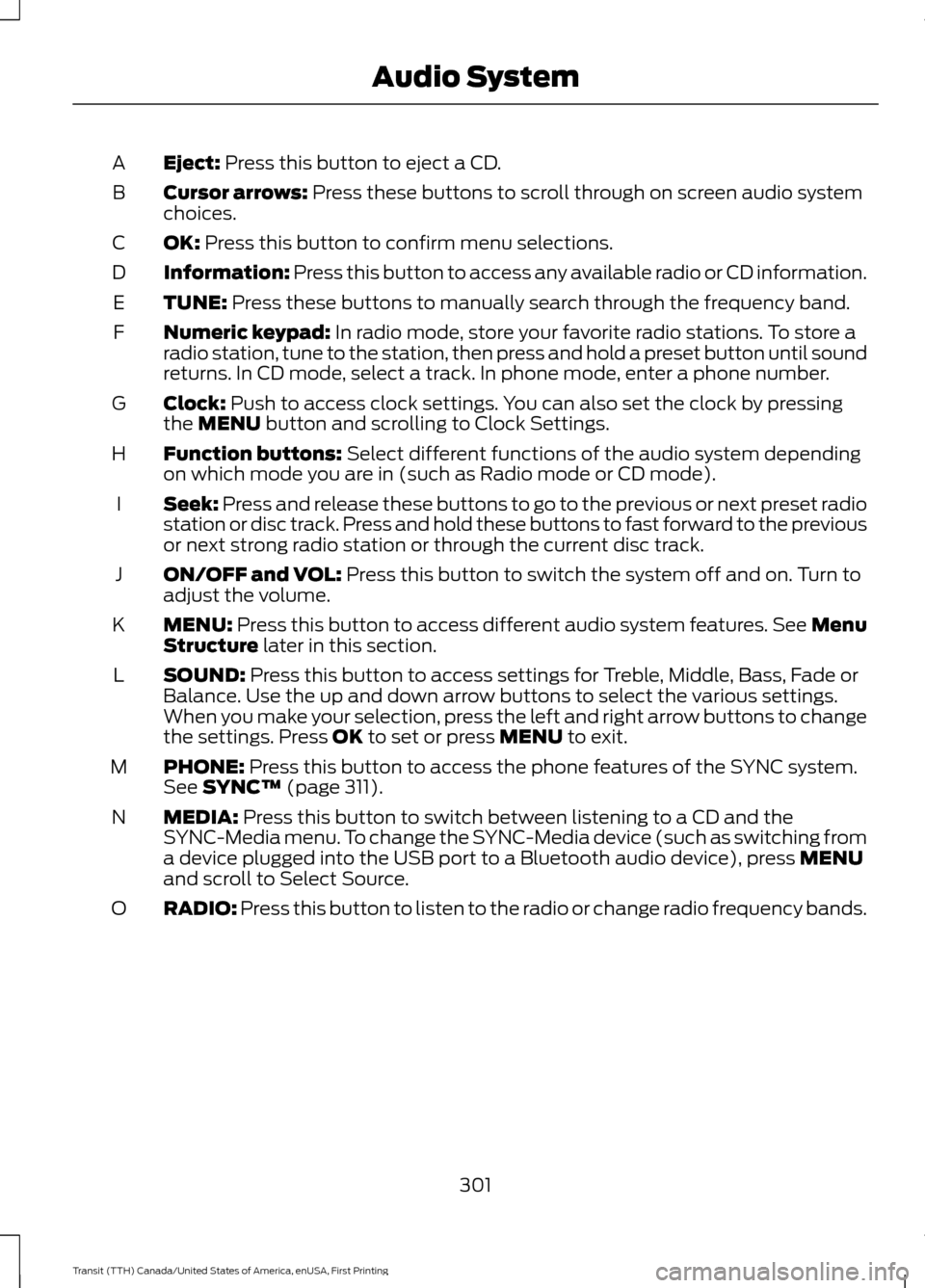
Eject: Press this button to eject a CD.
A
Cursor arrows:
Press these buttons to scroll through on screen audio system
choices.
B
OK:
Press this button to confirm menu selections.
C
Information:
Press this button to access any available radio or CD information.
D
TUNE:
Press these buttons to manually search through the frequency band.
E
Numeric keypad:
In radio mode, store your favorite radio stations. To store a
radio station, tune to the station, then press and hold a preset button until sound
returns. In CD mode, select a track. In phone mode, enter a phone number.
F
Clock:
Push to access clock settings. You can also set the clock by pressing
the MENU button and scrolling to Clock Settings.
G
Function buttons:
Select different functions of the audio system depending
on which mode you are in (such as Radio mode or CD mode).
H
Seek:
Press and release these buttons to go to the previous or next preset radio
station or disc track. Press and hold these buttons to fast forward to the previous
or next strong radio station or through the current disc track.
I
ON/OFF and VOL:
Press this button to switch the system off and on. Turn to
adjust the volume.
J
MENU:
Press this button to access different audio system features. See Menu
Structure later in this section.
K
SOUND:
Press this button to access settings for Treble, Middle, Bass, Fade or
Balance. Use the up and down arrow buttons to select the various settings.
When you make your selection, press the left and right arrow buttons to change
the settings. Press
OK to set or press MENU to exit.
L
PHONE:
Press this button to access the phone features of the SYNC system.
See SYNC™ (page 311).
M
MEDIA:
Press this button to switch between listening to a CD and the
SYNC-Media menu. To change the SYNC-Media device (such as switching from
a device plugged into the USB port to a Bluetooth audio device), press
MENU
and scroll to Select Source.
N
RADIO:
Press this button to listen to the radio or change radio frequency bands.
O
301
Transit (TTH) Canada/United States of America, enUSA, First Printing Audio System
Page 306 of 411
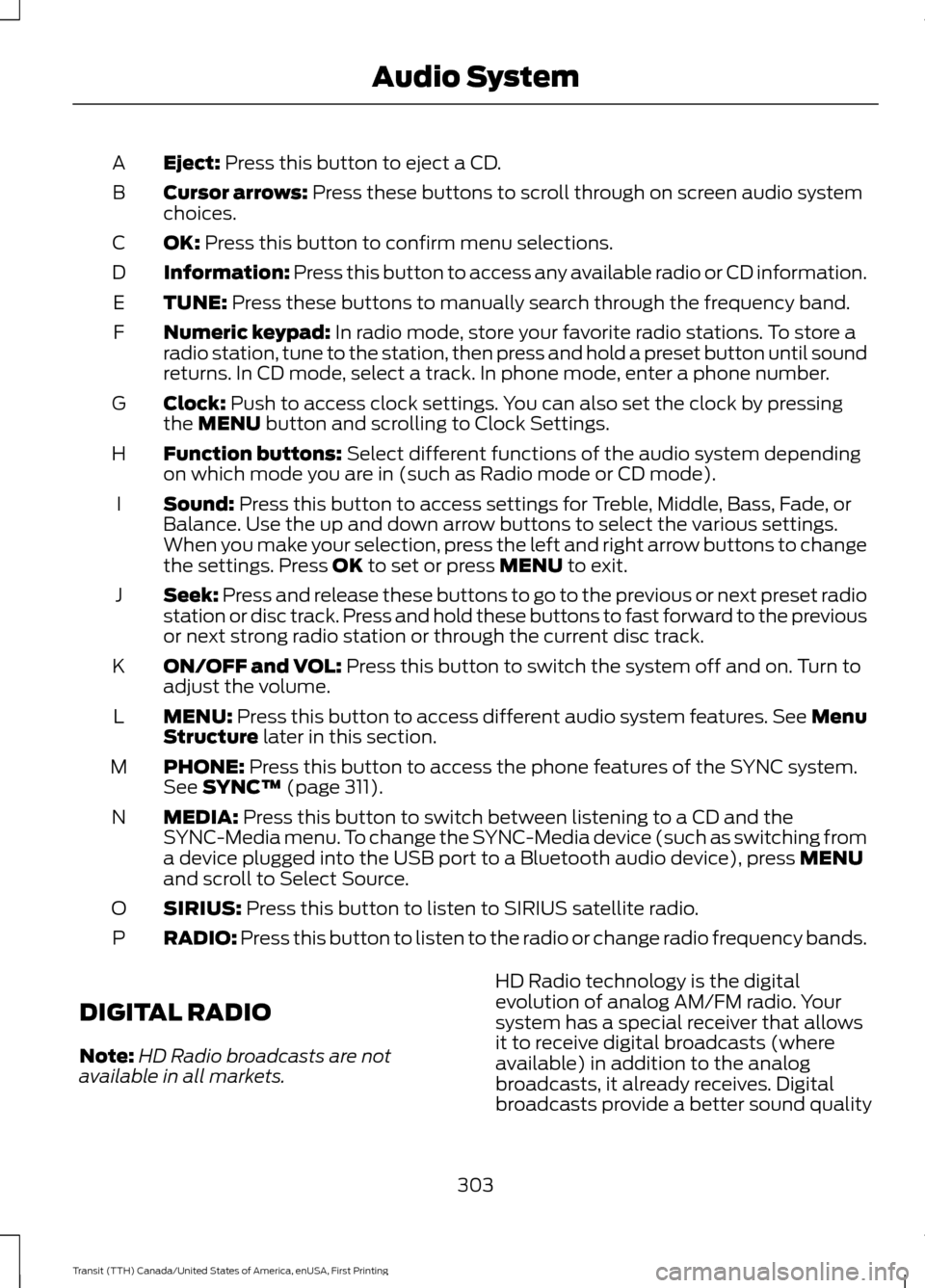
Eject: Press this button to eject a CD.
A
Cursor arrows:
Press these buttons to scroll through on screen audio system
choices.
B
OK:
Press this button to confirm menu selections.
C
Information:
Press this button to access any available radio or CD information.
D
TUNE:
Press these buttons to manually search through the frequency band.
E
Numeric keypad:
In radio mode, store your favorite radio stations. To store a
radio station, tune to the station, then press and hold a preset button until sound
returns. In CD mode, select a track. In phone mode, enter a phone number.
F
Clock:
Push to access clock settings. You can also set the clock by pressing
the MENU button and scrolling to Clock Settings.
G
Function buttons:
Select different functions of the audio system depending
on which mode you are in (such as Radio mode or CD mode).
H
Sound:
Press this button to access settings for Treble, Middle, Bass, Fade, or
Balance. Use the up and down arrow buttons to select the various settings.
When you make your selection, press the left and right arrow buttons to change
the settings. Press
OK to set or press MENU to exit.
I
Seek:
Press and release these buttons to go to the previous or next preset radio
station or disc track. Press and hold these buttons to fast forward to the previous
or next strong radio station or through the current disc track.
J
ON/OFF and VOL:
Press this button to switch the system off and on. Turn to
adjust the volume.
K
MENU:
Press this button to access different audio system features. See Menu
Structure later in this section.
L
PHONE:
Press this button to access the phone features of the SYNC system.
See SYNC™ (page 311).
M
MEDIA:
Press this button to switch between listening to a CD and the
SYNC-Media menu. To change the SYNC-Media device (such as switching from
a device plugged into the USB port to a Bluetooth audio device), press
MENU
and scroll to Select Source.
N
SIRIUS:
Press this button to listen to SIRIUS satellite radio.
O
RADIO:
Press this button to listen to the radio or change radio frequency bands.
P
DIGITAL RADIO
Note: HD Radio broadcasts are not
available in all markets. HD Radio technology is the digital
evolution of analog AM/FM radio. Your
system has a special receiver that allows
it to receive digital broadcasts (where
available) in addition to the analog
broadcasts, it already receives. Digital
broadcasts provide a better sound quality
303
Transit (TTH) Canada/United States of America, enUSA, First Printing Audio System
Page 307 of 411
than analog broadcasts with free,
crystal-clear audio and no static or
distortion. For more information, and a
guide to available stations and
programming, please visit
www.hdradio.com.
When HD Radio is on and you tune to a
station broadcasting HD Radio technology,
you may notice the HD Radio logo on your
screen. When this logo is available, you
may also see Title and Artist fields
on-screen.
The multicast indicator appears in FM
mode (only) if the current station is
broadcasting multiple digital broadcasts.
The highlighted numbers signify available
digital channels where new or different
content is available. HD1 signifies the main
programming status and is available in
analog and digital broadcasts. Other
multicast stations (HD2 through HD7) are
only available digitally.
When HD Radio broadcasts are active, you
can access the following functions:
•
Scan allows you to hear a brief
sampling of all available stations. This
feature still works when HD Radio
reception is on, although it does not
scan for HD2-HD7 channels. You may
see the HD logo appear if the station
has a digital broadcast.
• Memory presets
allow you to save an
active channel as a memory preset.
Touch and hold a memory preset slot
until the sound returns. There is a brief
mute while the radio saves the station.
Sound returns when finished. When
switching to an HD2 or HD3 memory
preset, the sound mutes before the
digital audio plays, because the system
has to reacquire the digital signal.
Note: As with any saved radio station, you
cannot access the saved station if your
vehicle is outside the station ’s reception
area.
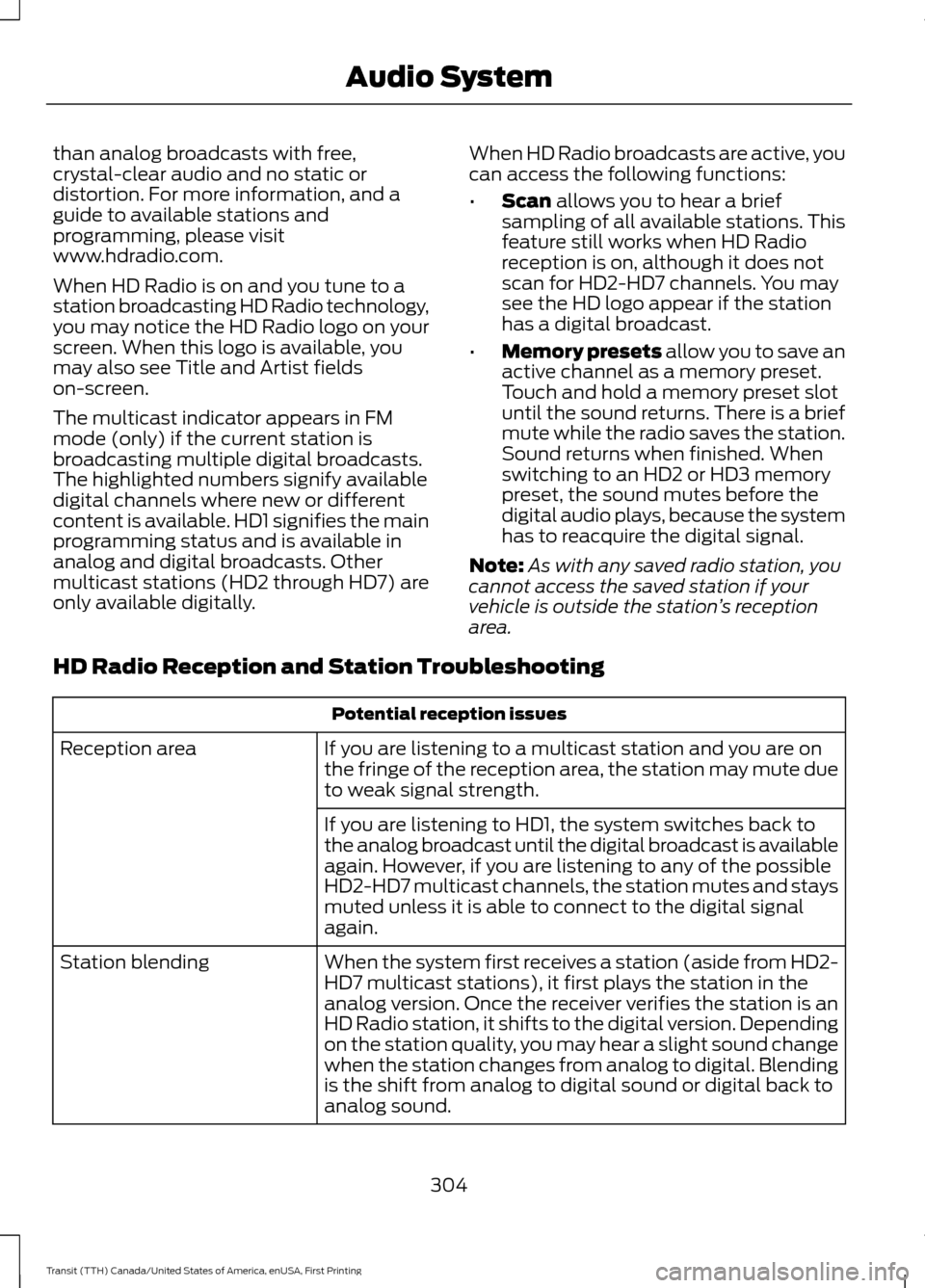
HD Radio Reception and Station Troubleshooting Potential reception issues
If you are listening to a multicast station and you are on
the fringe of the reception area, the station may mute due
to weak signal strength.
Reception area
If you are listening to HD1, the system switches back to
the analog broadcast until the digital broadcast is available
again. However, if you are listening to any of the possible
HD2-HD7 multicast channels, the station mutes and stays
muted unless it is able to connect to the digital signal
again.
When the system first receives a station (aside from HD2-
HD7 multicast stations), it first plays the station in the
analog version. Once the receiver verifies the station is an
HD Radio station, it shifts to the digital version. Depending
on the station quality, you may hear a slight sound change
when the station changes from analog to digital. Blending
is the shift from analog to digital sound or digital back to
analog sound.
Station blending
304
Transit (TTH) Canada/United States of America, enUSA, First Printing Audio System
Page 308 of 411
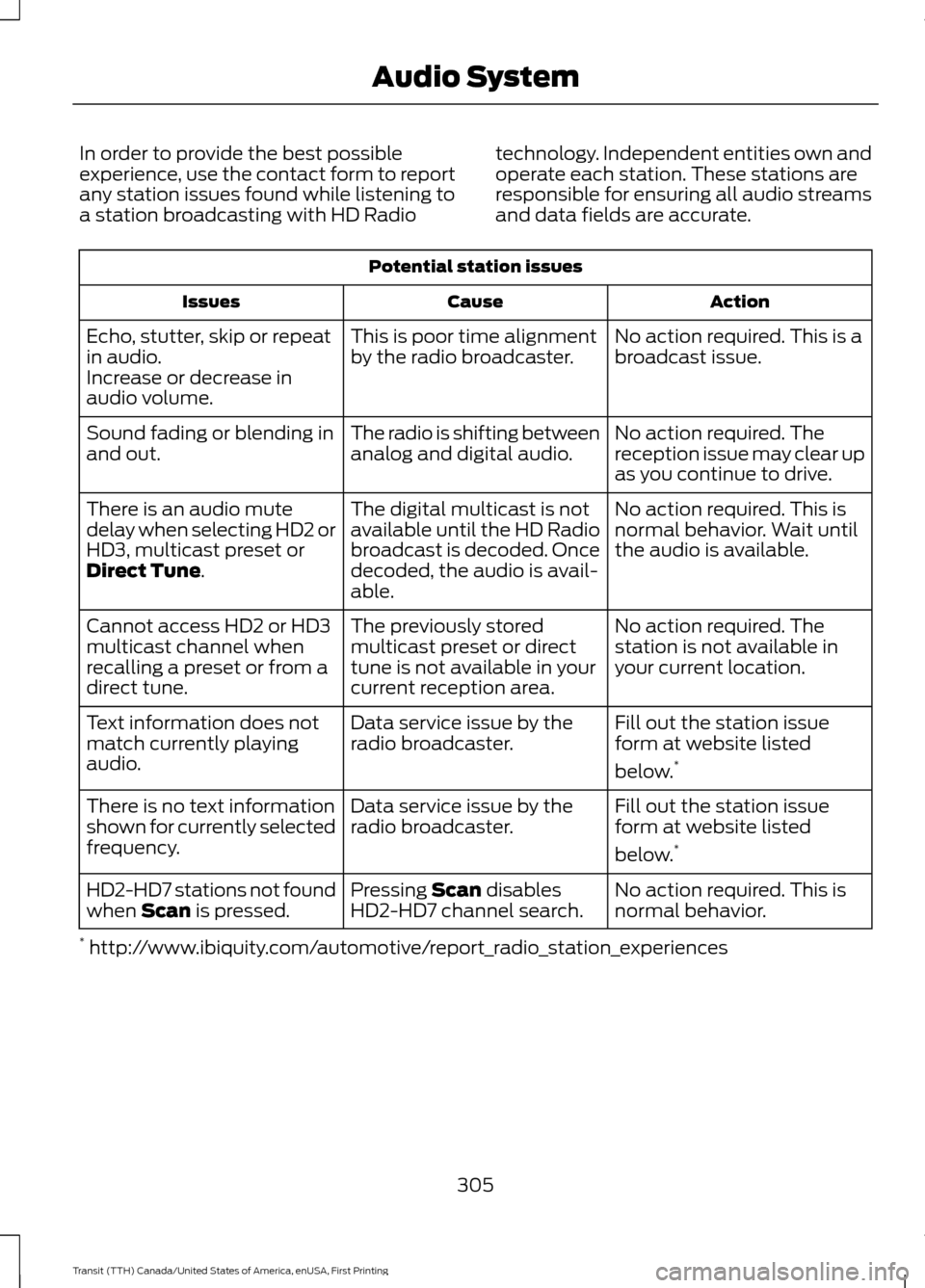
In order to provide the best possible
experience, use the contact form to report
any station issues found while listening to
a station broadcasting with HD Radio
technology. Independent entities own and
operate each station. These stations are
responsible for ensuring all audio streams
and data fields are accurate.Potential station issues
Action
Cause
Issues
No action required. This is a
broadcast issue.
This is poor time alignment
by the radio broadcaster.
Echo, stutter, skip or repeat
in audio.
Increase or decrease in
audio volume.
No action required. The
reception issue may clear up
as you continue to drive.
The radio is shifting between
analog and digital audio.
Sound fading or blending in
and out.
No action required. This is
normal behavior. Wait until
the audio is available.
The digital multicast is not
available until the HD Radio
broadcast is decoded. Once
decoded, the audio is avail-
able.
There is an audio mute
delay when selecting HD2 or
HD3, multicast preset or
Direct Tune.
No action required. The
station is not available in
your current location.
The previously stored
multicast preset or direct
tune is not available in your
current reception area.
Cannot access HD2 or HD3
multicast channel when
recalling a preset or from a
direct tune.
Fill out the station issue
form at website listed
below.*
Data service issue by the
radio broadcaster.
Text information does not
match currently playing
audio.
Fill out the station issue
form at website listed
below.*
Data service issue by the
radio broadcaster.
There is no text information
shown for currently selected
frequency.
No action required. This is
normal behavior.
Pressing
Scan disables
HD2-HD7 channel search.
HD2-HD7 stations not found
when Scan is pressed.
* http://www.ibiquity.com/automotive/report_radio_station_experiences
305
Transit (TTH) Canada/United States of America, enUSA, First Printing Audio System
Page 310 of 411
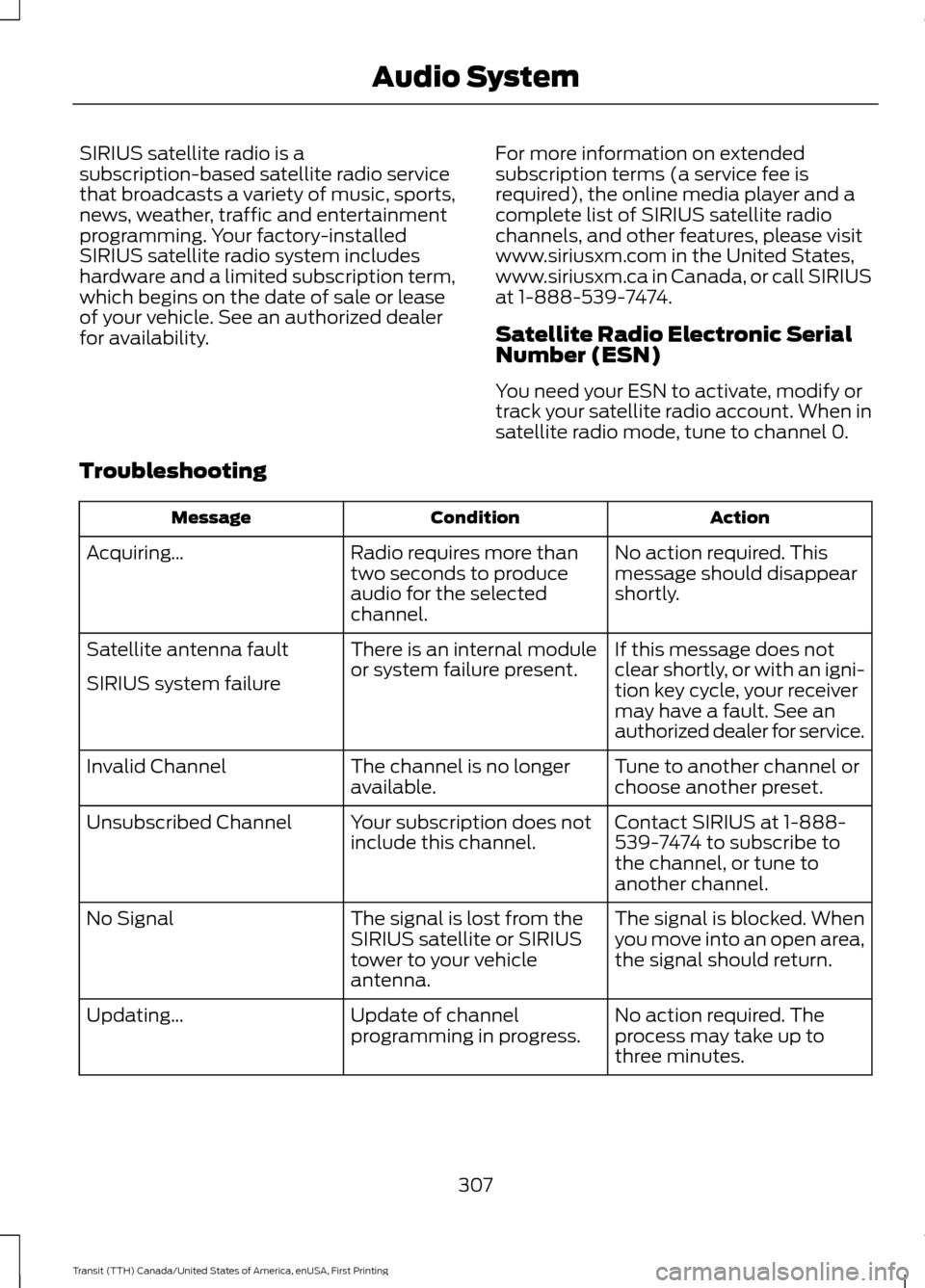
SIRIUS satellite radio is a
subscription-based satellite radio service
that broadcasts a variety of music, sports,
news, weather, traffic and entertainment
programming. Your factory-installed
SIRIUS satellite radio system includes
hardware and a limited subscription term,
which begins on the date of sale or lease
of your vehicle. See an authorized dealer
for availability.
For more information on extended
subscription terms (a service fee is
required), the online media player and a
complete list of SIRIUS satellite radio
channels, and other features, please visit
www.siriusxm.com in the United States,
www.siriusxm.ca in Canada, or call SIRIUS
at 1-888-539-7474.
Satellite Radio Electronic Serial
Number (ESN)
You need your ESN to activate, modify or
track your satellite radio account. When in
satellite radio mode, tune to channel 0.
Troubleshooting Action
Condition
Message
No action required. This
message should disappear
shortly.
Radio requires more than
two seconds to produce
audio for the selected
channel.
Acquiring…
If this message does not
clear shortly, or with an igni-
tion key cycle, your receiver
may have a fault. See an
authorized dealer for service.
There is an internal module
or system failure present.
Satellite antenna fault
SIRIUS system failure
Tune to another channel or
choose another preset.
The channel is no longer
available.
Invalid Channel
Contact SIRIUS at 1-888-
539-7474 to subscribe to
the channel, or tune to
another channel.
Your subscription does not
include this channel.
Unsubscribed Channel
The signal is blocked. When
you move into an open area,
the signal should return.
The signal is lost from the
SIRIUS satellite or SIRIUS
tower to your vehicle
antenna.
No Signal
No action required. The
process may take up to
three minutes.
Update of channel
programming in progress.
Updating…
307
Transit (TTH) Canada/United States of America, enUSA, First Printing Audio System
Page 315 of 411
Monday-Saturday, 8:30am-9:00pm EST.
Sunday, 10:30am-7:30pm EST.
In the United States, call 1-800-392-3673.
In Canada, call 1-800-565-3673.
Times are subject to change due to
holidays.
SYNC Owner Account
Why do I need a SYNC owner account?
•
Required to activate Vehicle Health
Report and to view the reports online.
• Required to activate the
subscription-based SYNC Services and
to personalize your Saved Points and
Favorites.
• Essential for keeping up with the latest
software downloads available for
SYNC.
• Access to customer support for any
questions you may have.
Driving Restrictions
For your safety, certain features are
speed-dependent and restricted when your
vehicle is traveling over 3 mph (5 km/h).
Safety Information WARNING
Driving while distracted can result in
loss of vehicle control, crash and
injury. We strongly recommend that
you use extreme caution when using any
device that may take your focus off the
road. Your primary responsibility is the safe
operation of your vehicle. We recommend
against the use of any hand-held device
while driving and encourage the use of
voice-operated systems when possible.
Make sure you are aware of all applicable
local laws that may affect the use of
electronic devices while driving. When using SYNC:
•
Do not operate playing devices if the
power cords or cables are broken, split
or damaged. Place cords and cables
out of the way, so they do not interfere
with the operation of pedals, seats,
compartments or safe driving abilities.
• Do not leave playing devices in your
vehicle during extreme conditions as it
could cause them damage. See your
device's manual for further information.
• Do not attempt to service or repair the
system. See an authorized dealer.
Privacy Information
When a cellular phone is connected to
SYNC, the system creates a profile within
your vehicle that is linked to that cellular
phone. This profile is created in order to
offer you more cellular features and to
operate more efficiently. Among other
things, this profile may contain data about
your cellular phone book, text messages
(read and unread), and call history,
including history of calls when your cellular
phone was not connected to the system.
In addition, if you connect a media device,
the system creates and retains an index of
supported media content. The system also
records a short development log of
approximately 10 minutes of all recent
system activity. The log profile and other
system data may be used to improve the
system and help diagnose any problems
that may occur.
The cellular profile, media device index,
and development log will remain in the
vehicle unless you delete them and are
generally accessible only in the vehicle
when the cellular phone or media player
is connected. If you no longer plan to use
the system or the vehicle, we recommend
you perform a Master Reset to erase all
stored information.
312
Transit (TTH) Canada/United States of America, enUSA, First Printing SYNC™
Page 331 of 411
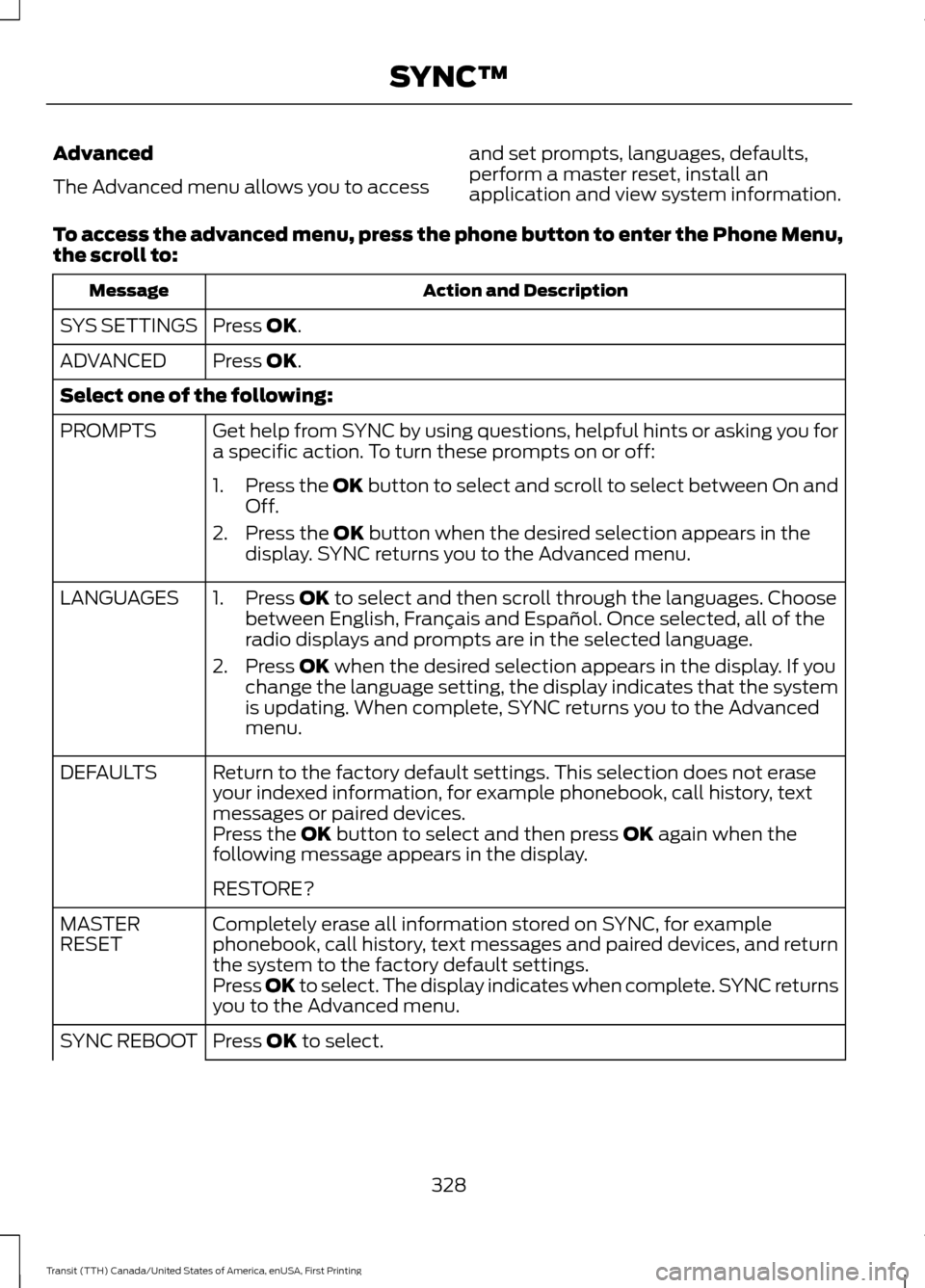
Advanced
The Advanced menu allows you to access
and set prompts, languages, defaults,
perform a master reset, install an
application and view system information.
To access the advanced menu, press the phone button to enter the Phone Menu,
the scroll to: Action and Description
Message
Press OK.
SYS SETTINGS
Press
OK.
ADVANCED
Select one of the following:
Get help from SYNC by using questions, helpful hints or asking you for
a specific action. To turn these prompts on or off:
PROMPTS
1.Press the
OK button to select and scroll to select between On and
Off.
2. Press the
OK button when the desired selection appears in the
display. SYNC returns you to the Advanced menu.
1. Press
OK to select and then scroll through the languages. Choose
between English, Français and Español. Once selected, all of the
radio displays and prompts are in the selected language.
2. Press
OK when the desired selection appears in the display. If you
change the language setting, the display indicates that the system
is updating. When complete, SYNC returns you to the Advanced
menu.
LANGUAGES
Return to the factory default settings. This selection does not erase
your indexed information, for example phonebook, call history, text
messages or paired devices.
DEFAULTS
Press the
OK button to select and then press OK again when the
following message appears in the display.
RESTORE?
Completely erase all information stored on SYNC, for example
phonebook, call history, text messages and paired devices, and return
the system to the factory default settings.
MASTER
RESET
Press OK to select. The display indicates when complete. SYNC returns
you to the Advanced menu.
Press
OK to select.
SYNC REBOOT
328
Transit (TTH) Canada/United States of America, enUSA, First Printing SYNC™
Page 350 of 411
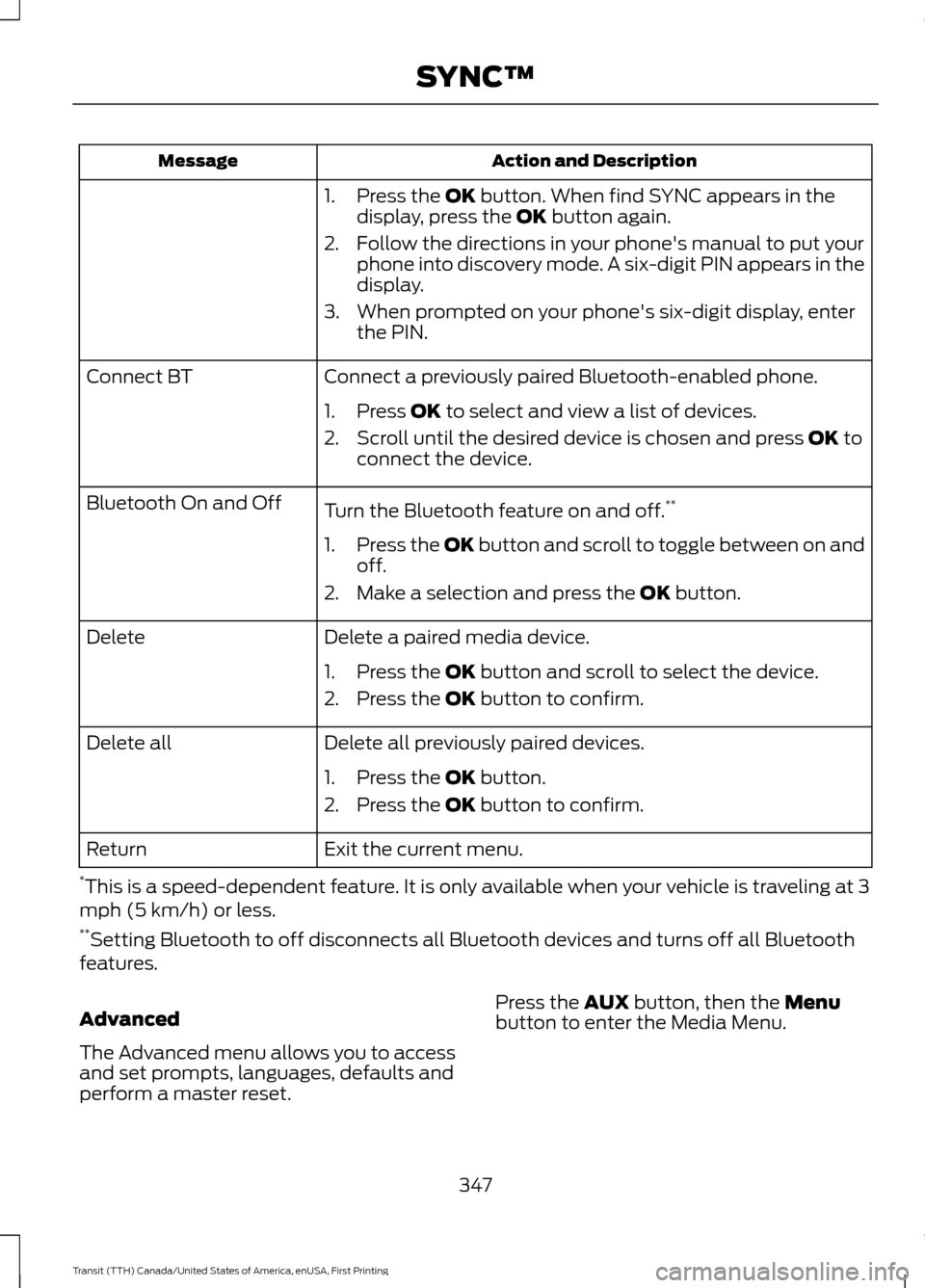
Action and Description
Message
1. Press the OK button. When find SYNC appears in the
display, press the OK button again.
2. Follow the directions in your phone's manual to put your phone into discovery mode. A six-digit PIN appears in the
display.
3. When prompted on your phone's six-digit display, enter the PIN.
Connect a previously paired Bluetooth-enabled phone.
Connect BT
1. Press
OK to select and view a list of devices.
2. Scroll until the desired device is chosen and press
OK to
connect the device.
Turn the Bluetooth feature on and off. **
Bluetooth On and Off
1.Press the OK button and scroll to toggle between on and
off.
2. Make a selection and press the
OK button.
Delete a paired media device.
Delete
1. Press the
OK button and scroll to select the device.
2. Press the
OK button to confirm.
Delete all previously paired devices.
Delete all
1. Press the
OK button.
2. Press the
OK button to confirm.
Exit the current menu.
Return
* This is a speed-dependent feature. It is only available when your vehicle is traveling at 3
mph (5 km/h) or less.
** Setting Bluetooth to off disconnects all Bluetooth devices and turns off all Bluetooth
features.
Advanced
The Advanced menu allows you to access
and set prompts, languages, defaults and
perform a master reset. Press the
AUX button, then the Menu
button to enter the Media Menu.
347
Transit (TTH) Canada/United States of America, enUSA, First Printing SYNC™
Page 351 of 411
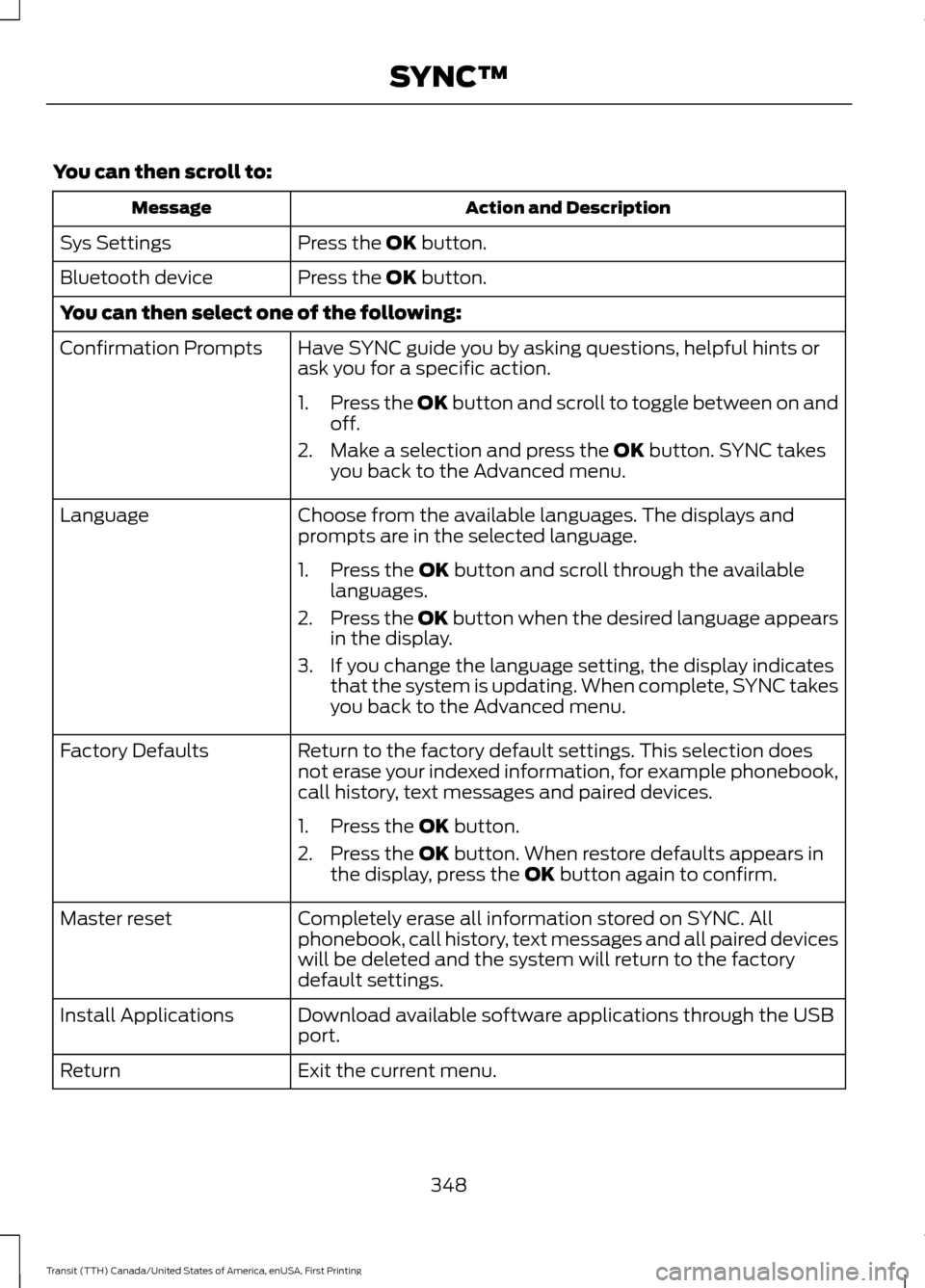
You can then scroll to:
Action and Description
Message
Press the OK button.
Sys Settings
Press the
OK button.
Bluetooth device
You can then select one of the following:
Have SYNC guide you by asking questions, helpful hints or
ask you for a specific action.
Confirmation Prompts
1.Press the OK button and scroll to toggle between on and
off.
2. Make a selection and press the
OK button. SYNC takes
you back to the Advanced menu.
Choose from the available languages. The displays and
prompts are in the selected language.
Language
1. Press the
OK button and scroll through the available
languages.
2. Press the OK button when the desired language appears
in the display.
3. If you change the language setting, the display indicates that the system is updating. When complete, SYNC takes
you back to the Advanced menu.
Return to the factory default settings. This selection does
not erase your indexed information, for example phonebook,
call history, text messages and paired devices.
Factory Defaults
1. Press the
OK button.
2. Press the
OK button. When restore defaults appears in
the display, press the OK button again to confirm.
Completely erase all information stored on SYNC. All
phonebook, call history, text messages and all paired devices
will be deleted and the system will return to the factory
default settings.
Master reset
Download available software applications through the USB
port.
Install Applications
Exit the current menu.
Return
348
Transit (TTH) Canada/United States of America, enUSA, First Printing SYNC™
Page 352 of 411
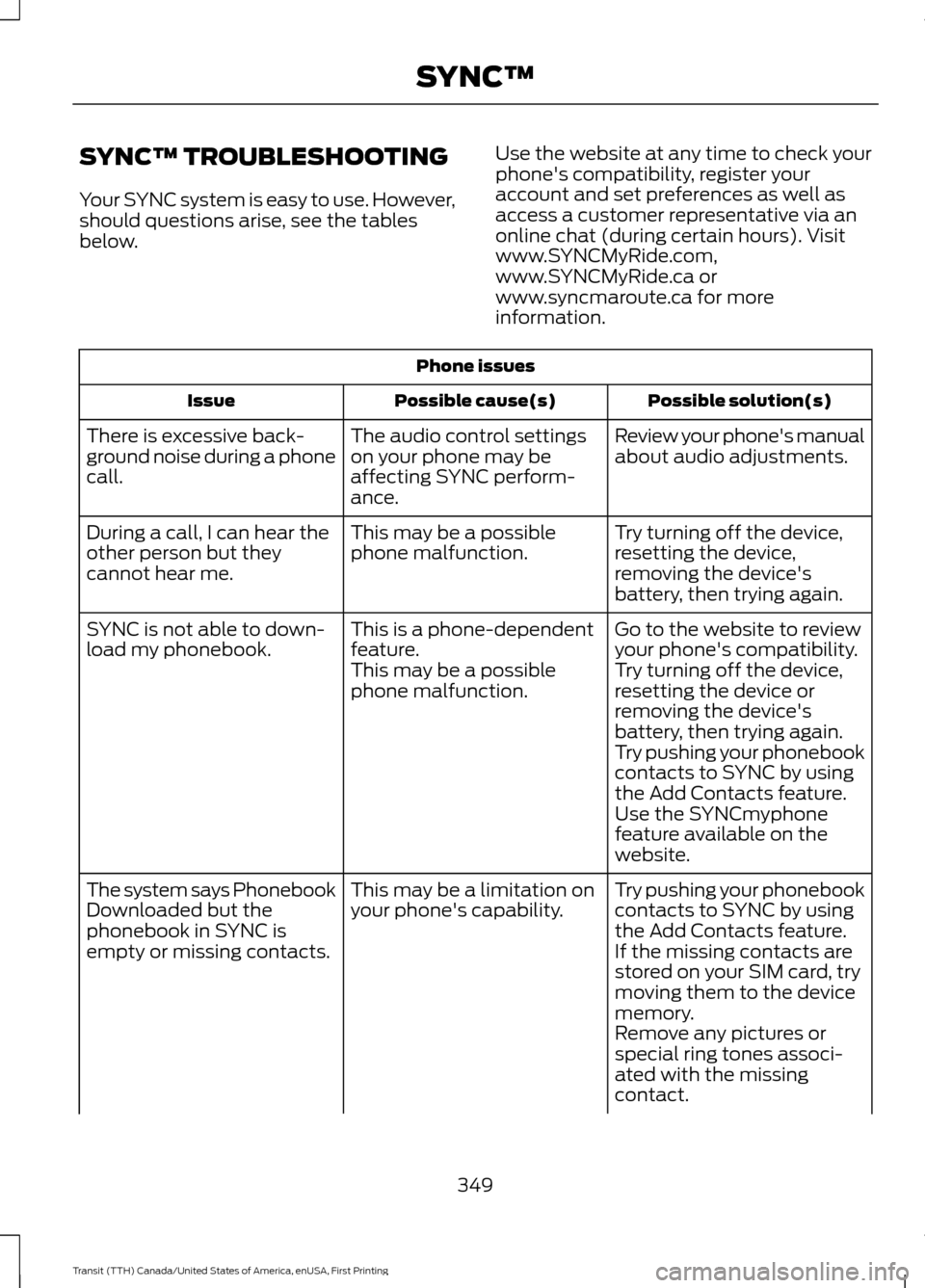
SYNC™ TROUBLESHOOTING
Your SYNC system is easy to use. However,
should questions arise, see the tables
below.
Use the website at any time to check your
phone's compatibility, register your
account and set preferences as well as
access a customer representative via an
online chat (during certain hours). Visit
www.SYNCMyRide.com,
www.SYNCMyRide.ca or
www.syncmaroute.ca for more
information.Phone issues
Possible solution(s)
Possible cause(s)
Issue
Review your phone's manual
about audio adjustments.
The audio control settings
on your phone may be
affecting SYNC perform-
ance.
There is excessive back-
ground noise during a phone
call.
Try turning off the device,
resetting the device,
removing the device's
battery, then trying again.
This may be a possible
phone malfunction.
During a call, I can hear the
other person but they
cannot hear me.
Go to the website to review
your phone's compatibility.
This is a phone-dependent
feature.
SYNC is not able to down-
load my phonebook.
Try turning off the device,
resetting the device or
removing the device's
battery, then trying again.
This may be a possible
phone malfunction.
Try pushing your phonebook
contacts to SYNC by using
the Add Contacts feature.
Use the SYNCmyphone
feature available on the
website.
Try pushing your phonebook
contacts to SYNC by using
the Add Contacts feature.
This may be a limitation on
your phone's capability.
The system says Phonebook
Downloaded but the
phonebook in SYNC is
empty or missing contacts.
If the missing contacts are
stored on your SIM card, try
moving them to the device
memory.
Remove any pictures or
special ring tones associ-
ated with the missing
contact.
349
Transit (TTH) Canada/United States of America, enUSA, First Printing SYNC™