settings FORD TRANSIT 2021 Owner's Guide
[x] Cancel search | Manufacturer: FORD, Model Year: 2021, Model line: TRANSIT, Model: FORD TRANSIT 2021Pages: 509, PDF Size: 8.21 MB
Page 172 of 509
Maintenance and Modifications
The suspension and steering systems on
your vehicle have been designed and
tested to provide predictable performance
whether loaded or empty and durable load
carrying capability. For this reason, we
strongly recommend that you do not make
modifications such as adding or removing
parts (such as lowering kits or stabilizer
bars) or by using replacement parts not
equivalent to the original factory
equipment.
Any modifications to a vehicle that raise
the center of gravity can make it more likely
the vehicle will rollover as a result of a loss
of control. We strongly recommend that
caution be used with any vehicle equipped
with a high load or device (such as ladder
or luggage racks).
Failure to maintain your vehicle properly
could void the warranty, increase your
repair cost, reduce vehicle performance
and operational capabilities and adversely
affect driver and passenger safety.
Frequent inspection of vehicle chassis
components is recommended if the vehicle
is subjected to off-highway usage.
All-Wheel Drive Gauge
This feature shows how the engine power
is split between the front and rear axles in
real time.
1. Using the information display controls
on the steering wheel, select Settings.
2. Select Information.
3. Select
Intelligent AWD.
All-Wheel Drive Information Messages Description
Message
The system is temporarily locked. This could be due to the
system increasing its capacity in order to improve perform-
ance.
AWD Temporarily Locked
The system temporarily turns off. This could be due to the
system overheating. Stop your vehicle as soon as it is safe
to do so and allow the system to cool.
AWD Temporarily
Disabled
The system resumes normal function.
AWD Restored
The system has malfunctioned. Have your vehicle checked
as soon as possible.
AWD Malfunction Service
Required
The system temporarily turns off to protect itself from over-
heating or if you are using a mismatched tire.
AWD OFF
169
2021 Transit (TTH) Canada/United States of America, MK3J 19A321 AA enUSA, Edition date: 202010, Second-Printing All-Wheel Drive
Page 198 of 509
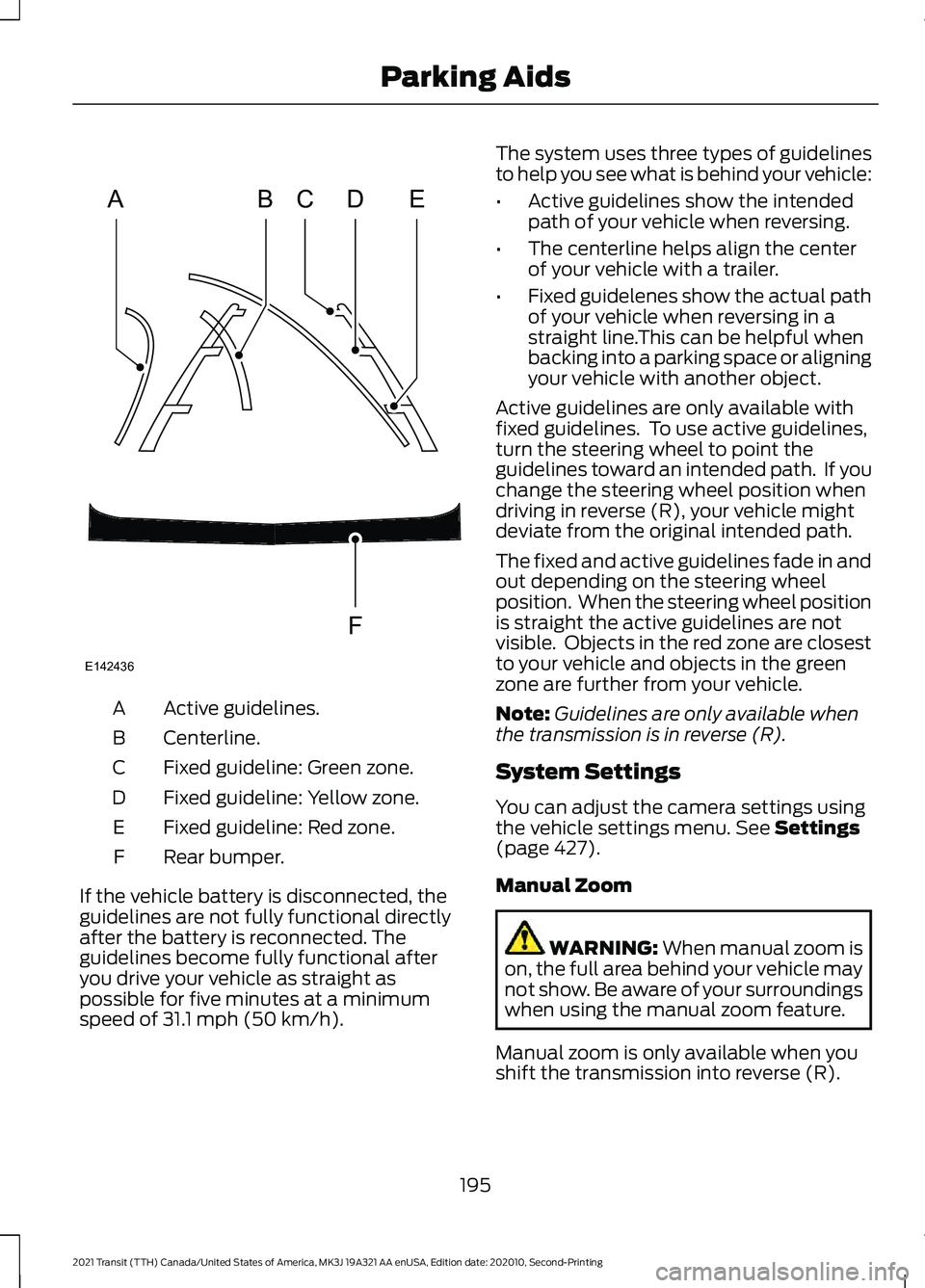
Active guidelines.
A
Centerline.
B
Fixed guideline: Green zone.
C
Fixed guideline: Yellow zone.
D
Fixed guideline: Red zone.
E
Rear bumper.
F
If the vehicle battery is disconnected, the
guidelines are not fully functional directly
after the battery is reconnected. The
guidelines become fully functional after
you drive your vehicle as straight as
possible for five minutes at a minimum
speed of 31.1 mph (50 km/h). The system uses three types of guidelines
to help you see what is behind your vehicle:
•
Active guidelines show the intended
path of your vehicle when reversing.
• The centerline helps align the center
of your vehicle with a trailer.
• Fixed guidelenes show the actual path
of your vehicle when reversing in a
straight line.This can be helpful when
backing into a parking space or aligning
your vehicle with another object.
Active guidelines are only available with
fixed guidelines. To use active guidelines,
turn the steering wheel to point the
guidelines toward an intended path. If you
change the steering wheel position when
driving in reverse (R), your vehicle might
deviate from the original intended path.
The fixed and active guidelines fade in and
out depending on the steering wheel
position. When the steering wheel position
is straight the active guidelines are not
visible. Objects in the red zone are closest
to your vehicle and objects in the green
zone are further from your vehicle.
Note: Guidelines are only available when
the transmission is in reverse (R).
System Settings
You can adjust the camera settings using
the vehicle settings menu.
See Settings
(page 427).
Manual Zoom WARNING:
When manual zoom is
on, the full area behind your vehicle may
not show. Be aware of your surroundings
when using the manual zoom feature.
Manual zoom is only available when you
shift the transmission into reverse (R).
195
2021 Transit (TTH) Canada/United States of America, MK3J 19A321 AA enUSA, Edition date: 202010, Second-Printing Parking AidsABCD
F
E
E142436
Page 199 of 509
Selectable settings for this feature are
Zoom in (+) and Zoom Out (-). Press the
symbol in the camera screen to change the
view. The default setting is Zoom OFF. The
rear bumper remains in the image as a
reference point.
Note:
Only the centerline shows when you
switch on manual zoom.
Rear View Camera Delay
You can switch this feature on or off using
the vehicle settings menu. See Settings
(page 427). The default setting is off.
When shifting the transmission out of
reverse (R) and into any gear other than
park (P), the camera image remains in the
display until:
• Your vehicle speed sufficiently
increases.
• You shift your vehicle into park (P).
Enhanced Parking Aids or Park
Pilot
(If Equipped)
You can switch this feature on or off using
the vehicle settings menu. See
Settings
(page 427).
When the reverse sensing system detects
an object, it displays red, yellow and green
indicators at the top of the image.
180 DEGREE CAMERA WARNING:
The rear view camera
system is a reverse aid supplement
device that still requires the driver to use
it in conjunction with the interior and
exterior mirrors for maximum coverage. WARNING:
Objects that are close
to either corner of the bumper or under
the bumper, might not be seen on the
screen due to the limited coverage of the
camera system. WARNING:
Use caution when
turning camera features on or off when
the transmission is not in park (P). Make
sure your vehicle is not moving. WARNING: You are responsible for
controlling your vehicle at all times. The
system is designed to be an aid and does
not relieve you of your responsibility to
drive with due care and attention. Failure
to follow this instruction could result in
the loss of control of your vehicle,
personal injury or death.
Note: Use caution using the 180 view when
any of the doors are ajar. If a door is ajar, the
camera will be out of position and the video
image may be incorrect.
Front View Camera WARNING:
The front camera
system still requires the driver to use it
in conjunction with looking out of your
vehicle.
Note: The system turns off the front video
image when your vehicle is in motion at low
speed, except when in reverse (R).
Note: The area displayed on the screen may
vary according to your vehicle's orientation
or road condition.
Note: The camera system may not operate
correctly if mud, water or debris obstructs
the camera's view. You can clean the lens
with a soft, lint-free cloth and non-abrasive
cleaner or by using your front washer.
See
Wipers and Washers (page 97).
196
2021 Transit (TTH) Canada/United States of America, MK3J 19A321 AA enUSA, Edition date: 202010, Second-Printing Parking Aids
Page 202 of 509
Cruise Control Indicator
The indicator appears when you
switch the system on.
USING ADAPTIVE CRUISE
CONTROL (IF EQUIPPED) WARNING: You are responsible for
controlling your vehicle at all times. The
system is designed to be an aid and does
not relieve you of your responsibility to
drive with due care and attention. Failure
to follow this instruction could result in
the loss of control of your vehicle,
personal injury or death. WARNING:
Pay close attention to
changing road conditions such as
entering or leaving a highway, on roads
with intersections or roundabouts, roads
without visible lanes of travel, roads that
are winding, slippery, unpaved, or steep
slopes. WARNING:
The system may not
detect stationary or slow moving
vehicles below
6 mph (10 km/h). WARNING:
Do not use the system
when towing a trailer that has
aftermarket electronic trailer brake
controls. Failure to follow this instruction
could result in the loss of control of your
vehicle, personal injury or death. WARNING:
The system is not a
crash warning or avoidance system. WARNING:
The system does not
detect pedestrians or objects in the road. WARNING:
The system does not
detect oncoming vehicles in the same
lane. WARNING:
Do not use the system
in poor visibility, for example fog, heavy
rain, spray or snow. WARNING:
Do not use tire sizes
other than those recommended because
this can affect the normal operation of
the system. Failure to do so may result
in a loss of vehicle control, which could
result in serious injury.
The system adjusts the vehicle speed to
maintain the set gap between you and the
vehicle in front of you in the same lane.
You can select four gap settings.
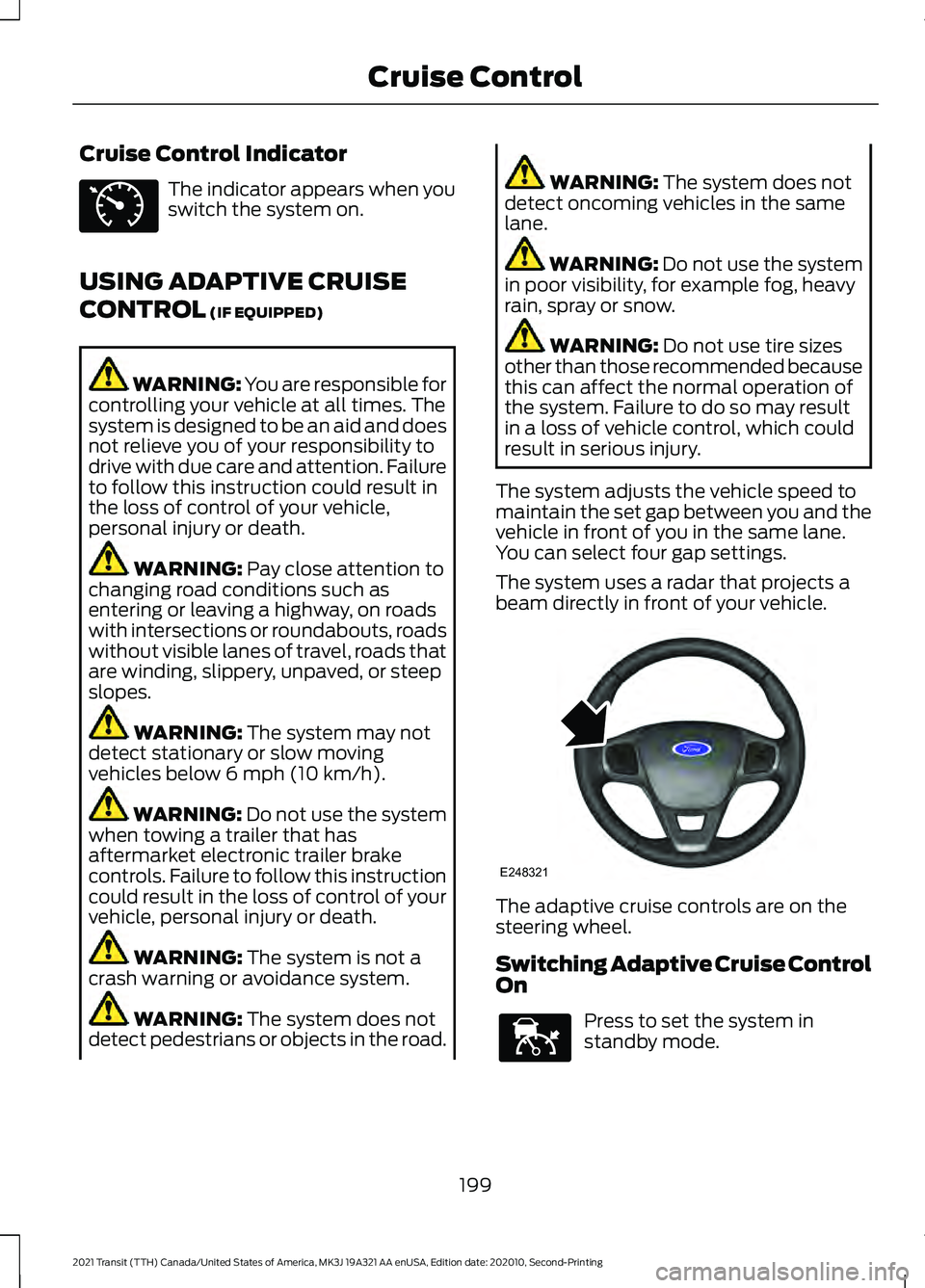
The system uses a radar that projects a
beam directly in front of your vehicle. The adaptive cruise controls are on the
steering wheel.
Switching Adaptive Cruise Control
On
Press to set the system in
standby mode.
199
2021 Transit (TTH) Canada/United States of America, MK3J 19A321 AA enUSA, Edition date: 202010, Second-Printing Cruise ControlE71340 E248321 E144529
Page 204 of 509
Note:
The brakes may emit noise when
applied by the system.
Setting the Gap Distance You can decrease or increase the
distance between your vehicle
and the vehicle in front by
pressing the gap control.
Note: It is your responsibility to select a gap
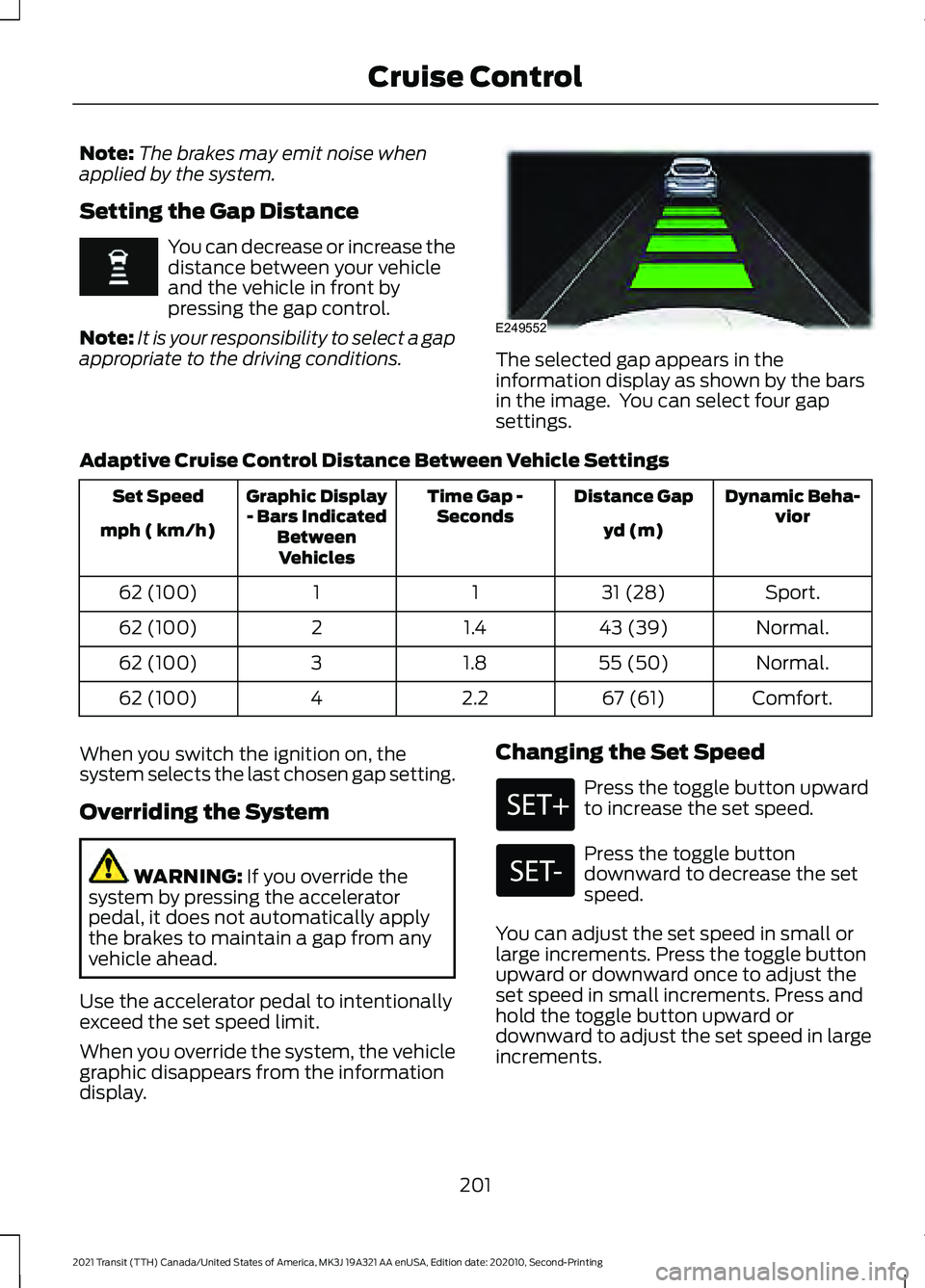
appropriate to the driving conditions. The selected gap appears in the
information display as shown by the bars
in the image. You can select four gap
settings.
Adaptive Cruise Control Distance Between Vehicle Settings Dynamic Beha-
vior
Distance Gap
Time Gap -
Seconds
Graphic Display
- Bars Indicated BetweenVehicles
Set Speed
yd (m)
mph ( km/h)
Sport.
31 (28)
1
1
62 (100)
Normal.
43 (39)
1.4
2
62 (100)
Normal.
55 (50)
1.8
3
62 (100)
Comfort.
67 (61)
2.2
4
62 (100)
When you switch the ignition on, the
system selects the last chosen gap setting.
Overriding the System WARNING: If you override the
system by pressing the accelerator
pedal, it does not automatically apply
the brakes to maintain a gap from any
vehicle ahead.
Use the accelerator pedal to intentionally
exceed the set speed limit.
When you override the system, the vehicle
graphic disappears from the information
display. Changing the Set Speed Press the toggle button upward
to increase the set speed.
Press the toggle button
downward to decrease the set
speed.
You can adjust the set speed in small or
large increments. Press the toggle button
upward or downward once to adjust the
set speed in small increments. Press and
hold the toggle button upward or
downward to adjust the set speed in large
increments.
201
2021 Transit (TTH) Canada/United States of America, MK3J 19A321 AA enUSA, Edition date: 202010, Second-Printing Cruise Control E249552
Page 210 of 509
DRIVER ALERT
WARNING: You are responsible for
controlling your vehicle at all times. The
system is designed to be an aid and does
not relieve you of your responsibility to
drive with due care and attention. Failure
to follow this instruction could result in
the loss of control of your vehicle,
personal injury or death. WARNING: The system may not
operate properly if the sensor is blocked.
Keep the windshield free from
obstruction. WARNING:
Take regular rest
breaks if you feel tired. Do not wait for
the system to warn you. WARNING:
Certain driving styles
may result in the system warning you
even if you are not feeling tired. WARNING:
In cold and severe
weather conditions the system may not
function. Rain, snow and spray can all
limit sensor performance. WARNING:
The system will not
operate if the sensor cannot track the
road lane markings. WARNING:
If damage occurs in the
immediate area surrounding the sensor,
have your vehicle checked as soon as
possible. WARNING:
The system may not
correctly operate if your vehicle is fitted
with a suspension kit not approved by
us.
The system is designed to alert you if it
calculates that you are becoming drowsy
or if your driving deteriorates. The system calculates your alertness level
based upon your driving behavior in relation
to the lane markings and other factors
when the vehicle speed is greater than
approximately
40 mph (65 km/h).
Driver Alert System Warnings
The warning system has two stages:
1. A temporary warning is issued to advise
you to take a rest. This message only
appears for a short time.
2. If you do not rest and the system continues to detect that your driving
deteriorates, it issues a further warning.
This remains in the information display
until you cancel it.
Note: The system does not warn you if the
vehicle speed falls below approximately
40 mph (65 km/h)
.
Driver Alert System Display
1. Using the information display controls on the steering wheel, select Settings.
2. Select
Information.
3. Select
Driver Alert.
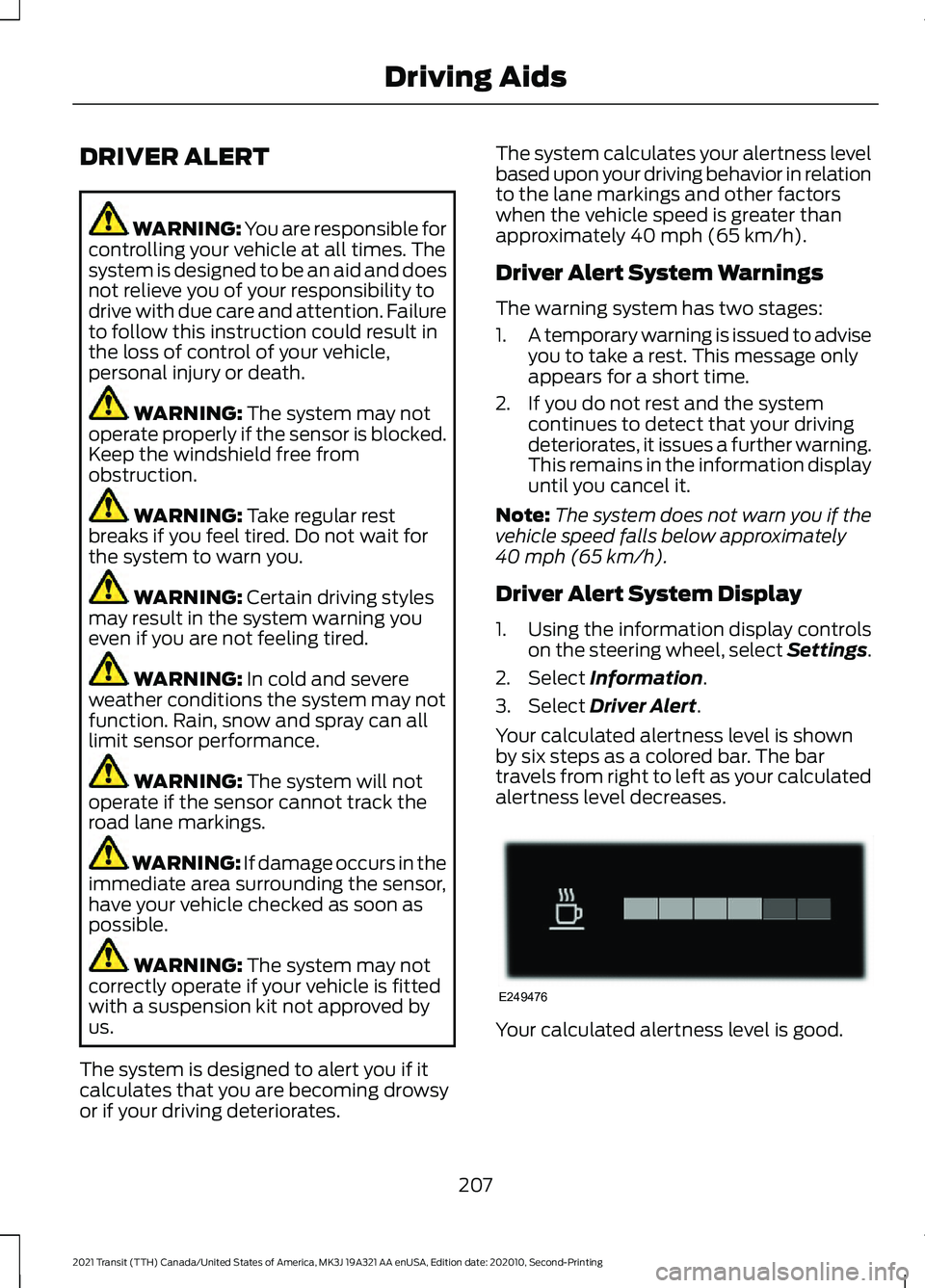
Your calculated alertness level is shown
by six steps as a colored bar. The bar
travels from right to left as your calculated
alertness level decreases. Your calculated alertness level is good.
207
2021 Transit (TTH) Canada/United States of America, MK3J 19A321 AA enUSA, Edition date: 202010, Second-Printing Driving AidsE249476
Page 212 of 509
WARNING: The system will not
operate if the sensor cannot track the
road lane markings. WARNING:
If damage occurs in the
immediate area surrounding the sensor,
have your vehicle checked as soon as
possible. WARNING:
The system may not
correctly operate if your vehicle is fitted
with a suspension kit not approved by
us.
The system is designed to alert you by
providing temporary steering assistance
or steering wheel vibration when it detects
an unintended lane departure. The system
detects and tracks the road lane markings
using a camera mounted behind the
interior mirror. The system only operates
when the vehicle speed is greater than
approximately
37 mph (60 km/h). You
can view the system status in the
information display.
Note: The system works when the camera
can detect at least one lane marking or the
edge of the road.
The system may not correctly operate in
any of the following conditions:
• The system does not detect at least
one lane marking or the edge of the
road.
• You switch the direction indicator on.
• You apply direct steering, accelerate
fast or brake hard.
• The vehicle speed is less than
37 mph
(60 km/h).
• The anti-lock brake, stability control or
traction control system activates.
• Narrow lane width. The system may not correct lane
positioning in any of the following
conditions:
•
High winds.
• Uneven road surfaces.
• Heavy or uneven loads.
• Incorrect tire pressure.
Switching Lane Keeping System
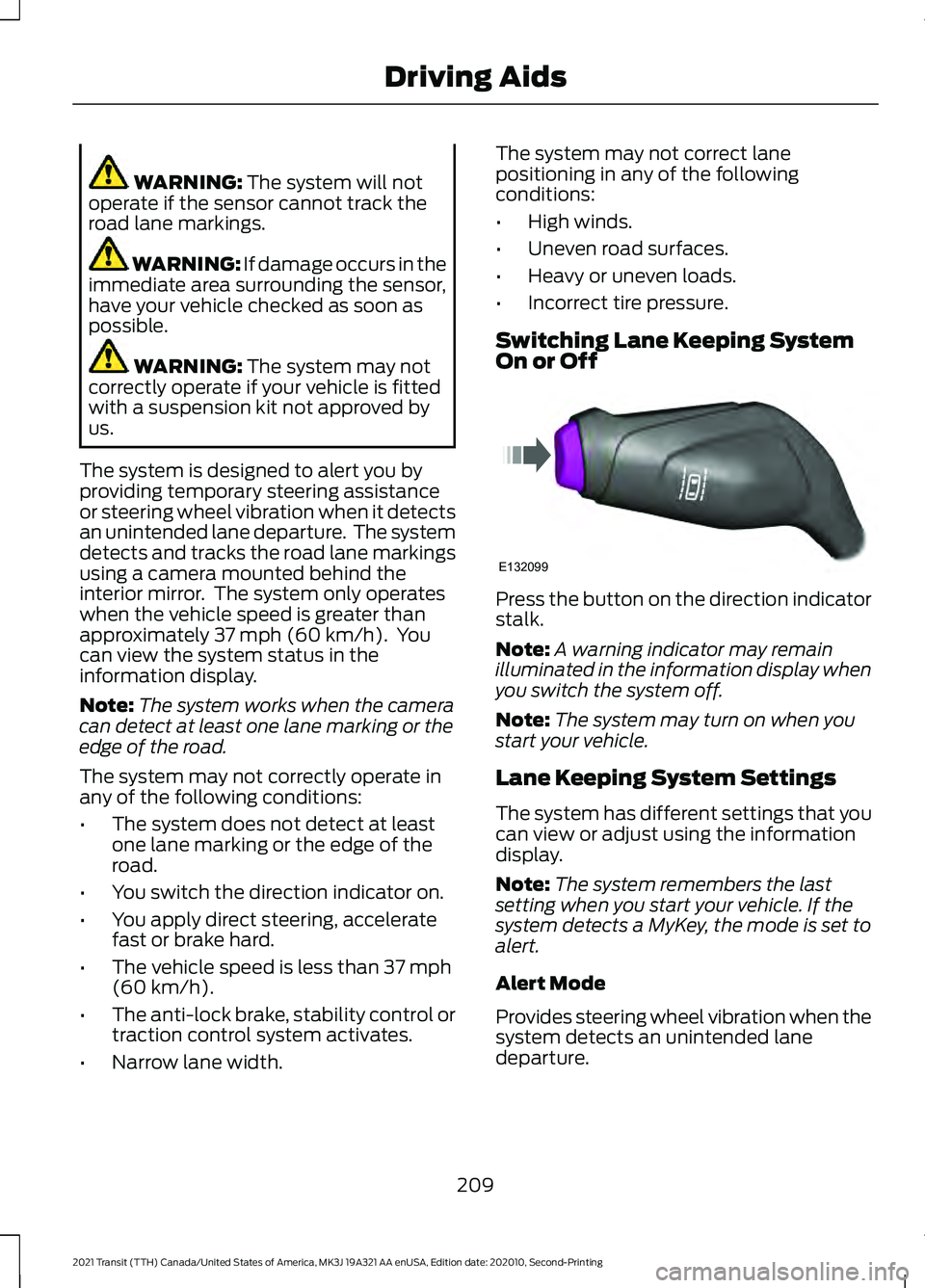
On or Off Press the button on the direction indicator
stalk.
Note:
A warning indicator may remain
illuminated in the information display when
you switch the system off.
Note: The system may turn on when you
start your vehicle.
Lane Keeping System Settings
The system has different settings that you
can view or adjust using the information
display.
Note: The system remembers the last
setting when you start your vehicle. If the
system detects a MyKey, the mode is set to
alert.
Alert Mode
Provides steering wheel vibration when the
system detects an unintended lane
departure.
209
2021 Transit (TTH) Canada/United States of America, MK3J 19A321 AA enUSA, Edition date: 202010, Second-Printing Driving AidsE132099
Page 216 of 509
Note:
Do not cover the sensors with bumper
stickers, repair compound or other objects.
Note: Blocked sensors could affect system
performance.
If the sensors are blocked, a message may
appear in the information display. The
indicators remain illuminated in the exterior
mirror but the system does not alert you.
Switching the Blind Spot
Information System On and Off
1. Using the information display controls on the steering wheel, select Settings.
2. Select Driver Assistance.
3. Select
Blind Spot.
4. Switch
Blind Spot on or off.
When you switch the system off, a warning
lamp illuminates in the instrument cluster
and the alert indicators flash twice.
The system remembers the last setting
when you start your vehicle.
Note: The system may not correctly operate
when towing a trailer. The system turns off
when you attach a trailer, if your vehicle has
an approved trailer tow module and tow
bar. For vehicles with an aftermarket trailer
tow module or tow bar, turn the system off
when you attach a trailer.
To permanently switch the system off,
contact an authorized dealer.
Blind Spot Information System
Indicator When the system detects a
vehicle, an alert indicator
illuminates in the exterior mirror
on the side the approaching vehicle is
coming from. If you turn the direction
indicator on for that side of your vehicle,
the alert indicator flashes.
Note: The system may not alert you if a
vehicle quickly passes through the detection
zone. Blind Spot Information System
with Trailer Tow
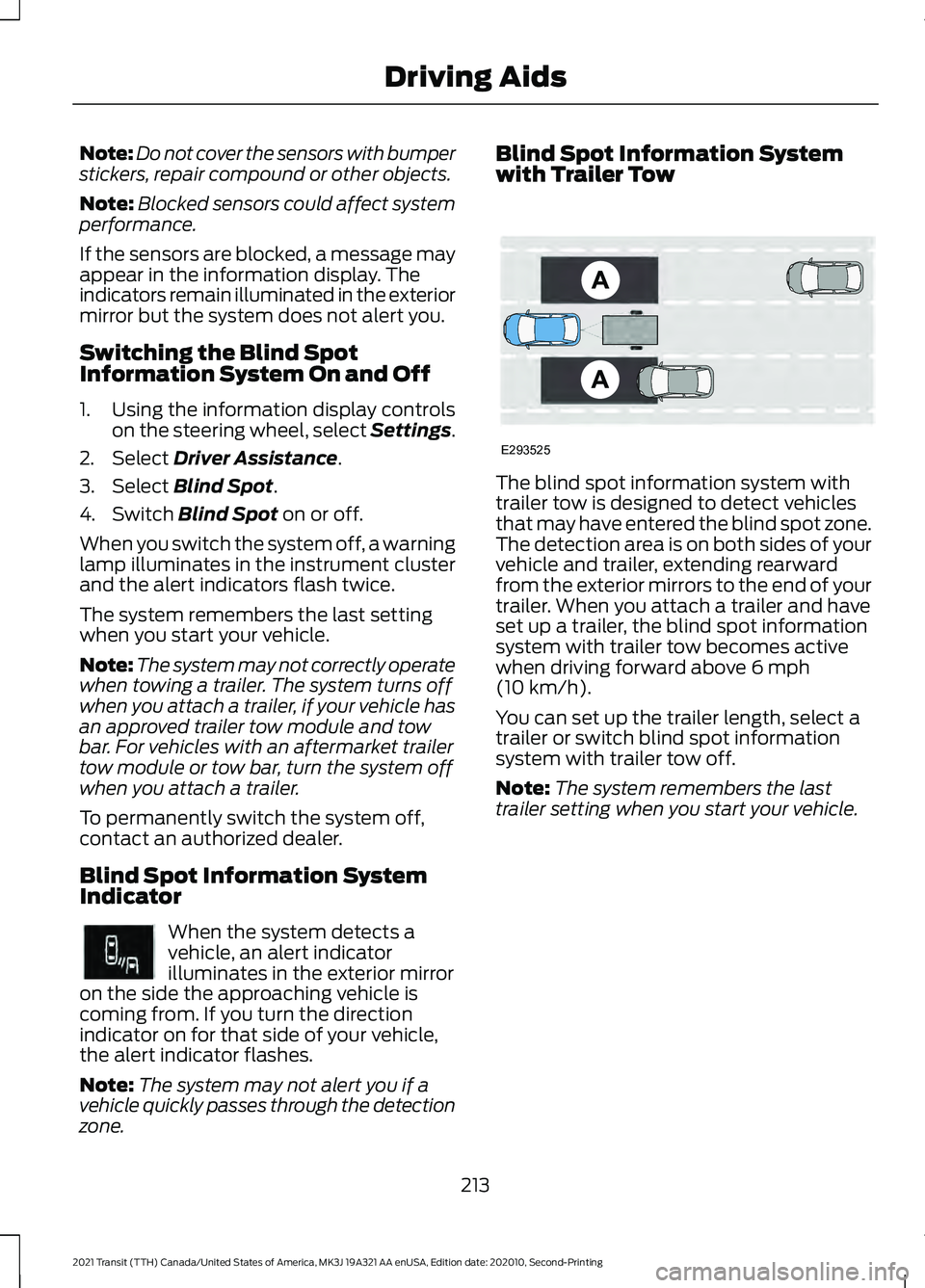
The blind spot information system with
trailer tow is designed to detect vehicles
that may have entered the blind spot zone.
The detection area is on both sides of your
vehicle and trailer, extending rearward
from the exterior mirrors to the end of your
trailer. When you attach a trailer and have
set up a trailer, the blind spot information
system with trailer tow becomes active
when driving forward above
6 mph
(10 km/h).
You can set up the trailer length, select a
trailer or switch blind spot information
system with trailer tow off.
Note: The system remembers the last
trailer setting when you start your vehicle.
213
2021 Transit (TTH) Canada/United States of America, MK3J 19A321 AA enUSA, Edition date: 202010, Second-Printing Driving AidsE249861E249861 E293525
Page 217 of 509
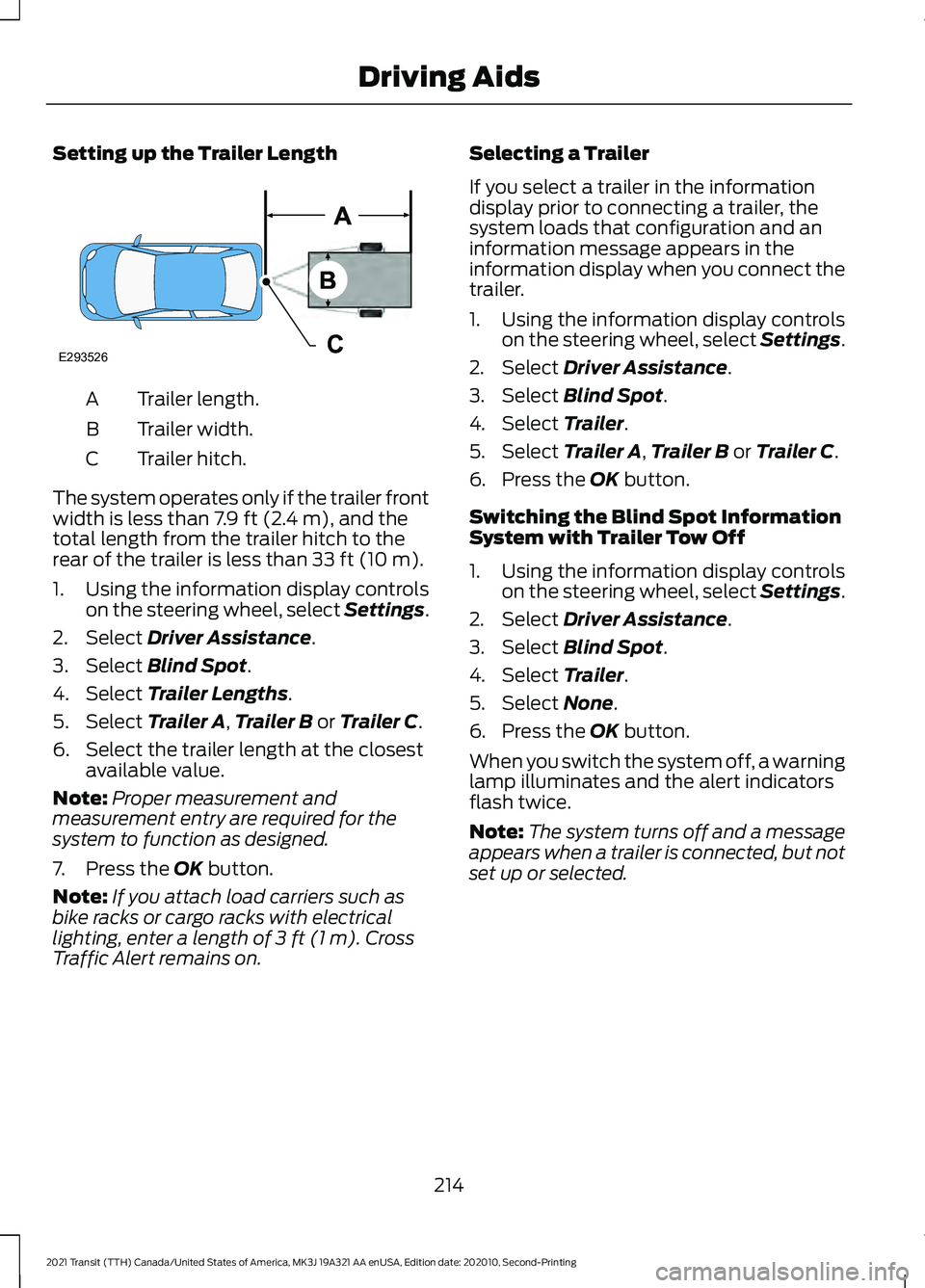
Setting up the Trailer Length
Trailer length.
A
Trailer width.
B
Trailer hitch.
C
The system operates only if the trailer front
width is less than 7.9 ft (2.4 m), and the
total length from the trailer hitch to the
rear of the trailer is less than
33 ft (10 m).
1. Using the information display controls on the steering wheel, select Settings.
2. Select
Driver Assistance.
3. Select
Blind Spot.
4. Select
Trailer Lengths.
5. Select
Trailer A, Trailer B or Trailer C.
6. Select the trailer length at the closest available value.
Note: Proper measurement and
measurement entry are required for the
system to function as designed.
7. Press the
OK button.
Note: If you attach load carriers such as
bike racks or cargo racks with electrical
lighting, enter a length of
3 ft (1 m). Cross
Traffic Alert remains on. Selecting a Trailer
If you select a trailer in the information
display prior to connecting a trailer, the
system loads that configuration and an
information message appears in the
information display when you connect the
trailer.
1. Using the information display controls
on the steering wheel, select Settings.
2. Select
Driver Assistance.
3. Select
Blind Spot.
4. Select
Trailer.
5. Select
Trailer A, Trailer B or Trailer C.
6. Press the
OK button.
Switching the Blind Spot Information
System with Trailer Tow Off
1. Using the information display controls on the steering wheel, select Settings.
2. Select
Driver Assistance.
3. Select
Blind Spot.
4. Select
Trailer.
5. Select
None.
6. Press the
OK button.
When you switch the system off, a warning
lamp illuminates and the alert indicators
flash twice.
Note: The system turns off and a message
appears when a trailer is connected, but not
set up or selected.
214
2021 Transit (TTH) Canada/United States of America, MK3J 19A321 AA enUSA, Edition date: 202010, Second-Printing Driving AidsE293526
Page 229 of 509
Using the Front View Camera
The front view camera provides a video
image of the area in front of your vehicle.
To use the front view camera system,
place the transmission in any gear except
reverse (R). An image of the front of your
vehicle appears once you press the camera
enable button and your vehicle speed is
below 6 mph (10 km/h).
Note: The area displayed on the screen may
vary according to your vehicle's orientation
or road condition.
Note: The front view camera will switch off
if your vehicle speed exceeds
6 mph
(10 km/h). You will have to switch the
system back on by using the enable button
once below the speed threshold.
Note: The camera system may not operate
correctly if mud, water or debris obstructs
the camera's view. You can clean the lens
with a soft, lint-free cloth and non-abrasive
cleaner or by using your front washer. See
Wipers and Washers
(page 97). The camera button is located on
the audio unit.
Camera Views
Press the camera button to toggle
between different views.
• Front Normal View: Provides an image
of what is directly in front of your
vehicle.
• Front Split View: Provides an extended
view of what is in front of your vehicle.
Access this view by pressing the
camera button from the Front Normal
View screen. DRIVE CONTROL
Selectable Drive Modes
Your vehicle has various drive modes that
you can select for different driving
conditions. Depending on the drive mode
that you select, the system adjusts various
vehicle settings, for example steering, gear
shifting, handling and powertrain response.
Selecting a Drive Mode
The button is on the instrument panel.
Repeatedly press the button to
scroll through the available drive
modes. Release the button to
confirm your selected drive mode.
Normal Vehicle settings suited for
balanced driving.
Note: This is the default mode each time
you switch the ignition on.
Eco Vehicle settings suited for
economical driving.
Slippery Vehicle settings suited for driving
on slippery roads.
Tow/Haul Vehicle settings suited for
towing or hauling.
Mud/Ruts Vehicle settings suited for driving
through mud and ruts.
226
2021 Transit (TTH) Canada/United States of America, MK3J 19A321 AA enUSA, Edition date: 202010, Second-Printing Driving AidsE188847 E298514 E225310 E267164 E269320 E246592 E296606