light FORD TRANSIT CONNECT 2015 2.G Manual PDF
[x] Cancel search | Manufacturer: FORD, Model Year: 2015, Model line: TRANSIT CONNECT, Model: FORD TRANSIT CONNECT 2015 2.GPages: 428, PDF Size: 6.27 MB
Page 338 of 428
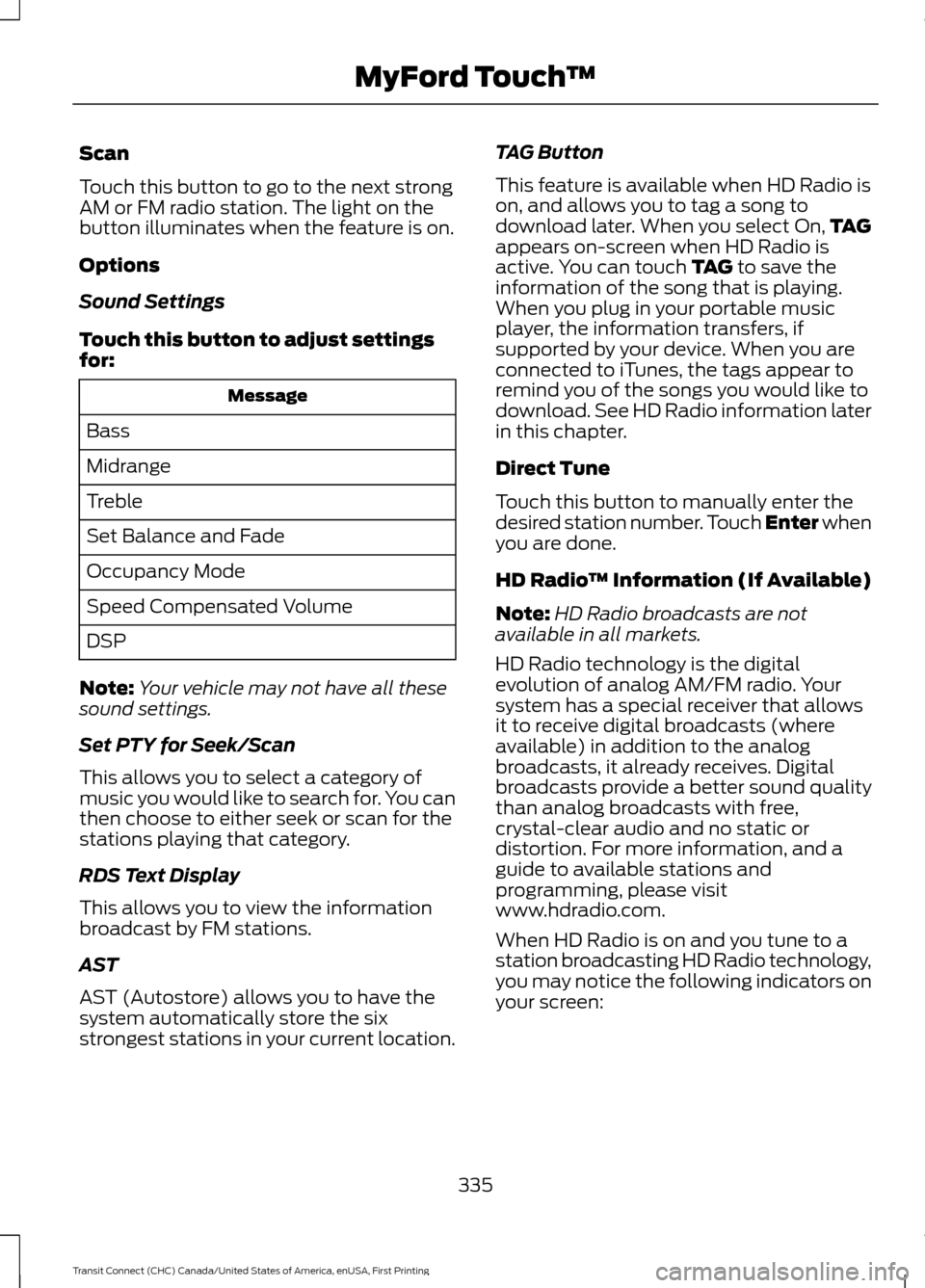
Scan
Touch this button to go to the next strong
AM or FM radio station. The light on the
button illuminates when the feature is on.
Options
Sound Settings
Touch this button to adjust settings
for:
Message
Bass
Midrange
Treble
Set Balance and Fade
Occupancy Mode
Speed Compensated Volume
DSP
Note: Your vehicle may not have all these
sound settings.
Set PTY for Seek/Scan
This allows you to select a category of
music you would like to search for. You can
then choose to either seek or scan for the
stations playing that category.
RDS Text Display
This allows you to view the information
broadcast by FM stations.
AST
AST (Autostore) allows you to have the
system automatically store the six
strongest stations in your current location. TAG Button
This feature is available when HD Radio is
on, and allows you to tag a song to
download later. When you select On,
TAG
appears on-screen when HD Radio is
active. You can touch TAG to save the
information of the song that is playing.
When you plug in your portable music
player, the information transfers, if
supported by your device. When you are
connected to iTunes, the tags appear to
remind you of the songs you would like to
download. See HD Radio information later
in this chapter.
Direct Tune
Touch this button to manually enter the
desired station number. Touch Enter when
you are done.
HD Radio ™ Information (If Available)
Note: HD Radio broadcasts are not
available in all markets.
HD Radio technology is the digital
evolution of analog AM/FM radio. Your
system has a special receiver that allows
it to receive digital broadcasts (where
available) in addition to the analog
broadcasts, it already receives. Digital
broadcasts provide a better sound quality
than analog broadcasts with free,
crystal-clear audio and no static or
distortion. For more information, and a
guide to available stations and
programming, please visit
www.hdradio.com.
When HD Radio is on and you tune to a
station broadcasting HD Radio technology,
you may notice the following indicators on
your screen:
335
Transit Connect (CHC) Canada/United States of America, enUSA, First Printing MyFord Touch
™
Page 339 of 428
The HD logo either blinks when acquiring
a digital station, and then stays solid when
digital audio is playing, or is grey when
acquiring a digital station, and then
changes to orange when digital audio is
playing. When this logo is available, you
may also see Title and Artist fields
on-screen.
The multicast indicator appears in FM
mode (only) if the current station is
broadcasting multiple digital broadcasts.
The highlighted numbers signify available
digital channels where new or different
content is available. HD1 signifies the main
programming status and is available in
analog and digital broadcasts. Other
multicast stations (HD2 through HD7) are
only available digitally.
TAG allows you to save a song to
download later when you are on an
acquired HD Radio station and the feature
is on.
To turn the feature on and use it, select
AM or FM and the select: Action and Description
Message
Options
TAG Button When you hear a song you, select:
On
The system automatically saves the song's information and
transfers it to your portable music player (if supported) when
you connect it to the system. The system automatically
transfers the tag to your player (if already connected) and a
pop-up confirms the transfer.
Tag
When you access iTunes with your portable music player, the
tags appear to you as a reminder. The system allows you to
tag up to approximately 100 songs. For a list of devices that
support tagging, see www.SYNCMyRide.com,
www.SYNCMyRide.ca or www.syncmaroute.ca
336
Transit Connect (CHC) Canada/United States of America, enUSA, First Printing MyFord Touch
™E142616
Page 340 of 428
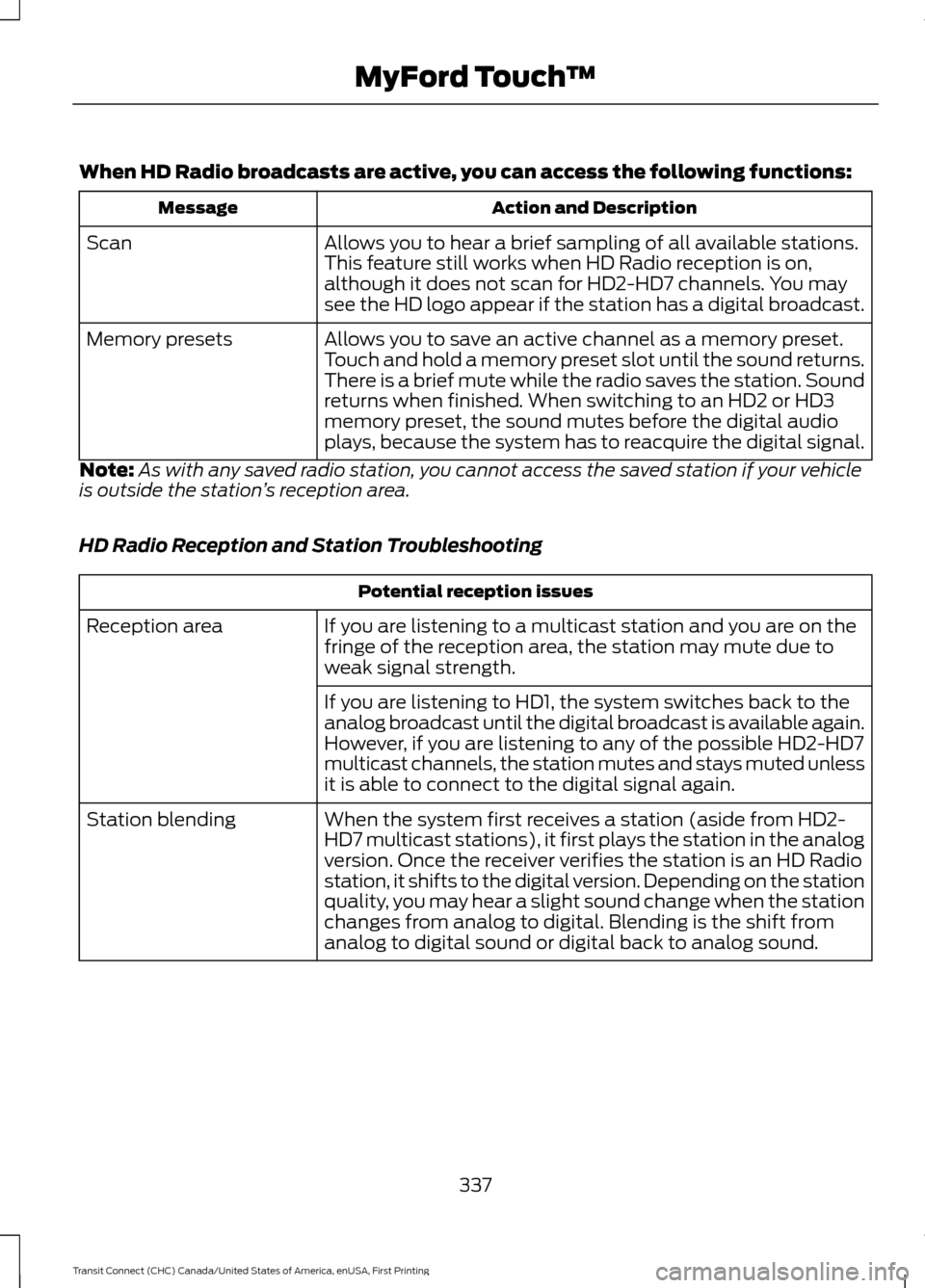
When HD Radio broadcasts are active, you can access the following functions:
Action and Description
Message
Allows you to hear a brief sampling of all available stations.
This feature still works when HD Radio reception is on,
although it does not scan for HD2-HD7 channels. You may
see the HD logo appear if the station has a digital broadcast.
Scan
Allows you to save an active channel as a memory preset.
Touch and hold a memory preset slot until the sound returns.
There is a brief mute while the radio saves the station. Sound
returns when finished. When switching to an HD2 or HD3
memory preset, the sound mutes before the digital audio
plays, because the system has to reacquire the digital signal.
Memory presets
Note: As with any saved radio station, you cannot access the saved station if your vehicle
is outside the station ’s reception area.
HD Radio Reception and Station Troubleshooting Potential reception issues
If you are listening to a multicast station and you are on the
fringe of the reception area, the station may mute due to
weak signal strength.
Reception area
If you are listening to HD1, the system switches back to the
analog broadcast until the digital broadcast is available again.
However, if you are listening to any of the possible HD2-HD7
multicast channels, the station mutes and stays muted unless
it is able to connect to the digital signal again.
When the system first receives a station (aside from HD2-
HD7 multicast stations), it first plays the station in the analog
version. Once the receiver verifies the station is an HD Radio
station, it shifts to the digital version. Depending on the station
quality, you may hear a slight sound change when the station
changes from analog to digital. Blending is the shift from
analog to digital sound or digital back to analog sound.
Station blending
337
Transit Connect (CHC) Canada/United States of America, enUSA, First Printing MyFord Touch
™
Page 374 of 428
NAVIGATION
Note:
The navigation SD card must be in
the SD card slot to operate the navigation
system. If you need a replacement SD card,
see an authorized dealer.
Note: The SD card slot is spring-loaded. To
remove the SD card, just push the card in
and release it. Do not attempt to pull the
card out to remove it; this could cause
damage.
Your navigation system is comprised of
two main features, destination mode and
map mode.
To set a destination, press the green corner
of your touchscreen, then the Dest button
when it appears. See Setting a
Destination later in this chapter.
To view the navigation map and your
vehicle's current location, touch the green
bar in the upper right-hand corner of the
touchscreen, or, press Dest, then Map. See
Map mode
later in this chapter.
Setting a Destination
Press the green corner of your touchscreen,
then the
Dest button when it appears.
Choose any of the following:
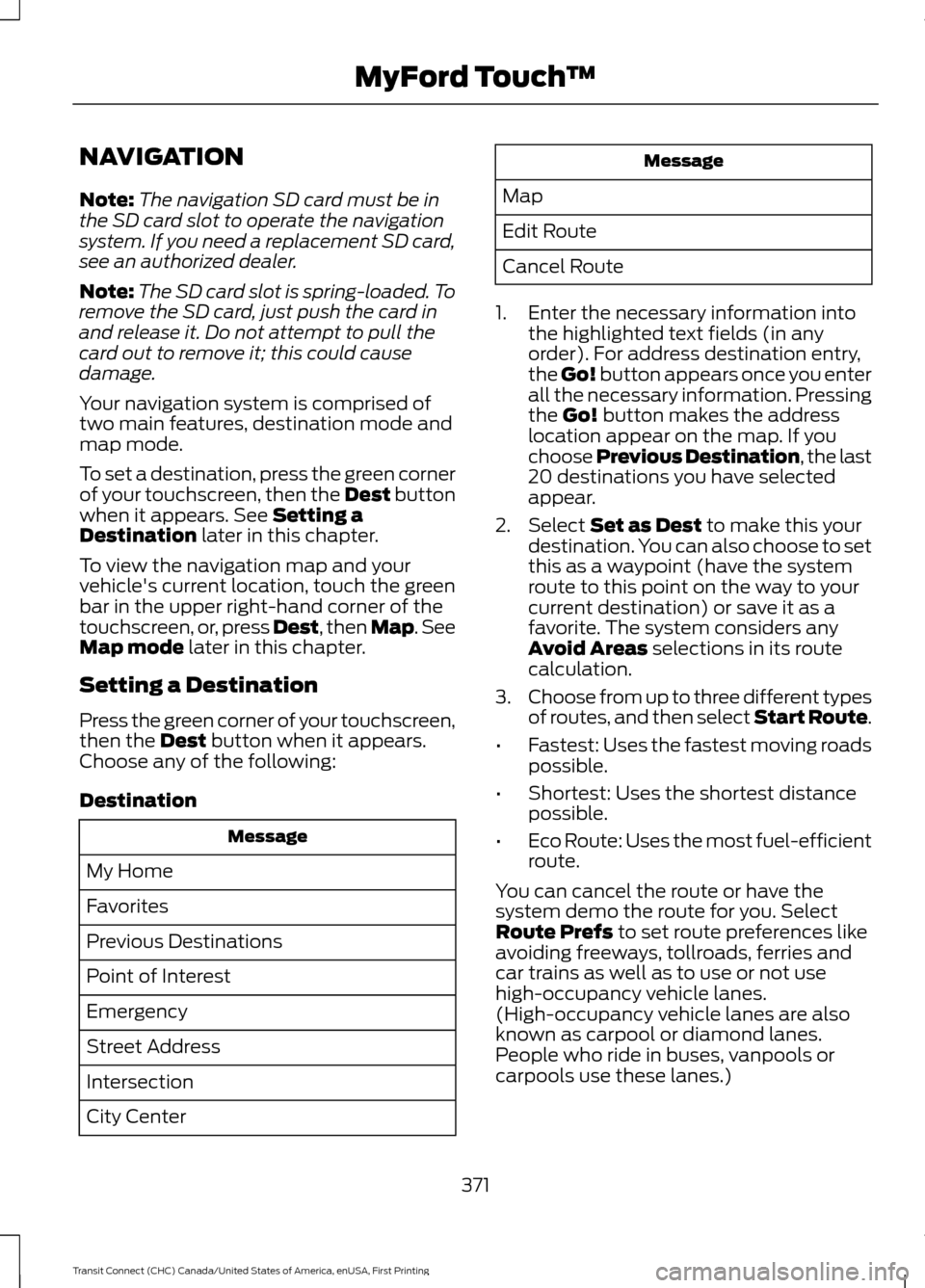
Destination Message
My Home
Favorites
Previous Destinations
Point of Interest
Emergency
Street Address
Intersection
City Center Message
Map
Edit Route
Cancel Route
1. Enter the necessary information into the highlighted text fields (in any
order). For address destination entry,
the Go! button appears once you enter
all the necessary information. Pressing
the
Go! button makes the address
location appear on the map. If you
choose Previous Destination, the last
20 destinations you have selected
appear.
2. Select
Set as Dest to make this your
destination. You can also choose to set
this as a waypoint (have the system
route to this point on the way to your
current destination) or save it as a
favorite. The system considers any
Avoid Areas
selections in its route
calculation.
3. Choose from up to three different types
of routes, and then select Start Route.
• Fastest: Uses the fastest moving roads
possible.
• Shortest: Uses the shortest distance
possible.
• Eco Route: Uses the most fuel-efficient
route.
You can cancel the route or have the
system demo the route for you. Select
Route Prefs
to set route preferences like
avoiding freeways, tollroads, ferries and
car trains as well as to use or not use
high-occupancy vehicle lanes.
(High-occupancy vehicle lanes are also
known as carpool or diamond lanes.
People who ride in buses, vanpools or
carpools use these lanes.)
371
Transit Connect (CHC) Canada/United States of America, enUSA, First Printing MyFord Touch
™
Page 379 of 428
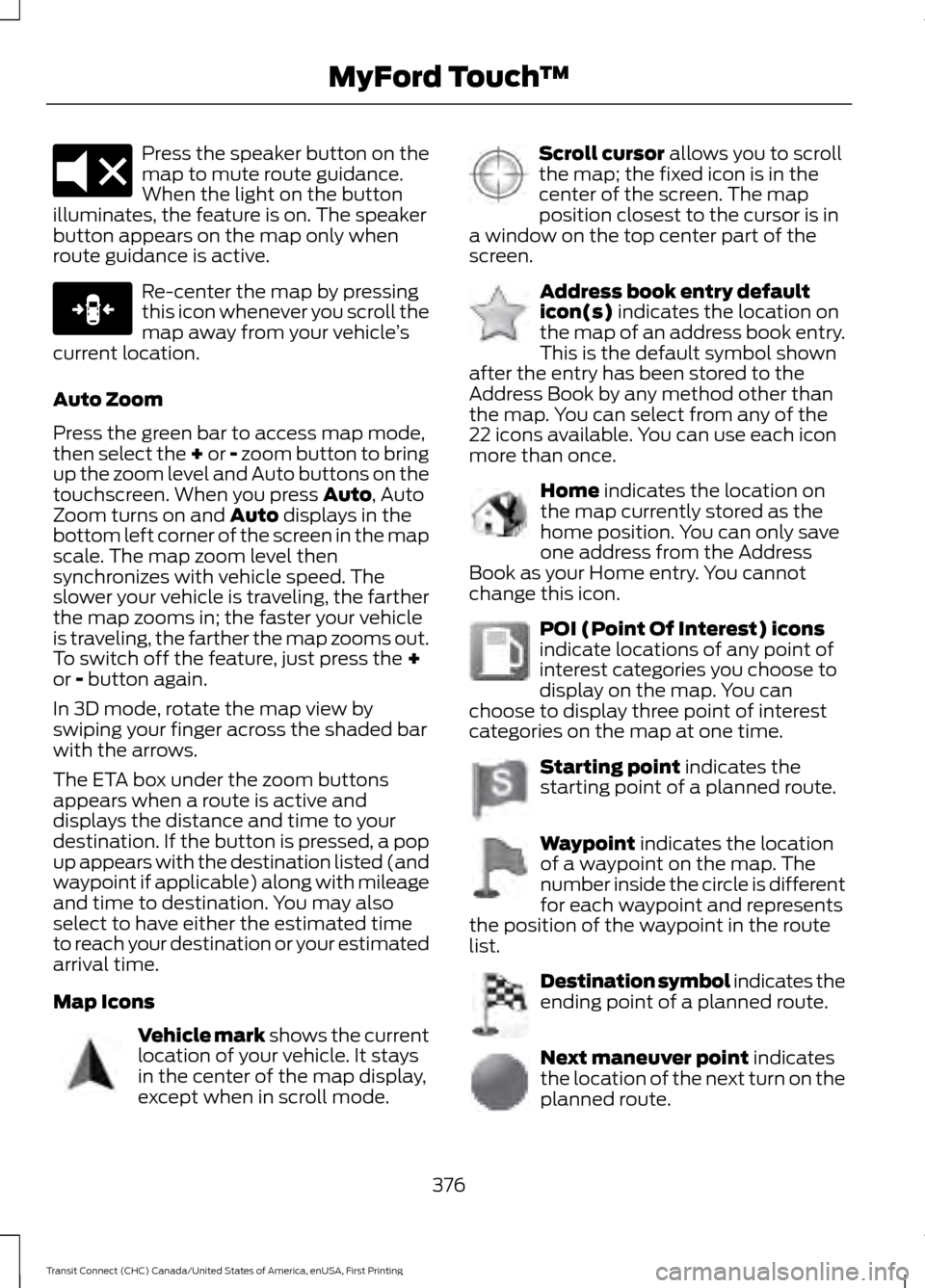
Press the speaker button on the
map to mute route guidance.
When the light on the button
illuminates, the feature is on. The speaker
button appears on the map only when
route guidance is active. Re-center the map by pressing
this icon whenever you scroll the
map away from your vehicle
’s
current location.
Auto Zoom
Press the green bar to access map mode,
then select the + or - zoom button to bring
up the zoom level and Auto buttons on the
touchscreen. When you press Auto, Auto
Zoom turns on and Auto displays in the
bottom left corner of the screen in the map
scale. The map zoom level then
synchronizes with vehicle speed. The
slower your vehicle is traveling, the farther
the map zooms in; the faster your vehicle
is traveling, the farther the map zooms out.
To switch off the feature, just press the
+
or - button again.
In 3D mode, rotate the map view by
swiping your finger across the shaded bar
with the arrows.
The ETA box under the zoom buttons
appears when a route is active and
displays the distance and time to your
destination. If the button is pressed, a pop
up appears with the destination listed (and
waypoint if applicable) along with mileage
and time to destination. You may also
select to have either the estimated time
to reach your destination or your estimated
arrival time.
Map Icons Vehicle mark
shows the current
location of your vehicle. It stays
in the center of the map display,
except when in scroll mode. Scroll cursor
allows you to scroll
the map; the fixed icon is in the
center of the screen. The map
position closest to the cursor is in
a window on the top center part of the
screen. Address book entry default
icon(s)
indicates the location on
the map of an address book entry.
This is the default symbol shown
after the entry has been stored to the
Address Book by any method other than
the map. You can select from any of the
22 icons available. You can use each icon
more than once. Home
indicates the location on
the map currently stored as the
home position. You can only save
one address from the Address
Book as your Home entry. You cannot
change this icon. POI (Point Of Interest) icons
indicate locations of any point of
interest categories you choose to
display on the map. You can
choose to display three point of interest
categories on the map at one time. Starting point
indicates the
starting point of a planned route. Waypoint
indicates the location
of a waypoint on the map. The
number inside the circle is different
for each waypoint and represents
the position of the waypoint in the route
list. Destination symbol indicates the
ending point of a planned route.
Next maneuver point
indicates
the location of the next turn on the
planned route.
376
Transit Connect (CHC) Canada/United States of America, enUSA, First Printing MyFord Touch
™E174017 E146188 E142646 E142647 E142648 E142649 E142650 E142651 E142652 E142653 E142654
Page 383 of 428
For a complete listing of the accessories
that are available for your vehicle, contact
an authorized dealer or visit our online
store at Accessories.Ford.com (United
States only).
Ford Motor Company repairs or replaces
any properly authorized, dealer-installed
Ford Original Accessory found to be
defective in factory-supplied materials or
workmanship during the warranty period,
as well as any component damaged by the
defective accessories.
Ford Motor Company warrants your
accessory through the warranty that
provides the greatest benefit:
•
24 months, unlimited mileage.
• The remainder of your new vehicle
limited warranty.
Contact an authorized dealer for details
and a copy of the warranty.
Exterior Style
• Graphics.
• Hitch and towing accessories.
• Keyless entry.
• Side window deflectors.
• Splash guards.
• Wheels.
Interior Style
• All-weather floor mats.
• Cargo area protectors.
• Cargo organizers.
• Carpeted floor mats.
• Interior light kit.
• Premium carpeted floor mats.
• Rear seat entertainment*. Lifestyle
•
Ash cup and smokers packages.
• Roof racks and carriers*.
Peace of Mind
• Auto-dimming interior mirror.
• Back-up alarm*.
• Bumper-mounted parking sensor*.
• Locking fuel plug.
• Remote start.
• Vehicle security systems.
• Wheel locks.
*Ford Licensed Accessory. The accessory
manufacturer designs, develops and
therefore warrants Ford Licensed
Accessories, and does not design or test
these accessories to Ford Motor Company
engineering requirements. Contact an
authorized Ford dealer for the
manufacturer's limited warranty details,
and request a copy of the Ford Licensed
Accessories product limited warranty from
the accessory manufacturer.
380
Transit Connect (CHC) Canada/United States of America, enUSA, First Printing Accessories
Page 404 of 428
Check every month
Engine oil level.
Function of all interior and exterior lights.
Tires (including spare) for wear and proper pressure. Windshield washer fluid level. Check every six months
Battery connections. Clean if necessary.
Body and door drain holes for obstructions. Clean if necessary. Cooling system fluid level and coolant strength.
Door weatherstrips for wear. Lubricate if necessary.
Hinges, latches and outside locks for proper operation. Lubricate if necessary. Parking brake for proper operation.
Safety belts and seat latches for wear and function.
Safety warning lamps (brake, ABS, airbag and safety belt) for operation.
Washer spray and wiper operation. Clean or replace blades as necessary.
Multi-Point Inspection
In order to keep your vehicle running right,
it is important to have the systems on your
vehicle checked regularly. This can help
identify potential issues and prevent major
problems. We recommend having the
following multi-point inspection performed
at every scheduled maintenance interval
to help make sure your vehicle keeps
running great.
401
Transit Connect (CHC) Canada/United States of America, enUSA, First Printing Scheduled Maintenance
Page 419 of 428
California Proposition 65..............................11
Capacities and Specifications................246
Cargo Nets.......................................................142
Installing the Net................................................. 142
Removing the Net............................................... 143
Car Wash See: Cleaning the Exterior.................................211
Center Console...............................................114
Changing a Bulb............................................197 Central High Mounted Brake Lamp...........200
Front Fog Lamps............................................... 200
Headlamp............................................................. 198
Interior Lamps...................................................... 201
License Plate Lamp........................................... 201
Rear Lamps......................................................... 200
Side Direction Indicator................................... 199
Changing a Fuse...........................................184
Fuses....................................................................... 184
Changing a Road Wheel
...........................239
Changing a Road Wheel.................................. 241
Dissimilar Spare Wheel and Tire Assembly Information..................................................... 240
Stowing the Flat or Spare Tire...................... 243
Changing the 12V Battery..........................193
Changing the Engine Air Filter................204 2.5L Engine........................................................... 205
EcoBoost Engines............................................. 204
Changing the Wiper Blades......................194 Changing the Front Wiper Blades................195
Rear Window Wiper Blades............................ 195
Checking MyKey System Status...............52
Checking the Wiper Blades......................194
Child Restraint and Safety Belt Maintenance
.................................................36
Child Safety.......................................................18
General Information............................................. 18
Child Safety Locks
.........................................29
Left-Hand Side...................................................... 29
Right-Hand Side................................................... 29
Child Seat Positioning...................................27
Cigar Lighter
.....................................................113
Cleaning Leather Seats..............................214
Cleaning Products
.........................................211
Cleaning the Alloy Wheels........................215
Cleaning the Engine.....................................212 Cleaning the Exterior....................................211
Exterior Chrome Parts........................................ 211
Exterior Plastic Parts.......................................... 212
Stripes or Graphics............................................. 212
Underbody............................................................. 212
Cleaning the Instrument Panel and Instrument Cluster Lens..........................213
Cleaning the Interior....................................213
Cleaning the Windows and Wiper Blades
............................................................213
Clearing All MyKeys........................................51
Climate............................................................368 Climate Control Voice Commands.............369
Climate Control
..............................................95
Principle of Operation........................................ 95
Clock...................................................................88 Type 1........................................................................\
88
Type 2....................................................................... 88
Cold Weather Precautions.........................161
Coolant Check See: Engine Coolant Check............................ 190
Cornering Lamps............................................70
Crash Sensors and Airbag Indicator
........45
Creating a MyKey...........................................50
Programming/Changing Configurable
Settings............................................................... 50
Cruise Control
..................................................62
Principle of Operation....................................... 139
Cruise control See: Using Cruise Control................................ 139
Cup Holders
.....................................................114
Customer Assistance.................................168
D
Data Recording
..................................................9
Event Data Recording........................................... 9
Service Data Recording........................................ 9
Daytime Running Lamps............................69 Type 1 - Conventional
(Non-Configurable)....................................... 69
Type 2 - Configurable......................................... 69
Digital Radio
..................................................260
HD Radio Reception and Station
Troubleshooting............................................. 261
Direction Indicators
.........................................71
416
Transit Connect (CHC) Canada/United States of America, enUSA, First Printing Index
Page 422 of 428
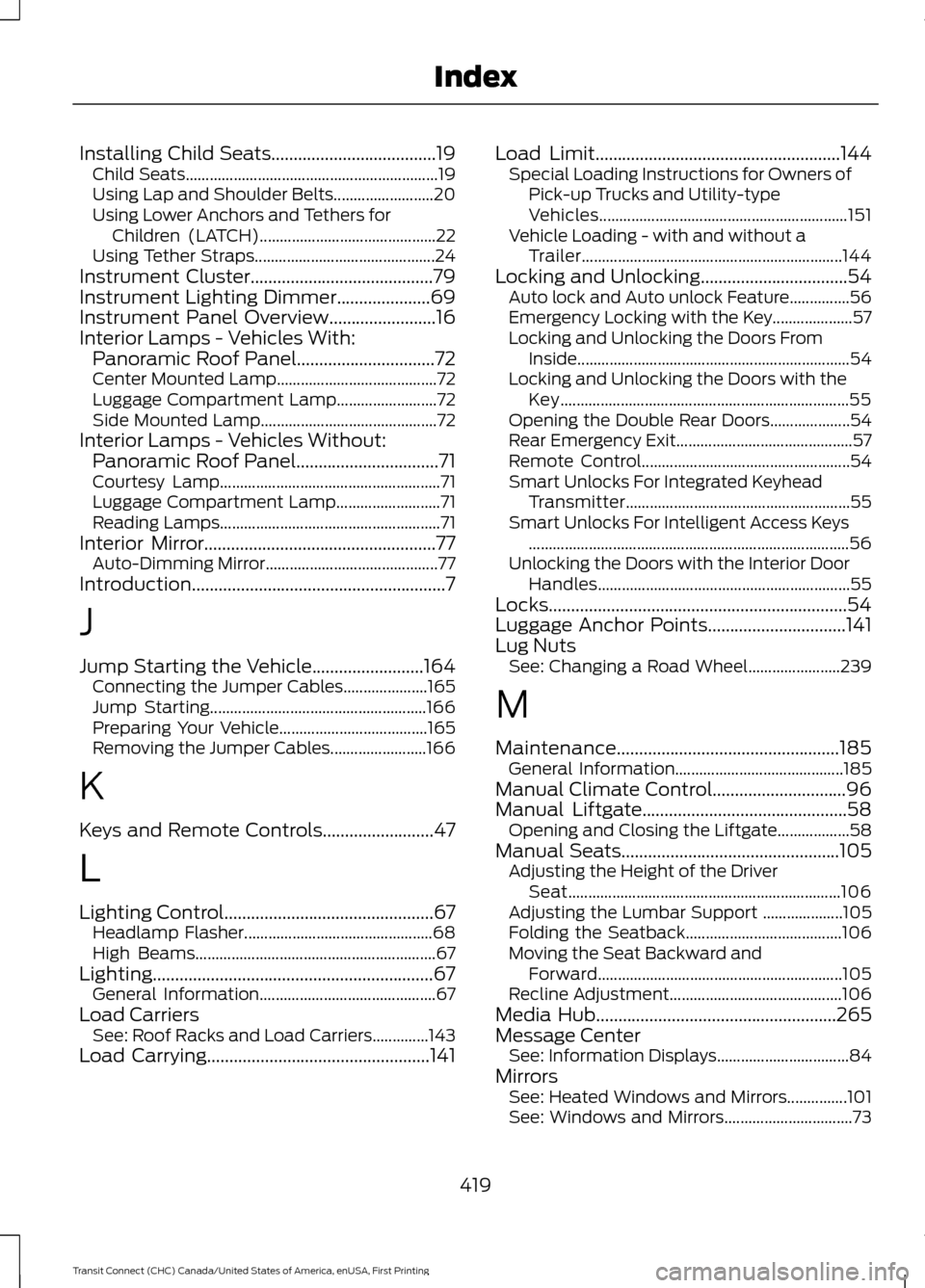
Installing Child Seats.....................................19
Child Seats............................................................... 19
Using Lap and Shoulder Belts......................... 20
Using Lower Anchors and Tethers for Children (LATCH)............................................ 22
Using Tether Straps............................................. 24
Instrument Cluster
.........................................79
Instrument Lighting Dimmer.....................69
Instrument Panel Overview........................16
Interior Lamps - Vehicles With: Panoramic Roof Panel
...............................72
Center Mounted Lamp........................................ 72
Luggage Compartment Lamp......................... 72
Side Mounted Lamp............................................ 72
Interior Lamps - Vehicles Without: Panoramic Roof Panel................................71
Courtesy Lamp....................................................... 71
Luggage Compartment Lamp.......................... 71
Reading Lamps....................................................... 71
Interior Mirror....................................................77 Auto-Dimming Mirror........................................... 77
Introduction.........................................................7
J
Jump Starting the Vehicle
.........................164
Connecting the Jumper Cables..................... 165
Jump Starting...................................................... 166
Preparing Your Vehicle..................................... 165
Removing the Jumper Cables........................ 166
K
Keys and Remote Controls.........................47
L
Lighting Control...............................................67 Headlamp Flasher............................................... 68
High Beams............................................................ 67
Lighting...............................................................67 General Information............................................ 67
Load Carriers See: Roof Racks and Load Carriers..............143
Load Carrying
..................................................141 Load Limit
.......................................................144
Special Loading Instructions for Owners of
Pick-up Trucks and Utility-type
Vehicles.............................................................. 151
Vehicle Loading - with and without a Trailer................................................................. 144
Locking and Unlocking
.................................54
Auto lock and Auto unlock Feature...............56
Emergency Locking with the Key.................... 57
Locking and Unlocking the Doors From Inside.................................................................... 54
Locking and Unlocking the Doors with the Key........................................................................\
55
Opening the Double Rear Doors.................... 54
Rear Emergency Exit............................................ 57
Remote Control.................................................... 54
Smart Unlocks For Integrated Keyhead Transmitter........................................................ 55
Smart Unlocks For Intelligent Access Keys ........................................................................\
........ 56
Unlocking the Doors with the Interior Door Handles............................................................... 55
Locks...................................................................54
Luggage Anchor Points
...............................141
Lug Nuts See: Changing a Road Wheel....................... 239
M
Maintenance..................................................185 General Information.......................................... 185
Manual Climate Control..............................96
Manual Liftgate..............................................58 Opening and Closing the Liftgate.................. 58
Manual Seats
.................................................105
Adjusting the Height of the Driver
Seat.................................................................... 106
Adjusting the Lumbar Support .................... 105
Folding the Seatback....................................... 106
Moving the Seat Backward and Forward............................................................. 105
Recline Adjustment........................................... 106
Media Hub
......................................................265
Message Center See: Information Displays................................. 84
Mirrors See: Heated Windows and Mirrors...............101
See: Windows and Mirrors................................ 73
419
Transit Connect (CHC) Canada/United States of America, enUSA, First Printing Index
Page 425 of 428
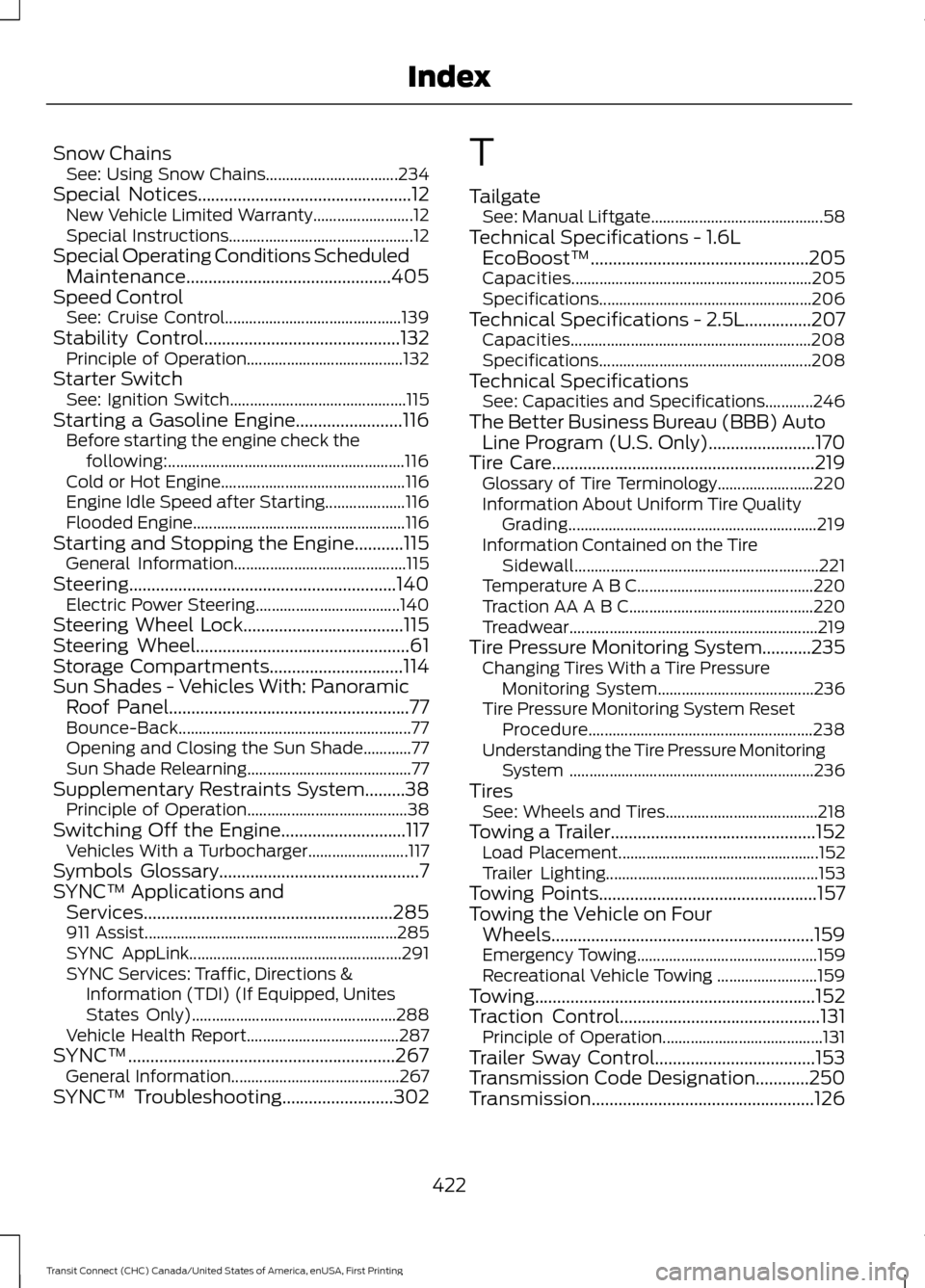
Snow Chains
See: Using Snow Chains................................. 234
Special Notices................................................12 New Vehicle Limited Warranty......................... 12
Special Instructions.............................................. 12
Special Operating Conditions Scheduled Maintenance..............................................405
Speed Control See: Cruise Control............................................ 139
Stability Control............................................132
Principle of Operation....................................... 132
Starter Switch See: Ignition Switch............................................ 115
Starting a Gasoline Engine........................116 Before starting the engine check the
following:........................................................... 116
Cold or Hot Engine.............................................. 116
Engine Idle Speed after Starting.................... 116
Flooded Engine..................................................... 116
Starting and Stopping the Engine...........115 General Information........................................... 115
Steering............................................................140 Electric Power Steering.................................... 140
Steering Wheel Lock....................................115
Steering Wheel................................................61
Storage Compartments
..............................114
Sun Shades - Vehicles With: Panoramic Roof Panel
......................................................77
Bounce-Back.......................................................... 77
Opening and Closing the Sun Shade............77
Sun Shade Relearning......................................... 77
Supplementary Restraints System.........38 Principle of Operation........................................ 38
Switching Off the Engine............................117 Vehicles With a Turbocharger......................... 117
Symbols Glossary
.............................................7
SYNC™ Applications and Services........................................................285
911 Assist............................................................... 285
SYNC AppLink..................................................... 291
SYNC Services: Traffic, Directions & Information (TDI) (If Equipped, Unites
States Only)................................................... 288
Vehicle Health Report...................................... 287
SYNC™............................................................267 General Information.......................................... 267
SYNC™ Troubleshooting
.........................302 T
Tailgate
See: Manual Liftgate........................................... 58
Technical Specifications - 1.6L EcoBoost™.................................................205
Capacities............................................................ 205
Specifications..................................................... 206
Technical Specifications - 2.5L...............207 Capacities............................................................ 208
Specifications..................................................... 208
Technical Specifications See: Capacities and Specifications............246
The Better Business Bureau (BBB) Auto Line Program (U.S. Only)........................170
Tire Care
...........................................................219
Glossary of Tire Terminology........................ 220
Information About Uniform Tire Quality Grading.............................................................. 219
Information Contained on the Tire Sidewall............................................................. 221
Temperature A B C............................................ 220
Traction AA A B C.............................................. 220
Treadwear..............................................................219
Tire Pressure Monitoring System...........235 Changing Tires With a Tire Pressure
Monitoring System....................................... 236
Tire Pressure Monitoring System Reset Procedure........................................................ 238
Understanding the Tire Pressure Monitoring System ............................................................. 236
Tires See: Wheels and Tires...................................... 218
Towing a Trailer..............................................152 Load Placement.................................................. 152
Trailer Lighting..................................................... 153
Towing Points
.................................................157
Towing the Vehicle on Four Wheels...........................................................159
Emergency Towing............................................. 159
Recreational Vehicle Towing ......................... 159
Towing...............................................................152
Traction Control.............................................131 Principle of Operation........................................ 131
Trailer Sway Control....................................153
Transmission Code Designation
............250
Transmission..................................................126
422
Transit Connect (CHC) Canada/United States of America, enUSA, First Printing Index