steering wheel FORD TRANSIT CONNECT 2020 Owner's Guide
[x] Cancel search | Manufacturer: FORD, Model Year: 2020, Model line: TRANSIT CONNECT, Model: FORD TRANSIT CONNECT 2020Pages: 509, PDF Size: 7.73 MB
Page 215 of 509
Driver Alert System Display
To view the driver alert system status, use the information display controls on
the steering wheel to select the following:
Action
Menu Item
Press the menu button.
Settings
Press the OK button.
Information
Press the
OK button.
Driver Alert
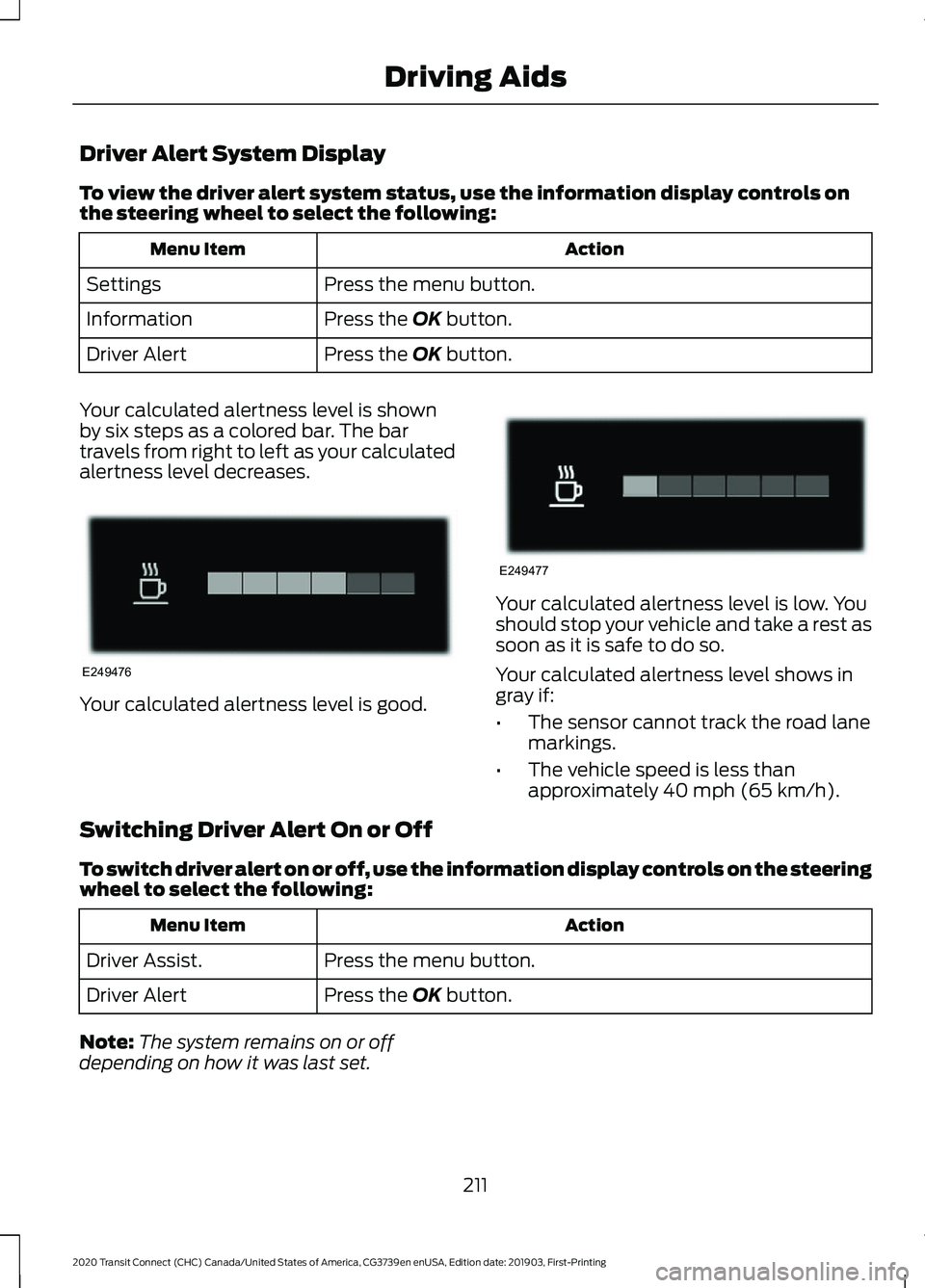
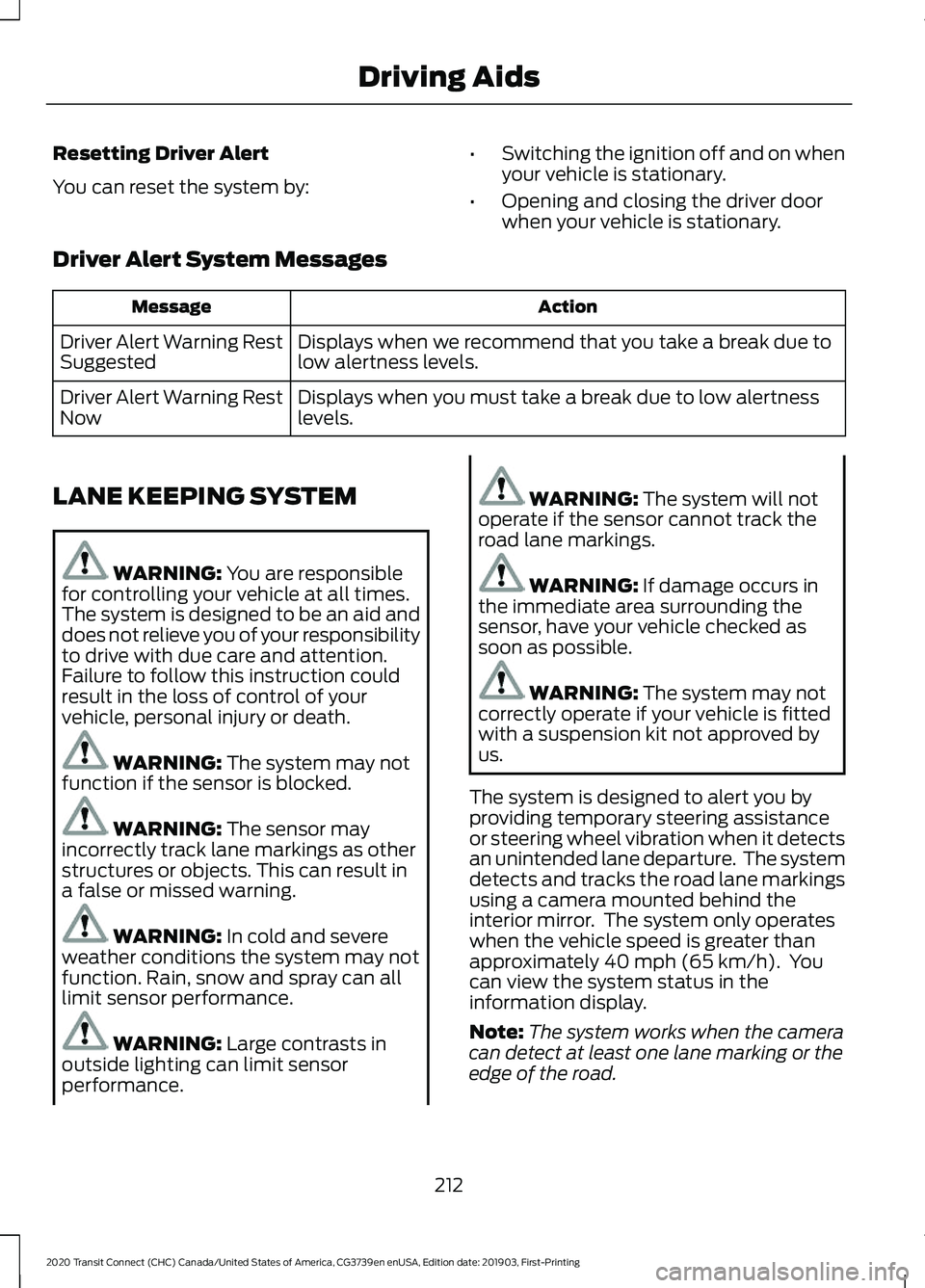
Your calculated alertness level is shown
by six steps as a colored bar. The bar
travels from right to left as your calculated
alertness level decreases. Your calculated alertness level is good. Your calculated alertness level is low. You
should stop your vehicle and take a rest as
soon as it is safe to do so.
Your calculated alertness level shows in
gray if:
•
The sensor cannot track the road lane
markings.
• The vehicle speed is less than
approximately
40 mph (65 km/h).
Switching Driver Alert On or Off
To switch driver alert on or off, use the information display controls on the steering
wheel to select the following: Action
Menu Item
Press the menu button.
Driver Assist.
Press the
OK button.
Driver Alert
Note: The system remains on or off
depending on how it was last set.
211
2020 Transit Connect (CHC) Canada/United States of America, CG3739en enUSA, Edition date: 201903, First-Printing Driving AidsE249476 E249477
Page 216 of 509
Resetting Driver Alert
You can reset the system by:
•
Switching the ignition off and on when
your vehicle is stationary.
• Opening and closing the driver door
when your vehicle is stationary.
Driver Alert System Messages Action
Message
Displays when we recommend that you take a break due to
low alertness levels.
Driver Alert Warning Rest
Suggested
Displays when you must take a break due to low alertness
levels.
Driver Alert Warning Rest
Now
LANE KEEPING SYSTEM WARNING: You are responsible
for controlling your vehicle at all times.
The system is designed to be an aid and
does not relieve you of your responsibility
to drive with due care and attention.
Failure to follow this instruction could
result in the loss of control of your
vehicle, personal injury or death. WARNING:
The system may not
function if the sensor is blocked. WARNING:
The sensor may
incorrectly track lane markings as other
structures or objects. This can result in
a false or missed warning. WARNING:
In cold and severe
weather conditions the system may not
function. Rain, snow and spray can all
limit sensor performance. WARNING:
Large contrasts in
outside lighting can limit sensor
performance. WARNING:
The system will not
operate if the sensor cannot track the
road lane markings. WARNING:
If damage occurs in
the immediate area surrounding the
sensor, have your vehicle checked as
soon as possible. WARNING:
The system may not
correctly operate if your vehicle is fitted
with a suspension kit not approved by
us.
The system is designed to alert you by
providing temporary steering assistance
or steering wheel vibration when it detects
an unintended lane departure. The system
detects and tracks the road lane markings
using a camera mounted behind the
interior mirror. The system only operates
when the vehicle speed is greater than
approximately
40 mph (65 km/h). You
can view the system status in the
information display.
Note: The system works when the camera
can detect at least one lane marking or the
edge of the road.
212
2020 Transit Connect (CHC) Canada/United States of America, CG3739en enUSA, Edition date: 201903, First-Printing Driving Aids
Page 217 of 509
The system may not correctly operate in
any of the following conditions:
•
The system does not detect at least
one lane marking.
• You switch the direction indicator on.
• You apply direct steering, accelerate
fast or brake hard.
• The vehicle speed is less than 40 mph
(65 km/h).
• The anti-lock brake, stability control or
traction control system activates.
• Narrow lane width.
The system may not correct lane
positioning in any of the following
conditions:
• High winds.
• Uneven road surfaces.
• Heavy or uneven loads.
• Incorrect tire pressure. Switching Lane Keeping System
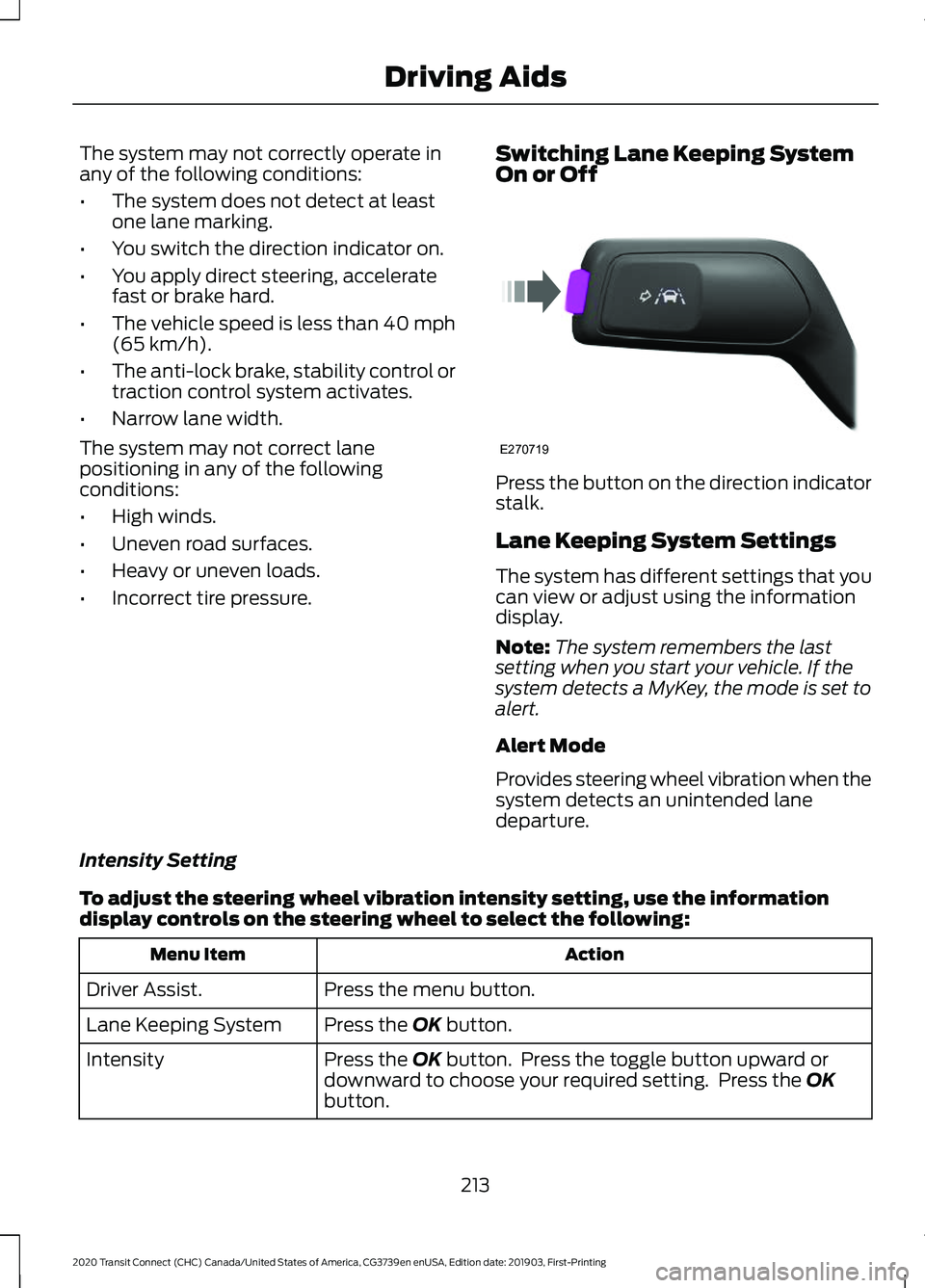
On or Off Press the button on the direction indicator
stalk.
Lane Keeping System Settings
The system has different settings that you
can view or adjust using the information
display.
Note:
The system remembers the last
setting when you start your vehicle. If the
system detects a MyKey, the mode is set to
alert.
Alert Mode
Provides steering wheel vibration when the
system detects an unintended lane
departure.
Intensity Setting
To adjust the steering wheel vibration intensity setting, use the information
display controls on the steering wheel to select the following: Action
Menu Item
Press the menu button.
Driver Assist.
Press the
OK button.
Lane Keeping System
Press the
OK button. Press the toggle button upward or
downward to choose your required setting. Press the OK
button.
Intensity
213
2020 Transit Connect (CHC) Canada/United States of America, CG3739en enUSA, Edition date: 201903, First-Printing Driving AidsE270719
Page 218 of 509
Note:
This setting does not affect the aid
mode.
Note: The system remembers the last
setting when you start your vehicle.
Aid Mode
Provides temporary steering assistance
toward the lane center when the system
detects an unintended lane departure.
Note: When aid mode is on and the system
does not detect any steering activity for a
short period of time, for example lightly
holding the steering wheel, the system alerts
you to put your hands on the steering wheel.
Alert and Aid Mode
Provides temporary steering assistance
toward the lane center when the system
detects an unintended lane departure. If
your vehicle continues drifting out of the
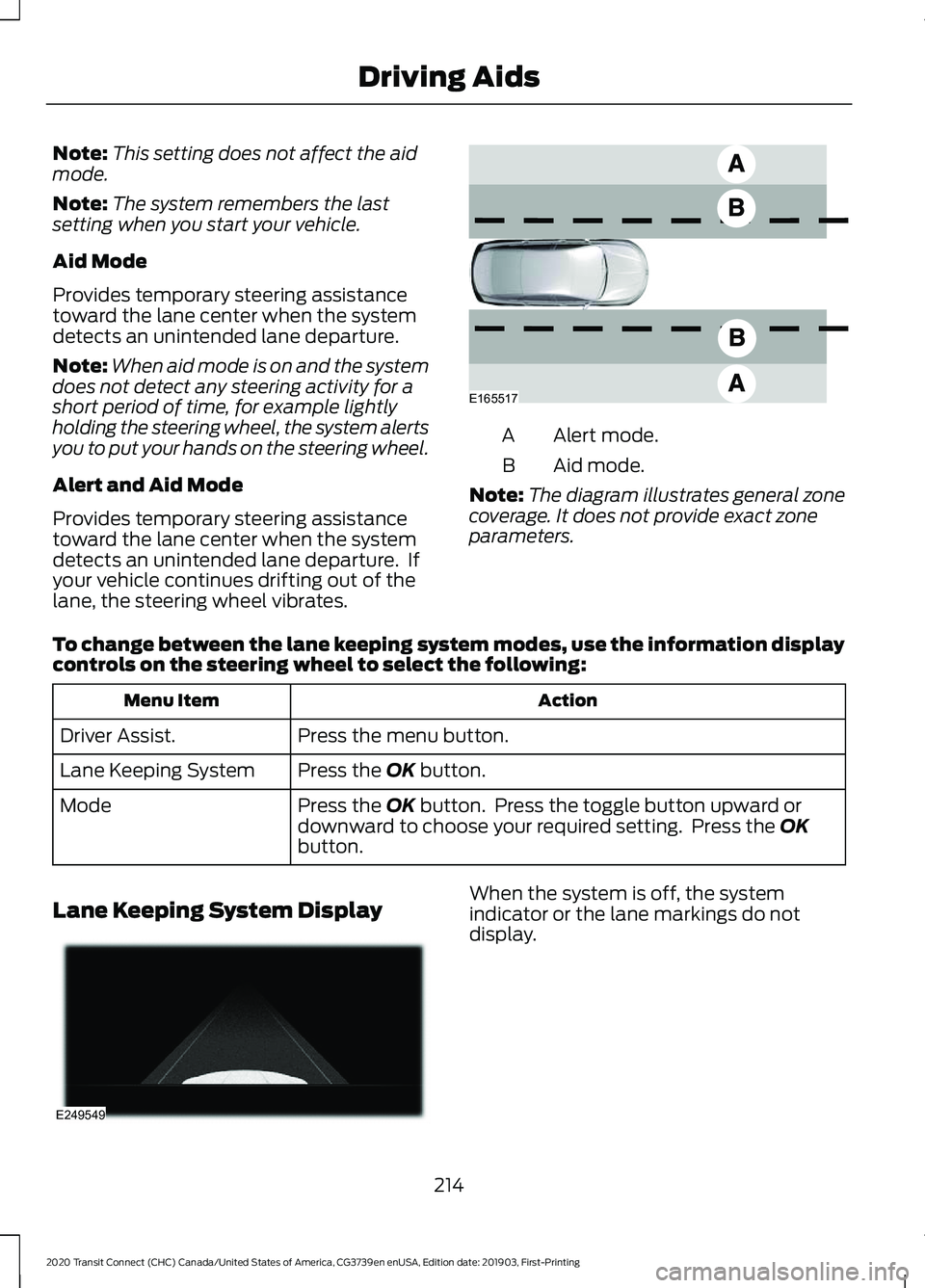
lane, the steering wheel vibrates. Alert mode.
A
Aid mode.
B
Note: The diagram illustrates general zone
coverage. It does not provide exact zone
parameters.
To change between the lane keeping system modes, use the information display
controls on the steering wheel to select the following: Action
Menu Item
Press the menu button.
Driver Assist.
Press the OK button.
Lane Keeping System
Press the
OK button. Press the toggle button upward or
downward to choose your required setting. Press the OK
button.
Mode
Lane Keeping System Display When the system is off, the system
indicator or the lane markings do not
display.
214
2020 Transit Connect (CHC) Canada/United States of America, CG3739en enUSA, Edition date: 201903, First-Printing Driving AidsE165517 E249549
Page 219 of 509
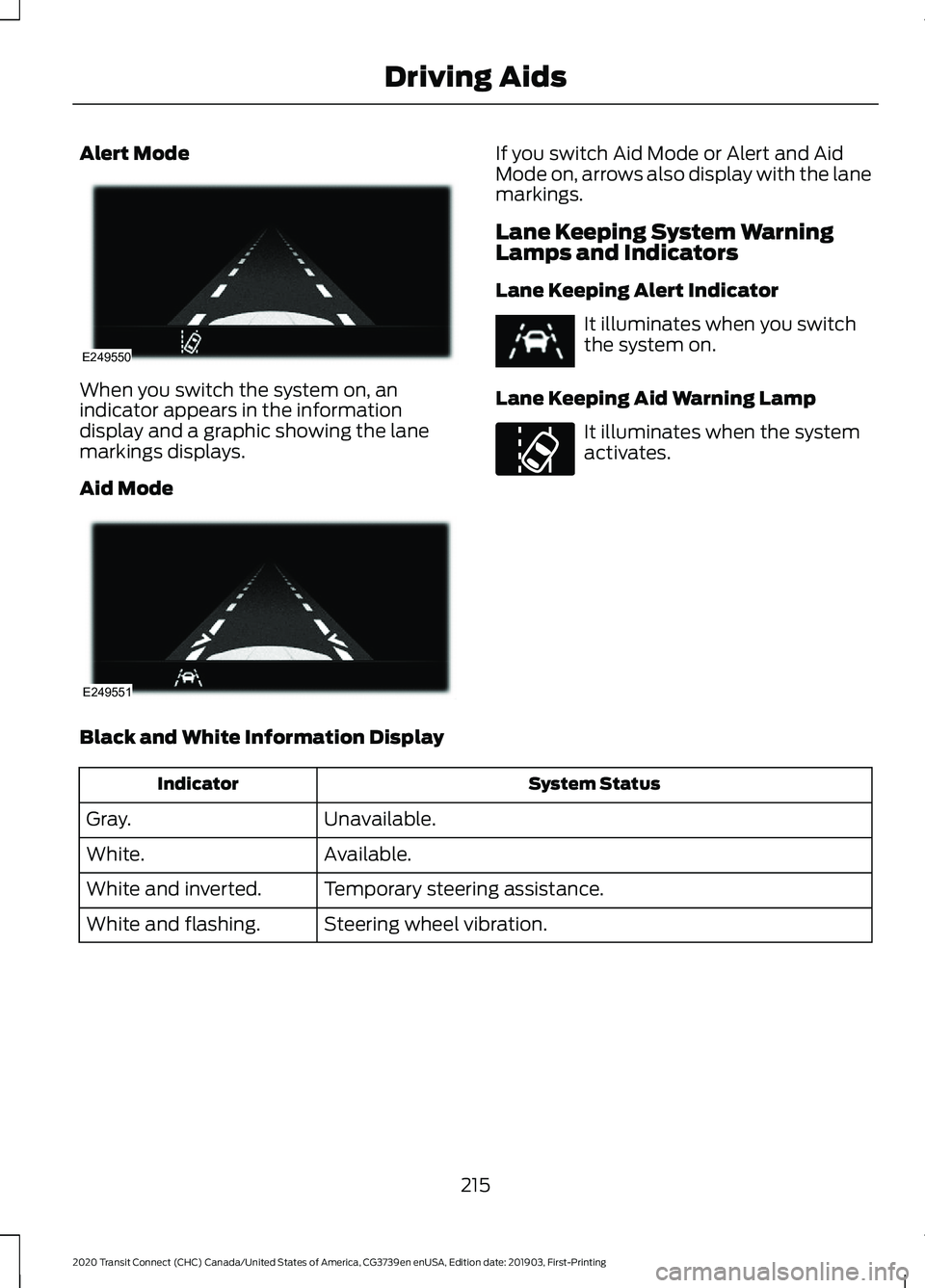
Alert Mode
When you switch the system on, an
indicator appears in the information
display and a graphic showing the lane
markings displays.
Aid Mode If you switch Aid Mode or Alert and Aid
Mode on, arrows also display with the lane
markings.
Lane Keeping System Warning
Lamps and Indicators
Lane Keeping Alert Indicator
It illuminates when you switch
the system on.
Lane Keeping Aid Warning Lamp It illuminates when the system
activates.
Black and White Information Display System Status
Indicator
Unavailable.
Gray.
Available.
White.
Temporary steering assistance.
White and inverted.
Steering wheel vibration.
White and flashing.
215
2020 Transit Connect (CHC) Canada/United States of America, CG3739en enUSA, Edition date: 201903, First-Printing Driving AidsE249550 E249551 E251020
Page 220 of 509
Color Information Display
System Status
Indicator
Unavailable.
Gray.
Available.
Green.
Temporary steering assistance.
Amber.
Steering wheel vibration.
Red.
Lane Keeping System Messages Action
Message
The system has detected a fault that requires service. Have
your vehicle checked as soon as possible.
Lane Keeping Sys.
Malfunction Service
Required
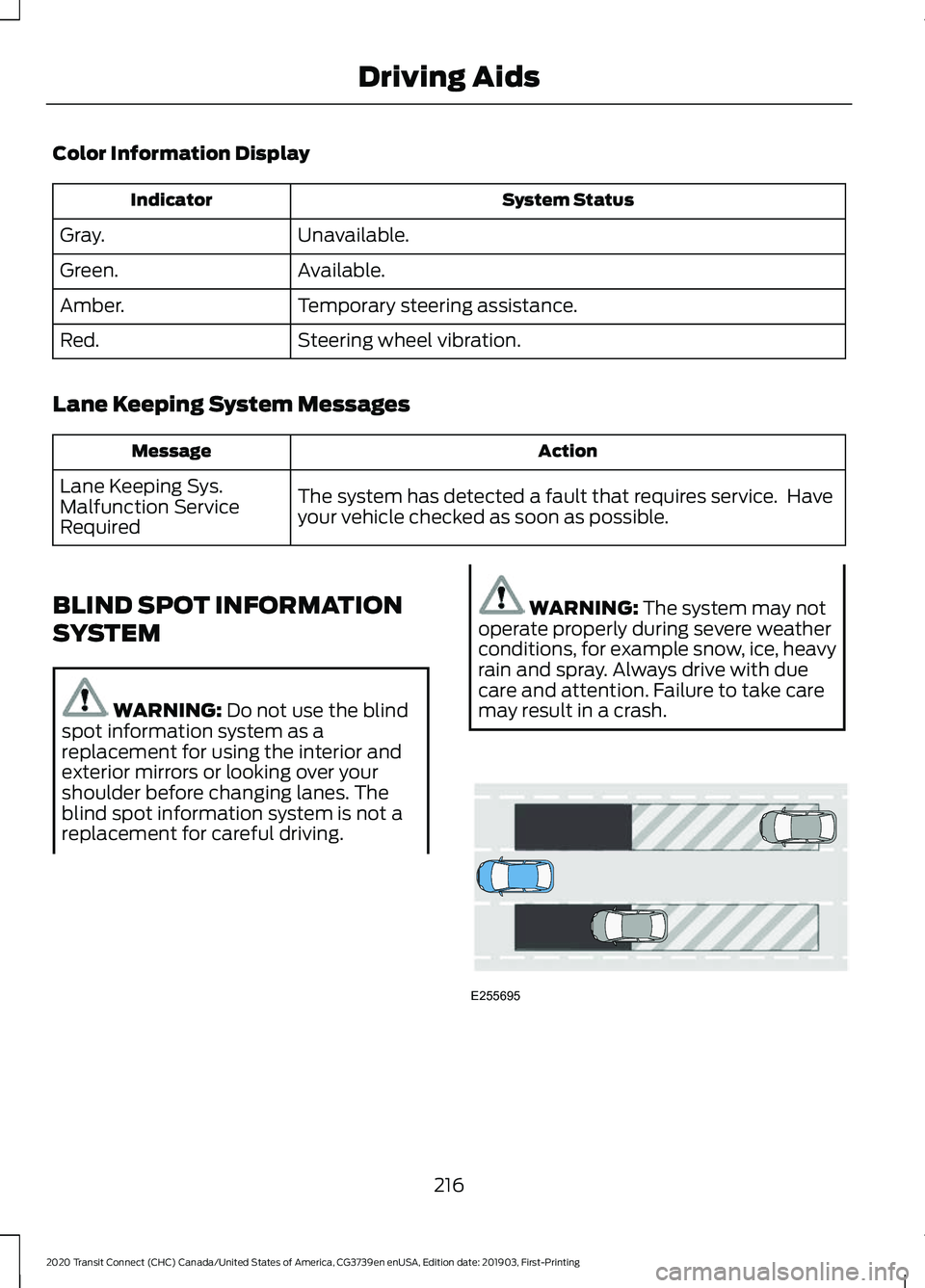
BLIND SPOT INFORMATION
SYSTEM WARNING: Do not use the blind
spot information system as a
replacement for using the interior and
exterior mirrors or looking over your
shoulder before changing lanes. The
blind spot information system is not a
replacement for careful driving. WARNING:
The system may not
operate properly during severe weather
conditions, for example snow, ice, heavy
rain and spray. Always drive with due
care and attention. Failure to take care
may result in a crash. 216
2020 Transit Connect (CHC) Canada/United States of America, CG3739en enUSA, Edition date: 201903, First-Printing Driving AidsE255695
Page 224 of 509
Zone coverage also decreases when
parking at narrow angles. The sensor on
the left-hand side is mostly obstructed and
zone coverage on that side is severely
reduced.
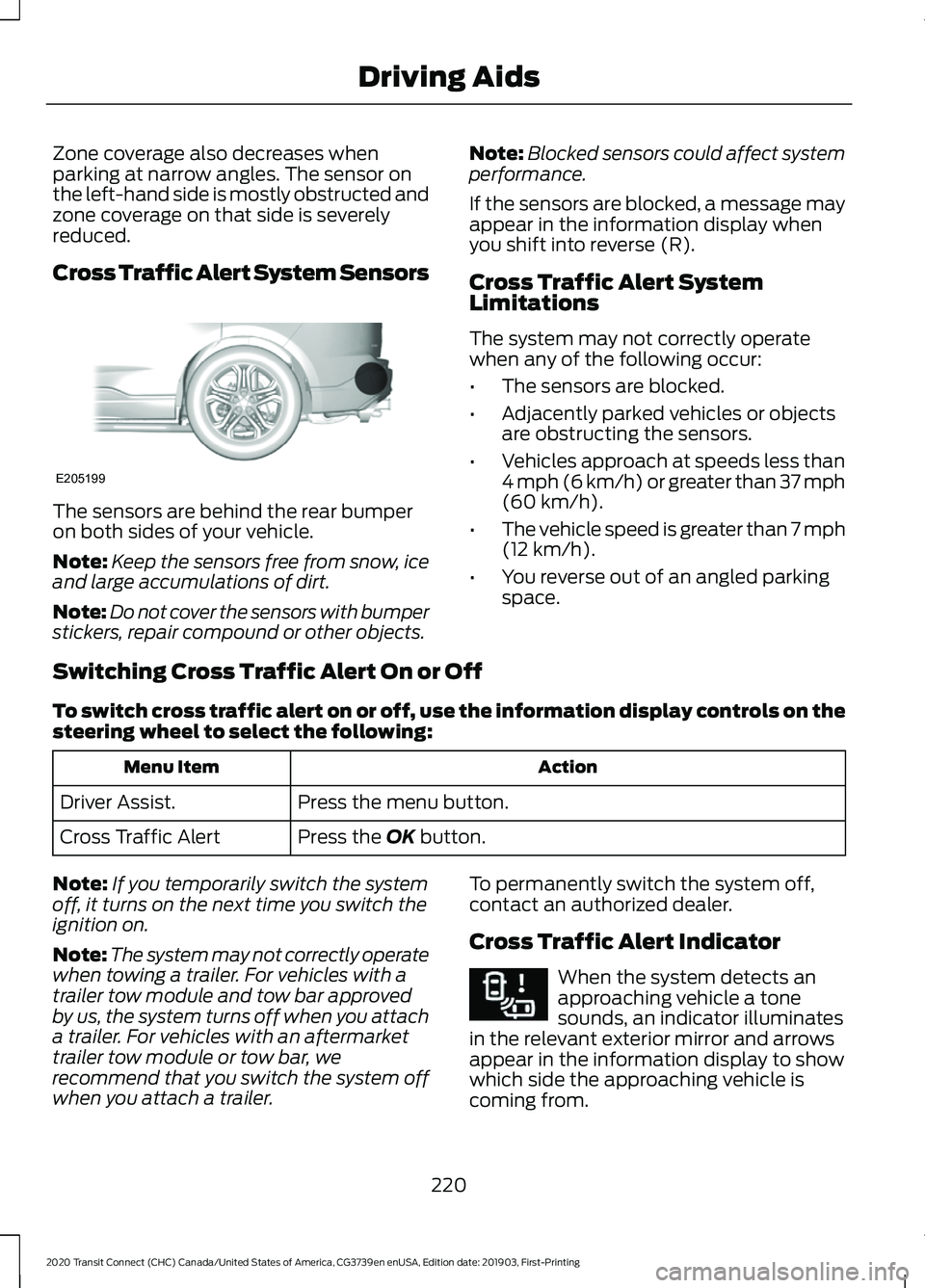
Cross Traffic Alert System Sensors
The sensors are behind the rear bumper
on both sides of your vehicle.
Note:
Keep the sensors free from snow, ice
and large accumulations of dirt.
Note: Do not cover the sensors with bumper
stickers, repair compound or other objects. Note:
Blocked sensors could affect system
performance.
If the sensors are blocked, a message may
appear in the information display when
you shift into reverse (R).
Cross Traffic Alert System
Limitations
The system may not correctly operate
when any of the following occur:
• The sensors are blocked.
• Adjacently parked vehicles or objects
are obstructing the sensors.
• Vehicles approach at speeds less than
4 mph (6 km/h) or greater than 37 mph
(60 km/h).
• The vehicle speed is greater than 7 mph
(12 km/h)
.
• You reverse out of an angled parking
space.
Switching Cross Traffic Alert On or Off
To switch cross traffic alert on or off, use the information display controls on the
steering wheel to select the following: Action
Menu Item
Press the menu button.
Driver Assist.
Press the
OK button.
Cross Traffic Alert
Note: If you temporarily switch the system
off, it turns on the next time you switch the
ignition on.
Note: The system may not correctly operate
when towing a trailer. For vehicles with a
trailer tow module and tow bar approved
by us, the system turns off when you attach
a trailer. For vehicles with an aftermarket
trailer tow module or tow bar, we
recommend that you switch the system off
when you attach a trailer. To permanently switch the system off,
contact an authorized dealer.
Cross Traffic Alert Indicator When the system detects an
approaching vehicle a tone
sounds, an indicator illuminates
in the relevant exterior mirror and arrows
appear in the information display to show
which side the approaching vehicle is
coming from.
220
2020 Transit Connect (CHC) Canada/United States of America, CG3739en enUSA, Edition date: 201903, First-Printing Driving AidsE205199 E268294
Page 226 of 509
To view the instantaneous efficiency level, use the information display controls
on the steering wheel to select the following:
Action
Menu Item
Press the menu button.
MyView
Press the OK button.
Eco Coach
Trip Summary
The calculated trip summary is shown as
four colored bars. The bars travel from left
to right as the calculated efficiency levels
increase. The bars indicate the average
efficiency level for acceleration,
deceleration, speed and gear shifting
during the total distance traveled by your
vehicle for the current trip. Note:
Vehicles with an automatic
transmission do not have a bar for gear
shifting.
To view the trip summary, use the information display controls on the steering
wheel to select the following: Action
Menu Item
Press the menu button.
MyView
Press the OK button. Press it again to view the trip summary.
Eco Coach
STEERING
Electric Power Steering
(If Equipped) WARNING:
The electric power
steering system has diagnostic checks
that continuously monitor the system. If
a fault is detected, a message displays
in the information display. Stop your
vehicle as soon as it is safe to do so.
Switch the ignition off. After at least 10 seconds, switch the ignition on and
watch the information display for a
steering system warning message. If a
steering system warning message
returns, have the system checked as
soon as possible.
WARNING: If the system detects
an error, you may not feel a difference in
the steering, however a serious condition
may exist. Have your vehicle checked as
soon as possible. Failure to do so may
result in loss of steering control.
Your vehicle has an electric power steering
system, there is no fluid reservoir, no
maintenance is required.
222
2020 Transit Connect (CHC) Canada/United States of America, CG3739en enUSA, Edition date: 201903, First-Printing Driving Aids
Page 229 of 509
To switch active braking on or off, use the information display controls on the
steering wheel to select the following:
Action
Menu Item
Press the menu button.
Driver Assist.
Press the OK button.
Pre-Collision Assist
Press the
OK button.
Active Braking
Distance Alert
A warning lamp illuminates if the distance
to the vehicle ahead is small. Note:
The warning lamp does not
illuminate if cruise control or adaptive cruise
control is active.
Distance Alert Sensitivity Settings
To adjust the distance alert sensitivity settings, use the information display
controls on the steering wheel to select the following: Action
Menu Item
Press the menu button.
Driver Assist.
Press the
OK button.
Pre-Collision Assist
Press the
OK button. Press the toggle button upward or
downward to choose your required setting. Press the OK
button.
Alert Sensitivity
Distance Indication
A graphical indication displays the time
gap to vehicles ahead of you traveling in
the same direction. Note:
The graphic does not display if you
switch on cruise control or adaptive cruise
control. Time Gap
Distance Gap
Distance Indic-
ator Color
System Sensit-
ivity
Vehicle Speed
Greater than 0.9seconds.
Greater than
82.0 ft (25 m)
.
Gray.
Normal.
62 mph
(100 km/h)
0.6-0.9
seconds.
55.8–82.0 ft
(17 –25 m)
Yellow.
Less than 0.6seconds.
Less than
55.8 ft (17 m)
.
Red.
225
2020 Transit Connect (CHC) Canada/United States of America, CG3739en enUSA, Edition date: 201903, First-Printing Driving Aids
Page 230 of 509
Switching Distance Indication On or Off
To switch distance indication on or off, use the information display controls on
the steering wheel to select the following:
Action
Menu Item
Press the menu button.
Driver Assist.
Press the OK button.
Pre-Collision Assist
Press the
OK button.
Distance Indication
Pre-Collision Assist System
Sensors
Vehicles without Adaptive Cruise
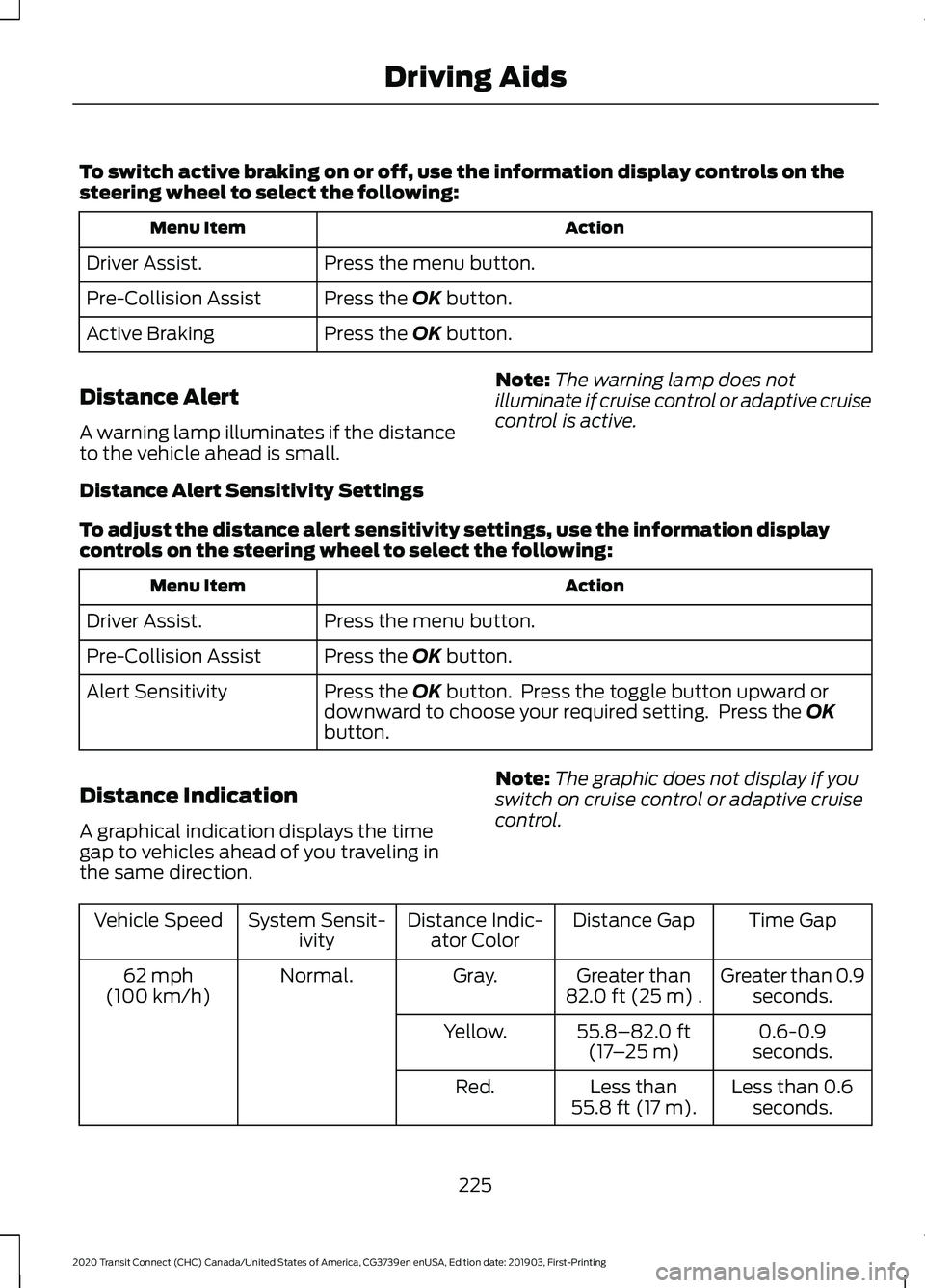
Control The camera is mounted behind the interior
mirror.
Note:
Keep the sensors free from snow, ice
and large accumulations of dirt.
Note: Do not clean the sensors with sharp
objects.
Note: If your vehicle sustains damage
leaving the sensors misaligned, this may
cause inaccurate measurements or false
alerts.
Blocked sensors could affect system
accuracy. A message may appear in the
information display. Vehicles with Adaptive Cruise Control
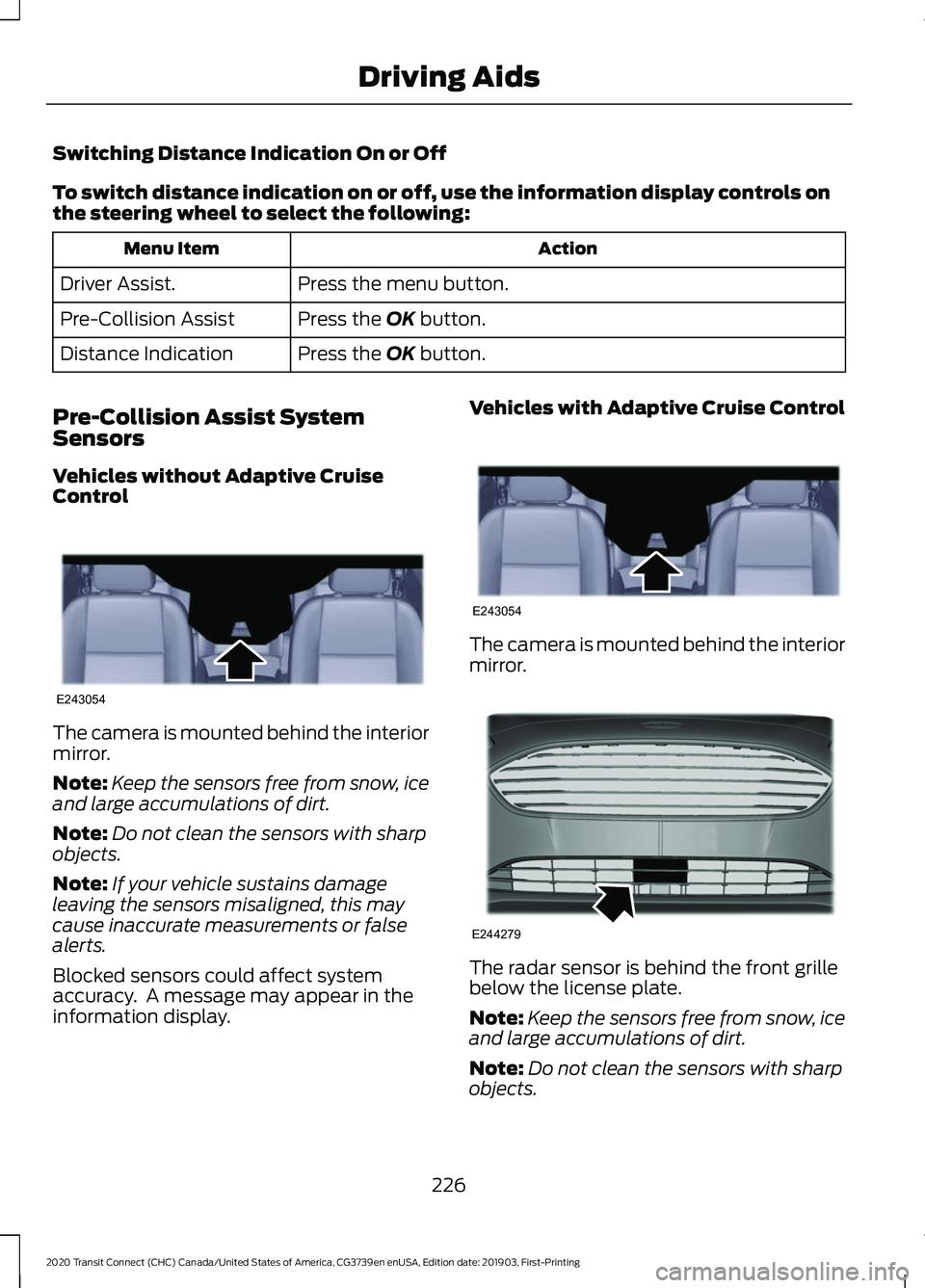
The camera is mounted behind the interior
mirror.
The radar sensor is behind the front grille
below the license plate.
Note:
Keep the sensors free from snow, ice
and large accumulations of dirt.
Note: Do not clean the sensors with sharp
objects.
226
2020 Transit Connect (CHC) Canada/United States of America, CG3739en enUSA, Edition date: 201903, First-Printing Driving AidsE243054 E243054 E244279