radio GENESIS G80 2021 Premium Navigation Manual
[x] Cancel search | Manufacturer: GENESIS, Model Year: 2021, Model line: G80, Model: GENESIS G80 2021Pages: 298, PDF Size: 12.97 MB
Page 137 of 298
![GENESIS G80 2021 Premium Navigation Manual 137
Listening to SiriusXM™ Radio
program guide
You can check the program information and the schedules of broadcast channels.
1. Press [Menu] > [Program Guide] on the SiriusXM radio screen.
2. Selec](/img/46/35613/w960_35613-136.png "GENESIS G80 2021 Premium Navigation Manual 137
Listening to SiriusXM™ Radio
program guide
You can check the program information and the schedules of broadcast channels.
1. Press [Menu] > [Program Guide] on the SiriusXM radio screen.
2. Selec")
137
Listening to SiriusXM™ Radio
program guide
You can check the program information and the schedules of broadcast channels.
1. Press [Menu] > [Program Guide] on the SiriusXM radio screen.
2. Select the desired broadcast channel.
䠐When you select the on-air-channel:
䠐When you select the other broadcast except the on-air-channel:
3. Select the desired item.
䠐Press [Listen] to listen to the on-air-channel.
䠐Press [Remind Me] to reserve the broadcast.
䠐Press [Close] to close the function.
Page 138 of 298

138
Listening to SiriusXM™ Radio
feaTured f aV oriTes
Featured favorites allows SiriusXM to broadcast additional presets.
Multiple sets featured favorites data can be broadcast by SiriusXM and can change from time
to time.
1. Press [Menu] > [More Features] > [Featured Favorites] on the SiriusXM radio screen.
2. Select the desired item.
䠐Example 1: “Martha’s Favorites” may represent Martha Stuart’s favorites presets on her
radio.
䠐Example 2: During holidays, “Holiday Music” may represent all the SiriusXM channels
that are playing the holiday music for easy access by users.
Page 139 of 298
![GENESIS G80 2021 Premium Navigation Manual 139
Listening to SiriusXM™ Radio
subscripTion sTaTus
This feature is used to check the subscription status of SiriusXM.
1. Press [Menu] > [More Features] > [Subscription Status] on the SiriusXM radi](/img/46/35613/w960_35613-138.png "GENESIS G80 2021 Premium Navigation Manual 139
Listening to SiriusXM™ Radio
subscripTion sTaTus
This feature is used to check the subscription status of SiriusXM.
1. Press [Menu] > [More Features] > [Subscription Status] on the SiriusXM radi")
139
Listening to SiriusXM™ Radio
subscripTion sTaTus
This feature is used to check the subscription status of SiriusXM.
1. Press [Menu] > [More Features] > [Subscription Status] on the SiriusXM radio screen.
2. Press [OK]. If you have not subscribed to the SiriusXM service, press [Call] to enable
services. It is available only when your phone is connected via Bluetooth.
Page 181 of 298
![GENESIS G80 2021 Premium Navigation Manual 181
Sound settings
radio noise conTrol
Selects the radio noise control option for better sound.
1. On the sound settings screen, press [Radio Noise Control].
2. Select the desired noise reduction opti](/img/46/35613/w960_35613-180.png "GENESIS G80 2021 Premium Navigation Manual 181
Sound settings
radio noise conTrol
Selects the radio noise control option for better sound.
1. On the sound settings screen, press [Radio Noise Control].
2. Select the desired noise reduction opti")
181
Sound settings
radio noise conTrol
Selects the radio noise control option for better sound.
1. On the sound settings screen, press [Radio Noise Control].
2. Select the desired noise reduction option.
Page 217 of 298
![GENESIS G80 2021 Premium Navigation Manual 217
Button/TouchPad settings
buTTon/Touchpad seTTings
The images displayed on this system may differ from actual ones.
Press [Setup] > [Button/Touch Pad] on the home screen.
Button/touch pad settings](/img/46/35613/w960_35613-216.png "GENESIS G80 2021 Premium Navigation Manual 217
Button/TouchPad settings
buTTon/Touchpad seTTings
The images displayed on this system may differ from actual ones.
Press [Setup] > [Button/Touch Pad] on the home screen.
Button/touch pad settings")
217
Button/TouchPad settings
buTTon/Touchpad seTTings
The images displayed on this system may differ from actual ones.
Press [Setup] > [Button/Touch Pad] on the home screen.
Button/touch pad settings screen is displayed.
cusTom buTTon K (bY radio)/cus Tom buTTonL
(sTeering wheel)
This menu is used to select a function you want to execute with the custom button.
1. On the button/touch pad settings screen, press [Custom Button K (by Radio)]/[Custom
Button L (Steering Wheel)].
2. Press the desired item.
Page 219 of 298
![GENESIS G80 2021 Premium Navigation Manual 219
Button/TouchPad settings
fronT Touchpad hapTics
You can adjust the haptic intensity when pressing the front touch pad.
1. On the button/touch pad settings screen, Press [Front Touchpad Haptics].
2](/img/46/35613/w960_35613-218.png "GENESIS G80 2021 Premium Navigation Manual 219
Button/TouchPad settings
fronT Touchpad hapTics
You can adjust the haptic intensity when pressing the front touch pad.
1. On the button/touch pad settings screen, Press [Front Touchpad Haptics].
2")
219
Button/TouchPad settings
fronT Touchpad hapTics
You can adjust the haptic intensity when pressing the front touch pad.
1. On the button/touch pad settings screen, Press [Front Touchpad Haptics].
2. Press a desired item.
genesis conTroller: radio
Sets how to play a selection on the radio playing screen when using the rotary controller.
1. On the button/touch pad settings screen, press the [Genesis Controller: Radio].
2. Press a desired item.
Page 246 of 298
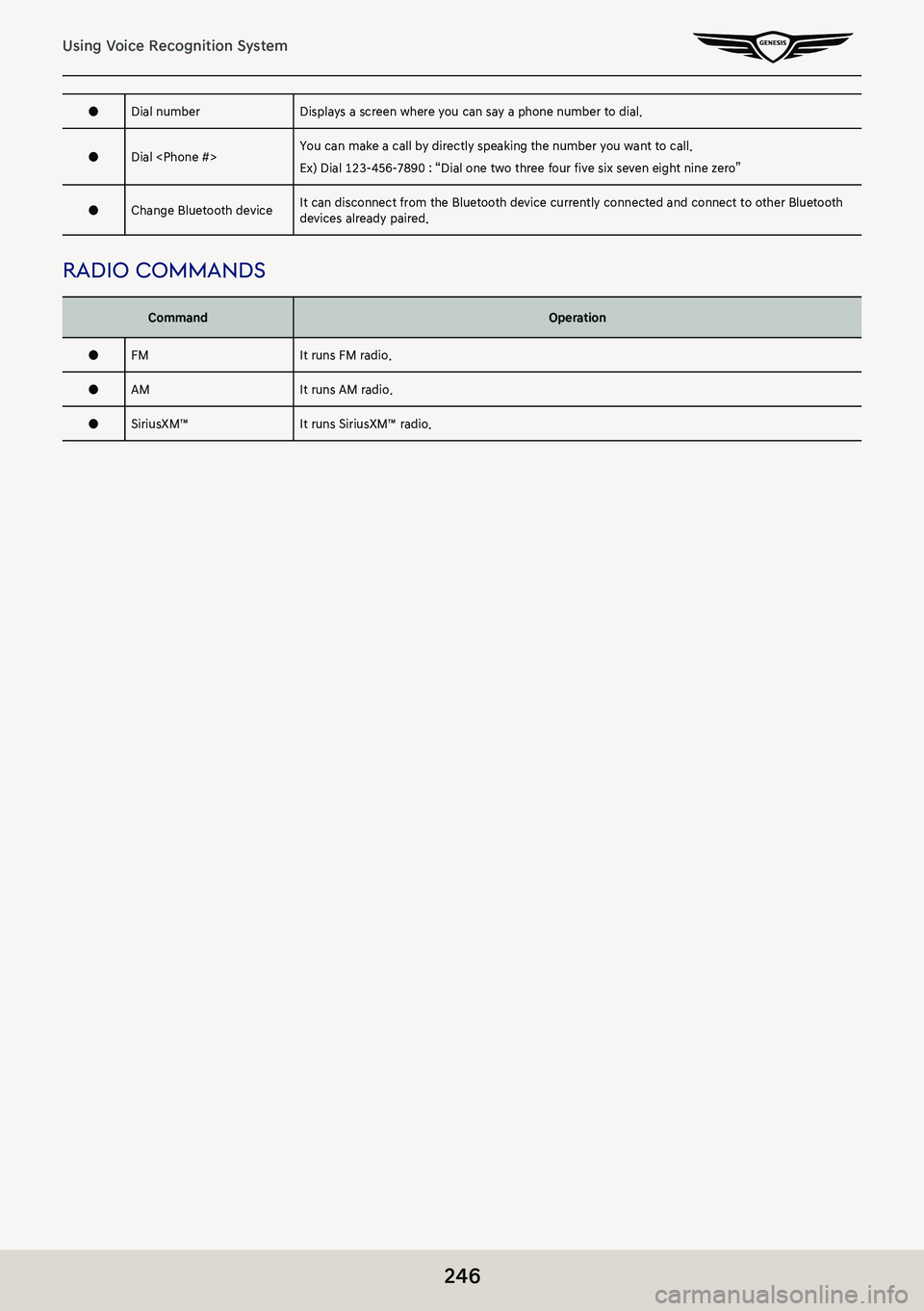
246
Using Voice Recognition System
●Dial numberDisplays a screen where you can say a phone number to dial.
●Dial
Ex) Dial 123-456-7890 : “Dial one two three four five six seven eight nine zero”
●Change Bluetooth deviceIt can disconnect from the Bluetooth device currently connected and connect to other Bluetooth devices already paired.
radio commands
CommandOperation
●FMIt runs FM radio.
●AMIt runs AM radio.
●SiriusXM™It runs SiriusXM™ radio.
Page 256 of 298

256
Using Voice Recognition System
Rutter’sGameStopCato
Sunoco CanadaRadioshackChico’s
TravelCenters of AmericaSprintChildren’s Place
WawaStaplesDressbarn
Cumberland FarmsT-MobileFamous Footwear
Hess ExpressOfficeMaxFinish Line
Mac’sUS CellularFoot Locker
Mini MartVerizonGAP
Quick StopBoost MobileGymboree
Valero Corner StoreCricket WirelessHot Topic
Shopping CentersmetroPCSJourneys
Home Specialty StoresJustice
ABC Fine Wine & SpiritsLane Bryant
Ace HardwareMen’s Wearhouse
US BankClaire’sOld Navy
Grocery StoresCostcoPacSun
Giant EagleHome DepotRainbowshops
Giant Food StoresLowe’srue21
IGAMerle NormanVictoria’s Secret
Ingles MarketsPETCOShoe Stores
Food LionPETSMARTPayless Shoesource
KmartSally Beauty SupplyGeneral Merchandise
KrogerSHERWIN-WILLIAMS
Martin’s Food MarketsTrue Value
Page 277 of 298
277
Precautions for Safety
WARNING:
䠐Don’t use a cellular phone when you are driving. You must stop at a safe place to use a
cellular phone.
䠐The use of the navigation radio by no means relieves the driver of his/her responsibilities.
The highway code must always be observed. Always observe the current traffic situation.
䠐The applicable traffic regulations and the prevailing traffic situation always take precedence
over the instructions issued by the navigation system if they contradict one another.
䠐For traffic safety reasons, use the navigation system menus only before starting a journey or
when the vehicle is stationary.
䠐In certain areas, one-way streets and turn off and entry prohibitions (e.g. pedestrian zones)
are not recorded. In areas such as these the navigation system will issue a warning. Pay
particular attention to one-way streets and turn off and entry restrictions.
䠐The navigation system does not take the relative safety of the suggested routes into
consideration. Road blocks, building sites, height or weight restrictions, traffic or weather
conditions or other influences which affect the route safety or travel time are not taken into
consideration for the suggested routes. Use your own discretion in order to decide on the
suitability of the suggested routes.
䠐The current legal road traffic speed limit always takes priority over the values saved on
the data. It is impossible to provide an assurance that the speed values of the navigation
system will always match those of the current traffic regulations in every situation.
䠐Always observe the applicable legal speed limits the traffic regulations. The vehicle
speedometer must always be given priority for display of the vehicle speed.
䠐Do not rely exclusively on the navigation system when attempting to locate an emergency
service (hospital, fire service etc.). It cannot be guaranteed that all available emergency
services in your vicinity are saved in the database. Use your own discretion and abilities to
secure help in such situations.
Page 279 of 298
279
Precautions for Safety
fcc noTice (for usa)
This equipment has been tested and found to comply with the limits for a Class B digital
device, pursuant to Part 15 of the FCC Rules. These limits are designed to provide reasonable
protection against harmful interference in a residential installation. This equipment generates,
uses, and can radiate radio frequency energy and, if not installed and used in accordance with
the instructions, may cause harmful interference to radio communications. However, there
is no guarantee that interference will not occur in a particular installation. If this equipment
does cause harmful interference to radio or television reception, which can be determined by
turning the equipment off and on, the user is encouraged to try to correct the interference by
one or more of the following measures:
- Reorient or relocate the receiving antenna.
- Increase the separation between the equipment and the receiver.
- Connect the equipment to an outlet on a circuit different from that to which the receiver is
connected.
- Consult the dealer or an experienced radio/TV technician for help.
This device complies with part 15 of the FCC Rules. Operation is subject to the following two
conditions: (1) this device may not cause harmful interference and (2) this device must accept
any interference received, including interference that may cause undesired operation. Any
changes or modifications in construction of this device which are not expressly approved by
the party responsible for compliance could void the user’s authority to operate the equipment.
fcc radio frequenc Y inTerference requiremenT s (for unii deVices)
High power radars are allocated as primary users of the 5.25 to 5.35 GHz and 5.65 to 5.85
GHz bands. These radar stations can cause interference with and/or damage this device. This
device cannot be co-located with any other transmitter.
fcc rf radiaTion exposure sT aTemenT (f or haVing wireless func Tion
(wlan, blueTooTh, . . .))
This equipment complies with FCC radiation exposure limits set forth for an uncontrolled
environment. This transmitter must not be co-located or operating in conjunction with any
other antenna or transmitter.
This equipment should be installed and operated with minimum distance 20 cm (7.8 inches)
between the antenna and your body. Users must follow the specific operating instructions for
satisfying RF exposure compliance.