low GENESIS G90 2021 Quick Reference Guide
[x] Cancel search | Manufacturer: GENESIS, Model Year: 2021, Model line: G90, Model: GENESIS G90 2021Pages: 31, PDF Size: 8.91 MB
Page 16 of 31
Quick Reference Guide I 2625 I Quick Reference Guide
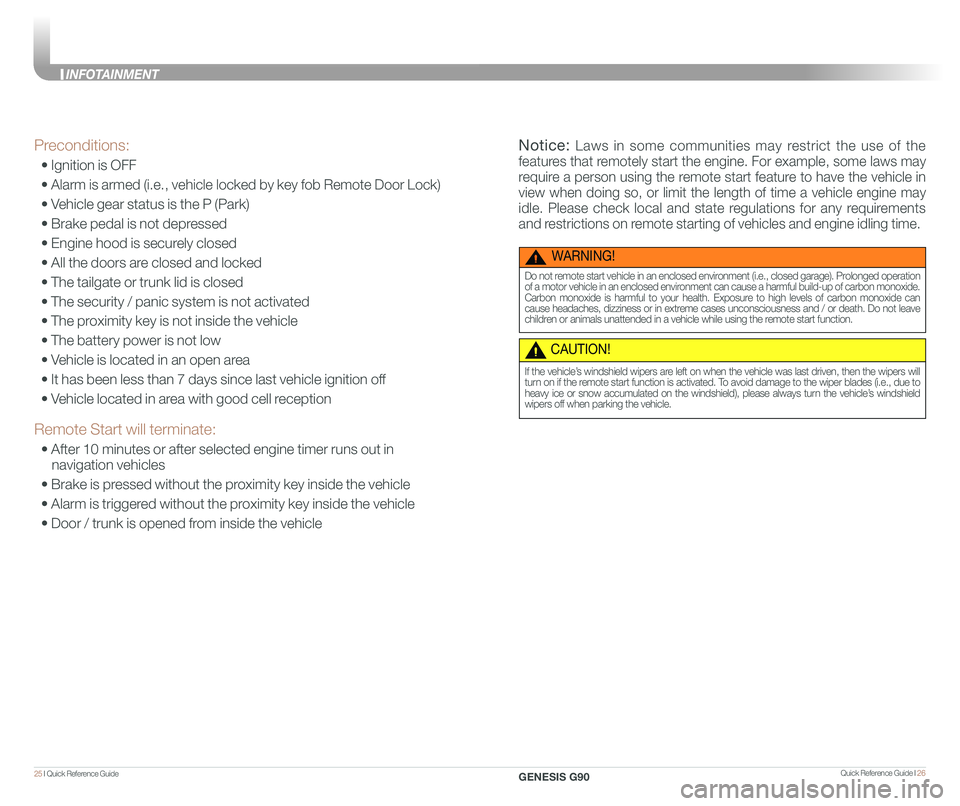
Preconditions:
• Ignition is OFF
• Alarm is armed (i.e., vehicle locked by key fob Remote Door Lock)
• Vehicle gear status is the P (Park)
• Brake pedal is not depressed
• Engine hood is securely closed
• All the doors are closed and locked
• The tailgate or trunk lid is closed
• The security / panic system is not activated
• The proximity key is not inside the vehicle
• The battery power is not low
• Vehicle is located in an open area
• It has been less than 7 days since last vehicle ignition off
• Vehicle located in area with good cell reception
Remote Start will terminate:
• After 10 minutes or after selected engine timer runs out in
navigation vehicles
• Brake is pressed without the proximity key inside the vehicle
• Alarm is triggered without the proximity key inside the vehicle
• Door / trunk is opened from inside the vehicle
WARNING!
Do not remote start vehicle in an enclosed environment (i.e., closed garage). Prolonged operation of a motor vehicle in an enclosed environment can cause a harmful build-up of carbon monoxide. Carbon monoxide is harmful to your health. Exposure to high levels of carbon monoxide can cause headaches, dizziness or in extreme cases unconsciousness and / or death. Do not leave children or animals unattended in a vehicle while using the remote start function.
CAUTION!
If the vehicle’s windshield wipers are left on when the vehicle was last driven, then the wipers will turn on if the remote start function is activated. To avoid damage to the wiper blades (i.e., due to heavy ice or snow accumulated on the windshield), please always turn the vehicle’s windshield wipers off when parking the vehicle.
Notice: Laws in some communities may restrict the use of the
features that remotely start the engine. For example, some laws may
require a person using the remote start feature to have the vehicle in
view when doing so, or limit the length of time a vehicle engine may
idle. Please check local and state regulations for any requirements
and restrictions on remote starting of vehicles and engine idling time.
GENESIS G90
INFOTAINMENT
Page 18 of 31
Quick Reference Guide I 3029 I Quick Reference Guide
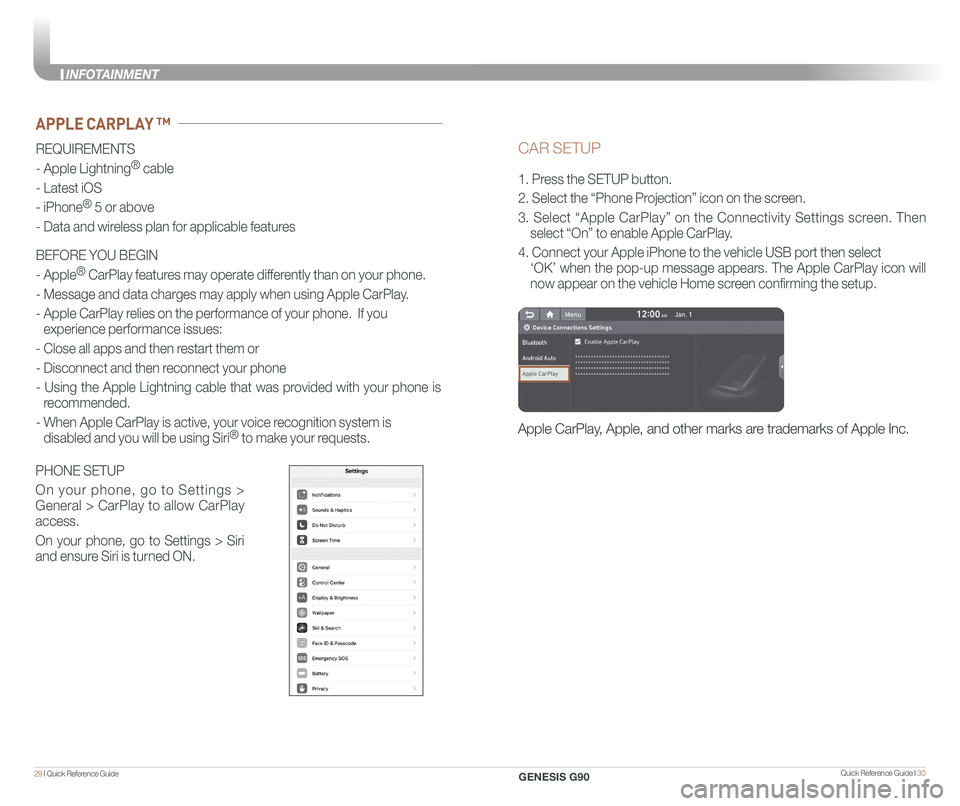
CAR SETUP
1. Press the SETUP button.
2. Select the “Phone Projection” icon on the screen.
3. Select “Apple CarPlay” on the Connectivity Settings screen. Then
select “On” to enable Apple CarPlay.
4. Connect your Apple iPhone to the vehicle USB port then select
‘OK’ when the pop-up message appears. The Apple CarPlay icon will \
now appear on the vehicle Home screen confirming the setup.
Apple CarPlay, Apple, and other marks are trademarks of Apple Inc.
REQUIREMENTS
- Apple Lightning® cable
- Latest iOS
- iPhone® 5 or above
- Data and wireless plan for applicable features
BEFORE YOU BEGIN
- Apple® CarPlay features may operate differently than on your phone.
- Message and data charges may apply when using Apple CarPlay.
- Apple CarPlay relies on the performance of your phone. If you
experience performance issues:
- Close all apps and then restart them or
- Disconnect and then reconnect your phone
- Using the Apple Lightning cable that was provided with your phone is
recommended.
- When Apple CarPlay is active, your voice recognition system is
disabled and you will be using Siri® to make your requests.
APPLE CARPLAY ™
PHONE SETUP
On your phone, go to Settings >
General > CarPlay to allow CarPlay
access.
On your phone, go to Settings > Siri
and ensure Siri is turned ON.
GENESIS G90
INFOT
Page 19 of 31
Quick Reference Guide I 3231 I Quick Reference Guide
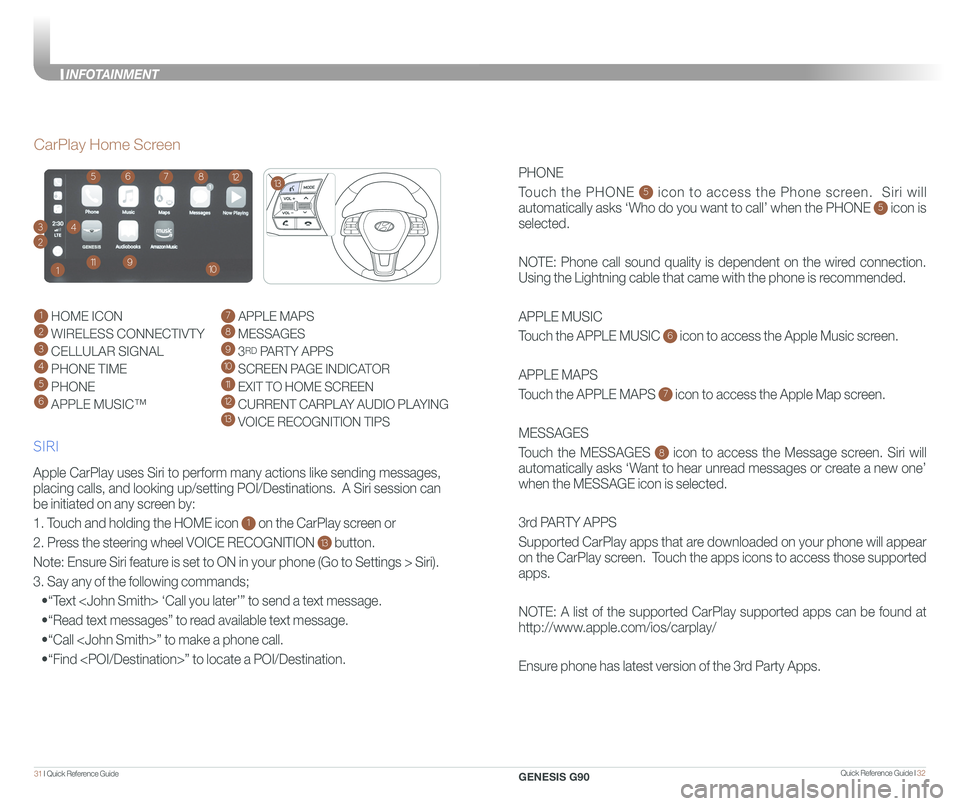
PHONE
Touch the PHONE 5 icon to access the Phone screen. Siri will
automatically asks ‘Who do you want to call’ when the PHONE 5 icon is
selected.
NOTE: Phone call sound quality is dependent on the wired connection.
Using the Lightning cable that came with the phone is recommended.
APPLE MUSIC
Touch the APPLE MUSIC 6 icon to access the Apple Music screen.
APPLE MAPS
Touch the APPLE MAPS 7 icon to access the Apple Map screen.
MESSAGES
Touch the MESSAGES 8 icon to access the Message screen. Siri will
automatically asks ‘Want to hear unread messages or create a new one’
when the MESSAGE icon is selected.
3rd PARTY APPS
Supported CarPlay apps that are downloaded on your phone will appear
on the CarPlay screen. Touch the apps icons to access those supported
apps.
NOTE: A list of the supported CarPlay supported apps can be found at
http://www.apple.com/ios/carplay/
Ensure phone has latest version of the 3rd Party Apps.
Apple CarPlay uses Siri to perform many actions like sending messages,
placing calls, and looking up/setting POI/Destinations. A Siri session \
can
be initiated on any screen by:
1. Touch and holding the HOME icon 1 on the CarPlay screen or
2. Press the steering wheel VOICE RECOGNITION 13 button.
Note: Ensure Siri feature is set to ON in your phone (Go to Settings > Siri).
3. Say any of the following commands;
•“Text
•“Read text messages” to read available text message.
•“Call
•“Find
CarPlay Home Screen
SIRI
1 HOME ICON
2 WIRELESS CONNECTIVTY
3 CELLULAR SIGNAL
4 PHONE TIME5 PHONE
6 APPLE MUSIC™
7 APPLE MAPS
8 MESSAGES
9 3RD PARTY APPS
10 SCREEN PAGE INDICATOR
11 EXIT TO HOME SCREEN12 CURRENT CARPLAY AUDIO PLAYING13 VOICE RECOGNITION TIPS
13
2
34
1
6578
91011
12
GENESIS G90
INFOT
Page 20 of 31
Quick Reference Guide I 3433 I Quick Reference Guide
GENESIS
GENESIS23
1
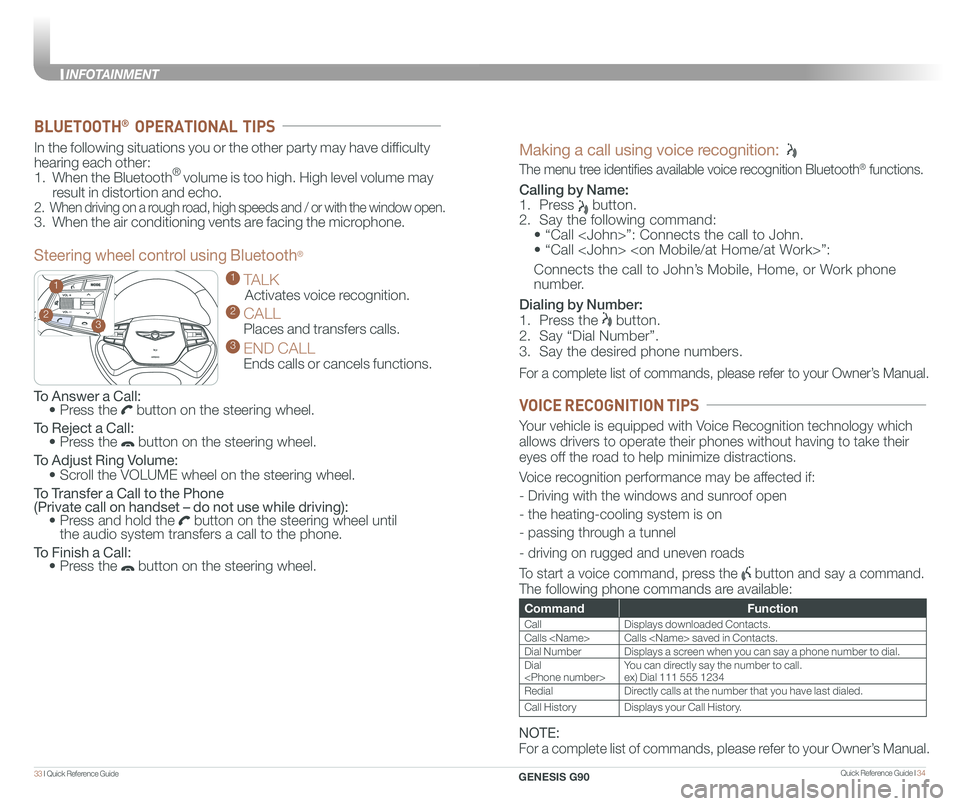
To Answer a Call: • Press the button on the steering wheel.
To Reject a Call: • Press the button on the steering wheel.
To Adjust Ring Volume:
• Scroll the VOLUME wheel on the steering wheel.
To Transfer a Call to the Phone (Private call on handset – do not use while driving): • Press and hold the button on the steering wheel until the audio system transfers a call to the phone.
To Finish a Call: • Press the button on the steering wheel.
In the following situations you or the other party may have difficulty
hearing each other:
1. When the Bluetooth® volume is too high. High level volume may
result in distortion and echo.
2. When driving on a rough road, high speeds and / or with the window open.
3. When the air conditioning vents are facing the microphone.
Steering wheel control using Bluetooth®
1 TALK
Activates voice recognition.
2 CALL
Places and transfers calls.
3 END CALL
Ends calls or cancels functions.
BLUETOOTH® OPERATIONAL TIPS
Making a call using voice recognition:
The menu tree identifies available voice recognition Bluetooth® functions.
Calling by Name:
1. Press button.
2. Say the following command:
• “Call
• “ Call
Connects the call to John’s Mobile, Home, or Work phone
number.
Dialing by Number:
1. Press the button.
2. Say “Dial Number”.
3. Say the desired phone numbers.
For a complete list of commands, please refer to your Owner’s Manual.
CommandFunction
CallDisplays downloaded Contacts.
Calls
Dial NumberDisplays a screen when you can say a phone number to dial.
Dial
RedialDirectly calls at the number that you have last dialed.
Call HistoryDisplays your Call History.
Your vehicle is equipped with Voice Recognition technology which
allows drivers to operate their phones without having to take their
eyes off the road to help minimize distractions.
Voice recognition performance may be affected if:
- Driving with the windows and sunroof open
- the heating-cooling system is on
- passing through a tunnel
- driving on rugged and uneven roads
To start a voice command, press the button and say a command.
The following phone commands are available:
VOICE RECOGNITION TIPS
NOTE:
For a complete list of commands, please refer to your Owner’s Manual.
GENESIS G90
INFOTAINMENT
Page 25 of 31
![GENESIS G90 2021 Quick Reference Guide Quick Reference Guide I 4443 I Quick Reference Guide
AIRBAG
GENESIS
PADDLE SHIFTER (Manual Mode)
The paddle shifter is available
when the shift lever is in the D
(Drive) position.
Press the [+] or](/img/46/35621/w960_35621-24.png "GENESIS G90 2021 Quick Reference Guide Quick Reference Guide I 4443 I Quick Reference Guide
AIRBAG
GENESIS
PADDLE SHIFTER (Manual Mode)
The paddle shifter is available
when the shift lever is in the D
(Drive) position.
Press the [+] or")
Quick Reference Guide I 4443 I Quick Reference Guide
AIRBAG
GENESIS
PADDLE SHIFTER (Manual Mode)
The paddle shifter is available
when the shift lever is in the D
(Drive) position.
Press the [+] or [-] paddle
shifter once to shift up or
down one gear.
Press (-) to
downshift
Press (+) to
upshift
AIRBAG
GENESIS
AIRBAG
GENESIS
NOTE:
To disengage Manual mode (and engage Auto mode), press and
hold [+] paddle shifter.
Lane Keeping
Assist detects
lane markers on
the road, and
assists the
driver's steering
to help keep the
vehicle
between the lanes. LKA will not
operate properly if the lane line is
not clear, sharp bend in the road,
or in heavy fog.
To activate, press the Lane Safety
Button with the Engine Start/Stop
button in the ON position. LKA
operates only when the vehicle
speed is between 40 mph and
110 mph.
Forward Collision-Avoidance Assist is
designed to help detect and monitor the
vehicle ahead or help detect a pedestrian
or cyclist in the roadway through camera
recognition and radar signals to warn the
driver that a collision is imminent, and if
necessary, apply emergency braking.
FORWARD COLLISION-AVOIDANCE ASSIST (FCA)
LANE KEEPING ASSIST (LKA)
NOTE: LKA settings can be activated
from the settings menu on the AVN
screen by the following procedure:
1. Set the Engine Start/Stop button to
the ON or START position.
2. Select 'Setup → Vehicle Settings →
Driver Assistance → Lane Safety →
Lane Keeping Assist in the AVN
system screen.
3. Select Lane Keeping Assist, Lane
Departure Warning, or OFF.
Scan to view a video of:Lane Keep Assist (LKA)
NOTE: Warning Timing, Warning Volume, and Haptic Warning
levels are all adjustable. Please refer to your Owner’s Manual for
further information.
Forward Collision-Avoidance Assist can be activated from the Settings
menu in the AVN system screen by following the procedure:
1. Set the Engine Start/Stop button to the ON or START position.
2. Select ‘Setup → Vehicle Settings → Driver Assistance → Forward
Safety → Active Assist / Warning Only / Off’ in the AVN system screen.
ELECTRONIC STABILITY CONTROL (ESC)
The ESC system is an electronic
system designed to help the driver
maintain vehicle control under
adverse conditions.
Press to turn ESC on or off.
NOTE: When lane change is occurred without turn signal, LKA will try to
keep the lane with warning sound.
Warning sound can be adjustable in USM, if it is felt loud or whispery.
GENESIS G90
DRIVING
Page 26 of 31
Quick Reference Guide I 4645 I Quick Reference Guide
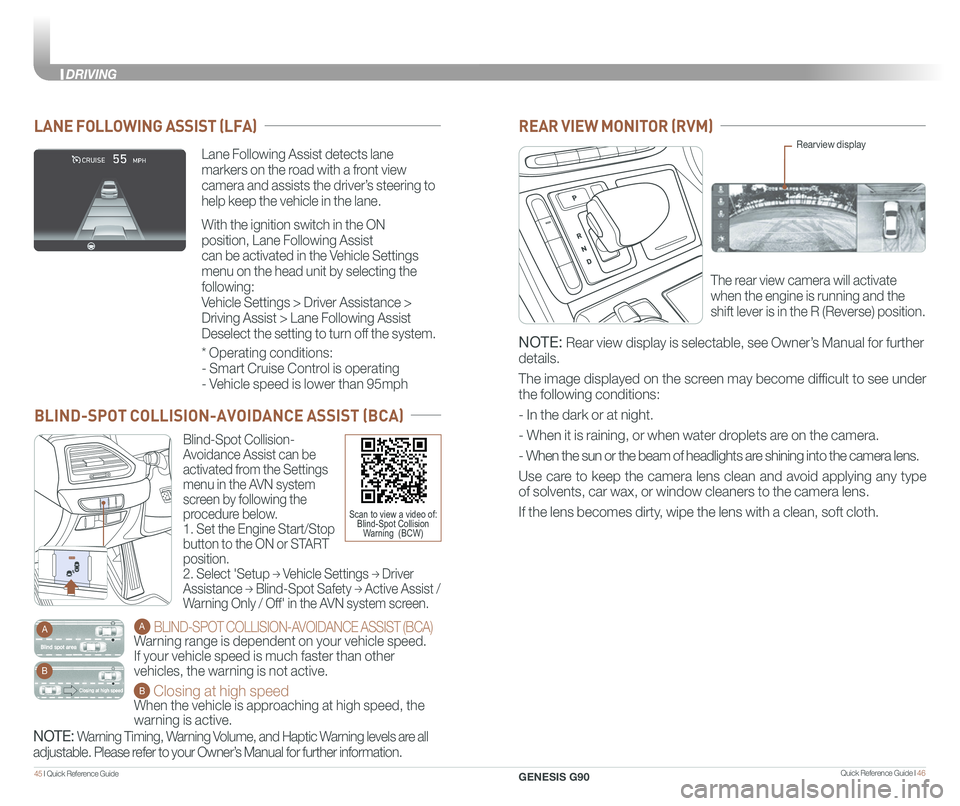
Blind-Spot Collision-
Avoidance Assist can be
activated from the Settings
menu in the AVN system
screen by following the
procedure below.
1. Set the Engine Start/Stop
button to the ON or START
position.
2. Select 'Setup → Vehicle Settings → Driver
Assistance → Blind-Spot Safety → Active Assist /
Warning Only / Off' in the AVN system screen.
A BLIND-SPOT COLLISION-AVOIDANCE ASSIST (BCA)
Warning range is dependent on your vehicle speed.
If your vehicle speed is much faster than other
vehicles, the warning is not active.
B Closing at high speed
When the vehicle is approaching at high speed, the
warning is active.
A
B
BLIND-SPOT COLLISION-AVOIDANCE ASSIST (BCA)
Scan to view a video of:Blind-Spot CollisionWarning (BCW)
REAR VIEW MONITOR (RVM)
The rear view camera will activate
when the engine is running and the
shift lever is in the R (Reverse) position.
Rearview display
NOTE: Rear view display is selectable, see Owner’s Manual for further
details.
The image displayed on the screen may become difficult to see under
the following conditions:
- In the dark or at night.
- When it is raining, or when water droplets are on the camera.
- When the sun or the beam of headlights are shining into the camera lens.
Use care to keep the camera lens clean and avoid applying any type
of solvents, car wax, or window cleaners to the camera lens.
If the lens becomes dirty, wipe the lens with a clean, soft cloth.
NOTE: Warning Timing, Warning Volume, and Haptic Warning levels are all
adjustable. Please refer to your Owner’s Manual for further information.
Lane Following Assist detects lane
markers on the road with a front view
camera and assists the driver’s steering to
help keep the vehicle in the lane.
With the ignition switch in the ON
position, Lane Following Assist
can be activated in the Vehicle Settings
menu on the head unit by selecting the
following:
Vehicle Settings > Driver Assistance >
Driving Assist > Lane Following Assist
Deselect the setting to turn off the system.
LANE FOLLOWING ASSIST (LFA)
* Operating conditions:
- Smart Cruise Control is operating
- Vehicle speed is lower than 95mph
GENESIS G90
DRIVING
Page 27 of 31
Quick Reference Guide I 4847 I Quick Reference Guide
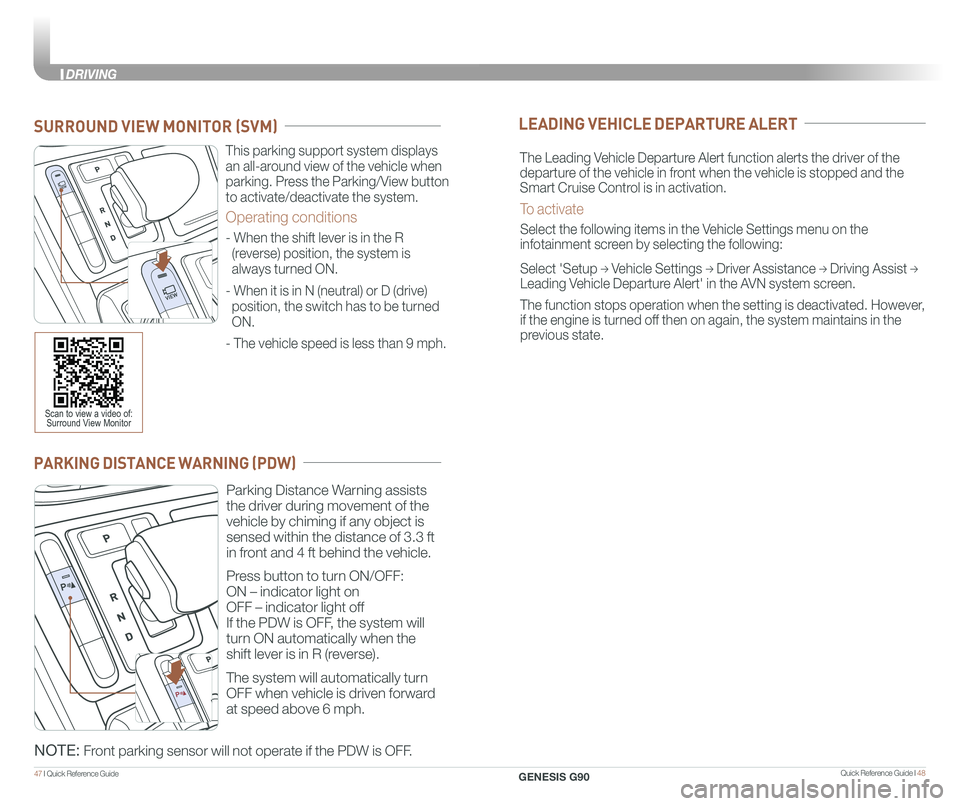
PARKING DISTANCE WARNING (PDW)
Parking Distance Warning assists
the driver during movement of the
vehicle by chiming if any object is
sensed within the distance of 3.3 ft
in front and 4 ft behind the vehicle.
Press button to turn ON/OFF:
ON – indicator light on
OFF – indicator light off
If the PDW is OFF, the system will
turn ON automatically when the
shift lever is in R (reverse).
The system will automatically turn
OFF when vehicle is driven forward
at speed above 6 mph.
NOTE: Front parking sensor will not operate if the PDW is OFF.
This parking support system displays
an all-around view of the vehicle when
parking. Press the Parking/View button
to activate/deactivate the system.
Operating conditions
- When the shift lever is in the R
(reverse) position, the system is
always turned ON.
- When it is in N (neutral) or D (drive)
position, the switch has to be turned
ON.
- The vehicle speed is less than 9 mph.
SURROUND VIEW MONITOR (SVM)
Scan to view a video of: Surround View Monitor
LEADING VEHICLE DEPARTURE ALERT
The Leading Vehicle Departure Alert function alerts the driver of the
departure of the vehicle in front when the vehicle is stopped and the
Smart Cruise Control is in activation.
To activate
Select the following items in the Vehicle Settings menu on the
infotainment screen by selecting the following:
Select 'Setup → Vehicle Settings → Driver Assistance → Driving Assist →
Leading Vehicle Departure Alert' in the AVN system screen.
The function stops operation when the setting is deactivated. However,
if the engine is turned off then on again, the system maintains in the
previous state.
GENESIS G90
DRIVING
Page 28 of 31
Quick Reference Guide I 5049 I Quick Reference Guide
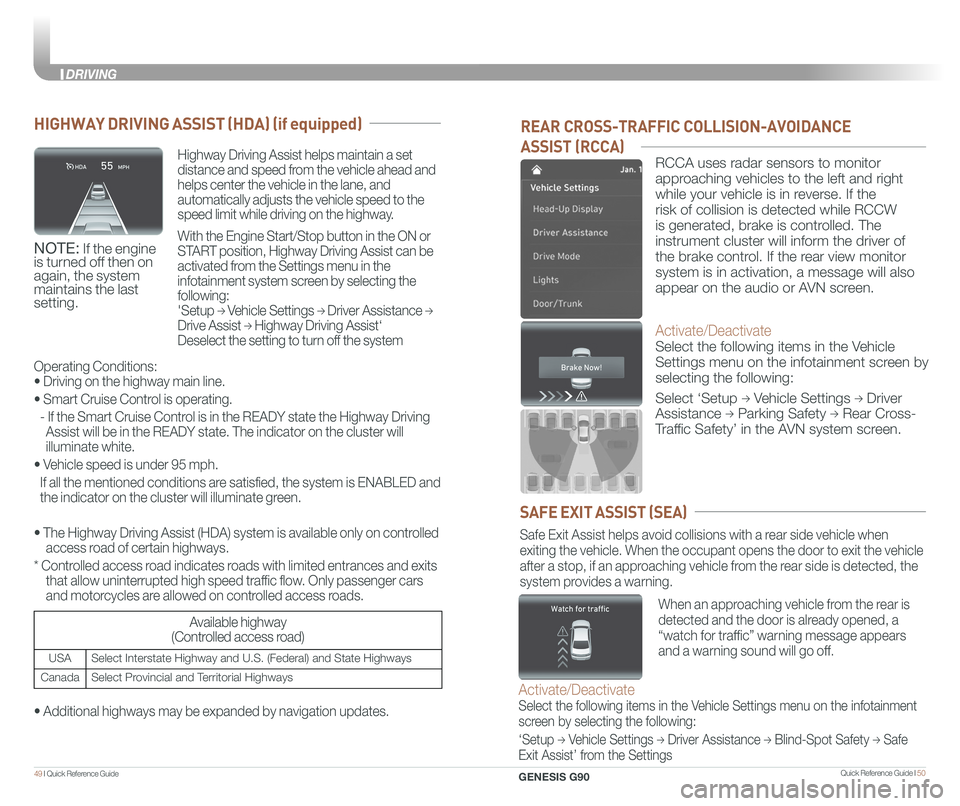
REAR CROSS-TRAFFIC COLLISION-AVOIDANCE
ASSIST (RCCA)
RCCA uses radar sensors to monitor
approaching vehicles to the left and right
while your vehicle is in reverse. If the
risk of collision is detected while RCCW
is generated, brake is controlled. The
instrument cluster will inform the driver of
the brake control. If the rear view monitor
system is in activation, a message will also
appear on the audio or AVN screen.
Activate/Deactivate
Select the following items in the Vehicle
Settings menu on the infotainment screen by
selecting the following:
Select ‘Setup → Vehicle Settings → Driver
Assistance → Parking Safety → Rear Cross-
Traffic Safety’ in the AVN system screen.
SAFE EXIT ASSIST (SEA)
Safe Exit Assist helps avoid collisions with a rear side vehicle when
exiting the vehicle. When the occupant opens the door to exit the vehicl\
e
after a stop, if an approaching vehicle from the rear side is detected, the
system provides a warning.
Activate/Deactivate
Select the following items in the Vehicle Settings menu on the infotainment
screen by selecting the following:
‘Setup → Vehicle Settings → Driver Assistance → Blind-Spot Safety → Safe
Exit Assist’ from the Settings
When an approaching vehicle from the rear is
detected and the door is already opened, a
“watch for traffic” warning message appears
and a warning sound will go off.
HIGHWAY DRIVING ASSIST (HDA) (if equipped)
Highway Driving Assist helps maintain a set
distance and speed from the vehicle ahead and
helps center the vehicle in the lane, and
automatically adjusts the vehicle speed to the
speed limit while driving on the highway.
With the Engine Start/Stop button in the ON or
START position, Highway Driving Assist can be
activated from the Settings menu in the
infotainment system screen by selecting the
following:
'Setup → Vehicle Settings → Driver Assistance →
Drive Assist → Highway Driving Assist‘
Deselect the setting to turn off the system
NOTE: If the engine is turned off then on again, the system maintains the last setting.
Operating Conditions:
• Driving on the highway main line.
• Smart Cruise Control is operating.
- If the Smart Cruise Control is in the READY state the Highway Driving
Assist will be in the READY state. The indicator on the cluster will
illuminate white.
• Vehicle speed is under 95 mph.
If all the mentioned conditions are satisfied, the system is ENABLED and
the indicator on the cluster will illuminate green.
• The Highway Driving Assist (HDA) system is available only on cont\
rolled
access road of certain highways.
* Controlled access road indicates roads with limited entrances and exits
that allow uninterrupted high speed traffic flow. Only passenger cars
and motorcycles are allowed on controlled access roads.
Available highway
(Controlled access road)
USASelect Interstate Highway and U.S. (Federal) and State Highways
CanadaSelect Provincial and Territorial Highways
• Additional highways may be expanded by navigation updates.
GENESIS G90
DRIVING
Page 29 of 31
Quick Reference Guide I 5251 I Quick Reference Guide
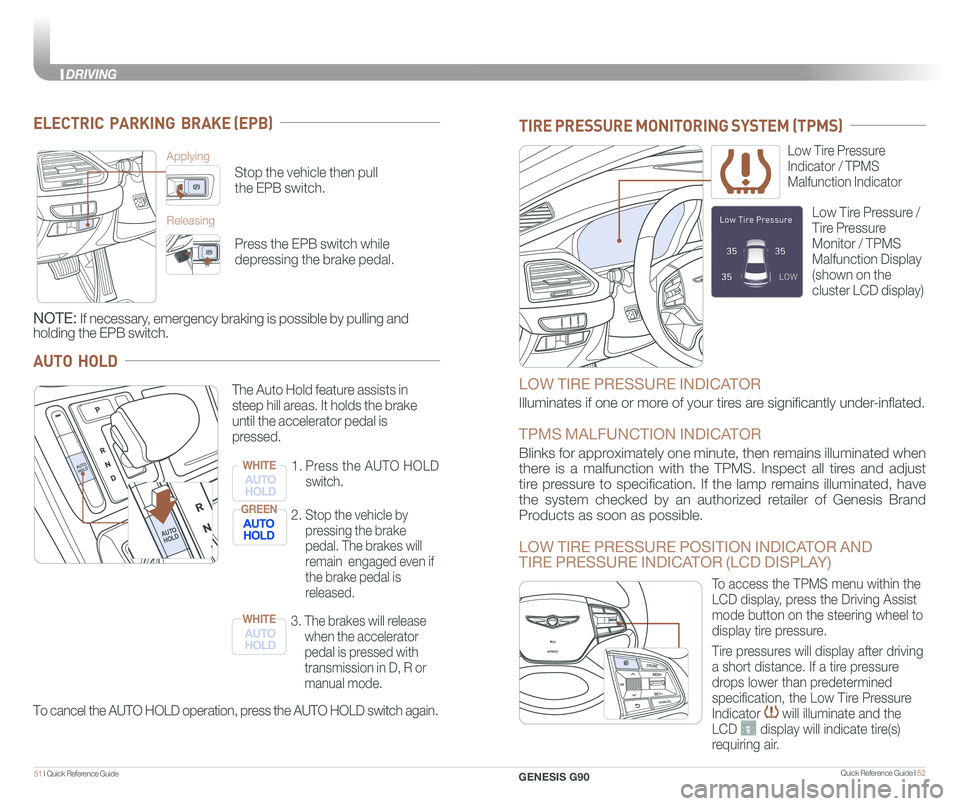
ELECTRIC PARKING BRAKE (EPB)
Stop the vehicle then pull
the EPB switch.
Applying
Releasing
Press the EPB switch while
depressing the brake pedal.
NOTE: If necessary, emergency braking is possible by pulling and
holding the EPB switch.
AUTO HOLD
To cancel the AUTO HOLD operation, press the AUTO HOLD switch again.
The Auto Hold feature assists in
steep hill areas. It holds the brake
until the accelerator pedal is
pressed.
1.
Press the AUTO HOLD
switch.
WHITE
2. Stop the vehicle by
pressing the brake
pedal. The brakes will
remain engaged even if
the brake pedal is
released.
GREEN
3. The brakes will release
when the accelerator
pedal is pressed with
transmission in D, R or
manual mode.
WHITE
MAP
N AVMAPN AVMAPN AVMAPN AV
LOW TIRE PRESSURE INDICATOR
Illuminates if one or more of your tires are significantly under-inflated.
TPMS MALFUNCTION INDICATOR
Blinks for approximately one minute, then remains illuminated when
there is a malfunction with the TPMS. Inspect all tires and adjust
tire pressure to specification. If the lamp remains illuminated, have
the system checked by an authorized retailer of Genesis Brand
Products as soon as possible.
LOW TIRE PRESSURE POSITION INDICATOR AND
TIRE PRESSURE INDICATOR (LCD DISPLAY)
Low Tire Pressure
Indicator / TPMS
Malfunction Indicator
Low Tire Pressure /
Tire Pressure
Monitor / TPMS
Malfunction Display
(shown on the
cluster LCD display)
TIRE PRESSURE MONITORING SYSTEM (TPMS)
GENESIS
GENESIS
To access the TPMS menu within the
LCD display, press the Driving Assist
mode button on the steering wheel to
display tire pressure.
Tire pressures will display after driving
a short distance. If a tire pressure
drops lower than predetermined
specification, the Low Tire Pressure
Indicator will illuminate and the
LCD display will indicate tire(s)
requiring air.
AUTO
HOLDAUTO
HOLD
AUTO
HOLDAUTO
HOLD
GENESIS G90
DRIVING
Page 30 of 31
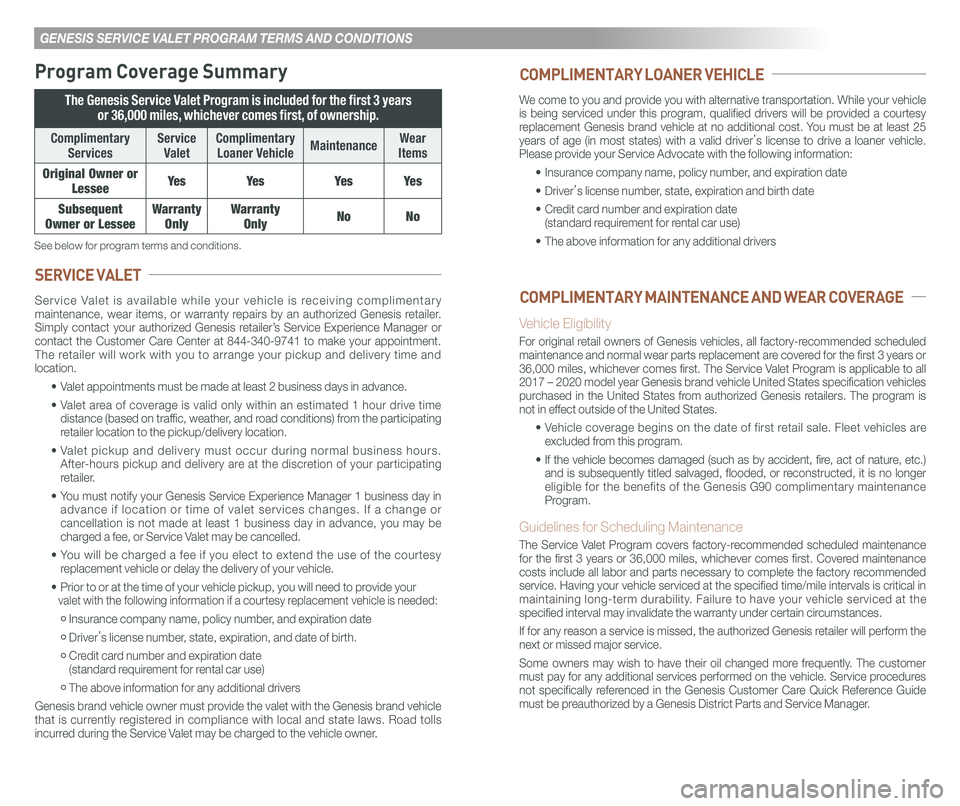
GENESIS SERVICE VALET PROGRAM TERMS AND CONDITIONS
Program Coverage Summary
The Genesis Service Valet Program is included for the first 3 years
or 36,000 miles, whichever comes first, of ownership.
Complimentary
Services
Service
Valet
Complimentary
Loaner VehicleMaintenanceWear
Items
Original Owner or
LesseeYe sYe sYe sYe s
Subsequent
Owner or Lessee
Warranty
Only
Warranty
OnlyNoNo
See below for program terms and conditions.
Service Valet is available while your vehicle is receiving complimentary maintenance, wear items, or warranty repairs by an authorized Genesis retailer. Simply contact your authorized Genesis retailer’s Service Experience Manager or contact the Customer Care Center at 844-340-9741 to make your appointment. The retailer will work with you to arrange your pickup and delivery time and location.
• Valet appointments must be made at least 2 business days in advance.
• Valet area of coverage is valid only within an estimated 1 hour drive time distance (based on traffic, weather, and road conditions) from the participating retailer location to the pickup/delivery location.
• Valet pickup and delivery must occur during normal business hours.
After-hours pickup and delivery are at the discretion of your participating retailer.
• You must notify your Genesis Service Experience Manager 1 business day in\
advance if location or time of valet services changes. If a change or cancellation is not made at least 1 business day in advance, you may be charged a fee, or Service Valet may be cancelled.
• You will be charged a fee if you elect to extend the use of the courtesy replacement vehicle or delay the delivery of your vehicle.
• Prior to or at the time of your vehicle pickup, you will need to provide your valet with the following information if a courtesy replacement vehicle is needed:
• Insurance company name, policy number, and expiration date
• Driver’s license number, state, expiration, and date of birth.
• Credit card number and expiration date (standard requirement for rental car use)
• The above information for any additional drivers
Genesis brand vehicle owner must provide the valet with the Genesis brand vehicle that is currently registered in compliance with local and state laws. Road tolls incurred during the Service Valet may be charged to the vehicle owner.
SERVICE VALET
We come to you and provide you with alternative transportation. While your vehicle is being serviced under this program, qualified drivers will be provided a courtesy replacement Genesis brand vehicle at no additional cost. You must be at least 25 years of age (in most states) with a valid driver’s license to drive a loaner vehicle. Please provide your Service Advocate with the following information:
• Insurance company name, policy number, and expiration date
• Driver’s license number, state, expiration and birth date
• Credit card number and expiration date (standard requirement for rental car use)
• The above information for any additional drivers
Vehicle Eligibility
For original retail owners of Genesis vehicles, all factory-recommended scheduled maintenance and normal wear parts replacement are covered for the first 3 years or 36,000 miles, whichever comes first. The Service Valet Program is applicable to all 2017 – 2020 model year Genesis brand vehicle United States specificat\
ion vehicles purchased in the United States from authorized Genesis retailers. The program is not in effect outside of the United States.
• Vehicle coverage begins on the date of first retail sale. Fleet vehicles are excluded from this program.
• If the vehicle becomes damaged (such as by accident, fire, act of nature, etc.) and is subsequently titled salvaged, flooded, or reconstructed, it is no longer eligible for the benefits of the Genesis G90 complimentary maintenance Program.
Guidelines for Scheduling Maintenance
The Service Valet Program covers factory-recommended scheduled maintenance for the first 3 years or 36,000 miles, whichever comes first. Covered maintenance costs include all labor and parts necessary to complete the factory recommended service. Having your vehicle serviced at the specified time/mile interva\
ls is critical in maintaining long-term durability. Failure to have your vehicle serviced at the specified interval may invalidate the warranty under certain circumstances.
If for any reason a service is missed, the authorized Genesis retailer will perform the next or missed major service.
Some owners may wish to have their oil changed more frequently. The customer must pay for any additional services performed on the vehicle. Service p\
rocedures not specifically referenced in the Genesis Customer Care Quick Reference Guide must be preauthorized by a Genesis District Parts and Service Manager.
COMPLIMENTARY LOANER VEHICLE
COMPLIMENTARY MAINTENANCE AND WEAR COVERAGE