Rear button GMC ACADIA 2007 Owner's Guide
[x] Cancel search | Manufacturer: GMC, Model Year: 2007, Model line: ACADIA, Model: GMC ACADIA 2007Pages: 554, PDF Size: 2.76 MB
Page 245 of 554
AUTOMATIC LIGHT CONTROL ON
This message displays when the automatic
headlamps are turned on. This message clears
itself after 10 seconds.
BATTERY SAVER ACTIVE
This message displays when the system detects
that the battery voltage is dropping below expected
levels. The battery saver system starts reducing
certain features of the vehicle that you may be able
to notice. At the point that the features are disabled,
this message is displayed. It means that the vehicle
is trying to save the charge in the battery.
Turn off all unnecessary accessories to allow
the battery to recharge.
The normal battery voltage range is
11.5 to 15.5 volts.
CHANGE ENGINE OIL SOON
This message displays when the engine oil needs
to be changed. When you change the engine oil, be
sure to reset the CHANGE ENGINE OIL SOON
message. SeeEngine Oil Life System on page 400
for information on how to reset the message.
SeeEngine Oil on page 397andScheduled
Maintenance on page 502for more information.
CHECK TIRE PRESSURE
This message displays when the pressure in
one or more of the vehicle’s tires need to
be checked. This message also displays LEFT
FRONT, RIGHT FRONT, LEFT REAR, or
RIGHT REAR to indicate which tire needs to be
checked. You can receive more than one tire
pressure message at a time. To read the other
messages that may have been sent at the
same time, press the set/reset button or the trip
odometer reset stem. If a tire pressure message
appears on the DIC, stop as soon as you can.
Have the tire pressures checked and set to those
shown on the Tire Loading Information label.
SeeTires on page 435,Loading Your Vehicle
on page 361, andInflation - Tire Pressure
on page 442. The DIC display also shows the
tire pressure values for the front and rear tires by
pressing the vehicle information button. See
“DIC Operation and Displays (With DIC Buttons)”
earlier in this section. If the tire pressure is
low, the low tire pressure warning light comes on.
SeeTire Pressure Light on page 225.
245
Page 249 of 554
OIL PRESSURE LOW STOP ENGINE
Notice:If you drive your vehicle while
the engine oil pressure is low, severe engine
damage may occur. If a low oil pressure
warning appears on the Driver Information
Center (DIC), stop the vehicle as soon as
possible. Do not drive the vehicle until the
cause of the low oil pressure is corrected. See
Engine Oil on page 397for more information.
This message displays if low oil pressure
levels occur. Stop the vehicle as soon as safely
possible and do not operate it until the cause
of the low oil pressure has been corrected.
Check the oil as soon as possible and have
your vehicle serviced by your dealer/retailer.
SeeEngine Oil on page 397.
PARK ASSIST OFF
If your vehicle has the Ultrasonic Rear Parking
Assist (URPA) system, after the vehicle has
been started and shifted out of PARK (P),
this message displays to remind the driver
that the URPA system has been turned off.Press the set/reset button or the trip odometer
reset stem to acknowledge this message and
clear it from the DIC display. To turn the URPA
system back on, seeUltrasonic Rear Parking
Assist (URPA) on page 194.
PASSENGER DOOR OPEN
This message displays and a chime sounds if
the passenger’s door is not fully closed and
the vehicle is in a drive gear. Stop and turn off
the vehicle, check the door for obstructions,
and close the door again. Check to see if the
message still appears on the DIC.
REMOTE KEY LEARNING ACTIVE
This message displays while you are matching
a Remote Keyless Entry (RKE) transmitter to
your vehicle. See “Matching Transmitter(s) to
Your Vehicle” underRemote Keyless Entry (RKE)
System Operation on page 100andDIC
Operation and Displays (With DIC Buttons) on
page 233orDIC Operation and Displays (Without
DIC Buttons) on page 239for more information.
249
Page 278 of 554
To use a portable audio player, connect a
3.5 mm (1/8 inch) cable to the radio’s front
auxiliary input jack. When a device is connected,
press the radio CD/AUX button to begin playing
audio from the device over the vehicle speakers.
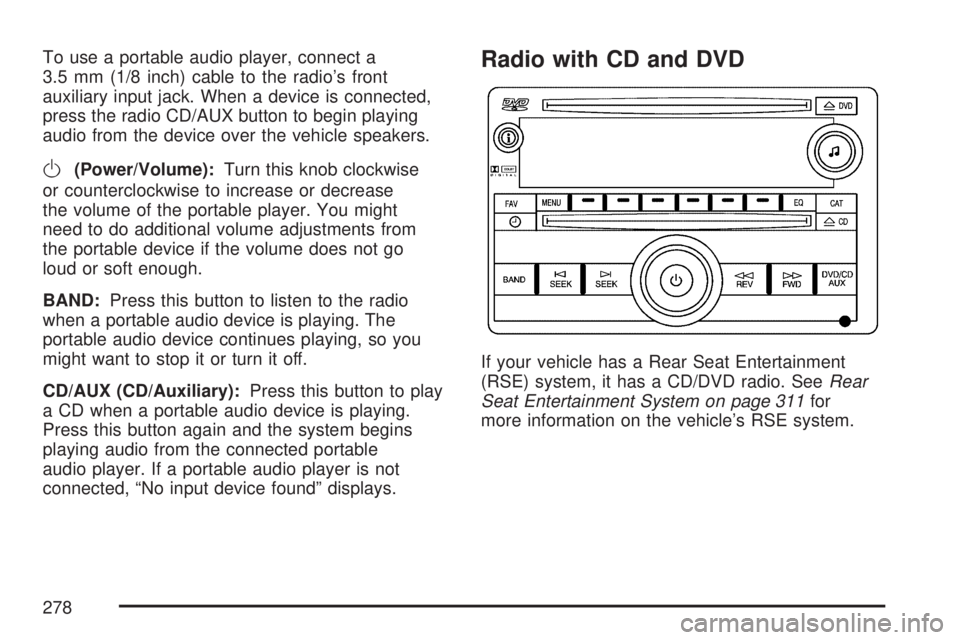
O(Power/Volume):Turn this knob clockwise
or counterclockwise to increase or decrease
the volume of the portable player. You might
need to do additional volume adjustments from
the portable device if the volume does not go
loud or soft enough.
BAND:Press this button to listen to the radio
when a portable audio device is playing. The
portable audio device continues playing, so you
might want to stop it or turn it off.
CD/AUX (CD/Auxiliary):Press this button to play
a CD when a portable audio device is playing.
Press this button again and the system begins
playing audio from the connected portable
audio player. If a portable audio player is not
connected, “No input device found” displays.
Radio with CD and DVD
If your vehicle has a Rear Seat Entertainment
(RSE) system, it has a CD/DVD radio. SeeRear
Seat Entertainment System on page 311for
more information on the vehicle’s RSE system.
278
Page 283 of 554
Unique EQ settings can be saved for each source.
If your radio has a Bose
®audio system, the EQ
settings are either MANUAL or TALK.
Adjusting the Speakers (Balance/Fade)
BAL/FADE (Balance/Fade):To adjust balance
or fade, press the tune knob until the speaker
control labels display. Press the pushbutton
positioned under the desired label. Turn the tune
knob clockwise or counterclockwise to adjust
the highlighted setting. You can also adjust the
highlighted setting by pressing either the SEEK,
FWD, or REV button until the desired levels
are obtained.
To quickly adjust balance or fade to the middle
position, press the pushbutton positioned under the
BAL or FADE label for more than two seconds.
A beep sounds and the level adjusts to the
middle position.
To quickly adjust both the balance and fade to the
middle position at one time, press the tune knob for
more than two seconds until a beep sounds.
If the Rear Seat Audio (RSA) is turned on, the radio
disables FADE and mutes the rear speakers.
Finding a Category (CAT) Station
CAT (Category):The CAT button is used to nd
XM™ stations when the radio is in the XM™
mode. To nd XM™ channels within a desired
category, perform the following:
1. Press the BAND button until the XM™
frequency displays. Press the CAT button to
display the category labels on the radio
display. Continue pressing the CAT button
until the desired category name displays.
Another way to navigate the category list is
to press the REV button or the FWD button.
2. Press either of the two buttons below the
desired category label to immediately tune
to the rst XM™ station associated with that
category.
3. Turn the tune knob, press the buttons below
the right or left arrows displayed, or press the
right or left SEEK buttons to go to the next
or previous XM™ station within the selected
category.
4. To exit the category search mode, press the
FAV button or BAND button to display your
favorites again.
283
Page 285 of 554
If the ignition or radio is turned off, with a CD in
the player, it stays in the player. When the ignition
or radio is turned on, the CD starts playing
where it stopped, if it was the last selected audio
source. The CD is controlled by the buttons
on the radio faceplate or by the RSA unit. See
Rear Seat Audio (RSA) on page 322for more
information. The DVD/CD decks, (upper slot is the
DVD deck and the lower slot is the CD deck) of
the radio are compatible with most audio CDs,
CD-R, CD-RW, and MP3s.
When a CD is inserted, the text label DVD or CD
symbol appears on the left side of the radio
display. As each new track starts to play, the
track number displays.
If playing a CD-R, the sound quality can be
reduced due to CD-R quality, the method of
recording, the quality of the music that has been
recorded, and the way the CD-R has been
handled. There can be an increase in skipping,
difficulty in nding tracks, and/or difficulty in loading
and ejecting. If these problems occur, check the
bottom surface of the CD. If the surface of the CD
is damaged, such as cracked, broken, orscratched, the CD does not play properly. If the
surface of the CD is soiled, seeCare of Your CDs
and DVDs on page 328for more information.
If there is no apparent damage, try a known
good CD.
Notice:If a label is added to a CD, or more
than one CD is inserted into the slot at a time,
or an attempt is made to play scratched or
damaged CDs, the CD player could be
damaged. While using the CD player, use
only CDs in good condition without any label,
load one CD at a time, and keep the CD
player and the loading slot free of foreign
materials, liquids, and debris.
Do not add any label to a CD, it could get caught
in the CD player. If a CD is recorded on a
personal computer and a description label is
needed, try labeling the top of the recorded CD
with a marking pen.
If an error displays, see “CD Messages” later in
this section.
285
Page 287 of 554
RDM (Random):With the random setting, the
tracks can be listened to in random, rather
than sequential order. To play the tracks from the
CD, press the DVD/CD AUX button when not
sourced to the CD, or insert a disc partway into
the slot. A RDM label displays. Press the
pushbutton positioned under the RDM label until
Random Current Disc displays. Press the
pushbutton again to turn off random play.
BAND:Press this button to listen to the radio
when a CD or DVD is playing. The CD or
DVD remains inside the radio for future listening
or viewing entertainment.
DVD/CD AUX (Auxiliary):Press this button to
cycle through DVD, CD, or Auxiliary when listening
to the radio. The DVD/CD text label and a
message showing the track or chapter number
displays when a disc is in either slot. Press
this button again and the system automatically
searches for an auxiliary input device, such as a
portable audio player. If a portable audio player
is not connected, “No aux input device” displays.If a disc is in both the DVD slot and the CD
slot the DVD/CD AUX button cycles between
the two sources and not indicate “No aux input
device”. If a front auxiliary device is connected, the
DVD/CD AUX button cycles through all available
options, such as: DVD slot, CD slot, Front
Auxiliary, and Rear Auxiliary (if available).
See “Using the Auxiliary Input Jack(s)” later in
this section, or “Audio/Video (A/V) Jacks” under,
Rear Seat Entertainment System on page 311
for more information.
If a disc is inserted into top DVD slot, the rear
seat operator can turn on the video screen
and use the remote control to navigate the
CD (tracks only) through the remote control.
Audio Output
Only one audio source can be heard through
the speakers at one time. An audio source
is dened as DVD slot, CD slot, XM™, FM/AM,
Front Auxiliary Jack, or Rear Auxiliary Jack.
Press the power button to turn the radio on.
The radio can be heard through all of the
vehicle speakers.
287
Page 288 of 554
Front seat passengers can listen to the radio
(AM, FM, or XM) by pressing the BAND button
or the DVD/CD AUX button to select CD slot, DVD
slot, front or rear auxiliary input (if available).
If a playback device is plugged into the radio’s
front auxiliary input jack or the rear auxiliary jack,
the front seat passengers are able to listen to
playback from this source through the vehicle
speakers. See “Using the Auxiliary Input Jack(s)”
later in this section, or “Audio/Video (A/V)
Jacks” under,Rear Seat Entertainment System
on page 311for more information.
In some vehicles, depending on audio options,
the rear speakers can be muted when the
RSA power is turned on. SeeRear Seat
Audio (RSA) on page 322for more information.
Playing an MP3/WMA CD-R or
CD-RW Disc
Your radio with CD and DVD has the capability
of playing an MP3/WMA CD-R or CD-RW disc.
For more information on how to play an MP3/WMA
CD-R or CD-RW disc, see “Using an MP3” in
the index.
CD Messages
If these messages display and/or the CD comes
out, it could be for one of the following reasons:
Optical Error:If the disc was inserted
upside down.
Disk Read Error:If a disc was inserted with an
invalid or unknown format.
Player Error:If there are disc LOAD or disc
EJECT problems.
It is very hot. When the temperature returns
to normal, the CD should play.
You are driving on a very rough road.
When the road becomes smoother, the CD
should play.
The CD is dirty, scratched, wet, or
upside down.
The air is very humid. If so, wait about an
hour and try again.
There could have been a problem while
burning the CD.
The label could be caught in the CD player.
If the CD is not playing correctly, for any
other reason, try a known good CD.
288
Page 289 of 554
If any error occurs repeatedly or if an error cannot
be corrected, contact your dealer/retailer. If the
radio displays an error message, write it down and
provide it to your dealer/retailer when reporting
the problem.
Using the DVD Player
The DVD player is controlled by the buttons on
the remote control, or by the RSA system,
or by the buttons on the radio faceplate. See
“Remote Control”, underRear Seat Entertainment
System on page 311andRear Seat Audio
(RSA) on page 322for more information.
The DVD player is only compatible with DVDs of
the appropriate region code that is printed on
the jacket of most DVDs.
The DVD slot of the radio is compatible with
most audio CDs, CD-R, CD-RW, DVD-Video,
DVD-Audio, DVD-R/RW, DVD+R/RW media along
with MP3 and WMA formats.
If an error message appears on the video screen
or the radio, see “DVD Display Error Messages”
under,Rear Seat Entertainment System on
page 311and “DVD Radio Error Messages” in
this section for more information.
Playing a DVD
DVD/CD AUX (Auxiliary):Press this button
to cycle through DVD, CD, or Auxiliary when
listening to the radio. The DVD/CD text label and
a message showing track or chapter number
displays when a disc is in either slot. Press
this button again and the system automatically
searches for an auxiliary input device, such as a
portable audio player. If a portable audio player
is not connected, “No aux input device” displays.
If a disc is in both the DVD slot and the CD
slot the DVD/CD AUX button cycles between
the two sources and not indicate “No aux input
device”. If a front auxiliary device is connected,
the DVD/CD AUX button cycles through all
available options, such as: DVD slot, CD slot,
Front Auxiliary, and Rear Auxiliary (if available).
See “Using the Auxiliary Input Jack(s)” later in
this section, or “Audio/Video (A/V) Jacks” under,
Rear Seat Entertainment System on page 311
for more information.
289
Page 290 of 554
O(Power):Press this knob to turn the radio on
or off. Turn this knob clockwise or counterclockwise
to increase or decrease the volume. Press and hold
the knob for more than two seconds to turn off the
entire radio and Rear Seat Entertainment (RSE)
system and to start the parental control feature.
Parental control prevents the rear seat occupant
from operating the Rear Seat Audio (RSA) system
or remote control.
A lock symbol appears next to the clock display.
The parental control feature remains on until
you press and hold this button for more than
two seconds again, or until the driver turns the
ignition off and exits the vehicle.
f(Tune):Turn this knob to change tracks on
a CD or DVD, to manually tune a radio station,
or to change clock or date settings, while in
the clock or date setting mode. See the information
given earlier in this section specic to the radio,
CD, and the DVD. Also, seeSetting the Time
on page 266, for setting the clock and date.
©SEEK (Previous Track/Chapter):Press this
button to return to the start of the current track
or chapter. Press this button again to go to
the previous track or chapter. This button might
not work when the DVD is playing the copyright
information or the previews.
SEEK
¨(Next Track/Chapter):Press this button
to go to the next track or chapter. This button
might not work when the DVD is playing the
copyright information or the previews.
sREV (Reverse):Press this button to quickly
reverse the CD or DVD, at ve times the normal
speed. The radio displays the elapsed time while in
fast reverse. To stop fast reversing, press this
button again. This button might not work when the
DVD is playing the copyright information or the
previews.
\FWD (Fast Forward):Press this button to
fast forward the CD or DVD. The radio displays the
elapsed time and fast forwards ve times the
normal speed. To stop fast forwarding, press this
button again. This button might not work when
the DVD is playing the copyright information or the
previews.
290
Page 291 of 554
Z(Eject):Press this button to eject a CD or
DVD. If a CD or DVD is ejected, but not removed,
the player automatically pulls it back in after
15 seconds.
If loading and reading of a CD cannot be
completed, because of an unknown format, etc.,
and the disc fails to eject, press and hold the
CD eject button for more than ve seconds to
force the disc to eject.
DVD-V (Video) Display Buttons
Once a DVD-V is inserted, the radio display menu
shows several tag options for DVD playing.
Press the pushbuttons located under any desired
tag option during DVD playback. See the tag
options listed below for more information.
The rear seat passenger can navigate the DVD-V
menus and controls through the remote control.
See “Remote Control”, underRear Seat
Entertainment System on page 311for more
information. The Video Screen automatically
turns on when the DVD-V is inserted into the
DVD slot.
r/j(Play/Pause):Press either the play or
pause icon displayed on the radio system,
to toggle between pausing or restarting playback
of a DVD. If the forward arrow is showing on
display, the system is in pause mode. If the pause
icon is showing on display, the system is in
playback mode. If the DVD screen is off, press
the play button to turn the screen on.
Some DVDs begin playing after the previews have
nished, although there could be a delay of up
to 30 seconds. If the DVD does not begin playing
the movie automatically, press the pushbutton
located under the play/pause symbol tag displayed
on the radio. If the DVD still does not play, refer
to the on-screen instructions, if available.
c(Stop):Press this button to stop playing,
rewinding, or fast forwarding a DVD.
r(Enter):Press this button to select the
choices that are highlighted in any menu.
291