radio GMC ACADIA 2008 Workshop Manual
[x] Cancel search | Manufacturer: GMC, Model Year: 2008, Model line: ACADIA, Model: GMC ACADIA 2008Pages: 472, PDF Size: 5.72 MB
Page 263 of 472
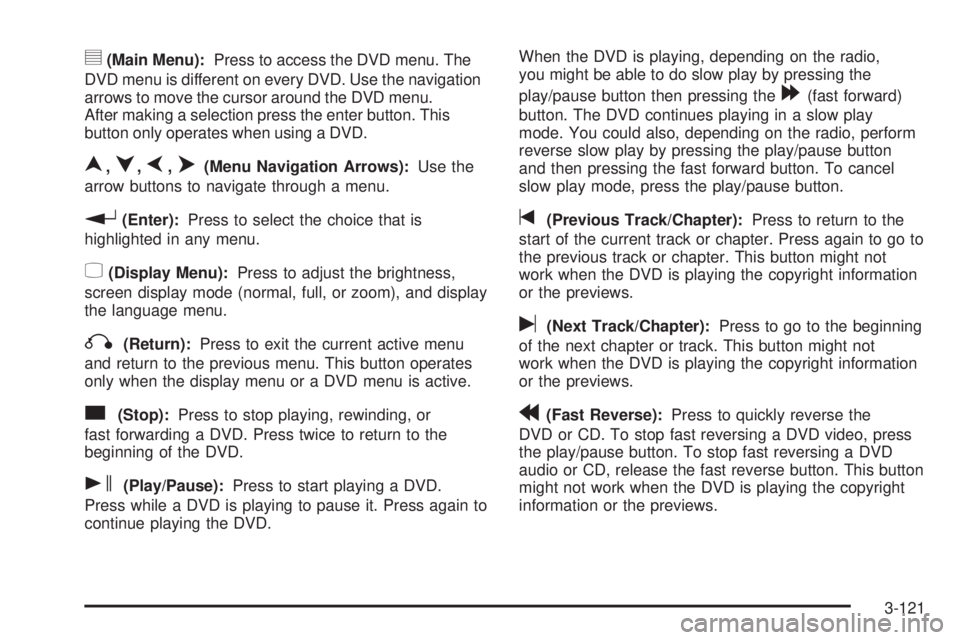
y(Main Menu):Press to access the DVD menu. The
DVD menu is different on every DVD. Use the navigation
arrows to move the cursor around the DVD menu.
After making a selection press the enter button. This
button only operates when using a DVD.
n,q,p,o(Menu Navigation Arrows):Use the
arrow buttons to navigate through a menu.
r(Enter):Press to select the choice that is
highlighted in any menu.
z(Display Menu):Press to adjust the brightness,
screen display mode (normal, full, or zoom), and display
the language menu.
q(Return):Press to exit the current active menu
and return to the previous menu. This button operates
only when the display menu or a DVD menu is active.
c(Stop):Press to stop playing, rewinding, or
fast forwarding a DVD. Press twice to return to the
beginning of the DVD.
s(Play/Pause):Press to start playing a DVD.
Press while a DVD is playing to pause it. Press again to
continue playing the DVD.When the DVD is playing, depending on the radio,
you might be able to do slow play by pressing the
play/pause button then pressing the
[(fast forward)
button. The DVD continues playing in a slow play
mode. You could also, depending on the radio, perform
reverse slow play by pressing the play/pause button
and then pressing the fast forward button. To cancel
slow play mode, press the play/pause button.
t(Previous Track/Chapter):Press to return to the
start of the current track or chapter. Press again to go to
the previous track or chapter. This button might not
work when the DVD is playing the copyright information
or the previews.
u(Next Track/Chapter):Press to go to the beginning
of the next chapter or track. This button might not
work when the DVD is playing the copyright information
or the previews.
r(Fast Reverse):Press to quickly reverse the
DVD or CD. To stop fast reversing a DVD video, press
the play/pause button. To stop fast reversing a DVD
audio or CD, release the fast reverse button. This button
might not work when the DVD is playing the copyright
information or the previews.
3-121
Page 266 of 472
DVD Display Error Messages
The DVD display error message depends on which
radio you have. The video screen might display
one of the following:
Disc Load/Eject Error:This message displays when
there are disc load or eject problems.
Disc Format Error:This message displays, if the
disc is inserted with the disc label wrong side up,
or if the disc is damaged.
Disc Region Error:This message displays, if the
disc is not from a correct region.
No Disc Inserted:This message displays, if no disc
is present when the
ZEJECT button is pressed
on the radio.
DVD Distortion
Video distortion can occur when operating cellular
phones, scanners, CB radios, Global Position
Systems (GPS)*, two-way radios, mobile fax,
or walkie talkies.
It might be necessary to turn off the DVD player when
operating one of these devices in or near the vehicle.
*Excludes the OnStar
®System.
Cleaning the RSE Overhead Console
When cleaning the RSE overhead console surface,
use only a clean cloth dampened with clean water.
Cleaning the Video Screen
Use only a clean cloth dampened with clean water.
Use care when directly touching or cleaning the screen,
as damage could result.
3-124
Page 267 of 472
Rear Seat Audio (RSA)
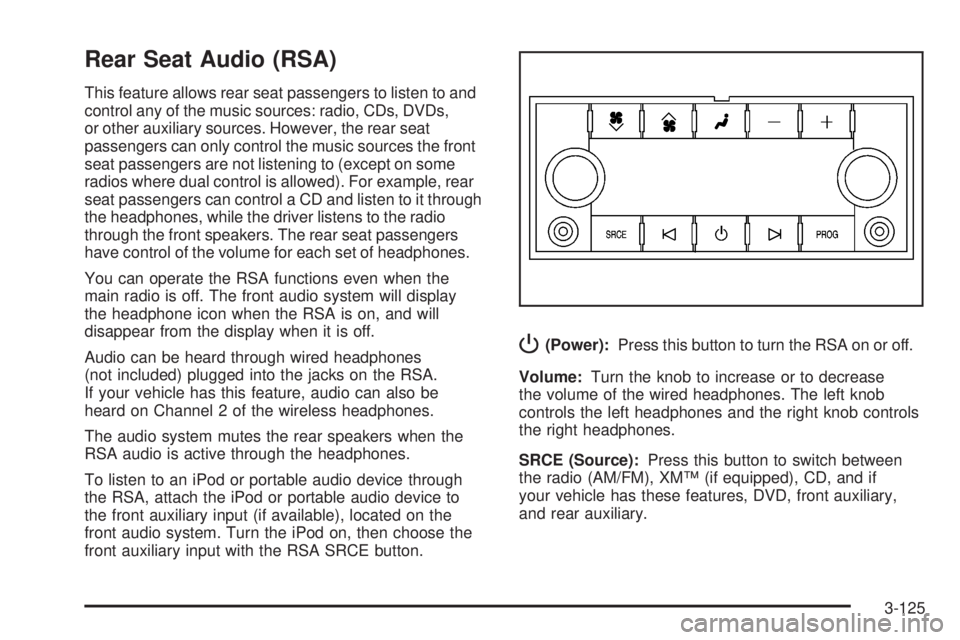
This feature allows rear seat passengers to listen to and
control any of the music sources: radio, CDs, DVDs,
or other auxiliary sources. However, the rear seat
passengers can only control the music sources the front
seat passengers are not listening to (except on some
radios where dual control is allowed). For example, rear
seat passengers can control a CD and listen to it through
the headphones, while the driver listens to the radio
through the front speakers. The rear seat passengers
have control of the volume for each set of headphones.
You can operate the RSA functions even when the
main radio is off. The front audio system will display
the headphone icon when the RSA is on, and will
disappear from the display when it is off.
Audio can be heard through wired headphones
(not included) plugged into the jacks on the RSA.
If your vehicle has this feature, audio can also be
heard on Channel 2 of the wireless headphones.
The audio system mutes the rear speakers when the
RSA audio is active through the headphones.
To listen to an iPod or portable audio device through
the RSA, attach the iPod or portable audio device to
the front auxiliary input (if available), located on the
front audio system. Turn the iPod on, then choose the
front auxiliary input with the RSA SRCE button.
P(Power):Press this button to turn the RSA on or off.
Volume:Turn the knob to increase or to decrease
the volume of the wired headphones. The left knob
controls the left headphones and the right knob controls
the right headphones.
SRCE (Source):Press this button to switch between
the radio (AM/FM), XM™ (if equipped), CD, and if
your vehicle has these features, DVD, front auxiliary,
and rear auxiliary.
3-125
Page 268 of 472
©¨(Seek):When listening to FM, AM, or XM™
(if equipped), press either the seek arrows to go to the
previous or to the next station or channels and stay
there. This function is inactive, with some radios, if the
front seat passengers are listening to the radio.
Press and hold either seek arrow until the display
ashes, to tune to an individual station. The display
stops ashing after the buttons have not been pushed
for more than two seconds. This function is inactive,
with some radios, if the front seat passengers are
listening to the radio.
While listening to a disc, press the right seek arrow to
go to the next track or chapter on the disc. Press the left
seek arrow to go back to the start of the current track
or chapter (if more than ten seconds have played). This
function is inactive, with some radios, if the front seat
passengers are listening to the disc.When a DVD video menu is being displayed, press
either seek arrow to perform a cursor up or down on
the menu. Hold either seek arrow to perform a cursor
left or right on the menu.
PROG (Program):Press this button to go to the
next preset radio station or channel set on the main
radio. This function is inactive, with some radios, if the
front seat passengers are listening to the radio.
When a CD or DVD audio disc is playing, press this
button to go to the beginning of the CD or DVD audio.
This function is inactive, with some radios, if the
front seat passengers are listening to the disc.
When a disc is playing in the CD or DVD changer,
press this button to select the next disc, if multiple discs
are loaded. This function is inactive, with some radios,
if the front seat passengers are listening to the disc.
When a DVD video menu is being displayed, press
the PROG button to perform the menu function, enter.
3-126
Page 269 of 472
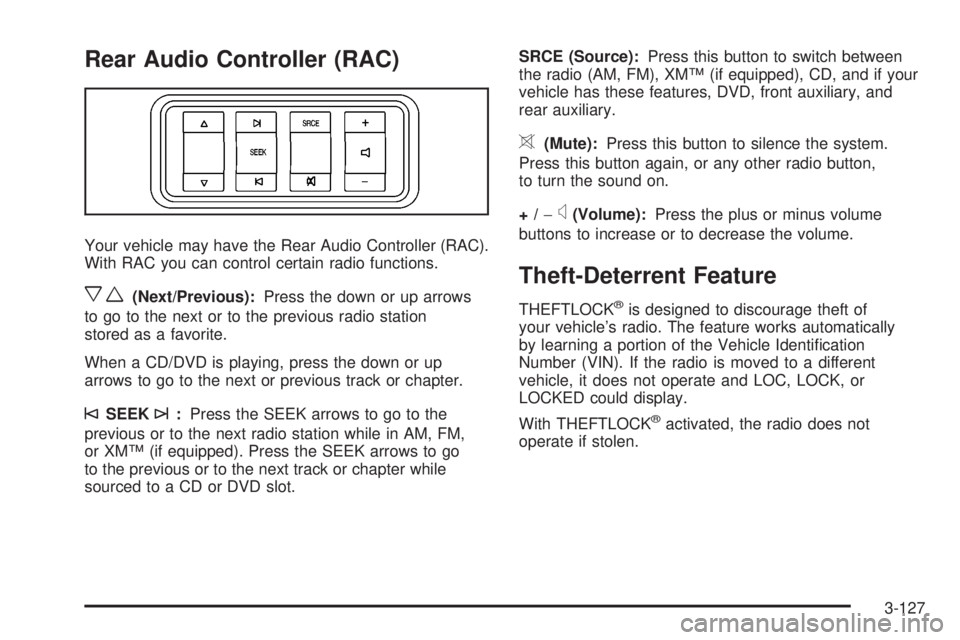
Rear Audio Controller (RAC)
Your vehicle may have the Rear Audio Controller (RAC).
With RAC you can control certain radio functions.
xw(Next/Previous):Press the down or up arrows
to go to the next or to the previous radio station
stored as a favorite.
When a CD/DVD is playing, press the down or up
arrows to go to the next or previous track or chapter.
©SEEK¨:Press the SEEK arrows to go to the
previous or to the next radio station while in AM, FM,
or XM™ (if equipped). Press the SEEK arrows to go
to the previous or to the next track or chapter while
sourced to a CD or DVD slot.SRCE (Source):Press this button to switch between
the radio (AM, FM), XM™ (if equipped), CD, and if your
vehicle has these features, DVD, front auxiliary, and
rear auxiliary.
>(Mute):Press this button to silence the system.
Press this button again, or any other radio button,
to turn the sound on.
+/−
x(Volume):Press the plus or minus volume
buttons to increase or to decrease the volume.
Theft-Deterrent Feature
THEFTLOCK®is designed to discourage theft of
your vehicle’s radio. The feature works automatically
by learning a portion of the Vehicle Identication
Number (VIN). If the radio is moved to a different
vehicle, it does not operate and LOC, LOCK, or
LOCKED could display.
With THEFTLOCK
®activated, the radio does not
operate if stolen.
3-127
Page 270 of 472
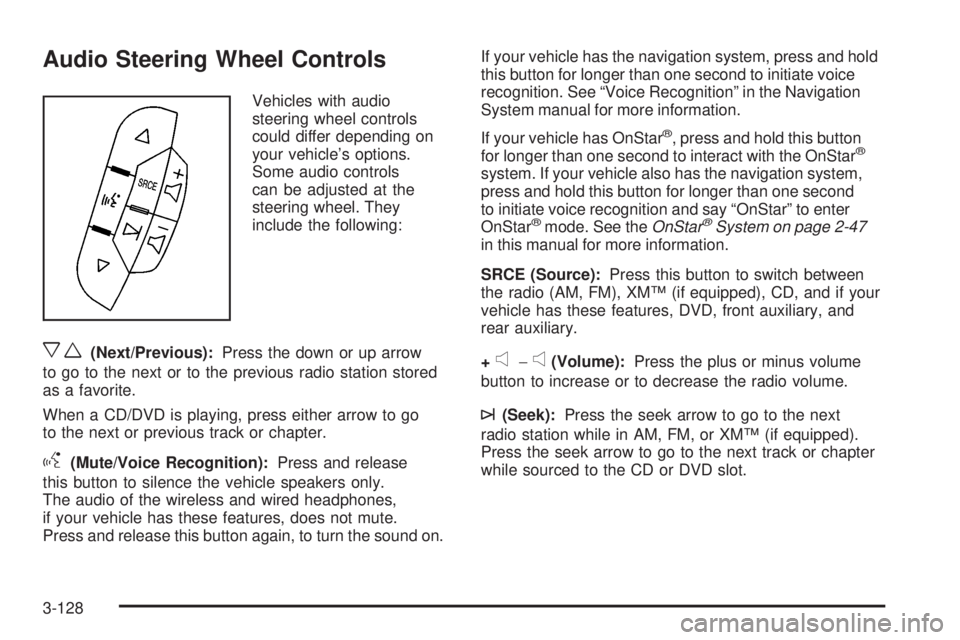
Audio Steering Wheel Controls
Vehicles with audio
steering wheel controls
could differ depending on
your vehicle’s options.
Some audio controls
can be adjusted at the
steering wheel. They
include the following:
xw(Next/Previous):Press the down or up arrow
to go to the next or to the previous radio station stored
as a favorite.
When a CD/DVD is playing, press either arrow to go
to the next or previous track or chapter.
g(Mute/Voice Recognition):Press and release
this button to silence the vehicle speakers only.
The audio of the wireless and wired headphones,
if your vehicle has these features, does not mute.
Press and release this button again, to turn the sound on.If your vehicle has the navigation system, press and hold
this button for longer than one second to initiate voice
recognition. See “Voice Recognition” in the Navigation
System manual for more information.
If your vehicle has OnStar
®, press and hold this button
for longer than one second to interact with the OnStar®
system. If your vehicle also has the navigation system,
press and hold this button for longer than one second
to initiate voice recognition and say “OnStar” to enter
OnStar
®mode. See theOnStar®System on page 2-47
in this manual for more information.
SRCE (Source):Press this button to switch between
the radio (AM, FM), XM™ (if equipped), CD, and if your
vehicle has these features, DVD, front auxiliary, and
rear auxiliary.
+
e−e(Volume):Press the plus or minus volume
button to increase or to decrease the radio volume.
¨(Seek):Press the seek arrow to go to the next
radio station while in AM, FM, or XM™ (if equipped).
Press the seek arrow to go to the next track or chapter
while sourced to the CD or DVD slot.
3-128
Page 271 of 472
Radio Reception
Frequency interference and static can occur during
normal radio reception if items such as cell phone
chargers, vehicle convenience accessories, and external
electronic devices are plugged into the accessory
power outlet. If there is interference or static, unplug
the item from the accessory power outlet.
AM
The range for most AM stations is greater than for
FM, especially at night. The longer range can cause
station frequencies to interfere with each other.
For better radio reception, most AM radio stations
boost the power levels during the day, and then reduce
these levels during the night. Static can also occur
when things like storms and power lines interfere
with radio reception. When this happens, try reducing
the treble on your radio.
FM Stereo
FM stereo gives the best sound, but FM signals only
reach about 10 to 40 miles (16 to 65 km). Tall buildings
or hills can interfere with FM signals, causing the
sound to fade in and out.
XM™ Satellite Radio Service
XM™ Satellite Radio Service gives digital radio
reception from coast-to-coast in the 48 contiguous
United States, and in Canada. Just as with FM,
tall buildings or hills can interfere with satellite radio
signals, causing the sound to fade in and out. In
addition, traveling or standing under heavy foliage,
bridges, garages, or through tunnels could cause loss
of the XM signal for a period of time. The radio may
display NO XM SIGNAL to indicate interference.
Multi-Band Antenna
The multi-band antenna is located on the roof of your
vehicle. This type of antenna is used with the AM/FM
radio, as well as OnStar
®and the XM™ Satellite Radio
Service System, if your vehicle has these features.
Keep this antenna clear of snow and ice build up for
clear radio reception. If your vehicle has a sunroof,
the performance of the radio system may be affected if
the sunroof is open. Loading items onto the roof of
your vehicle can interfere with the performance of the
radio system and, if your vehicle has this feature,
OnStar
®. Make sure the multi-band antenna is not
obstructed.
3-129
Page 353 of 472
Jump Starting
If your vehicle’s battery has run down, you may want to
use another vehicle and some jumper cables to start your
vehicle. Be sure to use the following steps to do it safely.
{CAUTION:
Batteries can hurt you. They can be dangerous
because:
They contain acid that can burn you.
They contain gas that can explode or
ignite.
They contain enough electricity to
burn you.
If you do not follow these steps exactly, some
or all of these things can hurt you.
Notice:Ignoring these steps could result in costly
damage to your vehicle that would not be covered
by your warranty.
Trying to start your vehicle by pushing or pulling it
will not work, and it could damage your vehicle.
1. Check the other vehicle. It must have a 12-volt
battery with a negative ground system.Notice:If the other vehicle’s system is not a 12-volt
system with a negative ground, both vehicles can
be damaged. Only use vehicles with 12-volt systems
with negative grounds to jump start your vehicle.
2. Get the vehicles close enough so the jumper cables
can reach, but be sure the vehicles are not touching
each other. If they are, it could cause a ground
connection you do not want. You would not be able
to start your vehicle, and the bad grounding
could damage the electrical systems.
To avoid the possibility of the vehicles rolling, set
the parking brake rmly on both vehicles involved in
the jump start procedure. Put an automatic
transmission in PARK (P) or a manual transmission
in NEUTRAL before setting the parking brake. If
you have a four-wheel-drive vehicle, be sure
the transfer case is not in NEUTRAL.
Notice:If you leave your radio or other accessories
on during the jump starting procedure, they could
be damaged. The repairs would not be covered
by your warranty. Always turn off your radio and
other accessories when jump starting your vehicle.
3. Turn off the ignition on both vehicles. Unplug
unnecessary accessories plugged into the cigarette
lighter or the accessory power outlets. Turn off
the radio and all lamps that are not needed. This
will avoid sparks and help save both batteries. And
it could save the radio!
5-39
Page 371 of 472
Tire Pressure Monitor System
The Tire Pressure Monitor System (TPMS) uses radio
and sensor technology to check tire pressure levels. The
TPMS sensors monitor the air pressure in your
vehicle’s tires and transmit tire pressure readings to a
receiver located in the vehicle.
Each tire, including the spare (if provided), should be
checked monthly when cold and inated to the ination
pressure recommended by the vehicle manufacturer
on the vehicle placard or tire ination pressure label. (If
your vehicle has tires of a different size than the size
indicated on the vehicle placard or tire ination pressure
label, you should determine the proper tire ination
pressure for those tires.)
As an added safety feature, your vehicle has been
equipped with a tire pressure monitoring system (TPMS)
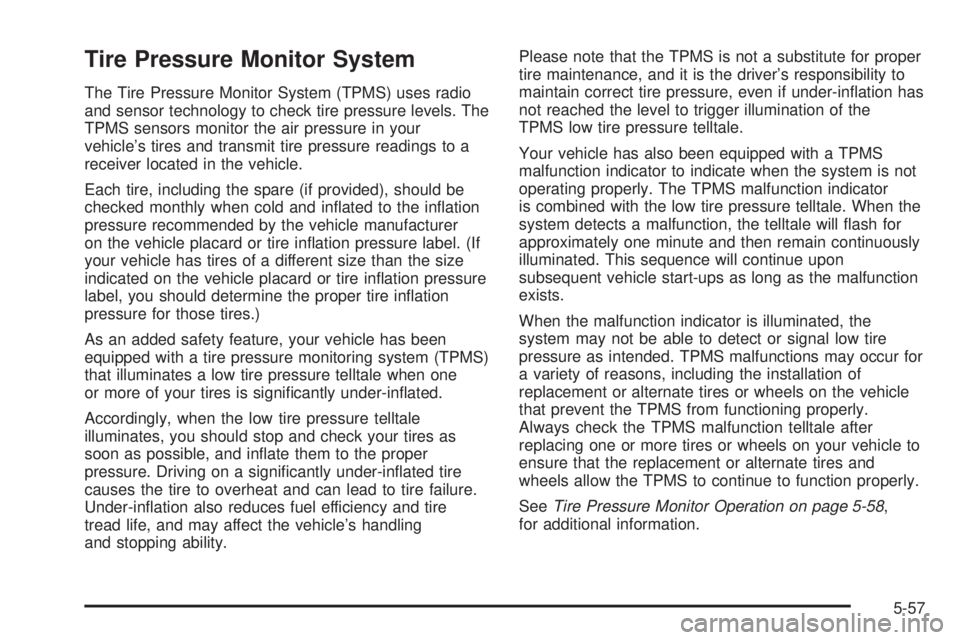
that illuminates a low tire pressure telltale when one
or more of your tires is signicantly under-inated.
Accordingly, when the low tire pressure telltale
illuminates, you should stop and check your tires as
soon as possible, and inate them to the proper
pressure. Driving on a signicantly under-inated tire
causes the tire to overheat and can lead to tire failure.
Under-ination also reduces fuel efficiency and tire
tread life, and may affect the vehicle’s handling
and stopping ability.Please note that the TPMS is not a substitute for proper
tire maintenance, and it is the driver’s responsibility to
maintain correct tire pressure, even if under-ination has
not reached the level to trigger illumination of the
TPMS low tire pressure telltale.
Your vehicle has also been equipped with a TPMS
malfunction indicator to indicate when the system is not
operating properly. The TPMS malfunction indicator
is combined with the low tire pressure telltale. When the
system detects a malfunction, the telltale will ash for
approximately one minute and then remain continuously
illuminated. This sequence will continue upon
subsequent vehicle start-ups as long as the malfunction
exists.
When the malfunction indicator is illuminated, the
system may not be able to detect or signal low tire
pressure as intended. TPMS malfunctions may occur for
a variety of reasons, including the installation of
replacement or alternate tires or wheels on the vehicle
that prevent the TPMS from functioning properly.
Always check the TPMS malfunction telltale after
replacing one or more tires or wheels on your vehicle to
ensure that the replacement or alternate tires and
wheels allow the TPMS to continue to function properly.
SeeTire Pressure Monitor Operation on page 5-58,
for additional information.
5-57
Page 372 of 472
Federal Communications Commission
(FCC) and Industry and Science
Canada
The Tire Pressure Monitor System (TPMS) operates on
a radio frequency and complies with Part 15 of the
FCC Rules. Operation is subject to the following two
conditions:
1. This device may not cause harmful interference.
2. This device must accept any interference received,
including interference that may cause undesired
operation.
The Tire Pressure Monitor System (TPMS) operates on
a radio frequency and complies with RSS-210 of
Industry and Science Canada. Operation is subject to
the following two conditions:
1. This device may not cause interference.
2. This device must accept any interference received,
including interference that may cause undesired
operation of the device.
Changes or modications to this system by other than
an authorized service facility could void authorization to
use this equipment.
Tire Pressure Monitor Operation
The Tire Pressure Monitor System (TPMS) is designed
to warn the driver when a low tire pressure condition
exists. TPMS sensors are mounted onto each tire
and wheel assembly, excluding the spare tire and wheel
assembly. The TPMS sensors monitor the air pressure
in the vehicle’s tires and transmits the tire pressure
readings to a receiver located in the vehicle.
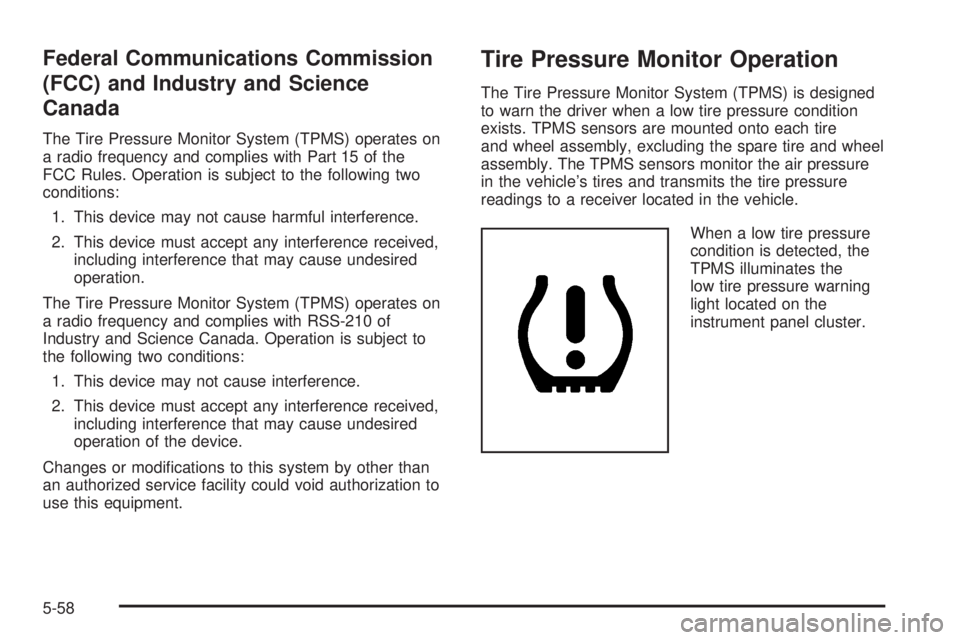
When a low tire pressure
condition is detected, the
TPMS illuminates the
low tire pressure warning
light located on the
instrument panel cluster.
5-58