ignition GMC ACADIA 2009 Workshop Manual
[x] Cancel search | Manufacturer: GMC, Model Year: 2009, Model line: ACADIA, Model: GMC ACADIA 2009Pages: 420, PDF Size: 2.23 MB
Page 192 of 420
Exiting the Feature
Settings Menu
The feature settings menu will be
exited when any of the following
occurs:
The vehicle is shifted out of
P (Park).
The vehicle is no longer in
ON/RUN.
The trip/fuel or vehicle
information DIC buttons
are pressed.
The end of the feature settings
menu is reached and exited.
A 40 second time period has
elapsed with no selection made.
Audio System(s)
Determine which radio the vehicle
has and read the following pages to
become familiar with its features.
{CAUTION
Taking your eyes off the road for
extended periods could cause a
crash resulting in injury or death
to you or others. Do not give
extended attention to
entertainment tasks while driving.
This system provides access to
many audio and non audio listings.
To minimize taking your eyes off
the road while driving, do the
following while the vehicle is parked:
Become familiar with the
operation and controls of
the audio system.
Set up the tone, speaker
adjustments, and preset
radio stations.For more information, seeDefensive
Driving on page 4-2.
Notice:Contact your dealer/
retailer before adding any
equipment.
Adding audio or communication
equipment could interfere
with the operation of the vehicle’s
engine, radio, or other systems,
and could damage them.
Follow federal rules covering
mobile radio and telephone
equipment.
The vehicle has Retained Accessory
Power (RAP). With RAP, the
audio system can be played even
after the ignition is turned off.
SeeRetained Accessory Power
(RAP) on page 2-21for more
information.
3-72 Instrument Panel
Page 193 of 420
Setting the Clock
To adjust the time and date:
1. Turn the ignition key to
ACC/ACCESSORY or ON/RUN,
then press
O, to turn the
radio on.
2. Press
Gto display HR, MIN,
MM, DD, YYYY (hour, minute,
month, day, and year).
3. Press the pushbutton located
under any one of the labels to
be changed.
4. To increase the time or date, do
one of the following:
Press the pushbutton below
the selected label.
Press¨SEEK.
Press\FWD.
Turnfclockwise.5. To decrease the time or date, do
one of the following:
Press©SEEK.
PresssREV.
Turnfcounter-clockwise.
To change the time default setting
from 12 hour to 24 hour or to
change the date default setting from
month/day/year to day/month/year:
1. Press
Gand then the
pushbutton located under the
forward arrow that displays
on the radio screen until the time
12H (hour) and 24H (hour),
and the date MM/DD (month and
day) and DD/MM (day and
month) displays.
2. Press the pushbutton located
under the desired option.
3. Press
Gagain to apply the
selected default, or let the screen
time out.
Instrument Panel 3-73
Page 196 of 420
Playing the Radio
O(Power/Volume):Press to turn
the system on and off. Turn to
increase or decrease the volume.
For vehicles with a Rear
Entertainment System (RSE), press
and hold for more than two seconds
to turn off the entire radio and RSE
system and to start the parental
control feature. Parental control
prevents the rear seat occupant from
operating the Rear Seat Audio (RSA)
system or remote control.
A lock symbol displays next to the
clock display while the parental
control feature is being used.
The feature remains on until
Ois
pressed and held for more than
two seconds, or the driver turns the
ignition off and exits the vehicle.
4(Information):Press to switch the
display between the radio station
frequency and the time. When
the ignition is in the OFF position,
press
4to display the time.For vehicles with XM, MP3, WMA or
RDS features, press
4to display
additional text information related to
the current FM-RDS or XM station;
or CD, MP3 or WMA song.
If information is available during XM,
CD, MP3 or WMA playback, the
song title information displays on the
top line of the display and artist
information displays on the bottom
line. When information is not
available, “NO INFO” is displayed.
Speed Compensated Volume
(SCV):The Speed Compensated
Volume (SCV) feature automatically
adjusts the radio volume to
compensate for road and wind noise
as the vehicle speeds up or slows
down, so that the volume level
is consistent.
To activate SCV:
1. Set the radio volume to the
desired level.
2. Press the MENU button to
display the radio setup menu.3. Press the pushbutton under the
AUTO VOLUM (automatic
volume) label on the radio
display.
4. Press the pushbutton under the
desired Speed Compensated
Volume setting (OFF, Low, Med,
or High) to select the level of
radio volume compensation.
Press the pushbutton located
below the BACK label on
the MENU SETUP display or
let the display time out after
approximately 10 seconds.
Each higher setting allows for
more radio volume compensation
at faster vehicle speeds.
Finding a Station
BAND:Press to switch between
AM, FM, or XM. The selection
displays.
f(Tune):Turn to select radio
stations.
3-76 Instrument Panel
Page 201 of 420
system, depending on media
type and format ranges from
5 to 20 seconds for a CD, and up to
30 seconds for a DVD to begin
playing).
If the ignition or radio is turned off,
while a CD is in the player, it stays in
the player. When the ignition or radio
is turned on, the CD starts playing
where it stopped, if it was the last
selected audio source. The CD is
controlled by the buttons on the
radio faceplate or by the RSA unit.
SeeRear Seat Audio (RSA) on
page 3-118for more information.
The DVD/CD decks, (upper slot is
the DVD deck and the lower slot is
the CD deck) of the radio are
compatible with most audio CDs,
CD-R, CD-RW, and MP3/WMAs.
When a CD is inserted, the text label
DVD or CD symbol displays on
the left side of the radio display.
As each new track starts to play,
the track number displays.Care of CDs and DVDs
If playing a CD-R, the sound quality
can be reduced due to CD-R or
CD-RW quality, the method
of recording, the quality of the music
that has been recorded, and the
way the CD-R or CD-RW has been
handled. Handle them carefully.
Store CD-R(s) or CD-RW(s) in their
original cases or other protective
cases and away from direct sunlight
and dust. The CD or DVD player
scans the bottom surface of the disc.
If the surface of a CD is damaged,
such as cracked, broken, or
scratched, the CD does not play
properly or not at all. Do not touch
the bottom side of a CD while
handling it; this could damage the
surface. Pick up CDs by grasping
the outer edges or the edge of
the hole and the outer edge.
If the surface of a CD is soiled, take
a soft, lint free cloth or dampen a
clean, soft cloth in a mild, neutral
detergent solution mixed with water,and clean it. Make sure the wiping
process starts from the center
to the edge.
Care of the CD and DVD Player
Do not add any label to a CD, it could
get caught in the CD or DVD player.
If a CD is recorded on a personal
computer and a description label is
needed, try labeling the top of the
recorded CD with a marking pen.
The use of CD lens cleaners for
CDs is not advised, due to the risk
of contaminating the lens of the
CD optics with lubricants internal to
the CD and DVD player mechanism.
Notice:If a label is added to
a CD, or more than one CD is
inserted into the slot at a time,
or an attempt is made to play
scratched or damaged CDs, the
CD player could be damaged.
While using the CD player, use
only CDs in good condition
without any label, load one CD at a
time, and keep the CD player and
the loading slot free of foreign
materials, liquids, and debris.
Instrument Panel 3-81
Page 215 of 420
Order of Play
Tracks recorded to the CD-R or
CD-RW disc are played in the
following order:
Play begins from the rst track in
the rst playlist and continues
sequentially through all tracks in
each playlist. When the last
track of the last playlist has
played, play continues from the
rst track of the rst playlist.
Play begins from the rst track in
the rst folder and continues
sequentially through all tracks in
each folder. When the last
track of the last folder has played,
play continues from the rst
track of the rst folder.
When play enters a new folder, the
display does not automatically
show the new folder name unless
the folder mode has been chosen as
the default display. The new track
name displays.File System and Naming
The song name that is displayed is
the song name that is contained
in the ID3 tag. If the song name is
not present in the ID3 tag, then
the radio displays the le name
without the extension (such as .mp3)
as the track name.
Track names longer than
32 characters or four pages are
shortened. Parts of words on the last
page of text and the extension of
the lename displays.
Preprogrammed Playlists
Preprogrammed playlists that
were created using WinAmp™,
MusicMatch™, or Real Jukebox™
software can be accessed, however,
they cannot be edited using the
radio. These playlists are treated as
special folders containing
compressed audio song les.Playing an MP3/WMA
(In Either the DVD or CD Slot)
Insert a CD-R or CD-RW disc
partway into either the top or bottom
slot, label side up. The player
pulls it in, and the CD-R or CD-RW
should begin playing.
Depending on the format of the
disc, a softkey menu appears and
allows navigation of the disc.
The menu reads left to right as RDM
(Randomize song play order), a
Folder icon with left and right arrows
(to move up or down through
available folders), a PL tag if the
disc has a Playlist available, and a
Music Navigator tag. If a Playlist
tag is shown, toggling this key brings
up a Folder softkey only or the
menu as previously described.
If the ignition or radio is turned off
with a CD-R or CD-RW disc in the
player it stays in the player. When
the ignition or radio is turned back
on, the CD-R or CD-RW starts to
play where it stopped, if it was the
last selected audio source.
Instrument Panel 3-95
Page 236 of 420
Battery Replacement
To change the remote control
batteries:
1. Slide the rear cover back, on theremote control.
2. Replace the two batteries in the compartment. Make sure that
they are installed correctly, using
the diagram on the inside of
the battery compartment.
3. Replace the battery cover.
If the remote control is to be stored
for a long period of time, remove
the batteries and keep them in
a cool, dry place.Problem Recommended Action
No power. The ignition might not be turned
ON/RUN or in ACC/ACCESSORY.
The picture does not ll the screen.
There are black borders on the top
and bottom or on both sides or it
looks stretched out. Check the display mode settings in
the setup menu by pressing the
display menu button on the remote
control.
In auxiliary mode, the picture moves
or scrolls. Check the auxiliary input
connections at both devices.
The remote control does not work. Check to make sure there is no obstruction between the remote
control and the transmitter window.
Check the batteries to make sure
they are not dead or installed
incorrectly.
After stopping the player, I push
Play but sometimes the DVD starts
where I left off and sometimes at
the beginning. If the stop button was pressed
one time, the DVD player resumes
playing where the DVD was
stopped. If the stop button was
pressed two times the DVD player
begins to play from the beginning of
the DVD.
The auxiliary source is running but
there is no picture or sound. Check that the RSE video screen is
in the auxiliary source mode.
Check the auxiliary input
connections at both devices.
3-116 Instrument Panel
Page 255 of 420

{CAUTION
Coasting downhill in N (Neutral) or
with the ignition off is dangerous.
The brakes will have to do all the
work of slowing down and they
could get so hot that they would
not work well. You would then
have poor braking or even none
going down a hill. You could crash.
Always have the engine running
and the vehicle in gear when going
downhill.
Stay in your own lane. Do not
swing wide or cut across the
center of the road. Drive at
speeds that let you stay in your
own lane.
Top of hills: Be alert — something
could be in your lane (stalled car,
accident).
Pay attention to special road
signs (falling rocks area, winding
roads, long grades, passing or
no-passing zones) and take
appropriate action.
Winter Driving
Driving on Snow or Ice
Drive carefully when there is snow
or ice between the tires and the
road, creating less traction or
grip. Wet ice can occur at about
32°F (0°C) when freezing rain
begins to fall, resulting in even
less traction. Avoid driving on wet
ice or in freezing rain until roads
can be treated with salt or sand.
Drive with caution, whatever the
condition. Accelerate gently so
traction is not lost. Accelerating too
quickly causes the wheels to spin
and makes the surface under the
tires slick, so there is even less
traction.Try not to break the fragile traction.
If you accelerate too fast, the drive
wheels will spin and polish the
surface under the tires even more.
TheStabiliTrak
®System on page 4-5
improves the ability to accelerate on
slippery roads, but slow down and
adjust your driving to the road
conditions. When driving through
deep snow, turn off the traction
control part of the StabiliTrak
®
System to help maintain vehicle
motion at lower speeds.
TheAntilock Brake System (ABS)
on page 4-4improves vehicle
stability during hard stops on a
slippery roads, but apply the brakes
sooner than when on dry pavement.
Allow greater following distance
on any slippery road and watch
for slippery spots. Icy patches
can occur on otherwise clear
roads in shaded areas.
Driving Your Vehicle 4-13
Page 263 of 420
Recreational Vehicle
Towing
Recreational vehicle towing means
towing the vehicle behind another
vehicle – such as behind a
motorhome. The two most common
types of recreational vehicle towing
are known as “dinghy towing” (towing
the vehicle with all four wheels on the
ground) and “dolly towing” (towing
the vehicle with two wheels on the
ground and two wheels up on a
device known as a “dolly”).
Here are some important things to
consider before recreational
vehicle towing:
What is the towing capacity of the
towing vehicle? Be sure to read
the tow vehicle manufacturer’s
recommendations.
What is the distance that will be
travelled? Some vehicles have
restrictions on how far and how
long they can tow.
Is the proper towing equipment
going to be used? See your
dealer/retailer or trailering
professional for additional advice
and equipment recommendations.
Is the vehicle ready to be towed?
Just as preparing the vehicle for a
long trip, make sure the vehicle is
prepared to be towed. SeeBefore
Leaving on a Long Trip on
page 4-12.
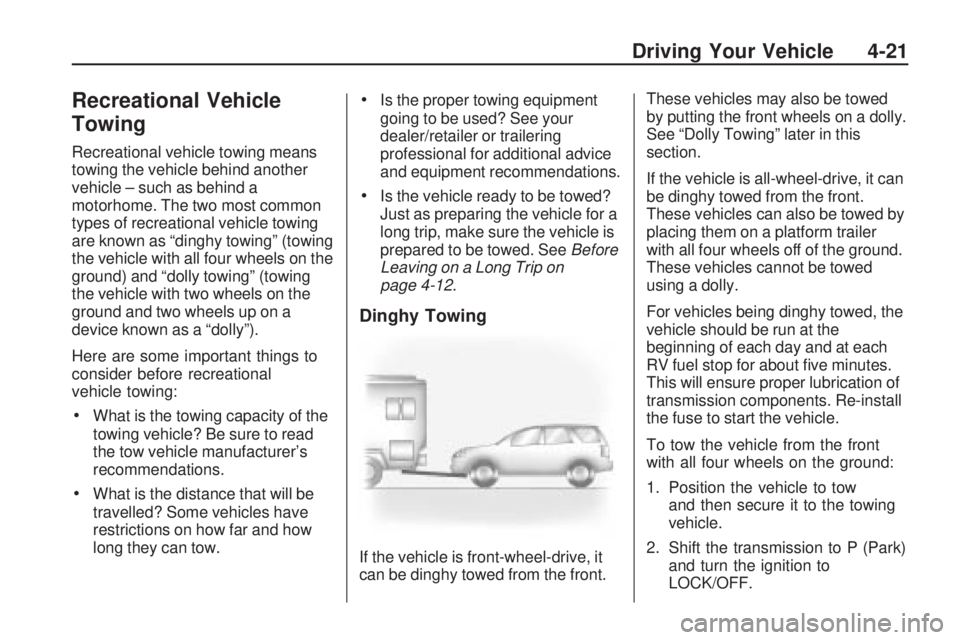
Dinghy Towing
If the vehicle is front-wheel-drive, it
can be dinghy towed from the front.These vehicles may also be towed
by putting the front wheels on a dolly.
See “Dolly Towing” later in this
section.
If the vehicle is all-wheel-drive, it can
be dinghy towed from the front.
These vehicles can also be towed by
placing them on a platform trailer
with all four wheels off of the ground.
These vehicles cannot be towed
using a dolly.
For vehicles being dinghy towed, the
vehicle should be run at the
beginning of each day and at each
RV fuel stop for about ve minutes.
This will ensure proper lubrication of
transmission components. Re-install
the fuse to start the vehicle.
To tow the vehicle from the front
with all four wheels on the ground:
1. Position the vehicle to tow
and then secure it to the towing
vehicle.
2. Shift the transmission to P (Park)
and turn the ignition to
LOCK/OFF.
Driving Your Vehicle 4-21
Page 264 of 420
3. Set the parking brake.
4. Turn the ignition to
ACC/ACCESSORY.
5. Shift the transmission to
N (Neutral).
6. To prevent the battery from
draining while the vehicle is being
towed, remove the 50 amp
BATT1 fuse from the underhood
fuse block and store in a safe
location. SeeUnderhood
Fuse Block on page 5-92.
7. Release the parking brake.
Notice:If the vehicle is towed
without performing each of
the steps listed under “Dinghy
Towing,” the automatic
transmission could be damaged.
Be sure to follow all steps of
the dinghy towing procedure prior
to and after towing the vehicle.Notice:If 65 mph (105 km/h) is
exceeded while towing the
vehicle, it could be damaged.
Never exceed 65 mph (105 km/h)
while towing the vehicle.
Once the destination is reached:
1. Set the parking brake.
2. Reinstall the 50 amp BATT1 fuse
to the underhood fuse block.
3. Shift the transmission to P (Park),
turn the ignition to LOCK/OFF
and remove the key from
the ignition.
4. Disconnect the vehicle from the
towing vehicle.
Notice:Do not tow a vehicle
with the front drive wheels on the
ground if one of the front tires
is a compact spare tire. Towing
with two different tire sizes on the
front of the vehicle can cause
severe damage to the
transmission.Dolly Towing (All-Wheel-Drive
Vehicles)
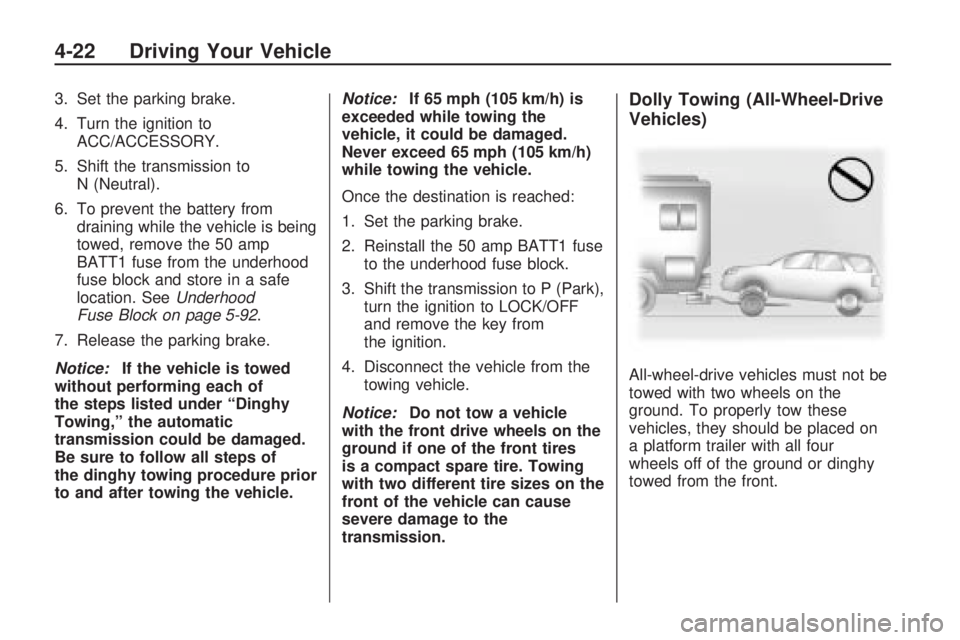
All-wheel-drive vehicles must not be
towed with two wheels on the
ground. To properly tow these
vehicles, they should be placed on
a platform trailer with all four
wheels off of the ground or dinghy
towed from the front.
4-22 Driving Your Vehicle
Page 265 of 420
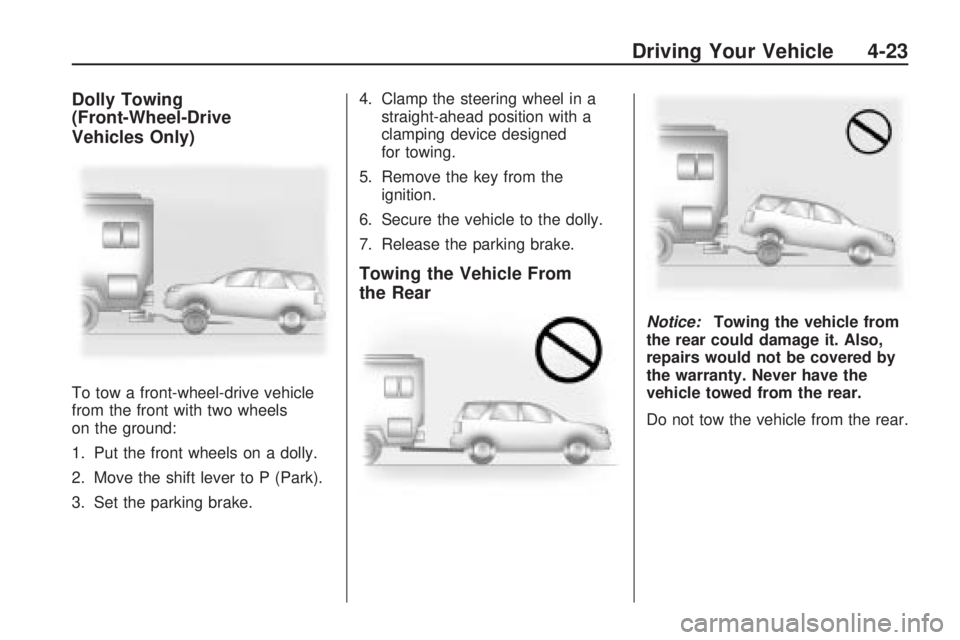
Dolly Towing
(Front-Wheel-Drive
Vehicles Only)
To tow a front-wheel-drive vehicle
from the front with two wheels
on the ground:
1. Put the front wheels on a dolly.
2. Move the shift lever to P (Park).
3. Set the parking brake.4. Clamp the steering wheel in a
straight-ahead position with a
clamping device designed
for towing.
5. Remove the key from the
ignition.
6. Secure the vehicle to the dolly.
7. Release the parking brake.
Towing the Vehicle From
the Rear
Notice:Towing the vehicle from
the rear could damage it. Also,
repairs would not be covered by
the warranty. Never have the
vehicle towed from the rear.
Do not tow the vehicle from the rear.
Driving Your Vehicle 4-23