radio GMC ACADIA 2011 User Guide
[x] Cancel search | Manufacturer: GMC, Model Year: 2011, Model line: ACADIA, Model: GMC ACADIA 2011Pages: 478, PDF Size: 5.52 MB
Page 47 of 478
Black plate (15,1)GMC Acadia/Acadia Denali Owner Manual - 2011
Keys, Doors and Windows 2-15
Immobilizer
SeeRadio Frequency Statement on
page 13‑20 for information
regarding Part 15 of the Federal
Communications Commission
(FCC) rules and Industry Canada
Standards RSS-210/220/310.
Immobilizer Operation
This vehicle has PASS-Key®III+
(Personalized Automotive Security
System) theft-deterrent system.
PASS-Key
®III+ is a passive
theft-deterrent system.
The system is automatically armed
when the key is removed from the
ignition.
The system is automatically
disarmed when the key is turned
to ON/RUN, ACC/ACCESSORY
or START from the LOCK/OFF
position.
You do not have to manually arm or
disarm the system. The security light comes on if
there is a problem with arming
or disarming the theft-deterrent
system.
When the PASS-Key
®III+ system
senses an incorrect key, the vehicle
does not start. Anyone using a
trial-and-error method to start the
vehicle will be discouraged because
of the high number of electrical key
codes.
If the engine does not start and
the security light on the instrument
panel comes on when trying to start
the vehicle, there may be a problem
with your theft-deterrent system.
Turn the ignition off and try again.
If the engine still does not start,
and the key appears to be
undamaged, try another ignition
key and check the fuses. See Fuses
and Circuit Breakers on page 10‑32
for additional information. If the
engine still does not start with the
other key, the vehicle needs service.
If the vehicle does start, the first key
may be faulty. See your dealer who can service the PASS-Key
®III+
to have a new key made. In an
emergency, contact Roadside
Assistance. See Roadside
Assistance Program (U.S. and
Canada) on page 13‑8 orRoadside
Assistance Program (Mexico) on
page 13‑10.
It is possible for the PASS-Key
®III+
decoder to learn the transponder
value of a new or replacement key.
Up to 10 keys may be programmed
to the vehicle. The following
procedure is for programming
additional keys only. If all the
currently programmed keys are
lost or do not operate, you must
see your dealer or a locksmith who
can service PASS-Key
®III+ to have
keys made and programmed to the
system.
See your dealer or a locksmith who
can service PASS-Key
®III+ to get a
new key blank that is cut exactly as
the ignition key that operates the
system.
Page 127 of 478
Black plate (1,1)GMC Acadia/Acadia Denali Owner Manual - 2011
Storage 4-1
Storage
Storage Compartments
Instrument Panel Storage . . . . 4-1
Glove Box . . . . . . . . . . . . . . . . . . . . 4-1
Cupholders . . . . . . . . . . . . . . . . . . . 4-1
Armrest Storage . . . . . . . . . . . . . . 4-1
Center Console Storage . . . . . . 4-2
Floor Console Storage . . . . . . . . 4-2
Additional Storage Features
Cargo Cover . . . . . . . . . . . . . . . . . . 4-3
Cargo Tie Downs . . . . . . . . . . . . . 4-3
Cargo ManagementSystem . . . . . . . . . . . . . . . . . . . . . . 4-3
Convenience Net . . . . . . . . . . . . . 4-4
Roof Rack System
Roof Rack System . . . . . . . . . . . . 4-5
Storage
Compartments
Instrument Panel Storage
This vehicle has an instrument
panel storage area located above
the radio. To open the cover, press
the button.
This vehicle has an auxiliary input
jack. See Auxiliary Devices on
page 7‑37 for more information.
Glove Box
Lift the glove box handle to open it.
Use the key to lock and unlock the
glove box.
Cupholders
There are two cupholders, with
removable liners, located in front
of the center console. There may be
cupholders located in the second
row seat armrest. To access,
pull the armrest down. There are
additional cupholders located on
each side of the third row seat
and in each door. There may be
cupholders located at the rear of
the center console. To access,
pull the handle down.
Armrest Storage
Vehicles with a rear seat
armrest, have two cupholders.
Pull the armrest down from the
rear seatback to access the
cupholders.
Page 134 of 478
Black plate (2,1)GMC Acadia/Acadia Denali Owner Manual - 2011
5-2 Instruments and Controls
Ride Control SystemMessages . . . . . . . . . . . . . . . . . . 5-42
Airbag System Messages . . . . 5-43
Anti-Theft Alarm System Messages . . . . . . . . . . . . . . . . . . 5-43
Service Vehicle Messages . . . 5-43
Tire Messages . . . . . . . . . . . . . . . 5-44
Transmission Messages . . . . . 5-45
Vehicle Reminder Messages . . . . . . . . . . . . . . . . . . 5-46
Vehicle Speed Messages . . . . 5-46
Washer Fluid Messages . . . . . 5-46
Vehicle Personalization
Vehicle Personalization (With DIC Buttons) . . . . . . . . . 5-47
Universal Remote System
Universal Remote System . . . 5-55
Universal Remote SystemProgramming . . . . . . . . . . . . . . . 5-55
Universal Remote System Operation . . . . . . . . . . . . . . . . . . 5-59
Controls
Steering Wheel
Adjustment
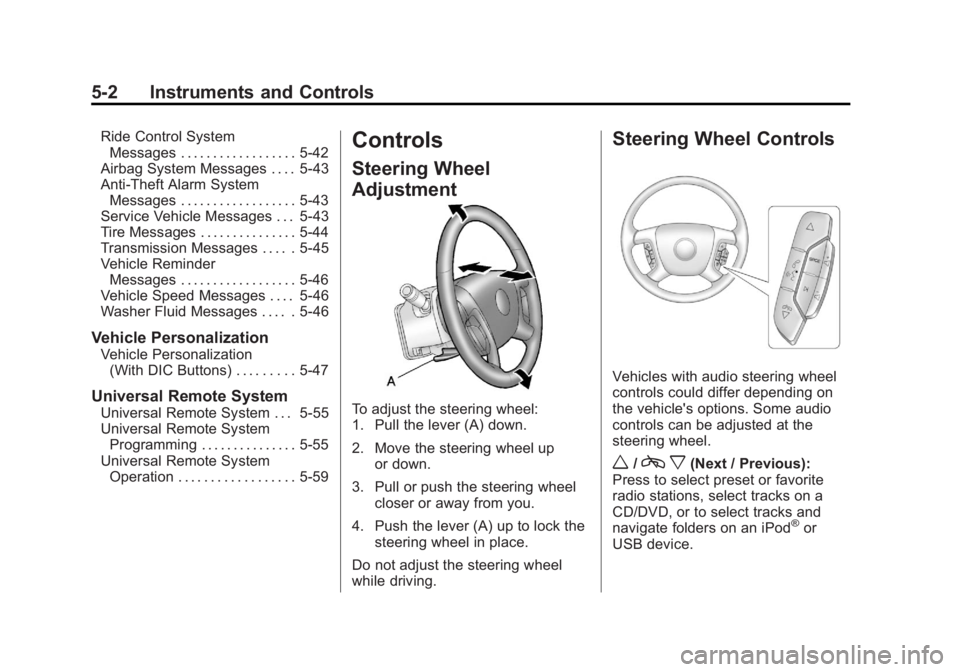
To adjust the steering wheel:
1. Pull the lever (A) down.
2. Move the steering wheel up
or down.
3. Pull or push the steering wheel closer or away from you.
4. Push the lever (A) up to lock the steering wheel in place.
Do not adjust the steering wheel
while driving.
Steering Wheel Controls
Vehicles with audio steering wheel
controls could differ depending on
the vehicle's options. Some audio
controls can be adjusted at the
steering wheel.
w/c x(Next / Previous):
Press to select preset or favorite
radio stations, select tracks on a
CD/DVD, or to select tracks and
navigate folders on an iPod
®or
USB device.
Page 135 of 478
Black plate (3,1)GMC Acadia/Acadia Denali Owner Manual - 2011
Instruments and Controls 5-3
To select preset or favorite radio
stations:
.Press and releaseworcx
to go to the next or previous
radio station stored as a preset
or favorite.
To select tracks on a CD/DVD:
Press and release
worc xto
go to the next or previous track.
To select tracks on an iPod or
USB device for vehicles without
a navigation system:
1. Press and hold
worc x
while listening to a song until
the contents of the current folder
display on the radio display.
2. Press and release
worc x
to scroll up or down the list, then
press and hold
w, or press¨to
play the highlighted track. To select tracks on an iPod or USB
device for vehicles with a navigation
system:
1. Press and hold
worc
x
while listening to a song listed
in the main audio page, to
quickly move forward or in
reverse through the tracks.
See the separate Navigation
System manual for more
information.
Track information is displayed
on the screen. Release
wor
c xwhen the desired track
is reached.
2. Press and release
c xto
begin playing the track shown
in the display. To navigate folders on an iPod or
USB device for vehicles without a
navigation system:
1. Press and hold
worc
x
while listening to a song until
the contents of the current folder
display on the radio display.
2. Press and hold
c xto go
back to the previous folder list.
3. Press and release
worc x
to scroll up or down the list.
.To select a folder, press
and hold
w, or press
¨when the folder is
highlighted.
.To go back further in
the folder list, press
and hold
c x.
Page 136 of 478
Black plate (4,1)GMC Acadia/Acadia Denali Owner Manual - 2011
5-4 Instruments and Controls
To navigate folders on an iPod or
USB device for vehicles with a
navigation system:
1. Go to the Music Navigator byfirst touching the center touch
screen folder button in the main
audio page.
2. While in Music Navigator, select the folder/artist/genre/category,
etc. using the touch screen.
3. Press and release
c xto
scroll through the selected music
list. Touch the track label on the
touch screen to highlight and
begin playing the track from
that list.
4. Press and hold
c xto quickly
scroll through the selected
music list
b g(Mute/Push to Talk): Press to
silence the vehicle speakers only.
Press again to turn the sound on.
For vehicles with Bluetooth or
OnStar
®systems, press and hold
for longer than two seconds to interact with those systems.
See
Bluetooth on page 7‑50 and
the OnStar Owner's Guide for
more information.
c x(End): Press to reject an
incoming call, or end a current call.
SRCE (Source/Voice
Recognition): Press to switch
between the radio, CD, and for
vehicles with, DVD, front auxiliary,
and rear auxiliary.
For vehicles with the navigation
system, press and hold this
button for longer than one second
to initiate voice recognition.
See “Voice Recognition” in the
Navigation System manual for
more information.
¨(Seek): Press to go to the
next radio station while in AM,
FM, or XM™.
For vehicles with or without a
navigation system:
Press
¨to go to the next track or
chapter while sourced to the CD
or DVD slot. Press
¨to select a track or a folder
when navigating folders on an iPod
or USB device.
For vehicles with a navigation
system:
1. Press and hold
¨until a beep
is heard, to place the radio into
SCAN mode, a station will play
for five seconds before moving
to the next station.
2. To stop the SCAN function, press
¨again.
3. In CD/DVD, iPod, or AUX USB, press and hold to quickly move
forward through the tracks.
Release to stop on the desired
track.
+
e−e(Volume): Press to
increase or to decrease the volume.
Horn
Press near the horn symbols or
press on the steering wheel pad
to sound the horn.
Page 140 of 478
Black plate (8,1)GMC Acadia/Acadia Denali Owner Manual - 2011
5-8 Instruments and Controls
To calibrate the compass, use the
following procedure:
Compass Calibration Procedure
1. Before calibrating the compass,make sure the compass zone
is set to the variance zone in
which the vehicle is located.
See “Compass Variance (Zone)
Procedure” earlier in this
section.
Do not operate any switches
such as window, sunroof,
climate controls, seats, etc.
during the calibration procedure.
2. Press the vehicle information button until PRESS
VTO
CALIBRATE COMPASS
displays.
3. Press the set/reset button to start the compass calibration. 4. The DIC will display
CALIBRATING: DRIVE IN
CIRCLES. Drive the vehicle
in tight circles at less than
8 km/h (5 mph) to complete the
calibration. The DIC will display
CALIBRATION COMPLETE
for a few seconds when the
calibration is complete. The DIC
display will then return to the
previous menu.
Clock
To adjust the time and date:
1. Turn the ignition key to
ACC/ACCESSORY or ON/RUN,
then press
O, to turn the
radio on.
2. Press
Gto display HR, MIN,
MM, DD, YYYY (hour, minute,
month, day, and year). 3. Press the pushbutton located
under any one of the labels to
be changed.
4. To increase the time or date, do one of the following:
.Press the pushbutton below
the selected label.
.Press¨SEEK.
.Press\FWD.
.Turnfclockwise.
5. To decrease the time or date, do one of the following:
.Press©SEEK.
.PresssREV.
.Turnfcounter‐clockwise.
Page 141 of 478
Black plate (9,1)GMC Acadia/Acadia Denali Owner Manual - 2011
Instruments and Controls 5-9
To change the time default setting
from 12 hour to 24 hour or to
change the date default setting from
month/day/year to day/month/year:
1. Press
Gand then the
pushbutton located under the
forward arrow that displays on
the radio screen until the time
12H (hour) and 24H (hour),
and the date MM/DD (month
and day) and DD/MM (day
and month) displays.
2. Press the pushbutton located under the desired option.
3. Press
Gagain to apply the
selected default, or let the
screen time out.
Power Outlets
The vehicle has three 12‐volt outlets
that can be used to plug in electrical
equipment, such as a cell phone or
MP3 player.
The power outlets are located on
the instrument panel below the
climate controls, at the rear of the
center console, and in the rear
cargo area. Lift the cover to access
the outlet and replace when not
in use.
{WARNING
Power is always supplied to the
outlets. Do not leave electrical
equipment plugged in when the
vehicle is not in use because the
vehicle could catch fire and cause
injury or death. Notice:
Leaving electrical
equipment plugged in for an
extended period of time while
the vehicle is off will drain the
battery. Always unplug electrical
equipment when not in use and
do not plug in equipment that
exceeds the maximum 20 ampere
rating.
Certain accessory plugs may not
be compatible with the accessory
power outlet and could overload
vehicle and adapter fuses. If a
problem is experienced, see your
dealer.
Page 149 of 478
Black plate (17,1)GMC Acadia/Acadia Denali Owner Manual - 2011
Instruments and Controls 5-17
If, after several seconds, both status
indicator lights remain on, or if there
are no lights at all, there may be
a problem with the lights or the
passenger sensing system.
See your dealer for service.
{WARNING
If the airbag readiness light ever
comes on and stays on, it means
that something may be wrong
with the airbag system. To help
avoid injury to yourself or others,
have the vehicle serviced right
away. SeeAirbag Readiness
Light on page 5‑15 for more
information, including important
safety information.
Charging System Light
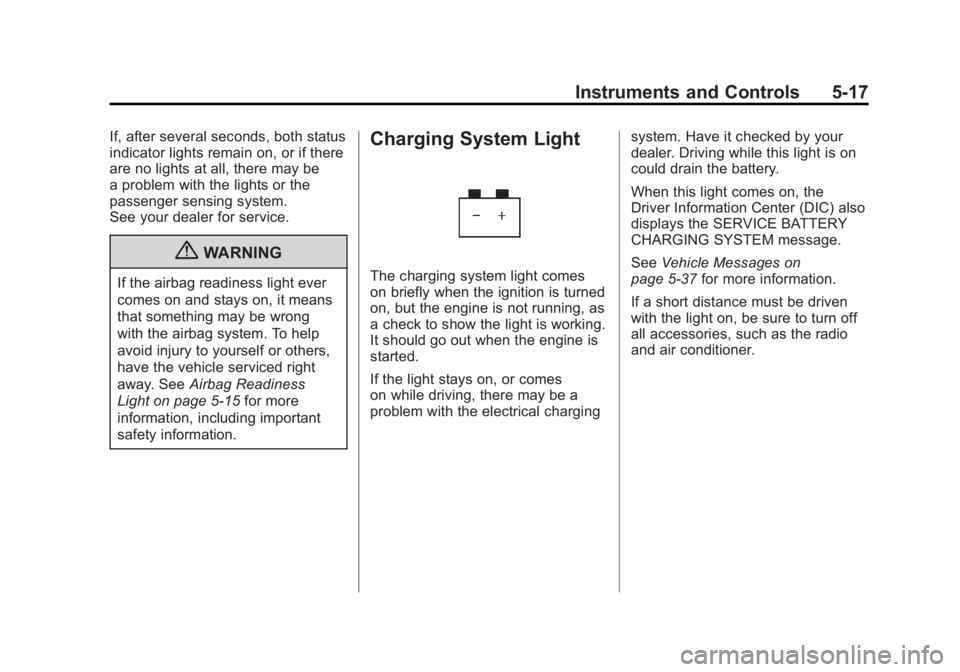
The charging system light comes
on briefly when the ignition is turned
on, but the engine is not running, as
a check to show the light is working.
It should go out when the engine is
started.
If the light stays on, or comes
on while driving, there may be a
problem with the electrical charging system. Have it checked by your
dealer. Driving while this light is on
could drain the battery.
When this light comes on, the
Driver Information Center (DIC) also
displays the SERVICE BATTERY
CHARGING SYSTEM message.
See
Vehicle Messages on
page 5‑37 for more information.
If a short distance must be driven
with the light on, be sure to turn off
all accessories, such as the radio
and air conditioner.
Page 165 of 478
Black plate (33,1)GMC Acadia/Acadia Denali Owner Manual - 2011
Instruments and Controls 5-33
Head-Up Display (HUD)
{WARNING
If the HUD image is too bright or
too high in your field of view, it
may take you more time to see
things you need to see when it is
dark outside. Be sure to keep the
HUD image dim and placed low in
your field of view.
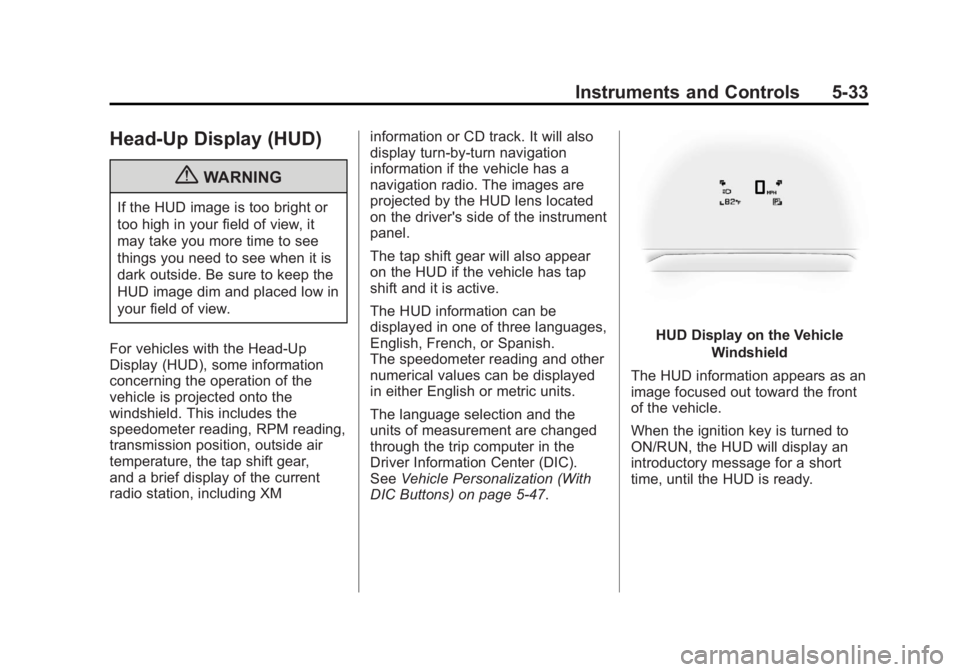
For vehicles with the Head-Up
Display (HUD), some information
concerning the operation of the
vehicle is projected onto the
windshield. This includes the
speedometer reading, RPM reading,
transmission position, outside air
temperature, the tap shift gear,
and a brief display of the current
radio station, including XM information or CD track. It will also
display turn-by-turn navigation
information if the vehicle has a
navigation radio. The images are
projected by the HUD lens located
on the driver's side of the instrument
panel.
The tap shift gear will also appear
on the HUD if the vehicle has tap
shift and it is active.
The HUD information can be
displayed in one of three languages,
English, French, or Spanish.
The speedometer reading and other
numerical values can be displayed
in either English or metric units.
The language selection and the
units of measurement are changed
through the trip computer in the
Driver Information Center (DIC).
See
Vehicle Personalization (With
DIC Buttons) on page 5‑47.
HUD Display on the Vehicle
Windshield
The HUD information appears as an
image focused out toward the front
of the vehicle.
When the ignition key is turned to
ON/RUN, the HUD will display an
introductory message for a short
time, until the HUD is ready.
Page 166 of 478
Black plate (34,1)GMC Acadia/Acadia Denali Owner Manual - 2011
5-34 Instruments and Controls
The following indicator lights come
on the instrument panel when
activated and also appear on
the HUD:
.Turn Signal Indicators
.High-Beam Indicator Symbol
The HUD temporarily displays
CHECK GAGES and ICE
POSSIBLE when these messages
are on the DIC trip computer.
The HUD also displays the following
messages on vehicles with these
systems, when they are active:
.TRACTION CONTROL ACTIVE
.STABILITRAK ACTIVE
Notice: If you try to use the
HUD image as a parking aid, you
may misjudge the distance and
damage your vehicle. Do not use
the HUD image as a parking aid.
When the HUD is on, the
speedometer reading is continually
displayed. The current radio station or CD track number will display
for a short period of time after
the radio or CD track status
changes. This happens whenever
radio information is changed.
The speedometer size is reduced
when radio, CD information,
warnings, or turn-by-turn navigation
information are displayed on
the HUD.
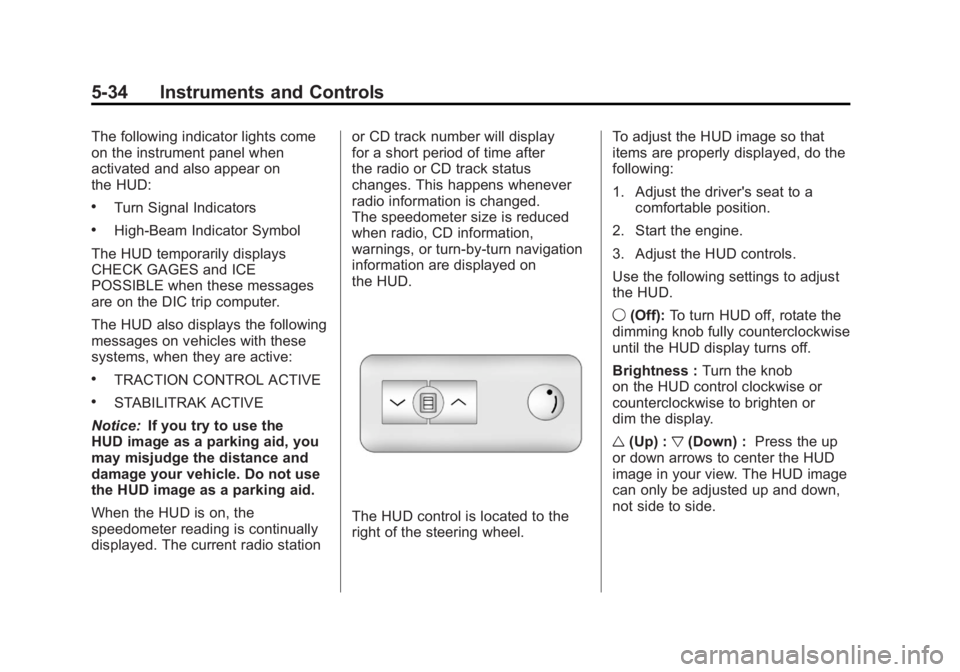
The HUD control is located to the
right of the steering wheel.
To adjust the HUD image so that
items are properly displayed, do the
following:
1. Adjust the driver's seat to a
comfortable position.
2. Start the engine.
3. Adjust the HUD controls.
Use the following settings to adjust
the HUD.
9 (Off): To turn HUD off, rotate the
dimming knob fully counterclockwise
until the HUD display turns off.
Brightness : Turn the knob
on the HUD control clockwise or
counterclockwise to brighten or
dim the display.
w (Up) : x(Down) : Press the up
or down arrows to center the HUD
image in your view. The HUD image
can only be adjusted up and down,
not side to side.