radio GMC ACADIA 2011 Owner's Guide
[x] Cancel search | Manufacturer: GMC, Model Year: 2011, Model line: ACADIA, Model: GMC ACADIA 2011Pages: 478, PDF Size: 5.52 MB
Page 168 of 478
Black plate (36,1)GMC Acadia/Acadia Denali Owner Manual - 2011
5-36 Instruments and Controls
All formats will show the
turn-by-turn navigation information
and provide details about the
next driving maneuver to be made.
When you near your destination,
the HUD will display a distance
bar that will fill in the closer you get
to your destination. All navigation
information is provided to the HUD
by the navigation radio, if the
vehicle has one.
The HUD image displayed on the
windshield will automatically dim
and brighten to compensate for
outside lighting.
The HUD image can temporarily
light up depending on the angle
and position of the sunlight on the
HUD display. This is normal and
will change when the angle of
the sunlight on the HUD display
changes.
Polarized sunglasses could make
the HUD image harder to see.Care of the HUD
Clean the inside of the windshield
as needed to remove any dirt or film
that could reduce the sharpness or
clarity of the HUD image.
To clean the HUD lens, use a soft,
clean cloth that has household glass
cleaner sprayed on it. Wipe the
HUD lens gently, then dry it. Do not
spray cleaner directly on the lens
because the cleaner could leak
into the unit.
If You Cannot See the HUD
Image When the Ignition Is On
.Is anything covering the
HUD lens?
.Is the HUD dimmer setting bright
enough?
.Is the HUD image adjusted to
the proper height?
.Are you wearing polarized
sunglasses?
.Still no HUD image? Check the
fuse in the instrument panel fuse
block. SeeInstrument Panel
Fuse Block on page 10‑35.
If the HUD Image Is Not Clear
.Is the HUD image too bright?
.Are the windshield and HUD
lens clean?
If the HUD image is not correct,
contact your dealer.
Keep in mind that the windshield is
part of the HUD system.
Page 187 of 478
Black plate (55,1)GMC Acadia/Acadia Denali Owner Manual - 2011
Instruments and Controls 5-55
Exiting the Feature
Settings Menu
The feature settings menu will be
exited when any of the following
occurs:
.The vehicle is shifted out of
P (Park).
.The vehicle is no longer in
ON/RUN.
.The trip/fuel or vehicle
information DIC buttons are
pressed.
.The end of the feature settings
menu is reached and exited.
.A 40 second time period has
elapsed with no selection made.
Universal Remote
System
SeeRadio Frequency Statement on
page 13‑20 for information
regarding Part 15 of the Federal
Communications Commission
(FCC) rules and Industry Canada
Standards RSS-210/220/310.
Universal Remote System
Programming
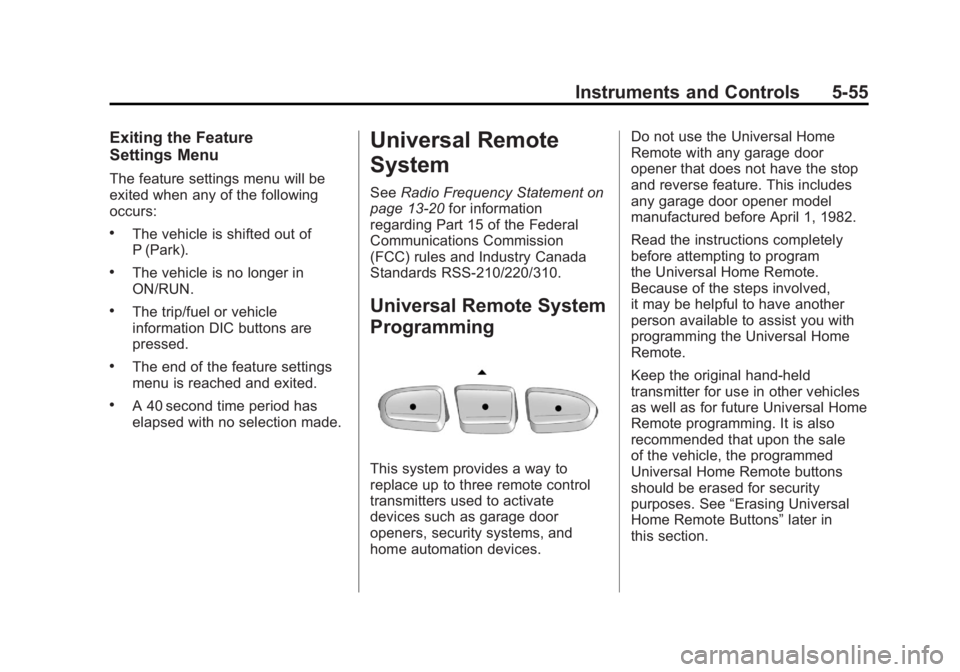
This system provides a way to
replace up to three remote control
transmitters used to activate
devices such as garage door
openers, security systems, and
home automation devices. Do not use the Universal Home
Remote with any garage door
opener that does not have the stop
and reverse feature. This includes
any garage door opener model
manufactured before April 1, 1982.
Read the instructions completely
before attempting to program
the Universal Home Remote.
Because of the steps involved,
it may be helpful to have another
person available to assist you with
programming the Universal Home
Remote.
Keep the original hand-held
transmitter for use in other vehicles
as well as for future Universal Home
Remote programming. It is also
recommended that upon the sale
of the vehicle, the programmed
Universal Home Remote buttons
should be erased for security
purposes. See
“Erasing Universal
Home Remote Buttons” later in
this section.
Page 188 of 478
Black plate (56,1)GMC Acadia/Acadia Denali Owner Manual - 2011
5-56 Instruments and Controls
When programming a garage door,
park outside of the garage. Park
directly in line with and facing the
garage door opener motor-head
or gate motor-head. Be sure that
people and objects are clear of the
garage door or gate that is being
programmed.
It is recommended that a new
battery be installed in your
hand-held transmitter for quicker
and more accurate transmission
of the radio-frequency signal.
Programming the Universal
Home Remote System
For questions or help programming
the Universal Home Remote
System, call 1‐800‐355‐3515
or go to www.homelink.com.Programming a garage door opener
involves time-sensitive actions, so
read the entire procedure before
starting. Otherwise, the device will
time out and the procedure will have
to be repeated.
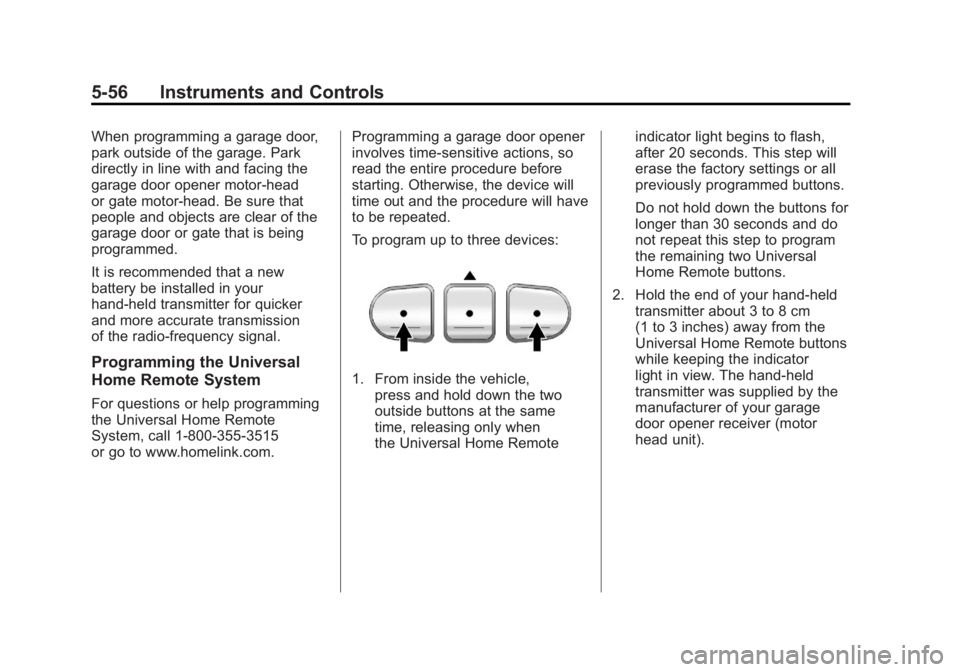
To program up to three devices:
1. From inside the vehicle,
press and hold down the two
outside buttons at the same
time, releasing only when
the Universal Home Remote indicator light begins to flash,
after 20 seconds. This step will
erase the factory settings or all
previously programmed buttons.
Do not hold down the buttons for
longer than 30 seconds and do
not repeat this step to program
the remaining two Universal
Home Remote buttons.
2. Hold the end of your hand-held transmitter about 3 to 8 cm
(1 to 3 inches) away from the
Universal Home Remote buttons
while keeping the indicator
light in view. The hand-held
transmitter was supplied by the
manufacturer of your garage
door opener receiver (motor
head unit).
Page 190 of 478
Black plate (58,1)GMC Acadia/Acadia Denali Owner Manual - 2011
5-58 Instruments and Controls
8. Immediately return to thevehicle. Firmly press and hold
the Universal Home Remote
button, selected in Step 3 to
control the garage door, for
two seconds, and then release
it. If the garage door does
not move, press and hold the
same button a second time
for two seconds, and then
release it. Again, if the door
does not move, press and hold
the same button a third time for
two seconds, and then release.
The Universal Home Remote
should now activate the
garage door. To program the remaining two
Universal Home Remote buttons,
begin with Step 2 of
“Programming
the Universal Home Remote
System.” Do not repeat Step 1,
as this will erase all previous
programming from the Universal
Home Remote buttons.
Gate Operator and Canadian
Programming
If you have questions or need
help programming the Universal
Home Remote System, call
1-800-355-3515 or go to
www.homelink.com.
Canadian radio-frequency laws
require transmitter signals to time
out or quit after several seconds
of transmission. This may not be
long enough for Universal Home
Remote to pick up the signal during
programming. Similarly, some U.S.
gate operators are manufactured to
time out in the same manner. If you live in Canada, or you are
having difficulty programming a
gate operator or garage door
opener by using the
“Programming
Universal Home Remote”
procedures, regardless of where
you live, replace Step 3 under
“Programming Universal Home
Remote” with the following:
Continue to press and hold the
Universal Home Remote button
while you press and release
every two seconds (cycle) the
hand-held transmitter button
until the frequency signal has
been successfully accepted
by the Universal Home Remote.
The Universal Home Remote
indicator light will flash slowly
at first and then rapidly. Proceed
with Step 4 under “Programming
Universal Home Remote” to
complete the training procedure.
Page 201 of 478
Black plate (1,1)GMC Acadia/Acadia Denali Owner Manual - 2011
Infotainment System 7-1
Infotainment
System
Introduction
Infotainment . . . . . . . . . . . . . . . . . . . 7-1
Theft-Deterrent Feature . . . . . . . 7-2
Operation . . . . . . . . . . . . . . . . . . . . . 7-2
Radio
AM-FM Radio . . . . . . . . . . . . . . . . . 7-7
Satellite Radio . . . . . . . . . . . . . . . . 7-8
Radio Reception . . . . . . . . . . . . . 7-12
Multi-Band Antenna . . . . . . . . . . 7-13
Audio Players
CD Player . . . . . . . . . . . . . . . . . . . 7-14
CD/DVD Player . . . . . . . . . . . . . . 7-16
MP3 (Radios withCD/USB) . . . . . . . . . . . . . . . . . . . 7-24
MP3 (Radios with
CD/DVD) . . . . . . . . . . . . . . . . . . . 7-30
Auxiliary Devices . . . . . . . . . . . . 7-37
Rear Seat Infotainment
Rear Seat Entertainment (RSE) System . . . . . . . . . . . . . . 7-39
Rear Seat Audio (RSA) System . . . . . . . . . . . . . . . . . . . . . 7-48
Rear Audio Controller (RAC) . . . . . . . . . . . 7-50
Phone
Bluetooth . . . . . . . . . . . . . . . . . . . . 7-50
Introduction
Infotainment
Read the following pages to
become familiar with the audio
system's features.
{WARNING
Taking your eyes off the road
for extended periods could
cause a crash resulting in
injury or death to you or others.
Do not give extended attention to
entertainment tasks while driving.
This system provides access to
many audio and non audio listings.
To minimize taking your eyes off the
road while driving, do the following
while the vehicle is parked:
.Become familiar with the
operation and controls of
the audio system.
Page 202 of 478
Black plate (2,1)GMC Acadia/Acadia Denali Owner Manual - 2011
7-2 Infotainment System
.Set up the tone, speaker
adjustments, and preset
radio stations.
For more information, see Defensive
Driving on page 9‑2.
The vehicle has Retained
Accessory Power (RAP). With RAP,
the audio system can be played
even after the ignition is turned
off. See Retained Accessory
Power (RAP) on page 9‑21
for more information.
Navigation/Radio System
For vehicles with a navigation radio
system, see the separate Navigation
System manual.
Theft-Deterrent Feature
TheftLock®is designed to
discourage theft of the vehicle's
radio by learning a portion of the
Vehicle Identification Number (VIN).
The radio does not operate if it
is stolen or moved to a different
vehicle.
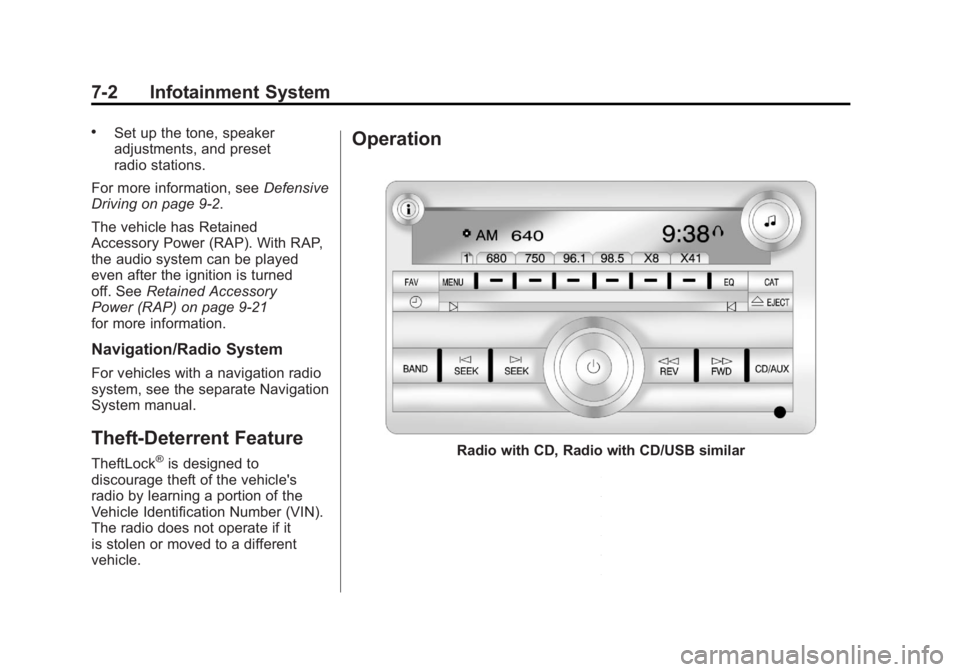
Operation
Radio with CD, Radio with CD/USB similar
Page 203 of 478
Black plate (3,1)GMC Acadia/Acadia Denali Owner Manual - 2011
Infotainment System 7-3
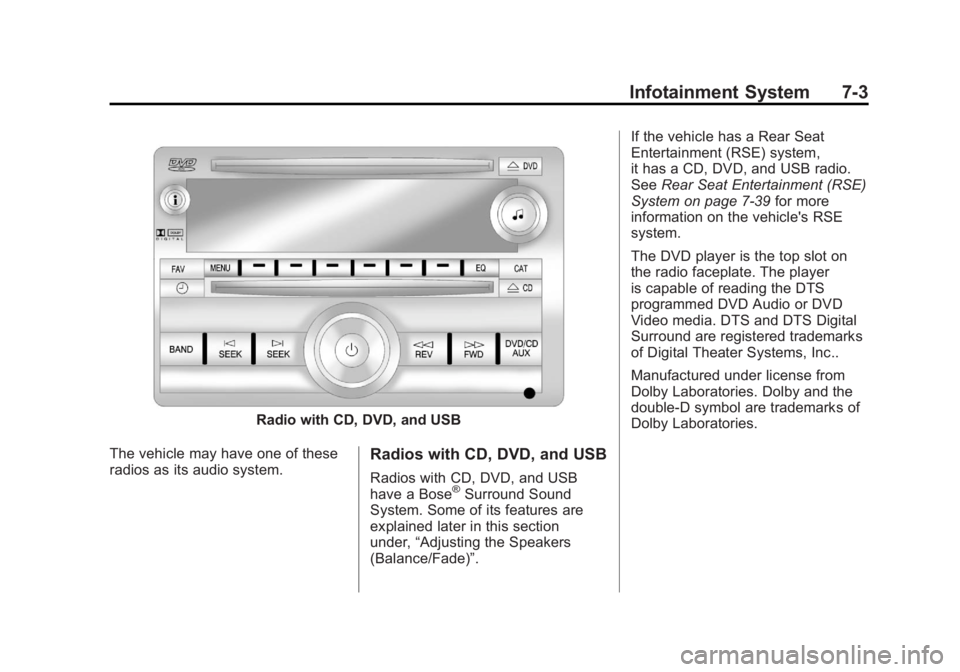
Radio with CD, DVD, and USB
The vehicle may have one of these
radios as its audio system.
Radios with CD, DVD, and USB
Radios with CD, DVD, and USB
have a Bose®Surround Sound
System. Some of its features are
explained later in this section
under, “Adjusting the Speakers
(Balance/Fade)”. If the vehicle has a Rear Seat
Entertainment (RSE) system,
it has a CD, DVD, and USB radio.
See
Rear Seat Entertainment (RSE)
System on page 7‑39 for more
information on the vehicle's RSE
system.
The DVD player is the top slot on
the radio faceplate. The player
is capable of reading the DTS
programmed DVD Audio or DVD
Video media. DTS and DTS Digital
Surround are registered trademarks
of Digital Theater Systems, Inc..
Manufactured under license from
Dolby Laboratories. Dolby and the
double-D symbol are trademarks of
Dolby Laboratories.
Page 204 of 478
Black plate (4,1)GMC Acadia/Acadia Denali Owner Manual - 2011
7-4 Infotainment System
Playing the Radio
O(Power/Volume):Press to turn
the system on and off. Turn to
increase or decrease the volume.
For vehicles with a Rear
Entertainment System (RSE), press
and hold for more than two seconds
to turn off the entire radio and RSE
system and to start the parental
control feature. Parental control
prevents the rear seat occupant
from operating the Rear Seat Audio
(RSA) system or remote control.
A lock symbol displays next to the
clock display while the parental
control feature is being used.
The feature remains on until
Ois
pressed and held for more than
two seconds, or the driver turns the
ignition off and exits the vehicle.
4(Information): Press to switch
the display between the radio
station frequency and the time.
When the ignition is in the OFF
position, press
4to display the time.
For vehicles with XM, MP3, WMA
or RDS features, press
4to display
additional text information related
to the current FM-RDS or XM
station; or CD, MP3 or WMA song.
If information is available during
XM, CD, MP3 or WMA playback,
the song title information displays
on the top line of the display and
artist information displays on the
bottom line. When information is not
available, “NO INFO” is displayed.
Auto Text (Satellite Radio Service,
CD, MP3, and WMA features): If
additional information is available
for the current song being played,
Auto Text will automatically
page/scroll the information every
five seconds above the FAV
presets on the radio display. To activate Auto Text:
1. Press MENU to display the radio
setup menu.
2. Press the softkey under AUTO TXT tab on the radio display.
3. Press the softkey under the ON tab on the radio display.
If
4is pressed and the song title
or artist information is longer than
what can be displayed, the extra
information will page every
five seconds when Auto Text
is activated.
Speed Compensated Volume
(SCV): The Speed Compensated
Volume (SCV) feature automatically
adjusts the radio volume to
compensate for road and wind
noise as the vehicle speeds up
or slows down, so that the
volume level is consistent.
Page 205 of 478
Black plate (5,1)GMC Acadia/Acadia Denali Owner Manual - 2011
Infotainment System 7-5
To activate SCV:
1. Set the radio volume.
2. Press the MENU button todisplay the radio setup menu.
3. Press the softkey under the AUTO VOLUM (automatic
volume) tab on the radio display.
4. Press the softkey under the Speed Compensated Volume
setting (OFF, Low, Med, or
High) to select the level of
radio volume compensation.
Press the softkey located below
the BACK tab on the MENU
SETUP display or let the display
time out after approximately
10 seconds. Each higher setting
allows for more radio volume
compensation at faster vehicle
speeds.Setting the Tone
(Bass/Midrange/Treble)
BASS/MID/TREB (Bass, Midrange,
or Treble): To adjust bass,
midrange, or treble:
1. Press
funtil the tone control
tabs display.
2. Continue pressing
fto highlight
the tab, or press the softkey
under the tab.
3. To adjust the highlighted setting, do one of the following until the
levels are obtained.
.Turnfclockwise or
counterclockwise.
.Press\FWD, orsREV.
If a station's frequency is weak or if
there is static, decrease the treble.
To quickly adjust bass, midrange,
or treble to the middle position,
press the softkey under the BASS, MID, or TREB tab for more than
two seconds. A beep sounds and
the level adjusts to the middle
position.
To quickly adjust all tone and
speaker controls to the middle
position, press
ffor more than
two seconds until a beep sounds.
EQ (Equalization): Press to
choose bass and treble equalization
settings designed for different types
of music. The choices are pop, rock,
country, talk, jazz, and classical.
Selecting MANUAL or changing
bass or treble, returns the EQ to
the manual bass and treble settings.
Unique EQ settings can be saved
for each source.
If the radio has a Bose
®audio
system, the EQ settings are either
MANUAL or TALK.
Page 206 of 478
Black plate (6,1)GMC Acadia/Acadia Denali Owner Manual - 2011
7-6 Infotainment System
Adjusting the Speakers
(Balance/Fade)
BAL/FADE (Balance/Fade):
To adjust the balance or fade:
1. Press
funtil the speaker control
tabs display.
2. Continue pressing
fto highlight
the tab, or press the softkey
under the tab.
3. To adjust the highlighted setting, do one of the following until the
levels are obtained.
.Turnfclockwise or
counterclockwise.
.Press\FWD, orsREV.
To quickly adjust balance or fade
to the middle position, press the
softkey under the BAL or FADE tab
for more than two seconds. A beep
sounds and the level adjusts to the
middle position. To quickly adjust all speaker and
tone controls to the middle position,
press
ffor more than two seconds
until a beep sounds.
Radios with CD and DVD fade
differently depending on the DVD
Media type:
.With DVD‐A 5.1 Surround
media, the left front and right
front speakers fade rearward,
leaving the center front
speakers unaffected until the
last fade step, then all front
speakers mute.
.With DVD‐V 5.1 Surround
media, surround sound is
maintained until Step 4 of the
Fade control is reached while
fading rearward. At that point
the audio system output
changes to Stereo to prevent
the loss of Center channel
output when the full rearward
fade position is reached. If the Rear Seat Audio (RSA) is
turned on, the radio disables FADE
and mutes the rear speakers.
Radio Messages
Calibration Error:
The audio
system has been calibrated
for the vehicle from the factory.
If Calibration Error displays, it
means that the radio has not been
configured properly for the vehicle
and it must be returned to your
dealer for service.
Locked: This message displays
when the TheftLock
®system has
locked up the radio. Take the
vehicle to your dealer for service.
If any error occurs repeatedly or
if an error cannot be corrected,
contact your dealer.