steering GMC ACADIA 2011 Owner's Guide
[x] Cancel search | Manufacturer: GMC, Model Year: 2011, Model line: ACADIA, Model: GMC ACADIA 2011Pages: 478, PDF Size: 5.52 MB
Page 176 of 478
Black plate (44,1)GMC Acadia/Acadia Denali Owner Manual - 2011
5-44 Instruments and Controls
SERVICE POWER STEERING
This message displays when
a problem is detected with the
power steering system. When this
message is displayed, you may
notice that the effort required to
steer the vehicle increases or feels
heavier, but you will still be able to
steer the vehicle. Have your vehicle
serviced by your dealer immediately.
SERVICE VEHICLE SOON
This message displays when a
non-emissions related malfunction
occurs. Have the vehicle serviced
by your dealer as soon as possible.
STARTING DISABLED
SERVICE THROTTLE
This message displays when your
vehicle's throttle system is not
functioning properly. Have your
vehicle serviced by your dealer.
Tire Messages
TIRE LOW ADD AIR TO TIRE
On vehicles with the Tire Pressure
Monitor System (TPMS), this
message displays when the
pressure in one or more of the
vehicle's tires is low.
This message also displays
LEFT FRT (left front), RIGHT FRT
(right front), LEFT RR (left rear),
or RIGHT RR (right rear) to indicate
the location of the low tire.The low tire pressure warning
light will also come on. See
Tire
Pressure Light on page 5‑23.
If a tire pressure message appears
on the DIC, stop as soon as you
can. Inflate the tires by adding air
until the tire pressure is equal to the
values shown on the Tire Loading
Information label. See Tires on
page 10‑38, Vehicle Load Limits on
page 9‑12, and Tire Pressure on
page 10‑45.
You can receive more than one
tire pressure message at a time.
To read the other messages that
may have been sent at the same
time, press the set/reset button
or the trip odometer reset stem.
The DIC also shows the tire
pressure values. See Driver
Information Center (DIC) (With
DIC Buttons) on page 5‑25 or
Driver Information Center (DIC)
(Without DIC Buttons) on page 5‑30.
Page 178 of 478
Black plate (46,1)GMC Acadia/Acadia Denali Owner Manual - 2011
5-46 Instruments and Controls
SERVICE TRANSMISSION
This message displays when there
is a problem with the transmission.
See your dealer for service.
TRANSMISSION HOT IDLE
ENGINE
Notice:If you drive the vehicle
while the transmission fluid is
overheating and the transmission
temperature warning is displayed
on the instrument panel cluster
and/or DIC, you can damage the
transmission. This could lead to
costly repairs that would not be
covered by the warranty. Do not
drive the vehicle with overheated
transmission fluid or while the
transmission temperature
warning is displayed. This message displays and a chime
sounds if the transmission fluid in
the vehicle gets hot. Driving with the
transmission fluid temperature high
can cause damage to the vehicle.
Stop the vehicle and let it idle to
allow the transmission to cool.
This message clears when the fluid
temperature reaches a safe level.
Vehicle Reminder
Messages
ICE POSSIBLE DRIVE
WITH CARE
This message displays when
the outside air temperature is
cold enough to create icy road
conditions. Adjust your driving
accordingly.
Vehicle Speed Messages
SPEED LIMITED TO
XXX MPH (KM/H)
This message displays when
your vehicle speed is limited to
128 km/h (80 mph) because the
vehicle detects a problem in the
speed variable assist steering
system. Have your vehicle serviced
by your dealer.
Washer Fluid Messages
WASHER FLUID LOW ADD
FLUID
This message displays when the
windshield washer fluid is low.
Fill the windshield washer fluid
reservoir as soon as possible.
See
Engine Compartment Overview
on page 10‑6 for the location
of the windshield washer fluid
reservoir. Also, see Washer
Fluid on page 10‑23 for more
information.
Page 185 of 478
Black plate (53,1)GMC Acadia/Acadia Denali Owner Manual - 2011
Instruments and Controls 5-53
EASY EXIT SEAT
If your vehicle has this feature, it
allows you to select your preference
for the automatic easy exit seat
feature. SeeDelayed Locking on
page 2‑8 for more information.
Press the customization button until
EASY EXIT SEAT appears on the
DIC display. Press the set/reset
button once to access the settings
for this feature. Then press the
customization button to scroll
through the following settings:
OFF (default): No automatic seat
exit recall will occur.
ON: The driver's seat will move
back when the key is removed from
the ignition.
The automatic easy exit seat
movement will only occur one time
after the key is removed from the ignition. If the automatic movement
has already occurred, and you put
the key back in the ignition and
remove it again, the seat and
steering column will stay in the
original exit position, unless a
memory recall took place prior
to removing the key again.
NO CHANGE:
No change will be
made to this feature. The current
setting will remain.
To select a setting, press the
set/reset button while the desired
setting is displayed on the DIC.
MEMORY SEAT RECALL
If your vehicle has this feature, it
allows you to select your preference
for the remote memory seat recall
feature. See Delayed Locking on
page 2‑8 for more information. Press the customization button
until MEMORY SEAT RECALL
appears on the DIC display. Press
the set/reset button once to access
the settings for this feature. Then
press the customization button to
scroll through the following settings:
OFF (default):
No remote memory
seat recall will occur.
ON: The driver's seat and outside
mirrors will automatically move to
the stored driving position when
the unlock button on the Remote
Keyless Entry (RKE) transmitter is
pressed.
NO CHANGE: No change will be
made to this feature. The current
setting will remain.
To select a setting, press the
set/reset button while the desired
setting is displayed on the DIC.
Page 193 of 478
Black plate (1,1)GMC Acadia/Acadia Denali Owner Manual - 2011
Lighting 6-1
Lighting
Exterior Lighting
Exterior Lamp Controls . . . . . . . . 6-1
Headlamp High/Low-BeamChanger . . . . . . . . . . . . . . . . . . . . . 6-2
Flash-to-Pass . . . . . . . . . . . . . . . . . 6-3
Daytime Running Lamps (DRL)/Automatic
Headlamp System . . . . . . . . . . . 6-3
Hazard Warning Flashers . . . . . 6-3
Turn and Lane-Change Signals . . . . . . . . . . . . . . . . . . . . . . 6-4
Fog Lamps . . . . . . . . . . . . . . . . . . . . 6-4
Interior Lighting
Instrument Panel Illumination Control . . . . . . . . . . . . . . . . . . . . . . 6-5
Courtesy Lamps . . . . . . . . . . . . . . 6-5
Dome Lamps . . . . . . . . . . . . . . . . . 6-5
Reading Lamps . . . . . . . . . . . . . . . 6-5
Lighting Features
Entry Lighting . . . . . . . . . . . . . . . . . 6-6
Delayed Entry Lighting . . . . . . . . 6-6
Delayed Exit Lighting . . . . . . . . . 6-7
Parade Dimming . . . . . . . . . . . . . . 6-7
Battery Load Management . . . . 6-7
Battery Power Protection . . . . . . 6-8
Exterior Lighting
Exterior Lamp Controls
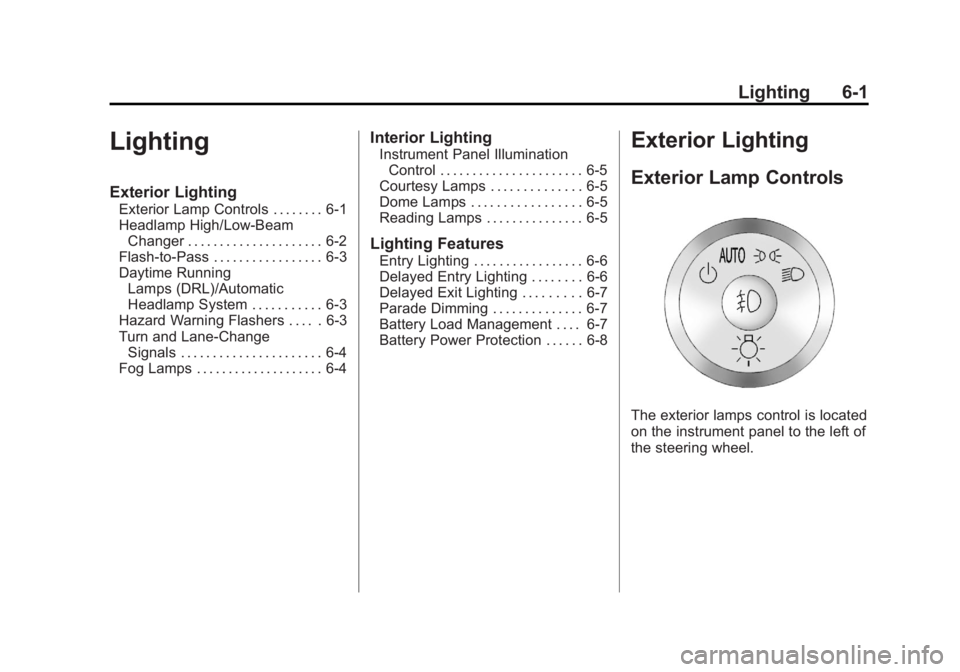
The exterior lamps control is located
on the instrument panel to the left of
the steering wheel.
Page 196 of 478
Black plate (4,1)GMC Acadia/Acadia Denali Owner Manual - 2011
6-4 Lighting
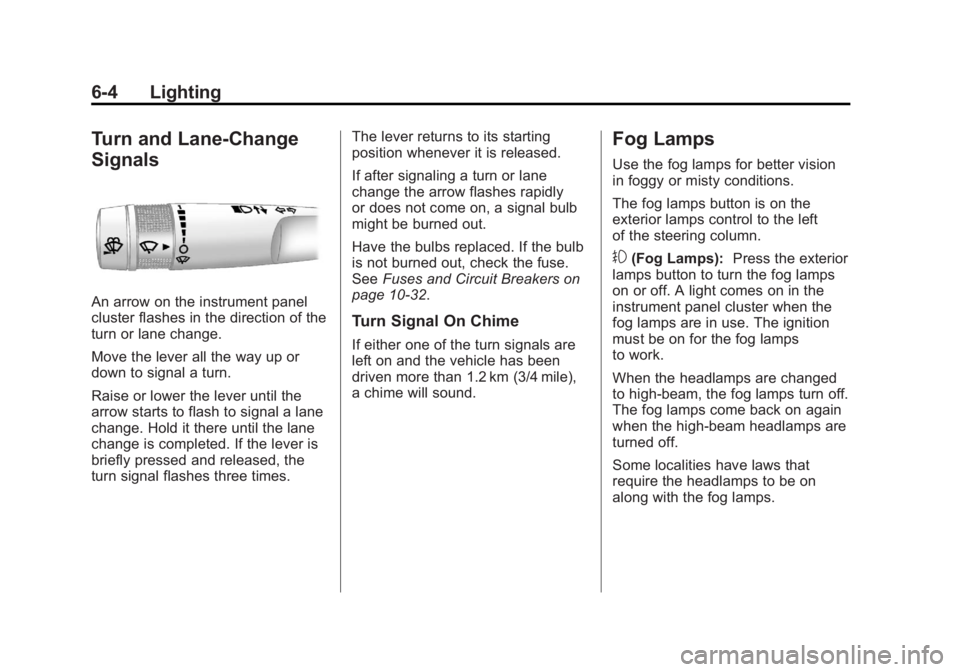
Turn and Lane-Change
Signals
An arrow on the instrument panel
cluster flashes in the direction of the
turn or lane change.
Move the lever all the way up or
down to signal a turn.
Raise or lower the lever until the
arrow starts to flash to signal a lane
change. Hold it there until the lane
change is completed. If the lever is
briefly pressed and released, the
turn signal flashes three times.The lever returns to its starting
position whenever it is released.
If after signaling a turn or lane
change the arrow flashes rapidly
or does not come on, a signal bulb
might be burned out.
Have the bulbs replaced. If the bulb
is not burned out, check the fuse.
See
Fuses and Circuit Breakers on
page 10‑32.
Turn Signal On Chime
If either one of the turn signals are
left on and the vehicle has been
driven more than 1.2 km (3/4 mile),
a chime will sound.
Fog Lamps
Use the fog lamps for better vision
in foggy or misty conditions.
The fog lamps button is on the
exterior lamps control to the left
of the steering column.
#(Fog Lamps): Press the exterior
lamps button to turn the fog lamps
on or off. A light comes on in the
instrument panel cluster when the
fog lamps are in use. The ignition
must be on for the fog lamps
to work.
When the headlamps are changed
to high-beam, the fog lamps turn off.
The fog lamps come back on again
when the high-beam headlamps are
turned off.
Some localities have laws that
require the headlamps to be on
along with the fog lamps.
Page 197 of 478
Black plate (5,1)GMC Acadia/Acadia Denali Owner Manual - 2011
Lighting 6-5
Interior Lighting
Instrument Panel
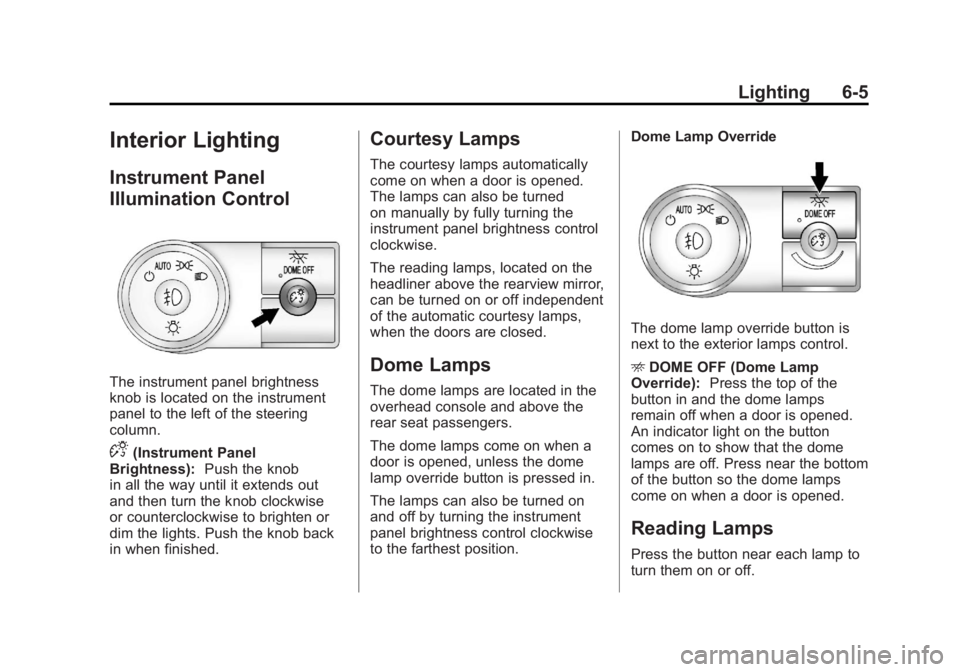
Illumination Control
The instrument panel brightness
knob is located on the instrument
panel to the left of the steering
column.
D(Instrument Panel
Brightness): Push the knob
in all the way until it extends out
and then turn the knob clockwise
or counterclockwise to brighten or
dim the lights. Push the knob back
in when finished.
Courtesy Lamps
The courtesy lamps automatically
come on when a door is opened.
The lamps can also be turned
on manually by fully turning the
instrument panel brightness control
clockwise.
The reading lamps, located on the
headliner above the rearview mirror,
can be turned on or off independent
of the automatic courtesy lamps,
when the doors are closed.
Dome Lamps
The dome lamps are located in the
overhead console and above the
rear seat passengers.
The dome lamps come on when a
door is opened, unless the dome
lamp override button is pressed in.
The lamps can also be turned on
and off by turning the instrument
panel brightness control clockwise
to the farthest position. Dome Lamp Override
The dome lamp override button is
next to the exterior lamps control.
E
DOME OFF (Dome Lamp
Override): Press the top of the
button in and the dome lamps
remain off when a door is opened.
An indicator light on the button
comes on to show that the dome
lamps are off. Press near the bottom
of the button so the dome lamps
come on when a door is opened.
Reading Lamps
Press the button near each lamp to
turn them on or off.
Page 207 of 478
Black plate (7,1)GMC Acadia/Acadia Denali Owner Manual - 2011
Infotainment System 7-7
Radio
AM-FM Radio
Radio Data System (RDS)
The Radio Data System (RDS)
feature is available for use only on
FM stations that broadcast RDS
information. This system relies
upon receiving specific information
from these stations and only works
when the information is available.
While the radio is tuned to an
FM-RDS station, the station name
or call letters display. In rare cases,
a radio station could broadcast
incorrect information that causes the
radio features to work improperly.
If this happens, contact the radio
station.
Finding a Station
BAND:Press to switch between
AM, FM, or XM. The selection
displays.
f(Tune): Turn to select radio
stations.
©SEEK¨: Press to go to the
previous or to the next station and
stay there.
To scan stations, press and
hold
©or¨until a beep sounds.
The radio goes to a station, plays
for a few seconds, then goes to
the next station. Press either arrow
again to stop scanning.
The radio only seeks and scans
stations with a strong signal that
are in the selected band.
Storing a Radio Station as a
Favorite
Drivers are encouraged to set up
their radio station favorites while
the vehicle is in P (Park). Tune to
favorite stations using the presets,
favorites button, and steering wheel
controls. See Steering Wheel
Controls on page 5‑2.
FAV (Favorites): A maximum of
36 stations can be programmed
as favorites using the six softkeys
below the radio station frequency
tabs and by using the radio favorites
page button (FAV button). Press
to go through up to six pages of
favorites, each having six favorite
stations available per page. Each
page of favorites can contain any
combination of AM, FM, or XM
stations.
Page 210 of 478
Black plate (10,1)GMC Acadia/Acadia Denali Owner Manual - 2011
7-10 Infotainment System
Undesired XM categories can be
removed through the setup menu.
To remove an undesired category,
perform the following:
1. Press MENU to display the radiosetup menu.
2. Press the softkey below the XM CAT tab.
3. Turn
fto display the category to
be removed.
4. Press the softkey under the Remove tab until the category
name along with the word
Removed displays.
5. Repeat the steps to remove more categories.
Removed categories can be
restored by pressing the softkey
under the Add tab when a removed
category is displayed or by pressing
the softkey under the Restore
All tab.
Categories cannot be removed or
added while the vehicle is moving
faster than 8 km/h (5 mph).
Storing a Radio Station as a
Favorite
Drivers are encouraged to set up
their radio station favorites while
the vehicle is in P (Park). Tune to
favorite stations using the presets,
favorites button, and steering wheel
controls. See Steering Wheel
Controls on page 5‑2.
FAV (Favorites): A maximum of
36 stations can be programmed
as favorites using the six softkeys
below the radio station frequency
tabs and by using the radio favorites
page button (FAV button). Press
to go through up to six pages of
favorites, each having six favorite
stations available per page. Each
page of favorites can contain any
combination of AM, FM, or XM
stations. The balance/fade and tone settings
that were previously adjusted, are
stored with the favorite stations.
To store a station as a favorite:
1. Tune to the desired radio station.
2. Press FAV to display the page to
store the station.
3. Press and hold one of the six softkeys until a beep sounds.
When that softkey is pressed
and released, the station that
was set, returns.
4. Repeat the steps for each radio station to be stored as a favorite.
Page 252 of 478
Black plate (52,1)GMC Acadia/Acadia Denali Owner Manual - 2011
7-52 Infotainment System
Audio System
When using the in‐vehicle
Bluetooth system, sound comes
through the vehicle's front audio
system speakers and overrides
the audio system. Use the audio
system volume knob, during a
call, to change the volume level.
The adjusted volume level remains
in memory for later calls. To prevent
missed calls, a minimum volume
level is used if the volume is turned
down too low.
Bluetooth Controls
Use the buttons located on the
steering wheel to operate the
in‐vehicle Bluetooth system.
SeeSteering Wheel Controls on
page 5‑2 for more information.
bg(Push To Talk): Press to
answer incoming calls, confirm
system information, and start
speech recognition.
c x(Phone On Hook): Press to
end a call, reject a call, or cancel an
operation.
Pairing
A Bluetooth cell phone must be
paired to the Bluetooth system
and then connected to the vehicle
before it can be used. See the cell
phone manufacturer's user guide for
Bluetooth functions before pairing
the cell phone. If a Bluetooth phone
is not connected, calls will be made
using OnStar Hands‐Free Calling,
if equipped. Refer to the OnStar
Owner's Guide for more information.
Pairing Information
.Up to five cell phones can be
paired to the Bluetooth system.
.The pairing process is disabled
when the vehicle is moving.
.Pairing only needs to be
completed once, unless the
pairing information on the cell
phone changes or the cell phone
is deleted from the system.
.Only one paired cell phone can
be connected to the Bluetooth
system at a time.
.If multiple paired cell phones
are within range of the system,
the system connects to the first
available paired cell phone in the
order that they were first paired
to the system. To connect to a
different paired phone, see
“Connecting to a Different
Phone” later in this section.
Pairing a Phone
1. Press and hold
b gfor
two seconds.
2. Say “Bluetooth.”
3. Say “Pair.”The system responds
with instructions and a four‐digit
Personal Identification Number
(PIN). The PIN is used in Step 5.
Page 267 of 478
Black plate (9,1)GMC Acadia/Acadia Denali Owner Manual - 2011
Climate Controls 8-9
Sensors
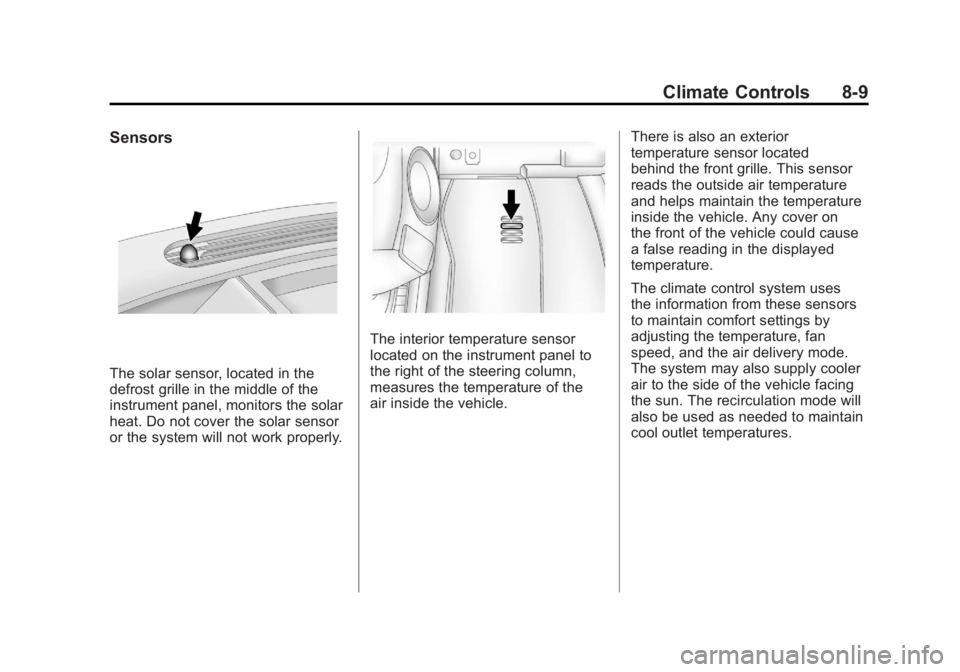
The solar sensor, located in the
defrost grille in the middle of the
instrument panel, monitors the solar
heat. Do not cover the solar sensor
or the system will not work properly.
The interior temperature sensor
located on the instrument panel to
the right of the steering column,
measures the temperature of the
air inside the vehicle.There is also an exterior
temperature sensor located
behind the front grille. This sensor
reads the outside air temperature
and helps maintain the temperature
inside the vehicle. Any cover on
the front of the vehicle could cause
a false reading in the displayed
temperature.
The climate control system uses
the information from these sensors
to maintain comfort settings by
adjusting the temperature, fan
speed, and the air delivery mode.
The system may also supply cooler
air to the side of the vehicle facing
the sun. The recirculation mode will
also be used as needed to maintain
cool outlet temperatures.