ECO mode GMC ACADIA 2018 User Guide
[x] Cancel search | Manufacturer: GMC, Model Year: 2018, Model line: ACADIA, Model: GMC ACADIA 2018Pages: 423, PDF Size: 7.26 MB
Page 137 of 423
GMC Acadia/Acadia Denali Owner Manual (GMNA-Localizing-U.S./Canada/
Mexico-11349114) - 2018 - crc - 9/21/17
136 Instruments and Controls
several more seconds, the status
indicator will light either ON or OFF,
or either the on or off symbol, to let
you know the status of the front
outboard passenger frontal airbag.
If the word ON or the on symbol is
lit on the passenger airbag status
indicator, it means that the front
outboard passenger frontal airbag is
allowed to inflate.
If the word OFF or the off symbol is
lit on the passenger airbag status
indicator, it means that the
passenger sensing system has
turned off the front outboard
passenger frontal airbag.
If, after several seconds, both status
indicator lights remain on, or if there
are no lights at all, there may be a
problem with the lights or the
passenger sensing system. See
your dealer for service.{Warning
If the airbag readiness light ever
comes on and stays on, it means
that something may be wrong
with the airbag system. To help
avoid injury to yourself or others,
have the vehicle serviced right
away. SeeAirbag Readiness
Light 0135 for more information,
including important safety
information.
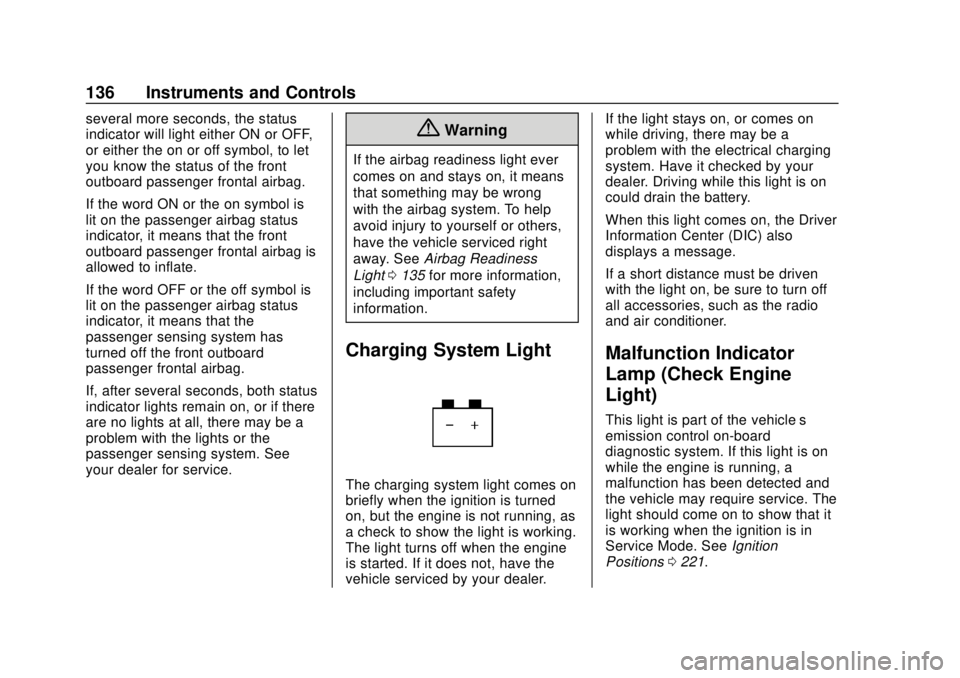
Charging System Light
The charging system light comes on
briefly when the ignition is turned
on, but the engine is not running, as
a check to show the light is working.
The light turns off when the engine
is started. If it does not, have the
vehicle serviced by your dealer. If the light stays on, or comes on
while driving, there may be a
problem with the electrical charging
system. Have it checked by your
dealer. Driving while this light is on
could drain the battery.
When this light comes on, the Driver
Information Center (DIC) also
displays a message.
If a short distance must be driven
with the light on, be sure to turn off
all accessories, such as the radio
and air conditioner.
Malfunction Indicator
Lamp (Check Engine
Light)
This light is part of the vehicle’s
emission control on-board
diagnostic system. If this light is on
while the engine is running, a
malfunction has been detected and
the vehicle may require service. The
light should come on to show that it
is working when the ignition is in
Service Mode. See
Ignition
Positions 0221.
Page 144 of 423
GMC Acadia/Acadia Denali Owner Manual (GMNA-Localizing-U.S./Canada/
Mexico-11349114) - 2018 - crc - 9/21/17
Instruments and Controls 143
Engine Oil Pressure Light
Oil pressure can vary with engine
speed, outside temperature, and oil
viscosity.
On some models, the oil pump will
vary engine oil pressure according
to engine needs. Oil pressure may
change quickly as the engine speed
or load varies. This is normal. If the
oil pressure warning light or Driver
Information Center (DIC) message
indicates oil pressure outside the
normal operating range, check the
vehicle's oil as soon as possible.
Caution
Lack of proper engine oil
maintenance can damage the
engine. Driving with the engine oil
low can also damage the engine.
The repairs would not be covered
by the vehicle warranty. Check
the oil level as soon as possible.
Add oil if required, but if the oil
level is within the operating range
and the oil pressure is still low,(Continued)
Caution (Continued)
have the vehicle serviced. Always
follow the maintenance schedule
for changing engine oil.
This light should come on briefly as
the engine is started. If it does not
come on, have the vehicle serviced
by your dealer.
If the light comes on and stays on, it
means that oil is not flowing through
the engine properly. The vehicle
could be low on oil and might have
some other system problem. See
your dealer.
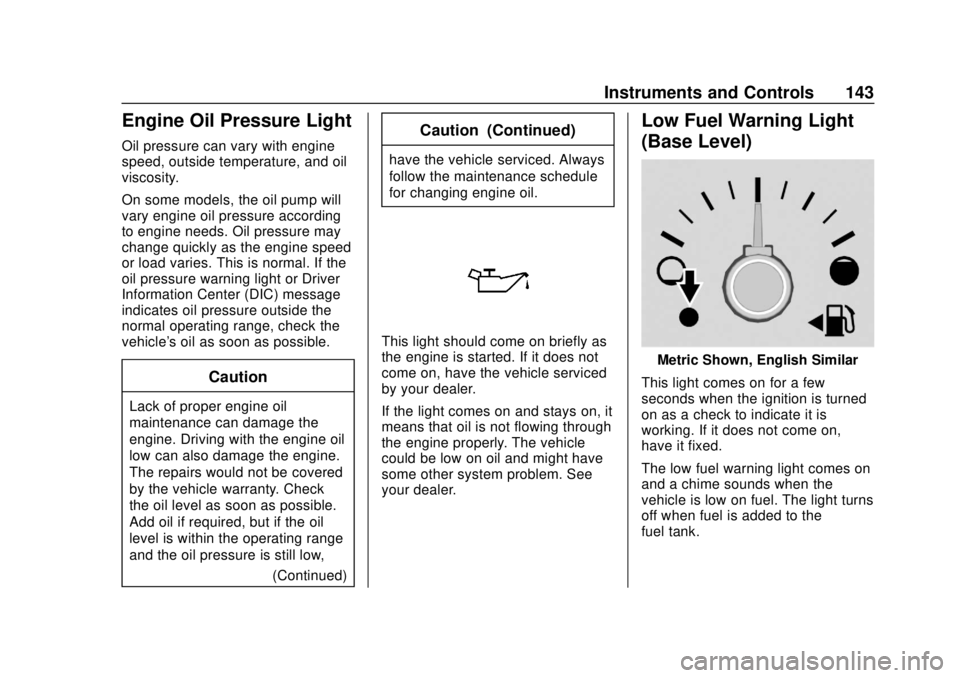
Low Fuel Warning Light
(Base Level)
Metric Shown, English Similar
This light comes on for a few
seconds when the ignition is turned
on as a check to indicate it is
working. If it does not come on,
have it fixed.
The low fuel warning light comes on
and a chime sounds when the
vehicle is low on fuel. The light turns
off when fuel is added to the
fuel tank.
Page 154 of 423
GMC Acadia/Acadia Denali Owner Manual (GMNA-Localizing-U.S./Canada/
Mexico-11349114) - 2018 - crc - 9/21/17
Instruments and Controls 153
.Wi-Fi
Each menu is detailed in the
following information.
Time and Date
Manually set the time and date. See
Clock 0122.
Rear Seat Reminder
This allows for a chime and a
message when the rear door has
been opened before or during
operation of the vehicle.
Select Off or On.
Language
Select Language, then select from
the available language(s).
The selected language will display
on the system, and voice
recognition will reflect the selected
language.
Valet Mode
This will lock the infotainment
system and steering wheel controls.
It may also limit access to vehicle
storage locations, if equipped. To enable valet mode:
1. Enter a four-digit code on the keypad.
2. Select Enter to go to the confirmation screen.
3. Re-enter the four-digit code.
Touch Lock or Unlock to lock or
unlock the system. Touch Back to
go back to the previous menu.
Teen Driver
See “Teen Driver” under“Settings”
in the infotainment manual.
Radio
Touch and the following may
display:
. Manage Favorites
. Number of Favorites Shown
. Audible Touch Feedback
. Text Scroll
. Tone Settings
. Auto Volume
. Bose Audio Pilot
. Maximum Startup Volume Manage Favorites
This allows favorites to be edited.
See
“Manage Favorites” in
“Settings” under“Radio” in the
infotainment manual.
Number of Favorites Shown
Touch to set the number of favorites
to display.
Select the desired number or select
Auto and the infotainment system
will automatically adjust the number
of favorites shown.
Audible Touch Feedback
This allows Audible Touch
Feedback to be turned on or off.
Select Off or On.
Text Scroll
Select to see text scroll on the
screen.
Select Off or On.
Page 160 of 423
GMC Acadia/Acadia Denali Owner Manual (GMNA-Localizing-U.S./Canada/
Mexico-11349114) - 2018 - crc - 9/21/17
Instruments and Controls 159
Android Auto
This feature allows Android devices
to be connected to the infotainment
system through a USB port.
Select Off or On.
Manage Android Auto Devices
Select to manage Android devices.
Android Auto must be on for this
feature to be accessed.
USB Auto Launch
This allows Android and Apple
CarPlay devices to automatically
connect when plugged into the
USB port.
Select Off or On.
Voice
Select and the following may
display:
.Confidence Threshold
. Prompt Length
. Audio Feedback Speed
. Display “What Can I Say?” TipsConfidence Threshold
This feature allows the adjustment
of the sensitivity of the speech
recognition system.
Select Confirm More or
Confirm Less.
Prompt Length
This feature adjusts the voice
prompt length.
Select Short or Long.
Audio Feedback Speed
This feature adjusts the audio
feedback speed.
Select Slow, Medium, or Fast.
Display
“What Can I Say?” Tips
This feature gives voice
command tips.
Select Off or On.
Display
Select and the following may
display:
. Mode
. Calibrate Touchscreen .
Turn Display Off
Mode
Select to change the display screen
for day or night driving.
Select Auto, Day, or Night.
Calibrate Touchscreen
Select to calibrate the touchscreen,
then follow the prompts.
Turn Display Off
Select to turn the display off. Touch
anywhere on the infotainment
display area or press any controls
on the radio center stack to turn the
display on.
Rear Camera
This allows for Rear Parking Assist
Symbols and Guidance Lines to be
turned off or on.
Select Off or On for the desired
feature.
See Assistance Systems for Parking
or Backing 0252.
Page 162 of 423
GMC Acadia/Acadia Denali Owner Manual (GMNA-Localizing-U.S./Canada/
Mexico-11349114) - 2018 - crc - 9/21/17
Instruments and Controls 161
instructions refer to a garage door
opener, but can be used for other
devices.
Do not use the Universal Remote
system with any garage door opener
that does not have the stop and
reverse feature. This includes any
garage door opener model
manufactured before April 1, 1982.
Read these instructions completely
before programming the Universal
Remote system. It may help to have
another person assist with the
programming process.
Keep the original hand-held
transmitter for use in other vehicles
as well as for future programming.
Erase the programming when
vehicle ownership is terminated.
See“Erasing Universal Remote
System Buttons” later in this
section.
To program a garage door opener,
park outside directly in line with and
facing the garage door opener
receiver. Clear all people and
objects near the garage door. Make sure the hand-held transmitter
has a new battery for quicker and
more accurate transmission of the
radio-frequency signal.
Programming the Universal
Remote System
For questions or programming help,
see www.homelink.com/gm or call
1-800-355-3515.
Programming involves
time-sensitive actions, and may time
out causing the procedure to be
repeated.
To program up to three devices:
1. Hold the end of the hand-held transmitter about 3 to 8 cm (1
to 3 in) away from the
Universal Remote system
buttons with the indicator light
in view. The hand-held
transmitter was supplied by the
manufacturer of the garage
door opener receiver.
2. At the same time, press and hold both the hand-held
transmitter button and one of
the three Universal Remote system buttons to be used to
operate the garage door. Do
not release either button until
the indicator light changes from
a slow to a rapid flash. Then
release both buttons.
Some garage door openers
may require substitution of
Step 2 with the procedure
under
“Radio Signals for
Canada and Some Gate
Operators” later in this section.
3. Press and hold the newly programmed Universal Remote
system button for five seconds
while watching the indicator
light and garage door
activation.
.If the indicator light stays on
continuously or the garage
door moves when the
button is pressed, then
programming is complete.
There is no need to
complete Steps 4–6.
. If the indicator light does
not come on or the garage
door does not move, a
Page 184 of 423

GMC Acadia/Acadia Denali Owner Manual (GMNA-Localizing-U.S./Canada/
Mexico-11349114) - 2018 - crc - 9/21/17
Infotainment System 183
.Connection with i-Stick Type
USB storage devices may be
faulty due to vehicle vibration.
. Do not touch the USB
connecting terminal.
. Only USB storage devices
formatted in FAT16/32 or exFAT
file systems are recognized.
NTFS and other file systems are
not recognized.
. The time it takes to process files
will depend on the USB storage
device type and capacity, and
the type of files stored.
. Some USB storage device files
may not be compatible.
. Up to two USB devices and one
iPod can be played through a
USB hub. All devices may not be
supported, depending on the
performance of the USB hub.
If there is not enough power
supply, it may not operate
normally. .
Do not disconnect the USB
storage device while it is playing.
This may cause damage to the
product or affect the
performance of the USB device.
. Disconnect the USB storage
device when the ignition is
turned off. If the ignition is turned
on while the USB device is
connected, the USB device may
be damaged or may not operate
normally.
. USB storage devices can only
be connected for playing music,
viewing photo files,
or upgrading.
. Do not use the USB terminal to
charge USB accessory
equipment. The heat generated
may cause performance issues
or damage.
. Music files to which Digital Right
Management (DRM) is applied
cannot be played.
. USB storage devices can have a
capacity with a limit of 5,000
files, such as music, photo,
video, 15 stages of folder structure. Normal usage cannot
be guaranteed for a storage
device that exceeds this limit.
The iPod/iPhone can play all
music files that are supported.
The music file lists will only
display up to 5,000 files on the
screen. These files are sorted in
alphabetical order.
. Some iPod/iPhone product
models may not support the
connectivity or functionality of
this product.
. Only connect the iPod/iPhone
with connection cables
supported by iPod/iPhone
products. Other connection
cables cannot be used.
. The iPod/iPhone may be
damaged if it is connected to the
vehicle with the ignition on.
When not in use, disconnect the
iPod/iPhone.
. When the iPod/iPhone is
connected to the USB port by
using the iPod/iPhone cable, the
Bluetooth music is not
supported.
Page 187 of 423
GMC Acadia/Acadia Denali Owner Manual (GMNA-Localizing-U.S./Canada/
Mexico-11349114) - 2018 - crc - 9/21/17
186 Infotainment System
Changing to the Next/
Previous Song
.Touch
lto change to the
next song.
. Touch
gwithin two seconds of
the playback time to play the
previous file.
Returning to the Beginning of the
Current File
Touch
gafter two seconds of the
playback time.
Scanning Forward or Backward
Touch and hold
gorlduring
playback to rewind or fast forward.
Release the button to resume
playback at normal speed.
Playing a File Randomly
Touch
Zduring playback.
. ON: Plays all files randomly.
. OFF: Returns to normal
playback.
Using the iPod Menu
. Touch Menu during playback. .
Touch the appropriate
play mode.
Browse Music 1. Touch Browse Music.
2. Touch the desired music.
Tone Settings
. Touch Tone Settings. The Tone
Settings menu is displayed. See
“Tone Settings” under“Radio
Controls” inOperation 0176.
Auto Volume
. Touch Auto Volume. The Auto
Volume menu is displayed. See
“Auto Volume” under“Radio
Controls” inOperation 0176.
Picture System Information
The infotainment system can view
picture files stored on a USB
storage device and devices that
support Media Transfer
Protocol (MTP).
.
Supported file extensions: .jpg,
.bmp, .png, .gif.
. Animated GIF files are not
supported. .
Some files may not operate due
to a different recording format or
the condition of the file.
Viewing Pictures 1. Connect the USB device to the USB port.
2. Touch the screen to open to full screen. Touch the screen again
to return to the previous
screen.
If the USB device is already
connected:
1. Press
{.
2. Touch GALLERY.
Some features are disabled while
the vehicle is in motion.
Viewing a Slide Show
1. Touch
zfrom the picture
screen.
2. Touch the screen to cancel the slide show during the slide
show playback.
Page 193 of 423
GMC Acadia/Acadia Denali Owner Manual (GMNA-Localizing-U.S./Canada/
Mexico-11349114) - 2018 - crc - 9/21/17
192 Infotainment System
versions over 1.2 must be
registered and connected to the
product.
. From the cell phone or Bluetooth
device, find the Bluetooth device
type to set/connect the item as a
stereo headset.
.
ewill appear on the screen if
the stereo headset is
successfully connected.
. The sound played by the
Bluetooth device is delivered
through the infotainment system.
. Bluetooth music can be played
only when a Bluetooth device
has been connected. To play
Bluetooth music, connect the
Bluetooth phone to the
infotainment system.
. If the Bluetooth device is
disconnected while playing
phone music, the music is
discontinued. The audio
streaming function may not be
supported in some Bluetooth
phones. Only one function can
be used at a time between the
Bluetooth hands-free or Phone music function. For example,
if you convert to Bluetooth
hands-free while playing Phone
music, the music is
discontinued. Playing music from
the car is not possible when
there are no music files stored in
the cell phone.
Playing Bluetooth Music
1. Press
{.
2. Touch AUDIO.
3. Touch Source.
4. Touch Bluetooth.
Pause
Touch
jto pause.
Touch
rto resume.
Playing the Next Song
Touch
l.
Playing the Previous Song
Touch
gwithin two seconds of
playback time to play the
previous song. Returning to the Beginning of the
Current Song
Touch
gafter two seconds of
playback time.
Search
Touch and hold
gorlto rewind
or fast forward.
Playing Music Randomly
Touch
Zduring playback. Touch
again to return to normal play.
This function may not be supported
depending on the Bluetooth device.
Do not change the track too quickly
when playing Bluetooth music.
Conditions that may occur when
playing Bluetooth music:
. It takes time to transmit data
from the Bluetooth device to the
infotainment system.
. If the cell phone or Bluetooth
device is not in the waiting
screen mode, it may not
automatically play.
Page 199 of 423
GMC Acadia/Acadia Denali Owner Manual (GMNA-Localizing-U.S./Canada/
Mexico-11349114) - 2018 - crc - 9/21/17
198 Climate Controls
Climate Controls
Climate Control Systems
Dual Automatic ClimateControl System . . . . . . . . . . . . . 198
Rear Climate Control System . . . . . . . . . . . . . . . . . . . . . . 201
Air Vents
Air Vents . . . . . . . . . . . . . . . . . . . . . 203
Maintenance
Passenger Compartment AirFilter . . . . . . . . . . . . . . . . . . . . . . . . 204
Service . . . . . . . . . . . . . . . . . . . . . . . 204
Climate Control Systems
Dual Automatic Climate Control System
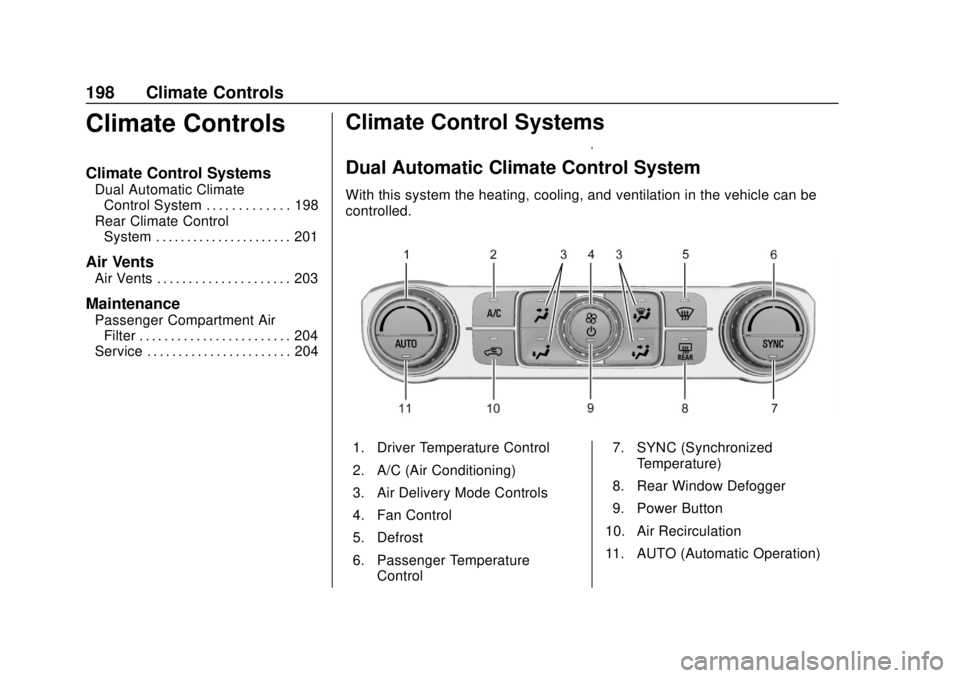
With this system the heating, cooling, and ventilation in the vehicle can be
controlled.
1. Driver Temperature Control
2. A/C (Air Conditioning)
3. Air Delivery Mode Controls
4. Fan Control
5. Defrost
6. Passenger Temperature
Control 7. SYNC (Synchronized
Temperature)
8. Rear Window Defogger
9. Power Button
10. Air Recirculation
11. AUTO (Automatic Operation)
Page 201 of 423
GMC Acadia/Acadia Denali Owner Manual (GMNA-Localizing-U.S./Canada/
Mexico-11349114) - 2018 - crc - 9/21/17
200 Climate Controls
The driver side or passenger side
temperature display shows the
temperature setting increasing or
decreasing.
Air Delivery Mode Control :Press
Y,\,[, or-to change the
direction of the airflow. An indicator
light comes on in the selected mode
button.
Changing the mode cancels the
automatic operation and the system
goes into manual mode. Press
AUTO to return to automatic
operation.
Y: Air is directed to the instrument
panel outlets.
\: Air is divided between the
instrument panel and floor outlets.
Some air is directed toward the
windshield and side window outlets.
[: Air is directed to the floor
outlets, with some to the windshield,
side window outlets, and second
row floor outlets.
-: This mode clears the windows
of fog or moisture. Air is directed to
the windshield, floor outlets, and side window vents. The system
automatically forces outside air into
the vehicle and the air conditioning
compressor will run, unless the
outside temperature is close to
freezing.
0:
Press to clear the windshield
of fog or frost more quickly. Air is
directed to the windshield and the
side window vents. The air
conditioning compressor also comes
on, unless the outside temperature
is below freezing.
Do not drive the vehicle until all
windows are clear.
See Air Vents 0203.
A/C : Press to turn the air
conditioning system on or off. An
indicator light comes on to show
that the air conditioning is enabled.
If the fan is turned off, the air
conditioner will not run. The A/C
light will stay on even if the outside
temperatures are below freezing.
@: Press to turn on recirculation.
An indicator light comes on. Air is
recirculated to quickly cool the
inside of the vehicle. It can also be used to help reduce outside air and
odors that enter the vehicle. The air
conditioning compressor also comes
on when this mode is activated.
Rear Window Defogger
The rear window defogger uses a
warming grid to remove fog from the
rear window.
K:
Press to turn the rear window
defogger on or off. An indicator light
on the button comes on to show that
the rear window defogger is on.
The rear window defogger only
works when the ignition is on. The
defogger turns off if the ignition is
turned to off or ACC/ACCESSORY.
Caution
Using a razor blade or sharp
object to clear the inside rear
window can damage the rear
window defogger. Repairs would
not be covered by the vehicle
warranty. Do not clear the inside
rear window with sharp objects.