infotainment GMC ACADIA 2020 User Guide
[x] Cancel search | Manufacturer: GMC, Model Year: 2020, Model line: ACADIA, Model: GMC ACADIA 2020Pages: 406, PDF Size: 6.78 MB
Page 167 of 406
GMC Acadia/Acadia Denali Owner Manual (GMNA-Localizing-U.S./Canada/
Mexico-13687875) - 2020 - CRC - 10/28/19
166 Climate Controls
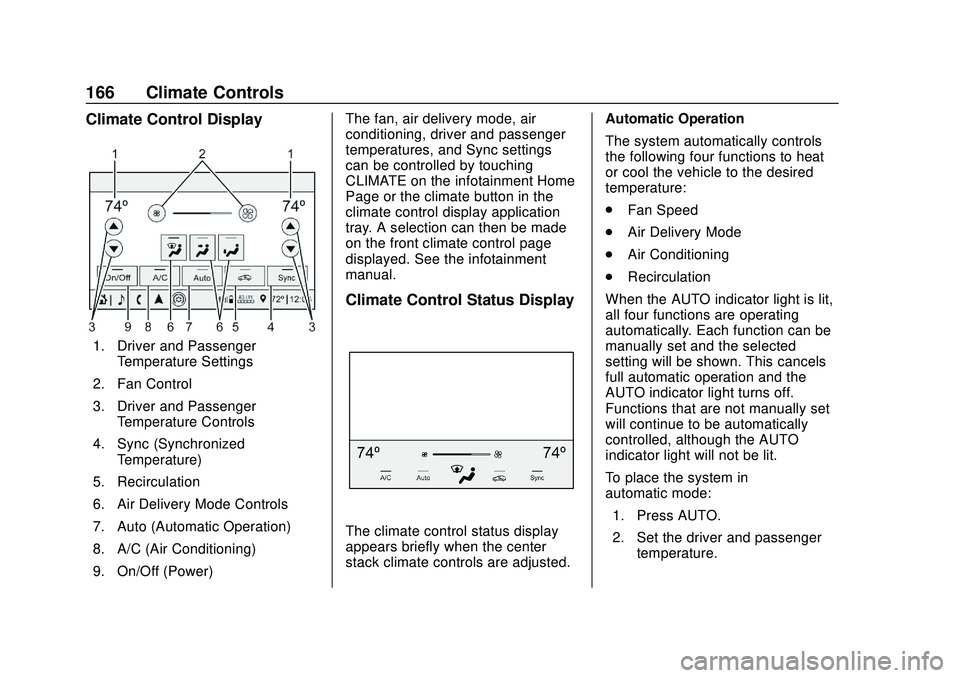
Climate Control Display
1. Driver and PassengerTemperature Settings
2. Fan Control
3. Driver and Passenger Temperature Controls
4. Sync (Synchronized Temperature)
5. Recirculation
6. Air Delivery Mode Controls
7. Auto (Automatic Operation)
8. A/C (Air Conditioning)
9. On/Off (Power) The fan, air delivery mode, air
conditioning, driver and passenger
temperatures, and Sync settings
can be controlled by touching
CLIMATE on the infotainment Home
Page or the climate button in the
climate control display application
tray. A selection can then be made
on the front climate control page
displayed. See the infotainment
manual.
Climate Control Status Display
The climate control status display
appears briefly when the center
stack climate controls are adjusted.
Automatic Operation
The system automatically controls
the following four functions to heat
or cool the vehicle to the desired
temperature:
.
Fan Speed
. Air Delivery Mode
. Air Conditioning
. Recirculation
When the AUTO indicator light is lit,
all four functions are operating
automatically. Each function can be
manually set and the selected
setting will be shown. This cancels
full automatic operation and the
AUTO indicator light turns off.
Functions that are not manually set
will continue to be automatically
controlled, although the AUTO
indicator light will not be lit.
To place the system in
automatic mode: 1. Press AUTO.
2. Set the driver and passenger temperature.
Page 176 of 406
GMC Acadia/Acadia Denali Owner Manual (GMNA-Localizing-U.S./Canada/
Mexico-13687875) - 2020 - CRC - 10/28/19
Driving and Operating 175
.Do not use a phone in
demanding driving situations.
Use a hands-free method to
place or receive necessary
phone calls.
. Watch the road. Do not read,
take notes, or look up
information on phones or other
electronic devices.
. Designate a front seat
passenger to handle potential
distractions.
. Become familiar with vehicle
features before driving, such as
programming favorite radio
stations and adjusting climate
control and seat settings.
Program all trip information into
any navigation device prior to
driving.
. Wait until the vehicle is parked
to retrieve items that have fallen
to the floor.
. Stop or park the vehicle to tend
to children.
. Keep pets in an appropriate
carrier or restraint. .
Avoid stressful conversations
while driving, whether with a
passenger or on a cell phone.
{Warning
Taking your eyes off the road too
long or too often could cause a
crash resulting in injury or death.
Focus your attention on driving.
Refer to the infotainment manual for
more information on using that
system and the navigation system,
if equipped, including pairing and
using a cell phone.
Defensive Driving
Defensive driving means “always
expect the unexpected.” The first
step in driving defensively is to wear
the seat belt. See Seat Belts056.
. Assume that other road users
(pedestrians, bicyclists, and
other drivers) are going to be
careless and make mistakes.
Anticipate what they may do and
be ready. .
Allow enough following distance
between you and the driver in
front of you.
. Focus on the task of driving.
Drunk Driving
Death and injury associated with
drinking and driving is a global
tragedy.
{Warning
Drinking and then driving is very
dangerous. Your reflexes,
perceptions, attentiveness, and
judgment can be affected by even
a small amount of alcohol. You
can have a serious —or even
fatal —collision if you drive after
drinking.
Do not drink and drive or ride with
a driver who has been drinking.
Ride home in a cab; or if you are
with a group, designate a driver
who will not drink.
Page 197 of 406
GMC Acadia/Acadia Denali Owner Manual (GMNA-Localizing-U.S./Canada/
Mexico-13687875) - 2020 - CRC - 10/28/19
196 Driving and Operating
{Warning
Improper use of the heater cord
or an extension cord can damage
the cord and may result in
overheating and fire.. Plug the cord into a
three-prong electrical utility
receptacle that is protected
by a ground fault detection
function. An ungrounded
outlet could cause an
electric shock.
. Use a weatherproof,
heavy-duty, 15 amp-rated
extension cord if needed.
Failure to use the
recommended extension
cord in good operating
condition, or using a
damaged heater or
extension cord, could make
(Continued)
Warning (Continued)
it overheat and cause a fire,
property damage, electric
shock, and injury.
. Do not operate the vehicle
with the heater cord
permanently attached to the
vehicle. Possible heater
cord and thermostat
damage could occur.
. While in use, do not let the
heater cord touch vehicle
parts or sharp edges.
. Before starting the vehicle,
unplug the cord. Keep the
cord away from any moving
parts.
6. Before starting the engine, be sure to unplug and store
the cord.
7. Install the engine heater connector cover. The length of time the heater should
remain plugged in depends on
several factors. Ask a dealer in the
area where you will be parking the
vehicle for the best advice on this.
Retained Accessory
Power (RAP)
Some vehicle accessories may be
used after the ignition is turned off.
The power windows and sunroof,
if equipped, will continue to work for
up to 10 minutes or until any door is
opened.
The infotainment system will
continue to work for 10 minutes,
until the driver door is opened,
or until the ignition is turned on or
placed in ACC/ACCESSORY.
Page 228 of 406
GMC Acadia/Acadia Denali Owner Manual (GMNA-Localizing-U.S./Canada/
Mexico-13687875) - 2020 - CRC - 10/28/19
Driving and Operating 227
Radio Frequency
This vehicle may be equipped with
driver assistance systems that
operate using radio frequency. See
Radio Frequency Statement0380.
Assistance Systems for
Parking or Backing
If equipped, the Rear Vision Camera
(RVC), Rear Park Assist (RPA),
Front Park Assist (FPA), Surround
Vision, and Rear Cross Traffic Alert
(RCTA) may help the driver park or
avoid objects. Always check around
the vehicle when parking or
backing.
Rear Vision Camera (RVC)
When the vehicle is shifted into
R (Reverse), the RVC displays an
image of the area behind the vehicle
in the infotainment display. The
previous screen displays when the
vehicle is shifted out of R (Reverse)
after a short delay. To return to the
previous screen sooner, press any
button on the infotainment system,
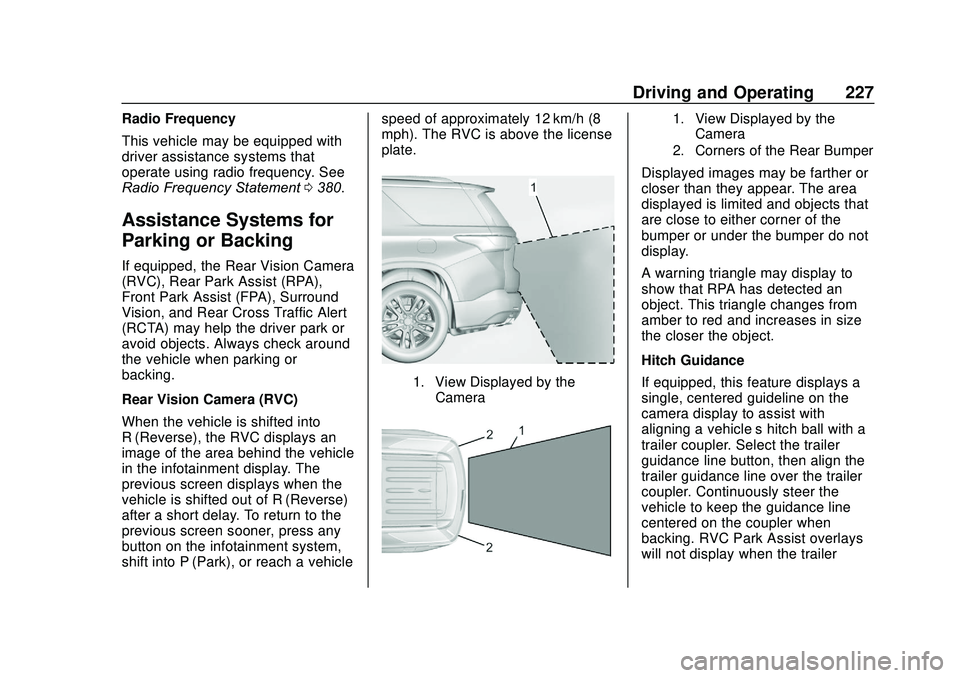
shift into P (Park), or reach a vehicle speed of approximately 12 km/h (8
mph). The RVC is above the license
plate.
1. View Displayed by the
Camera
1. View Displayed by theCamera
2. Corners of the Rear Bumper
Displayed images may be farther or
closer than they appear. The area
displayed is limited and objects that
are close to either corner of the
bumper or under the bumper do not
display.
A warning triangle may display to
show that RPA has detected an
object. This triangle changes from
amber to red and increases in size
the closer the object.
Hitch Guidance
If equipped, this feature displays a
single, centered guideline on the
camera display to assist with
aligning a vehicle’ s hitch ball with a
trailer coupler. Select the trailer
guidance line button, then align the
trailer guidance line over the trailer
coupler. Continuously steer the
vehicle to keep the guidance line
centered on the coupler when
backing. RVC Park Assist overlays
will not display when the trailer
Page 229 of 406
GMC Acadia/Acadia Denali Owner Manual (GMNA-Localizing-U.S./Canada/
Mexico-13687875) - 2020 - CRC - 10/28/19
228 Driving and Operating
guidance line is active. Hitch
Guidance is only available in
Standard View.
To check the trailer when in a
forward gear above 12 km/h
(8 mph), touch CAMERA on the
infotainment display to view the rear
camera. Touch X to exit the view or
it will be removed automatically after
eight seconds.
{Warning
Use Hitch Guidance only to help
back the vehicle to a trailer hitch
or, when traveling above 12 km/h
(8 mph), to briefly check the
status of your trailer. Do not use
for any other purpose, such as
making lane change decisions.
Before making a lane change,
always check the mirrors and
glance over your shoulder.
Improper use could result in
serious injury to you or others.Surround Vision
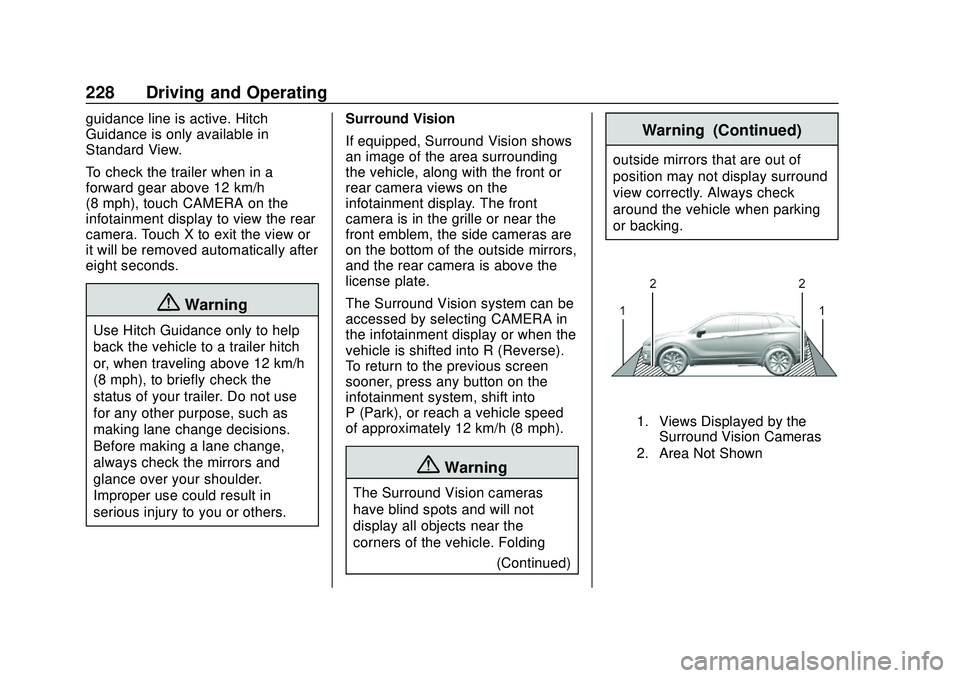
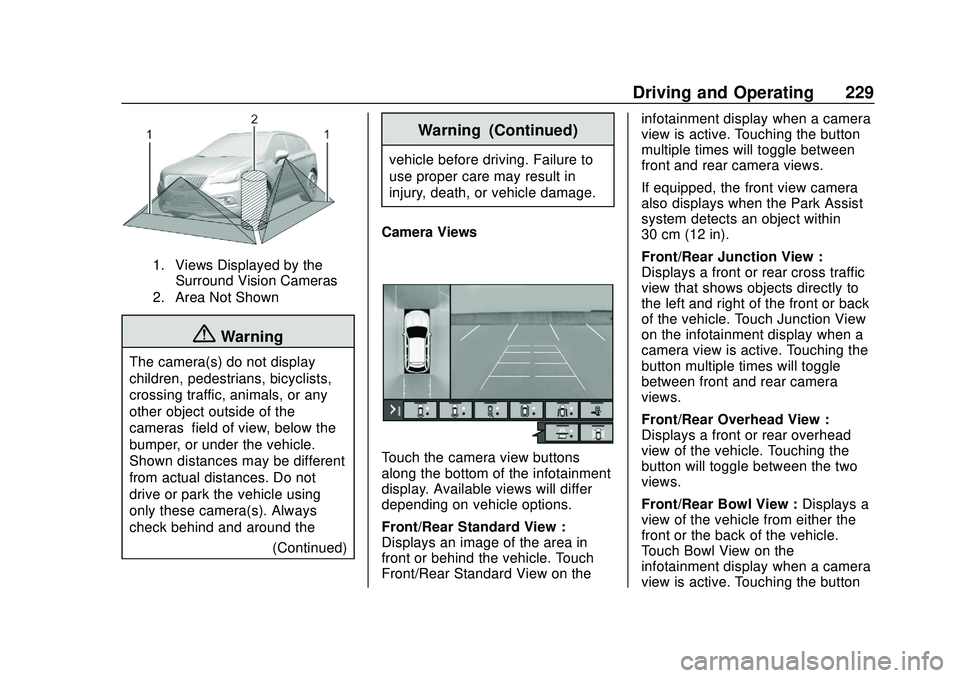
If equipped, Surround Vision shows
an image of the area surrounding
the vehicle, along with the front or
rear camera views on the
infotainment display. The front
camera is in the grille or near the
front emblem, the side cameras are
on the bottom of the outside mirrors,
and the rear camera is above the
license plate.
The Surround Vision system can be
accessed by selecting CAMERA in
the infotainment display or when the
vehicle is shifted into R (Reverse).
To return to the previous screen
sooner, press any button on the
infotainment system, shift into
P (Park), or reach a vehicle speed
of approximately 12 km/h (8 mph).
{Warning
The Surround Vision cameras
have blind spots and will not
display all objects near the
corners of the vehicle. Folding
(Continued)
Warning (Continued)
outside mirrors that are out of
position may not display surround
view correctly. Always check
around the vehicle when parking
or backing.
1. Views Displayed by theSurround Vision Cameras
2. Area Not Shown
Page 230 of 406
GMC Acadia/Acadia Denali Owner Manual (GMNA-Localizing-U.S./Canada/
Mexico-13687875) - 2020 - CRC - 10/28/19
Driving and Operating 229
1. Views Displayed by theSurround Vision Cameras
2. Area Not Shown
{Warning
The camera(s) do not display
children, pedestrians, bicyclists,
crossing traffic, animals, or any
other object outside of the
cameras’ field of view, below the
bumper, or under the vehicle.
Shown distances may be different
from actual distances. Do not
drive or park the vehicle using
only these camera(s). Always
check behind and around the
(Continued)
Warning (Continued)
vehicle before driving. Failure to
use proper care may result in
injury, death, or vehicle damage.
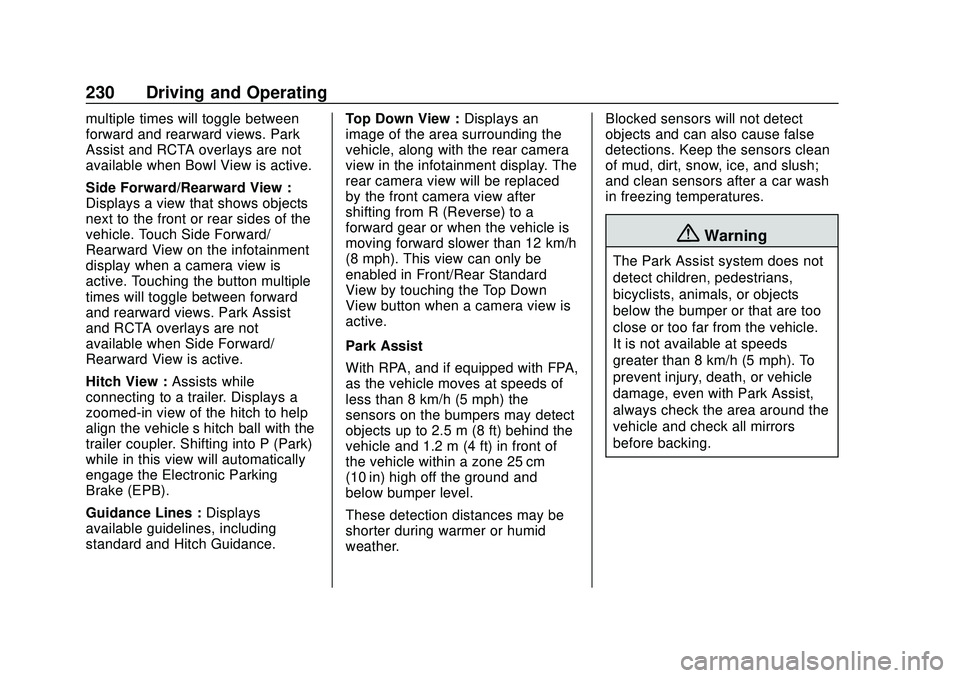
Camera Views
Touch the camera view buttons
along the bottom of the infotainment
display. Available views will differ
depending on vehicle options.
Front/Rear Standard View :
Displays an image of the area in
front or behind the vehicle. Touch
Front/Rear Standard View on the infotainment display when a camera
view is active. Touching the button
multiple times will toggle between
front and rear camera views.
If equipped, the front view camera
also displays when the Park Assist
system detects an object within
30 cm (12 in).
Front/Rear Junction View :
Displays a front or rear cross traffic
view that shows objects directly to
the left and right of the front or back
of the vehicle. Touch Junction View
on the infotainment display when a
camera view is active. Touching the
button multiple times will toggle
between front and rear camera
views.
Front/Rear Overhead View :
Displays a front or rear overhead
view of the vehicle. Touching the
button will toggle between the two
views.
Front/Rear Bowl View :
Displays a
view of the vehicle from either the
front or the back of the vehicle.
Touch Bowl View on the
infotainment display when a camera
view is active. Touching the button
Page 231 of 406
GMC Acadia/Acadia Denali Owner Manual (GMNA-Localizing-U.S./Canada/
Mexico-13687875) - 2020 - CRC - 10/28/19
230 Driving and Operating
multiple times will toggle between
forward and rearward views. Park
Assist and RCTA overlays are not
available when Bowl View is active.
Side Forward/Rearward View :
Displays a view that shows objects
next to the front or rear sides of the
vehicle. Touch Side Forward/
Rearward View on the infotainment
display when a camera view is
active. Touching the button multiple
times will toggle between forward
and rearward views. Park Assist
and RCTA overlays are not
available when Side Forward/
Rearward View is active.
Hitch View :Assists while
connecting to a trailer. Displays a
zoomed-in view of the hitch to help
align the vehicle’s hitch ball with the
trailer coupler. Shifting into P (Park)
while in this view will automatically
engage the Electronic Parking
Brake (EPB).
Guidance Lines : Displays
available guidelines, including
standard and Hitch Guidance. Top Down View :
Displays an
image of the area surrounding the
vehicle, along with the rear camera
view in the infotainment display. The
rear camera view will be replaced
by the front camera view after
shifting from R (Reverse) to a
forward gear or when the vehicle is
moving forward slower than 12 km/h
(8 mph). This view can only be
enabled in Front/Rear Standard
View by touching the Top Down
View button when a camera view is
active.
Park Assist
With RPA, and if equipped with FPA,
as the vehicle moves at speeds of
less than 8 km/h (5 mph) the
sensors on the bumpers may detect
objects up to 2.5 m (8 ft) behind the
vehicle and 1.2 m (4 ft) in front of
the vehicle within a zone 25 cm
(10 in) high off the ground and
below bumper level.
These detection distances may be
shorter during warmer or humid
weather. Blocked sensors will not detect
objects and can also cause false
detections. Keep the sensors clean
of mud, dirt, snow, ice, and slush;
and clean sensors after a car wash
in freezing temperatures.
{Warning
The Park Assist system does not
detect children, pedestrians,
bicyclists, animals, or objects
below the bumper or that are too
close or too far from the vehicle.
It is not available at speeds
greater than 8 km/h (5 mph). To
prevent injury, death, or vehicle
damage, even with Park Assist,
always check the area around the
vehicle and check all mirrors
before backing.
Page 232 of 406
GMC Acadia/Acadia Denali Owner Manual (GMNA-Localizing-U.S./Canada/
Mexico-13687875) - 2020 - CRC - 10/28/19
Driving and Operating 231
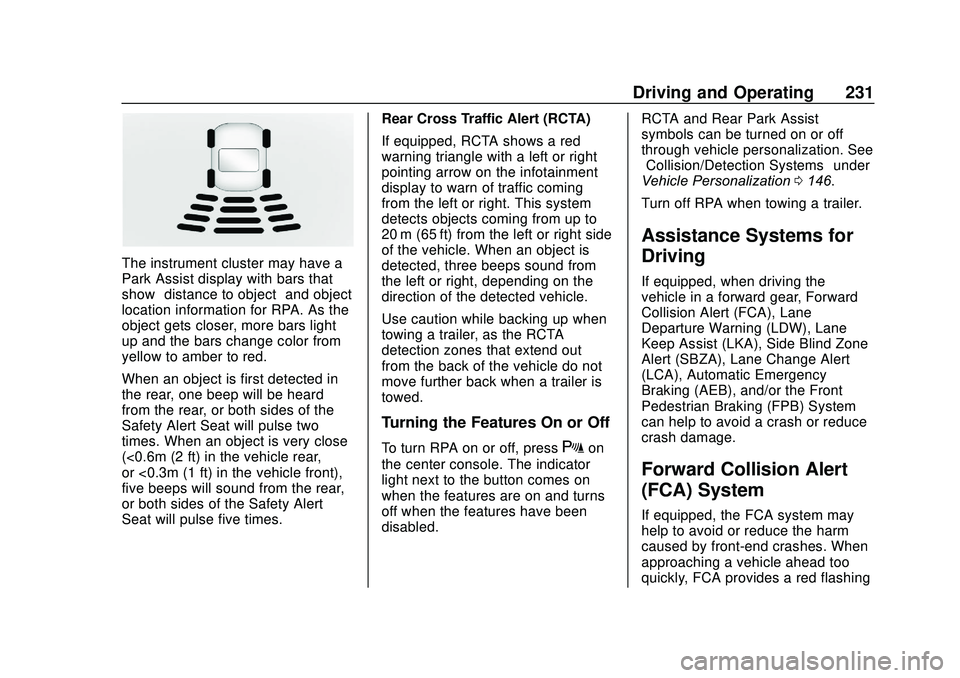
The instrument cluster may have a
Park Assist display with bars that
show“distance to object” and object
location information for RPA. As the
object gets closer, more bars light
up and the bars change color from
yellow to amber to red.
When an object is first detected in
the rear, one beep will be heard
from the rear, or both sides of the
Safety Alert Seat will pulse two
times. When an object is very close
(<0.6m (2 ft) in the vehicle rear,
or <0.3m (1 ft) in the vehicle front),
five beeps will sound from the rear,
or both sides of the Safety Alert
Seat will pulse five times. Rear Cross Traffic Alert (RCTA)
If equipped, RCTA shows a red
warning triangle with a left or right
pointing arrow on the infotainment
display to warn of traffic coming
from the left or right. This system
detects objects coming from up to
20 m (65 ft) from the left or right side
of the vehicle. When an object is
detected, three beeps sound from
the left or right, depending on the
direction of the detected vehicle.
Use caution while backing up when
towing a trailer, as the RCTA
detection zones that extend out
from the back of the vehicle do not
move further back when a trailer is
towed.
Turning the Features On or Off
To turn RPA on or off, pressXon
the center console. The indicator
light next to the button comes on
when the features are on and turns
off when the features have been
disabled. RCTA and Rear Park Assist
symbols can be turned on or off
through vehicle personalization. See
“Collision/Detection Systems”
under
Vehicle Personalization 0146.
Turn off RPA when towing a trailer.
Assistance Systems for
Driving
If equipped, when driving the
vehicle in a forward gear, Forward
Collision Alert (FCA), Lane
Departure Warning (LDW), Lane
Keep Assist (LKA), Side Blind Zone
Alert (SBZA), Lane Change Alert
(LCA), Automatic Emergency
Braking (AEB), and/or the Front
Pedestrian Braking (FPB) System
can help to avoid a crash or reduce
crash damage.
Forward Collision Alert
(FCA) System
If equipped, the FCA system may
help to avoid or reduce the harm
caused by front-end crashes. When
approaching a vehicle ahead too
quickly, FCA provides a red flashing
Page 295 of 406
GMC Acadia/Acadia Denali Owner Manual (GMNA-Localizing-U.S./Canada/
Mexico-13687875) - 2020 - CRC - 10/28/19
294 Vehicle Care
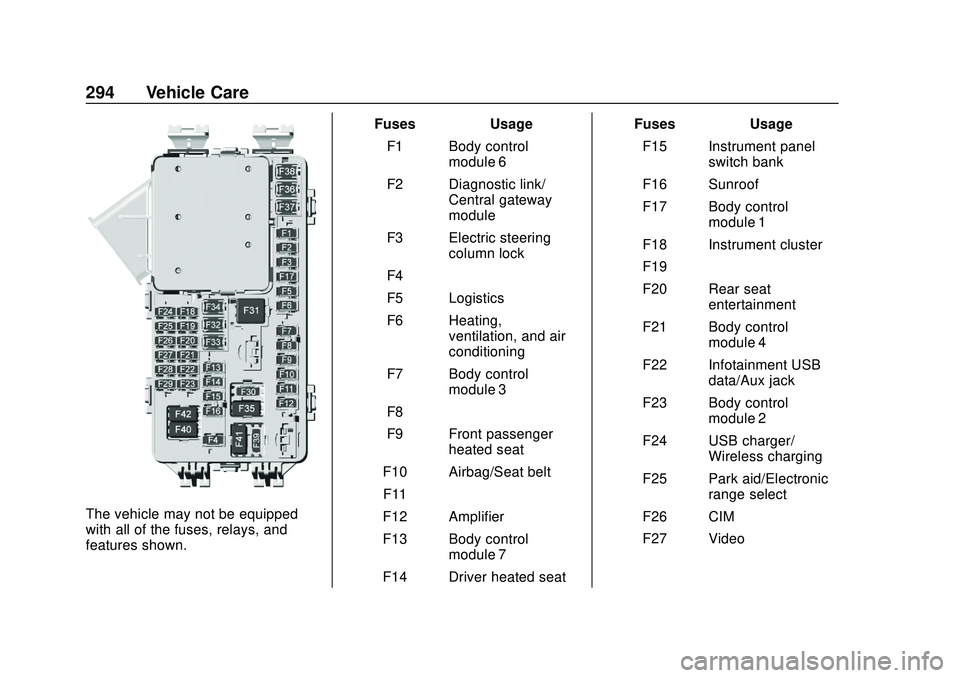
The vehicle may not be equipped
with all of the fuses, relays, and
features shown.Fuses Usage
F1 Body control module 6
F2 Diagnostic link/ Central gateway
module
F3 Electric steering column lock
F4 –
F5 Logistics
F6 Heating, ventilation, and air
conditioning
F7 Body control module 3
F8 –
F9 Front passenger heated seat
F10 Airbag/Seat belt F11 –
F12 Amplifier
F13 Body control module 7
F14 Driver heated seat Fuses Usage
F15 Instrument panel switch bank
F16 Sunroof
F17 Body control module 1
F18 Instrument cluster
F19 –
F20 Rear seat entertainment
F21 Body control module 4
F22 Infotainment USB data/Aux jack
F23 Body control module 2
F24 USB charger/ Wireless charging
F25 Park aid/Electronic range select
F26 CIM
F27 Video
Page 371 of 406
GMC Acadia/Acadia Denali Owner Manual (GMNA-Localizing-U.S./Canada/
Mexico-13687875) - 2020 - CRC - 10/28/19
370 Customer Information
Customer
Information
Customer Information
Customer SatisfactionProcedure . . . . . . . . . . . . . . . . . . . 370
Customer Assistance Offices . . . . . . . . . . . . . . . . . . . . . . 372
Customer Assistance for Text Telephone (TTY) Users . . . . . 373
Online Owner Center . . . . . . . . . 373
GM Mobility Reimbursement Program . . . . . . . . . . . . . . . . . . . . 373
Roadside Assistance Program . . . . . . . . . . . . . . . . . . . . 374
Scheduling Service Appointments . . . . . . . . . . . . . . . 375
Courtesy Transportation Program . . . . . . . . . . . . . . . . . . . . 376
Collision Damage Repair . . . . . 377
Publication Ordering Information . . . . . . . . . . . . . . . . . . 379
Radio Frequency Statement . . . . . . . . . . . . . . . . . . . 380
Reporting Safety Defects
Reporting Safety Defects tothe United States
Government . . . . . . . . . . . . . . . . . 380
Reporting Safety Defects to the Canadian
Government . . . . . . . . . . . . . . . . . 381
Reporting Safety Defects to General Motors . . . . . . . . . . . . . 381
Vehicle Data Recording and
Privacy
Vehicle Data Recording andPrivacy . . . . . . . . . . . . . . . . . . . . . . 381
Cybersecurity . . . . . . . . . . . . . . . . . 382
Event Data Recorders . . . . . . . . 382
OnStar . . . . . . . . . . . . . . . . . . . . . . . 383
Infotainment System . . . . . . . . . . 383
Customer Information
Customer Satisfaction
Procedure
Your satisfaction and goodwill are
important to your dealer and to
GMC. Normally, any concerns with
the sales transaction or the
operation of the vehicle will be
resolved by your dealer's sales or
service departments. Sometimes,
however, despite the best intentions
of all concerned, misunderstandings
can occur. If your concern has not
been resolved to your satisfaction,
the following steps should be taken:
STEP ONE : Discuss your concern
with a member of dealership
management. Normally, concerns
can be quickly resolved at that level.
If the matter has already been
reviewed with the sales, service,
or parts manager, contact the owner
of your dealership or the general
manager.