start GMC CANYON 2008 Service Manual
[x] Cancel search | Manufacturer: GMC, Model Year: 2008, Model line: CANYON, Model: GMC CANYON 2008Pages: 428, PDF Size: 5.82 MB
Page 168 of 428
Emissions Inspection and Maintenance
Programs
Some state/provincial and local governments have or
might begin programs to inspect the emission control
equipment on your vehicle. Failure to pass this
inspection could prevent you from getting a vehicle
registration.
Here are some things you need to know to help your
vehicle pass an inspection:
Your vehicle will not pass this inspection if the check
engine light is on or not working properly.
Your vehicle will not pass this inspection if the OBD
(on-board diagnostic) system determines that critical
emission control systems have not been completely
diagnosed by the system. The vehicle would be
considered not ready for inspection. This can happen if
you have recently replaced the battery or if the battery
has run down. The diagnostic system is designed to
evaluate critical emission control systems during normal
driving. This can take several days of routine driving.
If you have done this and your vehicle still does not pass
the inspection for lack of OBD system readiness, your
dealer/retailer can prepare the vehicle for inspection.
Oil Pressure Light
{CAUTION:
Do not keep driving if the oil pressure is low.
If you do, your engine can become so hot that
it catches re. You or others could be burned.
Check your oil as soon as possible and have
your vehicle serviced.
Notice:Lack of proper engine oil maintenance may
damage the engine. The repairs would not be covered
by your warranty. Always follow the maintenance
schedule in this manual for changing engine oil.
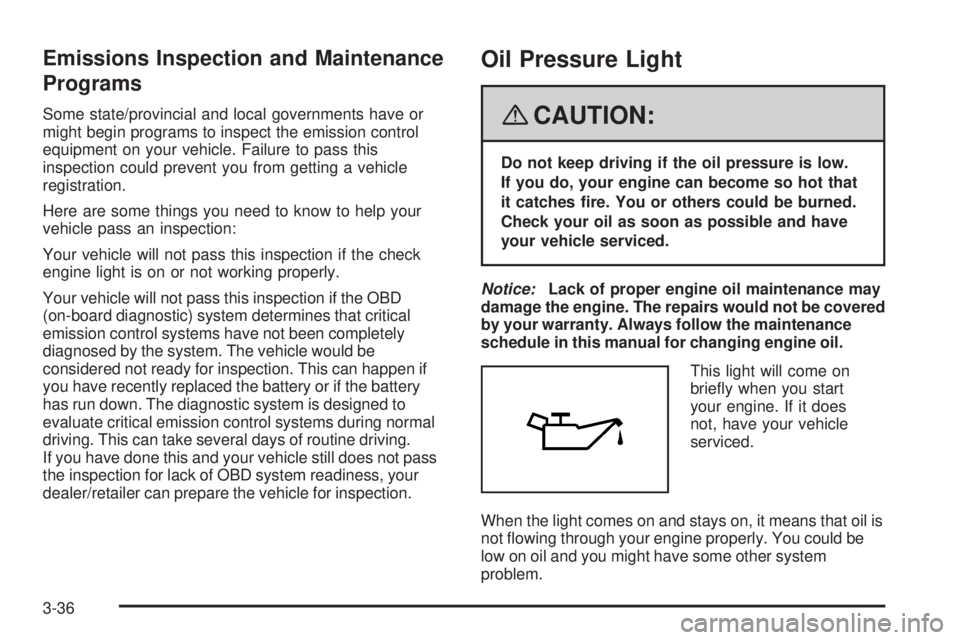
This light will come on
briey when you start
your engine. If it does
not, have your vehicle
serviced.
When the light comes on and stays on, it means that oil is
not owing through your engine properly. You could be
low on oil and you might have some other system
problem.
3-36
Page 171 of 428
Trip Information
Odometer
The odometer is automatically displayed on the DIC
when you start the vehicle. The odometer shows
the total distance the vehicle has been driven in either
miles for the United States or kilometers for Canada.
Trip Odometer
Press and release the reset stem until TRIP appears on
the DIC display. The trip odometer shows the current
distance traveled since the last reset of the trip odometer
in either miles for the United States or kilometers for
Canada.
To reset the trip odometer, press and hold the reset
stem until the display returns to zero.
Engine Oil Life System
With the engine off, turn the key to ON/RUN and
then press the reset stem until OIL LIFE RESET
appears — alternating between OIL LIFE and
RESET — on the DIC display. The CHANGE OIL
message alerts you to change the oil on a schedule
consistent with your driving conditions. Always reset
the OIL LIFE message after an oil change. To reset the
message, seeEngine Oil Life System on page 5-18.In addition to the engine oil life system monitoring the
oil life, additional maintenance is recommended in
the Maintenance Schedule in this manual. SeeEngine
Oil on page 5-15andScheduled Maintenance on
page 6-4for more information.
Language
This feature allows you to choose the language in which
the DIC display shows information.
To set your choice for this feature:
1. With the engine off, turn the key to ON/RUN, but do
not start the engine.
2. Close all doors so the DOORS message does not
display in the DIC.
3. Momentarily press and release the reset stem until
the current language is displayed: English (default),
Spanish, or French.
4. To select a different language, press and hold the
reset stem until the next language appears.
5. Repeat Step 4 until the desired language is
displayed. Once the desired language is shown
on the DIC display, the language is set.
6. To exit the language selection, momentarily press
and release the reset stem. All DIC messages will
now display in the language selected.
3-39
Page 189 of 428
Radio Messages for XM™ Only
SeeXM Radio Messages on page 3-68later in this
section for further detail.
Playing a CD (Radio with
Single CD Player)
Insert a CD partway into the slot, label side up.
The player pulls it in, and READING displays. The CD
should begin playing. If you want to insert a CD with
the ignition off, rst press the
Z(eject) button or the
DISPL knob.
If the ignition or radio is turned off with a CD in the
player it stays in the player. When the ignition or radio
is turned on, the CD starts to play where it stopped,
if it was the last selected audio source.
When the CD is inserted, the CD symbol displays. As
each new track starts to play, the track number displays.
The CD player can play the smaller 3 inch (8 cm)
single CDs with an adapter ring. Full-size CDs and
the smaller CDs are loaded in the same manner.
Care of Your CDs
If playing a CD-R, the sound quality can be reduced due
to CD-R quality, the method of recording, the quality of
the music that has been recorded, and the way the CD-R
has been handled. Handle them carefully. Store CD-R(s)
in their original cases or other protective cases and away
from direct sunlight and dust. The CD player scans the
bottom surface of the disc. If the surface of a CD is
damaged, such as cracked, broken, or scratched, the
CD does not play properly or not at all. Do not touch the
bottom side of a CD while handling it; this could damage
the surface. Pick up CDs by grasping the outer edges or
the edge of the hole and the outer edge.
If the surface of a CD is soiled, take a soft, lint free
cloth or dampen a clean, soft cloth in a mild, neutral
detergent solution mixed with water, and clean it.
Make sure the wiping process starts from the center
to the edge.
3-57
Page 190 of 428
Care of Your CD Player
Do not add any label to a CD, it could get caught in the
CD player. If a CD is recorded on a personal computer
and a description label is needed, try labeling the top
of the recorded CD with a marking pen.
The use of CD lens cleaners for CDs is not advised,
due to the risk of contaminating the lens of the CD optics
with lubricants internal to the CD player mechanism.
Notice:If a label is added to a CD, or more than one
CD is inserted into the slot at a time, or an attempt
is made to play scratched or damaged CDs, the CD
player could be damaged. While using the CD player,
use only CDs in good condition without any label,
load one CD at a time, and keep the CD player and
the loading slot free of foreign materials, liquids,
and debris.
If an error displays, see “CD Messages” later in
this section.
1 FLD
x(Previous):This button is inactive when
playing a CD.2 FLD
w(Next):This button is inactive when
playing a CD.
3 REV (Fast Reverse):Press and hold to reverse
quickly within a track. Press and hold for less than
two seconds to reverse at 10 times the normal playing
speed. Press and hold for more than two seconds
to reverse at 20 times the normal playing speed.
Release to play the passage. ET (elapsed time)
and the elapsed time of the track displays.
4 FWD (Fast Forward):Press and hold to advance
quickly within a track. Press and hold for less than
two seconds to advance at six times the normal playing
speed. Press and hold for more than two seconds to
advance at 17 times the normal playing speed. Release
to play the passage. ET and the elapsed time of the track
displays.
6 RDM (Random):Press to hear the tracks in random,
rather than sequential, order. RDM ON displays. RDM
and the track number displays when each track starts
to play. Press again to turn off random play. RDM OFF
displays.
3-58
Page 191 of 428
qSEEKr:Press the left arrow to go to the start of
the current or the previous track. Press the right arrow to
go to the start of the next track. Pressing either arrow for
more than two seconds scans the next tracks, playing
the rst eight seconds of each track until all of the tracks
have been previewed. Press either arrow again to stop
scanning and to play the track.
oTUNEp:Turning this knob fast tracks reverse or
advances through tracks. The track number displays
for each track.
DISPL (Display):Press to see how long the current
track has been playing. ET and the elapsed time of the
track displays. To change the default on the display (track
or elapsed time), press until you see the desired display,
then press and hold for two seconds. The radio produces
one beep. The selected display is now the default.
BAND:Press to listen to the radio when a CD is
playing. The inactive CD remains inside the radio for
future listening.
CD AUX (Auxiliary):Press to play a CD when listening
to the radio. The CD symbol displays when a CD is
loaded.
Z(Eject):Press to eject a CD. Eject can be activated
with either the ignition or radio off. CDs can be loaded
with the ignition and radio off if this button is pressed rst.
Playing a CD(s) (Radio with
Six-Disc CD Player)
LOAD:Press to load CDs into the CD player. This CD
player holds up to six CDs.
To insert one CD, do the following:
1. Turn the ignition on.
2. Press and release the LOAD button.
3. Wait for the indicator light, located to the right of the
slot, to turn green.
4. Load a CD. Insert the CD partway into the slot,
label side up. The player pulls the CD in.
To insert multiple CDs, do the following:
1. Turn the ignition on.
2. Press and hold the LOAD button for two seconds.
A beep sound and the indicator light, located to the
right of the slot, begins to ash and MULTI LOAD #
displays.
3. Once the light stops ashing and turns green,
INSERT CD # displays, load a CD. Insert
the CD partway into the slot, label side up.
The player pulls the CD in.
Once the CD is loaded, the indicator light begins
ashing again. Once the light stops ashing and
turns green, you can load another CD. The CD player
takes up to six CDs. Do not try to load more than six.
3-59
Page 193 of 428
To use repeat, do the following:
To repeat the track you are listening to, press
and release the RPT button. RPT displays.
Press again to turn off repeat play.
To repeat the CD you are listening to, press
and hold the RPT button for two seconds.
RPT displays. Press again to turn off repeat play.
RDM (Random):With the random setting, tracks
can be listened to in random, rather than sequential,
order, on one CD or on all of the CDs. To use random,
do one of the following:
To play the tracks on the CD you are listening to in
random order, press and release the RDM button.
RANDOM ONE displays. Press again to turn
off random play.
To play the tracks on all of the CDs that are loaded
in random order, press and hold RDM for more
than two seconds. A beep sounds and RANDOM
ALL displays. Press again to turn off random play.
AUTO EQ (Automatic Equalization):Press to
select the equalization setting while playing a CD.
The equalization is stored when a CD is played.
For more information on AUTO EQ, see “AUTO EQ”
listed previously in this section.
©SEEK¨:Press the left arrow to go to the start of
the current track (if more than 10 seconds have played),
or to go to the previous track (if less than 10 seconds
have played). Press the right arrow to go to the next
track. If either arrow is held or pressed more than once,
the player continues moving backward or forward through
the CD.
©SCAN¨:To scan one CD, press and hold either
arrow for more than two seconds until SCAN displays and
a beep sounds. The radio goes to the next track, plays for
10 seconds, then goes to the next track. Press either
arrow again, to stop scanning.
To scan all loaded CDs, press and hold either arrow for
more than four seconds until CD SCAN displays and a
beep sounds. Use this feature to listen to 10 seconds of
the rst track of each loaded CD. Press either arrow
again, to stop scanning.
INFO (Information):Press to see how long the current
track has been playing. To change the default on the
display, track or elapsed time, press until you see the
desired display, then press and hold until the radio beeps.
The selected display becomes the default.
BAND:Press to listen to the radio while a CD is
playing. The inactive CD(s) remains inside the radio
for future listening.
3-61
Page 198 of 428
File System and Naming
The song name that displays is the song name that is
contained in the ID3 tag. If the song name is not present
in the ID3 tag, then the radio displays the le name
without the extension (such as .mp3) as the track name.
Track names longer than 32 characters or four pages
are shortened. Parts of words on the last page of
text and the extension of the lename does not display.
Preprogrammed Playlists
Preprogrammed playlists which were created by
WinAmp™, MusicMatch™, or Real Jukebox™ software
can be accessed, however, they cannot be edited.
These playlists are treated as special folders containing
compressed audio song les.
Playing an MP3/WMA
Insert a CD partway into the slot, label side up.
The player pulls it in, and READING displays.
The CD should begin playing and the CD symbol
displays. If you want to insert a CD with the ignition off,
rst press the
Zbutton or the DISPL knob.
If the ignition or radio is turned off with a CD in the
player it stays in the player. When the ignition or radio
is turned on, the CD starts to play where it stopped,
if it was the last selected audio source.
As each new track starts to play, the track number
displays.1 FLD
x(Previous Folder):Press this button to go
to the rst track in the previous folder. Pressing this
button while in folder random mode takes you to
the previous folder and plays the tracks in random
order in that folder.
2 FLD
w(Next Folder):Press this button to go to
the rst track in the next folder. Pressing this button
while in folder random mode takes the CD to the next
folder and plays the tracks in random order in that folder.
3 REV (Reverse):Press and hold this button to
reverse quickly within a track. Press and hold this
button for less than two seconds to reverse at 10 times
the normal playing speed. Press and hold it for more
than two seconds to reverse at 20 times the normal
playing speed. Release this button to play the passage.
REV and the elapsed time of the track displays.
4 FWD (Forward):Press and hold this button to
advance quickly within a track. Press and hold this
button for less than two seconds to advance at 10 times
the normal playing speed. Press and hold it for more
than two seconds to advance at 20 times the normal
playing speed. Release this button to play the passage.
FWD and the elapsed time of the track displays.
3-66
Page 199 of 428
6 RDM (Random):To play the tracks in random order
in the current folder or playlist, press and release this
button. FLDR RDM (folder random) displays. Once all of
the tracks in the current folder or playlist have played, the
system moves to the next folder or playlist and plays all of
the tracks in random order.
To play all the tracks in random order on the CD, press
and hold this button for two seconds. A beep sounds and
DISC RDM (disc random) displays. This feature does not
work with playlists.
When in random, pressing and releasing either SEEK
arrow takes the CD to the previous or to the next
random track.
Press and release this button again to turn off random
play. NO RDM (no random) displays.
qSEEKr:Press the left SEEK arrow to go to the
start of the previous track. Press the right SEEK arrow to
go to the start of the next track. Pressing either SEEK
arrow for more than two seconds searches the previous
or next tracks at two tracks per second. Release the
button to stop searching and to play the track.
oTUNEp:Turning this knob fast tracks reverse or
advances through the tracks in all folders or playlists.
The track number and le name displays for each track.
Turning this knob while in random fast tracks reverse
or advances the tracks in sequential order.DISPL (Display):Press this knob to switch between
track mode, folder/playlist mode, and time of day mode.
The display shows only eight characters, but there can
be up to four pages of text. If there are more than eight
characters in the song, folder, or playlist name, pressing
this knob within two seconds takes you to the next page
of text. If there are no other pages to be shown, pressing
this knob within two seconds takes you to the next
display mode.
Track mode displays the current track number and
the ID3 tag song name.
Folder/playlist mode displays the current folder or
playlist number and the folder/playlist name.
Time of day mode displays the time of day and the
ID3 tag song name.
To change the default on the display, press the
DISPL knob until you see the desired display, then
press and hold this knob for two seconds. The radio
produces one beep and the selected display is now
the default.
INFO (Information):INFO displays when a current
track has ID3 tag information. Press this button to
display the artist name and album contained in the tag.
INFO disappears from the display when the information
in the ID3 tag has nished being read.
BAND:Press this button to listen to the radio when a
CD is playing. The inactive CD remains inside the radio
for future listening.
3-67
Page 206 of 428
And, of course, actual stopping distances vary greatly
with the surface of the road, whether it is pavement
or gravel; the condition of the road, whether it is wet,
dry, or icy; tire tread; the condition of the brakes; the
weight of the vehicle; and the amount of brake
force applied.
Avoid needless heavy braking. Some people drive in
spurts — heavy acceleration followed by heavy
braking — rather than keeping pace with traffic. This is
a mistake. The brakes might not have time to cool
between hard stops. The brakes will wear out much
faster if you do a lot of heavy braking. If you keep pace
with the traffic and allow realistic following distances,
you will eliminate a lot of unnecessary braking.
That means better braking and longer brake life.
If your vehicle’s engine ever stops while you are driving,
brake normally but do not pump the brakes. If you do,
the pedal could get harder to push down. If the
engine stops, you will still have some power brake
assist. But you will use it when you brake. Once the
power assist is used up, it can take longer to stop and
the brake pedal will be harder to push.
Adding non-dealer/non-retailer accessories can affect
your vehicle’s performance. SeeAccessoriesand
Modifications on page 5-3.Antilock Brake System (ABS)
Your vehicle has the Antilock Brake System (ABS), an
advanced electronic braking system that will help
prevent a braking skid.
When you start the engine and begin to drive away,
ABS will check itself. You might hear a momentary
motor or clicking noise while this test is going on.
This is normal.
If there is a problem with
the ABS, this warning light
will stay on. SeeAntilock
Brake System Warning
Light on page 3-32.
Let us say the road is wet and you are driving safely.
Suddenly, an animal jumps out in front of you. You slam
on the brakes and continue braking. Here is what
happens with ABS:
A computer senses that wheels are slowing down.
If one of the wheels is about to stop rolling, the computer
will separately work the brakes at each front wheel and at
both rear wheels.
4-4
Page 212 of 428
Skidding
In a skid, a driver can lose control of the vehicle.
Defensive drivers avoid most skids by taking reasonable
care suited to existing conditions, and by not overdriving
those conditions. But skids are always possible.
The three types of skids correspond to your vehicle’s
three control systems. In the braking skid, the wheels
are not rolling. In the steering or cornering skid, too
much speed or steering in a curve causes tires to slip
and lose cornering force. And in the acceleration skid,
too much throttle causes the driving wheels to spin.
A cornering skid is best handled by easing your foot off
the accelerator pedal.
If your vehicle starts to slide, ease your foot off the
accelerator pedal and quickly steer the way you want
the vehicle to go. If you start steering quickly enough,
your vehicle may straighten out. Always be ready for a
second skid if it occurs.Of course, traction is reduced when water, snow, ice,
gravel, or other material is on the road. For safety, you
want to slow down and adjust your driving to these
conditions. It is important to slow down on slippery
surfaces because stopping distance is longer and
vehicle control more limited.
While driving on a surface with reduced traction, try
your best to avoid sudden steering, acceleration, or
braking, including reducing vehicle speed by shifting to a
lower gear. Any sudden changes could cause the tires to
slide. You might not realize the surface is slippery until
your vehicle is skidding. Learn to recognize warning
clues — such as enough water, ice, or packed snow on
the road to make a mirrored surface — and slow down
when you have any doubt.
Remember: Any Antilock Brake System (ABS) helps
avoid only the braking skid.
4-10