buttons GMC CANYON 2010 User Guide
[x] Cancel search | Manufacturer: GMC, Model Year: 2010, Model line: CANYON, Model: GMC CANYON 2010Pages: 448, PDF Size: 2.62 MB
Page 149 of 448
To adjust the power mirrors:
1. Move the selector switch to the L (left) or R (right)
to choose the driver or passenger mirror.
2. Press one of the four buttons located on the control
pad to move the mirror to the desired direction.
3. Return the selector switch to the center position
once the mirrors are adjusted.
If the mirror begins making a ratcheting sound, the
mirror has reached the end of its travel and can go no
farther in that direction. To stop the sound, reverse
the mirror direction using the control pad.
Manually fold the mirrors inward to prevent damage
when going through an automatic car wash. To fold,
push the mirror toward the vehicle. Push outward,
to return the mirror to its original position.Outside Convex Mirror
{WARNING:
A convex mirror can make things, like other
vehicles, look farther away than they really are.
If you cut too sharply into the right lane, you could
hit a vehicle on the right. Check the inside mirror
or glance over your shoulder before changing
lanes.
The passenger side mirror is convex shaped. A convex
mirror’s surface is curved so more can be seen from
the driver seat.
3-39
Page 152 of 448
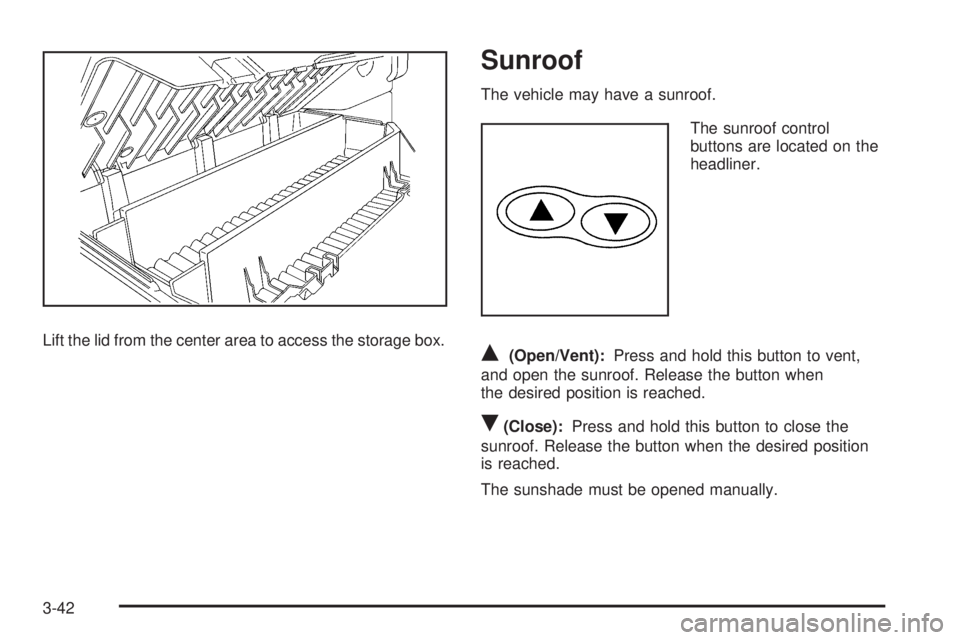
Lift the lid from the center area to access the storage box.
Sunroof
The vehicle may have a sunroof.
The sunroof control
buttons are located on the
headliner.
Q(Open/Vent):Press and hold this button to vent,
and open the sunroof. Release the button when
the desired position is reached.
R(Close):Press and hold this button to close the
sunroof. Release the button when the desired position
is reached.
The sunshade must be opened manually.
3-42
Page 188 of 448
Remote Keyless Entry (RKE) Feedback
This feature allows you to program the Remote Keyless
Entry (RKE) feedback to a preferred setting.
To set your choice for this feature:
1. With the engine off, turn the key to LOCK/OFF.
Do not remove the key from the ignition.
2. Press and hold the lock and unlock buttons on
the RKE transmitter at the same time. Hold both
buttons until the DIC display shows the current RKE
feedback mode.
3. To view the next available mode, press and hold
the reset stem until the mode appears. Release
the reset stem and press and hold again to view
the next mode.
4. Once the desired mode is shown on the DIC
display, briefly press the reset stem to set your
choice. The DIC display then clears.The following are the available modes:
RFA 1 (default):This mode flashes the parking lamps
when you press the lock or unlock buttons on the
RKE transmitter.
RFA 2:This mode flashes the parking lamps and
sounds the horn when you press the lock button on the
RKE transmitter. This mode also flashes the parking
lamps when you press the unlock button on the
RKE transmitter.
RFA 3:This mode flashes the parking lamps and
sounds the horn when you press the lock or unlock
buttons on the RKE transmitter.
RFA 4:This mode disables RKE feedback. There will
be no feedback when you press the lock or unlock
buttons on the RKE transmitter.
4-36
Page 195 of 448
Setting the Clock
AM-FM Radio
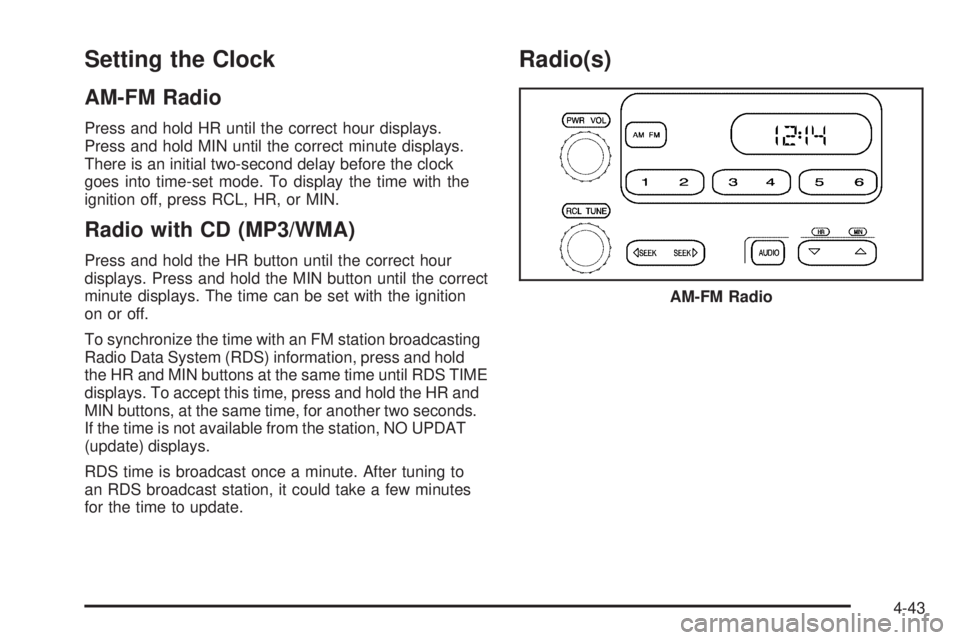
Press and hold HR until the correct hour displays.
Press and hold MIN until the correct minute displays.
There is an initial two-second delay before the clock
goes into time-set mode. To display the time with the
ignition off, press RCL, HR, or MIN.
Radio with CD (MP3/WMA)
Press and hold the HR button until the correct hour
displays. Press and hold the MIN button until the correct
minute displays. The time can be set with the ignition
on or off.
To synchronize the time with an FM station broadcasting
Radio Data System (RDS) information, press and hold
the HR and MIN buttons at the same time until RDS TIME
displays. To accept this time, press and hold the HR and
MIN buttons, at the same time, for another two seconds.
If the time is not available from the station, NO UPDAT
(update) displays.
RDS time is broadcast once a minute. After tuning to
an RDS broadcast station, it could take a few minutes
for the time to update.
Radio(s)
AM-FM Radio
4-43
Page 198 of 448
Finding a Station
AM FM (AM-FM Radio):Press to switch between FM1,
FM2, or AM. The selection displays.
BAND:Press to switch between FM1, FM2, AM, or
XM1 or XM2 (if equipped). The selection displays.
qrTUNE:Turn to select radio stations.
qSEEKr:Press to go to the previous or to the next
station and stay there.
To scan stations, press and hold either arrow for
two seconds until a beep sounds. The radio goes to a
station, plays for a few seconds, then goes to the next
station. Press either arrow again to stop scanning.
To scan preset stations, press and hold either arrow for
more than four seconds until two beeps sound. The radio
goes to the first preset station stored on the pushbuttons,
plays for a few seconds, then goes to the next preset
station. Press either arrow again to stop scanning
presets.
qSCANr:Press and hold for more than
two seconds. SCAN or SCN displays and the radio
produces one beep. The radio goes to a station, plays
for a few seconds, then goes to the next station. Press
either SCAN arrow again, to stop scanning presets.
To scan preset stations, press and hold either SCAN
arrow for more than four seconds. PSCN or PSC displays
and the radio produces one beep or depending on the
radio, two beeps. The radio goes to a preset station,
plays for a few seconds, then goes to the next preset
station. Press either SCAN arrow again, to stop scanning
presets.
The radio only scans stations with a strong signal that are
in the selected band.
4-46
Page 199 of 448
Setting Preset Stations
If the radio does not have XM, up to 18 stations
(six FM1, six FM2, and six AM) can be programmed on
the six numbered pushbuttons.
If the radio has XM, up to 30 stations (six FM1, six FM2,
six AM, six XM1 and six XM2) can be programmed on
the six numbered pushbuttons.
To program either radio:
1. Turn the radio on.
2. Press BAND to select FM1, FM2, AM, or XM1 or
XM2 (if equipped).
•For the AM-FM Radio, press AM FM to select
FM1, FM2, or AM.
3. Tune in the desired station.
4. Press and hold one of the six numbered pushbuttons
until the radio beeps once. When that numbered
pushbutton is pressed again, the station that was
stored, returns.
5. Repeat the steps for each pushbutton.
Setting the Tone (Bass/Treble)
AUDIO:Push and release until BASS/TREB, or
depending on the radio, BASS, MID, or TREB displays.
Turn to increase or to decrease. The tone display shows
the bass or the treble level. If a station is weak or has
static, decrease the treble.
•For the AM-FM Radio, press and hold
the
wxarrows to increase or to decrease
the tone.
To adjust the bass/treble or bass/midrange/treble to
the middle position, press and hold the AUDIO knob.
The radio produces one beep and adjusts the display
level to the middle position.
•For the AM-FM Radio, adjust bass or treble to the
middle position, select BAS (bass) or TRE (treble).
Then press and hold for more than two seconds
until a beep sounds. B (balance) and a zero
or T (treble) and a zero displays.
4-47
Page 202 of 448
If the radio cannot find the desired program type, NONE
displays and the radio returns to the last tuned station.
SCAN:To scan PTYs, press and hold the SEEK /
SCAN until a beep sounds. The radio goes to a station,
plays for a few seconds, then goes to the next station.
BAND (Alternate Frequency):Alternate frequency
lets the radio switch to a stronger station with the same
program type. To turn alternate frequency on, press and
hold BAND for two seconds. AF ON displays. The radio
could switch to stations with a stronger frequency.
To turn alternate frequency off, press and hold BAND
again for two seconds. AF OFF displays. The radio does
not switch to other stations.
This function does not apply for XM Satellite Radio
Service.Setting Preset PTYs (RDS) Only
For the Radio with CD player, the six pushbuttons
have factory PTY presets. Up to 12 PTYs (six FM1
and six FM2), can be programmed on the numbered
pushbuttons. To program PTYs:
1. Press BAND to select FM1 or FM2.
2. Turn the P-TYPE knob to activate program type
select mode. TYPE and the last selected PTY
displays.
3. Turn the P-TYPE knob to select a PTY.
4. Press and hold one of the six numbered
pushbuttons until a beep sounds. When that
numbered pushbutton is pressed, the PTY that
was set, returns.
5. Repeat the steps for each pushbutton.
4-50
Page 209 of 448
No Folder
When the CD contains only compressed files, the files
are located under the root folder. The next and previous
folder functions have no function on a CD that was
recorded without folders or playlists. When displaying
the name of the folder the radio displays ROOT.
When the CD contains only playlists and compressed
audio files, but no folders, all files are located under the
root folder. The folder down and the folder up buttons
search playlists (Px) first and then go to the root folder.
When the radio displays the name of the folder, the
radio displays ROOT.
Order of Play
Tracks are played in the following order:
•Play begins from the first track in the first playlist
and continues sequentially through all tracks in
each playlist. When the last track of the last playlist
has played, play continues from the first track of
the first playlist.
•If the CD does not contain any playlists, then play
begins from the first track under the root directory.
When all tracks from the root directory have played,
play continues from files according to their numerical
listing. After playing the last track from the last folder,
play begins again at the first track of the first folder or
root directory.When play enters a new folder, the display does not
automatically show the new folder name unless you
have chosen the folder mode as the default display.
See DISPL (display) later in this section for more
information. The new track name displays.
File System and Naming
The song name that displays is the song name that is
contained in the ID3 tag. If the song name is not present
in the ID3 tag, then the radio displays the file name
without the extension (such as .mp3) as the track name.
Track names longer than 32 characters or four pages
are shortened. Parts of words on the last page of
text and the extension of the filename does not display.
Preprogrammed Playlists
Preprogrammed playlists which were created by
WinAmp™, MusicMatch™, or Real Jukebox™ software
can be accessed, however, they cannot be edited.
These playlists are treated as special folders containing
compressed audio song files.
4-57
Page 379 of 448
Notice:Using abrasive cleaners when cleaning
glass surfaces on the vehicle, could scratch
the glass and/or cause damage to the rear window
defogger. When cleaning the glass on the vehicle,
use only a soft cloth and glass cleaner.
Many cleaners contain solvents that may become
concentrated in the vehicle’s breathing space. Before
using cleaners, read and adhere to all safety instructions
on the label. While cleaning the vehicle’s interior,
maintain adequate ventilation by opening the vehicle’s
doors and windows.
Dust may be removed from small buttons and knobs
using a small brush with soft bristles.
Products that remove odors from the vehicle’s
upholstery and clean the vehicle’s glass can be
obtained from your dealer/retailer.
Do not clean the vehicle using:
•A knife or any other sharp object to remove a soil
from any interior surface.
•A stiff brush. It can cause damage to the vehicle’s
interior surfaces.
•Heavy pressure or aggressive rubbing with a
cleaning cloth. Use of heavy pressure can damage
the interior and does not improve the effectiveness
of soil removal.
•Laundry detergents or dishwashing soaps with
degreasers can leave residue that streaks and
attracts dirt. For liquid cleaners, about 20 drops
per gallon (3.78 L) of water is a good guide.
Use only mild, neutral-pH soaps.
•Too much cleaner that saturates the upholstery.
•Organic solvents such as naptha, alcohol, etc. that
can damage the vehicle’s interior.
Fabric/Carpet
Use a vacuum cleaner with a soft brush attachment
frequently to remove dust and loose dirt. A canister
vacuum with a beater bar in the nozzle may only
be used on floor carpet and carpeted floor mats.
For any soil, always try to remove it first with plain
water or club soda. Before cleaning, gently remove
as much of the soil as possible using one of the
following techniques:
•For liquids: gently blot the remaining soil with a
paper towel. Allow the soil to absorb into the
paper towel until no more can be removed.
•For solid dry soils: remove as much as possible
and then vacuum.
6-103