phone GMC CANYON 2019 Owner's Manual
[x] Cancel search | Manufacturer: GMC, Model Year: 2019, Model line: CANYON, Model: GMC CANYON 2019Pages: 381, PDF Size: 5.59 MB
Page 20 of 381
GMC Canyon/Canyon Denali Owner Manual (GMNA-Localizing-U.S./Canada-
12461766) - 2019 - crc - 10/2/18
In Brief 19
Vehicle Features
Infotainment System
See the infotainment manual for
information on the radio, audio
players, phone, navigation system,
and voice or speech recognition.
It also includes information on
settings.
Steering Wheel Controls
The infotainment system can be
operated by using the steering
wheel controls. See“Steering Wheel
Controls” in the infotainment
manual.
Cruise Control
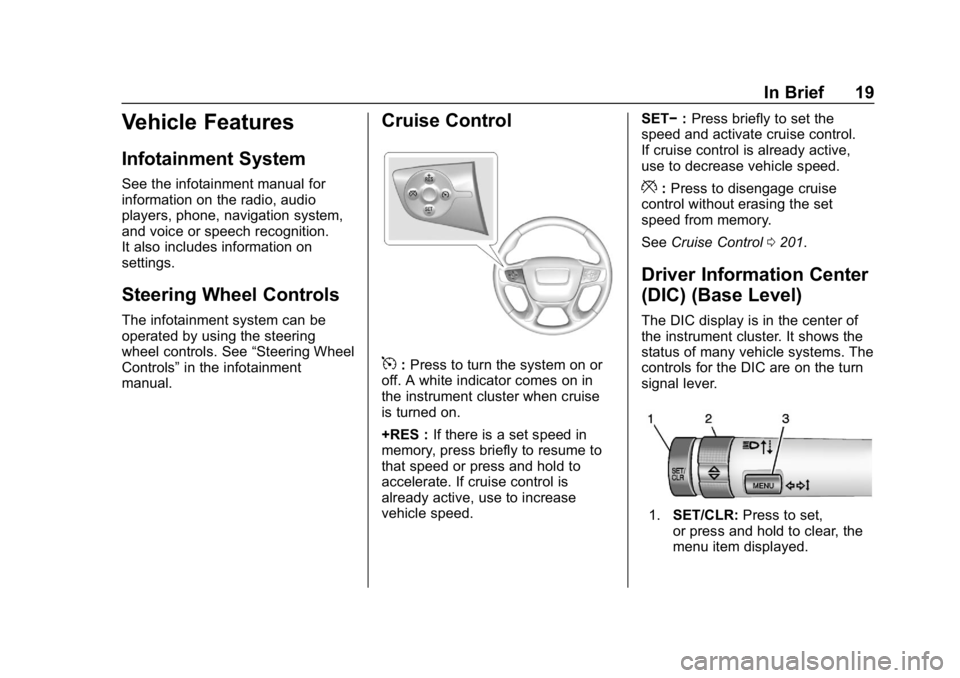
5: Press to turn the system on or
off. A white indicator comes on in
the instrument cluster when cruise
is turned on.
+RES : If there is a set speed in
memory, press briefly to resume to
that speed or press and hold to
accelerate. If cruise control is
already active, use to increase
vehicle speed. SET−
:Press briefly to set the
speed and activate cruise control.
If cruise control is already active,
use to decrease vehicle speed.
*: Press to disengage cruise
control without erasing the set
speed from memory.
See Cruise Control 0201.
Driver Information Center
(DIC) (Base Level)
The DIC display is in the center of
the instrument cluster. It shows the
status of many vehicle systems. The
controls for the DIC are on the turn
signal lever.
1. SET/CLR: Press to set,
or press and hold to clear, the
menu item displayed.
Page 22 of 381
GMC Canyon/Canyon Denali Owner Manual (GMNA-Localizing-U.S./Canada-
12461766) - 2019 - crc - 10/2/18
In Brief 21
signal in that direction, the light will
change to amber and flash. In
addition, beeps will sound.
SeeLane Departure Warning (LDW)
0 209.
Rear Vision
Camera (RVC)
The RVC displays a view of the
area behind the vehicle on the
infotainment display when the
vehicle is shifted into R (Reverse) to
aid with parking and low-speed
backing maneuvers.
See Assistance Systems for Parking
or Backing 0205.
Park Assist
If equipped, Rear Park Assist (RPA)
uses sensors on the rear bumper to
assist with parking and avoiding
objects while in R (Reverse).
It operates at speeds less than
8 km/h (5 mph). RPA may show a
warning triangle on the infotainment
display and/or a graphic on the
instrument cluster to provide the object distance. In addition, multiple
beeps may occur if very close to an
object.
See
Assistance Systems for Parking
or Backing 0205.
Power Outlets
Accessory power outlets can be
used to plug in electrical equipment,
such as a cell phone, MP3
player, etc.
The vehicle may have accessory
power outlets:
.
On the center stack below the
climate control system,
if equipped.
. On the center floor console,
if equipped.
. On the rear of the center storage
console.
Lift the cover to access and replace
when not in use.
See Power Outlets 0107.
Performance and
Maintenance
Traction Control/
Electronic Stability
Control
The Traction Control System (TCS)
limits wheel spin. The system is on
when the vehicle is started.
The StabiliTrak/Electronic Stability
Control (ESC) system assists with
directional control of the vehicle in
difficult driving conditions. The
system is on when the vehicle is
started.
.
To turn off TCS, press and
release the TCS/StabiliTrak/ESC
button
gon the center stack.i
illuminates in the instrument
cluster.
. To turn off both TCS and
StabiliTrak/ESC, press and hold
gon the center stack, untili
andgilluminate in the
instrument cluster.
Page 108 of 381
GMC Canyon/Canyon Denali Owner Manual (GMNA-Localizing-U.S./Canada-
12461766) - 2019 - crc - 10/2/18
Instruments and Controls 107
If the ignition is turned off while the
wipers are performing wipes due to
windshield washing, the wipers
continue to run until they reach the
base of the windshield.
Compass
The vehicle may have a compass
display on the Driver Information
Center (DIC). The compass receives
its heading and other information
from the Global Positioning
System (GPS) antenna, StabiliTrak/
Electronic Stability Control (ESC),
and vehicle speed information.
The compass system is designed to
operate for a certain number of
miles or degrees of turn before
needing a signal from the GPS
satellites. When the compass
display shows CAL, drive the
vehicle for a short distance in an
open area where it can receive a
GPS signal. The compass system
will automatically determine when a
GPS signal is restored and provide
a heading again.
Clock
The time and date for the clock can
be set using the infotainment
system. See“Time/Date”in
“System” under“Settings” in the
infotainment manual.
Power Outlets
For USB charging port locations,
see the infotainment manual.
Accessory power outlets can be
used to plug in electrical equipment,
such as a cell phone, MP3
player, etc.
The vehicle may have accessory
power outlets:
. On the center stack below the
climate control system,
if equipped.
. On the center floor console,
if equipped.
. On the rear of the center storage
console.
Lift the cover to access and replace
when not in use.
{Warning
Power is always supplied to the
outlets. Do not leave electrical
equipment plugged in when the
vehicle is not in use because the
vehicle could catch fire and cause
injury or death.
Caution
Leaving electrical equipment
plugged in for an extended period
of time while the vehicle is off will
drain the battery. Always unplug
electrical equipment when not in
use and do not plug in equipment
that exceeds the maximum
15 amp rating.
Certain power accessory plugs may
not be compatible with the
accessory power outlet and could
overload vehicle or adapter fuses.
If a problem is experienced, see
your dealer.
Page 109 of 381
GMC Canyon/Canyon Denali Owner Manual (GMNA-Localizing-U.S./Canada-
12461766) - 2019 - crc - 10/2/18
108 Instruments and Controls
When adding electrical equipment,
be sure to follow the proper
installation instructions included with
the equipment. SeeAdd-On
Electrical Equipment 0232.
Caution
Hanging heavy equipment from
the power outlet can cause
damage not covered by the
vehicle warranty. The power
outlets are designed for
accessory power plugs only, such
as cell phone charge cords.
Wireless Charging
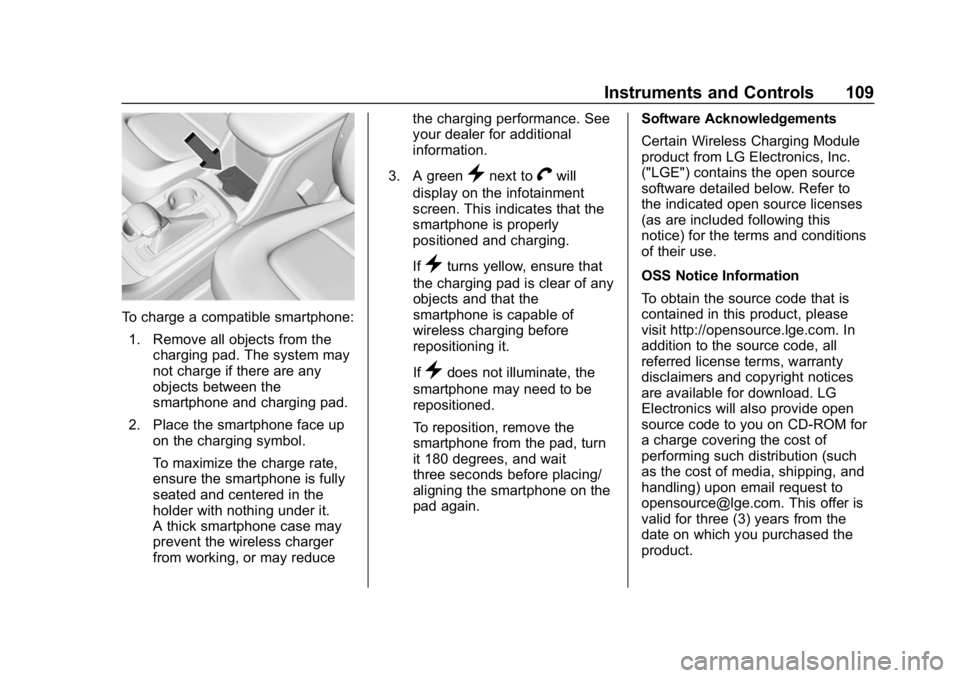
If equipped, the vehicle has wireless
charging in front of the center floor
console. The system operates at
145 kHz and wirelessly charges one
Qi compatible smartphone. The
power output of the system is
capable of charging at a rate up to
1 amp (5W), as requested by the
compatible smartphone. See Radio
Frequency Statement 0353.
{Warning
Wireless charging can affect the
operation of an implanted
pacemaker or other medical
devices. If you have one, it is
recommended to consult with
your doctor before using the
wireless charging system.
The vehicle must be on, in ACC/
ACCESSORY, or Retained
Accessory Power (RAP) must be
active. The wireless charging
feature may not correctly indicate
charging when the vehicle is in RAP.
See Retained Accessory Power
(RAP) 0178.
The operating temperature is −20 °C
(−4 °F) to 60 °C (140 °F) for the
charging system and 0 °C (32 °F) to
35 °C (95 °F) for the smartphone.
{Warning
Remove all objects from the
charging pad before charging
your compatible smartphone.
Objects, such as coins, keys,
rings, paper clips, or cards,
between the smartphone and
charging pad will become very
hot. On the rare occasion that the
charging system does not detect
an object, and the object gets
wedged between the smartphone
and charger, remove the
smartphone and allow the object
to cool before removing it from
the charging pad, to prevent
burns.
Page 110 of 381
GMC Canyon/Canyon Denali Owner Manual (GMNA-Localizing-U.S./Canada-
12461766) - 2019 - crc - 10/2/18
Instruments and Controls 109
To charge a compatible smartphone:1. Remove all objects from the charging pad. The system may
not charge if there are any
objects between the
smartphone and charging pad.
2. Place the smartphone face up on the charging symbol.
To maximize the charge rate,
ensure the smartphone is fully
seated and centered in the
holder with nothing under it.
A thick smartphone case may
prevent the wireless charger
from working, or may reduce the charging performance. See
your dealer for additional
information.
3. A green
}next toVwill
display on the infotainment
screen. This indicates that the
smartphone is properly
positioned and charging.
If
}turns yellow, ensure that
the charging pad is clear of any
objects and that the
smartphone is capable of
wireless charging before
repositioning it.
If
}does not illuminate, the
smartphone may need to be
repositioned.
To reposition, remove the
smartphone from the pad, turn
it 180 degrees, and wait
three seconds before placing/
aligning the smartphone on the
pad again. Software Acknowledgements
Certain Wireless Charging Module
product from LG Electronics, Inc.
("LGE") contains the open source
software detailed below. Refer to
the indicated open source licenses
(as are included following this
notice) for the terms and conditions
of their use.
OSS Notice Information
To obtain the source code that is
contained in this product, please
visit http://opensource.lge.com. In
addition to the source code, all
referred license terms, warranty
disclaimers and copyright notices
are available for download. LG
Electronics will also provide open
source code to you on CD-ROM for
a charge covering the cost of
performing such distribution (such
as the cost of media, shipping, and
handling) upon email request to
[email protected]. This offer is
valid for three (3) years from the
date on which you purchased the
product.
Page 115 of 381
GMC Canyon/Canyon Denali Owner Manual (GMNA-Localizing-U.S./Canada-
12461766) - 2019 - crc - 10/2/18
114 Instruments and Controls
If the vehicle has a diesel engine,
see the Duramax diesel supplement
for more information.
Uplevel Cluster Menu
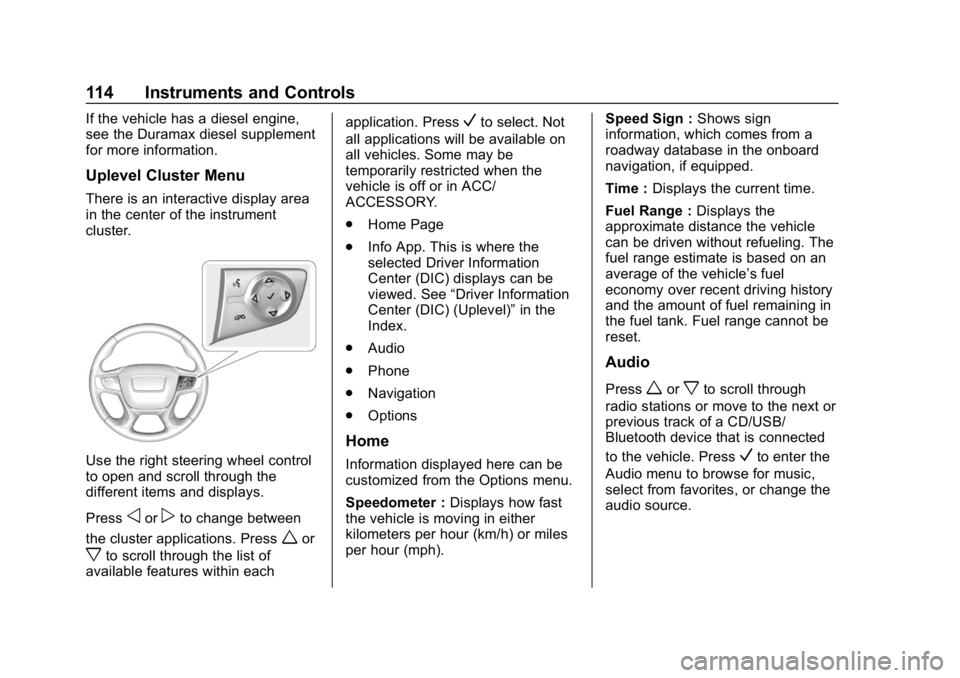
There is an interactive display area
in the center of the instrument
cluster.
Use the right steering wheel control
to open and scroll through the
different items and displays.
Press
oorpto change between
the cluster applications. Press
wor
xto scroll through the list of
available features within each application. Press
Vto select. Not
all applications will be available on
all vehicles. Some may be
temporarily restricted when the
vehicle is off or in ACC/
ACCESSORY.
. Home Page
. Info App. This is where the
selected Driver Information
Center (DIC) displays can be
viewed. See “Driver Information
Center (DIC) (Uplevel)” in the
Index.
. Audio
. Phone
. Navigation
. Options
Home
Information displayed here can be
customized from the Options menu.
Speedometer : Displays how fast
the vehicle is moving in either
kilometers per hour (km/h) or miles
per hour (mph). Speed Sign :
Shows sign
information, which comes from a
roadway database in the onboard
navigation, if equipped.
Time : Displays the current time.
Fuel Range : Displays the
approximate distance the vehicle
can be driven without refueling. The
fuel range estimate is based on an
average of the vehicle’s fuel
economy over recent driving history
and the amount of fuel remaining in
the fuel tank. Fuel range cannot be
reset.
Audio
Pressworxto scroll through
radio stations or move to the next or
previous track of a CD/USB/
Bluetooth device that is connected
to the vehicle. Press
Vto enter the
Audio menu to browse for music,
select from favorites, or change the
audio source.
Page 116 of 381
GMC Canyon/Canyon Denali Owner Manual (GMNA-Localizing-U.S./Canada-
12461766) - 2019 - crc - 10/2/18
Instruments and Controls 115
Phone
In the Phone menu, if there is no
active phone call, view recent calls,
scroll through contacts, select from
the favorites, or change the phone
source. If there is an active call,
mute the phone or switch to handset
operation.
Navigation
In the Navigation menu, if there is
no active route, you can resume the
last route and turn the voice
prompts on or off. If there is an
active route, press
Vto cancel
route guidance or turn the voice
prompts on or off.
Options
Pressworxto scroll through
items in the Options menu. Press
V
to select the item. Pressoto exit
the item.
Units : Choose US or Metric units.
A selected mark will be displayed
next to the selected item. Info Page Options :
Select the
items to be displayed in the Info
app. A selected mark will be
displayed next to the selected item.
Home Page Options : Select the
available elements to display. Not all
elements will be available on all
vehicles: Speedometer, Speed Sign,
Time, and Fuel Range.
Speed Warning : Allows the driver
to set a speed that they do not want
to exceed. Press
worxto adjust
the value. Press
Vto set the speed.
Once the speed is set, this feature
can be turned off by pressing
V
while viewing this page. If the
selected speed limit is exceeded, a
pop-up warning is displayed with a
chime.
Software Information : Displays
open source software information.
Speedometer
The speedometer shows the
vehicle's speed in either kilometers
per hour (km/h) or miles per
hour (mph).
Odometer
The odometer shows how far the
vehicle has been driven, in either
kilometers or miles.
Trip Odometer
The trip odometer shows how far
the vehicle has been driven since
the trip odometer was last reset.
The trip odometer is accessed and
reset through the Driver Information
Center (DIC).
See Driver Information Center (DIC)
(Base Level) 0128 orDriver
Information Center (DIC) (Uplevel)
0 130.
Tachometer
The tachometer displays the engine
speed in revolutions per
minute (rpm).
Page 147 of 381
GMC Canyon/Canyon Denali Owner Manual (GMNA-Localizing-U.S./Canada-
12461766) - 2019 - crc - 10/2/18
146 Infotainment System
Infotainment
System
Introduction
Infotainment . . . . . . . . . . . . . . . . . . 146
Introduction
Infotainment
See the infotainment manual for
information on the radio, audio
players, phone, navigation system,
and voice or speech recognition.
It also includes information on
settings.
Active Noise Cancellation (ANC)
If equipped, ANC reduces engine
noise in the vehicle’s interior. ANC
requires the factory-installed audio
system, radio, speakers, amplifier (if
equipped), induction system, and
exhaust system to work properly.
Deactivation is required by your
dealer if related aftermarket
equipment is installed.
Page 156 of 381
GMC Canyon/Canyon Denali Owner Manual (GMNA-Localizing-U.S./Canada-
12461766) - 2019 - crc - 10/2/18
Driving and Operating 155
Driving Characteristics andTowing Tips . . . . . . . . . . . . . . . . . 214
Trailer Towing . . . . . . . . . . . . . . . . 219
Towing Equipment . . . . . . . . . . . . 224
Trailer Sway Control (TSC) . . . 230
Conversions and Add-Ons
Add-On Electrical Equipment . . . . . . . . . . . . . . . . . . 232
Driving Information
Distracted Driving
Distraction comes in many forms
and can take your focus from the
task of driving. Exercise good
judgment and do not let other
activities divert your attention away
from the road. Many local
governments have enacted laws
regarding driver distraction. Become
familiar with the local laws in
your area.
To avoid distracted driving, keep
your eyes on the road, keep your
hands on the steering wheel, and
focus your attention on driving.
. Do not use a phone in
demanding driving situations.
Use a hands-free method to
place or receive necessary
phone calls.
. Watch the road. Do not read,
take notes, or look up
information on phones or other
electronic devices. .
Designate a front seat
passenger to handle potential
distractions.
. Become familiar with vehicle
features before driving, such as
programming favorite radio
stations and adjusting climate
control and seat settings.
Program all trip information into
any navigation device prior to
driving.
. Wait until the vehicle is parked
to retrieve items that have fallen
to the floor.
. Stop or park the vehicle to tend
to children.
. Keep pets in an appropriate
carrier or restraint.
. Avoid stressful conversations
while driving, whether with a
passenger or on a cell phone.
Page 157 of 381
GMC Canyon/Canyon Denali Owner Manual (GMNA-Localizing-U.S./Canada-
12461766) - 2019 - crc - 10/2/18
156 Driving and Operating
{Warning
Taking your eyes off the road too
long or too often could cause a
crash resulting in injury or death.
Focus your attention on driving.
Refer to the infotainment manual for
more information on using that
system and the navigation system,
if equipped, including pairing and
using a cell phone.
Defensive Driving
Defensive driving means “always
expect the unexpected.” The first
step in driving defensively is to wear
the seat belt. See Seat Belts051.
. Assume that other road users
(pedestrians, bicyclists, and
other drivers) are going to be
careless and make mistakes.
Anticipate what they might do
and be ready.
. Allow enough following distance
between you and the driver in
front of you. .
Focus on the task of driving.
Drunk Driving
Death and injury associated with
drinking and driving is a global
tragedy.
{Warning
Drinking and then driving is very
dangerous. Your reflexes,
perceptions, attentiveness, and
judgment can be affected by even
a small amount of alcohol. You
can have a serious —or even
fatal —collision if you drive after
drinking.
Do not drink and drive or ride with
a driver who has been drinking.
Ride home in a cab; or if you are
with a group, designate a driver
who will not drink.
Control of a Vehicle
Braking, steering, and accelerating
are important factors in helping to
control a vehicle while driving.
Braking
Braking action involves perception
time and reaction time. Deciding to
push the brake pedal is perception
time. Actually doing it is
reaction time.
Average driver reaction time is
about three-quarters of a second. In
that time, a vehicle moving at
100 km/h (60 mph) travels 20 m
(66 ft), which could be a lot of
distance in an emergency.
Helpful braking tips to keep in mind
include:
. Keep enough distance between
you and the vehicle in front
of you.
. Avoid needless heavy braking.
. Keep pace with traffic.
If the engine ever stops while the
vehicle is being driven, brake
normally but do not pump the
brakes. Doing so could make the
pedal harder to push down. If the
engine stops, there will be some
power brake assist but it will be
used when the brake is applied.