DIC GMC ENVOY XUV 2004 Service Manual
[x] Cancel search | Manufacturer: GMC, Model Year: 2004, Model line: ENVOY XUV, Model: GMC ENVOY XUV 2004Pages: 460, PDF Size: 2.99 MB
Page 169 of 460

Fuel Gage
When the ignition is on, the fuel gage tells you about
how much fuel you have remaining.Here are four things that some owners ask about. None
of these show a problem with your fuel gage:
·At the gas station, the gas pump shuts off before
the gage reads full.
·It takes a little more or less fuel to ®ll up than the
gage indicated. For example, the gage may have
indicated the tank was half full, but it actually took a
little more or less than half the tank's capacity to
®ll the tank.
·The gage moves a little when you turn a corner or
speed up.
·The gage doesn't go back to empty when you turn
off the ignition.
Low Fuel Warning Light
The light next to the fuel gage will come on brie¯y when
you are starting the engine.
This light comes on when the fuel tank is low on fuel.
To turn it off, add fuel to the fuel tank. United States
Canada
3-45
Page 170 of 460
Driver Information Center (DIC)
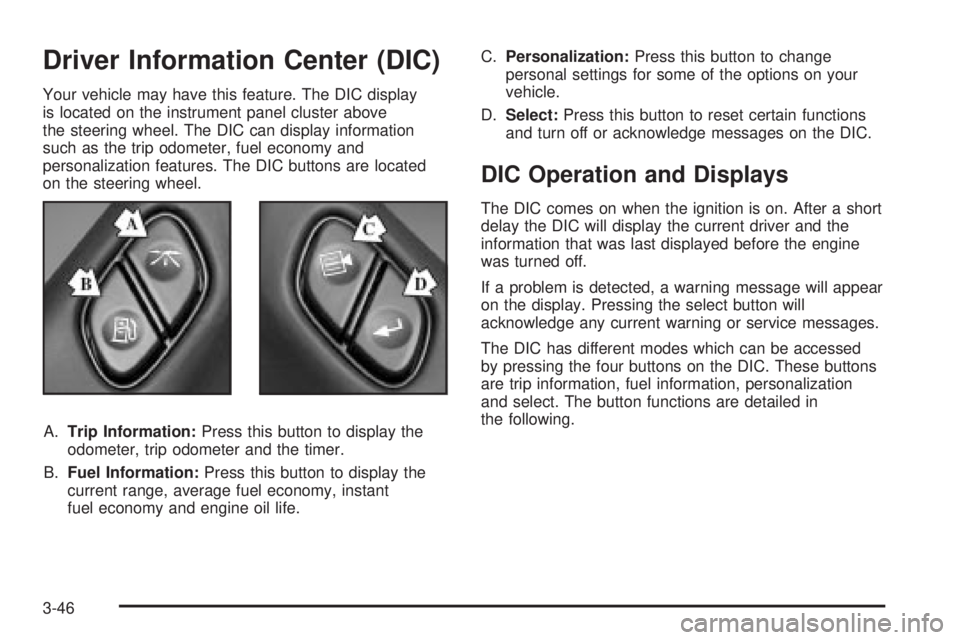
Your vehicle may have this feature. The DIC display
is located on the instrument panel cluster above
the steering wheel. The DIC can display information
such as the trip odometer, fuel economy and
personalization features. The DIC buttons are located
on the steering wheel.
A.Trip Information:Press this button to display the
odometer, trip odometer and the timer.
B.Fuel Information:Press this button to display the
current range, average fuel economy, instant
fuel economy and engine oil life.C.Personalization:Press this button to change
personal settings for some of the options on your
vehicle.
D.Select:Press this button to reset certain functions
and turn off or acknowledge messages on the DIC.
DIC Operation and Displays
The DIC comes on when the ignition is on. After a short
delay the DIC will display the current driver and the
information that was last displayed before the engine
was turned off.
If a problem is detected, a warning message will appear
on the display. Pressing the select button will
acknowledge any current warning or service messages.
The DIC has different modes which can be accessed
by pressing the four buttons on the DIC. These buttons
are trip information, fuel information, personalization
and select. The button functions are detailed in
the following.
3-46
Page 171 of 460
Trip Information
Use the trip information button to scroll through the
odometer, TRIP A, TRIP B and TIMER.
Odometer
The trip odometer can tell you how far your vehicle has
been driven since you last set the trip odometer to
zero. Press and release the trip stem located on the
instrument panel cluster to display the trip odometer.
Press and hold the trip stem to reset the trip odometer
once it is displayed. Press and hold the trip stem for
a few seconds to reset the trip odometer to the mileage
since the vehicle was last started.
Trip A and Trip B
Press the trip information button until TRIP A or TRIP B
is displayed. This shows the current distance traveled
since the last reset for each trip odometer in either miles
or kilometers. Both odometers can be used at the
same time.
Each trip odometer can be reset to zero separately by
pressing select while the desired trip odometer is
displayed. You can also reset the trip odometers with
the reset stem on the cluster. If you press and hold the
reset stem for four seconds, the display will show the
distance traveled since the last ignition cycle.
Timer
The DIC can be used as a stopwatch. Press the select
button while TIMER is displayed to start the timer.
The display will show the amount of time that has
passed since the timer was last reset (not including time
the ignition is off). Time will continue to be counted as
long as the ignition is on, even if another display is being
shown on the DIC. The timer will record up to 99 hours,
59 minutes and 59 seconds (99:59:59) after which
the display will roll back to zero.
To stop the counting of time, press the select button
brie¯y while TIMER is displayed.
To reset the timer to zero, press and hold the select
button while TIMER is displayed.
3-47
Page 173 of 460
Personalization
You can program certain features to a preferred setting
for up to two people. Press the personalization button
to scroll through the following personalization features.
All of the personalization options may not be available
on your vehicle. Only the options available will be
displayed on your DIC.
·ALARM WARNING TYPE
·AUTOMATIC LOCKING
·AUTOMATIC UNLOCKING
·SEAT POSITION RECALL
·PERIMETER LIGHTING
·REMOTE LOCK FEEDBACK
·REMOTE UNLOCK FEEDBACK
·HEADLAMPS ON AT EXIT
·MIRROR CURB VIEW ASSIST
·EASY EXIT DRIVER SEAT
·DISPLAY UNITS Ð U.S./MET
·DISPLAY LANGUAGE
The driver's preferences are recalled by pressing the
unlock button on the remote keyless entry transmitter or
by pressing the appropriate memory button 1 or 2
located on the driver's door.
Alarm Warning Type
Press the personalization button until ALARM
WARNING TYPE appears in the display. To select your
personalization for alarm warning type, press the
select button while ALARM WARNING TYPE is
displayed on the DIC. Pressing the select button will
scroll through the following choices:
·ALARM WARNING: BOTH (default): If you choose
BOTH, the headlamps will ¯ash and the horn will
chirp when the alarm is active.
·ALARM WARNING: OFF: If you choose OFF, there
will be no alarm warning on activation.
·ALARM WARNING: HORN: If you choose HORN,
the horn will chirp when the alarm is active.
·ALARM WARNING: LAMPS: If you choose LAMPS,
the headlamps will ¯ash when the alarm is active.
Choose one of the four settings and press the
personalization button while it is displayed on the DIC to
select it and move on to the next feature. For more
information on alarm warning type see
Content
Theft-Deterrent on page 2-22.
3-49
Page 174 of 460
Automatic Locking
Press the personalization button until AUTOMATIC
LOCKING appears in the display. To select your
personalization for automatic locking, press the select
button while AUTOMATIC LOCKING is displayed on the
DIC. Pressing the select button will scroll through the
following choices:
·LOCK DOORS OUT OF PARK (default): If you
choose for the doors to lock out of park, the
doors will lock when the vehicle is shifted out of
PARK (P).
·LOCK DOORS MANUALLY: If you choose for the
doors to lock manually, the doors will not be
locked automatically.
·LOCK DOORS WITH SPEED: If you choose for the
doors to lock with speed, the doors will lock when
the vehicle speed is above 8 mph (13 km/h) for
three seconds.
Choose one of the three settings and press the
personalization button while it is displayed on the DIC to
select it and move on to the next feature. For more
information on automatic door locks see
Programmable
Automatic Door Locks on page 2-9.
Automatic Unlocking
Press the personalization button until AUTOMATIC
UNLOCKING appears in the display. To select
your personalization for automatic unlocking, press the
select button while AUTOMATIC UNLOCKING is
displayed on the DIC. Pressing the select button will
scroll through the following choices:
·UNLOCK ALL IN PARK (default): If you choose for
all the doors to unlock in PARK (P), all of the doors
will unlock when the vehicle is shifted into
PARK (P).
·UNLOCK ALL AT KEY OUT: If you choose for all
the doors to unlock at key out, all of the doors will
unlock when the key is taken out of the ignition.
·UNLOCK DOORS MANUALLY: If you choose for
the doors to unlock manually, the doors will not
be unlocked automatically.
·UNLOCK DRIVER IN PARK: If you choose for the
driver's door to unlock in park, the driver's door
will be unlocked when the vehicle is shifted
into PARK (P).
Choose one of the four settings and press the
personalization button while it is displayed on the DIC to
select it and move on to the next feature. For more
information on automatic door locks see
Programmable
Automatic Door Locks on page 2-9.
3-50
Page 175 of 460
Seat Position Recall
Press the personalization button until SEAT POSITION
RECALL appears in the display. To select your
personalization for seat position recall, press the select
button while SEAT POSITION RECALL is displayed
on the DIC. Pressing the select button will scroll through
the following choices:
·SEAT POSITION RECALL OFF (default): If you
choose seat recall off, the memory seat position
you saved will only be recalled when the memory
button1 or 2 is pressed.
·SEAT POSITION RECALL AT KEY IN: If you
choose seat recall at key in, the memory seat
position you saved will be recalled when you put
the key in the ignition.
·SEAT POSITION RECALL ON REMOTE: If you
choose seat recall on remote, the memory seat
position you saved will be recalled when you unlock
the vehicle with the remote keyless entry
transmitter.
Choose one of the three settings and press the
personalization button while it is displayed on the DIC to
select it and move on to the next feature. For more
information on seat position recall see
Memory Seat on
page 2-54.
Perimeter Lighting
Press the personalization button until PERIMETER
LIGHTING appears in the display. To select your
personalization for perimeter lighting, press the select
button while PERIMETER LIGHTING is displayed on the
DIC. Pressing the select button will scroll through the
following choices:
·PERIMETER LIGHTING ON (default)
·PERIMETER LIGHTING OFF
If you choose for perimeter lighting to be on, the
headlamps and back-up lamps will come on for
40 seconds, if it is dark enough outside, when you
unlock the vehicle with the remote keyless entry
transmitter.
Choose one of the two settings and press the
personalization button while it is displayed on the DIC to
select it and move on to the next feature.
3-51
Page 176 of 460
Remote Lock Feedback
Press the personalization button until REMOTE LOCK
FEEDBACK appears in the display. To select your
personalization for the feedback you will receive when
locking the vehicle with the remote keyless entry
transmitter, press the select button while REMOTE
LOCK FEEDBACK is displayed on the DIC. Pressing
the select button will scroll through the following choices:
·LOCK FEEDBACK: BOTH (default): If you choose
both, the parking lamps will ¯ash each time you
press the button with the lock symbol on the remote
keyless entry transmitter and the horn will chirp
the second time you press the lock button.
·LOCK FEEDBACK: OFF: If you choose off, there
will be no feedback when locking the vehicle.
·LOCK FEEDBACK: HORN: If you choose horn, the
horn will chirp the second time you press the button
with the lock symbol on the remote keyless entry
transmitter.
·LOCK FEEDBACK: LAMPS: If you choose lamps,
the parking lamps will ¯ash each time you press
the button with the lock symbol on the remote
keyless entry transmitter.
Choose one of the four settings and press the
personalization button while it is displayed on the DIC to
select it and move on to the next feature.
Remote Unlock Feedback
Press the personalization button until REMOTE
UNLOCK FEEDBACK appears in the display. To select
your personalization for the feedback you will receive
when unlocking the vehicle with the remote keyless
entry transmitter, press the select button while REMOTE
UNLOCK FEEDBACK is displayed on the DIC.
Pressing the select button will scroll through the
following choices:
·UNLOCK FEEDBACK: LAMPS (default): If you
choose lamps, the parking lamps will ¯ash each
time you press the button with the unlock symbol on
the remote keyless entry transmitter.
·UNLOCK FEEDBACK: BOTH: If you choose both,
the parking lamps will ¯ash each time you press
the button with the unlock symbol on the remote
keyless entry transmitter. The horn will chirp
the second time you press the unlock button.
·UNLOCK FEEDBACK: OFF: If you choose off,
there will be no feedback when unlocking the
vehicle.
·UNLOCK FEEDBACK: HORN: If you choose horn,
the horn will chirp the second time you press the
button with the unlock symbol on the remote keyless
entry transmitter.
Choose one of the four settings and press the
personalization button while it is displayed on the DIC to
select it and move on to the next feature.
3-52
Page 177 of 460
Headlamps on at Exit
Press the personalization button until HEADLAMPS ON
AT EXIT appears in the display. To select your
personalization for how long the headlamps will stay on
when you turn off the vehicle, press the select button
while HEADLAMPS ON AT EXIT is displayed on
the DIC. Pressing the select button will scroll through
the following choices:
·HEADLAMP DELAY: 10 SEC (default)
·HEADLAMP DELAY: 20 SEC
·HEADLAMP DELAY: 40 SEC
·HEADLAMP DELAY: 60 SEC
·HEADLAMP DELAY: 120 SEC
·HEADLAMP DELAY: 180 SEC
·HEADLAMP DELAY OFF
The amount of time you choose will be the amount of
time that the headlamps stay on after you turn off
the vehicle. If you choose off, the headlamps will turn
off as soon as you turn off the vehicle.
Choose one of the seven settings and press the
personalization button while it is displayed on the DIC to
select it and move on to the next feature.
Mirror Curb View Assist
Press the personalization button until MIRROR CURB
VIEW ASSIST appears in the display. To select
your personalization for curb view assist, press the
select button while MIRROR CURB VIEW ASSIST is
displayed on the DIC. With the engine running, engage
the parking brake, press the brake pedal and place
the vehicle in REVERSE (R) gear. Adjust the
passenger's side and then the driver's side outside
mirrors to the desired tilt positions. These positions will
be stored in memory once the vehicle is shifted out
of REVERSE (R). Pressing the select button will scroll
through the following choices:
·CURB VIEW: OFF (default): If you choose off,
neither outside mirror will be tilted down when
the vehicle is shifted into REVERSE (R).
·CURB VIEW: PASSENGER: If you choose
passenger, the passenger's outside mirror will be
tilted down when the vehicle is shifted into
REVERSE (R).
·CURB VIEW: DRIVER: If you choose driver, the
driver's outside mirror will be tilted down when
the vehicle is shifted into REVERSE (R)
·CURB VIEW: BOTH: If you choose both, the
driver's and passenger's outside mirror will be tilted
down when the vehicle is shifted into REVERSE (R).
3-53
Page 178 of 460
When the vehicle is placed in PARK (P) or in any
forward gear, the mirror(s) will return to normal driving
position, following a short delay.
Choose one of the four settings and press the
personalization button while it is displayed on the DIC to
select it and move on to the next feature.
Easy Exit Driver Seat
Press the personalization button until EASY EXIT
DRIVER SEAT appears in the display. To select your
personalization for seat position exit, press the
select button while EASY EXIT DRIVER SEAT is
displayed on the DIC. Pressing the select button will
scroll through the following choices:
·EASY EXIT SEAT: OFF (default): If you choose for
the easy exit seat feature to be on, the driver's seat
will move to the exit position when the key is
removed from the ignition.
·EASY EXIT SEAT: ON: If you choose for this
feature to be off, no seat exit recall will occur.
Choose one of the two settings and press the
personalization button while it is displayed on the DIC to
select it and move on to the next feature. For more
information on seat position exit, see
Memory Seat on
page 2-54.
Display Units -U.S./MET
Press the personalization button until DISPLAY UNITS
-U.S./METappears in the display. To select English
or metric, press the select button while DISPLAY
UNITS- U.S./MET is displayed on the DIC. Pressing the
select button will scroll through the following choices:
·UNITS: U.S. (ENGLISH): If you choose U.S.
(English), all information will be displayed in U.S.
units. For example, distance in miles and fuel
economy in miles per gallon (U.S. gallon).
·UNITS: METRIC KM/L: If you choose metric KM/L,
all information will be displayed in metric units. For
example, distance in kilometers and fuel economy
in KM/L.
·UNITS: METRIC L/100KM: If you choose metric
L/100KM, all information will be displayed in
metric units. For example, distance in kilometers
and fuel economy in L/100KM.
Choose one of the three settings and press the
personalization button while it is displayed on the DIC to
select it and end out of the personalization options.
3-54
Page 179 of 460
Display Language
To select your personalization for display language,
press the select button while DISPLAY LANGUAGE is
displayed on the DIC. Pressing the select button
will scroll through the available languages:
Choosing a language will display all of the information
on the DIC in the desired language.
If your vehicle is equipped with an Information Center,
press and hold the trip stem while the odometer is
displayed. While holding down the trip stem button, the
Information Center will begin to list the available
languages. The name of each language will be
displayed in its native language (ENGLISH for English,
FRANCAIS for French and ESPANOL for Spanish).
When you see the language that you would like, release
the trip stem. The Information Center will then display
the information in the language you chose.If you accidentally choose a language you do not want
or understand, press and hold the trip information
button and the personalization button at the same time.
After a short time, the display will begin cycling
through the available languages. Release the buttons
when you see a language you would like. This will also
reset all of the current driver's personalization features
to their factory default settings.
For vehicles with redundant steering wheel controls, see
ªPersonalizationº under the DIC.
Select
The select button is used to reset certain functions and
turn off or acknowledge messages on the DIC display.
The select button also toggles through the options
available in each personalization menu. For example, this
button will reset the trip odometers, turn off the FUEL
LEVEL LOW message, and toggle through the languages
you can select the DIC to display information in.
3-55