radio controls GMC SIERRA 1500 2012 User Guide
[x] Cancel search | Manufacturer: GMC, Model Year: 2012, Model line: SIERRA 1500, Model: GMC SIERRA 1500 2012Pages: 556, PDF Size: 7.88 MB
Page 160 of 556
Black plate (22,1)GMC Sierra Owner Manual - 2012 - CRC - 11/15/11
5-22 Instruments and Controls
If, after several seconds, both status
indicator lights remain on, or if there
are no lights at all, there may be a
problem with the lights or the
passenger sensing system. See
your dealer for service.
{WARNING
If the airbag readiness light ever
comes on and stays on, it means
that something may be wrong
with the airbag system. To help
avoid injury to yourself or others,
have the vehicle serviced right
away. SeeAirbag Readiness
Light on page 5‑18 for more
information, including important
safety information.
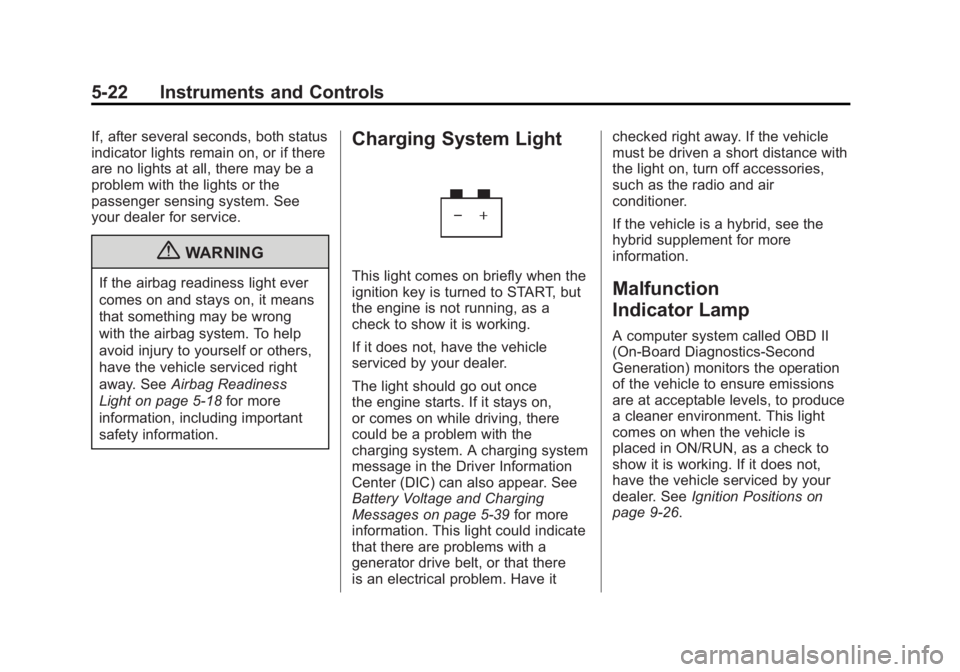
Charging System Light
This light comes on briefly when the
ignition key is turned to START, but
the engine is not running, as a
check to show it is working.
If it does not, have the vehicle
serviced by your dealer.
The light should go out once
the engine starts. If it stays on,
or comes on while driving, there
could be a problem with the
charging system. A charging system
message in the Driver Information
Center (DIC) can also appear. See
Battery Voltage and Charging
Messages on page 5‑39 for more
information. This light could indicate
that there are problems with a
generator drive belt, or that there
is an electrical problem. Have it checked right away. If the vehicle
must be driven a short distance with
the light on, turn off accessories,
such as the radio and air
conditioner.
If the vehicle is a hybrid, see the
hybrid supplement for more
information.Malfunction
Indicator Lamp
A computer system called OBD II
(On-Board Diagnostics-Second
Generation) monitors the operation
of the vehicle to ensure emissions
are at acceptable levels, to produce
a cleaner environment. This light
comes on when the vehicle is
placed in ON/RUN, as a check to
show it is working. If it does not,
have the vehicle serviced by your
dealer. See
Ignition Positions on
page 9‑26.
Page 166 of 556
Black plate (28,1)GMC Sierra Owner Manual - 2012 - CRC - 11/15/11
5-28 Instruments and Controls
When the Light Is On Steady
This indicates that one or more
of the tires are significantly
underinflated.
A Driver Information Center (DIC)
tire pressure message may also
display. SeeTire Messages on
page 5‑45. Stop as soon as
possible, and inflate the tires to the
pressure value shown on the Tire
and Loading Information label. See
Tire Pressure on page 10‑58.
When the Light Flashes First and
Then Is On Steady
If the light flashes for about a minute
and then stays on, there may be a
problem with the TPMS. If the
problem is not corrected, the light
will come on at every ignition
cycle. See Tire Pressure Monitor
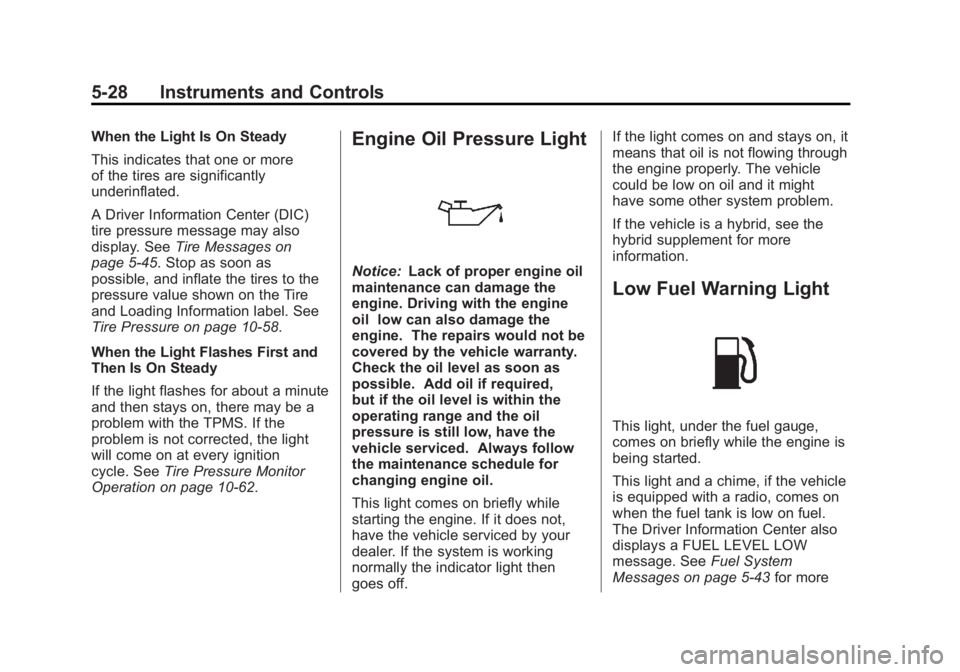
Operation on page 10‑62.Engine Oil Pressure Light
Notice: Lack of proper engine oil
maintenance can damage the
engine. Driving with the engine
oil low can also damage the
engine. The repairs would not be
covered by the vehicle warranty.
Check the oil level as soon as
possible. Add oil if required,
but if the oil level is within the
operating range and the oil
pressure is still low, have the
vehicle serviced. Always follow
the maintenance schedule for
changing engine oil.
This light comes on briefly while
starting the engine. If it does not,
have the vehicle serviced by your
dealer. If the system is working
normally the indicator light then
goes off. If the light comes on and stays on, it
means that oil is not flowing through
the engine properly. The vehicle
could be low on oil and it might
have some other system problem.
If the vehicle is a hybrid, see the
hybrid supplement for more
information.
Low Fuel Warning Light
This light, under the fuel gauge,
comes on briefly while the engine is
being started.
This light and a chime, if the vehicle
is equipped with a radio, comes on
when the fuel tank is low on fuel.
The Driver Information Center also
displays a FUEL LEVEL LOW
message. See
Fuel System
Messages on page 5‑43 for more
Page 194 of 556
Black plate (56,1)GMC Sierra Owner Manual - 2012 - CRC - 11/15/11
5-56 Instruments and Controls
Universal Remote
System
SeeRadio Frequency Statement on
page 13‑20 for information
regarding Part 15 of the Federal
Communications Commission (FCC)
rules and Industry Canada
Standards RSS-GEN/210/220/310.
Universal Remote System
Programming
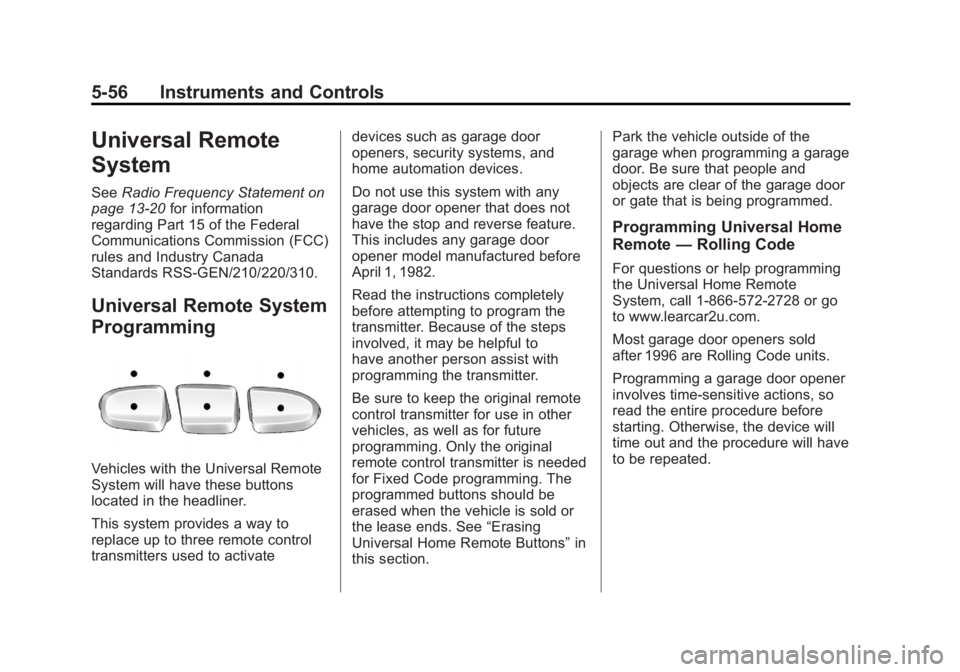
Vehicles with the Universal Remote
System will have these buttons
located in the headliner.
This system provides a way to
replace up to three remote control
transmitters used to activate devices such as garage door
openers, security systems, and
home automation devices.
Do not use this system with any
garage door opener that does not
have the stop and reverse feature.
This includes any garage door
opener model manufactured before
April 1, 1982.
Read the instructions completely
before attempting to program the
transmitter. Because of the steps
involved, it may be helpful to
have another person assist with
programming the transmitter.
Be sure to keep the original remote
control transmitter for use in other
vehicles, as well as for future
programming. Only the original
remote control transmitter is needed
for Fixed Code programming. The
programmed buttons should be
erased when the vehicle is sold or
the lease ends. See
“Erasing
Universal Home Remote Buttons” in
this section. Park the vehicle outside of the
garage when programming a garage
door. Be sure that people and
objects are clear of the garage door
or gate that is being programmed.
Programming Universal Home
Remote
—Rolling Code
For questions or help programming
the Universal Home Remote
System, call 1-866-572-2728 or go
to www.learcar2u.com.
Most garage door openers sold
after 1996 are Rolling Code units.
Programming a garage door opener
involves time-sensitive actions, so
read the entire procedure before
starting. Otherwise, the device will
time out and the procedure will have
to be repeated.
Page 212 of 556
Black plate (2,1)GMC Sierra Owner Manual - 2012 - CRC - 11/15/11
7-2 Infotainment System
To minimize taking your eyes off the
road while driving, do the following
while the vehicle is parked:
.Become familiar with the
operation and controls of the
audio system.
.Set up the tone, speaker
adjustments, and preset radio
stations.
For more information, see Defensive
Driving on page 9‑3. Notice:
Contact your dealer
before adding any equipment.
Adding audio or communication
equipment could interfere with
the operation of the engine, radio,
or other systems, and could
damage them. Follow federal
rules covering mobile radio and
telephone equipment.
The vehicle has Retained
Accessory Power (RAP). With RAP,
the audio system can be played
even after the ignition is turned off.
See Retained Accessory Power
(RAP) on page 9‑29 for more
information.
Navigation/Radio System
For vehicles with a navigation radio
system, see the separate Navigation
System Manual.
Theft-Deterrent Feature
TheftLock®is designed to
discourage theft of the vehicle's
radio by learning a portion of the
Vehicle Identification Number (VIN).
The radio does not operate if it is
stolen or moved to a different
vehicle.
Page 217 of 556
Black plate (7,1)GMC Sierra Owner Manual - 2012 - CRC - 11/15/11
Infotainment System 7-7
EQ (Equalization):Press this
button to choose bass and treble
equalization settings designed for
different types of music. Selecting
MANUAL, or changing bass or
treble, returns the EQ to the manual
bass and treble settings.
Unique EQ settings can be saved
for each source.
Setting the Tone (Bass/
Midrange/Treble) (All Except
AM-FM Radio and Radio
with CD)
BASS/MID/TREB (Bass, Midrange,
or Treble): To adjust the bass,
midrange, or treble:
1. Press the
fknob until the tone
control tabs display.
2. Highlight the desired tone control tab by doing one of the
following:
.Press thefknob.
.Press the softkey under the
desired tab. 3. Adjust the setting by doing one
of the following:
.Turn thefknob clockwise
or counterclockwise.
.Press the¨SEEK,
or
©SEEK.
.Press the\FWD,
or
sREV.
If a station's frequency is weak or if
there is static, decrease the treble.
To quickly adjust bass, midrange,
or treble to the middle position,
press the softkey positioned under
the BASS, MID, or TREB tab for
more than two seconds. A beep
sounds and the level adjusts to the
middle position. To quickly adjust all tone and
speaker controls to the middle
position, press the
fknob for more
than two seconds until a beep
sounds.
EQ (Equalization): Press this
button to choose bass and treble
equalization settings designed for
different types of music. Selecting
MANUAL, or changing bass or
treble, returns the EQ to the manual
bass and treble settings.
Unique EQ settings can be saved
for each source.
If the radio has a Bose
®audio
system, the EQ settings are either
MANUAL or TALK.
Page 218 of 556
Black plate (8,1)GMC Sierra Owner Manual - 2012 - CRC - 11/15/11
7-8 Infotainment System
Adjusting the Speakers
(Balance/Fade) (AM-FM Radio
and AM-FM Radio with CD)
To adjust the balance or fade:
1. Press
`or press thefknob
until the speaker control label
displays.
2. To adjust the setting, do one of the following:
.Turn thefknob.
.Press either¨SEEK,
or
©SEEK.
.Press either\FWD,
or
sREV.
Adjusting the Speakers
(Balance/Fade) (All Except
AM-FM Radio and Radio
with CD)
BAL/FADE (Balance/Fade): To
adjust the balance or fade:
1. Press the
fknob until the
speaker control tabs display.
2. Highlight the desired speaker control tab by doing one of the
following:
.Press thefknob.
.Press the softkey under the
desired tab.
3. Adjust the setting by doing one of the following:
.Turn thefknob clockwise
or counterclockwise.
.Press the¨SEEK,
or
©SEEK.
.Press the\FWD,
or
sREV. To quickly adjust all speaker and
tone controls to the middle position,
press the
fknob for more than
two seconds.
If the Rear Seat Audio (RSA) is
turned on, the radio disables FADE
and mutes the rear speakers.
Radio Messages
Calibration Error: The audio
system has been calibrated
for the vehicle from the factory.
If Calibration Error displays, it
means that the radio has not been
configured properly for the vehicle
and it must be returned to your
dealer for service.
Locked or Loc: One of these
messages will display when the
THEFTLOCK
®system has locked
up the radio. Take the vehicle to
your dealer for service.
If any error occurs repeatedly or
if an error cannot be corrected,
contact your dealer.
Page 220 of 556
Black plate (10,1)GMC Sierra Owner Manual - 2012 - CRC - 11/15/11
7-10 Infotainment System
Storing Radio Stations
Drivers are encouraged to store the
radio station while the vehicle is
parked; seeDefensive Driving on
page 9‑3. Tune to stored radio
stations using the presets, favorites
button, and steering wheel controls,
if the vehicle has this feature.
Radios that have a FAV button store
radio stations as favorites. Up to
36 stations can be programmed as
favorites using the six softkeys
below the radio station frequency
tabs and by using the FAV button.
Press the FAV button to go through
up to six pages of favorites, each
having six favorite stations available
per page. Each page of favorites
can contain any combination of AM,
FM, or XM, if equipped, stations.
Radios that do not have a FAV
button store radio stations as
presets. Up to 18 stations (6 FM1,
6 FM2, and 6 AM), can be
programmed on the six numbered
pushbuttons. Setting Preset Stations
To store presets:
1. Tune to a radio station.
2. Press and hold one of the
six numbered pushbuttons for
three seconds until a beep
sounds.
3. Repeat Steps 1 and 2 to store additional radio stations.
Storing a Radio Station as a
Favorite
To store a station as a favorite:
1. Tune to a radio station.
2. Press the FAV button to display the page where the station will
be stored.
3. Press and hold one of the six softkeys until a beep sounds.
4. Repeat Steps 1 through 3 to store additional radio stations. The number of favorites pages can
be set up using the MENU button.
To set up the number of favorites
pages:
1. Press the MENU button.
2. Press the softkey located below
the FAV 1-6 tab.
3. Select the number of favorites pages by pressing the softkey
located below the displayed
page numbers.
4. Press the FAV button, or let the menu time out, to return to the
original main radio screen
showing the radio station
frequency tabs and to begin the
process of programming
favorites.
Page 222 of 556
Black plate (12,1)GMC Sierra Owner Manual - 2012 - CRC - 11/15/11
7-12 Infotainment System
3. To exit the category searchmode, press the FAV button or
BAND button to display the
favorites again.
Adding and Removing Categories
Categories cannot be added or
removed while the vehicle is moving
faster than 8 km/h (5 mph).
To add or remove a category:
1. Press the MENU button.
2. Press the softkey located below the XM CAT tab.
3. Turn the
fknob to display the
category to add or remove.
4. Press the softkey located under the Add or Remove tab.
To restore all removed
categories, press the softkey
under the Restore All tab.
5. Repeat the steps to remove more categories.
Storing XM Channels
Drivers are encouraged to store
XM channels while the vehicle is
parked; see Defensive Driving on
page 9‑3. Tune to stored radio
stations using the presets, favorites
button, and steering wheel controls,
if the vehicle has this feature.
Up to 36 stations can be
programmed as favorites using the
six softkeys below the radio station
frequency tabs and by using the
FAV button. Press the FAV button
to go through up to six pages of
favorites, each having six favorite
stations available per page. Each
page of favorites can contain any
combination of AM, FM, or XM,
if equipped, stations.
Storing an XM Channel as a
Favorite
To store a station as a favorite:
1. Tune to an XM channel.
2. Press the FAV button to display the page where the station will
be stored. 3. Press and hold one of the
six softkeys until a beep sounds.
4. Repeat Steps 1 through 3 to store additional radio stations.
The number of favorites pages can
be set up using the MENU button.
To set up the number of favorites
pages:
1. Press the MENU button.
2. Press the softkey located below the FAV 1-6 tab.
3. Select the number of favorites pages by pressing the softkey
located below the displayed
page numbers.
4. Press the FAV button, or let the menu time out, to return to the
original main radio screen
showing the radio station
frequency tabs and to begin
the process of programming
favorites.
Page 240 of 556
Black plate (30,1)GMC Sierra Owner Manual - 2012 - CRC - 11/15/11
7-30 Infotainment System
If the forward arrow is showing on
the display, the system is in pause
mode. If the Pause tab is showing
on the display, the system is in
playback mode. If the DVD screen
is off, press the play button to turn
the screen on.
Some DVDs begin playing after the
previews have finished, although
there could be a delay of up to
30 seconds. If the DVD does
not begin playing the movie
automatically, press the softkey
located under the play/pause
symbol tag displayed on the radio.
If the DVD still does not play, refer
to the on-screen instructions,
if available.
c(Stop):Press to stop playing,
rewinding, or fast forwarding a DVD.
r(Enter): Press to select the
choices that are highlighted in
any menu.
y(Menu): Press to access the
DVD menu. The DVD menu is
different on every DVD. Use the
softkeys located under the
navigation arrows to navigate the
cursor through the DVD menu.
After making a selection press this
button. This button only operates
when using a DVD.
Nav (Navigate): Press to display
directional arrows for navigating
through the menus.
q(Return): Press to exit the
current active menu and return to
the previous menu. This button
operates only when a DVD is
playing and a menu is active.
The rear seat passenger can
navigate the DVD-V and DVD-A
menus and controls through the
remote control. See “Remote
Control” underRear Seat
Entertainment (RSE) System on
page 7‑37 for more information. The video screen automatically
turns on when the DVD-V is
inserted into the DVD slot, and
does not automatically power on
when the DVD-A is inserted into
the DVD slot. It must be manually
turned on by the rear seat occupant
through the remote control power
button.
Using Softkeys to Play a DVD-A
(Audio)
Once a DVD-A is inserted, the radio
display menu shows several tab
options for playback. Press the
softkey located under any tab option
during DVD-A playback.
r/j(Play/Pause):
Press either
the play or pause icon displayed on
the radio, to toggle between pausing
or restarting playback of a DVD.
If the forward arrow is showing on
the display, the system is in pause
mode. If the pause tab is showing
on the display, the system is in
playback mode.
Page 241 of 556
Black plate (31,1)GMC Sierra Owner Manual - 2012 - CRC - 11/15/11
Infotainment System 7-31
qGroupr:Press to cycle
through musical groupings on the
DVD-A disc.
Nav (Navigate): Press to display
directional arrows for navigating
through the menus.
e(Audio Stream): Press to cycle
through audio stream formats
located on the DVD-A disc. The
video screen shows the audio
stream changing.
The rear seat passenger can
navigate the DVD-V and DVD-A
menus and controls through the
remote control. See “Remote
Control” underRear Seat
Entertainment (RSE) System on
page 7‑37 for more information.
The video screen automatically
turns on when the DVD-V is
inserted into the DVD slot, and does
not automatically power on when
the DVD-A is inserted into the DVD
slot. It must be manually turned on
by the rear seat occupant through
the remote control power button.
Stopping and Resuming
Playback
To stop playing a DVD without
turning off the system, press
the
cbutton on the remote control,
or press the softkey located under
the
cor ther/jtabs displayed
on the radio. If the radio is sourced
to something other than DVD-V,
press the DVD/CD AUX button to
make DVD-V the active source.
To resume DVD playback, press
the
r/jbutton on the remote
control, or press the softkey located
under the
r/jtab on the radio.
The DVD should resume play from
where it last stopped if the disc has
not been ejected and the stop
button has not been pressed twice
on the remote control. If the disc
has been ejected or the stop button
has been pressed twice on the
remote control, the disc resumes
playing at the beginning of the disc.
CD/DVD Player Messages
Disc Format Error: This message
displays if the disc is inserted with
the disc label wrong side up, or if
the disc is damaged.
Disc Region Error: This message
displays if the disc is not from a
correct region.
No Disc Inserted: This message
displays if no disc is present when
the
Zor DVD/CD AUX button is
pressed on the radio.
Optical Error: This message
displays if the disc was inserted
upside down.
Disk Read Error: This message
displays if a disc was inserted with
an invalid or unknown format.