buttons GMC SIERRA 2008 Owner's Guide
[x] Cancel search | Manufacturer: GMC, Model Year: 2008, Model line: SIERRA, Model: GMC SIERRA 2008Pages: 578, PDF Size: 6.47 MB
Page 201 of 578
Driver and Passenger Side Temperature
Controls
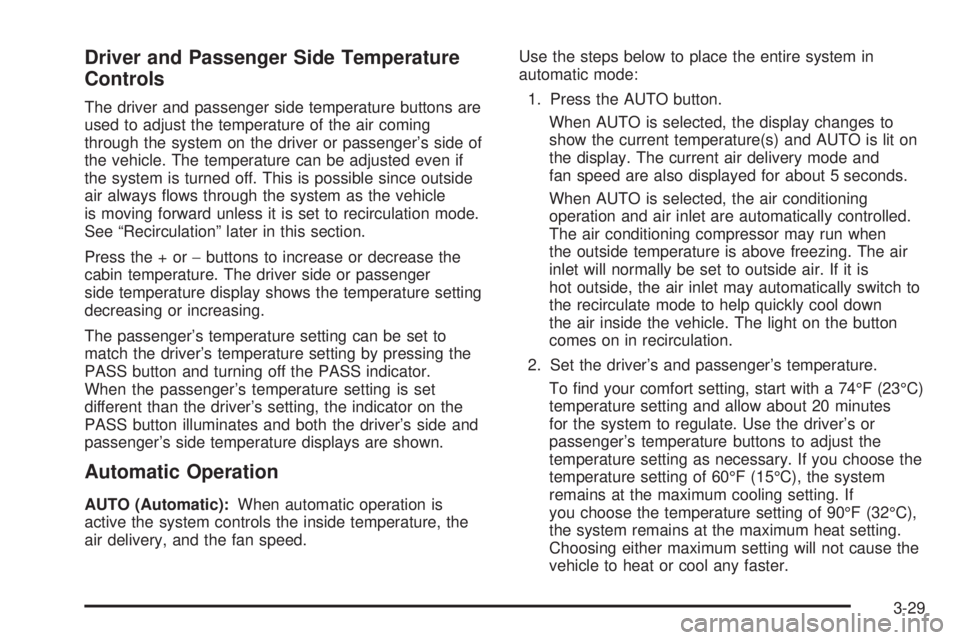
The driver and passenger side temperature buttons are
used to adjust the temperature of the air coming
through the system on the driver or passenger’s side of
the vehicle. The temperature can be adjusted even if
the system is turned off. This is possible since outside
air always ows through the system as the vehicle
is moving forward unless it is set to recirculation mode.
See “Recirculation” later in this section.
Press the + or−buttons to increase or decrease the
cabin temperature. The driver side or passenger
side temperature display shows the temperature setting
decreasing or increasing.
The passenger’s temperature setting can be set to
match the driver’s temperature setting by pressing the
PASS button and turning off the PASS indicator.
When the passenger’s temperature setting is set
different than the driver’s setting, the indicator on the
PASS button illuminates and both the driver’s side and
passenger’s side temperature displays are shown.
Automatic Operation
AUTO (Automatic):When automatic operation is
active the system controls the inside temperature, the
air delivery, and the fan speed.Use the steps below to place the entire system in
automatic mode:
1. Press the AUTO button.
When AUTO is selected, the display changes to
show the current temperature(s) and AUTO is lit on
the display. The current air delivery mode and
fan speed are also displayed for about 5 seconds.
When AUTO is selected, the air conditioning
operation and air inlet are automatically controlled.
The air conditioning compressor may run when
the outside temperature is above freezing. The air
inlet will normally be set to outside air. If it is
hot outside, the air inlet may automatically switch to
the recirculate mode to help quickly cool down
the air inside the vehicle. The light on the button
comes on in recirculation.
2. Set the driver’s and passenger’s temperature.
To nd your comfort setting, start with a 74°F (23°C)
temperature setting and allow about 20 minutes
for the system to regulate. Use the driver’s or
passenger’s temperature buttons to adjust the
temperature setting as necessary. If you choose the
temperature setting of 60°F (15°C), the system
remains at the maximum cooling setting. If
you choose the temperature setting of 90°F (32°C),
the system remains at the maximum heat setting.
Choosing either maximum setting will not cause the
vehicle to heat or cool any faster.
3-29
Page 202 of 578

Be careful not to cover the solar sensor located on the
top of the instrument panel near the windshield. This
sensor regulates air temperature based on sun load. For
more information on the solar sensor, see “Sensors”
later in this section.
To avoid blowing cold air in cold weather, the system
delays turning the fan on until warm air is available. The
length of delay depends on the engine coolant
temperature. Pressing the fan switch overrides this
delay and changes the fan to a selected speed.
O(On/Off):Press this button to turn off the climate
control system. Outside air still enters the vehicle, and is
directed to the oor. This direction can be changed by
pressing the mode button. Recirculation can be selected
once you have selected vent or bi-level mode. The
temperature can also be adjusted using either
temperature button. If the air delivery mode or
temperature settings are adjusted with the system off,
the display illuminates briey to show the settings
and then returns to off. Press the on/off button or the up
down arrows on the fan switch, the defrost button,
AUTO button, or the air conditioning button to turn the
system on when it is off.
Manual Operation
The air delivery mode or fan speed can be manually
adjusted.
DC(Fan):These buttons let you manually adjust the
fan speed. Press
Dto increase fan speed andC
to decrease fan speed.
Pressing either fan button while the system is off turns
the system on. Pressing either fan button while in
automatic control places the fan under manual control.
The fan setting remains displayed and the AUTO
light turns off. The air delivery mode remains under
automatic control.
HG(Mode):PressHandGto manually change the
direction of the airow in the vehicle. Repeatedly
press either button until the desired mode appears on
the display. Pressing either mode button while the
system is off changes the air delivery mode without
turning the system on. Pressing either mode button
while in automatic control places the mode under
manual control.
The air delivery mode setting is displayed and the
AUTO light turns off. The fan remains under automatic
control.
H(Vent):Air is directed to the instrument panel
outlets.
3-30
Page 208 of 578
Speedometer and Odometer
Your speedometer lets you see your speed in both
miles per hour (mph) and kilometers per hour (km/h).
Your odometer shows how far your vehicle has
been driven, in either miles (used in the United States)
or kilometers (used in Canada).
Engine Hour Meter Display
The Driver Information Center (DIC) can also display
the number of hours the engine has run. To display the
engine hours, turn the ignition off, press and hold the
reset button for at least four seconds. The hour
meter will be displayed for up to 30 seconds, or until the
ignition is turned on. SeeDIC Operation and Displays
(With DIC Buttons) on page 3-55orDIC Operation
and Displays (Without DIC Buttons) on page 3-60for
more information.
Trip Odometer
The trip odometer can tell you how far your vehicle has
been driven since you last set the trip odometer to zero.
Press the reset button, located on the instrument panel
cluster next to the voltmeter, to toggle between the
trip odometer and the regular odometer. Holding
the reset button for approximately one second while the
trip odometer is displayed will reset it.
To display the odometer reading with the ignition off,
press the reset button.
SeeDIC Operation and Displays (With DIC Buttons) on
page 3-55orDIC Operation and Displays (Without
DIC Buttons) on page 3-60for more information.
Tachometer
Your tachometer displays the engine speed in
revolutions per minute (rpm). See “Grade Braking
(Allison Transmission
®)” underTow/Haul Mode on
page 2-34for more information.
3-36
Page 226 of 578
Here are some situations you may experience with your
fuel gage. None of these indicate a problem with the
fuel gage.
At the gas station, the fuel pump shuts off before
the gage reads full.
It takes a little more or less fuel to ll up than the
fuel gage indicated. For example, the gage may
have indicated the tank was half full, but it actually
took a little more or less than half the tank’s
capacity to ll the tank.
The gage goes back to empty when you turn off the
ignition.
If you have a diesel engine, see “Fuel Gage” in the
Diesel Engine Supplement.
Low Fuel Warning Light
This light, under the fuel
gage, will come on briey
when you are starting
the engine.This light and a chime will come on when the fuel tank
is low on fuel. There will also be a “FUEL LEVEL
LOW” message on the Driver Information Center, see
DIC Warnings and Messages on page 3-63for more
information. When you add fuel this light and message
should go off. If it does not, have your vehicle
serviced.
Driver Information Center (DIC)
Your vehicle has a Driver Information Center (DIC).
The DIC displays information about your vehicle. It also
displays warning messages if a system problem is
detected.
All messages will appear in the DIC display located
below the tachometer in the instrument panel cluster.
The DIC comes on when the ignition is on. After a short
delay, the DIC will display the information that was
last displayed before the engine was turned off.
If your vehicle has DIC buttons, see “DIC Operation and
Displays (With DIC Buttons)” later in this section and
DIC Vehicle Customization (With DIC Buttons) on
page 3-72for the displays available.
If your vehicle does not have DIC buttons, see “DIC
Operation and Displays (Without DIC Buttons)” later in
this section for the displays available.
3-54
Page 227 of 578
DIC Operation and Displays (With
DIC Buttons)
If your vehicle has DIC buttons, the information below
explains the operation of this system.
The DIC has different displays which can be accessed
by pressing the DIC buttons located on the instrument
panel, next to the steering wheel.
The DIC displays trip, fuel, and vehicle system
information, and warning messages if a system problem
is detected.
The DIC also allows some features to be customized.
SeeDIC Vehicle Customization (With DIC Buttons)
on page 3-72for more information.
If your vehicle has DIC buttons, you can also use the
trip odometer reset stem to view some of the DIC
displays. See “DIC Operation and Displays (Without DIC
Buttons)” later in this section.
DIC Buttons
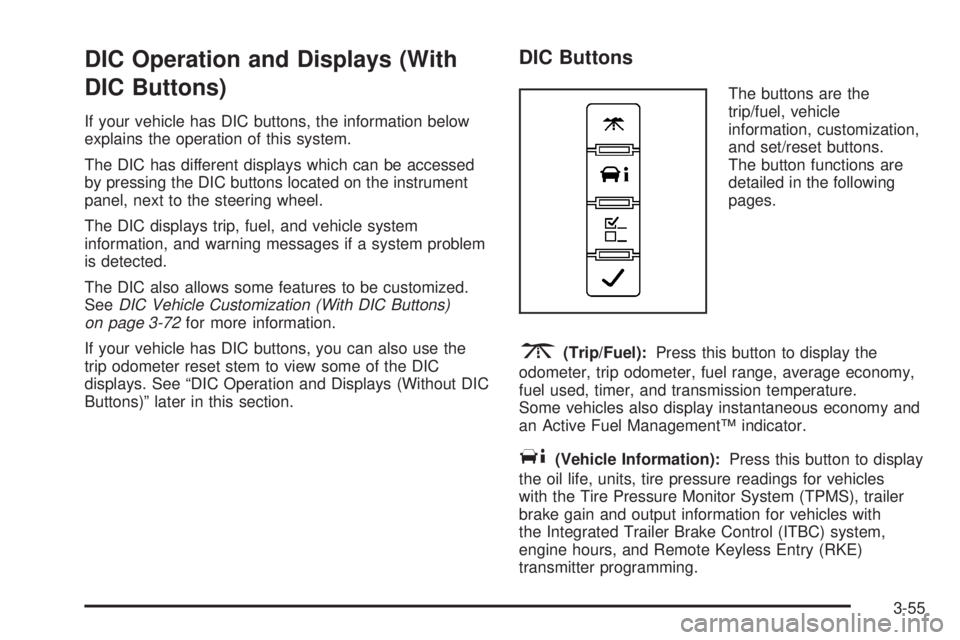
The buttons are the
trip/fuel, vehicle
information, customization,
and set/reset buttons.
The button functions are
detailed in the following
pages.
3(Trip/Fuel):Press this button to display the
odometer, trip odometer, fuel range, average economy,
fuel used, timer, and transmission temperature.
Some vehicles also display instantaneous economy and
an Active Fuel Management™ indicator.
T(Vehicle Information):Press this button to display
the oil life, units, tire pressure readings for vehicles
with the Tire Pressure Monitor System (TPMS), trailer
brake gain and output information for vehicles with
the Integrated Trailer Brake Control (ITBC) system,
engine hours, and Remote Keyless Entry (RKE)
transmitter programming.
3-55
Page 228 of 578
U(Customization):Press this button to customize the
feature settings on your vehicle. SeeDIC Vehicle
Customization (With DIC Buttons) on page 3-72for more
information.
V(Set/Reset):Press this button to set or reset certain
functions and to turn off or acknowledge messages
on the DIC.
Trip/Fuel Menu Items
3
(Trip/Fuel):Press this button to scroll through
the following menu items:
Odometer
Press the trip/fuel button until ODOMETER displays.
This display shows the distance the vehicle has
been driven in either miles (mi) or kilometers (km).
Pressing the trip odometer reset stem will also display
the odometer.
To switch between English and metric measurements,
see “Units” later in this section.
Trip Odometer
Press the trip/fuel button until TRIP displays. This
display shows the current distance traveled in either
miles (mi) or kilometers (km) since the last reset for the
trip odometer. Pressing the trip odometer reset stem
will also display the trip odometer.
The trip odometer can be reset to zero by pressing the
set/reset button while the trip odometer is displayed.
You can also reset the trip odometer while it is displayed
by pressing and holding the trip odometer reset stem.
The trip odometer has a feature called the retro-active
reset. This can be used to set the trip odometer to
the number of miles (kilometers) driven since the ignition
was last turned on. This can be used if the trip
odometer is not reset at the beginning of the trip.
To use the retro-active reset feature, press and hold the
set/reset button for at least four seconds. The trip
odometer will display the number of miles (mi) or
kilometers (km) driven since the ignition was last turned
on and the vehicle was moving. Once the vehicle
begins moving, the trip odometer will accumulate
mileage. For example, if the vehicle was driven 5 miles
(8 km) before it is started again, and then the
retro-active reset feature is activated, the display will
show 5 miles (8 km). As the vehicle begins moving, the
display will then increase to 5.1 miles (8.2 km),
5.2 miles (8.4 km), etc.
3-56
Page 232 of 578
Relearn Remote Key
This display allows you to match Remote Keyless Entry
(RKE) transmitters to your vehicle. To match an RKE
transmitter to your vehicle:
1. Press the vehicle information button until PRESS
V
TO RELEARN REMOTE KEY displays.
2. Press the set/reset button until REMOTE KEY
LEARNING ACTIVE is displayed.
3. Press and hold the lock and unlock buttons on the
rst transmitter at the same time for about
15 seconds.
On vehicles with memory recall seats, the rst
transmitter learned will match driver 1 and
the second will match driver 2.
A chime will sound indicating that the transmitter is
matched.
4. To match additional transmitters at this time, repeat
Step 3.
Each vehicle can have a maximum of eight
transmitters matched to it.
5. To exit the programming mode, you must cycle the
key to LOCK/OFF.
Blank Display
This display shows no information.
DIC Operation and Displays
(Without DIC Buttons)
If your vehicle does not have DIC buttons, the
information below explains the operation of this system.
The DIC has different displays which can be accessed
by pressing the trip odometer reset stem located on the
instrument panel cluster. Pressing the trip odometer
reset stem will also turn off, or acknowledge, DIC
messages.
The DIC displays trip and vehicle system information,
and warning messages if a system problem is detected.
If your vehicle does not have DIC buttons, you can
use the trip odometer reset stem to view the following
displays: odometer, engine hours, trip odometer,
transmission temperature, trailer brake gain and output
information for vehicles with the Integrated Trailer
Brake Control (ITBC) system, oil life, Tire Pressure
Monitor System (TPMS) programming for vehicles with
the TPMS, Remote Keyless Entry (RKE) transmitter
programming, and display language.
If your vehicle has DIC buttons, you can use the
trip odometer reset stem to view the following
displays: odometer, engine hours, trip odometer, and
display language.
3-60
Page 235 of 578
3. Press and hold the lock and unlock buttons on the
rst transmitter at the same time for about
15 seconds.
On vehicles with memory recall seats, the rst
transmitter learned will match driver 1 and
the second will match driver 2.
A chime will sound indicating that the transmitter
is matched.
4. To match additional transmitters at this time,
repeat Step 3.
Each vehicle can have a maximum of eight
transmitters matched to it.
5. To exit the programming mode, you must cycle the
key to LOCK/OFF.
Language
This display allows you to select the language in which
the DIC messages will appear. To select a language:
1. Press the trip odometer reset stem until
ODOMETER displays.
2. While in the ODOMETER display, press and hold
the trip odometer reset stem for three seconds until
the currently set language displays.3. Continue to press and hold the trip odometer reset
stem to scroll through all of the available languages.
The available languages are ENGLISH (default),
FRANCAIS (French), ESPANOL (Spanish), and NO
CHANGE.
4. Once the desired language is displayed, release
the trip odometer reset stem to set your choice.
DIC Warnings and Messages
Messages are displayed on the DIC to notify the driver
that the status of the vehicle has changed and that
some action may be needed by the driver to correct the
condition. Multiple messages may appear one after
another.
Some messages may not require immediate action, but
you can press any of the DIC buttons on the instrument
panel or the trip odometer reset stem on the instrument
panel cluster to acknowledge that you received the
messages and to clear them from the display.
Some messages cannot be cleared from the DIC
display because they are more urgent. These messages
require action before they can be cleared. You should
take any messages that appear on the display seriously
and remember that clearing the messages will only
make the messages disappear, not correct the problem.
3-63
Page 236 of 578
The following are the possible messages that can be
displayed and some information about them.
If your vehicle has the DURAMAX
®Diesel engine, see
the DURAMAX®Diesel manual for more information.
CHANGE ENGINE OIL SOON
This message displays when the engine oil needs to be
changed. When you change the engine oil, be sure
to reset the CHANGE ENGINE OIL SOON message.
SeeEngine Oil Life System on page 5-18for information
on how to reset the message. SeeEngine Oil (Gasoline
Engine) on page 5-15andScheduled Maintenance
(Gasoline Engine) on page 6-4for more information.
CHECK TIRE PRESSURE
If your vehicle has the Tire Pressure Monitor System
(TPMS), this message displays when the pressure
in one or more of the vehicle’s tires needs to be
checked. This message also displays LEFT FRONT,
RIGHT FRONT, LEFT REAR, or RIGHT REAR to
indicate which tire needs to be checked. You can
receive more than one tire pressure message at a time.
To read the other messages that may have been
sent at the same time, press the set/reset button or the
trip odometer reset stem. If a tire pressure message
appears on the DIC, stop as soon as you can. Have the
tire pressures checked and set to those shown on the
Tire Loading Information label. SeeTires on page 5-66,Loading Your Vehicle on page 4-36, andInflation - Tire
Pressure on page 5-74. The DIC also shows the tire
pressure values. See “DIC Operation and Displays (With
DIC Buttons)” earlier in this section. If the tire pressure
is low, the low tire pressure warning light comes on.
SeeTire Pressure Light on page 3-47.
CHECK TRAILER WIRING
On vehicles with the Integrated Trailer Brake Control
(ITBC) system, this message may display and a chime
may sound when one of the following conditions exists:
A trailer with electric brakes becomes disconnected
from the vehicle.
If the disconnect occurs while the vehicle is
stopped, this message clears itself after a
short time.
If the disconnect occurs while the vehicle is
moving, this message stays on until the ignition
is turned off.
There is a short in the wiring to the electric trailer
brakes.
When this message displays, power is no longer
available to the trailer brakes.
As soon as it is safe to do so, carefully pull your vehicle
over to the side of the road and turn the ignition off.
Check the wiring connection to the trailer and turn the
ignition back on. This message clears if the trailer
3-64
Page 239 of 578
PARK ASSIST OFF
If your vehicle has the Ultrasonic Rear Parking Assist
(URPA) system, after the vehicle has been started, this
message displays to remind the driver that the URPA
system has been turned off. Press the set/reset
button or the trip odometer reset stem to acknowledge
this message and clear it from the DIC display. To
turn the URPA system back on, seeUltrasonic Rear
Parking Assist (URPA) on page 2-63.
PASSENGER DOOR OPEN
This message displays and a chime sounds if the
passenger door is not fully closed and the vehicle is in a
drive gear. Stop and turn off the vehicle, check the
door for obstructions, and close the door again. Check
to see if the message still appears on the DIC.
REMOTE KEY LEARNING ACTIVE
This message displays while you are matching a
Remote Keyless Entry (RKE) transmitter to your vehicle.
See “Matching Transmitter(s) to Your Vehicle” under
Remote Keyless Entry (RKE) System Operation
on page 2-5andDIC Operation and Displays (With DIC
Buttons) on page 3-55orDIC Operation and Displays
(Without DIC Buttons) on page 3-60for more
information.
REPLACE BATTERY IN REMOTE KEY
This message displays if a Remote Keyless Entry (RKE)
transmitter battery is low. The battery needs to be
replaced in the transmitter. See “Battery Replacement”
underRemote Keyless Entry (RKE) System Operation
on page 2-5.
RIGHT REAR DOOR OPEN (Crew Cab)
This message displays and a chime sounds if the
passenger side rear door is not fully closed and the
vehicle is in a drive gear. Stop and turn off the vehicle,
check the door for obstructions, and close the door again.
Check to see if the message still appears on the DIC.
SERVICE 4 WHEEL DRIVE
This message displays if a problem occurs with the
four-wheel-drive system. If this message appears, stop
as soon as possible and turn off the vehicle. Restart
the vehicle and check for the message on the DIC
display. If the message is still displayed or appears
again when you begin driving, the four-wheel-drive
system needs service. See your dealer/retailer.
3-67