change time GMC SIERRA 2008 Owner's Guide
[x] Cancel search | Manufacturer: GMC, Model Year: 2008, Model line: SIERRA, Model: GMC SIERRA 2008Pages: 578, PDF Size: 6.47 MB
Page 258 of 578
Radio Data System (RDS)
The audio system has a Radio Data System (RDS). The
RDS feature is available for use only on FM stations
that broadcast RDS information. This system relies upon
receiving specic information from these stations and
only works when the information is available. While the
radio is tuned to an FM-RDS station, the station
name or call letters displays. In rare cases, a radio
station could broadcast incorrect information that causes
the radio features to work improperly. If this happens,
contact the radio station.
Playing the Radio
O
(Power/Volume):Press to turn the system on
and off.
Turn clockwise or counterclockwise to increase or
decrease the volume.
4(Information) (AM-FM Radio):Press to switch the
display between the radio station frequency and
the time. While the ignition is off, press this button to
display the time.
H(Clock) (AM-FM Radio):Your radio may have a
clock button for setting the time. With this type of radio,
the clock can be set with either the radio turned on
or off. SeeSetting the Clock on page 3-81for more
information.Speed Compensated Volume (SCV):Radios with
Speed Compensated Volume (SCV) automatically
adjusts the radio volume to compensate for road and
wind noise as your vehicle’s speed changes while
driving, so that the volume level stays consistent.
To activate SCV:
1. Set the radio volume to the desired level.
2. Press the MENU button to display the radio
setup menu.
3. Press the pushbutton under the AUTO VOLUM
(automatic volume) label on the radio display.
4. Press the pushbutton under the desired Speed
Compensated Volume setting (OFF, Low, Med,
or High) to select the level of radio volume
compensation. The display times out after
approximately 10 seconds. Each higher setting
allows for more radio volume compensation at faster
vehicle speeds.
Finding a Station
BAND:Press to switch between AM, FM, or XM™
(if equipped). The selection displays.
f(Tune):Turn to select radio stations.
©SEEK¨:Press either arrow to go to the previous
or to the next station and stay there.
3-86
Page 287 of 578
Notice:Do not store the headphones in heat or
direct sunlight. This could damage the headphones
and repairs will not be covered by your warranty.
Storage in extreme cold can weaken the batteries.
Keep the headphones stored in a cool, dry place.
If the foam ear pads attached to the headphones
become worn or damaged, the pads can be replaced
separately from the headphone set. Refer to your
dealer/retailer for more information.
Battery Replacement
To change the batteries on the headphones, do the
following:
1. Turn the screw to loosen the battery door located
on the left side of the headphones. Slide the
battery door open.
2. Replace the two batteries in the compartment.
Make sure that they are installed correctly, using
the diagram on the inside of the battery
compartment.
3. Replace the battery door and tighten the door
screw.
If the headphones are to be stored for a long period of
time, remove the batteries and keep them in a cool,
dry place.
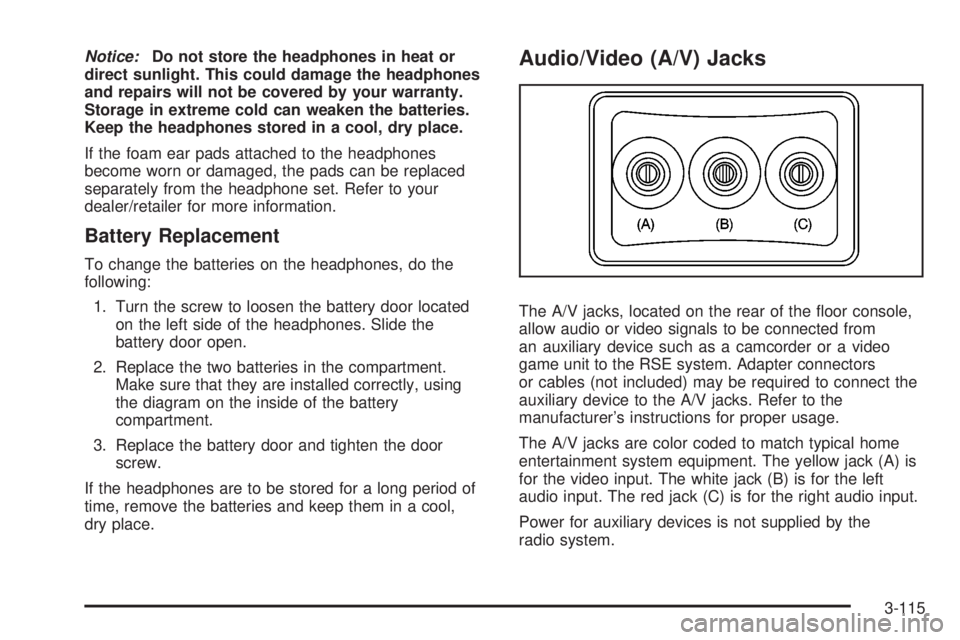
Audio/Video (A/V) Jacks
The A/V jacks, located on the rear of the oor console,
allow audio or video signals to be connected from
an auxiliary device such as a camcorder or a video
game unit to the RSE system. Adapter connectors
or cables (not included) may be required to connect the
auxiliary device to the A/V jacks. Refer to the
manufacturer’s instructions for proper usage.
The A/V jacks are color coded to match typical home
entertainment system equipment. The yellow jack (A) is
for the video input. The white jack (B) is for the left
audio input. The red jack (C) is for the right audio input.
Power for auxiliary devices is not supplied by the
radio system.
3-115
Page 292 of 578
Battery Replacement
To change the remote control batteries, do the following:
1. Slide the rear cover back on the remote control.
2. Replace the two batteries in the compartment. Make
sure they are installed correctly using the diagram
on the inside of the remote control.
3. Replace the battery cover.
If the remote control is to be stored for a long period of
time, remove the batteries and keep them in a cool,
dry place.
Problem Recommended Action
No power. The ignition might not be
turned ON/RUN or in
ACC/ACCESSORY.
The picture does not ll
the screen. There are
black borders on the
top and bottom or on
both sides or it looks
stretched out.Check the display mode
settings in the setup menu
by pressing the display
menu button on the
remote control.
In auxiliary mode, the
picture moves or scrolls.Check the auxiliary input
connections at both
devices.
Problem Recommended Action
The remote control does
not work.Check to make sure there
is no obstruction between
the remote control and the
transmitter window.
Check the batteries to
make sure they are not
dead or installed
incorrectly.
After stopping the player,
I push Play but sometimes
the DVD starts where I left
off and sometimes at the
beginning.If the stop button was
pressed one time, the
DVD player resumes
playing where the DVD
was stopped. If the stop
button was pressed two
times the DVD player
begins to play from the
beginning of the DVD.
The auxiliary source is
running but there is no
picture or sound.Check that the RSE video
screen is in the auxiliary
source mode.
Check the auxiliary input
connections at both
devices.
3-120
Page 303 of 578
Let us say the road is wet and you are driving safely.
Suddenly, an animal jumps out in front of you. You slam
on the brakes and continue braking. Here is what
happens with ABS:
A computer senses that wheels are slowing down. If
one of the wheels is about to stop rolling, the computer
will separately work the brakes at each front wheel
and at both rear wheels.
ABS can change the brake pressure faster than any
driver could. The computer is programmed to make the
most of available tire and road conditions. This can
help you steer around the obstacle while braking hard.
As you brake, the computer keeps receiving updates
on wheel speed and controls braking pressure
accordingly.
Remember: ABS does not change the time you need to
get your foot up to the brake pedal or always decrease
stopping distance. If you get too close to the vehicle
in front of you, you will not have time to apply the brakes
if that vehicle suddenly slows or stops. Always leave
enough room up ahead to stop, even though you
have ABS.Using ABS
Do not pump the brakes. Just hold the brake pedal
down rmly and let antilock work for you. You might
feel the brakes vibrate or notice some noise, but this
is normal.
Braking in Emergencies
With ABS, you can steer and brake at the same time.
In many emergencies, steering can help you more than
even the very best braking.
Locking Rear Axle
If your vehicle has this feature, your locking rear axle
can give you additional traction on snow, mud, ice, sand
or gravel. It works like a standard axle most of the
time, but when one of the rear wheels has no traction
and the other does, this feature will allow the wheel with
traction to move the vehicle.
4-5
Page 314 of 578
Controlling your vehicle is the key to successful off-road
driving. One of the best ways to control your vehicle
is to control your speed. Here are some things to keep
in mind. At higher speeds:
You approach things faster and you have less time
to scan the terrain for obstacles.
You have less time to react.
You have more vehicle bounce when you drive over
obstacles.
You will need more distance for braking, especially
since you are on an unpaved surface.
{CAUTION:
When you are driving off-road, bouncing and
quick changes in direction can easily throw
you out of position. This could cause you to
lose control and crash. So, whether you are
driving on or off the road, you and your
passengers should wear safety belts.
Scanning the Terrain
Off-road driving can take you over many different kinds
of terrain. You need to be familiar with the terrain
and its many different features. Here are some things to
consider.
Surface Conditions:Off-roading can take you over
hard-packed dirt, gravel, rocks, grass, sand, mud, snow,
or ice. Each of these surfaces affects the steering,
acceleration, and braking of your vehicle in different
ways. Depending upon the kind of surface you are on,
you may experience slipping, sliding, wheel spinning,
delayed acceleration, poor traction, and longer braking
distances.
Surface Obstacles:Unseen or hidden obstacles can
be hazardous. A rock, log, hole, rut, or bump can startle
you if you are not prepared for them. Often these
obstacles are hidden by grass, bushes, snow, or even
the rise and fall of the terrain itself. Here are some
things to consider:
Is the path ahead clear?
Will the surface texture change abruptly up ahead?
Does the travel take you uphill or downhill?
There is more discussion of these subjects later.
Will you have to stop suddenly or change direction
quickly?
4-16
Page 353 of 578
6. Release the parking brake only after the vehicle
being towed is rmly attached to the tow vehicle.
7. Turn the ignition to LOCK/OFF.
Towing a Trailer
If your vehicle has a diesel engine, see the DURAMAX®
Diesel manual for more information.
Do not tow a trailer during break-in. SeeNew Vehicle
Break-In on page 2-22for more information.
{CAUTION:
If you do not use the correct equipment and
drive properly, you can lose control when you
pull a trailer. For example, if the trailer is too
heavy, the brakes may not work well — or even
at all. You and your passengers could be
seriously injured. Pull a trailer only if you have
followed all the steps in this section. Ask your
dealer for advice and information about towing
a trailer with your vehicle.Notice:Pulling a trailer improperly can damage
your vehicle and result in costly repairs not covered
by your warranty. To pull a trailer correctly, follow
the advice in this part, and see your dealer for
important information about towing a trailer with
your vehicle.
To identify the trailering capacity of your vehicle, you
should read the information in “Weight of the Trailer” that
appears later in this section.
Trailering is different than just driving your vehicle by
itself. Trailering means changes in acceleration, braking,
handling, durability and fuel economy. Successful,
safe trailering takes correct equipment, and it has to be
used properly.
That’s the reason for this part. In it are many time-tested,
important trailering tips and safety rules. Many of
these are important for your safety and that of your
passengers. So please read this section carefully before
you pull a trailer.
4-55
Page 381 of 578
Trailer Gain Adjustment Procedure
Trailer Gain should be set for a specic trailering
condition and must be adjusted any time vehicle loading,
trailer loading or road surface conditions change.
Setting the Trailer Gain properly is needed for the best
trailer stopping performance. A trailer that is
over-gained may result in locked trailer brakes. A trailer
that is under-gained may result in not enough trailer
braking. Both of these conditions may result in poorer
stopping and stability of the vehicle and trailer.
Use the following procedure to correctly adjust Trailer
Gain for each towing condition:
1. Make sure the trailer brakes are in proper working
condition.
2. Connect a properly loaded trailer to the vehicle and
make all necessary mechanical and electrical
connections. SeeLoading Your Vehicle on
page 4-36for more information.3. After the electrical connection is made to a trailer
equipped with electric brakes:A TRAILER CONNECTED message will be
briey displayed on the DIC display.
The Trailer Brake Display Page will appear on
the DIC showing TRAILER GAIN and TRAILER
OUTPUT.
In the Trailer Output display on the DIC,
“------”will disappear if there is no error
present. Connecting a trailer without electric
brakes will not clear the six dashed lines.
4. Adjust the Trailer Gain by using the gain adjustment
(+ /−) buttons on the Trailer Brake Control Panel.
5. Drive the vehicle with the trailer attached on a
level road surface representative of the towing
condition and free of traffic at about 20 to 25 mph
(32 to 40 km/h) and fully apply the Manual
Trailer Brake Apply lever.
Adjusting trailer gain at speeds lower than
20 to 25 mph (32 to 40 km/h) may result in an
incorrect gain setting.
4-83
Page 382 of 578
6. Adjust the Trailer Gain to just below the point of
trailer wheel lock-up, indicated by trailer wheel
squeal or puffs of tire smoke when a trailer
wheel locks.
Trailer wheel lock-up may not occur if towing a
heavily loaded trailer. In this case, adjust the Trailer
Gain to the highest allowable setting for the
towing condition.
7. Re-adjust Trailer Gain any time vehicle loading,
trailer loading or road surface conditions change
or if you notice trailer wheel lock-up at any
time while you are towing
Other ITBC Related DIC Messages
In addition to displaying TRAILER GAIN and TRAILER
OUTPUT through the DIC, trailer connection and
ITBC system status is displayed in the DIC.
TRAILER CONNECTED – This message will be briey
displayed when a trailer with electric brakes is rst
connected to the vehicle. This message will
automatically turn off in about ten seconds. The driver
can also acknowledge this message before it
automatically turns off.CHECK TRAILER WIRING – This message will be
displayed if:
1. The ITBC system rst determines connection to a
trailer with electric brakes and then the trailer
harness becomes disconnected from the vehicle.
If the disconnect occurs while the vehicle is
stationary, this message will automatically turn off in
about thirty seconds. This message will also turn
off if the driver acknowledges this message off or if
the trailer harness is re-connected.
If the disconnect occurs while the vehicle is moving,
this message will continue until the ignition is
turned off. This message will also turn off if the
driver acknowledges this message off or if the trailer
harness is re-connected.
2. There is an electrical fault in the wiring to the
electric trailer brakes. This message will continue as
long as there is an electrical fault in the trailer
wiring. This message will also turn off if the driver
acknowledges this message off.
4-84
Page 401 of 578
To ensure quick starts in the wintertime, the E85 fuel
must be formulated properly for your climate according
to ASTM specication D 5798. If you have trouble
starting on E85, it could be because the E85 fuel is not
properly formulated for your climate. If this happens,
switching to gasoline or adding gasoline to the fuel tank
can improve starting. For good starting and heater
efficiency below 32°F (0°C), the fuel mix in the fuel tank
should contain no more than 70% ethanol. It is best
not to alternate repeatedly between gasoline and E85.
If you do switch fuels, it is recommended that you
add as much fuel as possible — do not add less than
three gallons (11 L) when refueling. You should drive the
vehicle immediately after refueling for at least seven
miles (11 km) to allow the vehicle to adapt to the change
in ethanol concentration.
E85 has less energy per gallon than gasoline, so you
will need to rell the fuel tank more often when using
E85 than when you are using gasoline. SeeFilling the
Tank on page 5-10.Notice:Some additives are not compatible with
E85 fuel and can harm your vehicle’s fuel system.
Do not add anything to E85. Damage caused by
additives would not be covered by your new vehicle
warranty.
Notice:Your vehicle was not designed for fuel that
contains methanol. Do not use fuel containing
methanol. It can corrode metal parts in the fuel
system and also damage plastic and rubber parts.
That damage would not be covered under your
warranty.
Fuels in Foreign Countries
If you plan on driving in another country outside the
United States or Canada, the proper fuel might be hard
to nd. Never use leaded gasoline or any other fuel
not recommended in the previous text on fuel. Costly
repairs caused by use of improper fuel would not be
covered by your warranty.
To check the fuel availability, ask an auto club, or
contact a major oil company that does business in the
country where you will be driving.
5-9
Page 410 of 578
Engine Oil Additives
Do not add anything to the oil. The recommended
oils with the starburst symbol that meet
GM Standard GM6094M are all you need for good
performance and engine protection.
Engine Oil Life System
When to Change Engine Oil
Your vehicle has a computer system that lets you know
when to change the engine oil and lter. This is based
on engine revolutions and engine temperature, and not
on mileage. Based on driving conditions, the mileage at
which an oil change will be indicated can vary
considerably. For the oil life system to work properly, you
must reset the system every time the oil is changed.
When the system has calculated that oil life has been
diminished, it will indicate that an oil change is
necessary. A CHANGE ENGINE OIL SOON message
will come on. SeeDIC Warnings and Messages on
page 3-63. Change the oil as soon as possible within the
next 600 miles (1 000 km). It is possible that, if you are
driving under the best conditions, the oil life system might
not indicate that an oil change is necessary for over
a year. However, the engine oil and lter must be
changed at least once a year and at this time the system
must be reset. Your dealer/retailer has trained service
people who will perform this work using genuine parts
and reset the system. It is also important to check the oil
regularly and keep it at the proper level.If the system is ever reset accidentally, you must
change the oil at 3,000 miles (5 000 km) since your last
oil change. Remember to reset the oil life system
whenever the oil is changed.
How to Reset the Engine Oil Life
System
The Engine Oil Life System calculates when to change
the engine oil and lter based on vehicle use. Whenever
the oil is changed, reset the system so it can calculate
when the next oil change is required. If a situation occurs
where you change the oil prior to a CHANGE ENGINE
OIL SOON message coming on, reset the system.
Always reset the engine oil life to 100% after every oil
change. It will not reset itself. To reset the Engine Oil
Life System:
1. Display the OIL LIFE REMAINING on the DIC. If
your vehicle does not have DIC buttons, the vehicle
must be in PARK (P) to access this display. SeeDIC
Operation and Displays (With DIC Buttons) on
page 3-55orDIC Operation and Displays
(Without DIC Buttons) on page 3-60.
2. Press and hold the SET/RESET button on the DIC,
or the trip odometer reset stem if your vehicle does
not have DIC buttons, for more than ve seconds.
The oil life will change to 100%.
If the CHANGE ENGINE OIL SOON message comes
back on when you start your vehicle, the Engine Oil Life
System has not reset. Repeat the procedure.
5-18