Page 16 GMC SIERRA 2018 Owner's Manual
[x] Cancel search | Manufacturer: GMC, Model Year: 2018, Model line: SIERRA, Model: GMC SIERRA 2018Pages: 505, PDF Size: 6.59 MB
Page 3 of 505
GMC Sierra/Sierra Denali Owner Manual (GMNA-Localizing-U.S./Canada/
Mexico-11349177) - 2018 - CRC - 10/17/17
2 Introduction
Introduction
The names, logos, emblems,
slogans, vehicle model names, and
vehicle body designs appearing in
this manual including, but not limited
to, GM, the GM logo, GMC, the
GMC Truck Emblem, SIERRA, and
DENALI are trademarks and/or
service marks of General Motors
LLC, its subsidiaries, affiliates,
or licensors.
For vehicles first sold in Canada,
substitute the name“General
Motors of Canada Company” for
GMC Division wherever it appears
in this manual. This manual describes features that
may or may not be on the vehicle
because of optional equipment that
was not purchased on the vehicle,
model variants, country
specifications, features/applications
that may not be available in your
region, or changes subsequent to
the printing of this owner
’s manual.
If the vehicle has the Duramax
diesel engine, see the Duramax
diesel supplement for additional and
specific information on this engine.
For an eAssist vehicle, see the
Silverado/Sierra eAssist
supplement.
Refer to the purchase
documentation relating to your
specific vehicle to confirm the
features.
Keep this manual in the vehicle for
quick reference.
Canadian Vehicle Owners
A French language manual can be
obtained from your dealer, at
www.helminc.com, or from:
Propriétaires Canadiens
On peut obtenir un exemplaire de
ce guide en français auprès du
concessionnaire ou à l'adresse
suivante:
Helm, Incorporated
Attention: Customer Service
47911 Halyard Drive
Plymouth, MI 48170
USA
Using this Manual
To quickly locate information about
the vehicle, use the Index in the
back of the manual. It is an
alphabetical list of what is in the
manual and the page number where
it can be found.
Litho in U.S.A.
Part No. 84016542 B Second Printing©2017 General Motors LLC. All Rights Reserved.
Page 4 of 505
GMC Sierra/Sierra Denali Owner Manual (GMNA-Localizing-U.S./Canada/
Mexico-11349177) - 2018 - CRC - 10/17/17
Introduction 3
Danger, Warning, and
Caution
Warning messages found on vehicle
labels and in this manual describe
hazards and what to do to avoid or
reduce them.
{Danger
Danger indicates a hazard with a
high level of risk which will result
in serious injury or death.
{Warning
Warning indicates a hazard that
could result in injury or death.
Caution
Caution indicates a hazard that
could result in property or vehicle
damage.
A circle with a slash through it is a
safety symbol which means“Do
Not,” “Do not do this,” or“Do not let
this happen.”
Symbols
The vehicle has components and
labels that use symbols instead of
text. Symbols are shown along with
the text describing the operation or
information relating to a specific
component, control, message,
gauge, or indicator.
M: Shown when the owner ’s
manual has additional instructions
or information.
*: Shown when the service
manual has additional instructions
or information.
0: Shown when there is more
information on another page —
“see page.” Vehicle Symbol Chart
Here are some additional symbols
that may be found on the vehicle
and what they mean. See the
features in this manual for
information.
9:
Airbag Readiness Light
#:Air Conditioning
!:Antilock Brake System (ABS)
$:Brake System Warning Light
":Charging System
I: Cruise Control
`:Do Not Puncture
^:Do Not Service
B:Engine Coolant Temperature
O:Exterior Lamps
_: Flame/Fire Prohibited
.:Fuel Gauge
+: Fuses
3:Headlamp High/Low-Beam
Changer
j: ISOFIX/LATCH System Child
Restraints
Page 25 of 505
GMC Sierra/Sierra Denali Owner Manual (GMNA-Localizing-U.S./Canada/
Mexico-11349177) - 2018 - CRC - 10/17/17
24 In Brief
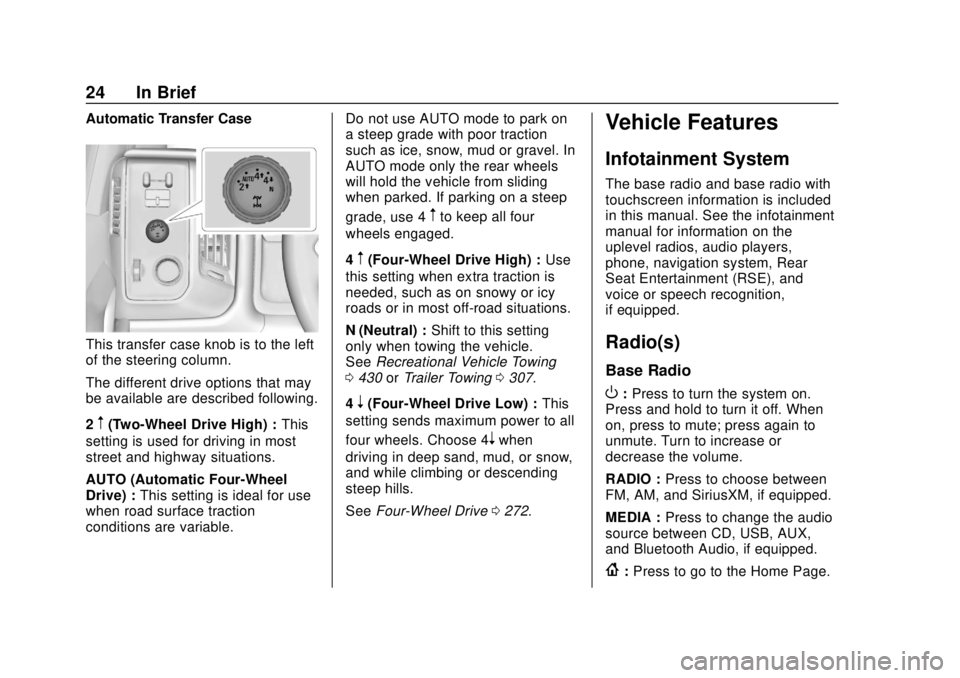
Automatic Transfer Case
This transfer case knob is to the left
of the steering column.
The different drive options that may
be available are described following.
2
m(Two-Wheel Drive High) :This
setting is used for driving in most
street and highway situations.
AUTO (Automatic Four-Wheel
Drive) : This setting is ideal for use
when road surface traction
conditions are variable. Do not use AUTO mode to park on
a steep grade with poor traction
such as ice, snow, mud or gravel. In
AUTO mode only the rear wheels
will hold the vehicle from sliding
when parked. If parking on a steep
grade, use 4
mto keep all four
wheels engaged.
4
m(Four-Wheel Drive High) : Use
this setting when extra traction is
needed, such as on snowy or icy
roads or in most off-road situations.
N (Neutral) : Shift to this setting
only when towing the vehicle.
See Recreational Vehicle Towing
0 430 orTrailer Towing 0307.
4
n(Four-Wheel Drive Low) : This
setting sends maximum power to all
four wheels. Choose 4
nwhen
driving in deep sand, mud, or snow,
and while climbing or descending
steep hills.
See Four-Wheel Drive 0272.
Vehicle Features
Infotainment System
The base radio and base radio with
touchscreen information is included
in this manual. See the infotainment
manual for information on the
uplevel radios, audio players,
phone, navigation system, Rear
Seat Entertainment (RSE), and
voice or speech recognition,
if equipped.
Radio(s)
Base Radio
O:Press to turn the system on.
Press and hold to turn it off. When
on, press to mute; press again to
unmute. Turn to increase or
decrease the volume.
RADIO : Press to choose between
FM, AM, and SiriusXM, if equipped.
MEDIA : Press to change the audio
source between CD, USB, AUX,
and Bluetooth Audio, if equipped.
{: Press to go to the Home Page.
Page 26 of 505
GMC Sierra/Sierra Denali Owner Manual (GMNA-Localizing-U.S./Canada/
Mexico-11349177) - 2018 - CRC - 10/17/17
In Brief 25
MENU :Press to select a menu.
g:Press to seek the previous
station or track.
l: Press to seek the next station
or track.
See “Base Radio” inOverview
0 188.
Base Radio with Touchscreen
O:Press to turn the system on.
Press and hold to turn it off. When
on, press to mute; press again to
unmute. Turn to increase or
decrease the volume.
{: Press to go to the Home Page.
7:Press to seek the previous
station or track.
6: Press to seek the next station
or track.
See “Base Radio with Touchscreen”
in Overview 0188.
Setting the Clock
See Clock 0132.
Satellite Radio
Vehicles with a SiriusXM satellite
radio tuner and a valid SiriusXM
satellite radio subscription can
receive SiriusXM programming.
SiriusXM Satellite Radio
Service
SiriusXM is a satellite radio service
based in the 48 contiguous United
States and 10 Canadian provinces.
SiriusXM satellite radio has a wide
variety of programming and
commercial-free music, coast to
coast, and in digital-quality sound.
A fee is required to receive the
SiriusXM service.
For more information refer to:
.
www.siriusxm.com or call
1-888-601-6296 (U.S.).
. www.siriusxm.ca or call
1-877-438-9677 (Canada).
See Satellite Radio 0192.
Portable Audio Devices
This vehicle may have a 3.5 mm
(1/8 in) auxiliary input jack and USB
ports in the center stack, center
console, or under armrest. There
may be a USB port in the upper
glove box. External devices such as
iPods, laptop computers, MP3
players, and USB storage devices
may be connected, depending on
the audio system.
See USB Port 0197 andAuxiliary
Jack 0203.
Bluetooth
The Bluetooth system allows users
with a Bluetooth-enabled cell phone
to make and receive hands-free
calls using the vehicle audio system
and controls.
The Bluetooth-enabled cell phone
must be paired with the in-vehicle
Bluetooth system before it can be
used in the vehicle. Not all phones
will support all functions.
Page 133 of 505
GMC Sierra/Sierra Denali Owner Manual (GMNA-Localizing-U.S./Canada/
Mexico-11349177) - 2018 - CRC - 10/17/17
132 Instruments and Controls
Clock
Setting the Time and Date with
Faceplate Controls
To set the time or date:1. Select SETTINGS from the Home Page, then select Time
and Date.
2. Select the desired function.
3. Turn the MENU knob to increase or decrease the value.
4. Press the MENU knob to go to the next value. After the last
value is selected, the system
will update and return to the
Settings menu. Press
oBACK
to go to the last menu and
save the changes.
Auto Set requires an active OnStar
service plan.
If auto timing is set, the time
displayed on the clock may not
update immediately when driving
into a new time zone. To set the clock display:
1. Select SETTINGS from the Home Page, then select Time
and Date.
2. Select Clock Display.
3. Turn the MENU knob to Off or On.
4. Press the MENU knob to select.
Press
oBACK to go to the last
menu and save the changes.
Setting the Time and Date with
Touchscreen Controls
To set the time:
1. Touch SETTINGS from the Home Page, then touch Time
and Date.
2. Touch Set Time and touch
«
orªto increase or decrease
hours, minutes, and AM or PM.
Touch 12–24 Hr for 12 or
24 hour clock. 3. Touch the
}or0screen
button to go back to the
previous menu.
Auto Set requires an active OnStar
service plan.
If auto timing is set, the time
displayed on the clock may not
update immediately when driving
into a new time zone.
To set the date: 1. Touch SETTINGS from the Home Page, then touch Time
and Date.
2. Touch Set Date and touch
«
orªto increase or decrease
month, day, or year.
3. Touch the
}or0screen
button to go back to the
previous menu.
To set the clock display:
1. Touch SETTINGS and touch Time and Date.
2. Touch Clock Display and touch OFF or ON to turn the clock
display off or on.
Page 143 of 505
GMC Sierra/Sierra Denali Owner Manual (GMNA-Localizing-U.S./Canada/
Mexico-11349177) - 2018 - CRC - 10/17/17
142 Instruments and Controls
Display Themes (Denali) :There
are three instrument cluster display
configurations to choose from:
Standard, Technology, and Media.
Info Pages : Press
pwhile Info
Pages is displayed to enter the Info
Pages menu and select the items to
be displayed in the Info app.
See Driver Information Center (DIC)
(Uplevel and Denali Cluster) 0160
or Driver Information Center (DIC)
(Base Level Cluster) 0158.
Speed Warning : The Speed
Warning display allows the driver to
set a speed that they do not want to
exceed. To set the Speed Warning,
press
pwhen Speed Warning is
displayed. Press
Vwhen Enabled is
highlighted. To set the speed, press
pwhen Set Speed is highlighted.
Press
Vto set the speed.
Press
worxto adjust the value.
Once the speed is set, this feature
can be turned off by pressing
V
while viewing this page. If the selected speed limit is exceeded, a
pop-up warning is displayed with a
chime.
Software Information :
Displays
open source software information.
Speedometer
The speedometer shows the
vehicle's speed in either kilometers
per hour (km/h) or miles per
hour (mph).
Odometer
The odometer shows how far the
vehicle has been driven, in either
kilometers or miles. The odometer
displays on the Speed page of the
Driver Information Center (DIC).
Trip Odometer
The trip odometer shows how far
the vehicle has been driven since
the trip odometer was last reset. The trip odometer is accessed and
reset through the Driver Information
Center (DIC). See
Driver
Information Center (DIC) (Uplevel
and Denali Cluster) 0160 orDriver
Information Center (DIC) (Base
Level Cluster) 0158.
Tachometer
The tachometer displays the engine
speed in revolutions per
minute (rpm).
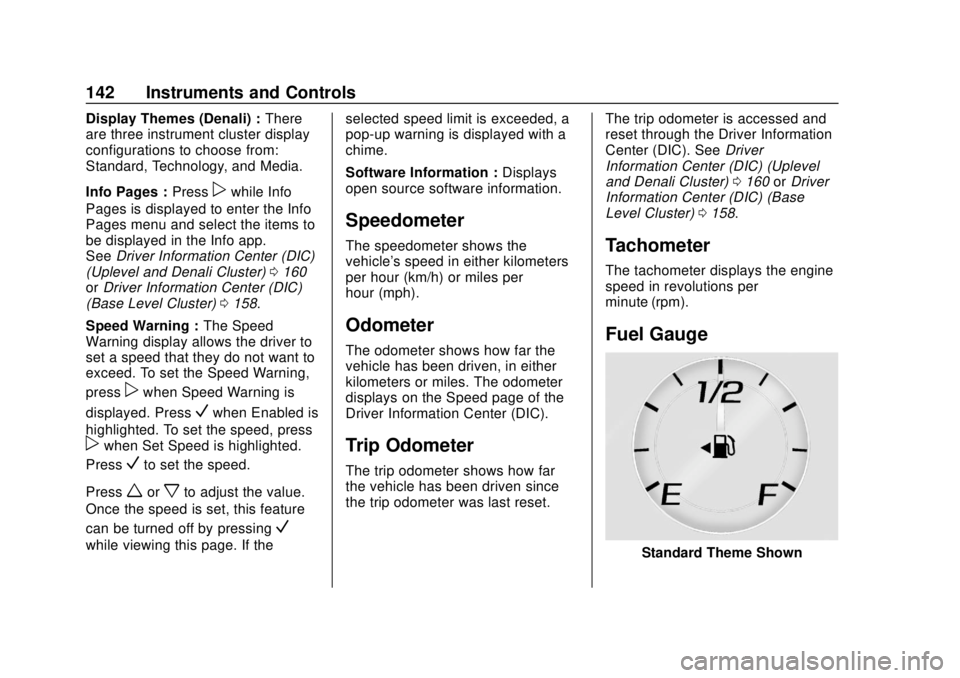
Fuel Gauge
Standard Theme Shown
Page 161 of 505
GMC Sierra/Sierra Denali Owner Manual (GMNA-Localizing-U.S./Canada/
Mexico-11349177) - 2018 - CRC - 10/17/17
160 Instruments and Controls
Transmission Fluid Temperature
The temperature of the automatic
transmission fluid displays in either
degrees Celsius (°C) or degrees
Fahrenheit (°F).
Trailer Brake
On vehicles with the Integrated
Trailer Brake Control (ITBC) system,
turn the trip odometer reset stem
until TRAILER GAIN and TRAILER
OUTPUT displays.
TRAILER GAIN shows the Trailer
Gain setting. This setting can be
adjusted from 0.0 to 10.0 with either
a trailer connected or disconnected.
TRAILER OUTPUT shows the
power output to the trailer anytime a
trailer with electric brakes is
connected. Output is displayed as a
bar graph. Dashes may appear in
the TRAILER OUTPUT display if a
trailer is not connected.
Hourmeter
This display shows the total number
of hours the engine has run.Unit
This will change the displays on
the instrument cluster and DIC to
either metric or English (US)
measurements. To change the units,
press the trip odometer reset stem
when UNITS is displayed to enter
the Unit menu. Turn the trip
odometer reset stem to switch
between English and metric. Press
the trip odometer reset stem when
the desired setting is displayed.
Compass
The vehicle may have a compass in
the Driver Information Center (DIC).
See
Compass 0131.
Driver Information Center
(DIC) (Uplevel and Denali
Cluster)
The DIC displays are shown in the
center of the instrument cluster in
the Info App. See Instrument Cluster
0 138. The displays show the status
of many vehicle systems. The
controls for the DIC are on the right
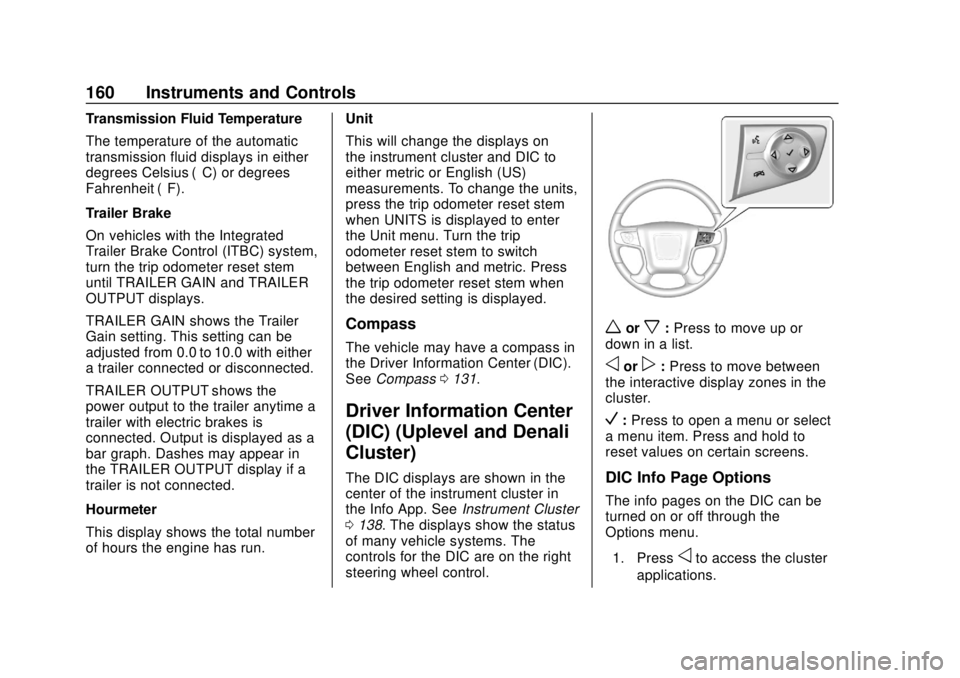
steering wheel control.
worx: Press to move up or
down in a list.
oorp: Press to move between
the interactive display zones in the
cluster.
V: Press to open a menu or select
a menu item. Press and hold to
reset values on certain screens.
DIC Info Page Options
The info pages on the DIC can be
turned on or off through the
Options menu.
1. Press
oto access the cluster
applications.
Page 162 of 505
GMC Sierra/Sierra Denali Owner Manual (GMNA-Localizing-U.S./Canada/
Mexico-11349177) - 2018 - CRC - 10/17/17
Instruments and Controls 161
2. Pressworxto scroll to the
Options application.
3. Press
Vto enter the
Options menu.
4. Scroll to Info Pages and press
p.
5. Press
worxto move
through the list of possible
information displays.
6. Press
Vwhile an item is
highlighted to select or
deselect that item. When an
item is selected, a checkmark
will appear next to it.
DIC Info Pages
The following is the list of all
possible DIC info page displays.
Some may not be available for your
particular vehicle. Some items may
not be turned on by default but can
be turned on through the Options
app. See “DIC Info Page Options”
earlier in this section. Speed :
Shows the vehicle speed in
either kilometers per hour (km/h) or
miles per hour (mph). The vehicle
odometer is also shown on this
page. If equipped, press
pto open
the menu and select to display
speed limit signs.
Trip A or Trip B, Average Fuel
Economy, and Average Speed :
Shows the current distance traveled,
in either kilometers (km) or
miles (mi), since the trip odometer
was last reset.
The Average Fuel Economy display
shows the approximate average
liters per 100 kilometers (L/100 km)
or miles per gallon (mpg). This
number is calculated based on the
number of L/100 km (mpg) recorded
since the last time this menu item
was reset. This number reflects only
the approximate average fuel
economy that the vehicle has right
now, and will change as driving
conditions change.
The Average Speed display shows
the average speed of the vehicle in
kilometers per hour (km/h) or miles per hour (mph). This average is
calculated based on the various
vehicle speeds recorded since the
last reset of this value.
Press and holdVwhile this display
is active to reset the trip odometer,
the average fuel economy, and the
average speed. Or press
pand
select reset in the menu.
Fuel Range and Instantaneous
Fuel Economy : Shows the
approximate distance the vehicle
can be driven without refueling.
LOW will be displayed when the
vehicle is low on fuel. The fuel
range estimate is based on an
average of the vehicle's fuel
economy over recent driving history
and the amount of fuel remaining in
the fuel tank. It also shows if the
Active Fuel Management is active
and in V4 mode, or inactive and in
V8 mode. See Active Fuel
Management 0264.
The Instantaneous Fuel Economy
display shows the approximate
current fuel economy in either liters
per 100 kilometers (L/100 km) or
Page 164 of 505
GMC Sierra/Sierra Denali Owner Manual (GMNA-Localizing-U.S./Canada/
Mexico-11349177) - 2018 - CRC - 10/17/17
Instruments and Controls 163
Economy Trend :Shows history of
the Average Fuel Economy from the
last 50 km (30 mi). Each bar
represents about 5 km (3 mi) of
driving. During driving the bars will
shift to always reflect the most
recent distance on the right side.
Press and hold
Vto clear the graph
or press
pto reset through
the menu.
ECO Index : The bar graph
provides feedback on the efficiency
of current driving behavior. The
graph shows a value that is based
on current fuel consumption
compared to what is expected from
the vehicle with good and bad
driving habits. It also shows if the
Active Fuel Management is active
and in V4 mode, or inactive and in
V8 mode. See Active Fuel
Management 0264. Engine Hours :
Shows the total
number of hours the engine has run.
This display also shows the engine
idle hours.
Trailer Brake : On vehicles with the
Integrated Trailer Brake Control
(ITBC) system, the trailer brake
display appears in the DIC.
TRAILER GAIN shows the trailer
gain setting. This setting can be
adjusted from 0.0 to 10.0 with either
a trailer connected or disconnected.
OUTPUT shows the power output to
the trailer any time a trailer with
electric brakes is connected. Output
is displayed as a bar graph. Dashes
may appear in the OUTPUT display.
Speed Signs : Shows sign
information, which comes from a
roadway database in the onboard
navigation. Following Distance :
Used to
select the alert timing for the
Forward Collision Alert (FCA). See
Forward Collision Alert (FCA)
System 0292.
Blank Page : Shows no
information.
Transmission Fluid Temperature
Gauge : Shows the temperature of
the automatic transmission fluid in
either degrees Celsius (°C) or
degrees Fahrenheit (°F).
Off Road : Displays vehicle pitch
and roll information, road wheel
angle, and four-wheel drive (4WD)
status.
Page 166 of 505
GMC Sierra/Sierra Denali Owner Manual (GMNA-Localizing-U.S./Canada/
Mexico-11349177) - 2018 - CRC - 10/17/17
Instruments and Controls 165
Vehicle
Personalization
Use the audio system controls to
access the personalization menus
for customizing vehicle features.
The following are all possible
personalization features. Depending
on the vehicle, some may not be
available.
Base Radio Audio System
Controls
{:Press to access the Home
Page Menu.
QorR: Touch to scroll through the
menus or setup items.
0: Touch to exit or return to the
previous screen or menu.
Uplevel Radio Audio System
Controls
1. Touch the desired feature to display a list of available
options.
2. Select the desired feature setting. 3. Press
oBACK on the center
stack or touch
0to return to
the previous menu or exit.
Turn the ignition on to access the
Settings menu, then select
SETTINGS from the Home Page on
the infotainment display.
Personalization Menus
The following list of menu items may
be available:
. Time and Date
. Rear Seat Reminder
. Language
. Video Voice-Over
. Valet Mode
. Teen Driver
. Radio
. Vehicle
. Bluetooth
. Apple CarPlay
. Android Auto
. USB Auto Launch .
Voice
. Display
. Rear Camera
. Return to Factory Settings
. Software Information
. Wi-Fi
Detailed information for each menu
follows.
Time and Date
Manually set the time and date. See
Clock 0132.
Rear Seat Reminder
This allows for a chime and a
message when the rear door has
been opened before or during
operation of the vehicle.
Select Off or On.
Language
Select Language, then select from
the available language(s).