Page 49 GMC SIERRA 2020 Owner's Manual
[x] Cancel search | Manufacturer: GMC, Model Year: 2020, Model line: SIERRA, Model: GMC SIERRA 2020Pages: 502, PDF Size: 8.04 MB
Page 3 of 502
GMC Sierra/Sierra Denali Owner Manual (GMNA-Localizing-U.S./Canada/
Mexico-13337776) - 2020 - CRC - 4/10/19
2 Introduction
Introduction
The names, logos, emblems,
slogans, vehicle model names, and
vehicle body designs appearing in
this manual including, but not limited
to, GM, the GM logo, GMC, the
GMC Truck Emblem, SIERRA, and
DENALI are trademarks and/or
service marks of General Motors
LLC, its subsidiaries, affiliates,
or licensors.
For vehicles first sold in Canada,
substitute the name“General
Motors of Canada Company” for
GMC Division wherever it appears
in this manual. This manual describes features that
may or may not be on the vehicle
because of optional equipment that
was not purchased on the vehicle,
model variants, country
specifications, features/applications
that may not be available in your
region, or changes subsequent to
the printing of this owner
’s manual.
If the vehicle has the Duramax
diesel engine, see the Duramax
diesel supplement for additional and
specific information on this engine.
Refer to the purchase
documentation relating to your
specific vehicle to confirm the
features.
Keep this manual in the vehicle for
quick reference.
Canadian Vehicle Owners
A French language manual can be
obtained from your dealer, at
www.helminc.com, or from:
Propriétaires Canadiens
On peut obtenir un exemplaire de
ce guide en français auprès du
concessionnaire ou à l'adresse
suivante:
Helm, Incorporated
Attention: Customer Service
47911 Halyard Drive
Plymouth, MI 48170
USA
Using this Manual
To quickly locate information about
the vehicle, use the Index in the
back of the manual. It is an
alphabetical list of what is in the
manual and the page number where
it can be found.
Litho in U.S.A.
Part No. 84186890 A First Printing©2019 General Motors LLC. All Rights Reserved.
Page 4 of 502
GMC Sierra/Sierra Denali Owner Manual (GMNA-Localizing-U.S./Canada/
Mexico-13337776) - 2020 - CRC - 4/10/19
Introduction 3
Danger, Warning, and
Caution
Warning messages found on vehicle
labels and in this manual describe
hazards and what to do to avoid or
reduce them.
{Danger
Danger indicates a hazard with a
high level of risk which will result
in serious injury or death.
{Warning
Warning indicates a hazard that
could result in injury or death.
Caution
Caution indicates a hazard that
could result in property or vehicle
damage.
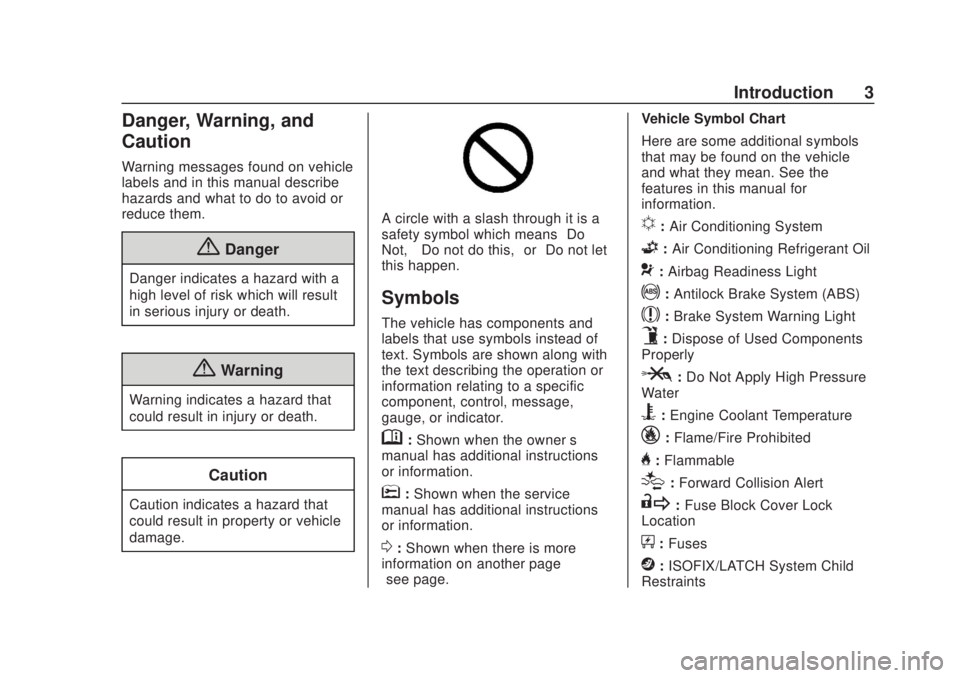
A circle with a slash through it is a
safety symbol which means“Do
Not,” “Do not do this,” or“Do not let
this happen.”
Symbols
The vehicle has components and
labels that use symbols instead of
text. Symbols are shown along with
the text describing the operation or
information relating to a specific
component, control, message,
gauge, or indicator.
M: Shown when the owner ’s
manual has additional instructions
or information.
*: Shown when the service
manual has additional instructions
or information.
0: Shown when there is more
information on another page —
“see page.” Vehicle Symbol Chart
Here are some additional symbols
that may be found on the vehicle
and what they mean. See the
features in this manual for
information.
u:
Air Conditioning System
G:Air Conditioning Refrigerant Oil
9:Airbag Readiness Light
!:Antilock Brake System (ABS)
$:Brake System Warning Light
9:Dispose of Used Components
Properly
P: Do Not Apply High Pressure
Water
B: Engine Coolant Temperature
_: Flame/Fire Prohibited
H:Flammable
[:Forward Collision Alert
R: Fuse Block Cover Lock
Location
+: Fuses
j:ISOFIX/LATCH System Child
Restraints
Page 132 of 502

GMC Sierra/Sierra Denali Owner Manual (GMNA-Localizing-U.S./Canada/
Mexico-13337776) - 2020 - CRC - 4/4/19
Instruments and Controls 131
Phone
In the Phone menu, if there is no
active phone call, view recent calls,
scroll through contacts, select from
the favorites, or change the phone
source. If there is an active call,
mute the phone or switch to handset
operation.
Options
Use the thumbwheel to scroll
through items in the Options menu.
Head-up Display (HUD) :
If equipped, this feature allows for
adjusting the angle of the HUD
image and changing or turning off
the Speed Limit Sign.
HUD Rotation: Press the
thumbwheel while Adjust Rotation is
highlighted to enter Adjust Mode.
Scroll to adjust the angle of the
HUD display. Press the thumbwheel
to confirm and save the setting. This
feature may only be available in
P (Park).
Speed Limit: Press the thumbwheel
while Speed Limit is highlighted to
turn it on or off.Speed Limit Style: Press the
thumbwheel while Speed Limit Style
is highlighted to change the speed
sign style.
Units :
Press the thumbwheel while
Units is displayed to enter the Units
menu. Choose US or metric units by
pressing the thumbwheel while the
desired item is highlighted.
A selected mark will be displayed
next to the selected item.
Info Page Options : Press the
thumbwheel while Info Page
Options is displayed to enter and
select the items to be displayed in
the Info app. A selected mark will be
displayed next to the selected item.
Home : Press the thumbwheel to
select the available elements to
display. Not all elements will be
available on all vehicles:
Speedometer, Speed Sign, Time,
and Fuel Range.
Display (Uplevel) : Press the
thumbwheel to enter the Display
menu. Select to turn on or off the
compass or speed sign. Speed Warning :
The Speed
Warning display allows the driver to
set a speed that they do not want to
exceed. To set the Speed Warning,
press the thumbwheel when Speed
Warning is displayed, or press the
thumbwheel on the main view to set
the speed value. Scroll to adjust the
value. Press the thumbwheel to set
the speed. Once the speed is set,
this feature can be turned off by
pressing the thumbwheel while
viewing this page. If the selected
speed limit is exceeded, a pop-up
warning is displayed with a chime.
Software Information : Press the
thumbwheel while Software
Information is highlighted to display
open source software information.
Speedometer
The speedometer shows the
vehicle's speed in either kilometers
per hour (km/h) or miles per
hour (mph).
Page 133 of 502

GMC Sierra/Sierra Denali Owner Manual (GMNA-Localizing-U.S./Canada/
Mexico-13337776) - 2020 - CRC - 4/4/19
132 Instruments and Controls
Odometer
The odometer shows how far the
vehicle has been driven, in either
kilometers or miles. The odometer
displays on the Speed page of the
Driver Information Center (DIC).
Trip Odometer
The trip odometer shows how far
the vehicle has been driven since
the trip odometer was last reset.
The trip odometer is accessed and
reset through the Driver Information
Center (DIC). SeeDriver
Information Center (DIC) (Base
Level) 0148 or
Driver Information Center (DIC)
(Midlevel and Uplevel) 0149.
Tachometer
The tachometer displays the engine
speed in revolutions per
minute (rpm).
For vehicles with the Stop/Start
system, when the ignition is on, the
tachometer indicates the vehicle
status. When pointing to AUTO STOP, the engine is off but the
vehicle is on and can move. The
engine could auto start at any time.
When the indicator points to OFF,
the vehicle is off.
When the engine is on, the
tachometer will indicate the engine’s
revolutions per minute (rpm). The
tachometer may vary by several
hundred rpm’s, during Auto Stop
mode, when the engine is shutting
off and restarting.
Fuel Gauge
Uplevel Metric Fuel Gauge Shown,
Base Level and Midlevel Fuel Gauge Similar
Page 151 of 502

GMC Sierra/Sierra Denali Owner Manual (GMNA-Localizing-U.S./Canada/
Mexico-13337776) - 2020 - CRC - 4/4/19
150 Instruments and Controls
If the vehicle has a diesel engine,
see the Duramax diesel
supplement.
SorT:Press to move left or right
between the interactive display
zones in the cluster. Press the
thumbwheel to select.
yorz: Use the thumbwheel to
scroll up or down in a list. Press the
thumbwheel to select.
Info Page Options
The info pages on the DIC can be
turned on or off through the
Options menu. 1. Press
Tto scroll to the
Options application.
2. Scroll
yorzto choose Info
pages and press the
thumbwheel.
3. Scroll
yorzto move
through the list of possible
information displays.
4. Press the thumbwheel while an item is highlighted to select or
deselect that item.
The info pages can also be turned
on or off through the DIC page Info
Page Options.
Info Pages
The following is the list of all
possible DIC info page displays.
Some may not be available for your
particular vehicle. Some items may
not be turned on by default but can
be turned on through the Options
app. See “Info Page Options” earlier
in this section.
While in the Info Page Options
menu, the info pages can be
restored to the default factory settings by pressing and holding
K
on the left steering wheel controls
and the thumbwheel on the right
steering wheel controls at the
same time.
Speed :
Shows the vehicle speed in
either kilometers per hour (km/h) or
miles per hour (mph). The vehicle
odometer is also shown on this
page. If equipped, press the
thumbwheel to open the menu and
select to display speed limit signs.
Trip 1 or Trip 2, and Average Fuel
Economy : Shows the current
distance traveled, in either
kilometers (km) or miles (mi), since
the trip odometer was last reset.
The Average Fuel Economy display
shows the approximate average
liters per 100 kilometers (L/100 km)
or miles per gallon (mpg). This
number is calculated based on the
number of L/100 km (mpg) recorded
since the last time this menu item
was reset. This number reflects only
the approximate average fuel
Page 153 of 502
GMC Sierra/Sierra Denali Owner Manual (GMNA-Localizing-U.S./Canada/
Mexico-13337776) - 2020 - CRC - 4/4/19
152 Instruments and Controls
Brake Pad Life :This displays an
estimate of the remaining life of the
front and rear brake pads.
Messages will display based on
brake pad wear and the state of the
system. Reset the Brake Pad Life
display after replacing the brake
pads. See Brake Pad Life System
0 356.
Fuel Economy : Displays average
fuel economy, the best fuel
economy over the selected
distance, and a bar graph showing
instantaneous fuel economy.
Press the thumbwheel to change
the selected distance. Press and
hold the thumbwheel while this
display is active to reset the best
fuel economy and average fuel
economy. This display can also be
reset by selecting reset in the menu.
Engine Hours (Hourmeter) :
Shows the total number of hours the
engine has run. This display also
shows the engine idle hours.
Transmission Fluid
Temperature : Shows the
temperature of the automatic transmission fluid in either degrees
Celsius (°C) or degrees
Fahrenheit (°F).
Trailer Brake :
On vehicles with the
Integrated Trailer Brake Control
(ITBC) system, the trailer brake
display appears in the DIC.
TRAILER GAIN shows the trailer
gain setting. This setting can be
adjusted from 0.0 to 10.0 with either
a trailer connected or disconnected.
TRAILER OUTPUT shows the
power output to the trailer any time
a trailer with electric brakes is
connected. Output is displayed as a
bar graph. Dotted lines may appear
in the OUTPUT display if a trailer is
not connected.
Off Road : Displays vehicle pitch
and roll information, road wheel
angle, and four-wheel drive (4WD)
status.
Follow Distance : If equipped, the
current follow time to the vehicle
ahead is displayed as a time value
on this page. Driver Assistance :
If equipped,
shows information for Lane Keep
Assist (LKA) and Forward Collision
Alert (FCA).
Info Page Options : Scroll to
choose which info pages appear on
the DIC. Press the thumbwheel to
select or deselect.
Blank Page : Shows no
information.
Head-Up Display (HUD)
{Warning
If the HUD image is too bright or
too high in your field of view, it
may take you more time to see
things you need to see when it is
dark outside. Be sure to keep the
HUD image dim and placed low in
your field of view.
If equipped with HUD, some
information about the operation of
the vehicle is projected onto the
windshield. The image is projected
through the HUD lens on top of the
Page 158 of 502
GMC Sierra/Sierra Denali Owner Manual (GMNA-Localizing-U.S./Canada/
Mexico-13337776) - 2020 - CRC - 4/4/19
Instruments and Controls 157
Vehicle
Personalization
The following are all possible
vehicle personalization features.
Depending on the vehicle, some
may not be available.
For System, Apps, and Personal
features and functions, see
“Settings”in the infotainment
manual.
To access the vehicle
personalization menu:
1. Touch the Settings icon on the Home Page of the infotainment
display.
2. Touch Vehicle to display a list of available options.
3. Touch to select the desired feature setting.
4. Touch
9orRto turn a feature
off or on.
5. Touch
zto go to the top level
of the Settings menu. The menu may contain the
following:
Rear Seat Reminder
This allows for a chime and a
message when the rear door has
been opened before or during
operation of the vehicle.
Touch Off or On.
Climate and Air Quality
Touch and the following may
display:
.
Auto Fan Speed
. Auto Defog
. Auto Rear Defog
Auto Fan Speed
This setting specifies the amount of
airflow when the climate control fan
setting is Auto Fan.
Touch Low, Medium, or High.
Auto Defog
This setting automatically directs air
to the windshield to assist in
defogging, based on temperature
and humidity conditions. Touch Off or On.
Auto Rear Defog
This setting automatically turns the
rear defogger on based on
temperature and humidity
conditions.
Touch Off or On.
Collision/Detection Systems
Touch and the following may
display:
.
Alert Type
. Forward Collision System
. Front Pedestrian Detection
. Adaptive Cruise Go Notifier
. Lane Change Alert
. Park Assist
. Rear Camera Park Assist
Symbols
. Rear Cross Traffic Alert
Alert Type
This feature sets the type of alert
from the driver assistance systems
to help avoid crashes.
Page 181 of 502
GMC Sierra/Sierra Denali Owner Manual (GMNA-Localizing-U.S./Canada/
Mexico-13337776) - 2020 - CRC - 4/4/19
180 Climate Controls
The fan, air delivery mode, air
conditioning, driver and passenger
temperatures, and Sync settings
can be controlled by touching
CLIMATE on the infotainment Home
Page or the climate button in the
climate control display application
tray. A selection can then be made
on the front climate control page
displayed. See the infotainment
manual.
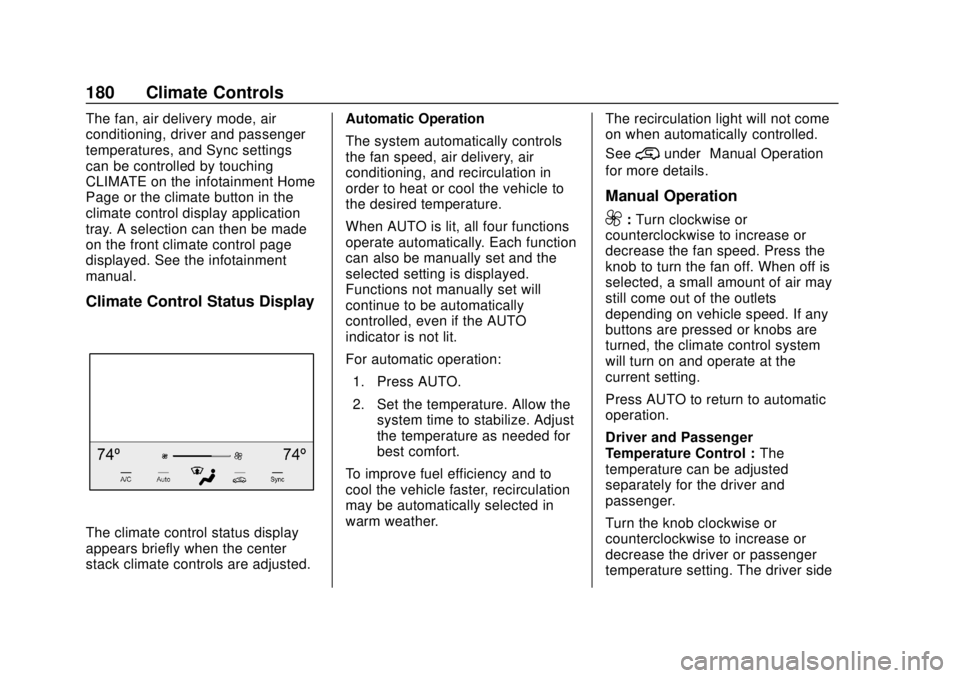
Climate Control Status Display
The climate control status display
appears briefly when the center
stack climate controls are adjusted.Automatic Operation
The system automatically controls
the fan speed, air delivery, air
conditioning, and recirculation in
order to heat or cool the vehicle to
the desired temperature.
When AUTO is lit, all four functions
operate automatically. Each function
can also be manually set and the
selected setting is displayed.
Functions not manually set will
continue to be automatically
controlled, even if the AUTO
indicator is not lit.
For automatic operation:
1. Press AUTO.
2. Set the temperature. Allow the system time to stabilize. Adjust
the temperature as needed for
best comfort.
To improve fuel efficiency and to
cool the vehicle faster, recirculation
may be automatically selected in
warm weather. The recirculation light will not come
on when automatically controlled.
See
@under
“Manual Operation”
for more details.
Manual Operation
9: Turn clockwise or
counterclockwise to increase or
decrease the fan speed. Press the
knob to turn the fan off. When off is
selected, a small amount of air may
still come out of the outlets
depending on vehicle speed. If any
buttons are pressed or knobs are
turned, the climate control system
will turn on and operate at the
current setting.
Press AUTO to return to automatic
operation.
Driver and Passenger
Temperature Control : The
temperature can be adjusted
separately for the driver and
passenger.
Turn the knob clockwise or
counterclockwise to increase or
decrease the driver or passenger
temperature setting. The driver side
Page 306 of 502
GMC Sierra/Sierra Denali Owner Manual (GMNA-Localizing-U.S./Canada/
Mexico-13337776) - 2020 - CRC - 4/4/19
Driving and Operating 305
available power output to the trailer
brakes can be adjusted to a wide
range of trailering situations.
The ITBC system is integrated with
the vehicle’s brake, antilock brake,
and StabiliTrak/Electronic Stability
Control (ESC) systems. In trailering
conditions that cause the vehicle’s
antilock brake or StabiliTrak/ESC
systems to activate, power sent to
the trailer's brakes will be
automatically adjusted to minimize
trailer wheel lock-up. This does not
imply that the trailer has
StabiliTrak/ESC.
If the vehicle’s brake, antilock brake,
or StabiliTrak/ESC systems are not
functioning properly, the ITBC
system may not function fully or at
all. Make sure all of these systems
are fully operational to allow the
ITBC system to function properly.
The ITBC system is powered
through the vehicle's electrical
system. Turning the ignition off will
also turn off the ITBC system. The
ITBC system is fully functional only
when the ignition is in on.{Warning
Connecting a trailer that has an
air brake system may result in
reduced or complete loss of trailer
braking, including increased
stopping distance or trailer
instability which could result in
serious injury, death, or property
damage. Only use the ITBC
system with electric or electric
over hydraulic trailer brake
systems.
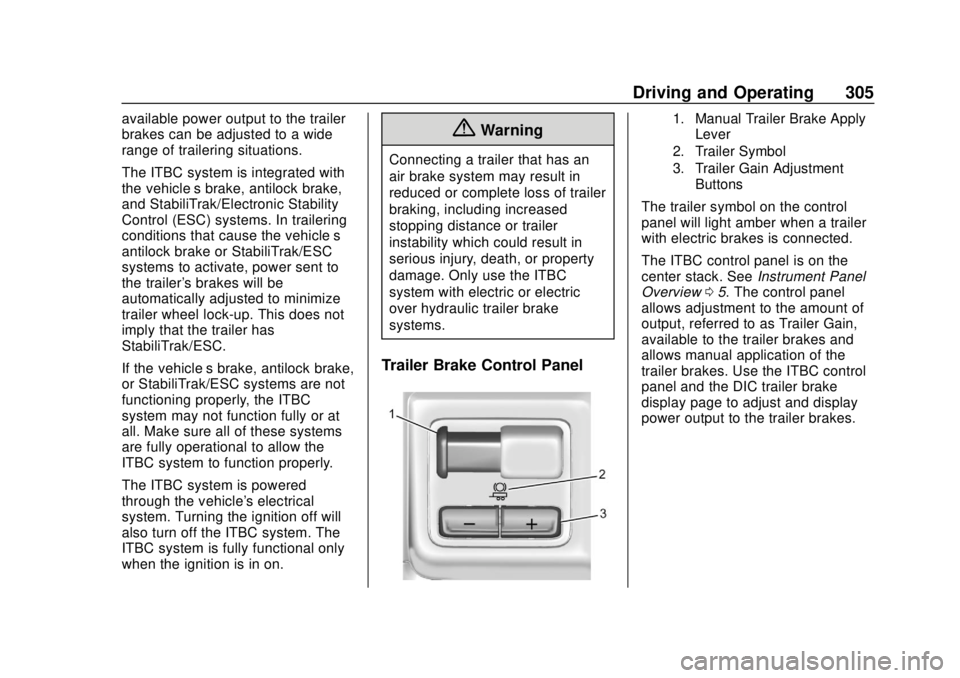
Trailer Brake Control Panel
1. Manual Trailer Brake Apply
Lever
2. Trailer Symbol
3. Trailer Gain Adjustment Buttons
The trailer symbol on the control
panel will light amber when a trailer
with electric brakes is connected.
The ITBC control panel is on the
center stack. See Instrument Panel
Overview 05. The control panel
allows adjustment to the amount of
output, referred to as Trailer Gain,
available to the trailer brakes and
allows manual application of the
trailer brakes. Use the ITBC control
panel and the DIC trailer brake
display page to adjust and display
power output to the trailer brakes.
Page 307 of 502
GMC Sierra/Sierra Denali Owner Manual (GMNA-Localizing-U.S./Canada/
Mexico-13337776) - 2020 - CRC - 4/4/19
306 Driving and Operating
Trailer Brake DIC Display Page
The ITBC display page indicates:
.Trailer Gain setting
. Output to the trailer brakes
. Trailer connection
. System operational status
To display:
. Scroll through the DIC menu
pages
. Press a Trailer Gain (+) or (−)
button
. Activate the Manual Trailer
Brake Apply Lever
TRAILER GAIN: Press a Trailer
Gain button to recall the current
Trailer Gain setting. Each press and
release of the gain buttons will then
change the Trailer Gain setting.
Press the Trailer Gain (+) or (-) to
adjust. Press and hold to
continuously adjust the Trailer Gain.
To turn the output to the trailer off,
adjust the Trailer Gain setting to 0.0.
This setting can be adjusted from
0.0 to 10.0 with a trailer connected
or disconnected. TRAILER OUTPUT: This displays
anytime a trailer with electric brakes
is connected. Output to the trailer
brakes is based on the amount of
vehicle braking present and relative
to the Trailer Gain setting. Output is
displayed from 0 to 100% for each
gain setting.
The Trailer Output will indicate
“- - -
- - -” on the Trailer Brake Display
Page whenever the following occur:
. No trailer is connected.
. A trailer without electric brakes
is connected. No DIC message
displays.
. A trailer with electric brakes has
become disconnected.
A CHECK TRAILER WIRING
message displays on the DIC.
. There is a fault present in the
wiring to the trailer brakes.
A CHECK TRAILER WIRING
message displays on the DIC.
. The ITBC system is not working
due to a fault. A SERVICE
TRAILER BRAKE SYSTEM
message displays in the DIC.
Manual Trailer Brake Apply
Lever
Slide this lever right to apply the
trailer ’s electric brakes independent
of the vehicle’s brakes. Use this
lever to adjust the Trailer Gain to
achieve proper power output to the
trailer brakes. Under certain
circumstances, this lever can also
be used to apply additional trailer
braking. The trailer and vehicle
brake lamps will come on when
either the vehicle brakes or trailer
brakes are applied and properly
connected.
Trailer Gain Adjustment
Procedure
Trailer Gain should be set for a
specific trailering condition and it
must be readjusted anytime vehicle
loading, trailer loading, or road
surface conditions change.