stop start GMC SIERRA 2022 User Guide
[x] Cancel search | Manufacturer: GMC, Model Year: 2022, Model line: SIERRA, Model: GMC SIERRA 2022Pages: 474, PDF Size: 15.09 MB
Page 120 of 474
GMC Sierra/Sierra Denali 1500 Owner Manual (GMNA-Localizing-U.S./
Canada/Mexico-15883563) - 2022 - CRC - 11/19/21
Instruments and Controls 119
is on, there may be a problem with the
lights or the passenger sensing system. See
your dealer for service right away.
{Warning
If the airbag readiness light ever comes
on and stays on, it means that
something may be wrong with the airbag
system. To help avoid injury to yourself
or others, have the vehicle serviced right
away. SeeAirbag Readiness Light 0118
for more information, including important
safety information.
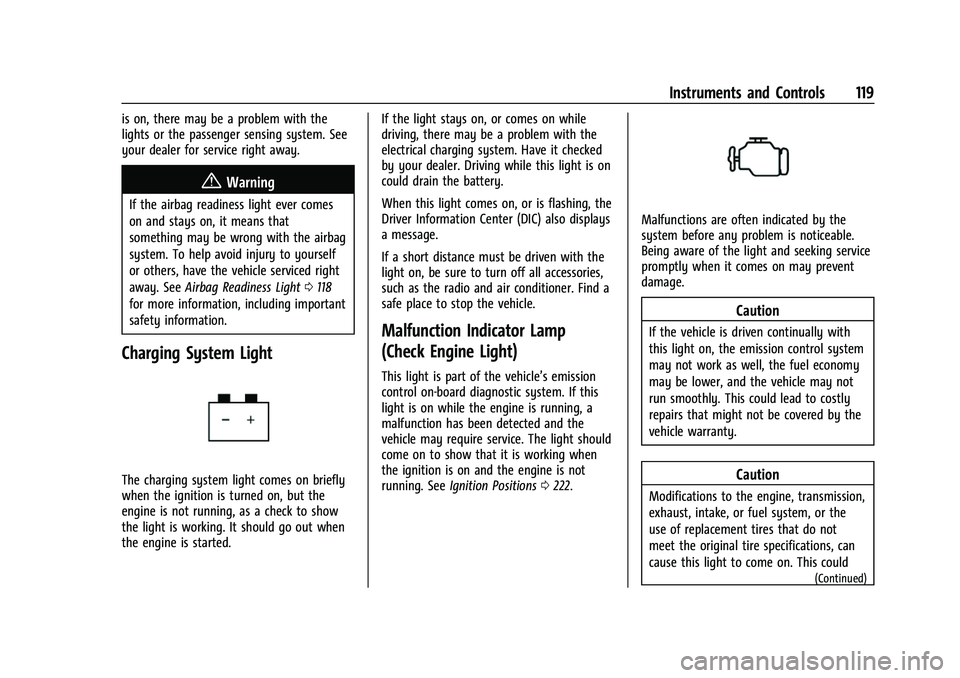
Charging System Light
The charging system light comes on briefly
when the ignition is turned on, but the
engine is not running, as a check to show
the light is working. It should go out when
the engine is started. If the light stays on, or comes on while
driving, there may be a problem with the
electrical charging system. Have it checked
by your dealer. Driving while this light is on
could drain the battery.
When this light comes on, or is flashing, the
Driver Information Center (DIC) also displays
a message.
If a short distance must be driven with the
light on, be sure to turn off all accessories,
such as the radio and air conditioner. Find a
safe place to stop the vehicle.
Malfunction Indicator Lamp
(Check Engine Light)
This light is part of the vehicle’s emission
control on-board diagnostic system. If this
light is on while the engine is running, a
malfunction has been detected and the
vehicle may require service. The light should
come on to show that it is working when
the ignition is on and the engine is not
running. See
Ignition Positions 0222.
Malfunctions are often indicated by the
system before any problem is noticeable.
Being aware of the light and seeking service
promptly when it comes on may prevent
damage.
Caution
If the vehicle is driven continually with
this light on, the emission control system
may not work as well, the fuel economy
may be lower, and the vehicle may not
run smoothly. This could lead to costly
repairs that might not be covered by the
vehicle warranty.
Caution
Modifications to the engine, transmission,
exhaust, intake, or fuel system, or the
use of replacement tires that do not
meet the original tire specifications, can
cause this light to come on. This could
(Continued)
Page 122 of 474
GMC Sierra/Sierra Denali 1500 Owner Manual (GMNA-Localizing-U.S./
Canada/Mexico-15883563) - 2022 - CRC - 11/19/21
Instruments and Controls 121
.Critical emission control systems have not
been completely diagnosed. If this
happens, the vehicle would not be ready
for inspection and might require
several days of routine driving before the
system is ready for inspection. This can
happen if the 12-volt battery has recently
been replaced or run down, or if the
vehicle has been recently serviced.
See your dealer if the vehicle will not pass
or cannot be made ready for the test.
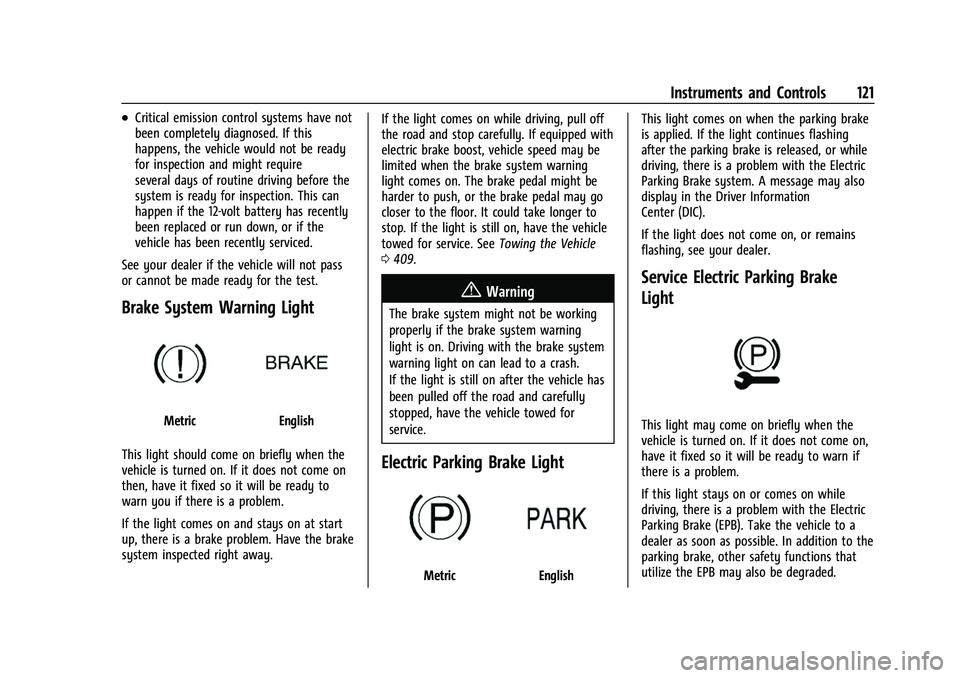
Brake System Warning Light
MetricEnglish
This light should come on briefly when the
vehicle is turned on. If it does not come on
then, have it fixed so it will be ready to
warn you if there is a problem.
If the light comes on and stays on at start
up, there is a brake problem. Have the brake
system inspected right away. If the light comes on while driving, pull off
the road and stop carefully. If equipped with
electric brake boost, vehicle speed may be
limited when the brake system warning
light comes on. The brake pedal might be
harder to push, or the brake pedal may go
closer to the floor. It could take longer to
stop. If the light is still on, have the vehicle
towed for service. See
Towing the Vehicle
0 409.
{Warning
The brake system might not be working
properly if the brake system warning
light is on. Driving with the brake system
warning light on can lead to a crash.
If the light is still on after the vehicle has
been pulled off the road and carefully
stopped, have the vehicle towed for
service.
Electric Parking Brake Light
MetricEnglish This light comes on when the parking brake
is applied. If the light continues flashing
after the parking brake is released, or while
driving, there is a problem with the Electric
Parking Brake system. A message may also
display in the Driver Information
Center (DIC).
If the light does not come on, or remains
flashing, see your dealer.
Service Electric Parking Brake
Light
This light may come on briefly when the
vehicle is turned on. If it does not come on,
have it fixed so it will be ready to warn if
there is a problem.
If this light stays on or comes on while
driving, there is a problem with the Electric
Parking Brake (EPB). Take the vehicle to a
dealer as soon as possible. In addition to the
parking brake, other safety functions that
utilize the EPB may also be degraded.
Page 127 of 474
GMC Sierra/Sierra Denali 1500 Owner Manual (GMNA-Localizing-U.S./
Canada/Mexico-15883563) - 2022 - CRC - 11/19/21
126 Instruments and Controls
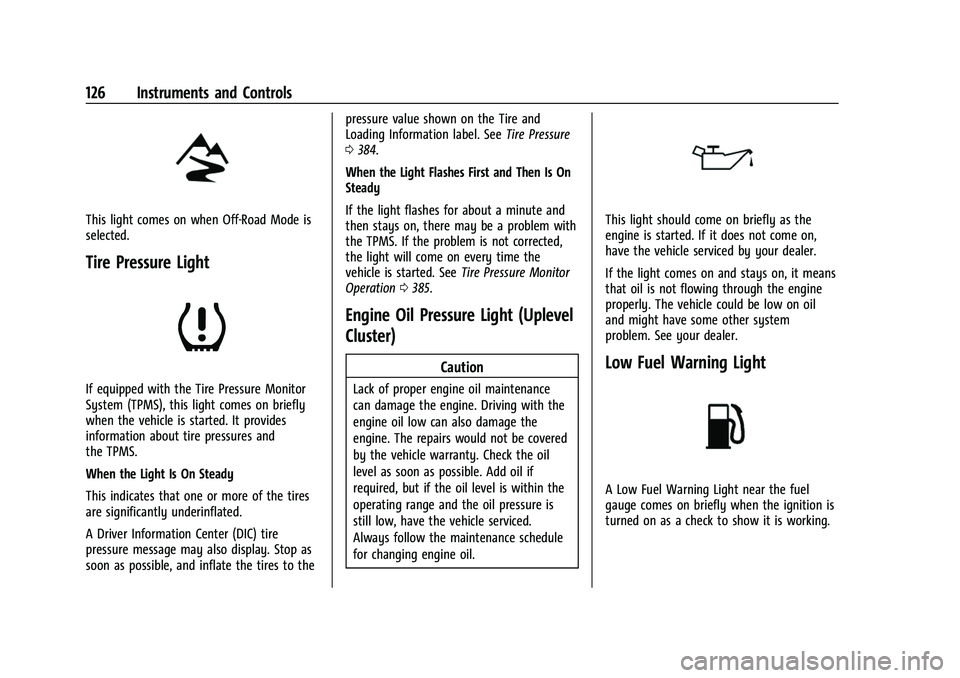
This light comes on when Off-Road Mode is
selected.
Tire Pressure Light
If equipped with the Tire Pressure Monitor
System (TPMS), this light comes on briefly
when the vehicle is started. It provides
information about tire pressures and
the TPMS.
When the Light Is On Steady
This indicates that one or more of the tires
are significantly underinflated.
A Driver Information Center (DIC) tire
pressure message may also display. Stop as
soon as possible, and inflate the tires to thepressure value shown on the Tire and
Loading Information label. See
Tire Pressure
0 384.
When the Light Flashes First and Then Is On
Steady
If the light flashes for about a minute and
then stays on, there may be a problem with
the TPMS. If the problem is not corrected,
the light will come on every time the
vehicle is started. See Tire Pressure Monitor
Operation 0385.
Engine Oil Pressure Light (Uplevel
Cluster)
Caution
Lack of proper engine oil maintenance
can damage the engine. Driving with the
engine oil low can also damage the
engine. The repairs would not be covered
by the vehicle warranty. Check the oil
level as soon as possible. Add oil if
required, but if the oil level is within the
operating range and the oil pressure is
still low, have the vehicle serviced.
Always follow the maintenance schedule
for changing engine oil.
This light should come on briefly as the
engine is started. If it does not come on,
have the vehicle serviced by your dealer.
If the light comes on and stays on, it means
that oil is not flowing through the engine
properly. The vehicle could be low on oil
and might have some other system
problem. See your dealer.
Low Fuel Warning Light
A Low Fuel Warning Light near the fuel
gauge comes on briefly when the ignition is
turned on as a check to show it is working.
Page 132 of 474
GMC Sierra/Sierra Denali 1500 Owner Manual (GMNA-Localizing-U.S./
Canada/Mexico-15883563) - 2022 - CRC - 11/19/21
Instruments and Controls 131
Average Fuel Economy that the vehicle has
at that moment, and changes as driving
conditions change.
The timer shows the time in the current
drive cycle.
All values in the Drive Summary are
automatically reset each time the vehicle is
started.
Trip 1 or Trip 2, Average Fuel Economy, and
Average Speed :Shows the current distance
traveled, in either kilometers (km) or
miles (mi), since the trip odometer was last
reset.
The Average Fuel Economy display shows
the approximate average liters per
100 kilometers (L/100 km), kilometers per
liter (km/L), or miles per gallon (mpg). This
number is calculated based on the value
recorded since the last time this menu item
was reset. This number reflects only the
approximate average fuel economy that the
vehicle has at that moment, and changes as
driving conditions change.
Average Speed shows the average speed of
the vehicle in kilometers per hour (km/h) or
miles per hour (mph). This average is
calculated based on various vehicle speeds
recorded since the last reset of this value. Press the thumbwheel while this display is
active to reset the values.
Timer :
To start the timer, press the
thumbwheel while this display is active. The
display will show the amount of time that
has passed since the timer was last reset. To
stop the timer, press the thumbwheel
briefly while this display is active and the
timer is running.
Press the thumbwheel while this display is
active to reset the timer.
Tire Pressure : Shows the approximate
pressures of all four tires. Tire pressure is
displayed in either kilopascal (kPa) or in
pounds per square inch (psi). If the pressure
is low, the value for that tire is shown in
amber. See Tire Pressure Monitor System
0 385 and Tire Pressure Monitor Operation
0 385.
Fuel Economy : Displays average fuel
economy, the best fuel economy over the
selected distance, and a bar graph showing
instantaneous fuel economy.
Press the thumbwheel to change the
selected distance. Press and hold the
thumbwheel while this display is active to reset the best fuel economy and average
fuel economy. This display can also be reset
by selecting Reset in the menu.
Driver Assistance :
If equipped, shows
information for Adaptive Cruise Control
(ACC), Lane Keep Assist (LKA), Forward
Collision Alert (FCA), and Follow Distance
Indicator(FDI).
Oil Life : Shows an estimate of the
remaining oil life. If REMAINING OIL LIFE
99% is displayed, that means 99% of the
current oil life remains.
When the remaining oil life is low, the
CHANGE ENGINE OIL SOON message will
appear on the display. The oil should be
changed as soon as possible. See Engine Oil
0 348. In addition to the engine oil life
system monitoring the oil life, additional
maintenance is recommended. See
Maintenance Schedule 0425.
The Oil Life display must be reset after each
oil change. It will not reset itself. Do not
reset the Oil Life display at any time other
than when the oil has just been changed.
It cannot be reset accurately until the next
oil change. To reset, see Engine Oil Life
System 0350.
Page 139 of 474
GMC Sierra/Sierra Denali 1500 Owner Manual (GMNA-Localizing-U.S./
Canada/Mexico-15883563) - 2022 - CRC - 11/19/21
138 Instruments and Controls
Touch Off or On.
Auto Rear Defog
This setting automatically turns the rear
defogger on based on temperature and
humidity conditions.
Touch Off or On.
Collision/Detection Systems
Touch and the following may display:
.Alert Type
.Automatic Emergency Braking
.Front Pedestrian Braking
.Adaptive Cruise Go Notifier
.Lane Change Alert
.Park Assist
.Rear Camera Park Assist Symbols
.Rear Cross Traffic Alert
.Rear Pedestrian Detection
Alert Type
This feature sets the type of alert from the
driver assistance systems to help avoid
crashes.
Touch Beeps or Safety Alert Seat. Automatic Emergency Braking
This setting can alert of a potential crash
with a detected vehicle ahead and can apply
brakes to help reduce a collision’s severity.
Touch Off, Alert, or Alert and Brake.
Front Pedestrian Braking
This feature may help avoid or reduce the
harm caused by front-end crashes with
nearby pedestrians. See
Front Pedestrian
Braking (FPB) System 0297.
Touch Off, Alert, or Alert and Brake.
Adaptive Cruise Go Notifier
This setting determines if an alert will
appear when Adaptive Cruise Control brings
the vehicle to a complete stop and the
vehicle ahead of you starts moving again.
See Adaptive Cruise Control (Camera) 0256.
Touch Off or On.
Lane Change Alert
This allows the feature to be turned on or
off. See Lane Change Alert (LCA) 0299.
Touch Off or On. Park Assist
This allows the feature to be turned on or
off. See
Assistance Systems for Parking or
Backing 0283.
Select Off or On.
Rear Camera Park Assist Symbols
This setting enables the Rear Camera Park
Assist Symbols. See Assistance Systems for
Parking or Backing 0283.
Touch Off or On.
Rear Cross Traffic Alert
This allows the Rear Cross Traffic Alert
feature to be turned on or off. See
Assistance Systems for Parking or Backing
0 283.
Touch Off or On.
Rear Pedestrian Braking
This setting specifies if alerts will display
when the vehicle detects pedestrians behind
when in R (Reverse). See Rear Pedestrian
Alert 0292.
Touch Off, Alert, or Alert and Brake.
Page 170 of 474
GMC Sierra/Sierra Denali 1500 Owner Manual (GMNA-Localizing-U.S./
Canada/Mexico-15883563) - 2022 - CRC - 11/19/21
Infotainment System 169
To play music via Bluetooth:1. Power on the device.
2. Touch Audio on the infotainment display home page.
3. Touch Bluetooth from the Audio home page.
4. Touch Connect to Bluetooth if there is no device connected and follow the screen
prompts to pair the device.
Browse content from the Bluetooth device.
Use the infotainment controls to start/stop
or select previous/next track.
Manage Bluetooth Devices 1. Touch the Bluetooth App setting icon on the upper right of the page.
2. Touch Devices to switch, add, or disconnect other devices.
A Bluetooth device can only be paired when
the vehicle is parked.
When touching Bluetooth Audio, a browse
screen will appear. Touch the infotainment
controls on the lower part of the display to
begin playing audio if the audio is paused.
Some smartphones support sending
Bluetooth music information to display on
the radio. When the radio receives this information, it will check to see if any is
available and display it. For more
information about supported Bluetooth
features, visit your brand website. See
Online Owner Center
0444 for details.
See Radio Frequency Statement 0450.
Navigation
Using the Navigation System
The Navigation software is provided by
Google Maps. The information provided in
this section is a general overview and is
subject to change. For the latest functional
information, see g.co/mapsincar.
Accept the Terms and Conditions to use.
Internet Connectivity
Google Maps relies on a subscription data
plan for full functionality, including
availability of offline maps. Google Maps can
be used offline when driving through
connectivity dead zones by
auto-downloading offline maps prior to
going offline. Profiles
Sign in to a Google Account for personalized
service. Information available in the Google
Account will be shown.
To log into a profile, see Accounts under
Settings (Uplevel Radio)
0187 or
Settings (Base Radio) 0185.
Voice Assistant
If equipped, Google Maps can be controlled
by voice commands, see Google Assistant
under Voice Recognition 0172.
Language and Units
To change the language, see Settings
(Uplevel Radio) 0187 or
Settings (Base Radio) 0185.
To change the units, see Instrument Cluster
(Base Level) 0109 or
Instrument Cluster (Uplevel) 0110.
Mute Settings
During active route guidance, Google Maps
can give audible voice directions, traffic
alerts, or can be muted. In the Google Maps
app, touch Settings, then Mute settings to
access the options.
Page 172 of 474
GMC Sierra/Sierra Denali 1500 Owner Manual (GMNA-Localizing-U.S./
Canada/Mexico-15883563) - 2022 - CRC - 11/19/21
Infotainment System 171
Adding a Stop on Route1. While in turn-by-turn navigation, touch the Search icon at the bottom.
2. Select a category and touch the location.
3. Touch Add stop.
4. Touch the Google Assistant mic icon and say the destination to search by voice.
5. Touch Add stop, then Confirm.
Adding a Home or Work Address
To edit a home or work address, a user
account must be logged in. See Accounts
under Settings (Uplevel Radio) 0187 or
Settings (Base Radio) 0185.
1. Open Google Maps.
2. Touch Settings and then touch Edit home or work.
3. Enter the address.
Search by Category
Destinations can be searched by category,
such as restaurant or grocery store. 1. Open Google Maps.
2. Touch the search bar.
3. Touch Categories, then select a category.
4. Touch the desired location, then touch Start. Avoid Tolls, Highways, or Ferries
1. Open Google Maps.
2. Search destination and touch the destination on the map.
3. Touch Route overview and then Route options.
4. Touch an option and then touch Back.
Traffic Layers 1. Open Google Maps.
2. Touch Settings.
3. Toggle between Traffic on or off.
Global Positioning System (GPS)
The current position of the vehicle is
determined by using satellite signals and
various vehicle signals.
At times, other interference such as the
satellite condition, road configuration,
condition of the vehicle, and/or other
circumstances can affect the navigation
system's ability to determine the accurate
position of the vehicle.
This system might not be available or
interference can occur if any of the
following are true:
.Signals are obstructed by tall buildings,
trees, large trucks, or a tunnel.
.Satellites are being repaired or improved.
For more information if the GPS is not
functioning properly, see Problems with
Route Guidance 0172.
Vehicle Positioning
At times, the position of the vehicle on the
map could be inaccurate due to one or more
of the following reasons:
.The road system has changed.
.The vehicle is driving on slippery road
surfaces such as sand, gravel, or snow.
.The vehicle is traveling on winding roads
or long, straight roads.
.The vehicle is approaching a tall building
or a large vehicle.
.The surface streets run parallel to a
freeway.
.The vehicle has been transferred by a
vehicle carrier or a ferry.
.The current position calibration is set
incorrectly.
.The vehicle is traveling at high speed.
.The vehicle changes directions more than
once, or the vehicle is turning on a turn
table in a parking lot.
Page 173 of 474
GMC Sierra/Sierra Denali 1500 Owner Manual (GMNA-Localizing-U.S./
Canada/Mexico-15883563) - 2022 - CRC - 11/19/21
172 Infotainment System
.The vehicle is entering and/or exiting a
parking lot, garage, or a lot with a roof.
.The GPS signal is not received.
.A roof carrier is installed on the vehicle.
.Tire chains are installed on the vehicle.
.The tires are replaced or worn.
.The tire pressure for the tires is incorrect.
.This is the first navigation use after the
map data is updated.
.The 12-volt battery has been disconnected
for several days.
.The vehicle is driving in heavy traffic
where driving is at low speeds, and the
vehicle is stopped and started repeatedly.
Problems with Route Guidance
Inappropriate route guidance can occur
under one or more of the following
conditions:
.The turn was not made on the road
indicated.
.Route guidance might not be available
when using automatic rerouting for the
next right or left turn.
.The route might not be changed when
using automatic rerouting.
.There is no route guidance when turning
at an intersection.
.Automatic rerouting might display a route
returning to the set waypoint if heading
for a destination without passing through
a set waypoint.
.The route prohibits the entry of a vehicle
due to a regulation by time or season or
any other regulation which may be given.
.Some routes might not be searched.
.The route to the destination might not be
shown if there are new roads, if roads
have recently changed, or if certain roads
are not listed in Maps.
To recalibrate the vehicle's position on the
map, park with the vehicle running for two
to five minutes, until the vehicle position
updates. Make sure the vehicle is parked in
a location that is safe and has a clear view
of the sky and away from large
obstructions.
Voice Recognition
If equipped, Google Assistant allows for
hands-free use of, media and messaging,
navigation and climate control functionality
in the vehicle. This feature can be started by
pressing
gon the steering wheel, touching Google Assistant on the Home screen, or by
using the wake up words
“Hey Google”or
“OK Google.”
However, not all features within these areas
are supported by voice commands and
requires the user to have a data subscription
in order to use the Google Assistant feature.
Using Voice Recognition
Voice recognition becomes available once
the system is initialized. This begins when
the vehicle is turned on. Initialization may
take a few moments.
1. Press
gon the steering wheel controls,
touch Google Assistant on the Home
screen, or use the wake up words “Hey
Google” or“OK Google” to activate voice
recognition.
2. Clearly speak one of the commands described later in this section.
Canceling Google Assistant
.Presscon the steering wheel controls
to cancel the Google Assistant request.
Page 192 of 474
GMC Sierra/Sierra Denali 1500 Owner Manual (GMNA-Localizing-U.S./
Canada/Mexico-15883563) - 2022 - CRC - 11/19/21
Infotainment System 191
Google
Touch and the following may display:
.Manage activity controls
.Autofill with Google
.Google Assistant
.Send feedback to Google
Teen Driver
If equipped, this allows multiple keys to be
registered for beginner drivers to encourage
safe driving habits. When the vehicle is
started with a Teen Driver key, it will
automatically activate certain safety
systems, allow setting of some features, and
limit the use of others. The Report Card will
record vehicle data about driving behavior
that can be viewed later. When the vehicle
is started with a Teen Driver key, the Driver
Information Center (DIC) displays a message
that Teen Driver is active.
To access:1. Touch Settings on the Home Page, then touch Vehicle, and then Teen Driver.
2. Create a Personal Identification Number (PIN) by choosing a four-digit PIN.
Re-enter the PIN to confirm. To change
the PIN, touch Change PIN. The PIN is required to:
.Set up/Add or remove keys.
.Change Teen Driver settings.
.Change or clear the Teen Driver PIN.
.Access or delete Report Card data.
Set up/Add keys to activate Teen Driver and
assign restrictions to the key:
Any vehicle key can be registered, up to a
maximum of eight keys. Label the Teen
Driver key to tell it apart from the
other keys.
For a pushbutton start system: 1. Start the vehicle.
2. For automatic transmissions, the vehicle must be in P (Park). For manual
transmissions, the vehicle must be
stopped with the parking brake set.
3. From the Settings menu, touch Vehicle and then Teen Driver.
4. Enter the PIN.
5. Place the remote key you wish to register in the transmitter pocket. The
key does not need to be the one that
started the vehicle. See Remote Keyless
Entry (RKE) System Operation 014 for
transmitter pocket location. 6. From the Teen Driver menu, touch Setup
Keys or Add/Remove Teen Driver Keys.
.If the remote key has not previously
been registered, the option to add
the key displays. Touch Add and a
confirmation message displays. Teen
Driver restrictions will be applied
whenever this remote key is used to
operate the vehicle.
.If the remote key has already been
registered, the option to remove the
key displays. If Remove is touched,
the remote key is no longer
registered. A confirmation message
displays, and Teen Driver restrictions
will not be applied if this remote key
is used to operate the vehicle.
In vehicles with a pushbutton start system,
if a Teen Driver and a non-Teen Driver
remote key are both present at start up, the
vehicle will recognize the non-Teen Driver
remote key to start the vehicle. The Teen
Driver settings will not be active.
For a keyed ignition system: 1. Start the vehicle.
Page 193 of 474
GMC Sierra/Sierra Denali 1500 Owner Manual (GMNA-Localizing-U.S./
Canada/Mexico-15883563) - 2022 - CRC - 11/19/21
192 Infotainment System
2. For automatic transmissions, the vehiclemust be in P (Park). For manual
transmissions, the vehicle must be
stopped with the parking brake set.
3. From the Settings menu, touch Vehicle and then Teen Driver.
4. Enter the PIN.
5. Touch Setup Keys or Add/Remove Teen Driver Keys. The system displays
instructions for registering or
unregistering a key. A confirmation
message displays.
Manage Settings or Teen Driver Settings
Depending on the options of your vehicle,
the following menu items may be displayed:
Buckle to Drive : When turned ON, Buckle to
Drive prevents the driver from shifting out
of P (Park) for a period of time after the
brake pedal is pressed if driver, or on some
vehicles the detected passenger, has not
buckled their seat belt. On some vehicles,
Buckle to Drive is always ON when Teen
Driver is active and is not configurable. See
Buckle To Drive 055.
Audio Volume Limit : Allows a maximum
audio volume to be set. Turn the audio
volume limit on or off. Use the arrows to
choose the maximum allowable level for the audio volume. On some infotainment
systems, touch Set Audio Volume Limit to
choose the maximum allowable audio
volume level.
Set Audio Volume Limit :
Use the arrows to
choose the maximum allowable level for the
audio volume.
Teen Driver Speed Limiter : Limits the
maximum speed of the vehicle. When the
speed limiter is turned on and the vehicle is
started with a Teen Driver key, the DIC
displays a message that the top speed is
limited.
On certain vehicles, when the Speed Limiter
is turned ON, the vehicle’s maximum
acceleration will be limited. The DIC will
display a message that the acceleration is
limited.
Teen Driver Speed Warning : Displays a
warning in the DIC when exceeding a
selectable speed. Turn the speed warning on
or off and choose the desired speed warning
level. The speed warning does not limit the
speed of the vehicle. On some infotainment
systems, touch Set Teen Driver Speed
Warning to set the warning speed. Set Teen Driver Speed Warning :
Choose the
desired speed warning level. The speed
warning does not limit the speed of the
vehicle.
SiriusXM Explicit Content Filter (if
equipped) : Allows the SiriusXM Explicit
Content Filter to be turned ON or OFF.
When ON, the teen driver will not be able
to listen to SiriusXM stations that contain
explicit content, and the Explicit Content
Filter selection in the Audio Settings will be
unavailable for change.
When Teen Driver is Active:
.The radio will mute when the driver seat
belt, and in some vehicles the front
passenger seat belt, is not buckled. The
audio from any device paired to the
vehicle will also be muted.
.An object placed on the front passenger
seat, such as a briefcase, handbag,
grocery bag, laptop, or other electronic
device, could cause the passenger sensing
system to falsely sense an unbuckled
front passenger and mute the radio.
If this happens, remove the object from
the seat. See Passenger Sensing System
0 67.