reset GMC SIERRA DENALI 2003 User Guide
[x] Cancel search | Manufacturer: GMC, Model Year: 2003, Model line: SIERRA DENALI, Model: GMC SIERRA DENALI 2003Pages: 428, PDF Size: 20.35 MB
Page 179 of 428
CHANGE ENGINE OIL
This message is displayed when the engine oil needs to
be changed.
When you change the engine oil, be sure to reset the
CHANGE ENGINE
OIL message. See Engine Oil, When
to Change
under Engine Oil on page 5-13.
OIL LIFE RESET
This message will appear on the display for about 10
seconds after resetting the change engine oil message.
LOW COOLANT LEVEL
If the engine coolant level is low, this message will
appear on the DIC. Adding coolant will clear the
message.
ENGINE COOLANT HOT
If the cooling system temperature gets hot, this message
will appear in the DIC. Stop the vehicle and let the
engine idle in PARK (P) to allow the coolant to reach a
safe temperature. This message will clear when the
coolant temperature drops to safe operating
temperature.
ENGINE OVERHEATED
If the engine cooling system reaches unsafe
temperatures for operation, this message will appear in
the DIC and you will hear a chime. Stop and turn
off
3-54
the vehicle as soon as it is safe to do so to avoid
severe damage. This message will clear when the
engine has cooled to a safe operating temperature.
OIL PRESSURE LOW
If low oil pressure levels occur, this message will be
displayed on the DIC and a chime will sound. Stop the
vehicle as soon as safely possible and do not operate
it until the cause of the low oil pressure has been
corrected. Check your oil as soon as possible and have
your vehicle serviced.
REDUCED ENGINE POWER
This message is displayed when the cooling system
temperature gets too hot and the engine further enters
the engine coolant protection mode.
See
Engine Overheating on page 5-27 for further
information.
BATTERY NOT CHARGING
if the battery is not charging during operation, this
message will appear on the DIC. Driving with this
problem could drain your battery. Have the electrical
system checked as soon as possible. Pressing the
select button will acknowledge this message and clear it
from the DIC display.
Page 190 of 428
4 SCAN b : Press and hold one of the arrows for
more than two seconds. The radio will produce
one beep. The radio will scan to a station, play for a few
seconds, then go on to the next station. SCAN will be
displayed. Press one of the arrows again to stop
scanning.
The radio will scan only to stations that are in the
selected band and only to those with a strong signal.
To scan preset stations, press and hold one
of the
arrows for more than four seconds. The radio will
produce two beeps. The radio will scan to the first preset
station, play for a few seconds, then go on to the next
preset station. PSCN will be displayed. Press one of the
arrows again or one of the pushbuttons to stop
scanning.
The radio will scan only to preset stations that are in the
selected band and only to those with a strong signal.
Setting Preset Stations
The six numbered pushbuttons let you return to your
favorite stations. You can set up to
30 stations (six AM,
six FMl and six FM2, six XMI and six XM2 (USA
only,
if your radio is equipped with the XM Satellite
Radio Service) or six DAB1 and six DAB2 (Canada only,
if your radio is equipped with DAB), by performing the
following steps:
1.
2.
3.
4.
5.
6.
Turn the radio on.
Press BAND to select AM, FM1 or FM2, or XMl.
XM2, or DAB1, DAB2.
Tune
in the desired station.
Press AUTO
EQ to select the equalization that best
suits the type of station you are listening to.
Press and hold one of the six numbered
pushbuttons. The radio will produce one beep.
Whenever you press that numbered pushbutton, the
station you set will return and the bass and treble
equalization that you selected will also be
automatically selected for that pushbutton.
Repeat the steps for each pushbutton.
3-65
Page 191 of 428
Setting the Tone (BassTTreble)
AUDIO: Press and release the AUDIO knob until
BASS, MID or TREB appears on the display. Turn the
knob to increase or to decrease. The display will
show the bass, midrange, or treble level. If a station is
weak or noisy, you may want to decrease the treble.
To adjust the bass, midrange, and treble to the middle
position, push and hold the AUDIO knob. The radio
will produce one beep and adjust the display level to the
middle position.
To adjust all tone and speaker controls to the middle
position, push and hold the AUDIO knob when no tone
or speaker control is displayed. The radio will produce
one beep and display ALL with the level display in
the middle position.
AUTO
EQ (Automatic Equalization): Press this button
to choose equalization settings.
Your audio system allows you to choose from four
different equalization settings: normal, driver, rear and
spacious. These settings can be used while listening to
the radio, the cassette tape, or the CD player.
NORMAL: This setting enhances the stereo effect.
DRIVER: This setting gives the driver the best sound
quality.
REAR: This setting gives the rear seat passengers the
best sound quality. SPACIOUS:
This setting makes the listening space
seem larger.
The radio will save seperate
AUTO EQ settings for each
preset and source.
Adjusting the Speakers (Balance/Fade)
AUDIO: To adjust the balance to the right and the
left speakers, push and release the AUDIO knob until
BAL appears on the display. Turn the knob to move the
sound toward the right or the left speakers.
To adjust the fade to the front and the rear speakers,
push and release the AUDIO knob until FADE appears
on the display. Turn the knob to move the sound
toward the front or the rear speakers.
To adjust the balance and fade to the middle position,
push the AUDIO knob then push it again and hold it until
the radio produces one beep. The balance and fade
will be adjusted to the middle position and the display
will show the speaker balance.
To adjust all tone and speaker controls to the middle
position, push and hold the AUDIO knob when no tone
or speaker control is displayed. The radio
will produce
one beep and display ALL with the level display in
the middle position.
3-66
Page 192 of 428
Finding a PTY Station
(RDS,
XMTM and DAB)
To select and find a desired PTY perform the following:
1. Turn the P-TYPE LIST knob. TYPE and a PTY
will appear on the display.
2. Select a category by turning the P-TYPE LIST knob.
3. Once the desired category is displayed, press the
SEEK TYPE button or one of the SEEK arrows to
take you
to the category’s first station.
category and the category is displayed, press the
SEEK TYPE button once. If the category is not
displayed, press the SEEK TYPE button twice to
display the category and then to go to another
station.
4. If you want to go to another station within that
If the radio cannot find the desired program type, NONE
will appear on the display and the radio will return to
the last station you were listening to.
SCAN: You can also scan through the channels within
a category by performing the following:
1. Turn the P-TYPE LIST knob. TYPE and a PTY will
2. Select a category by turning the P-TYPE LIST knob.
appear on the display.
3. Once the desired category
is displayed, press either
SCAN arrow, and the radio will begin scanning
within your chosen category.
4. Press wither SCAN arrow again to stop scanning.
BAND (Alternate Frequency): Alternate frequency
allows the radio to switch to a stronger station with the
same program type. Press and hold BAND for two
seconds to turn alternate frequency on. AF ON will
appear on the display. The radio may switch to stronger
stations. Press and hold BAND again for two seconds to
turn alternate frequency
off. AF OFF will appear on the
display. The radio will not switch to other stations.
This function does not apply for
XMTM or DAB.
Setting Preset PTYs (RDS Only)
The six numbered pushbuttons let you return to your
favorite PTYs. These buttons have factory PTY presets.
You can set up to
12 PTYs (six FMI and six FM2) by
performing the following steps:
1. Press BAND to select FMI or FM2.
2. Turn the P-TYPE LIST knob. TYPE and a PTY will
3. Turn the P-TYPE LIST knob to select a PTY.
4. Press and hold one of the six numbered pushbuttons
until you hear a beep. Whenever you press that
numbered pushbutton, the PTY you set will return.
appear
on the display.
5. Repeat the steps for each pushbutton.
3-67
Page 203 of 428
PROG (Program): The front passengers must be
listening to something different for each of these
functions to work:
Press this button to go to the preset radio stations
When a cassette tape is playing, press this button
When a CD is playing in the radio, press this button
set
on the pushbuttons on the main radio.
to go to the other side
of the tape.
to go back to the beginning of the CD.
When a CD is playing in the CD changer, press this
button to select a disc.
CD Changer
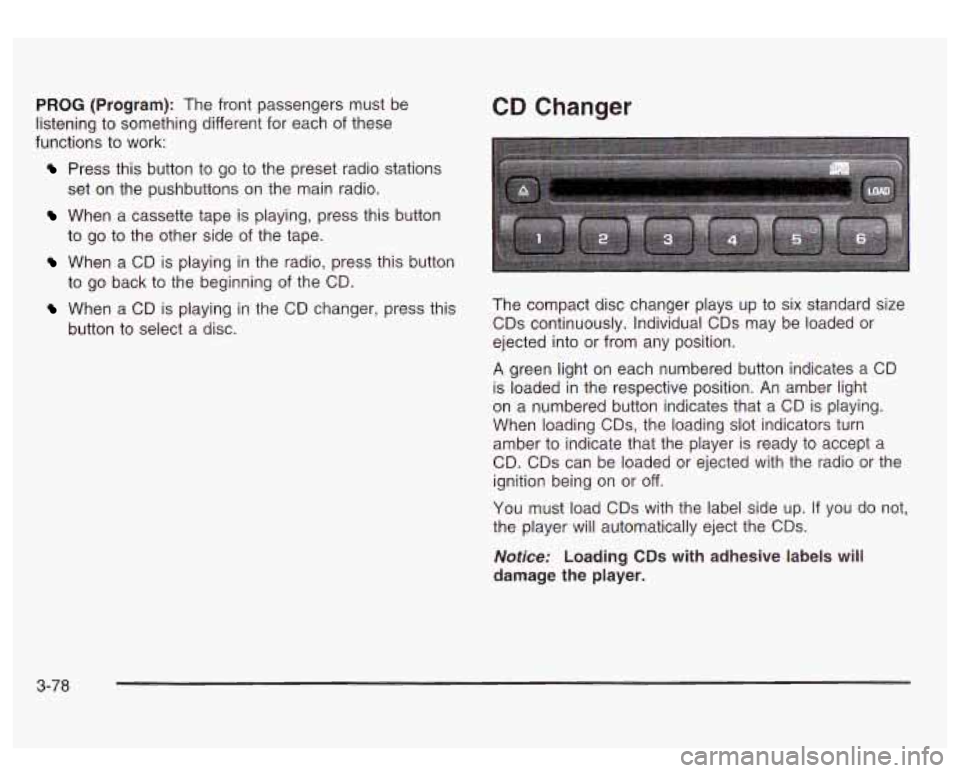
The compact disc changer plays up to six standard size
CDs continuously. Individual CDs may be loaded or
ejected into or from any position.
A green light on each numbered button indicates a CD
is loaded in the respective position. An amber light
on a numbered button indicates that a CD is playing.
When loading
CDs, the loading slot indicators turn
amber to indicate that the player is ready to accept a
CD. CDs can be loaded or ejected with the radio or the
ignition being on or
off.
You must load CDs with the label side up. If you do not,
the player will automatically eject the CDs.
Notice: Loading CDs with adhesive labels will
damage the player.
3-78
Page 206 of 428
Theft-Deterrent Feature
THEFTLOCK@ is designed to discourage theft of your
radio. The feature works automatically by learning
a portion of the Vehicle Identification Number (VIN).
If
the radio is moved to a different vehicle, it will not
operate and LOCKED will be displayed.
When the radio and vehicle are turned
off, the blinking
red light indicates that THEFTLOCK@ is armed.
With THEFTLOCK@ activated, your radio will not operate
if stolen.
Audio Steering Wheel Controls
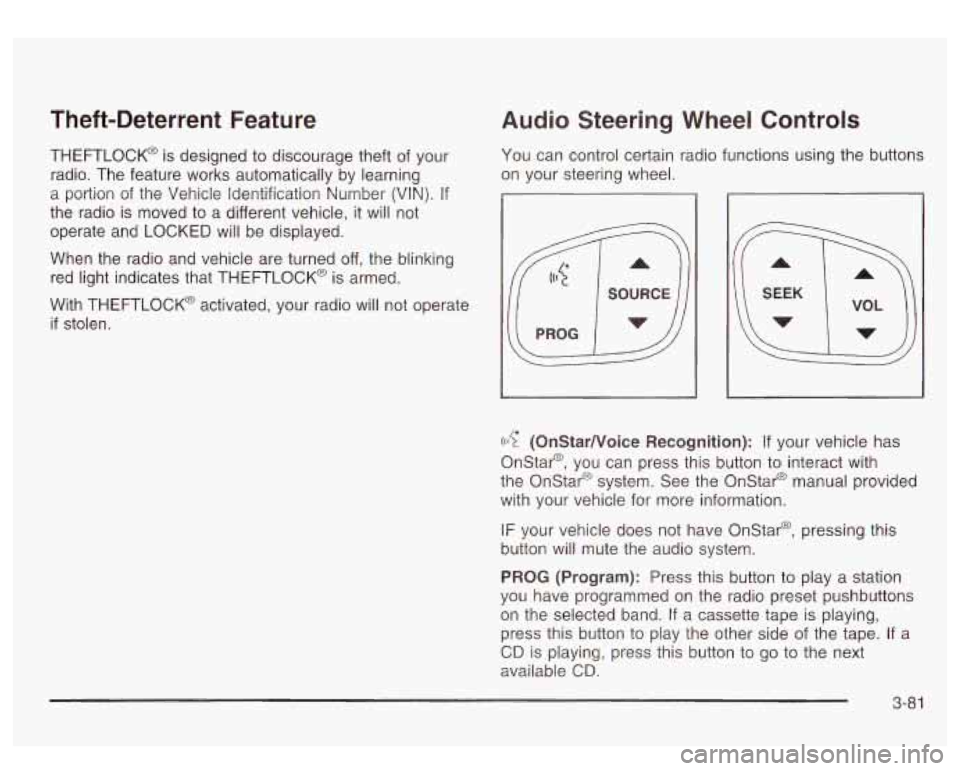
You can control certain radio functions using the buttons
on your steering wheel.
((17 (OnStarNoice Recognition): If your vehicle has
Onstar@, you can press this button to interact with
the Onstar@ system. See the Onstar@ manual provided
with your vehicle for more information.
IF your vehicle does not have Onstar@, pressing this
button will mute the audio system.
PROG (Program): Press this button to play a station
you have programmed on the radio preset pushbuttons
on the selected band.
If a cassette tape is playing,
press this button to play the other side of the tape. If a
CD is playing, press this button to go to the next
available
CD.
3-8 1
Page 208 of 428
Care of Your Cassette Tape Player
A tape player that is not cleaned regularly can cause
reduced sound quality, ruined cassettes or a damaged
mechanism. Cassette tapes should be stored in their
cases away from contaminants, direct sunlight and
extreme heat.
If they aren’t, they may not operate
properly or may cause failure of the tape player.
Your tape player should be cleaned regularly after every
50 hours of use. Your radio may display CLN to
indicate that you have used your tape player for
50 hours without resetting the tape clean timer. If this
message appears on the display, your cassette
tape player needs to be cleaned. It will still play tapes,
but you should clean it as soon as possible to
prevent damage to your tapes and player.
If you notice
a reduction in sound quality, try a known good
cassette to see
if the tape or the tape player is at fault.
If this other cassette has
no improvement in sound
quality, clean the tape player.
For best results, use a scrubbing action, non-abrasive
cleaning cassette with pads which scrub the tape
head as the hubs of the cleaner cassette turn. The
recommended cleaning cassette is available through
your dealership.
The cut tape detection feature of your cassette tape
player may identify the cleaning cassette as a damaged
tape, in error. To prevent the cleaning cassette from
being ejected, use the following steps:
1. Turn the ignition on.
2. Turn the radio off.
3. Press and hold the TAPE AUX button for five
seconds. The tape symbol
on the display will
flash for two seconds.
4. Insert the scrubbing action cleaning cassette.
5. Eject the cleaning cassette after the manufacturer’s
recommended cleaning time.
After the cleaning cassette is ejected, the cut tape
detection feature will be active again.
You may also choose a non-scrubbing action, wet-type
cleaner which uses a cassette with a fabric belt to
clean the tape head. This type of cleaning cassette will
not eject on its own. A non-scrubbing action cleaner
may not clean as thoroughly as the scrubbing type
cleaner. The use of a non-scrubbing action, dry-type
cleaning cassette is not recommended.
After you clean the player, press and hold the EJECT
button for five seconds to reset the CLN indicator.
The radio will display
- or CLEANED to show the
indicator was reset.
Cassettes are subject to wear and the sound quality
may degrade over time. Always make sure the cassette
tape is in good condition before you have your tape
player serviced.
3-83
Page 286 of 428
As in the chart shown previously, SAE 5W-30 is the
only viscosity grade recommended for your vehicle.
You should look for and use only oils which have the
API Starburst symbol and which are also identified
as SAE 5W-30. If you cannot find such SAE 5W-30 oils,
you can use an SAE IOW-30 oil which has the API
Starburst symbol,
if it's going to be 0°F (-18°C)
or above. Do not use other viscosity grade oils, such as
SAE 1OW-40 or SAE 20W-50 under any conditions.
Notice: Use only engine oil with the American
Petroleum Institute Certified For Gasoline Engines
starburst symbol. Failure to use the recommended
oil can result in engine damage not covered by
your warranty.
GM Goodwrench@ oil meets all the requirements for
your vehicle.
If you are in an area of extreme cold, where the
temperature falls below -20°F
(-29"C), it is
recommended that you use either an SAE 5W-30
synthetic oil or an SAE OW-30 oil. Both will provide
easier cold starting and better protection for your engine
at extremely
low temperatures.
Engine Oil Additives
Don't add anything to your oil. The recommended oils
with the starburst symbol are all you will need for
good performance and engine protection.
When to Change Engine Oil
(GM Oil Life SystemTM)
Your vehicle has a computer system that lets you know
when to change the engine
oil and filter. This is based on
engine revolutions and engine temperature, and not on
mileage. Based on driving conditions, the mileage
at which an oil change will be indicated can vary
considerably. For the oil life system to work properly,
you must reset the system every time the oil is changed.
When the system has calculated that oil life has been
diminished, it will indicate that an oil change is necessary.
A CHANGE ENGINE
OIL SOON message will come on.
Change your oil as soon as possible within the next two
times you stop for fuel. It is possible that,
if you are driving
under the best conditions, the oil life system may not
indicate that an oil change is necessary for over a year.
However, your engine oil and filter must be changed at
least once a year and at this time the system must be
reset. It is also important to check your oil regularly and
keep it at the proper level.
If the system is ever reset accidentally, you must
change your oil at 3,000 miles (5
000 km) since your
last oil change. Remember to reset the oil life system
whenever the oil is changed.
5-1 7
Page 287 of 428
How to Reset the CHANGE ENGINE OIL
Message
The GM Oil Life SystemTM calculates when to change
your engine oil and filter based on vehicle use.
Anytime your oil is changed, reset the system
so it can
calculate when the next oil change is required. If a
situation occurs where you can change your oil prior to
a CHANGE ENGINE
OIL message being turned on,
reset the system.
To reset the CHANGE ENGINE OIL message,
do the
following:
1. Turn the ignition key to RUN with the engine off.
2. Fully press and release the accelerator pedal three
times within five seconds.
If the CHANGE ENGINE OIL message flashes for five
seconds, the system is reset. If the system will not reset,
try the procedure again.
If the system still does not
reset, see your dealer for service.
What to Do with Used Oil
Used engine oil contains certain elements that may be
unhealthy for your skin and could even cause cancer.
Don’t let used oil stay on your skin for very long. Clean
your skin and nails with soap and water, or a good
hand cleaner. Wash or properly dispose of clothing or
rags containing used engine oil. See the manufacturer’s
warnings about the use and disposal of oil products.
Used oil can be a threat to the environment. If you
change your own oil, be sure to drain all the oil from the
filter before disposal. Never dispose of oil by putting it
in the trash, pouring it on the ground, into sewers,
or into streams or bodies of water. Instead, recycle it
by taking it to a place that collects used oil. If you have
a problem properly disposing of your used oil, ask
your dealer, a service station or a local recycling center
for help.
5-1 8
Page 288 of 428
Engine Air Cleaner/Filter
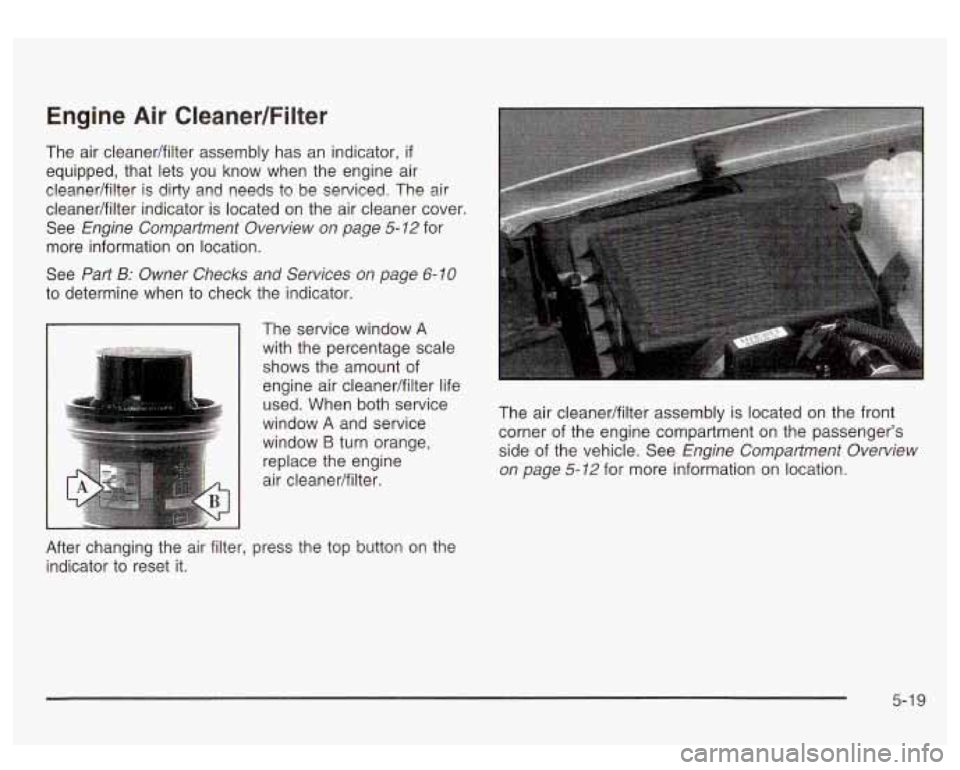
The air cleanedfilter assembly has an indicator, if
equipped, that lets you know when the engine air
cleanedfilter is dirty and needs to be serviced. The air
cleanedfilter indicator is located on the air cleaner cover.
See
Engine Compartment Overview on page 5-12 for
more information on location.
See
Part B: Owner Checks and Services on page 6-10
to determine when to check the indicator.
- The service window A
with the percentage scale
shows the amount of
engine air cleanedfilter life
used. When both service
window
A and service
window
B turn orange,
replace the engine
air cleaner/filter.
lfter changing the air filter, press the top button on the
ndicator to reset it. The air
cleanedfilter assembly is located on the front
corner of the engine compartment on the passenger’s
side of the vehicle. See Engine Compartment Overview
on page 5-12
for more information on location.
5-1 9