ignition GMC SIERRA DENALI 2010 Repair Manual
[x] Cancel search | Manufacturer: GMC, Model Year: 2010, Model line: SIERRA DENALI, Model: GMC SIERRA DENALI 2010Pages: 550, PDF Size: 4.17 MB
Page 250 of 550
To change the time default setting from 12 hour to
24 hour or to change the date default setting from
month/day/year to day/month/year:1. Press the
Hbutton and then the softkey located
below the forward arrow tab. 12H, 24H, the date
MM/DD (month and day), and DD/MM (day and
month) displays.
2. Press the softkey located below the desired option.
3. Press the
Hbutton again to apply the desired
option, or let the screen time out.
MP3 Radio with a Six-Disc CD Player
To set the time and date:
1. Turn the ignition key to ACC/ACCESSORY or ON/RUN, then press the
Obutton to turn the
radio on.
2. Press the MENU button.
3. Press the
Hbutton to display HR, MIN, MM, DD,
YYYY (hour, minute, month, day, and year).
4. Press the softkey located under any one of the tabs to change that setting. 5. To increase the time or date, do one of the
following:
.Press the softkey below the selected tab.
.Press the¨SEEK button.
.Press the\FWD button.
.Turn thefknob clockwise.
6. To decrease the time or date, do one of the following:
.Press the©SEEK button.
.Press thesREV button.
.Turn thefknob counterclockwise.
To change the time default setting from 12 hour to
24 hour or to change the date default setting from
month/day to day/month: 1. Press the MENU button and then the softkey under the
Htab.
2. Press the softkey located below the forward arrow tab. 12H, 24H, the date MM/DD (month and day),
and DD/MM/ (day and month) displays.
3. Press the softkey located below the desired option.
4. Press the MENU button again to apply the desired option, or let the screen time out.
4-78
Page 253 of 550
(Information) (AM-FM Radio) :Press to switch the
display between the radio station frequency and the
time. While the ignition is off, press this button to
display the time.
Speed Compensated Volume (SCV) : Radios with
Speed Compensated Volume (SCV) automatically
adjusts the radio volume to compensate for road and
wind noise as the vehicle's speed changes while
driving, so that the volume level stays consistent.
To activate SCV:
1. Set the radio volume to the desired level.
2. Press the MENU button to display the radio setup menu.
3. Press the softkey under the AUTO VOLUM (automatic volume) tab on the radio display.
4. Press the softkey under the desired Speed Compensated Volume setting (OFF, Low, Med,
or High) to select the level of radio volume
compensation. The display times out after
approximately 10 seconds. Each higher setting
allows for more radio volume compensation at
faster vehicle speeds.Finding a Station
BAND : Press to switch between AM, FM, or XM™,
if equipped.
f(Tune): Turn to select radio stations.
©SEEK¨:Press either arrow to go to the previous
or to the next station and stay there. The radio only
seeks and scans stations with a strong signal that are in
the selected band.
To scan stations, press and hold either arrow for a
few seconds until a beep sounds. The radio goes to a
station, plays for a few seconds, then goes to the next
station.
Press either arrow again to stop scanning.
For the AM-FM Radio, the station frequency flashes
while the radio is in the scan mode.
For the AM-FM Radio, scan presets within the current
selected band by pressing and holding either seek
arrow for four seconds until a double beep sounds. The
radio goes to a stored preset, plays for a few seconds if
a strong signal is present, then goes to the next stored
preset. The station frequency flashes while the radio is
in the scan mode.
4-81
Page 254 of 550
4(Information) (XM Satellite Radio Service, MP3, and
RDS Features): Press to switch the display between
the radio station frequency and the time. When the
ignition is in the OFF position, press
4to display the
time. For vehicles with XM, MP3, WMA or RDS
features, press
4to display additional text information
related to the current FM-RDS or XM station; or CD,
MP3 or WMA song. If information is available during
XM, CD, MP3 or WMA playback, the song title
information displays on the top line of the display and
artist information displays on the bottom line. When
information is not available, “NO INFO”displays.
Setting Preset Stations
If the radio does not have a FAV button, up to
18 stations (six FM1, six FM2, and six AM), can be
programmed on the six numbered pushbuttons. To
program presets:
1. Turn the radio on.
2. Press BAND to select FM1, FM2, or AM.
3. Tune in the desired station.
4. Press and hold one of the six numbered pushbuttons for three seconds until a beep sounds.
Whenever that pushbutton is pressed and
released, the station that was set, returns.
5. Repeat the Steps 2 through 4 for each pushbutton.
Storing a Radio Station as a Favorite
Radios that have a FAV button store radio stations as
favorites.
Drivers are encouraged to set up their radio station
favorites while the vehicle is parked. Tune to favorite
stations using the presets, favorites button, and steering
wheel controls, if the vehicle has this feature. See
Defensive Driving on page 5‑2.
FAV (Favorites) : If the vehicle has a FAV button, a
maximum of 36 stations can be programmed as
favorites using the six softkeys below the radio station
frequency tabs and by using the FAV button. Press the
FAV button to go through up to six pages of favorites,
each having six favorite stations available per page.
Each page of favorites can contain any combination of
AM, FM, or XM, if equipped, stations.
4-82
Page 259 of 550
Care of CDs and DVDs
If playing a CD-R, the sound quality can be reduced
due to CD-R or CD-RW quality, the method of
recording, the quality of the music that has been
recorded, and the way the CD-R or CD-RW has been
handled. Handle them carefully. Store CD-R(s) or
CD-RW(s) in their original cases or other protective
cases and away from direct sunlight and dust. The CD
or DVD player scans the bottom surface of the disc.
If the surface of a CD or DVD is damaged, such as
cracked, broken, or scratched, the CD or DVD does not
play properly or not at all. Do not touch the bottom side
of a CD or DVD while handling it; this could damage the
surface. Pick up CDs by grasping the outer edges or
the edge of the hole and the outer edge.
If the surface of a CD or DVD is soiled, clean it with a
soft, lint free cloth or dampen a clean, soft cloth in a
mild, neutral detergent solution mixed with water. Make
sure the wiping process starts from the center to
the edge.
Inserting a CD (Single CD Player)
Insert a CD partway into the slot, label side up. The
player pulls it in and the CD should begin playing.
Inserting a CD(s) (Six-Disc CD Player)
LOAD^:Press to load CDs into the CD player. This
CD player holds up to six CDs.
To insert one CD:
1. Press and release the
^button.
2. Wait for the message to insert the disc.
3. Load a CD. Insert the CD partway into the slot, label side up. The player pulls the CD in.
To insert multiple CDs:
1. Press and hold the
^button for two seconds.
A beep sounds and Load All Discs displays.
2. Follow the displayed instruction on when to insert the discs. The CD player takes up to six CDs.
3. Press the
^button again to cancel loading
more CDs.
Insert a CD partway into the slot, label side up. The
player pulls it in and the CD should begin playing. To
insert a CD with the ignition off, first press the
Zbutton or the DISP knob.
4-87
Page 260 of 550
If the ignition or radio is turned off with a CD in the
player it stays in the player. When the ignition or radio is
turned on, the CD starts to play where it stopped, if it
was the last selected audio source.
When the CD is inserted, the CD symbol displays. As
each new track starts to play, the track number displays.
The CD player can play the smaller 3 inch (8 cm) single
CDs with an adapter ring. Full-size CDs and the smaller
CDs are loaded in the same manner.
Ejecting a Disc
Z
EJECT or CD (Eject):Press and release to eject
the disc that is currently playing. A CD ejecting from a
radio with CD/MP3/DVD and USB, ejects from the
bottom slot. A beep sounds and Ejecting Disc displays.
Once the disc is ejected, Remove Disc displays. The
disc can be removed. If the disc is not removed, after
several seconds, the disc automatically pulls back into
the player.
ZDVD (Eject): Press and release to eject the disc
that is currently playing in the top slot. A beep sounds
and Ejecting Disc displays.
If loading and reading of a disc cannot be completed,
such as unknown format, etc., and the disc fails to eject,
press and hold for more than five seconds to force the
disc to eject.
Playing a CD (In Either the DVD or
CD Slot)
Insert a CD partway into the slot, label side up. The
player pulls it in and the CD should begin playing
(loading a disc into the system, depending on media
type and format ranges from 5 to 20 seconds for a CD,
and up to 30 seconds for a DVD to begin playing).
If the ignition or radio is turned off, with a CD in the
player, it stays in the player. When the ignition or radio
is turned on, the CD starts playing where it stopped, if it
was the last selected audio source. The CD is
controlled by the buttons on the radio faceplate or by
the RSA unit. See Rear Seat Audio (RSA)
on
page 4‑135for more information. The DVD/CD decks,
(upper slot is the DVD deck and the lower slot is the CD
deck) of the radio are compatible with most audio CDs,
CD-R, CD-RW, and MP3s.
When a CD is inserted, the text tab DVD or CD symbol
displays on the left side of the radio display. As each
new track starts to play, the track number displays.
The CD player can play the smaller 3 inch (8 cm) single
CDs with an adapter ring. Full-size CDs and the smaller
CDs are loaded in the same manner.
4-88
Page 266 of 550

O(Power):Press to turn the radio on or off. Turn this
knob clockwise or counterclockwise to increase or
decrease the volume. Press and hold for more than
two seconds to turn off the entire radio and Rear Seat
Entertainment (RSE) system and to start the parental
control feature. Parental control prevents the rear seat
occupant from operating the Rear Seat Audio (RSA)
system or remote control.
A lock symbol displays next to the clock display. The
parental control feature remains on until the knob is
pressed and held for more than two seconds again,
or until the driver turns the ignition off and exits the
vehicle.
f(Tune): Turn to change tracks on a CD or DVD, to
manually tune a radio station, or to change clock or
date settings, while in the clock or date setting mode.
See the information given earlier in this section specific
to the radio, CD, and the DVD. Also, see “Setting the
Time” in the index, for setting the clock and date.
©SEEK (Previous Track/Chapter): Press the left
arrow to return to the start of the current track or
chapter. Press the left arrow again to go to the previous
track or chapter. This button might not work when the
DVD is playing the copyright information or the
previews. SEEK
¨(Next Track/Chapter):
Press the right arrow
to go to the next track or chapter. This button might not
work when the DVD is playing the copyright information
or the previews.
sREV (Fast Reverse): Press to quickly reverse the
CD or DVD at five times the normal speed. The radio
displays the elapsed time while in fast reverse. To stop
fast reversing, press again. This button might not work
when the DVD is playing the copyright information or
the previews.
\FWD (Fast Forward): Press to fast forward the CD
or DVD. The radio displays the elapsed time and fast
forwards five times the normal speed. To stop fast
forwarding, press again. This button might not work
when the DVD is playing the copyright information or
the previews.
Z(Eject): Press to eject a CD or DVD. If a CD or
DVD is ejected, but not removed, the player
automatically pulls it back in after 15 seconds.
If loading and reading of a CD cannot be completed,
because of an unknown format, etc., and the disc fails
to eject, press and hold for more than five seconds to
force the disc to eject.
4-94
Page 299 of 550
Parental Control can also be turned off by inserting or
ejecting any disc, pressing the play icon on the radio
DVD display menu, or changing an ignition position.
Headphones
The RSE includes two 2-channel wireless headphones
that are dedicated to this system. Channel 1 is
dedicated to the DVD player, while Channel 2 is
dedicated to RSA selections. These headphones can
be used to listen to the radio, CDs, DVDs, MP3s,
DVDAs, any auxiliary source connected to A/V jacks,
or the auxiliary input jack, if the vehicle has this feature.
The wireless headphones have an On/Off button,
channel 1/2 switch, and a volume control.
Push the power button to turn on the headphones. An
indicator light located on the headphones comes on.
If the light comes on but, there is intermittent sound
and/or static on the headphones, or if the indicator light
does not come on, the batteries might need to be
replaced. See“Battery Replacement” later in this
section for more information. Switch the headphones to
Off when not in use.
Infrared transmitters are located at the rear of the RSE
overhead console. The headphones shut off
automatically to save the battery power if the RSE
system and RSA are shut off or if the headphones are out of range of the transmitters for more than
three minutes. If you move too far forward or step out of
the vehicle, the headphones lose the audio signal.
The headphones may automatically turn off after
four hours of continuous use.
To adjust the volume on the headphones, use the
volume control located on the right side.
For optimal audio performance, the headphones must
be worn correctly. Headphones should be worn with
headband over the top of the head for best audio
reception. The symbol L (Left) appears on the upper left
side, above the ear pad and should be positioned on
the left ear. The symbol R (Right) appears on the upper
right side, above the ear pad and should be positioned
on the right ear.
Notice:
Do not store the headphones in heat or
direct sunlight. This could damage the headphones
and repairs will not be covered by the warranty.
Storage in extreme cold can weaken the batteries.
Keep the headphones stored in a cool, dry place.
If the foam ear pads attached to the headphones
become worn or damaged, the pads can be replaced
separately from the headphone set. Refer to your
dealer/retailer for more information.
4-127
Page 305 of 550
Tips and Troubleshooting Chart
ProblemRecommended Action
No power. The ignition might not be
turned ON/RUN or in
ACC/ACCESSORY.
The picture does not fill the
screen. There are black
borders on the top and
bottom or on both sides or
it looks stretched out. Check the display mode
settings in the setup menu
by pressing the display
menu button on the remote
control.
In auxiliary mode, the
picture moves or scrolls. Check the auxiliary input
connections at both
devices.
The remote control does
not work. Check to make sure there
is no obstruction between
the remote control and the
transmitter window.
Check the batteries to
make sure they are not
dead or installed
incorrectly.
Tips and Troubleshooting Chart (cont'd)
Problem
Recommended Action
After stopping the player,
I push Play but sometimes
the DVD starts where I left
off and sometimes at the
beginning. If the stop button was
pressed one time, the DVD
player resumes playing
where the DVD was
stopped. If the stop button
was pressed two times the
DVD player begins to play
from the beginning of
the DVD.
The auxiliary source is
running but there is no
picture or sound. Check that the RSE video
screen is in the auxiliary
source mode.
Check the auxiliary input
connections at both
devices.
4-133
Page 316 of 550
Avoid needless heavy braking. Some people drive in
spurts, heavy acceleration followed by heavy braking,
rather than keeping pace with traffic. This is a mistake.
The brakes might not have time to cool between hard
stops. The brakes will wear out much faster with a lot of
heavy braking. Keeping pace with the traffic and
allowing realistic following distances eliminates a lot of
unnecessary braking. That means better braking and
longer brake life.
If the engine ever stops while the vehicle is being
driven, brake normally but do not pump the brakes.
If the brakes are pumped, the pedal could get harder to
push down. If the engine stops, there will still be some
power brake assist but it will be used when the brake is
applied. Once the power assist is used up, it can take
longer to stop and the brake pedal will be harder
to push.
Adding non‐dealer/non‐retailer accessories can affect
vehicle performance. SeeAccessories and
Modifications on page 6‑4.Antilock Brake System (ABS)
This vehicle has the Antilock Brake System (ABS), an
advanced electronic braking system that helps prevent
a braking skid.
When the engine is started and the vehicle begins to
drive away, ABS checks itself. A momentary motor or
clicking noise might be heard while this test is going on.
This is normal.
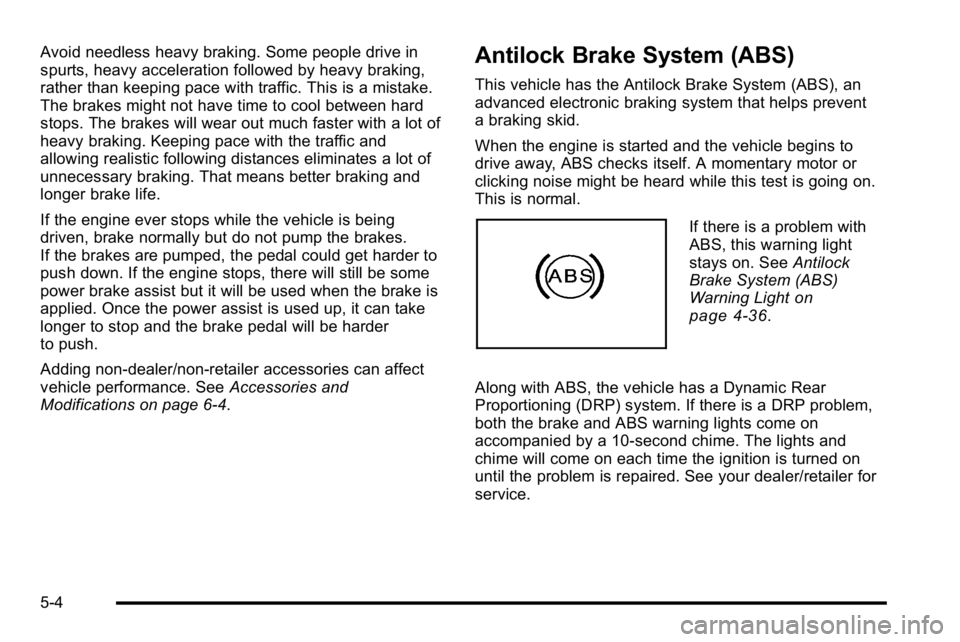
If there is a problem with
ABS, this warning light
stays on. See Antilock
Brake System (ABS)
Warning Light
on
page 4‑36.
Along with ABS, the vehicle has a Dynamic Rear
Proportioning (DRP) system. If there is a DRP problem,
both the brake and ABS warning lights come on
accompanied by a 10‐second chime. The lights and
chime will come on each time the ignition is turned on
until the problem is repaired. See your dealer/retailer for
service.
5-4
Page 335 of 550
Driving in Water
{WARNING:
Driving through rushing water can be dangerous.
Deep water can sweep your vehicle downstream
and you and your passengers could drown. If it is
only shallow water, it can still wash away the
ground from under your tires, and you could lose
traction and roll the vehicle over. Do not drive
through rushing water.
Heavy rain can mean flash flooding, and flood waters
demand extreme caution.
Find out how deep the water is before driving through it.
Do not try it if it is deep enough to cover the wheel
hubs, axles, or exhaust pipe —you probably will not get
through. Deep water can damage the axle and other
vehicle parts.
If the water is not too deep, drive slowly through it. At
faster speeds, water splashes on the ignition system
and the vehicle can stall. Stalling can also occur if you
get the tailpipe under water. If the tailpipe is under
water, you will never be able to start the engine. When
going through water, remember that when the brakes
get wet, it might take longer to stop. See Driving in Rain
and on Wet Roads on page 5‑24.
After Off-Road Driving
Remove any brush or debris that has collected on the
underbody, chassis, or under the hood. These
accumulations can be a fire hazard.
After operation in mud or sand, have the brake linings
cleaned and checked. These substances can cause
glazing and uneven braking. Check the body structure,
steering, suspension, wheels, tires, and exhaust system
for damage and check the fuel lines and cooling system
for any leakage.
The vehicle requires more frequent service due to
off-road use. Refer to the Maintenance Schedule for
additional information.
5-23