wheel GMC TERRAIN 2010 User Guide
[x] Cancel search | Manufacturer: GMC, Model Year: 2010, Model line: TERRAIN, Model: GMC TERRAIN 2010Pages: 410, PDF Size: 2.55 MB
Page 98 of 410
4-6 Instruments and Controls
Controls
Steering Wheel
Adjustment
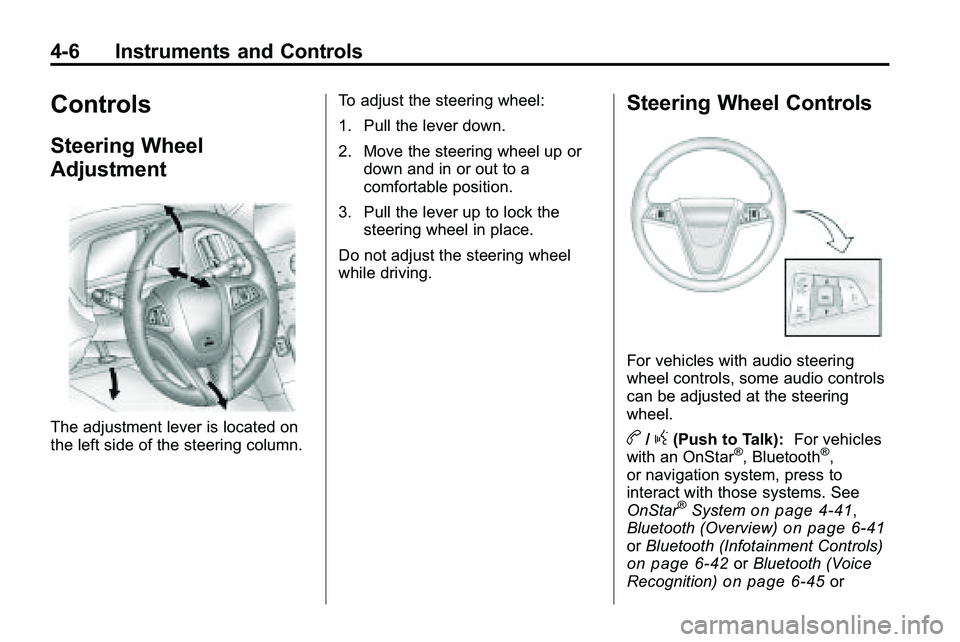
The adjustment lever is located on
the left side of the steering column.To adjust the steering wheel:
1. Pull the lever down.
2. Move the steering wheel up or
down and in or out to a
comfortable position.
3. Pull the lever up to lock the steering wheel in place.
Do not adjust the steering wheel
while driving.
Steering Wheel Controls
For vehicles with audio steering
wheel controls, some audio controls
can be adjusted at the steering
wheel.
b/g(Push to Talk): For vehicles
with an OnStar®, Bluetooth®,
or navigation system, press to
interact with those systems. See
OnStar
®Systemon page 4‑41,
Bluetooth (Overview)on page 6‑41or Bluetooth (Infotainment Controls)on page 6‑42orBluetooth (Voice
Recognition)on page 6‑45or
Page 99 of 410
Instruments and Controls 4-7
Bluetooth (Navigation)on
page 6‑56, or the separate
navigation manual for more
information.
$/c(Mute/End Call): Press to
silence the vehicle speakers only.
Press again to turn the sound on.
For vehicles with OnStar or
Bluetooth systems, press to
reject an incoming call, or end a
current call.
_SRC^(Toggle Switch): Press
to select an audio source.
Toggle up or down to select the next
or previous favorite radio station or
CD track, DVD, if equipped, track,
or MP3 track.
+
x− (Volume): Press + to
increase the volume, press −to
decrease the volume.
Horn
Press near the horn symbols or
press on the steering wheel pad to
sound the horn.
Windshield Wiper/Washer
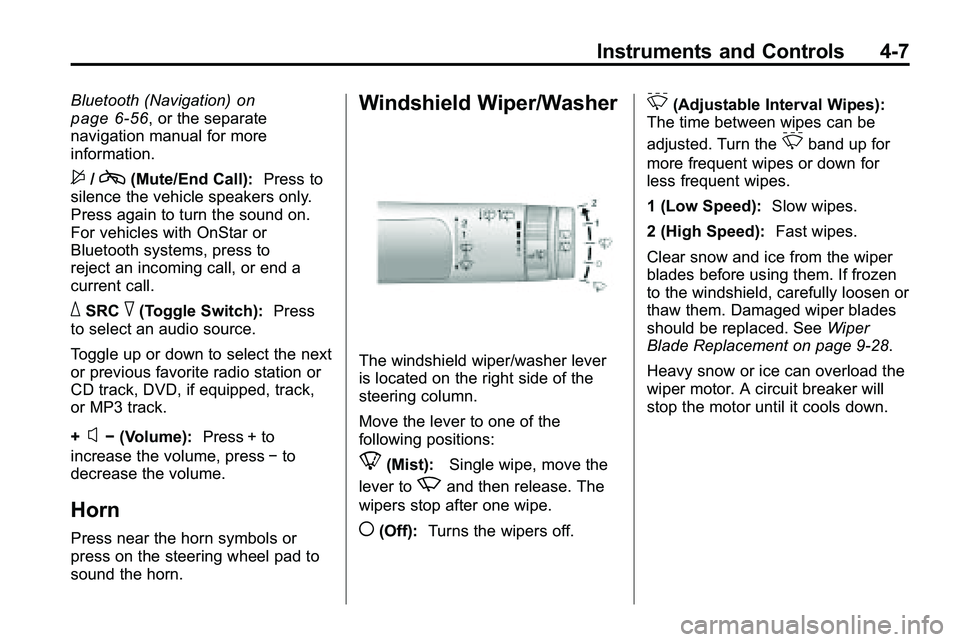
The windshield wiper/washer lever
is located on the right side of the
steering column.
Move the lever to one of the
following positions:
8(Mist): Single wipe, move the
lever to
zand then release. The
wipers stop after one wipe.
((Off): Turns the wipers off.
&(Adjustable Interval Wipes):
The time between wipes can be
adjusted. Turn the
&band up for
more frequent wipes or down for
less frequent wipes.
1 (Low Speed): Slow wipes.
2 (High Speed): Fast wipes.
Clear snow and ice from the wiper
blades before using them. If frozen
to the windshield, carefully loosen or
thaw them. Damaged wiper blades
should be replaced. See Wiper
Blade Replacement on page 9‑28.
Heavy snow or ice can overload the
wiper motor. A circuit breaker will
stop the motor until it cools down.
Page 113 of 410
Instruments and Controls 4-21
Traction Off Light
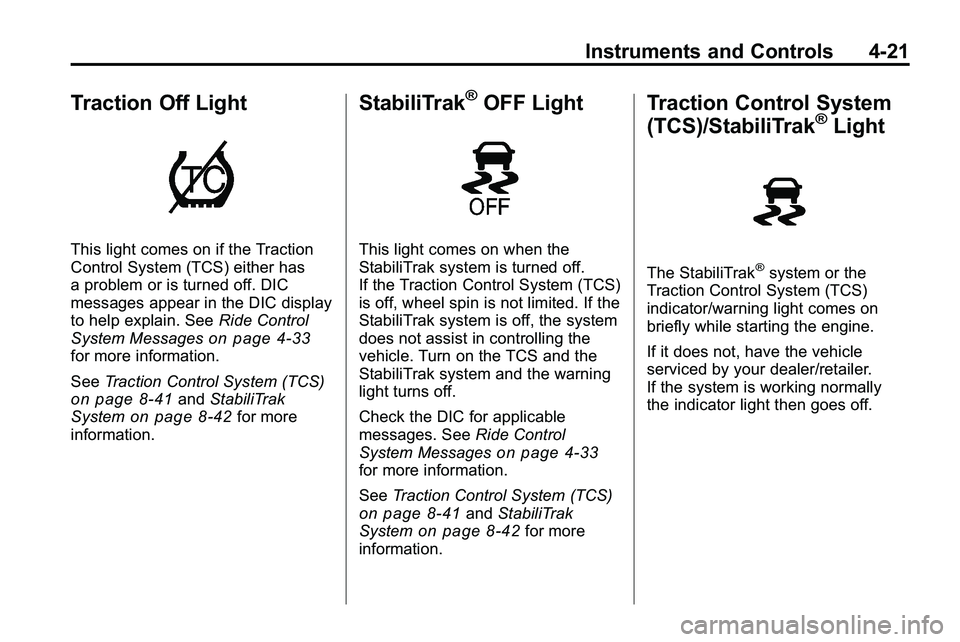
This light comes on if the Traction
Control System (TCS) either has
a problem or is turned off. DIC
messages appear in the DIC display
to help explain. SeeRide Control
System Messages
on page 4‑33for more information.
See Traction Control System (TCS)
on page 8‑41andStabiliTrak
Systemon page 8‑42for more
information.
StabiliTrak®OFF Light
This light comes on when the
StabiliTrak system is turned off.
If the Traction Control System (TCS)
is off, wheel spin is not limited. If the
StabiliTrak system is off, the system
does not assist in controlling the
vehicle. Turn on the TCS and the
StabiliTrak system and the warning
light turns off.
Check the DIC for applicable
messages. See Ride Control
System Messages
on page 4‑33for more information.
See Traction Control System (TCS)
on page 8‑41andStabiliTrak
Systemon page 8‑42for more
information.
Traction Control System
(TCS)/StabiliTrak®Light
The StabiliTrak®system or the
Traction Control System (TCS)
indicator/warning light comes on
briefly while starting the engine.
If it does not, have the vehicle
serviced by your dealer/retailer.
If the system is working normally
the indicator light then goes off.
Page 125 of 410
Instruments and Controls 4-33
Key and Lock Messages
Replace Battery In Remote Key
This message displays when the
battery in the Remote Keyless Entry
(RKE) transmitter needs to be
replaced.
Transport Mode On
This message displays when the
ignition is held in START for
15 seconds. The battery light may
also be flashing when this message
is displayed. To turn this message
off, start the vehicle and hold the
key in the START position for
15 seconds.
Object Detection System
Messages
Park Assist Off
This message is displayed when the
park assist system has been turned
off. SeeUltrasonic Parking Assist
on page 8‑47.
Service Park Assist
This message is displayed if there is
a problem with the park assist
system. Take the vehicle to your
dealer/retailer for service.
Ride Control System
Messages
All Wheel Drive Off
If your vehicle has the All-Wheel
Drive (AWD) system, this message
displays when the rear drive system
is overheating. This message turns
off when the rear drive system cools
down. If the warning message stays
on for a while, you need to reset the
warning message. To reset the
warning message, turn the ignition
off and then back on again. If the
message stays on, see your dealer/
retailer right away. See All-Wheel
Drive
on page 8‑38for more
information.
Service All Wheel Drive
If your vehicle has the All-Wheel
Drive (AWD) system, this message
displays if a problem occurs with
this system. If this message
appears, stop as soon as possible
and turn off the vehicle. Restart the
vehicle and check for the message
on the DIC display. If the message
is still displayed or appears again
when you begin driving, the AWD
system needs service. See your
dealer/retailer.
Service Traction Control
This message displays when there
is a problem with the Traction
Control System (TCS). When this
message is displayed, the system
will not limit wheel spin. Adjust your
driving accordingly. See your dealer/
retailer for service.
Page 134 of 410
![GMC TERRAIN 2010 User Guide 4-42 Instruments and Controls
The OnStar system can record and
transmit vehicle information. This
information is automatically sent to
an OnStar call center when
Qis
pressed,
]is pressed, or if the
ai](/img/44/35523/w960_35523-133.png "GMC TERRAIN 2010 User Guide 4-42 Instruments and Controls
The OnStar system can record and
transmit vehicle information. This
information is automatically sent to
an OnStar call center when
Qis
pressed,
]is pressed, or if the
ai")
4-42 Instruments and Controls
The OnStar system can record and
transmit vehicle information. This
information is automatically sent to
an OnStar call center when
Qis
pressed,
]is pressed, or if the
airbags or ACR system deploy. This
information usually includes the
vehicle's GPS location and, in the
event of a crash, additional
information regarding the crash that
the vehicle was involved in (e.g. the
direction from which the vehicle was
hit). When the virtual advisor feature
of OnStar hands-free calling is
used, the vehicle also sends OnStar
the vehicle's GPS location so they
can provide services where it is
located.
Location information about the
vehicle is only available if the GPS
satellite signals are unobstructed
and available. The vehicle must have a working
electrical system, including
adequate battery power, for the
OnStar equipment to operate. There
are other problems OnStar cannot
control that may prevent OnStar
from providing OnStar service at
any particular time or place. Some
examples are damage to important
parts of the vehicle in a crash, hills,
tall buildings, tunnels, weather or
wireless phone network congestion.
OnStar Steering Wheel
Controls
This vehicle may have a Talk/Mute
button that can be used to interact
with OnStar hands-free calling. See
Steering Wheel Controls
on
page 4‑6for more information. On some vehicles, the mute button
can be used to dial numbers into
voice mail systems, or to dial phone
extensions. See the OnStar Owner's
Guide for more information.
Your Responsibility
Increase the volume of the radio if
the OnStar advisor cannot be heard.
If the light next to the OnStar
buttons is red, the system may
not be functioning properly.
Press
Qand request a vehicle
diagnostic. If the light appears clear
(no light is appearing), your OnStar
subscription has expired and all
services have been deactivated.
Press
Qto confirm that the OnStar
equipment is active.
Page 145 of 410
Infotainment System 6-7
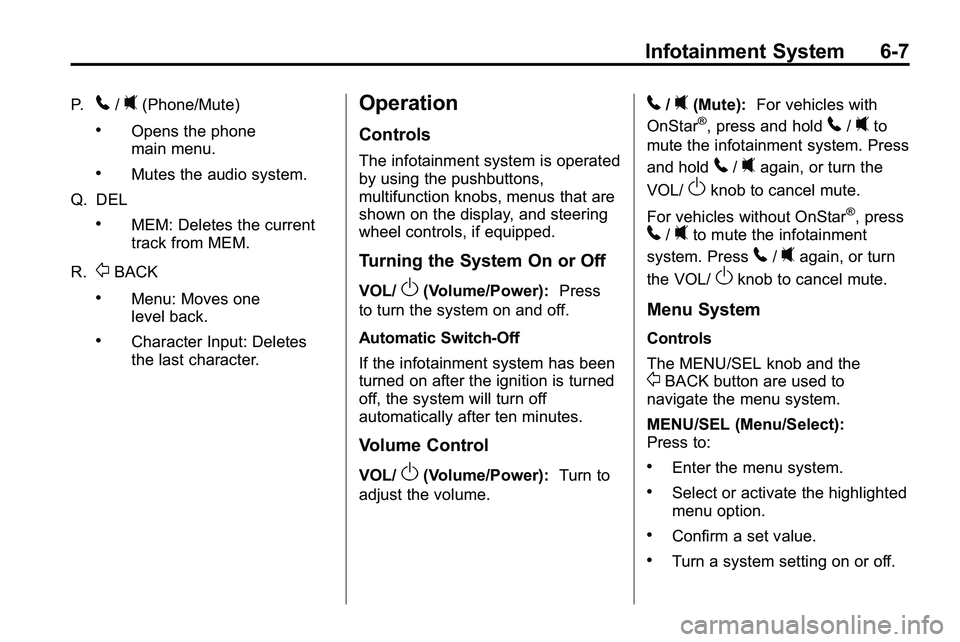
P.5/0(Phone/Mute)
.Opens the phone
main menu.
.Mutes the audio system.
Q. DEL
.MEM: Deletes the current
track from MEM.
R.
0BACK
.Menu: Moves one
level back.
.Character Input: Deletes
the last character.
Operation
Controls
The infotainment system is operated
by using the pushbuttons,
multifunction knobs, menus that are
shown on the display, and steering
wheel controls, if equipped.
Turning the System On or Off
VOL/O(Volume/Power): Press
to turn the system on and off.
Automatic Switch‐Off
If the infotainment system has been
turned on after the ignition is turned
off, the system will turn off
automatically after ten minutes.
Volume Control
VOL/O(Volume/Power): Turn to
adjust the volume.
5/0(Mute): For vehicles with
OnStar®, press and hold5/0to
mute the infotainment system. Press
and hold
5/0again, or turn the
VOL/
Oknob to cancel mute.
For vehicles without OnStar
®, press5/0to mute the infotainment
system. Press
5/0again, or turn
the VOL/
Oknob to cancel mute.
Menu System
Controls
The MENU/SEL knob and the
0BACK button are used to
navigate the menu system.
MENU/SEL (Menu/Select):
Press to:
.Enter the menu system.
.Select or activate the highlighted
menu option.
.Confirm a set value.
.Turn a system setting on or off.
Page 171 of 410
Infotainment System 6-33
Rear Seat
Infotainment
Rear Seat Entertainment
(RSE) System
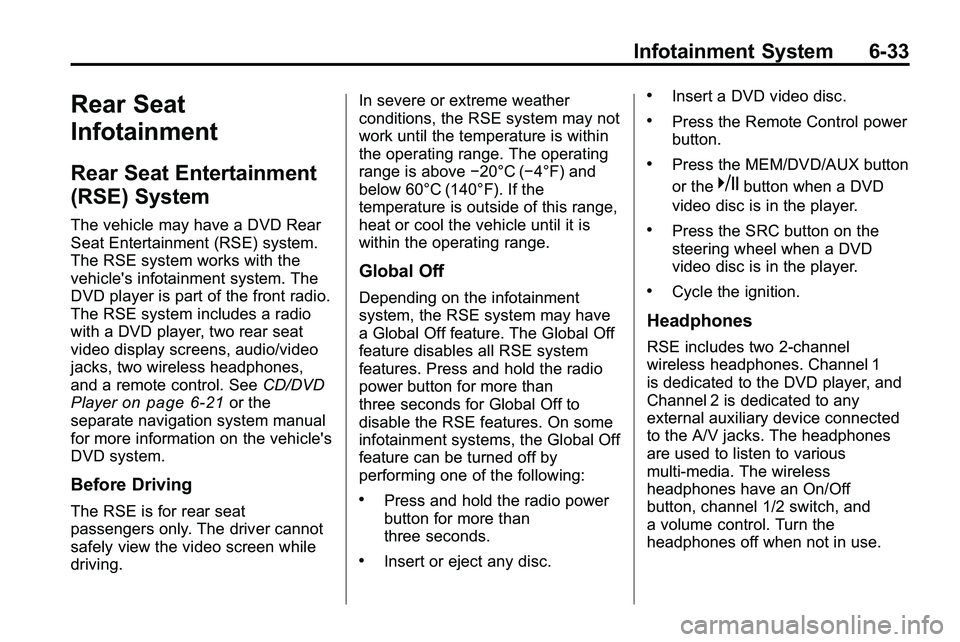
The vehicle may have a DVD Rear
Seat Entertainment (RSE) system.
The RSE system works with the
vehicle's infotainment system. The
DVD player is part of the front radio.
The RSE system includes a radio
with a DVD player, two rear seat
video display screens, audio/video
jacks, two wireless headphones,
and a remote control. SeeCD/DVD
Player
on page 6‑21or the
separate navigation system manual
for more information on the vehicle's
DVD system.
Before Driving
The RSE is for rear seat
passengers only. The driver cannot
safely view the video screen while
driving. In severe or extreme weather
conditions, the RSE system may not
work until the temperature is within
the operating range. The operating
range is above
−20°C (−4°F) and
below 60°C (140°F). If the
temperature is outside of this range,
heat or cool the vehicle until it is
within the operating range.
Global Off
Depending on the infotainment
system, the RSE system may have
a Global Off feature. The Global Off
feature disables all RSE system
features. Press and hold the radio
power button for more than
three seconds for Global Off to
disable the RSE features. On some
infotainment systems, the Global Off
feature can be turned off by
performing one of the following:
.Press and hold the radio power
button for more than
three seconds.
.Insert or eject any disc.
.Insert a DVD video disc.
.Press the Remote Control power
button.
.Press the MEM/DVD/AUX button
or the
kbutton when a DVD
video disc is in the player.
.Press the SRC button on the
steering wheel when a DVD
video disc is in the player.
.Cycle the ignition.
Headphones
RSE includes two 2-channel
wireless headphones. Channel 1
is dedicated to the DVD player, and
Channel 2 is dedicated to any
external auxiliary device connected
to the A/V jacks. The headphones
are used to listen to various
multi‐media. The wireless
headphones have an On/Off
button, channel 1/2 switch, and
a volume control. Turn the
headphones off when not in use.
Page 179 of 410
Infotainment System 6-41
DVD Distortion
Video distortion can occur when
operating cellular phones, scanners,
CB radios, Global Position Systems
(GPS)*, two-way radios, mobile fax,
or walkie talkies.
It might be necessary to turn off the
DVD player when operating one of
these devices in or near the vehicle.
*Excludes the OnStar
®System.
Cleaning the RSE Seatback
Console
Use only a clean cloth dampened
with clean water to clean the RSE
seatback console surface.
Cleaning the Video Screen
Use only a clean cloth dampened
with clean water. Use care when
touching or cleaning the screen as
damage could result.
Phone
Bluetooth (Overview)
Vehicles with a Bluetooth system
can use a Bluetooth capable cell
phone with a Hands‐Free Profile to
make and receive phone calls. The
infotainment system and voice
recognition are used to control the
system. The system can be used
while the ignition is in ON/RUN or
ACC/ACCESSORY. The range of
the Bluetooth system can be up to
9.1 m (30 ft.). Not all phones support
all functions and not all phones work
with the Bluetooth system. See
www.gm.com/bluetooth for more
information about compatible
phones.
Bluetooth Controls
Use the buttons located on the
infotainment system and the
steering wheel to operate the
Bluetooth system.Steering Wheel Controls
b/g(Push To Talk):
Press to
answer incoming calls, to confirm
system information, and to start
voice recognition.
$/c(Mute/End Call): Press to
end a call, reject a call, or to cancel
an operation.
Infotainment System Controls
For information about how to
navigate the menu system using the
infotainment controls, see Operation
on page 6‑7.
5(Phone):Press to enter the
Phone main menu.
Voice Recognition
The voice recognition system uses
commands to control the system
and dial phone numbers.
Noise: The system may not
recognize voice commands if there
is too much background noise.
Page 200 of 410
6-62 Infotainment System
Accepting or Declining an
Incoming Call
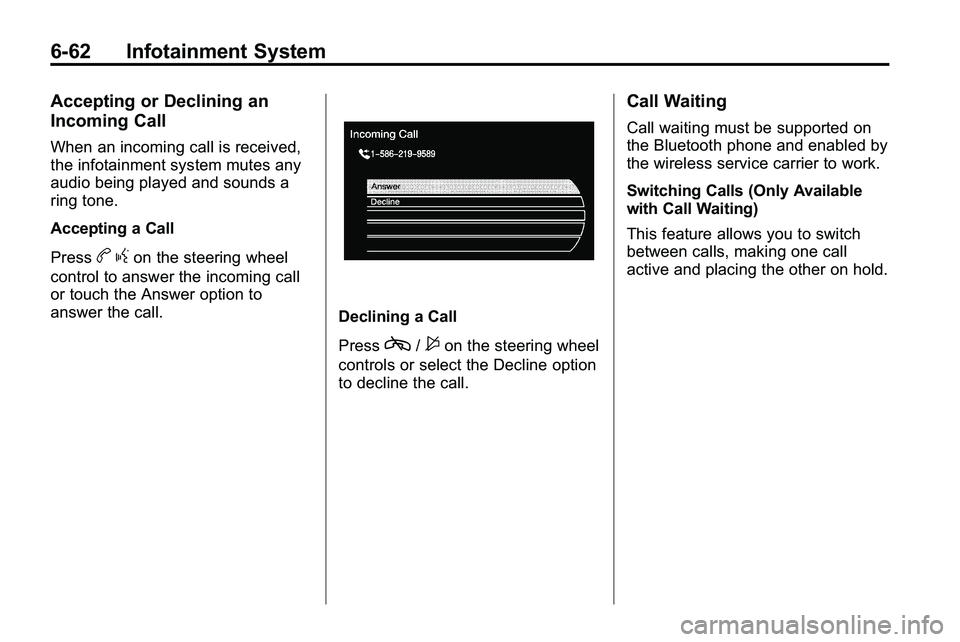
When an incoming call is received,
the infotainment system mutes any
audio being played and sounds a
ring tone.
Accepting a Call
Press
bgon the steering wheel
control to answer the incoming call
or touch the Answer option to
answer the call.
Declining a Call
Press
c/$on the steering wheel
controls or select the Decline option
to decline the call.
Call Waiting
Call waiting must be supported on
the Bluetooth phone and enabled by
the wireless service carrier to work.
Switching Calls (Only Available
with Call Waiting)
This feature allows you to switch
between calls, making one call
active and placing the other on hold.
Page 208 of 410

7-6 Climate Controls
Rear Window Defogger
<(Rear Defogger):Press to turn
the rear window defogger on or off.
The rear window defogger turns off
after about 10 minutes. It can also
be turned off by turning the ignition
to ACC/ACCESSORY or LOCK/
OFF. If turned on again, it runs for
about five minutes before
turning off.
Do not drive the vehicle until all the
windows are clear.
Notice: Do not use a razor blade
or sharp object to clear the inside
rear window. Do not adhere
anything to the defogger grid
lines in the rear glass. These
actions may damage the rear
defogger. Repairs would not be
covered by your warranty.
L/M(Driver and Passenger
Heated Seats): For vehicles with
heated seats, see Heated Front
Seats on page 2‑7.
Sensors
The solar sensor, located on top
of the instrument panel near the
windshield, monitors the solar heat.
The climate control system uses
the information to adjust the
temperature, fan speed,
recirculation, and air delivery mode.
Do not cover the solar sensor or the
system will not work properly.
Air Vents
Use the air outlets, located in the
center and on the side of the
instrument panel, to direct the
airflow. Use the thumbwheels
located near the center air outlets,
to open or close off the airflow.
Operation Tips
.Clear away any ice, snow,
or leaves from air inlets at the
base of the windshield that could
block the flow of air into the
vehicle.
.Keep the path under the front
seats clear of objects to help
circulate the air inside of the
vehicle more effectively.
.Use of non‐GM approved hood
deflectors can adversely affect
the performance of the system.
Check with your dealer/retailer
before adding equipment to the
outside of the vehicle.